
 Join our Discord
Connect TestRail to Test Companion
Connect TestRail to Test Companion to browse your test repository in your IDE and turn test cases into automation scripts.
TestRail stores your test cases, suites, and execution results. When you connect TestRail to Test Companion, you browse that repository from your IDE instead of switching to the TestRail web app.
You select a test case, and Test Companion reads its steps, expected results, and preconditions. It then generates an automation script in the chat window. This skips the manual copy and paste between tools.
Test Companion can only fetch test cases that your TestRail account can access. Your TestRail permissions still apply when Test Companion reads test case data.
Prerequisites
Ensure you have the following:
- Test Companion is installed in your IDE and you are signed in.
- You have a valid TestRail subscription.
- Your TestRail account is connected to BrowserStack, as described in Connect TestRail.
Connect TestRail
You connect TestRail to BrowserStack once. After you connect, Test Companion can read test cases from your TestRail projects.
- Go to the BrowserStack Integrations page.
-
In the Test Management Tools section, find TestRail and click Connect.
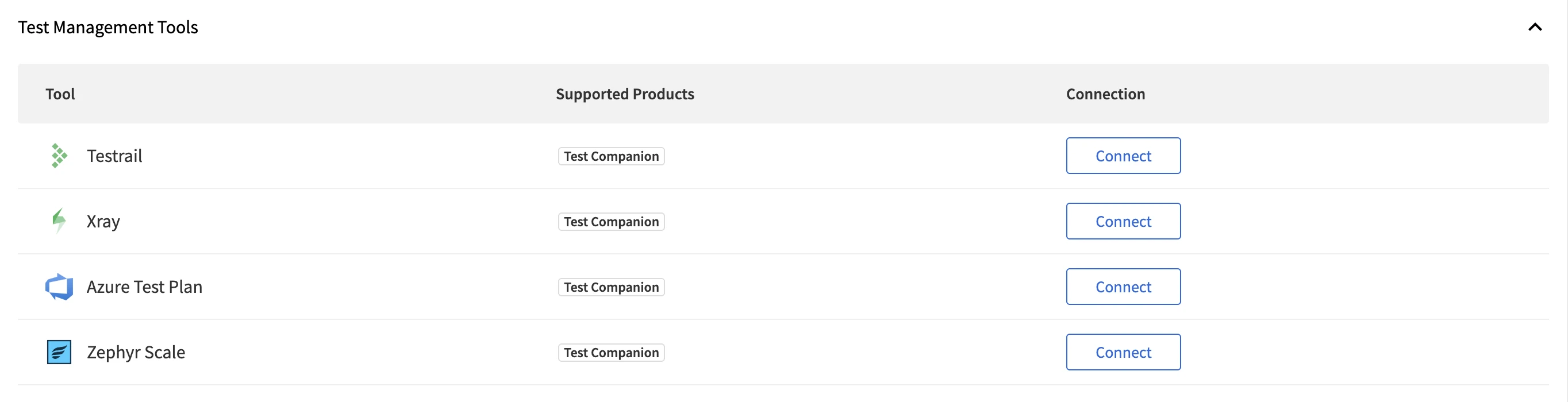
- Enter your TestRail connection details, then confirm the connection.
Automate from TestRail
After you connect, browse your test repository and generate automation without leaving the IDE.
Currently, you can automate only individual test cases from TestRail in the UI.
Select a project and suite
- Open Test Companion.
-
Under Panels, click Test Cases to open the Test Management pane.
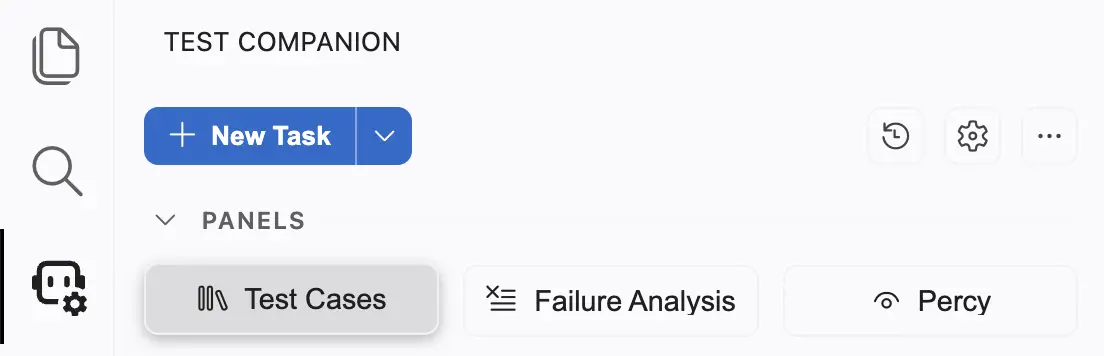
-
In the Test Management Service dropdown, select TestRail.
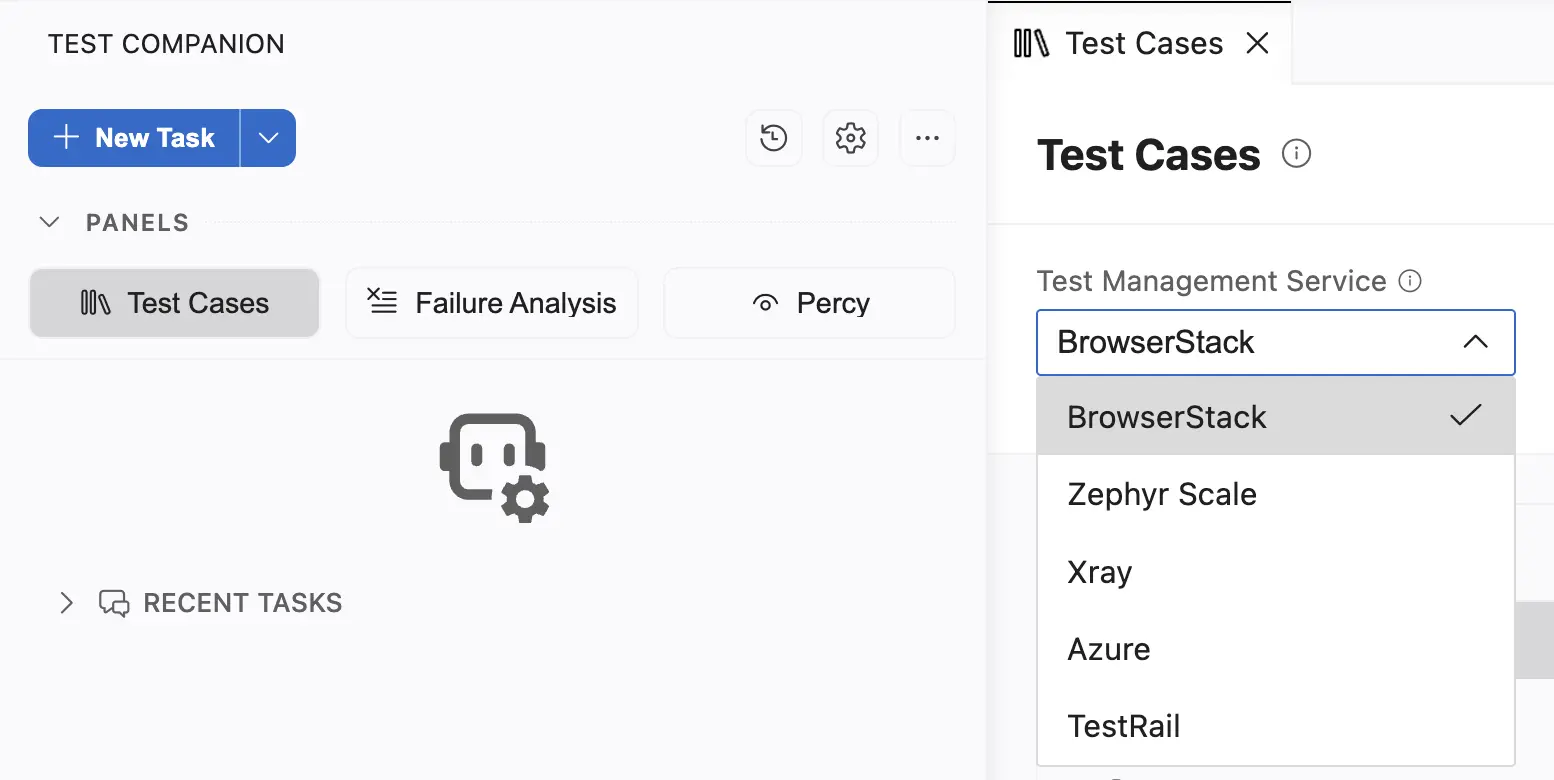
- Use the dropdown menus in the Test Cases pane to navigate your repository:
- Project: Select the TestRail project that holds your test cases.
- Suite: Select the test suite within the project.
- Section: Browse the section tree to find specific test cases.
View test cases
- Click a section to list the test cases it contains. Each test case shows key details:
- Test ID, such as C45
- Title
- Steps
- Priority
Generate automation
To automate a test case:
- Find the test case in the list.
-
Click Automate next to the test case.
Test Companion adds the test case details to the chat input.
- Click Send message (➤).
Test Companion reads the steps, expected results, and preconditions from TestRail. It generates an automation script in the chat window, matched to your selected framework.
What Test Companion reads from TestRail
When you automate a test case, Test Companion fetches these fields to build context:
| Field | What it provides |
|---|---|
| Test ID | The unique identifier for the test case, such as C45 |
| Title | The name of the test case |
| Steps | The manual steps the script should follow |
| Expected Results | The outcome expected after each step |
| Preconditions | The setup required before the steps run |
| Priority | The priority assigned to the test case in TestRail |
Next steps
- Automate tests: Convert selected test cases into automation scripts.
- Generate test cases: Generate new test cases from requirements or by exploring a URL.
We're sorry to hear that. Please share your feedback so we can do better
Contact our Support team for immediate help while we work on improving our docs.
We're continuously improving our docs. We'd love to know what you liked
We're sorry to hear that. Please share your feedback so we can do better
Contact our Support team for immediate help while we work on improving our docs.
We're continuously improving our docs. We'd love to know what you liked
Thank you for your valuable feedback!