
 Ask the Community
Automate Tests with AI
Test Companion can convert your manual tests into executable, ready-to-use automation scripts (e.g., Playwright, Cypress, WebdriverIO) with a single click.
It is recommended to use the UI Test Generator agent for this task. You can do this in two ways:
- From a prompt: Write a natural language instruction for a new automated test.
- From an existing test: Convert an existing test you already have in your list.
Create Automation from a Prompt
Use this method to create a new automated test from scratch using a simple instruction.
-
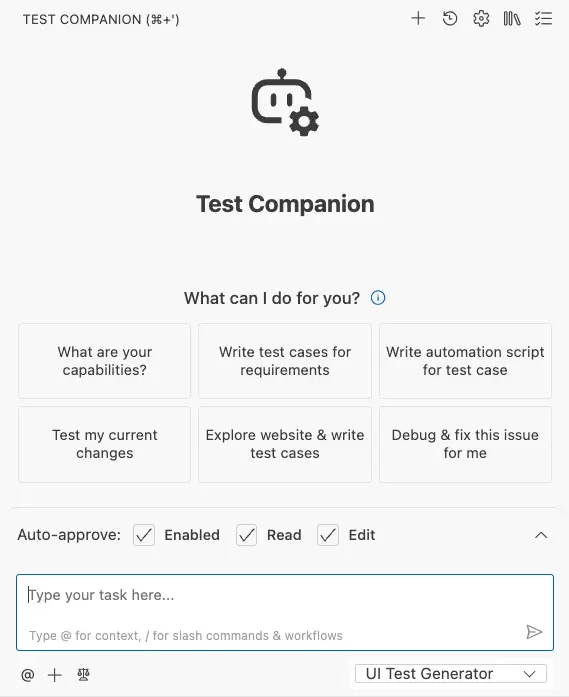
In the Test Companion panel, click the agent dropdown at the bottom and select UI Test Generator.
-
In the chat box, write a clear prompt describing the test you want to create.
You can also paste your requirements or user story directly into the chat.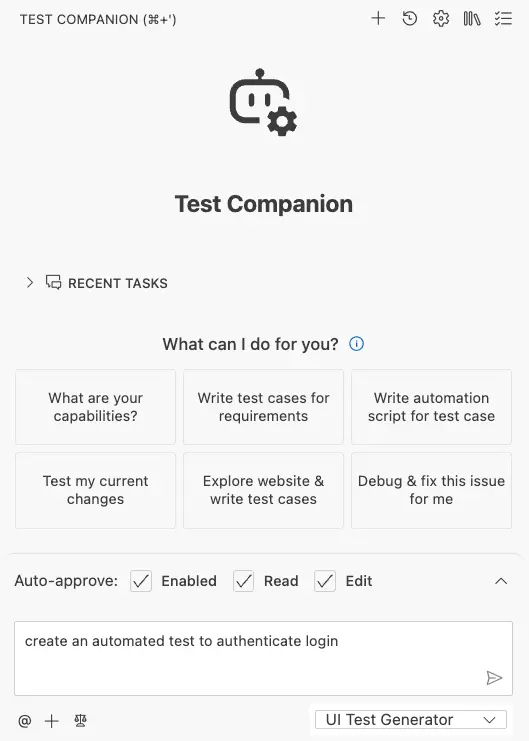
-
Send the message.
Automate an existing test
Use this method to convert a manual test case (that you previously generated or wrote) into an automation script.
Instead of starting from the chat, you start by selecting tests from your list.
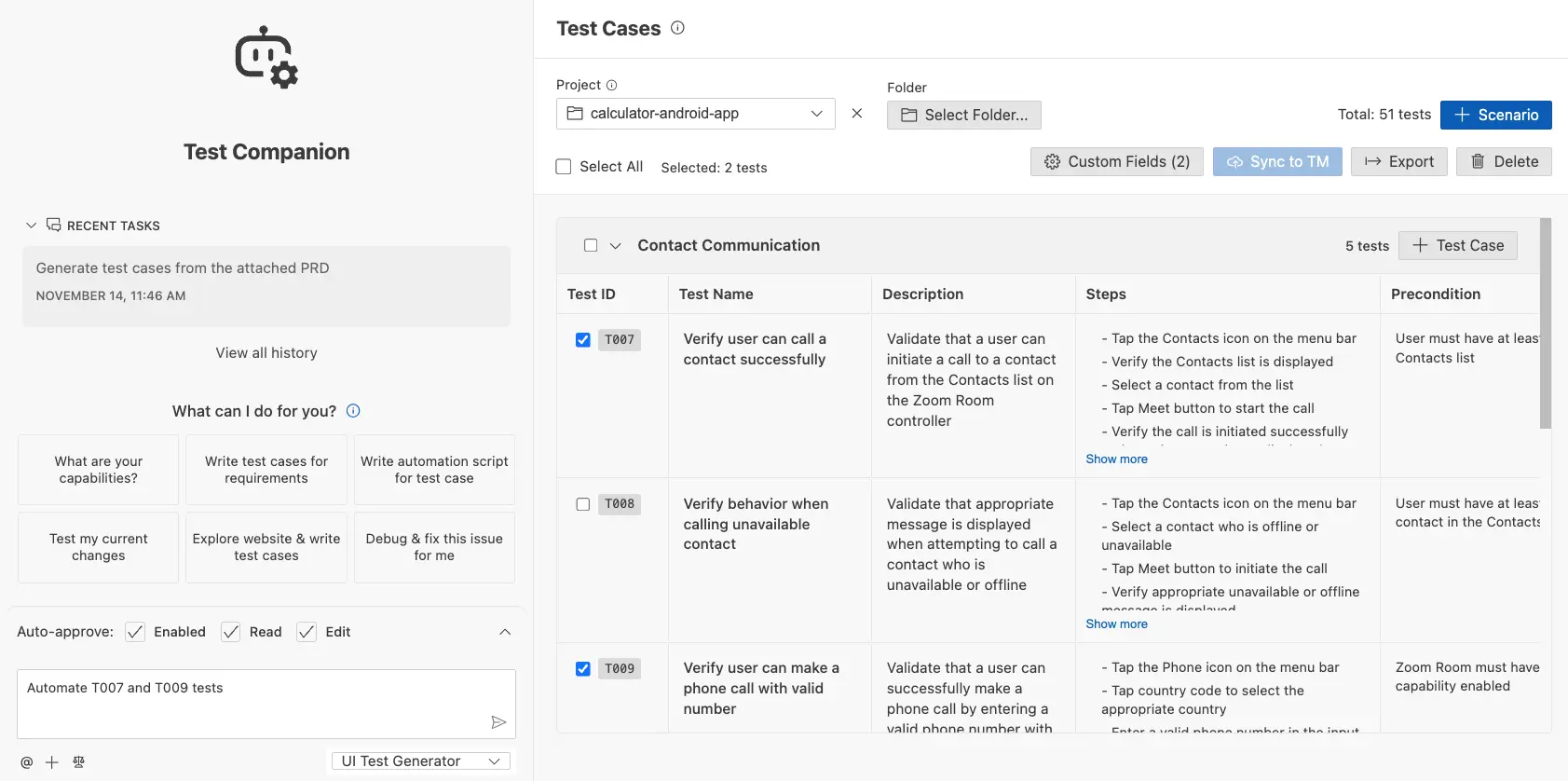
- In the Test Companions’s Test Management panel, find the manual tests you want to automate.
-
Click the checkboxes next to its Test ID to select it.
-
Select the UI Test Generator agent from the agent dropdown.
- Write your instructions in a clear prompt.
- Send the selected tests to the agent.
The AI will read the test case details (title, description, steps), open a browser to try the flow, and then generate the code.
After the agent is finished, two things happen:
- A new test script file is added to your project’s codebase.
- The
Automation Statusfor that test case is automatically updated fromNot AutomatedtoAutomatedin the management panel.
Get better scripts: Provide good context
The AI builds the script based on the details in your manual test case. For the best results, make sure your test case includes clear information.
| Input | Description |
|---|---|
| Test Case Title | The AI uses this as the primary goal. |
| Description | A clear summary of what the test validates. |
| Steps | The specific actions the user must perform. |
| Expected Outcome | The result that confirms the test passed. |
| Application Context | Include helper info like the URL, username, or password so the AI can log in. |
Example prompt from a manual test case
Prompt: Create an automated test that verifies a registered user can log in with valid credentials and reach the dashboard.
Manual test case details:
- Test case title: Verify login with valid credentials
- Description: You log in with a valid username and password and reach the dashboard.
-
Preconditions: User exists with username
testuserand passwordpassword123. -
Steps:
- Go to
https://example.com/login. - Enter username
testuser. - Enter password
password123. - Click Login.
- Verify the dashboard loads (URL contains
/dashboardand a visible heading Dashboard).
- Go to
Generate API tests
This method uses the API Test Generator agent to create new automated API tests. The AI will analyze your prompt, inspect your existing project to understand its framework, and then call the target endpoint to generate a complete test file.
-
In the Test Companion panel, click the agent dropdown at the bottom and select
API Test Generator. - In the chat box, write a clear prompt describing the API you want to test.
- Send the message.
The API Test Generator will begin its task. You can see its plan in the chat window. It will:
- Analyze your project: It reads files like package.json and existing test configs (e.g., playwright.config.ts) to understand your testing framework and project structure.
- Call the API: It makes a live request to the target endpoint to get a real response.
- Generate a test plan: It creates a “Discovery Summary” and a plan that includes tests for response status, headers, data schema, error codes, and more.
-
Write the test file: The AI generates a new test script (e.g.,
product-listing.spec.ts) in the correct format for your project and adds it to your workspace.
We're sorry to hear that. Please share your feedback so we can do better
Contact our Support team for immediate help while we work on improving our docs.
We're continuously improving our docs. We'd love to know what you liked
We're sorry to hear that. Please share your feedback so we can do better
Contact our Support team for immediate help while we work on improving our docs.
We're continuously improving our docs. We'd love to know what you liked
Thank you for your valuable feedback!