
 Join our Discord
Find pull requests that broke a build
Find which merged pull request broke a failed GitHub Actions or Jenkins build, and which ones are safe to ship, from the Test Companion chat, panel, or CLI.
A CI build fails before a release. You need to know which change caused it, and whether the other changes can still ship. Test Companion compares the failed build with the previous build of the same workflow. It excludes tests that were already failing. Then it traces each new failure to the pull request that caused it. Test Companion answers with one verdict per pull request.
Test Companion only reads the build data and the pull requests. It does not comment on a pull request, set a status check, revert a change, or post anywhere.
Prerequisites
You need the following before you start:
- CI failure analysis enabled for your BrowserStack account. To enable this feature, contact BrowserStack support.
- A failed build in GitHub Actions or Jenkins for a repository hosted on GitHub.com.
- The GitHub CLI,
gh, installed and signed in. Test Companion reads the commits and the pull request diffs withgh. See Connect GitHub Actions to Test Companion. - For a Jenkins build, a Jenkins API token and a job that records the git commit it built. See Connect Jenkins to Test Companion.
- To start from the Failure Analysis panel, a Test Reporting and Analytics project that receives the build. Your BrowserStack credentials must be configured in Test Companion.
- A supported IDE or the CLI. See Availability.
How it works
Test Companion follows these steps:
- Finds the baseline build. In GitHub Actions, that is the previous run of the same workflow on the same branch. In Jenkins, that is the nearest earlier build of the job that finished.
- Excludes failures that already existed in the baseline. Only new failures count against the changes in this build.
- Groups the new failures by their error message.
- Lists the pull requests merged between the baseline and this build, and reads the diff of each one.
- Traces each failure group to the change that caused it, and gives every pull request a verdict.
Find bad PRs from the chat
Paste the link to the failed CI run and ask which pull request introduced the failure. For example:
Which PR broke this build? https://github.com/<org>/<repo>/actions/runs/<run-id>
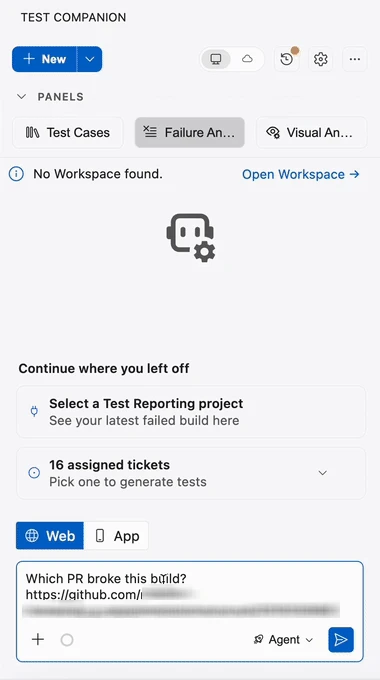
For a Jenkins build, paste the build URL instead:
Which changes are safe to ship? https://<jenkins-host>/job/<job-name>/<build-number>/
Test Companion starts the analysis when your message contains the run link and asks about one of the following:
- The pull request, change, or commit that broke the build.
- The changes that are safe to ship.
- The pull requests that are bad PRs.
Test Companion fetches the failure evidence from the run, finds the baseline, and reads the pull request diffs. It reports each step in the chat while it works.
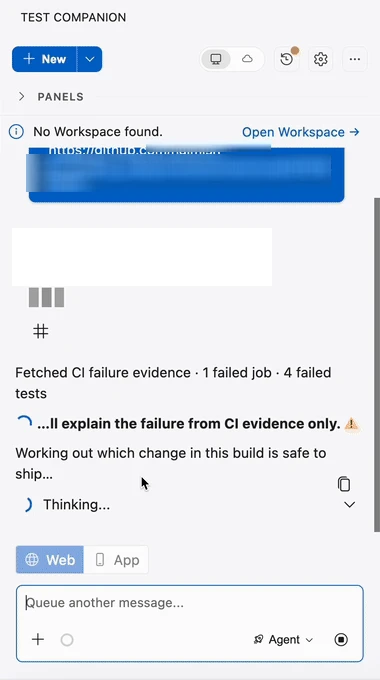
If your message also asks Test Companion to fix the failures, it fixes them instead of giving verdicts. Ask about the changes first. To fix the failures afterwards, see Fix failed tests.
Find bad PRs from the Failure Analysis panel
To start the analysis from a build in Test Reporting and Analytics, follow these steps:
- Click the Failure Analysis icon in the Test Companion panel.
- From the project dropdown, select the project that contains your build.
- From the Build dropdown, select a build with at least one failed test.
- Without selecting a test, click the arrow next to Fix failures, and then click Find bad PRs.
Test Companion opens a new task and fills the chat box. It sends nothing until you press Enter. The text it fills in depends on your Test Reporting and Analytics project:
- Release readiness is turned on: Test Companion fills the chat box with a verdict table. The table comes from the release readiness assessment of the project in Test Reporting and Analytics. Test Companion does not analyze any diff for this table, so no row cites a diff line.
- Release readiness is turned off: Test Companion fills the chat box with a prompt. The prompt has a placeholder for the CI run link. Replace the placeholder with the link to the CI run of this build, then press Enter.
Test Reporting and Analytics does not store the CI run of a build. So Test Companion cannot fill in the link for you. Replace only the placeholder line. Keep the rest of the prompt, which asks for one verdict per pull request and keeps the task read-only.
Find bad PRs from the CLI
Run tc verdict with the URL of the failed run:
tc verdict --run https://github.com/<org>/<repo>/actions/runs/<run-id>
The command accepts either a GitHub Actions run URL or a Jenkins build URL. It does not accept a build number. Add --json for machine-readable output.
The verdict workflow is also available to tc workflow run in a pipeline. See Run the CLI in a CI/CD pipeline.
Read the verdicts
Test Companion answers in the chat with a table. Each row is one pull request, with its verdict, the reason, the evidence, and the next action.
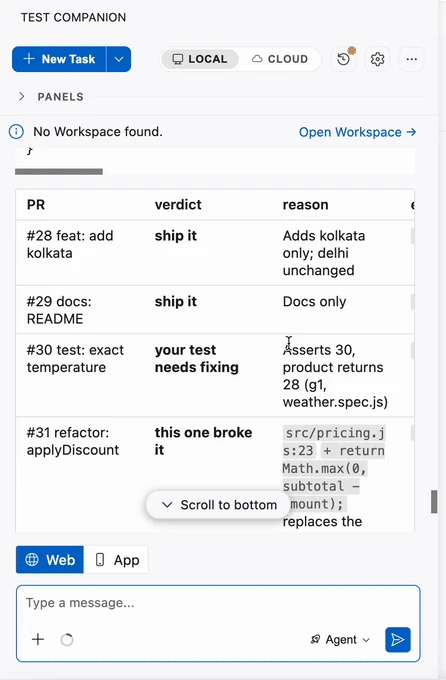
The following table lists the five verdicts:
| Verdict | Meaning | Next action |
|---|---|---|
| Ship it | No new failure traces to this change, and nothing it touches is implicated. | Ship the change. |
| Validate first | The change touches code that the failing tests run through, but its diff does not prove that it caused the failures. | Re-run the affected tests against this change before you ship it. |
| Your test needs fixing | The failure is in a test or fixture that this change owns. The product code works. | Fix the test, then re-run it. |
| This one broke it | A failure traces to a specific line in the diff of this change. Test Companion quotes the line. | Hold the release. Revert or fix this change first. |
| Not cleared | Test Companion could not judge the change, for example because it could not fetch the diff. The reason appears under Not analysed. | Check the change yourself. |
A pull request gets This one broke it only when its diff contains the line that a failure traces to. Test Companion quotes that line. A change that only touches the code the failing tests run through gets Validate first.
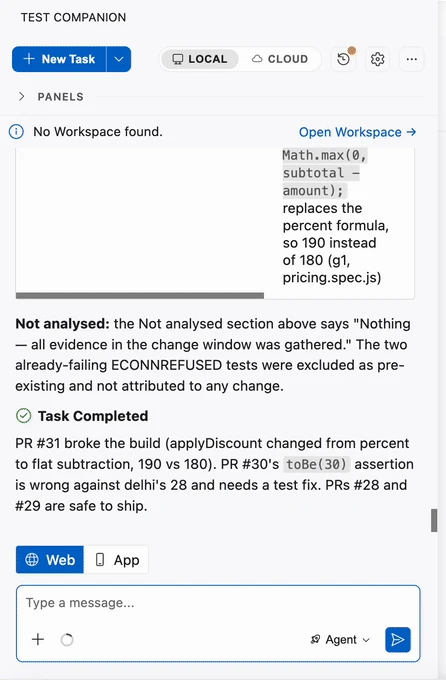
Below the table, Test Companion lists what it did not analyze under Not analysed. It ends with a summary of the build.
Limits
Test Companion analyzes only part of the build in the following cases:
- More than 10 pull requests: Test Companion analyzes the 10 most recent pull requests merged since the baseline. It lists the rest under Not analysed.
- Direct pushes: A commit that landed without a pull request is listed, but it gets no verdict.
- No baseline: When no earlier build has a usable result, new failures cannot be separated from old ones. For GitHub Actions, no pull request is cleared. For Jenkins, every failure is treated as new.
- Large diffs: Test Companion reads only the start of a very large diff. The answer marks each diff that was cut short.
Troubleshooting
Use the following fixes for common issues:
- Find bad PRs does not appear in the panel: The selected build has no failed tests. The action appears only for a build with at least one failed test.
- Test Companion says that CI failure analysis is not enabled for your account: Contact BrowserStack support to get access.
-
Test Companion asks for the GitHub CLI: Install
ghfrom cli.github.com. Rungh auth login, then send the run link again. -
Test Companion could not fetch the run: Run
gh auth statusto confirm that your GitHub account can access the repository. Then check that the run still exists, because GitHub keeps run logs for a limited time. - No verdicts for a Jenkins build: The job does not record the commit that it built. Use the Jenkins Git plugin with a GitHub remote. The repository must be on GitHub.
-
You got a root cause analysis instead: Your message did not ask which change broke the build. A message that asks for a fix also starts a fix instead. Ask, for example,
Which PR broke this build?with the run link.
Availability
| Capability | VS Code | JetBrains IDEs | Test Companion CLI | Visual Studio | Eclipse |
|---|---|---|---|---|---|
| Verdicts from a GitHub Actions or Jenkins run, from the chat | Version 1.34.0 and later | Version 1.11.0 and later | Supported, with tc verdict
|
Not supported | Not supported |
| Find bad PRs in the Failure Analysis panel | Version 1.34.0 and later | Version 1.11.0 and later | Not applicable | Not supported | Fills the prompt only. Eclipse does not run the analysis. |
Next steps
- Fix failed tests: Fix the failures from the panel, a CI run, or the chat.
- Fix flaky tests: Find tests that pass and fail across runs, and stabilize them.
- Connect GitHub Actions to Test Companion: Set up the GitHub CLI and the GitHub Actions connection that this analysis uses.
We're sorry to hear that. Please share your feedback so we can do better
Contact our Support team for immediate help while we work on improving our docs.
We're continuously improving our docs. We'd love to know what you liked
We're sorry to hear that. Please share your feedback so we can do better
Contact our Support team for immediate help while we work on improving our docs.
We're continuously improving our docs. We'd love to know what you liked
Thank you for your valuable feedback!