
 Join our Discord
Review and resolve duplicate test cases
Learn how to review and resolve duplicate test cases identified by Test Case De-duplication agent in your project.
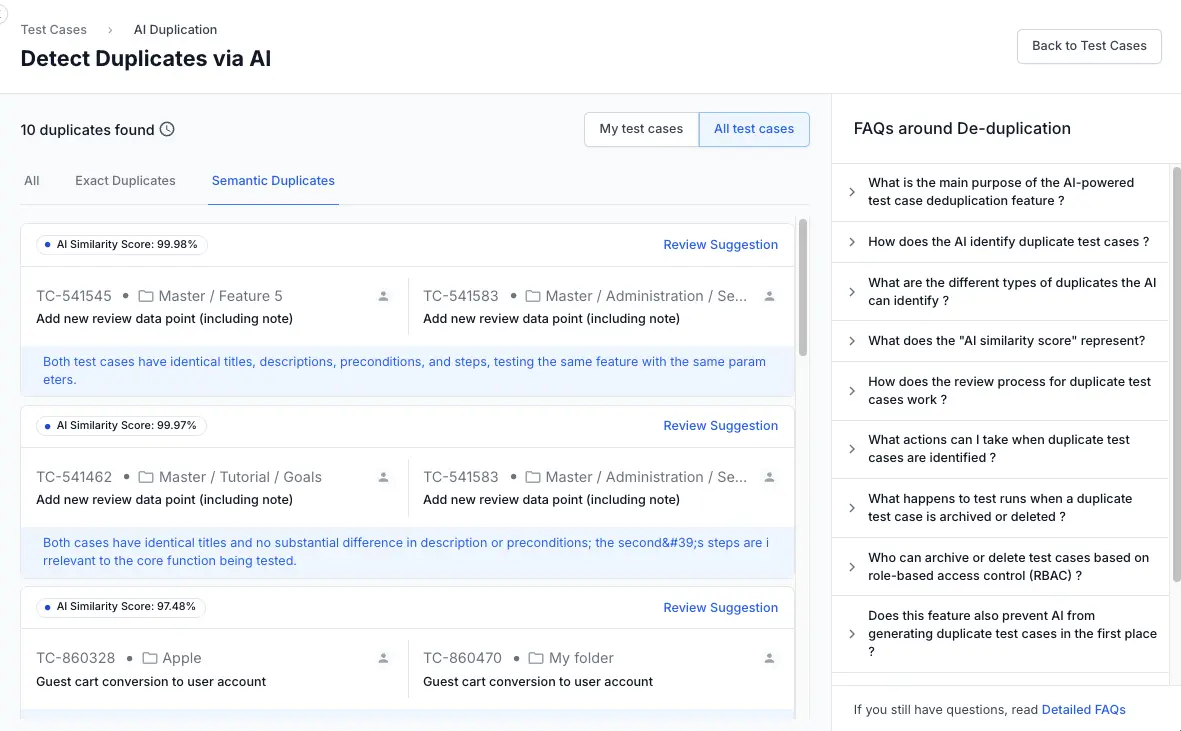
The duplicates listing page is where you act on what the agent found. Each flagged pair appears as a card showing a similarity score, an AI explanation, and three actions:
- Merge
- Archive
- Discard.
This page covers how to read results, compare test cases side by side, and resolve each pair.
The duplicates listing page
Navigate here by clicking Review {X} duplicates on the Test Cases page, clicking a duplicate count badge on the Projects listing page, or selecting a pair from any of the entry points described in the overview.
Each card displays:
-
Similarity score: A percentage (e.g.,
75% Similar) indicating how closely the two test cases match. -
AI explanation: A plain-language summary of why the pair was flagged.
Example: Both tests confirm that appropriate error messages are displayed when attempting deletion after the time limit. -
Test case details: ID, title, folder path, owner, and last run date for each test case in the pair.
Filter results
The tabs at the top let you switch views:
- All: Every flagged pair.
- Exact Duplicates: Identical titles, steps, and expected results.
- Semantic Duplicates: Different wording, same functionality.
Toggle between My test cases and All test cases at the top right to focus on your own cleanup first.
For an explanation of exact and semantic duplicate types with examples, see Exact vs. semantic duplicates in the overview.
The AI Summary page
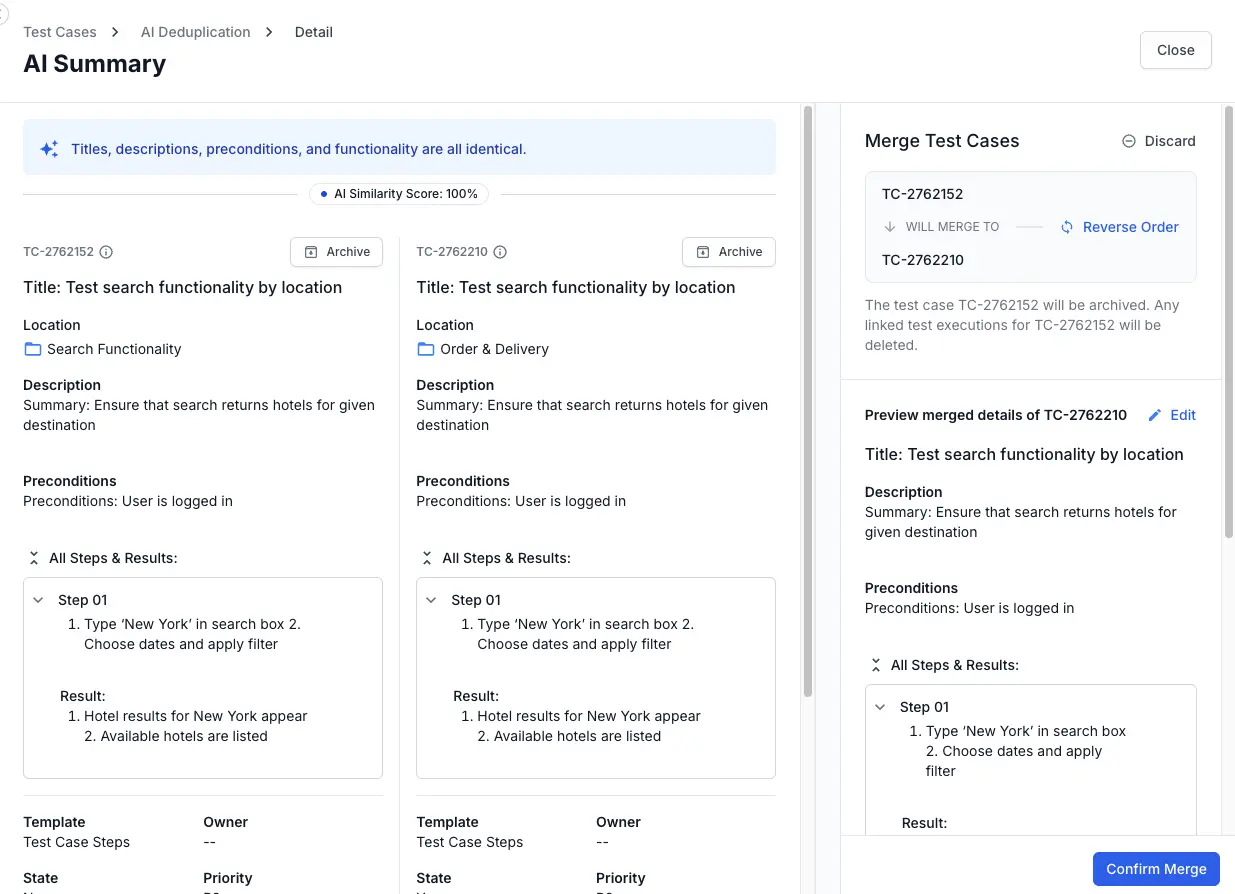
Click View & Merge on any card to open the AI Summary page. This is the detail view where you compare, merge, archive, or discard, all in one place.
The page has two zones:
- A side-by-side comparison on the left
- The action panel on the right.
Side-by-side comparison
At the top, an AI explanation banner summarizes the match (e.g., Titles, descriptions, preconditions, and functionality are all identical). Below it, the AI Similarity Score (e.g., 100%) anchors the comparison.
The two test cases appear in parallel columns and every field is visible. Scan both columns to spot what is identical and what differs, such as a location mismatch or a missing owner, for instance, can help you decide which version to keep.
Each test case column has its own Archive button, so you can archive either one directly from this view without merging.
Action panel
The right panel is titled Merge Test Cases and contains:
-
Source and target flow: Two boxes showing which test case merges into which.
-
Reverse Order: Click this link between the two boxes to swap source and target. Use it when you realize the other test case should be the one that survives.
-
Preview merged details: Below the merge flow, a preview shows the target test case’s Title, Description, Preconditions, and all Steps & Results as they’ll appear after the merge. Click Edit next to the preview heading to modify attributes before confirming.
-
Confirm Merge: The button at the bottom finalizes the merge.
-
Discard: It is in the top right corner of the panel. Use it to dismiss this pair without merging or archiving.
Use the comparison to decide which test case survives the merge, or whether the pair is a genuine duplicate at all.
Merge test cases
Merging consolidates two test cases into one. The source is archived; the target survives with a reference comment preserving the source’s attributes.
- When to merge: Both test cases are valid but redundant. Two testers created a test independently. You want one canonical version.
How to merge
To merge duplicate test cases:
-
Click View & Merge on the duplicates listing page (or Merge Pairs from the Compare view).
-
Review the side-by-side comparison. Check every field, especially Location, Owner, and Steps, to decide which version should survive.
- In the right panel, confirm the merge direction. Click Reverse Order if you want to swap them.
- Review the Preview merged details section. Click Edit to adjust the target’s title, description, or other fields before merging.
- Click Confirm Merge.
After merge
The following happens after the merge:
- The source test case is archived and permanently removed after 90 days.
- Linked test executions on the source are deleted immediately. This cannot be undone.
- The source’s key attributes are preserved as a reference comment on the target.
- A success notification appears on the screen.
Archive a test case
Archiving removes a redundant test case without combining any content into the surviving one.
- When to archive: You are confident one test case is the correct version and the other adds nothing, no steps, metadata, or context worth preserving.
How to archive
To archive a duplicate test case:
-
On the duplicates listing page, hover over the pair and click Archive next to the test case you want to remove.
-
A confirmation dialog warns that linked test executions will be deleted. Click Archive.
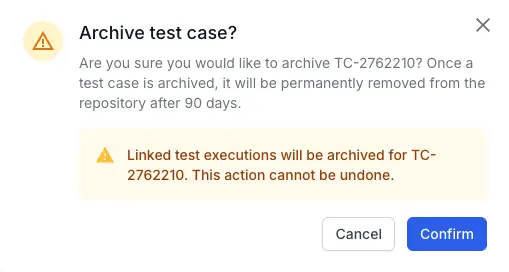
The archived test case is permanently removed from the repository after 90 days.
Archiving deletes linked test executions. This action cannot be undone once the undo window closes.
Discard a suggestion
Discarding tells the agent this pair is not a real duplicate. The suggestion disappears from the duplicates listing page.
-
When to discard: The agent flagged two test cases that look similar but test different scenarios. For example
Login with valid credentialsvs.Login with SSO.
How to discard
To discard a duplicate suggestion:
-
On the duplicates listing page, hover over the pair and click Discard next to the test case you want to remove.
- Click Discard next to the pair.
-
A confirmation dialog warns that linked test executions will be deleted. Click Discard.
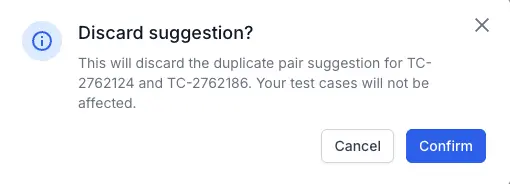
The suggestion is removed from the duplicates listing page. Your test cases are not affected.
We're sorry to hear that. Please share your feedback so we can do better
Contact our Support team for immediate help while we work on improving our docs.
We're continuously improving our docs. We'd love to know what you liked
We're sorry to hear that. Please share your feedback so we can do better
Contact our Support team for immediate help while we work on improving our docs.
We're continuously improving our docs. We'd love to know what you liked
Thank you for your valuable feedback!