
 Join our Discord
Track low-code automation status in Test Management
Track AI automation runs in the LCA Status tab of Test Management. Filter test cases that need action, stop a run, and regenerate low-code tests.
The LCA Status tab in Test Cases lists every test case that you sent to the Low Code Authoring Agent. It shows the live status of each test case and groups the test cases by run. From the same tab, you can stop a run or regenerate a low-code test without opening each test case.
Open the LCA Status tab
To open the LCA Status tab:
- In your project, go to Test Cases.
- Click the LCA Status tab. The tab opens in Run view with the latest run expanded.
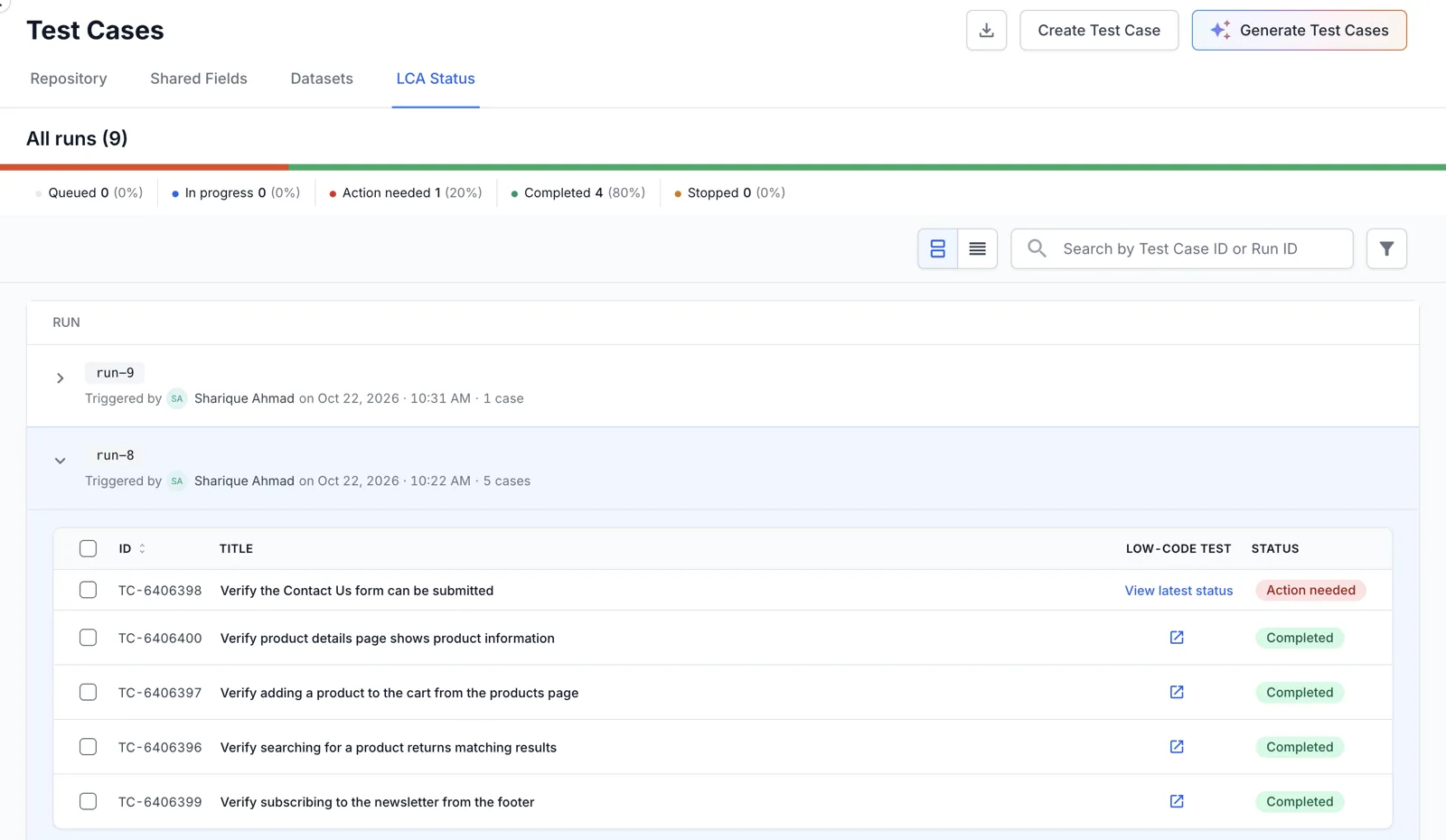
Each run card shows the run ID, who triggered the run, the trigger time, and the number of test cases. Each row shows the test case ID, its title, a link to the low-code test, and its status.
Run view and Test view
The two buttons to the left of the search box switch between the following views:
| View | Content | Purpose |
|---|---|---|
| Run view | One card per run. Each card lists every test case that you triggered in that run. | Follow a run that you just triggered, or stop a run. |
| Test view | One row per test case with its latest status, the last update time, and who triggered it. | Check how many of your test cases are automated. |
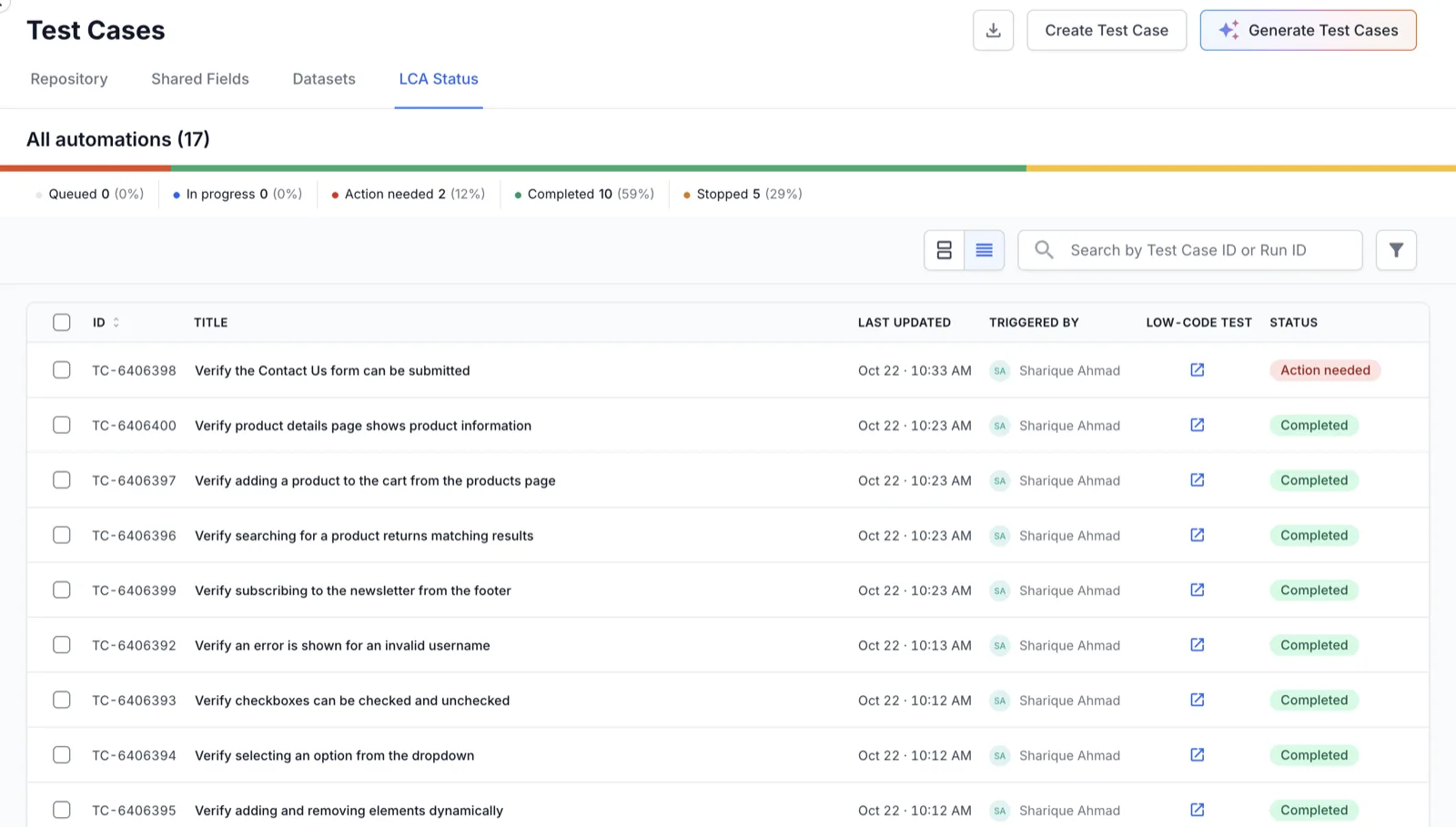
A test case that you triggered more than once appears in each of its runs. In Run view, the older rows show View latest status in place of the low-code test link. Click it to open the latest run of that test case. Test view counts each test case once and shows its latest status.
Automation statuses
The status tiles above the table count the test cases in each status. The following table describes the statuses.
| Status | Meaning |
|---|---|
| Queued | The test case waits for capacity. The agent starts it automatically. |
| In progress | The agent is generating the low-code test. |
| Action needed | The agent could not complete the test case. Open the low-code test to read the reason, then regenerate. |
| Completed | The agent generated the low-code test. Click the link in the Low-code test column to open it. |
| Stopped | You or a team member stopped the automation. Regenerate the test case to try again. |
Filter and search
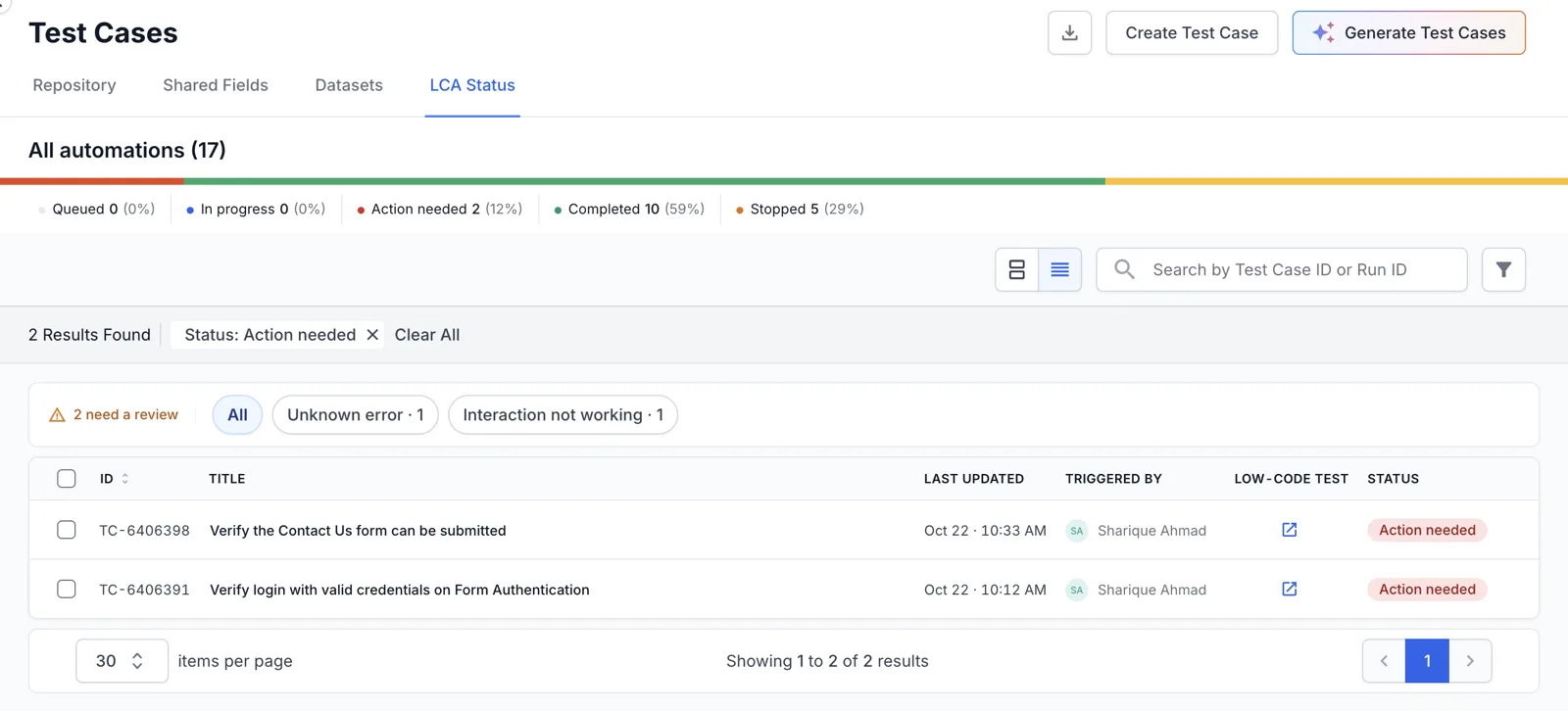
Use the following controls to filter the table: the status tiles, the search box, and the filter icon. Click a status tile to show only the test cases in that status. Click Clear All to remove the filter.
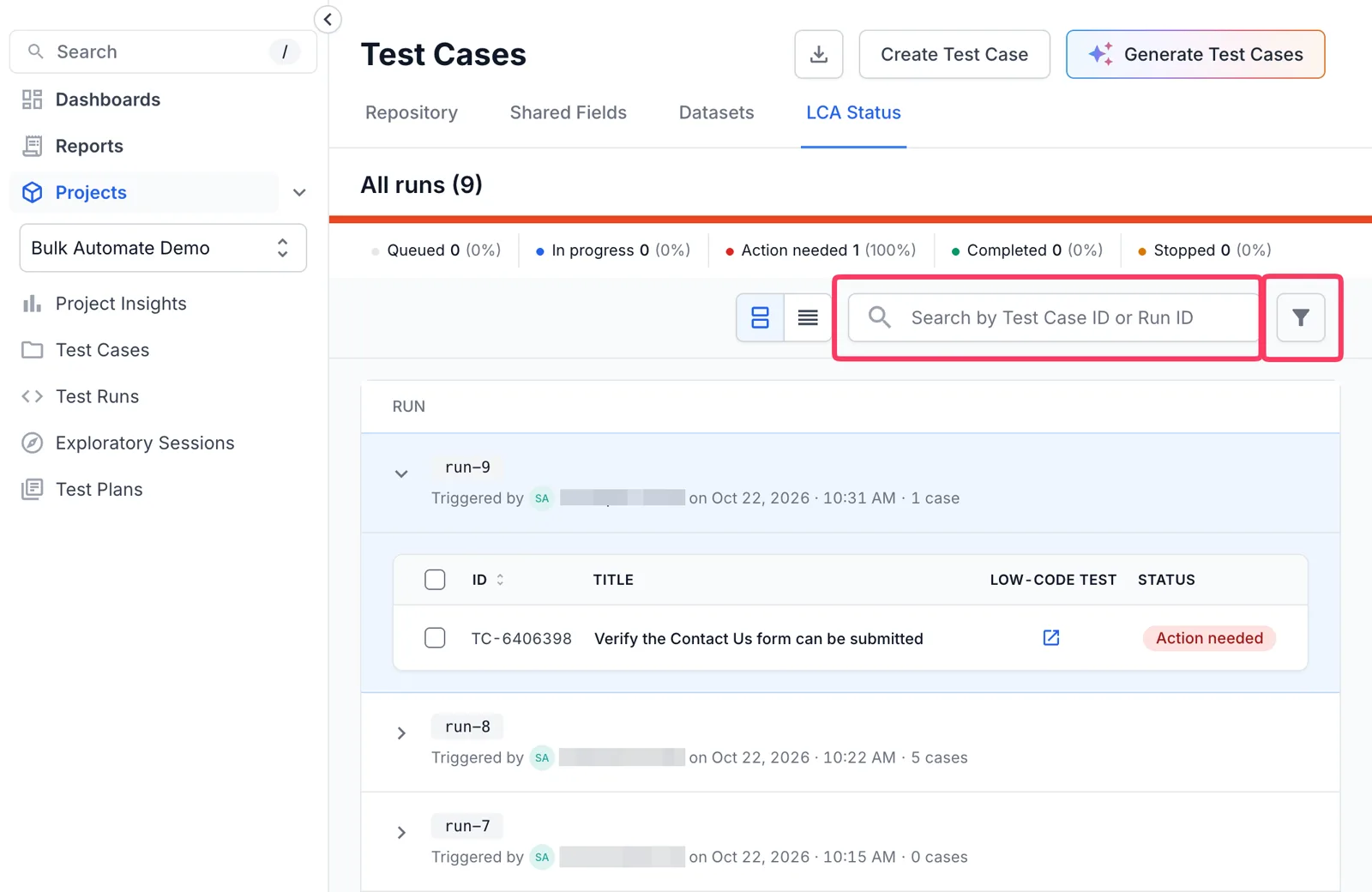
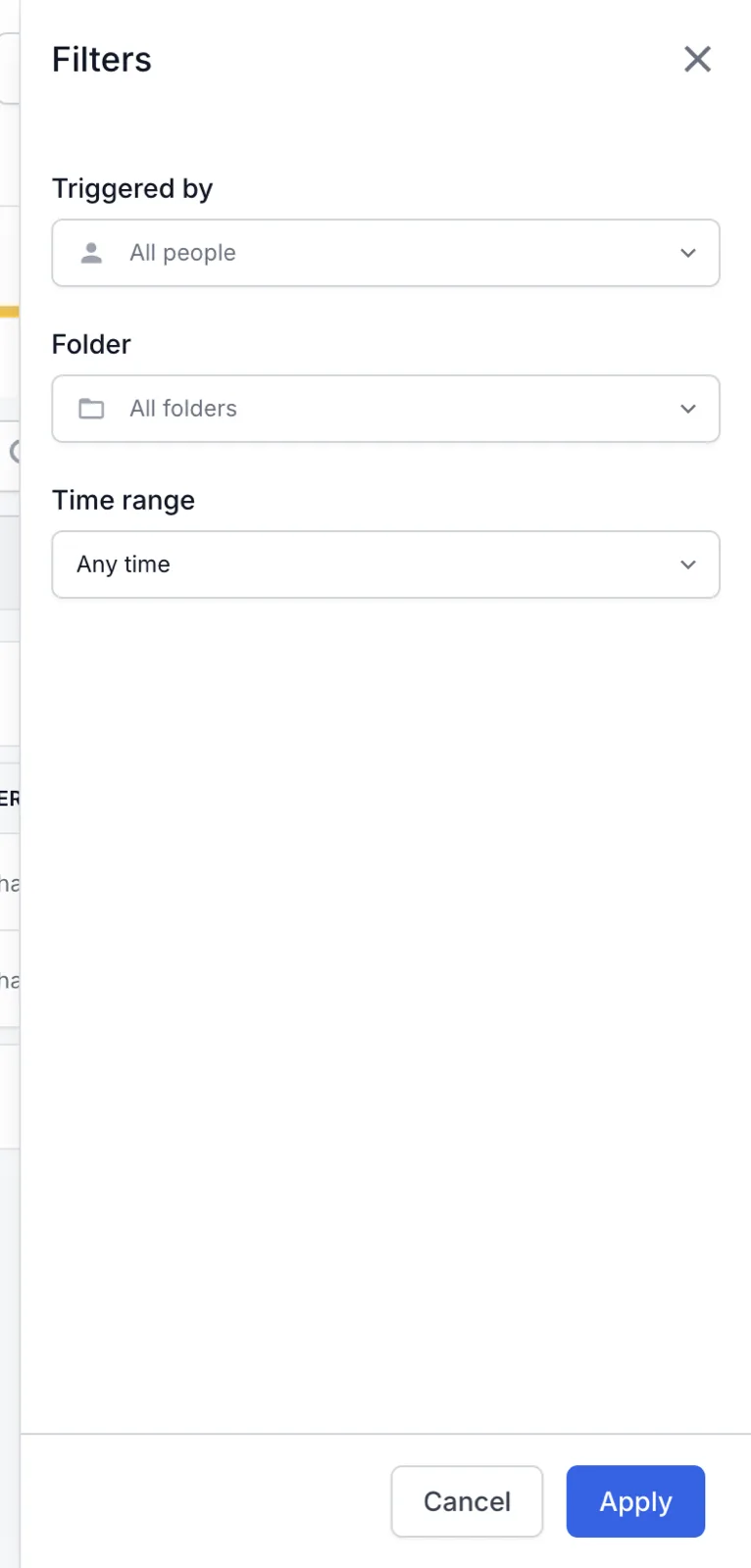
To find one test case or run, enter a test case ID or a run ID in the search box. To filter by person, folder, or time, click the filter icon next to the search box.
The Filters panel contains Triggered by, Folder, and Time range. The time range options are Any time, Last hour, Today, Last 7 days, and Last 30 days. Click Apply.
Stop a run
While a run has test cases in progress, the run card shows a Stop button.
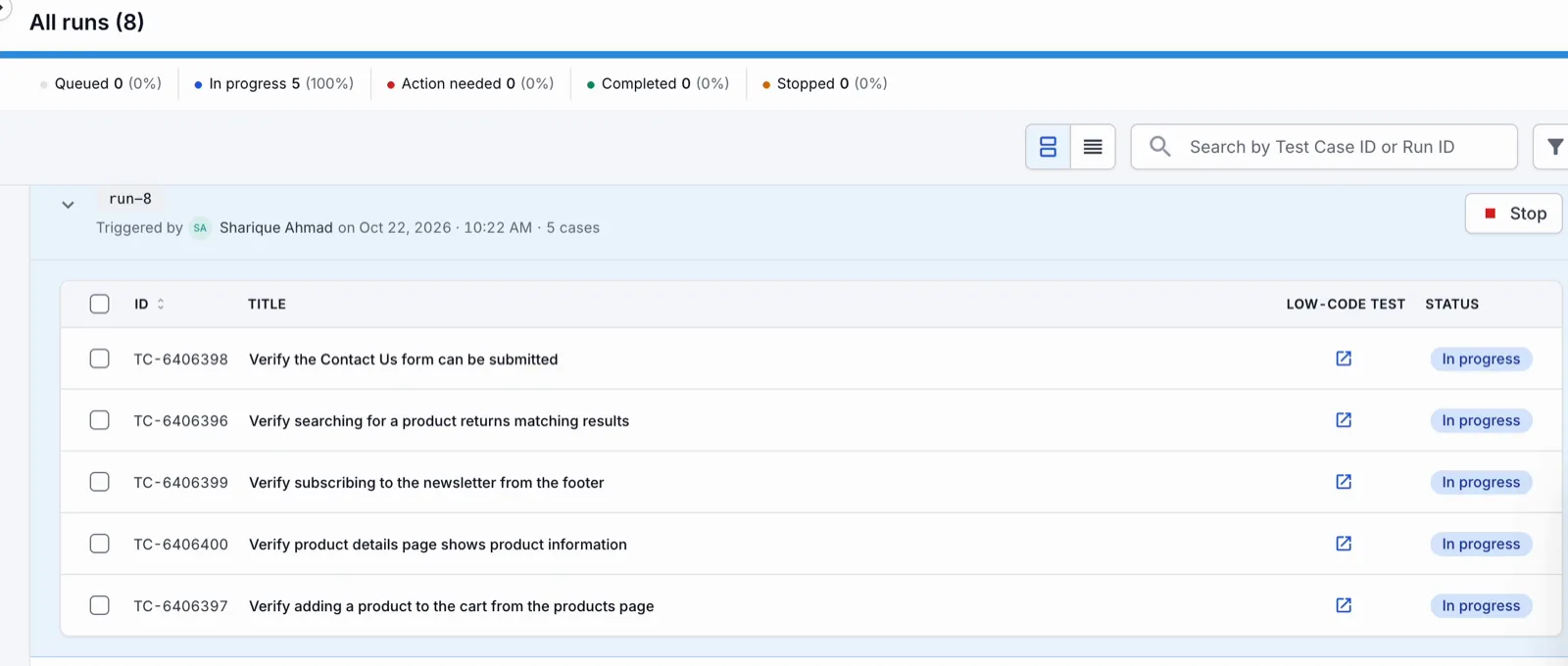
Click Stop to end the generation for every test case in the run. The affected test cases move to Stopped. To stop a single test case, open Test view and click the stop icon at the end of its row.
Fix test cases that need action
To review and retry the test cases that the agent could not complete:
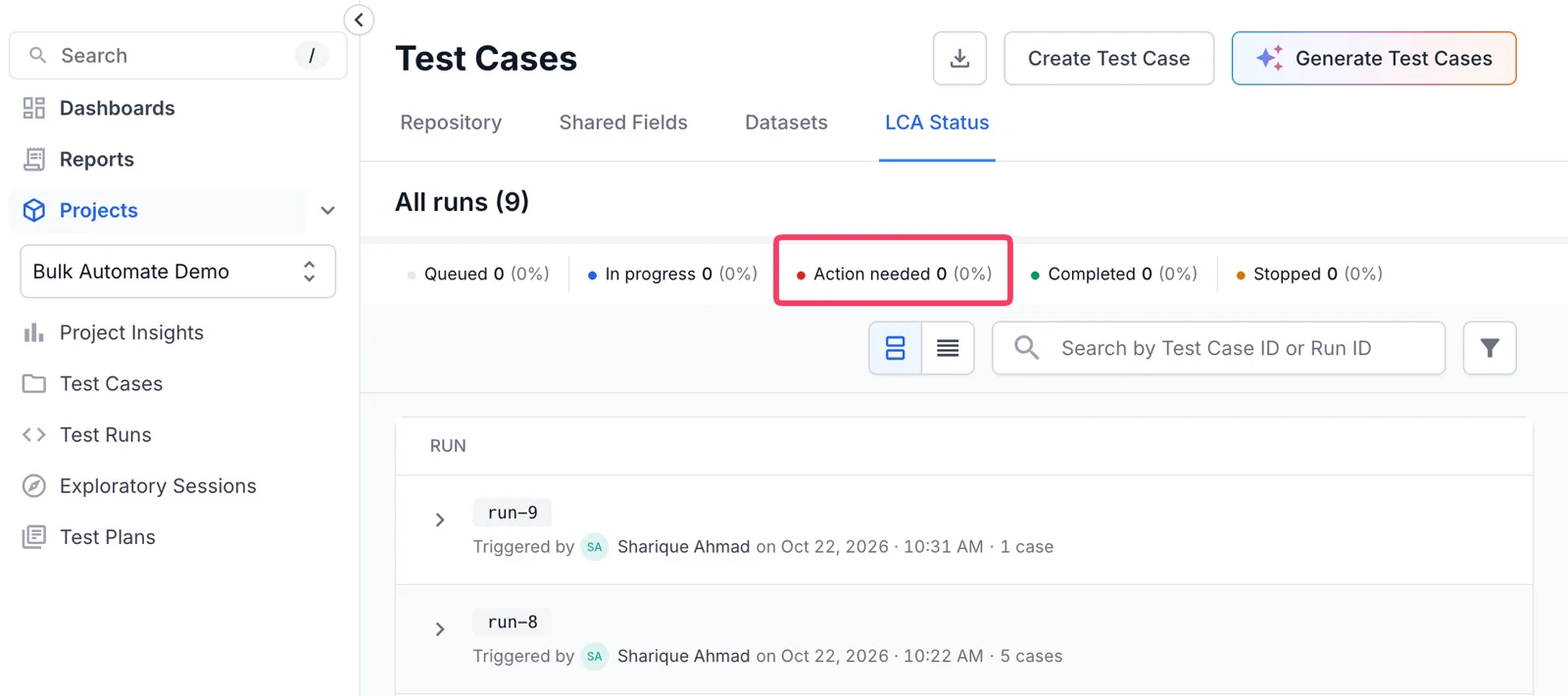
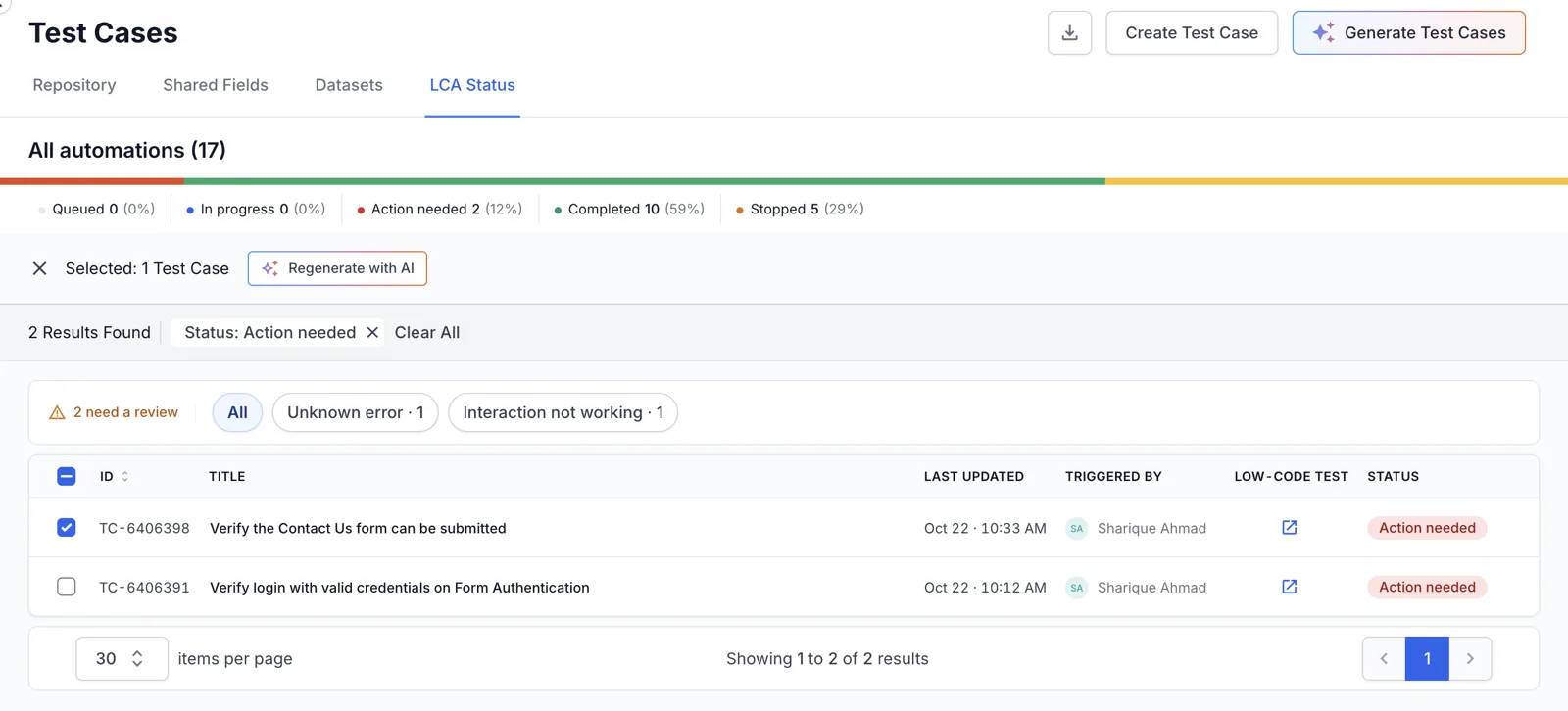
Click the Action needed tile. A review bar above the table shows how many test cases need a review. It lists each reason with a count, such as Unknown error or Interaction not working.
Click a reason to show only the test cases with that reason. Hover over the reason to read what it means.
Click the link in the Low-code test column to open the test in Low Code Automation. The test page lists the failure reason and the possible causes. Examples are an incorrect URL or a website that needs Local Testing.
Fix the issue. For example, correct the URL in the profile or turn on Enable local testing. If steps are missing, add them to the test case.
In the LCA Status tab, select the test cases and click Regenerate with AI.
In the Review for AI automation dialog, keep or change the profile, then click Automate test cases. Each regeneration creates a new run.
Two other places offer the same action for one test case. The test case details show Regenerate Low Code Automation Test. The test page in Low Code Automation shows Regenerate with AI.
Next steps
We're sorry to hear that. Please share your feedback so we can do better
Contact our Support team for immediate help while we work on improving our docs.
We're continuously improving our docs. We'd love to know what you liked
We're sorry to hear that. Please share your feedback so we can do better
Contact our Support team for immediate help while we work on improving our docs.
We're continuously improving our docs. We'd love to know what you liked
Thank you for your valuable feedback!