
 Join our Discord
Low Code Authoring Agent
Automate test cases in Test Management with the Low Code Authoring Agent. Select one or many test cases, apply a profile, and generate low-code tests with AI.
The Low Code Authoring Agent reads the human-readable steps of a test case. From those steps, it builds a low-code automation test. The generated test runs on real browsers in BrowserStack Low Code Automation (LCA). You can trigger the agent from Test Management for one test case or for up to 20 at a time.
Agentic capabilities
- Natural language processing: Interprets steps and converts them into executable actions.
- Bulk automation: Automates up to 20 selected test cases in one run, with one profile applied to all of them.
- Self-healing: Automatically updates element locators if the UI changes, preventing script breakage.
- Cross-platform execution: Generated scripts run on 3,000+ real browser and device combinations.
- Live status tracking: Shows the status of every automation run in the LCA Status tab of your project.
Demo
The following demo shows the agent turning a manual test case into a low-code test:
Prerequisites
Check the following before you trigger the agent:
- Each test case needs at least one step with a clear action and an expected result. The agent flags test cases without steps as Fixes required.
- Keep the URL of the website under test ready. You store it in a profile, together with any login details.
- If the website runs on localhost or behind a VPN, you need Local Testing for Low Code Automation.
If you do not have a Low Code Automation account, Test Management creates one with your Test Management login details.
Automate test cases in bulk
To automate several test cases in one run:
In your project, go to Test Cases and open the folder that contains the test cases.
Select the checkbox next to each test case that you want to automate. To select every test case on the page, select the checkbox in the table header.
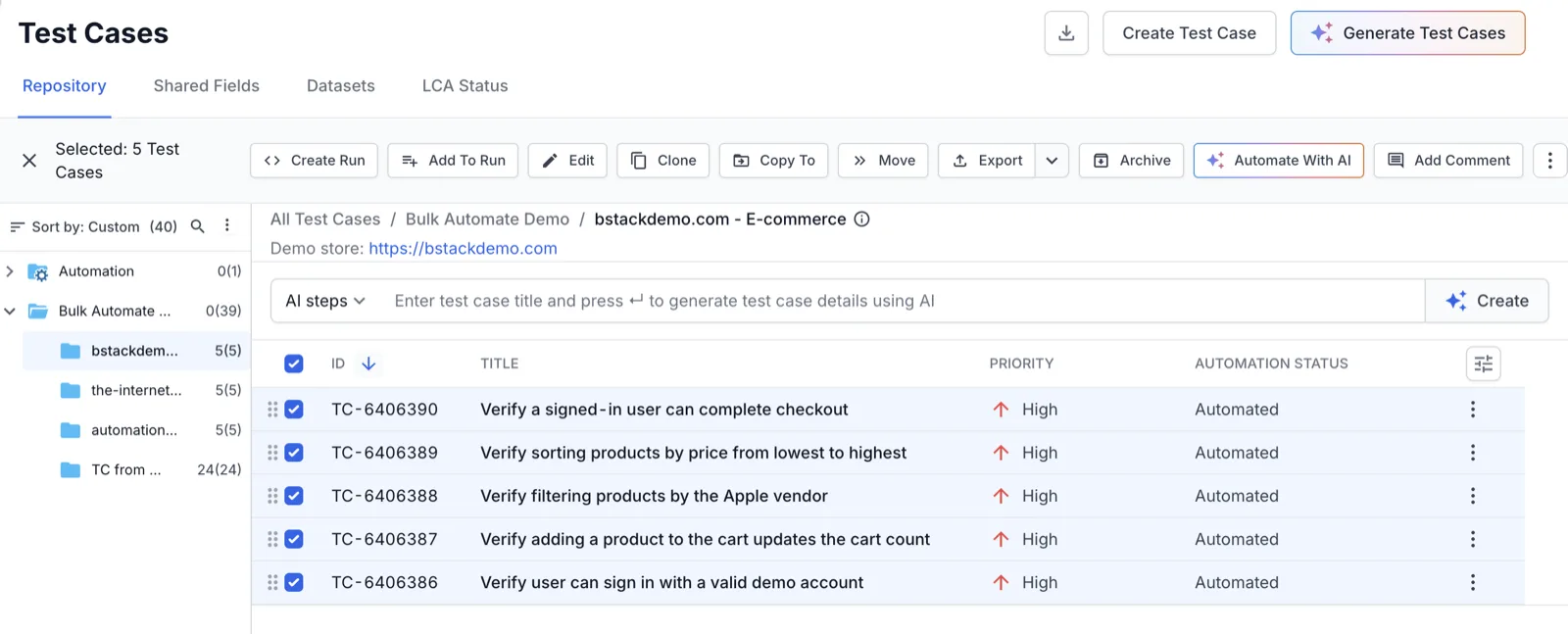
In the action bar, click Automate With AI. BrowserStack AI reviews the selected test cases and opens the Review for AI automation dialog.
You can automate up to 20 test cases at a time. The agent does not automate BDD test cases, mobile test cases, or test cases already queued or in progress.
In Apply one profile to all tests, select a profile or click Create new profile. A profile stores the website URL and login details that the agent uses. See Create a low-code profile.
To use a different profile for one test case, select the test case in the list. Then change its Profile field.
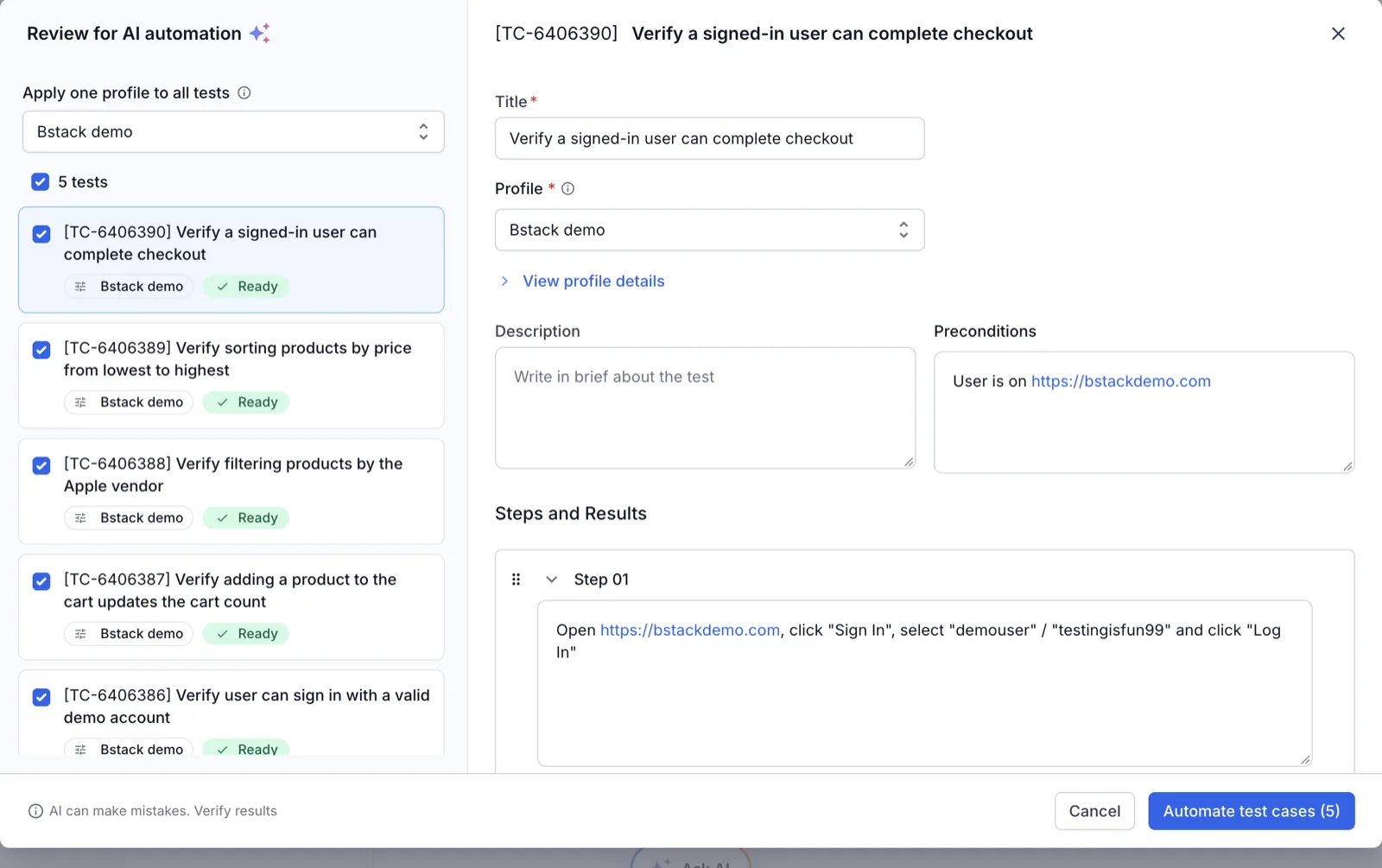
Check the label on each test case in the list. Ready means the agent can automate the test case. Fixes required means the test case is missing details, such as steps or expected results.
To see what to fix, select the test case and expand the AI thoughts section in the right pane. You can edit the title, description, preconditions, and steps in the dialog. To leave a test case out of the run, clear its checkbox.
Click Automate test cases. The button shows the number of selected test cases.
An Automation queued message confirms the number of queued test cases and shows the run ID.
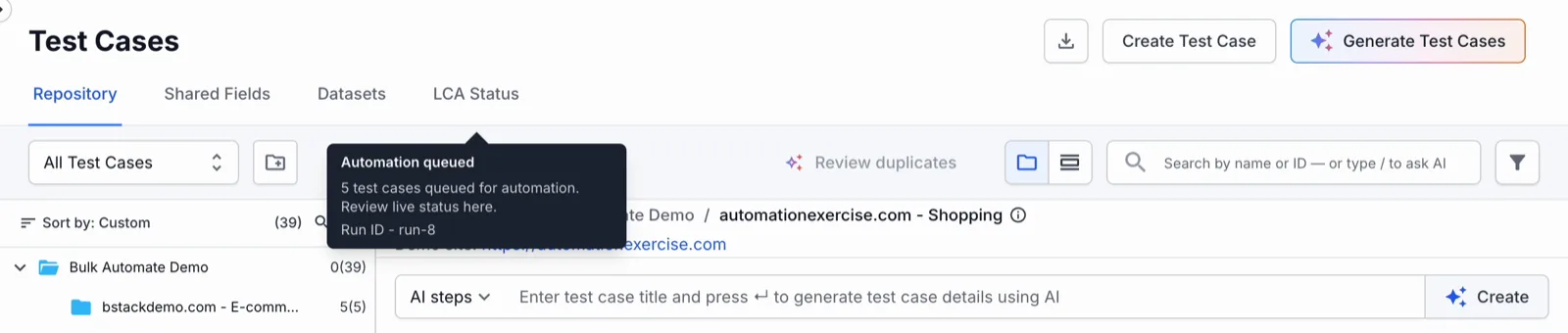
Click the LCA Status tab to follow the run. See Track low-code automation status in Test Management.
When the agent completes a test case, Test Management sets its Automation Status to Automated. The test case details then show two buttons:
- View Low Code Automation test: Opens the generated test.
- Regenerate Low Code Automation Test: Creates the test again.
Automate a single test case
To automate one test case from its details:
Open the test case in your Test Management project.
Click Automate using BrowserStack AI. BrowserStack AI reviews the test case and opens the Review for AI automation dialog.
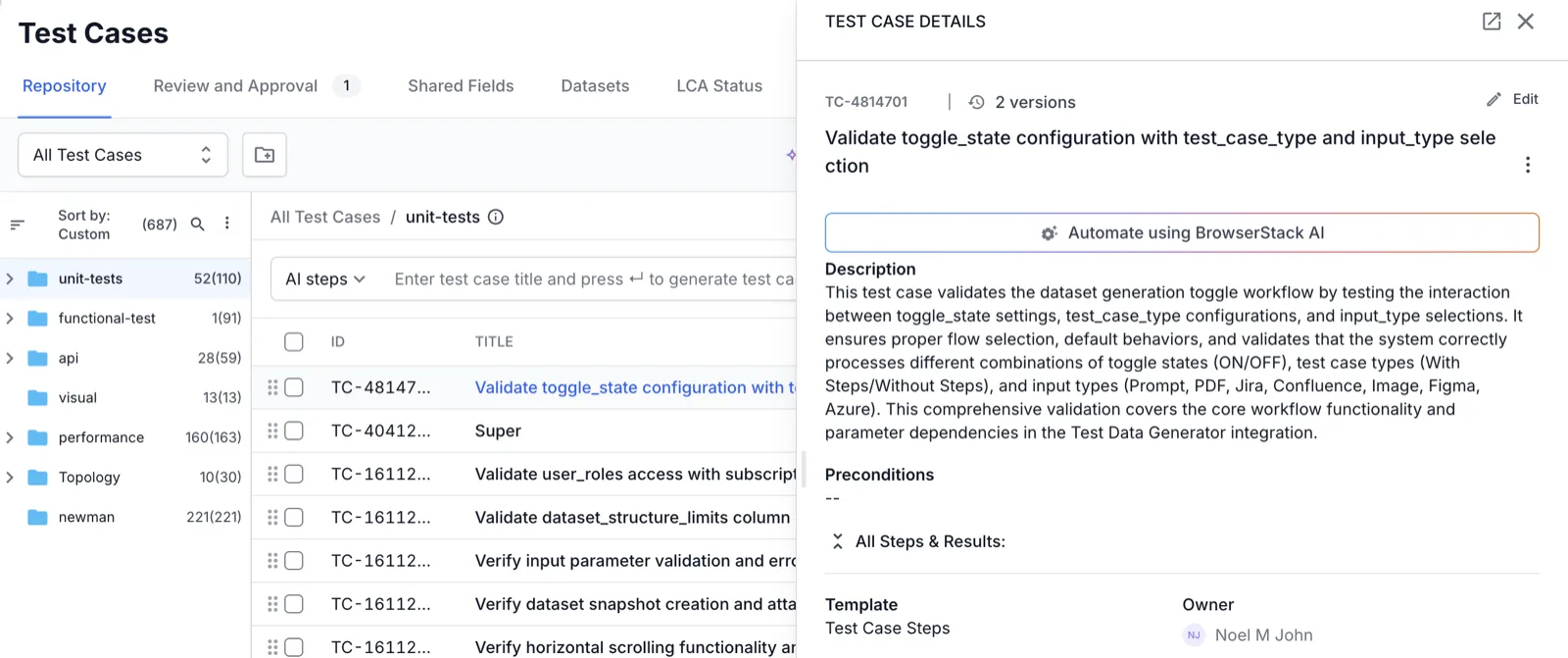
In Profile, select a profile or click Create new profile. See Create a low-code profile.
If the test case shows Fixes required, expand the AI thoughts section and update the fields in the dialog.
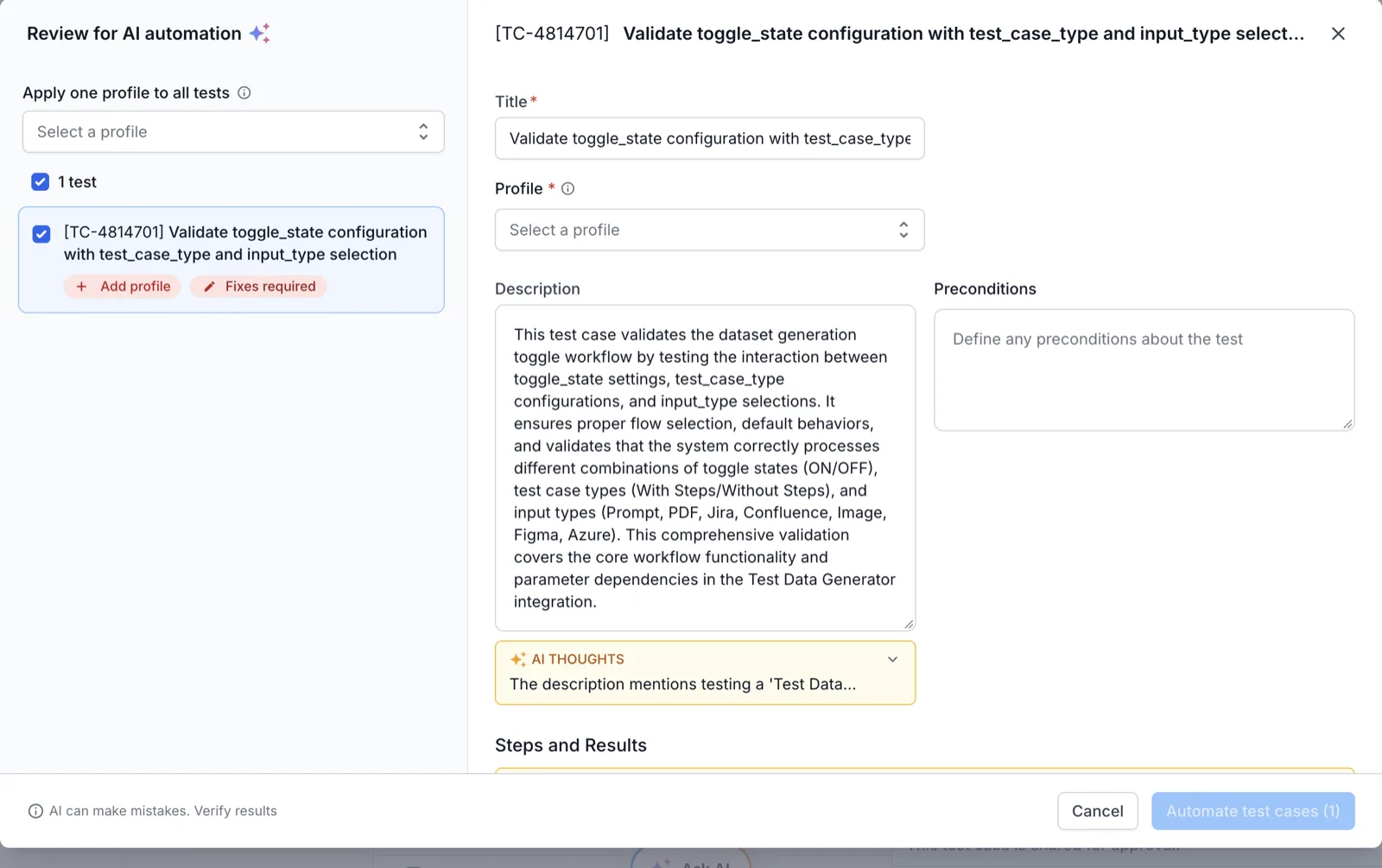
Click Automate test cases (1). Follow the run in the LCA Status tab.
Create a low-code profile
A profile contains the settings that the agent needs to reach your website. It stores the URL, login details, and advanced options such as headers and cookies. You create a profile once and reuse it for every test case in the project.
To create a profile from the Review for AI automation dialog:
Open the Apply one profile to all tests list or the Profile list of one test case. Click Create new profile.
In the Create low code profile dialog, enter a Profile name and the URL that the tests open first. Both fields appear above the two tabs.
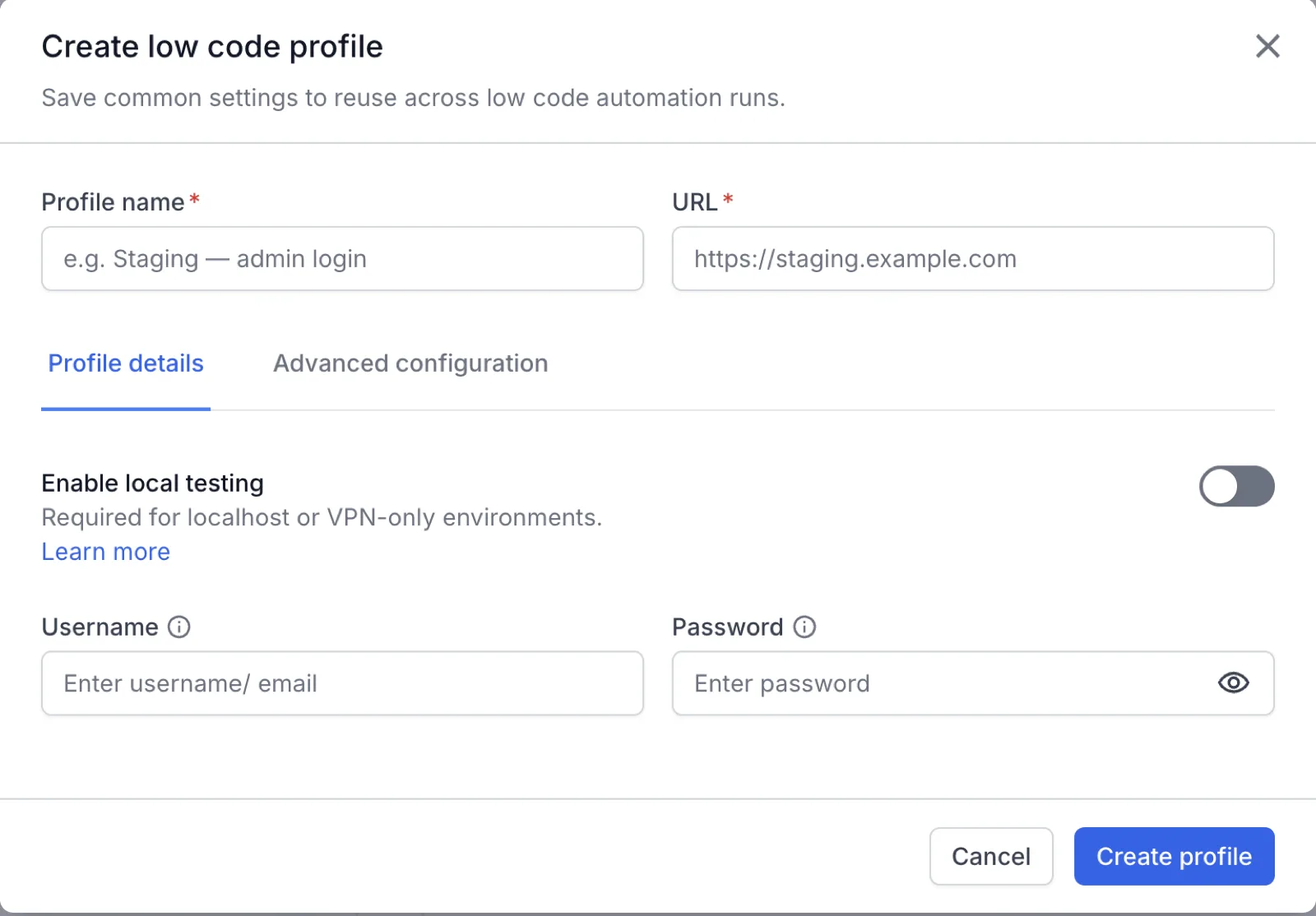
On the Profile details tab, turn on Enable local testing for a localhost or VPN-only website. If the website needs a sign-in, enter the Username and Password of the account.
On the Advanced configuration tab, add any settings that your website needs.
Click Create profile. Test Management applies the new profile to the test cases in the dialog.
The Advanced configuration tab contains the following settings:
| Setting | Details |
|---|---|
| Basic authentication | Username and password for a website that uses HTTP basic authentication. |
| Request headers | Up to four key-value pairs that the test sends with each request. Select Apply to specific domains only to limit a header to named domains. |
| Cookies | Name, value, path, domain, and max-age of the cookies that the test sets before it navigates. Leave Domain empty to use the host of the test URL. |
| Local storage | Key-value pairs that the test writes to local storage before it opens the first URL. |
| Browser flags | Desktop Chrome options for the recording, such as incognito mode, dark mode, browser language, timezone, and camera, microphone, location, and clipboard access. |
Next steps
We're sorry to hear that. Please share your feedback so we can do better
Contact our Support team for immediate help while we work on improving our docs.
We're continuously improving our docs. We'd love to know what you liked
We're sorry to hear that. Please share your feedback so we can do better
Contact our Support team for immediate help while we work on improving our docs.
We're continuously improving our docs. We'd love to know what you liked
Thank you for your valuable feedback!