
 Join our Discord
Create an Exploratory Session
Learn how to create an exploratory session in BrowserStack Test Management, including setting the title, timebox, mission, configurations, tags, and assignee.
Set up a new exploratory testing session by defining its scope, timebox, and assignment, so you can start testing without writing test cases.
Prerequisites
-
You need an active project in Test Management. If you have not created one yet, see Get started with Test Management.
-
To link requirements from an external tool during session creation, set up the relevant integration first. See Integrate issue trackers guide.
Create a session
- In your project, click Exploratory Sessions in the left navigation panel.
-
Click Create Session in the top-right corner of the list view.
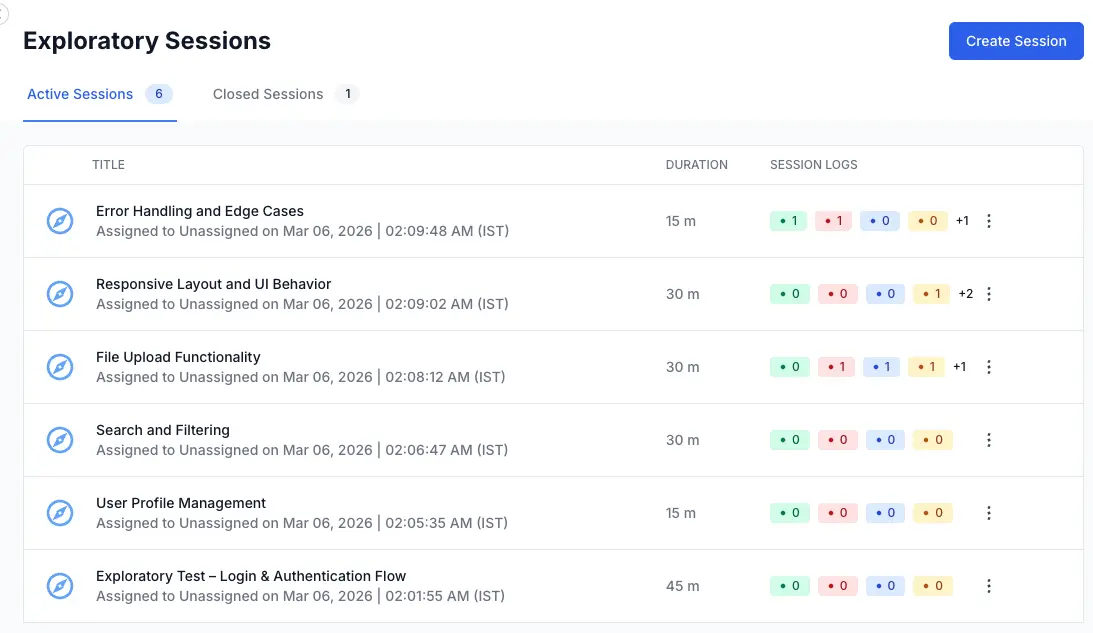
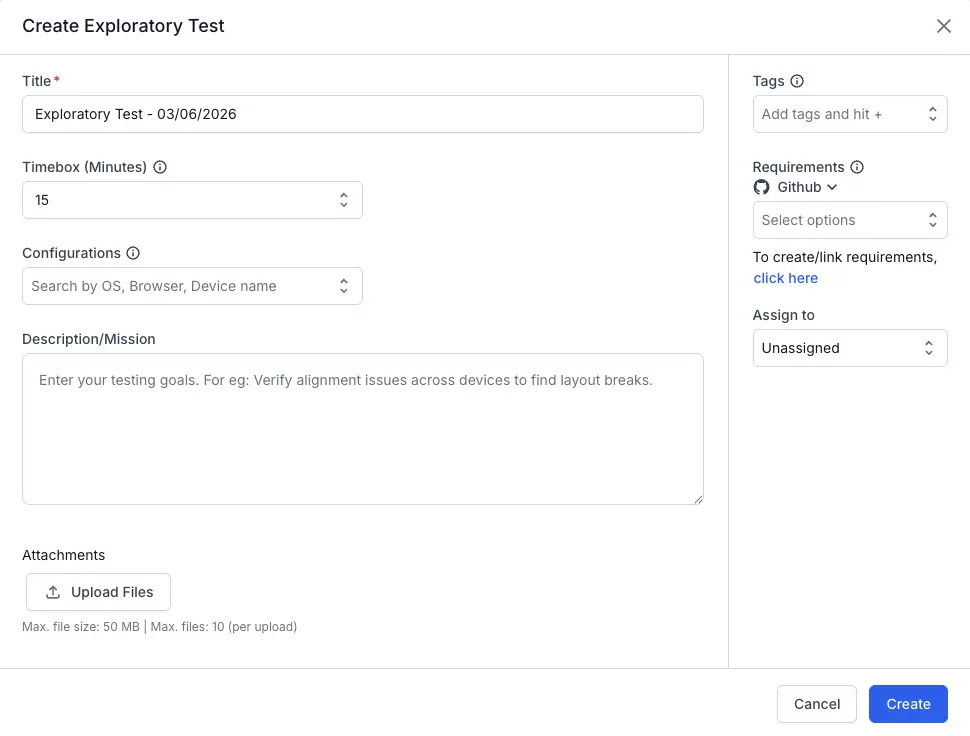
The Create Session dialog opens with the following fields.
-
Enter a Title for the session. This field is required.
-
Set the Timebox (Minutes). The default is 15 minutes. Change this to match your planned testing duration.
-
Optionally, select a Configuration. Choose an OS, browser, or device combination relevant to your testing scope.
- Write a Description/Mission. This is the charter that guides your testing. The field supports rich text. A strong mission answers three things:
- The area of the product under test.
- The behaviors you are looking for.
- The boundaries of the scope.
-
On the right panel, optionally add Tags to categorize the session. Type a tag name and press Enter to add it.
Tags help you filter and find sessions later. -
To link requirements from your issue tracker, select the relevant tool in the Requirements field.
-
Set the Assign to field.
By default, the session is unassigned. To assign it to another team member, select their name from the dropdown. The assignee must have logged into Test Management at least once to appear in the list. -
Optionally, click Upload Files to attach supporting documents such as design specs, user stories, or reference screenshots. The Maximum file size is 50 MB per file, with a limit of 10 files per upload.
- Click Create.
The session is created in the Active Sessions tab and opens in the Session Execution UI with the status Yet to start.
Session state after creation
The session starts in a Yet to start state. The timer shows 00:00:00, the session log is empty, and an informational banner explains the difference between exploratory sessions and structured test runs.
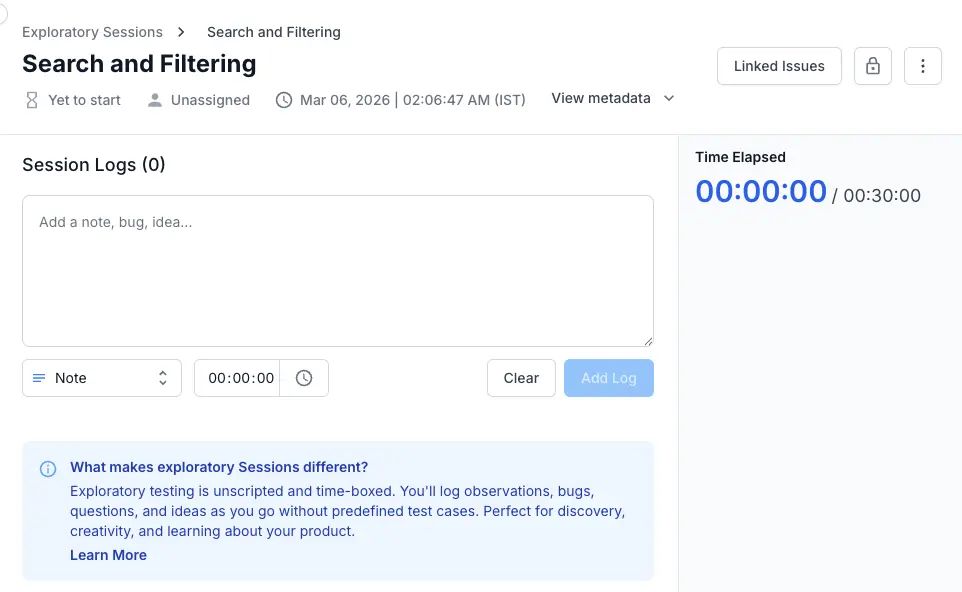
The session moves to In Progress automatically when you add your first log entry. You do not need to explicitly start the session.
Write effective missions
The mission field is the most important part of session creation. It shapes the entire testing effort. A vague mission produces scattered results. A focused mission produces actionable findings.
-
Too vague: “Test the homepage.”
This gives the tester no direction. They might spend the entire timebox on visual checks and miss critical functionality. -
Too narrow: “Verify that clicking the Submit button on the contact form returns a 200 response.”
This is a test case, not a mission. It eliminates the discovery that makes exploratory testing valuable. -
Effective: “Explore the contact form under stress conditions: slow network, repeated submissions, special characters in all fields, and browser back/forward during submission. Focus on data loss and error recovery.”
This gives clear direction while leaving room for the tester to discover unexpected behavior.
Session fields reference
| Field | Required | Description |
|---|---|---|
| Title | Yes | Provides name for the session. Visible in the list view and session detail. |
| Timebox (Minutes) | Yes | Defines session duration. Default: 15 minutes. Drives the elapsed-time counter. |
| Configuration | No | Specifies OS/browser/device combination for this session. One configuration per session. |
| Description/Mission | No | Adds rich text charter defining the testing scope and goals. |
| Tags | No | Adds categorization labels. Useful for filtering sessions in the list view. |
| Requirements | No | Adds linked issues from your requirement management tool (Jira, Azure, etc.). |
| Assign to | Yes | Adds the team member responsible for executing the session. Defaults to the creator. |
| Attachments | No | Adds supporting files (design specs, screenshots, user stories). Max 50 MB per file, 10 files total. |
Next steps
Now that you have created a session, you are ready to execute it. See Run an Exploratory Session to learn about adding log entries, using the timer, and capture your findings.
We're sorry to hear that. Please share your feedback so we can do better
Contact our Support team for immediate help while we work on improving our docs.
We're continuously improving our docs. We'd love to know what you liked
We're sorry to hear that. Please share your feedback so we can do better
Contact our Support team for immediate help while we work on improving our docs.
We're continuously improving our docs. We'd love to know what you liked
Thank you for your valuable feedback!