
 Join our Discord
Global search
Find test cases, test plans, projects, and shared steps across your projects in Test Management, then narrow the results with filters.
Open global search
The Search bar sits at the top of the left navigation, above Dashboards. It appears on every page. Click the bar, or press / from anywhere in Test Management to open it. A / badge inside the bar marks the shortcut.
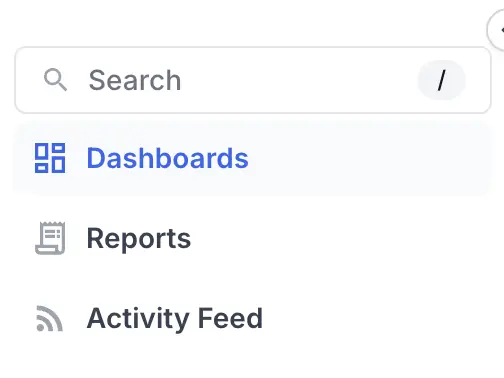
The quick panel opens below the bar.
To see every keyboard shortcut in Test Management, press Shift + /.
Search from the quick panel
When the search field is empty, the quick panel lists your recent searches under Recently searched. Each entry shows a clock icon and the term you searched. Select one to run that search again.
As you type, the panel replaces the recent list with live matches. You can search by name or by ID. The placeholder text names the scope: test case, test plan, project, or shared step.
Use the Quick Filters row to limit the panel to a single type of item. You can choose Test Cases, Test Plans, Projects, or Shared Steps. Set Last Created to control how recent the results are. The default is 30 days.
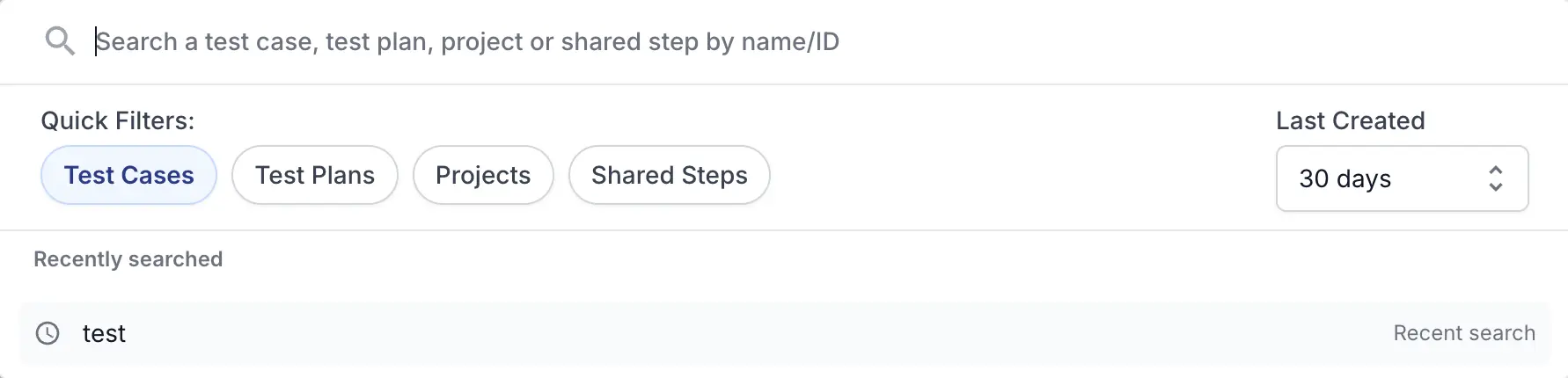
Move through the matches with the up and down arrow keys. Press Enter to open the full Search Results page for your term.
Review results on the Search Results page
The Search Results page lists every match for your term across all your projects. A count at the top shows how many items matched, such as 78 Results for ‘Test’.
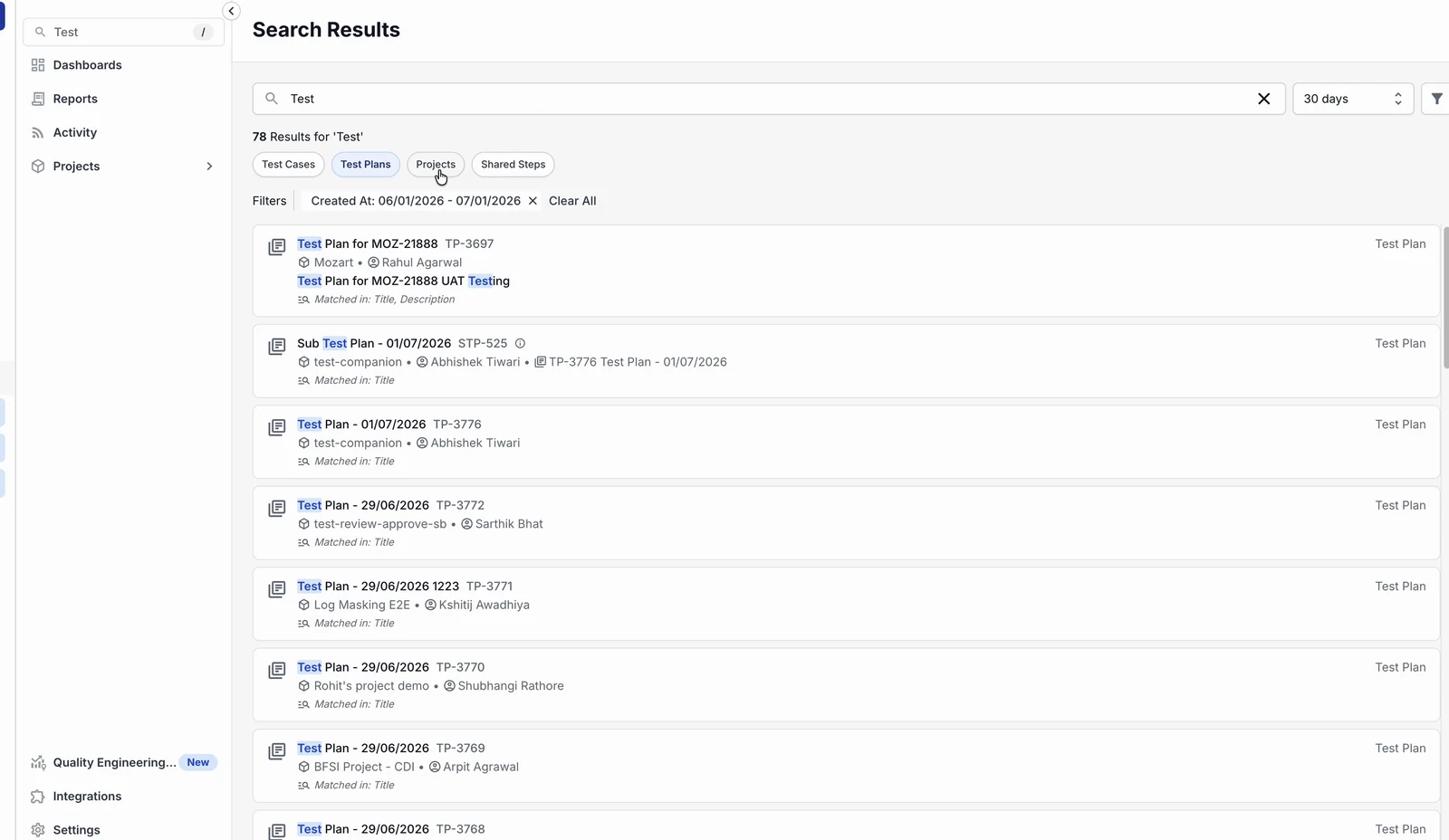
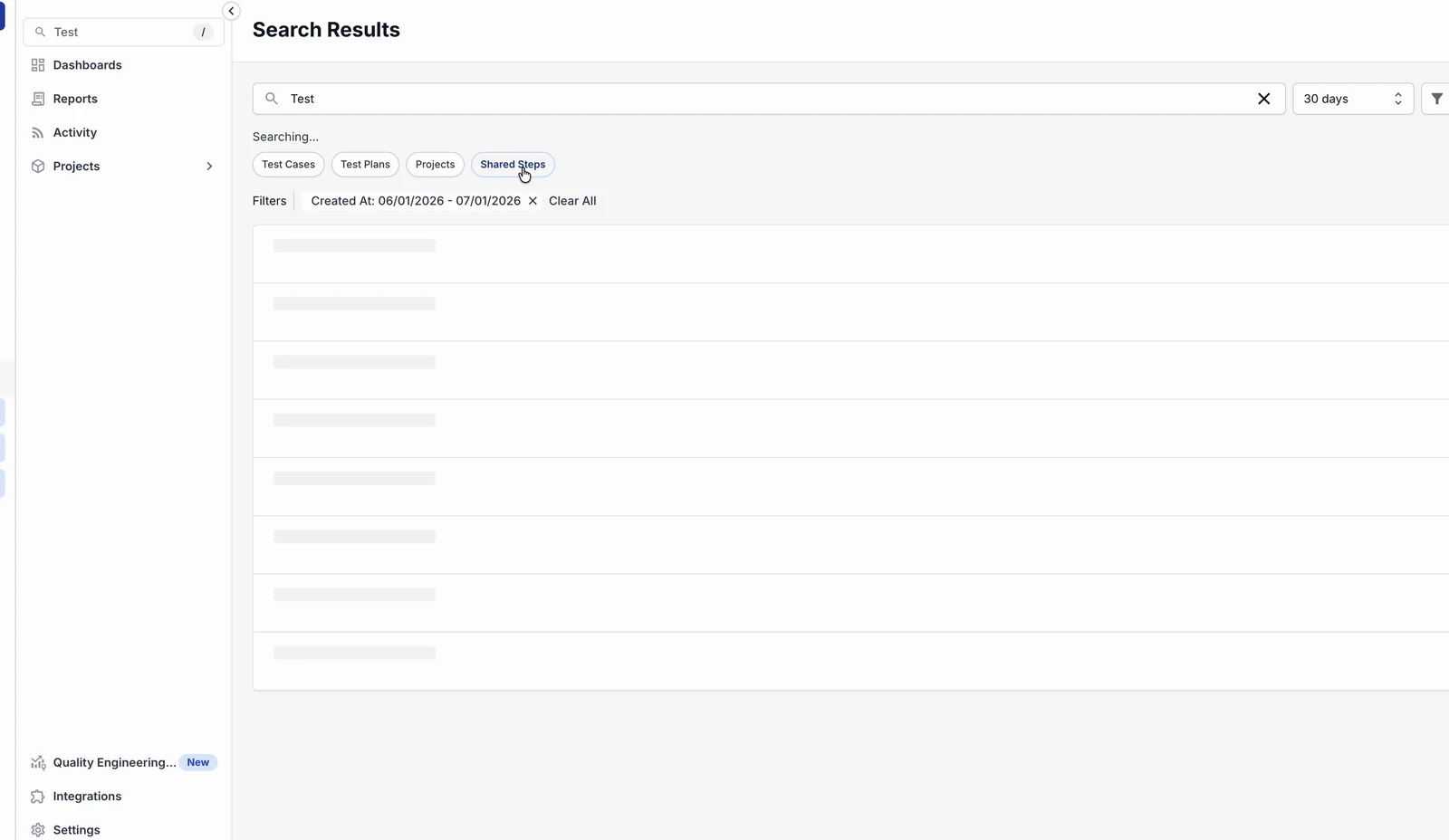
Tabs group the results by type: Test Cases, Test Plans, Projects, and Shared Steps. Select a tab to see only that type. Each tab keeps its own count.
Every result shows the item name with your term highlighted, its ID, its project, and its owner. A Matched in label shows where global search found your term, such as the title or the description.
Narrow results with filters
Two controls refine the results without changing your search term. The time range narrows results by date. The Filter Results panel filters the list by specific fields, such as project or tags.
Filter by time range
The time-range dropdown sits next to the search field, at the top of the results. It shows only items created within the period you pick. Choose from All time, 30 days, 15 days, 7 days, and 1 day. The default is 30 days.
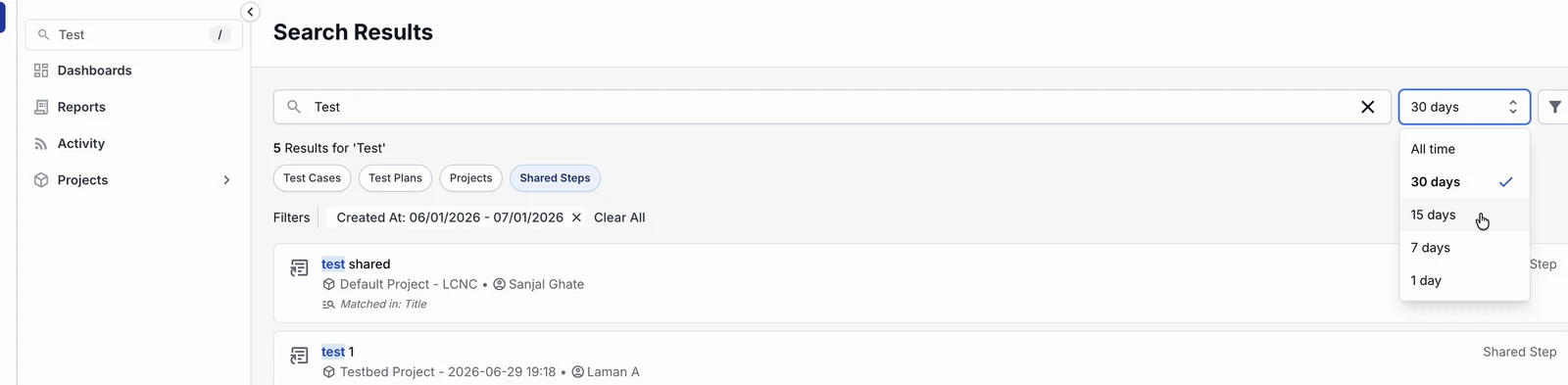
Your selected range appears as a Created At filter in the filters bar above the results.
Filter with the Filter Results panel
Click the filter icon to the right of the time range. The Filter Results panel opens on the right.
At the top, choose how the panel combines your filters:
- Match all filters returns items that meet every filter you set.
- Match any one filter returns items that meet at least one filter.
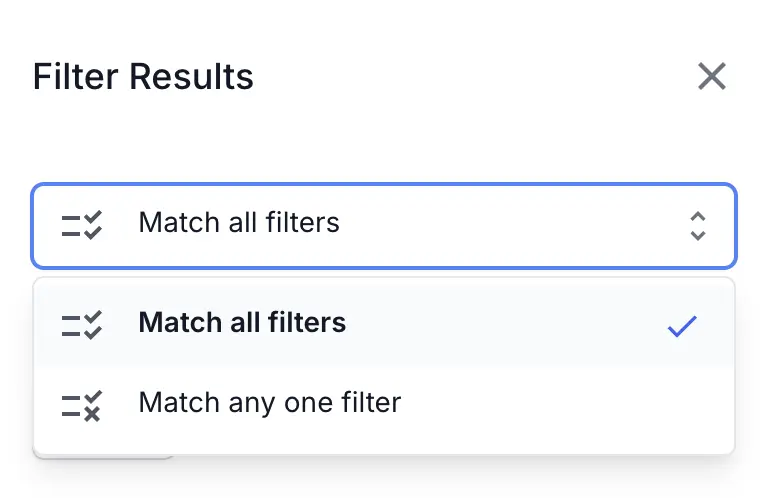
The fields depend on the type of item you are filtering. For shared steps, you can filter by Project, Tags, Created At, and Updated At. Other item types show the fields that apply to them.
Each field has its own operator. Click the operator icon next to a field to choose how it matches the values:
- Contains all values matches items that have every value you select.
- Contains any one value matches items that have at least one value.
- Does not contain any value excludes items that have any of the values.
- Contains only these values matches items that have only the values you select.
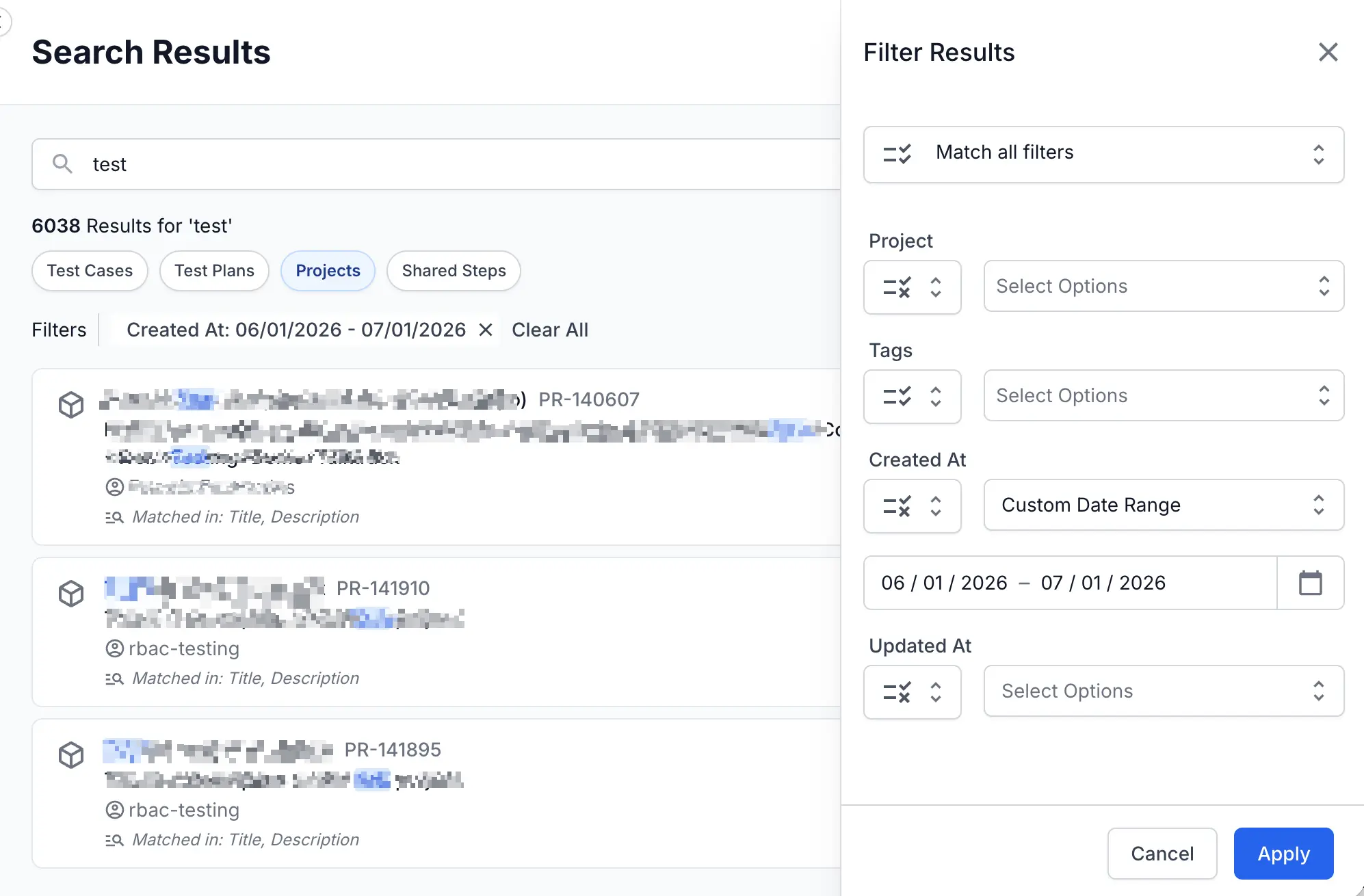
Select your values, then click Apply. Each active filter appears as a chip above the results. Remove a single filter by clicking the × on its chip, or select Clear All to reset every filter.
When no results appear
When nothing matches your term, the page shows No Results Found. The note suggests you adjust your search query. Widen the time range, clear a filter, or fix a typo, then search again.
Next steps
Continue with these related tasks:
- Filter test cases within a single project.
- Search and filter test runs inside a test run.
- Manage projects to organize what you search across.
We're sorry to hear that. Please share your feedback so we can do better
Contact our Support team for immediate help while we work on improving our docs.
We're continuously improving our docs. We'd love to know what you liked
We're sorry to hear that. Please share your feedback so we can do better
Contact our Support team for immediate help while we work on improving our docs.
We're continuously improving our docs. We'd love to know what you liked
Thank you for your valuable feedback!