
 Join our Discord
Manage integration access in Test Management
Control which integration tools your organization can connect in Test Management. Only an owner or admin can disable or enable a tool for everyone.
By default, every user in your organization can connect any supported tool from the Integrations page with their own account. An owner or admin uses Manage Integrations to disable the tools that your organization has not approved. A disabled tool stays visible on the page. Nobody in the organization can connect it or link new issues from it.
Nothing changes until an admin disables a tool. Every tool stays enabled for an organization that has never used this view.
Only the owner or an admin of your BrowserStack organization sees the Manage Integrations button. If you do not see it, you cannot disable or enable tools. Ask your organization admin instead of raising a support ticket.
Prerequisites
You need the owner or admin role in your BrowserStack organization. Standard users do not see the Manage Integrations button.
Disable a tool for your organization
To disable one or more tools for everyone in your organization, follow these steps:
- In the left navigation menu, select Integrations.
-
In the top-right corner of the page, click Manage Integrations.
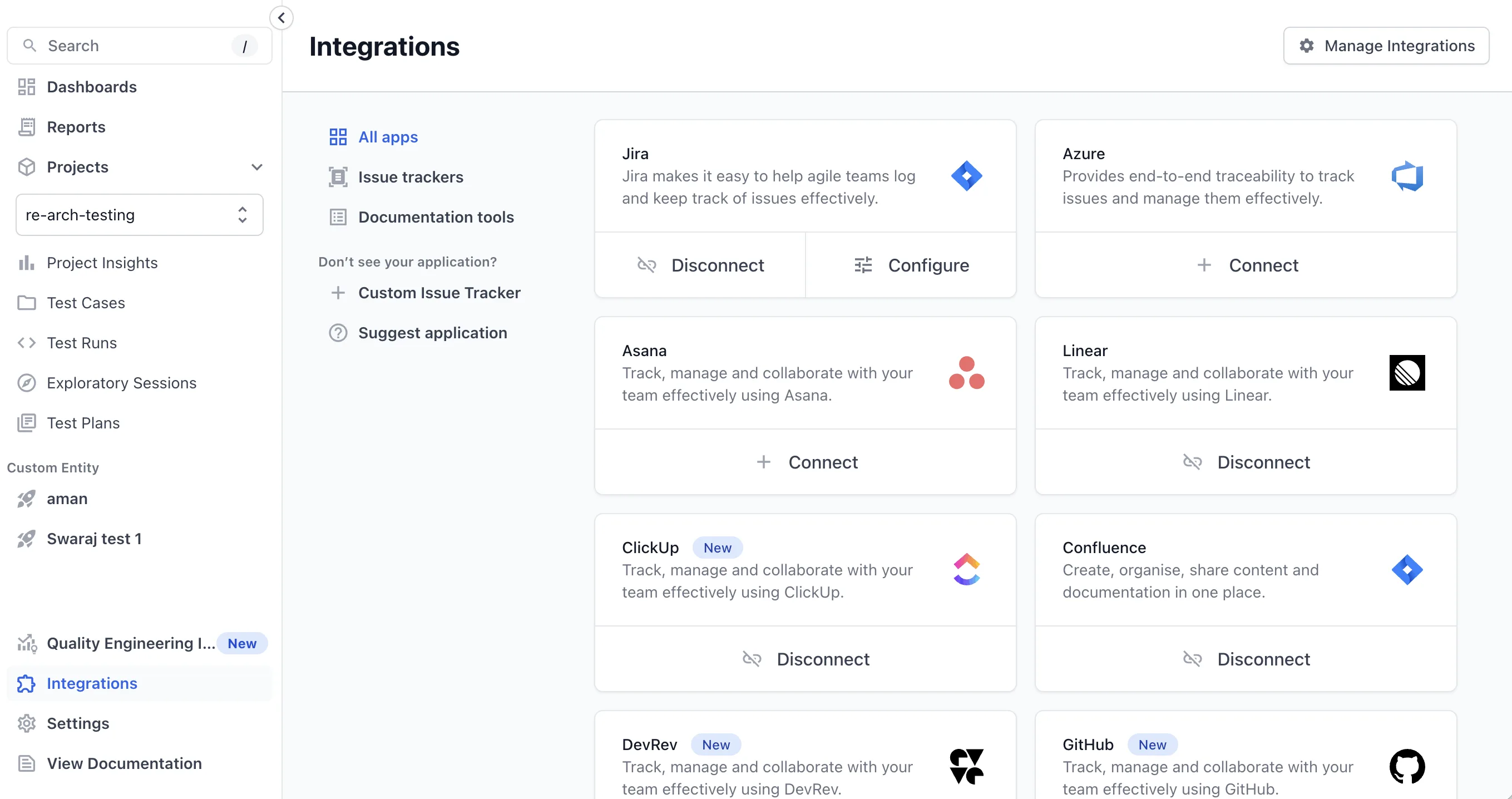
The page switches to the management view. Each tile shows a Disable button, such as Disable Jira. The Save button stays inactive until you change a tool.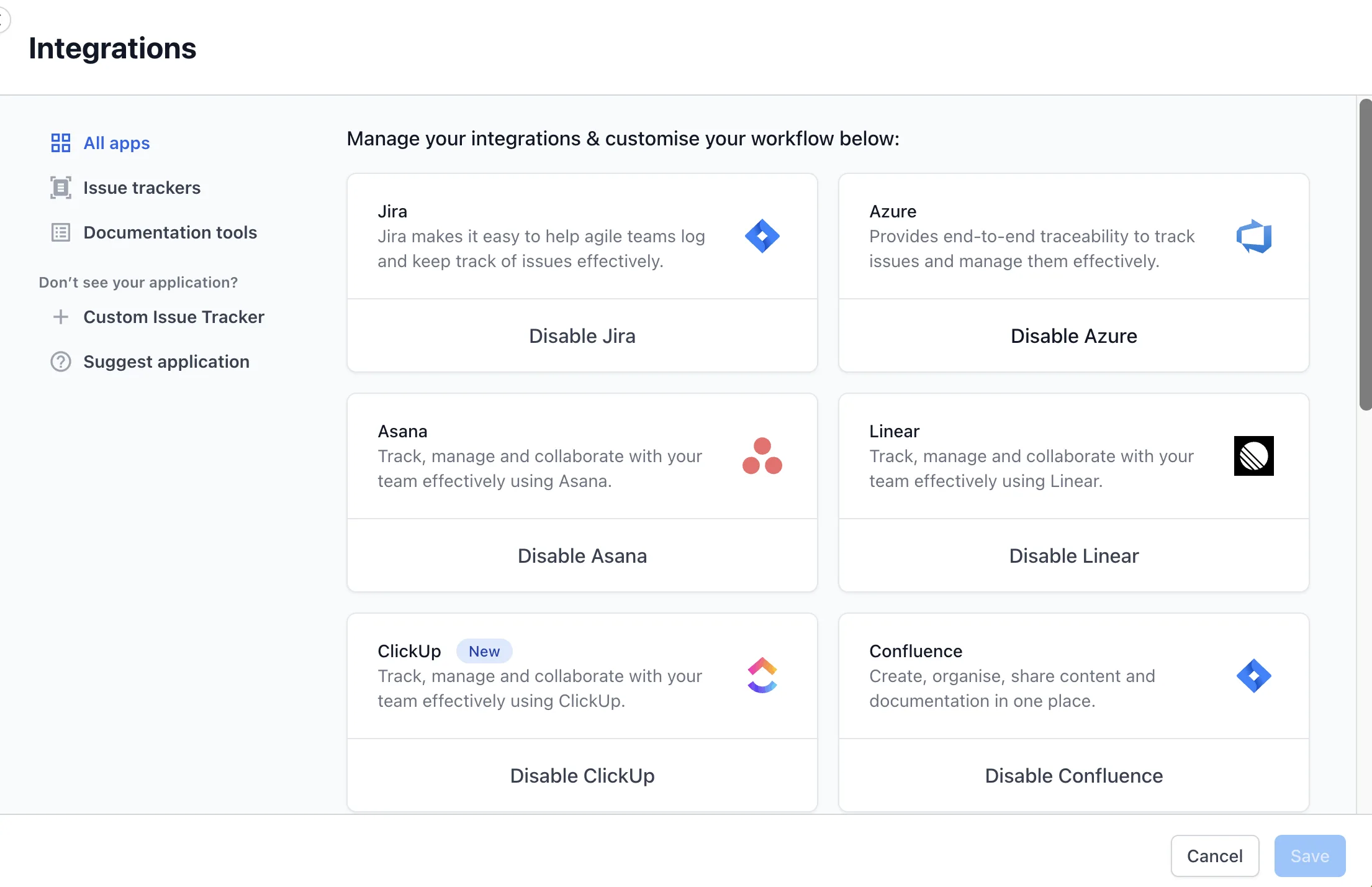
-
Click Disable on each tool that you want to block. The button on that tile changes to Enable, and Save becomes active.
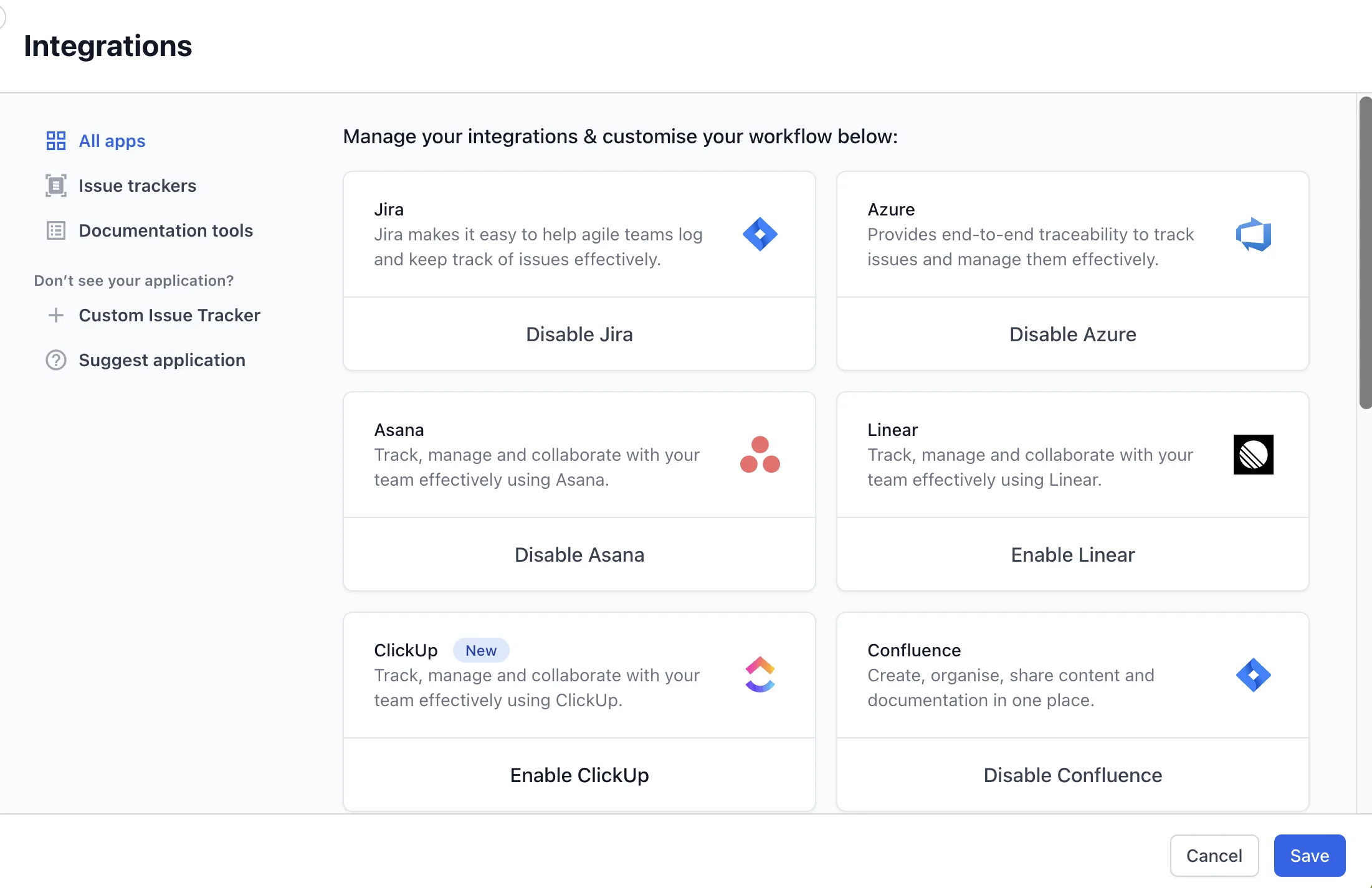
To discard every pending change, click Cancel. Nothing is saved until you confirm. -
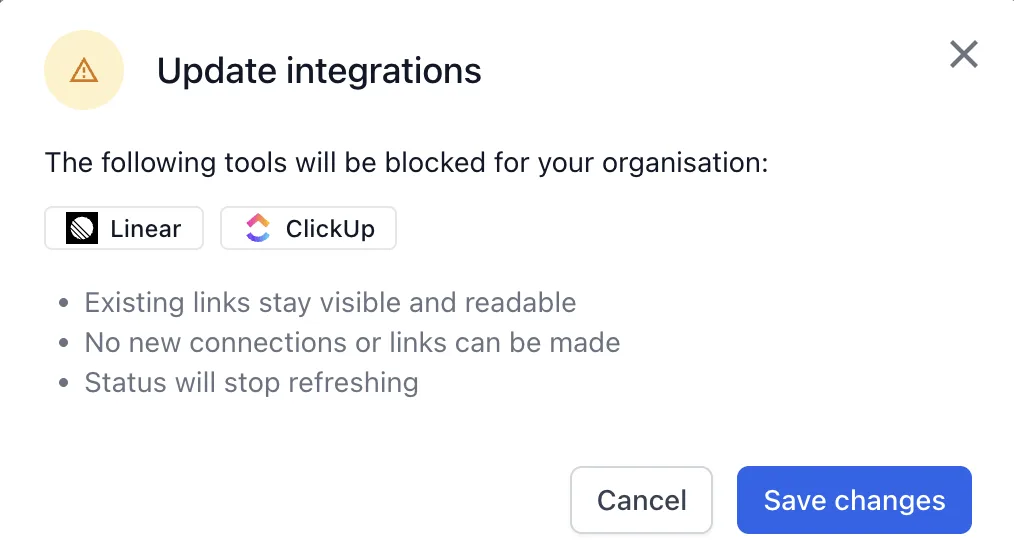
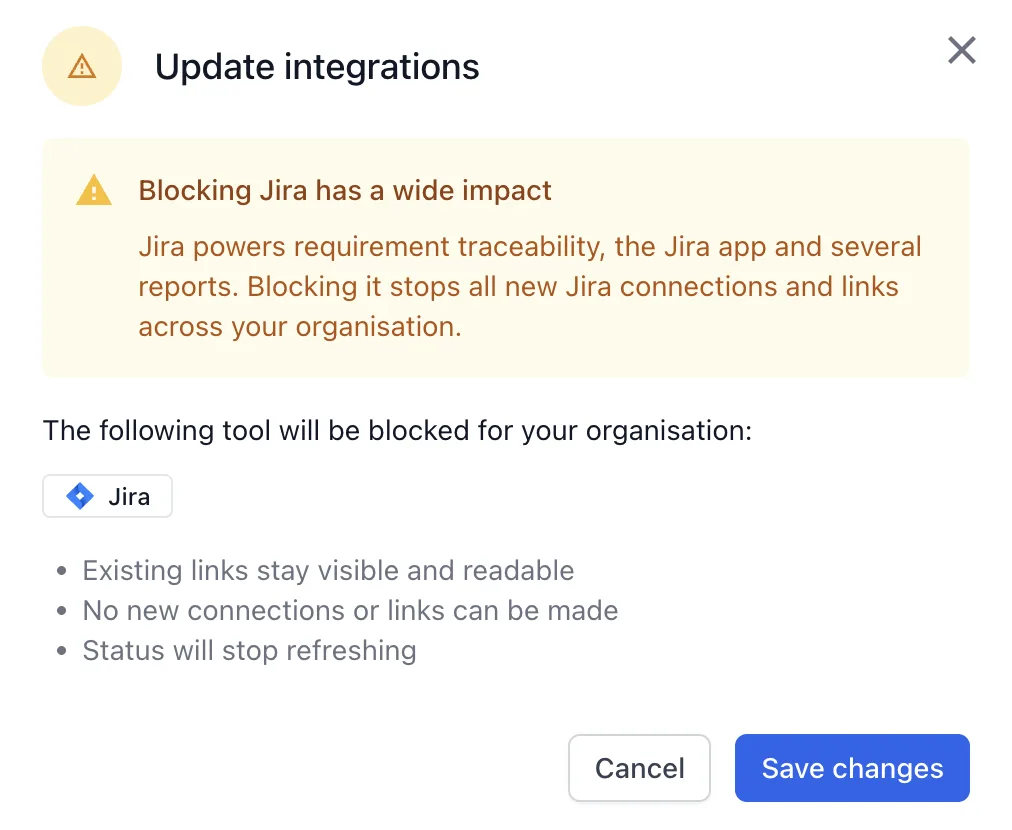
Click Save. The Update integrations dialog lists the tools that will be blocked for your organization.
-
Review the effects, then click Save changes.
When Jira is among the tools you disable, the dialog adds the warning Blocking Jira has a wide impact. Jira powers requirement traceability, the Jira app, and several reports. Disabling it stops all new Jira connections and links across your organization.
The change applies to every user in your organization immediately. To see the page as other users see it, click Cancel to leave the management view.
What changes when a tool is disabled
Disabling a tool blocks new activity and keeps existing data. The Update integrations dialog lists the following effects:
- Existing links stay visible and readable.
- No new connections or links can be made.
- Status will stop refreshing.
In practice, this means the following for everyone in your organization:
- Nobody can connect the tool from the Integrations page. Users who connected it before it was disabled keep their connection, but cannot create new links from it.
- The tool no longer appears in the issue tracker dropdown menu. This applies when you link requirements or defects to a test case, test run, test plan, or exploratory session.
- Requirements and defects that were linked before the change stay on their test cases, test runs, and results. Their status stops refreshing while the tool is disabled.
- Test Management API requests that link a new issue from the tool fail with a
422error.
Disabling a tool never deletes links or connections. You can enable it again at any time.
Enable a tool again
To make a disabled tool available to your organization again, follow these steps:
- In the left navigation menu, select Integrations.
-
In the top-right corner of the page, click Manage Integrations.
-
Click Enable on each disabled tool that your organization has approved. The button changes back to Disable, and Save becomes active.
-
Click Save. The Update integrations dialog lists the tools that will be enabled.
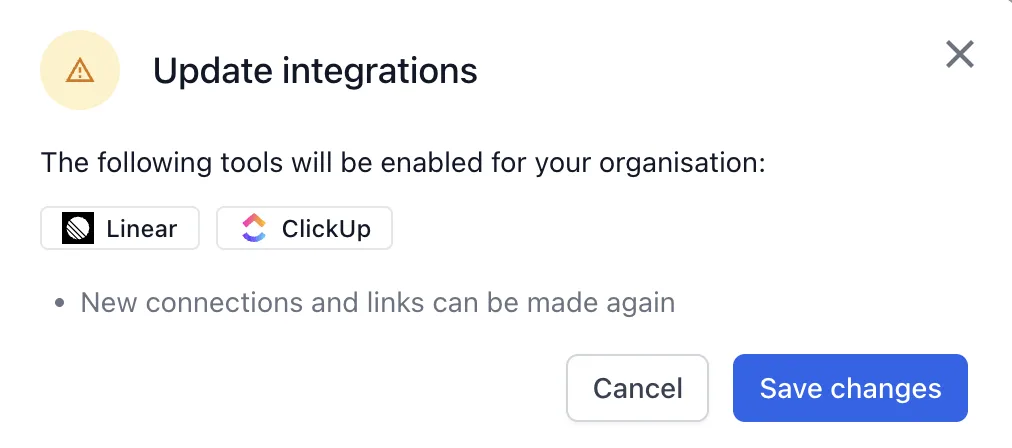
- Click Save changes.
After you save, anyone in your organization can connect the tool and link issues from it again. Connections and links from before the tool was disabled do not need to be set up again.
Tools you can manage
The management view lists every built-in tool as a tile, in the same order as the All apps tab:
- Issue trackers: Jira, Azure DevOps, Asana, Linear, ClickUp, DevRev, GitHub, GitLab, Trello, and Zoho BugTracker.
- Documentation tools: Confluence, Figma, SharePoint, and OneDrive.
Custom issue trackers do not appear in this view. Only an owner or admin can create, edit, or delete a custom issue tracker. For details, refer to Integrate a custom issue tracker.
If you do not see Manage Integrations
A missing Manage Integrations button means your account has a standard role. Only the owner and admins of your BrowserStack organization see the button. You cannot change which tools are enabled, and this is expected behavior, not an error.
To get a tool enabled, contact the owner or an admin of your organization. BrowserStack Support cannot enable a tool that your admin has disabled.
Next steps
- Integrate issue trackers to connect an enabled tool.
- Role-Based Access Control to review who holds the owner and admin roles.
We're sorry to hear that. Please share your feedback so we can do better
Contact our Support team for immediate help while we work on improving our docs.
We're continuously improving our docs. We'd love to know what you liked
We're sorry to hear that. Please share your feedback so we can do better
Contact our Support team for immediate help while we work on improving our docs.
We're continuously improving our docs. We'd love to know what you liked
Thank you for your valuable feedback!