
 Join our Discord
Part 11 Compliance
Turn on Part 11 Compliance to require an electronic signature on test case approvals and record every approval in the audit log.
Some teams work under rules that treat a test case approval as a regulated electronic record. FDA 21 CFR Part 11 is an example. It is a United States regulation. Under Part 11, the person who approves a record must prove their identity at the moment they sign it, before that approval can count. Test Management then stores that approval in a permanent trail. Part 11 Compliance brings these controls to the Review and approve test cases workflow. You turn it on for each project, so one account can serve regulated and non-regulated teams.
Part 11 Compliance is available on request. Contact your BrowserStack administrator or account team to turn it on for your account.
How Part 11 Compliance works
Part 11 Compliance is a project-level setting:
- When it is off, the review and approval workflow behaves as before.
- When you turn it on, three controls take effect.
The first control is re-authentication. When Part 11 Compliance is on, Test Management asks the author to re-authenticate at the moment they send a test case for review. The reviewer re-authenticates too, before they approve or reject. The second control is the audit log, where Test Management records every approval. The third control governs test runs. An unapproved test case cannot enter a run until a reviewer signs off.
These controls build on the review and approval workflow. So you enable that workflow first, then turn on Part 11 Compliance.
Prerequisites
You must have the following three prerequisites before you start:
- You must be the project Owner, the only role that can turn on Part 11 Compliance. For the role breakdown, refer to Role-Based Access Control.
- The Review & Approve Test Cases setting must be on for the project. Part 11 Compliance extends that workflow, so it has nothing to govern until review and approval is active.
- Each signer must use a username and password account.
Enable Part 11 Compliance
To turn on Part 11 Compliance for a project, follow these steps:
- Navigate to Settings, then click the General tab.
- Turn on Review & Approve Test Cases if it is not already on.
- Turn on Part 11 Compliance.
- Click Save changes.
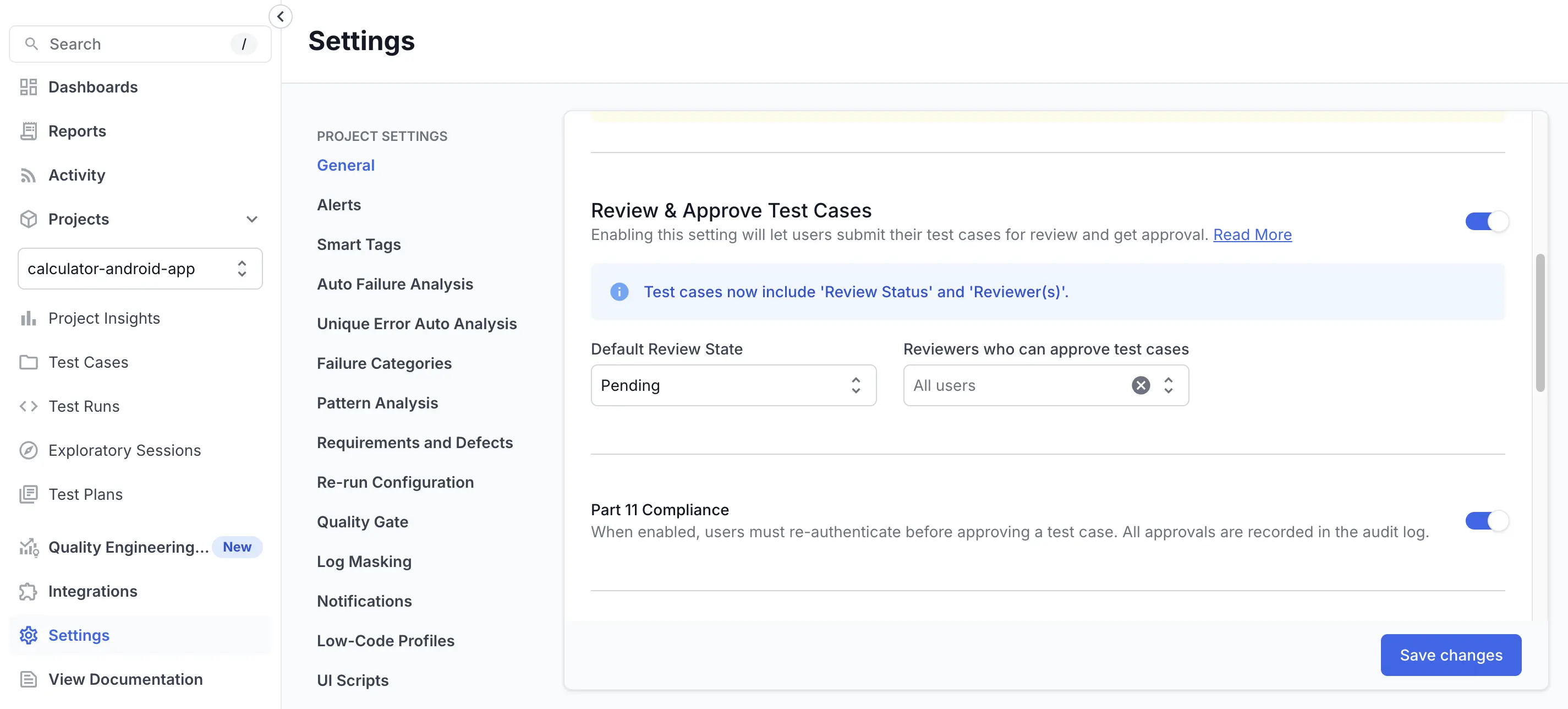
Part 11 Compliance applies to the project as soon as you save. The next signer sees a re-authentication prompt.
Re-authenticate before signing
When Part 11 Compliance is on, Test Management shows the Sign to confirm prompt at the moment of signing. The signer re-enters their BrowserStack username and password to confirm. The prompt appears at two points:
- The author signs when they click Send for Review.
- The reviewer signs before they record an Approved, Changes Requested, or Rejected status.
For the author step, see the Review and approve test cases page. For the reviewer step, see Approve or reject with an e-signature.
Part 11 Compliance works only for username and password accounts. A signer who uses SSO, Google, or a two-factor account cannot complete the re-authentication prompt.
Approve or reject with an e-signature
When Part 11 Compliance is on, a reviewer signs each decision before Test Management records it. The signature shows who approved or rejected the test case, and when. Test Management asks for the password on every decision, not once per session.
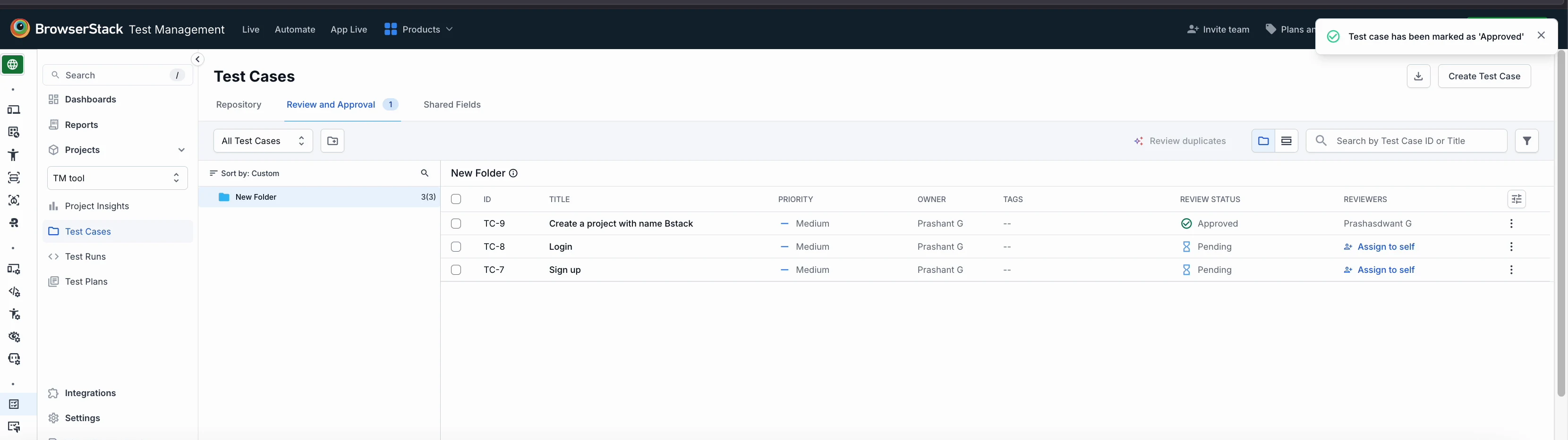
The Review and Approval tab lists the cases awaiting your review. To take an unassigned case, click Assign to self.
Follow these steps to approve or reject a test case:
- On the Test Cases page, select the Review and Approval tab.
- Select the test case you want to review.
- Click Add Review Status.
- Set Review Status to Approved, Changes Requested, or Rejected.
- Add a comment. Changes Requested and Rejected require one.
-
Click Save.
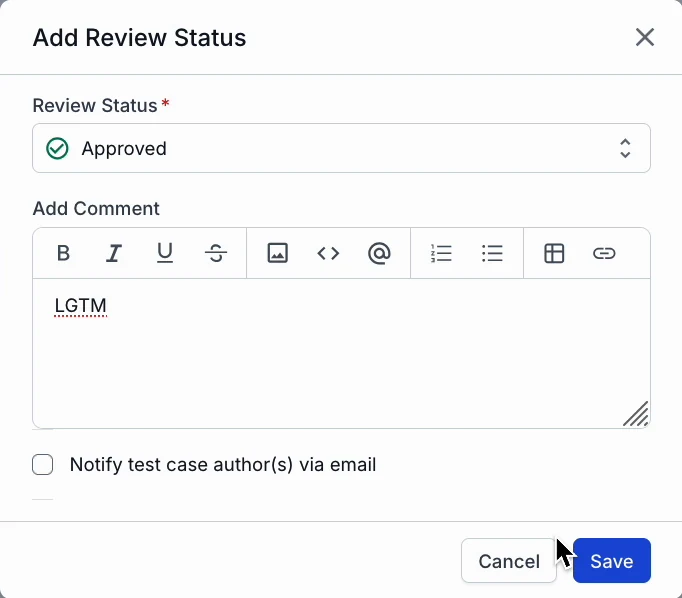
- In the Sign to confirm prompt, enter your BrowserStack account password. Your username is filled in already.
-
Click Sign & Save.
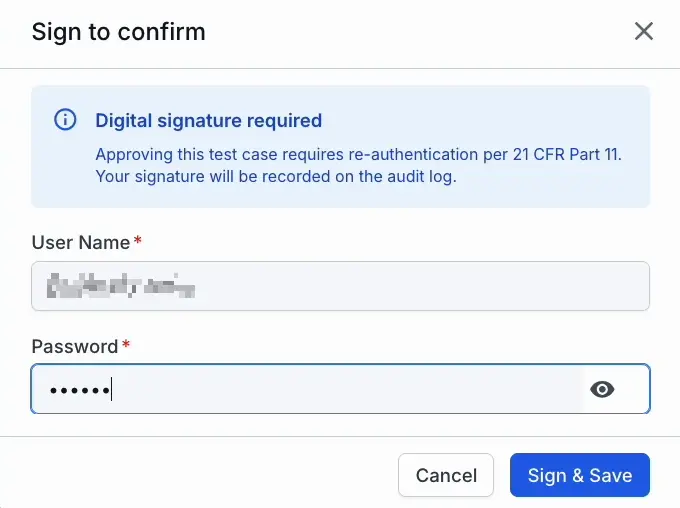
Test Management records the new status and writes your signature to the audit log. The test case shows the new status right away. Your name appears in the Reviewers column.
Approvals in the audit log
Test Management records every signing event in the audit log. Each entry ties a signature to the signer who applied it, the test case it covers, and the review status they chose. No one can change that entry. Because the log is tamper-evident, it holds up under inspection.
The audit log is not self-serve. You cannot open it inside Test Management. To get a copy of the signing history, contact your BrowserStack account team. By default, BrowserStack keeps the log data for 30 days. You can request a longer retention period.
Block unapproved test cases from test runs
Part 11 Compliance can also hold a test case out of execution until a reviewer approves it, which protects a run from unverified steps. The control works per project. You choose which review statuses count as approved. A test case that is not in one of those statuses cannot join a test run. A reviewer must sign off first.
Known limitations
Two boundaries apply to Part 11 Compliance:
- Account types: Only username and password accounts can sign.
- Turn-off behavior: Switching off Part 11 Compliance returns the project to the standard review and approval workflow. Existing audit log entries stay in place.
Next steps
We're sorry to hear that. Please share your feedback so we can do better
Contact our Support team for immediate help while we work on improving our docs.
We're continuously improving our docs. We'd love to know what you liked
We're sorry to hear that. Please share your feedback so we can do better
Contact our Support team for immediate help while we work on improving our docs.
We're continuously improving our docs. We'd love to know what you liked
Thank you for your valuable feedback!