
 Join our Discord
View test cases across folders and subfolders
Manage and view test cases located in multiple nested subfolders without navigating through each individual directory. The Consolidated View aggregates test cases from a selected parent folder and all its subsequent subfolders into a single, comprehensive list.
This view eliminates the need to navigate through individual directories, allowing you to search, filter, and perform bulk actions across an entire branch of your folder tree instantly.
Folder view vs consolidated view
You can toggle between two distinct viewing modes using the icons located next to the search bar.
| Feature | Folder view | Consolidated view |
|---|---|---|
| Icon | (Folder icon) | (List/Stack icon) |
| Scope | Strict hierarchy | Recursive aggregation |
| Content display | Displays only test cases located directly in the selected folder. You must click child folders to view their contents. | Displays test cases from the selected folder plus all test cases contained within its subfolders. |
| Context | Standard hierarchical tree navigation. | The header explicitly notes the recursive scope (e.g., unit-tests (incl. subfolders)). |
Switch views
By default, the Test Case repository displays the folder view (see annotation 1), which isolates test cases to the specific folder selected. To switch to a consolidated view:
- Navigate to the Test Cases list view in your project.
-
Locate the view toggle buttons to the left of the search bar.
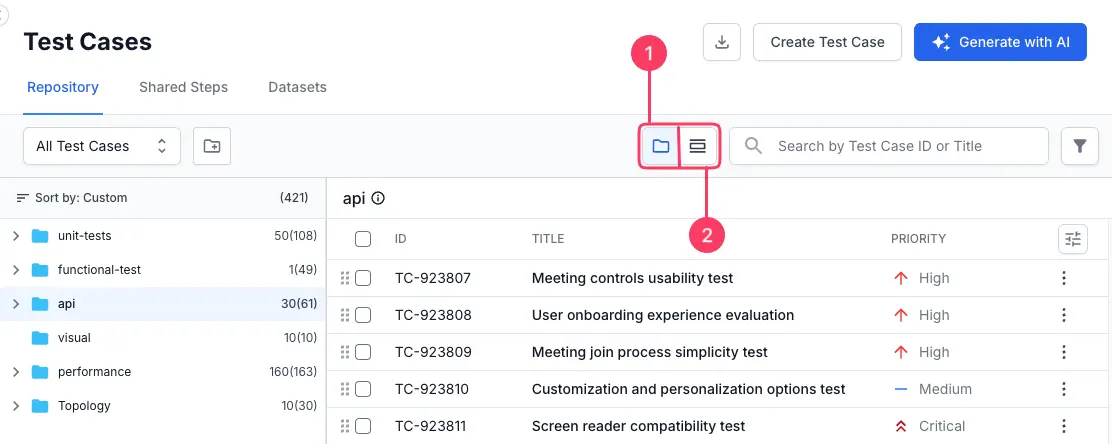
- Click the consolidated view icon (see annotation 2) to switch modes.
Create and save views
You can save specific filter configurations and folder scopes as reusable Views.
-
Click All Test Cases dropdown above the test case folders.
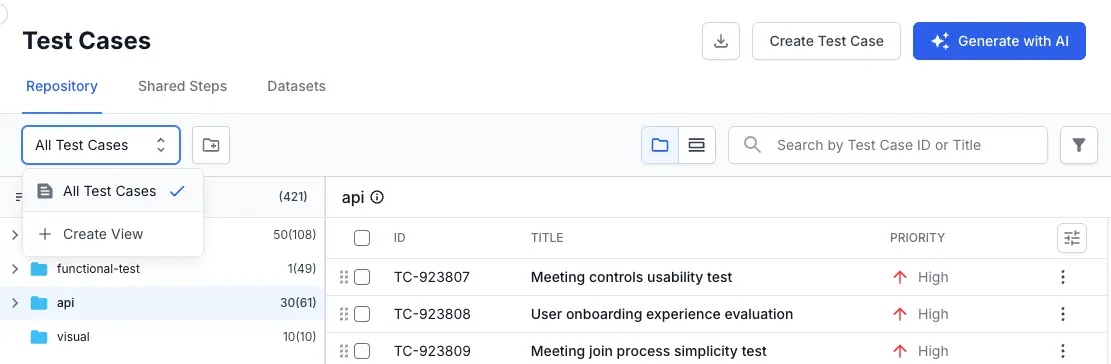
- Click + Create View.
- In the Create View slide over, configure the following:
- Enter View Name (see annotation 1): Provide a unique name for your view.
- Public View (see annotation 2): Toggle this ON to make the view accessible to all users in the project.
- Folder (see annotation 3): Select the specific test case folders you want this view to target.
-
Filters: Apply specific criteria such as
State,Priority,Owner,Tags, and other relevant factors to effectively narrow down the test cases. Refer to filter test cases documentation.
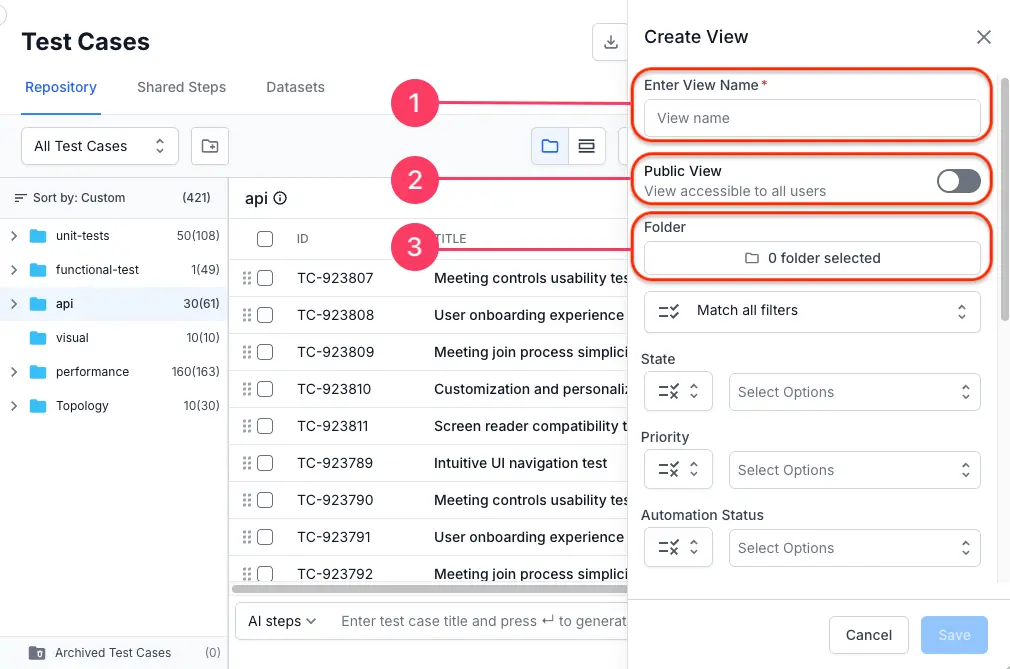
- Click Save.
The view will now appear in your list of saved views, preserving your folder scope and filter preferences.
Navigating folder structures
In consolidated view, the folder tree acts as a scope selector rather than a strict directory.
- All test cases: Select the root level to view every test case in the project, regardless of folder depth.
- Specific folder: Select a folder to view test cases residing in that folder and all test cases contained within its subfolders.
The list header updates to indicate the current scope (e.g., Folder Name (incl. subfolders)).
Search and filter behavior
Filtering in consolidated view is recursive. When you apply search keywords or filters (such as Status, Priority, or Owner), the system queries the currently selected folder and all its nested subfolders.
- Folder tree visibility: The folder navigation panel dynamically updates to show only folders containing test cases that match your filter criteria. Folders with no matching results are hidden to reduce clutter.
- Real-time updates: If you add a new test case that matches active filter criteria, the list count and folder visibility update automatically.
Managing test cases
You can perform the following operations on the aggregated list just as you would in a single folder.
- Bulk actions: Select multiple test cases across different subfolders to perform bulk operations (e.g., Bulk Edit, Delete, Move). Checking the “Select All” checkbox selects all loaded test cases within the current folder scope.
- Ordering: By default, test cases in this view are ordered by their creation date, preserving the chronological order of addition.
We're sorry to hear that. Please share your feedback so we can do better
Contact our Support team for immediate help while we work on improving our docs.
We're continuously improving our docs. We'd love to know what you liked
We're sorry to hear that. Please share your feedback so we can do better
Contact our Support team for immediate help while we work on improving our docs.
We're continuously improving our docs. We'd love to know what you liked
Thank you for your valuable feedback!