
 Join our Discord
Project Visibility
Hide projects in Test Management based on where their test runs come from, so your team sees only the projects that matter.
BrowserStack is one connected platform. Test runs from Automate, App Automate, and other products flow into a shared set of projects. Some of those projects matter to your manual test team. The rest do not. Project Visibility lets an organization’s IAAM Owner or Admin hide the projects you do not want to see in Test Management, based on where their runs come from. The runs themselves are never deleted.
How project visibility works
Every project in Test Management has one or more sources. A source describes where a project’s runs come from, such as Automate runs reported through the BrowserStack SDK or results uploaded from report files. BrowserStack sets these sources automatically. You do not have to tag projects yourself.
By default, every source is visible. Every project appears in Test Management. When an IAAM Owner or Admin excludes a source, Test Management hides the projects that contain runs from that source. The exclusion works at the project level. If a project contains runs from an excluded source, Test Management hides the whole project, even when that project also holds runs from other sources. Nothing is removed from the project itself.
| Term | What it means |
|---|---|
| Source | A label that shows where a project’s runs come from. BrowserStack sets it automatically. |
| Source exclusion | The list of sources an IAAM Owner or Admin chooses to hide. |
| Hidden project | A project hidden from default Test Management views because it contains runs from an excluded source. |
Sources you can hide
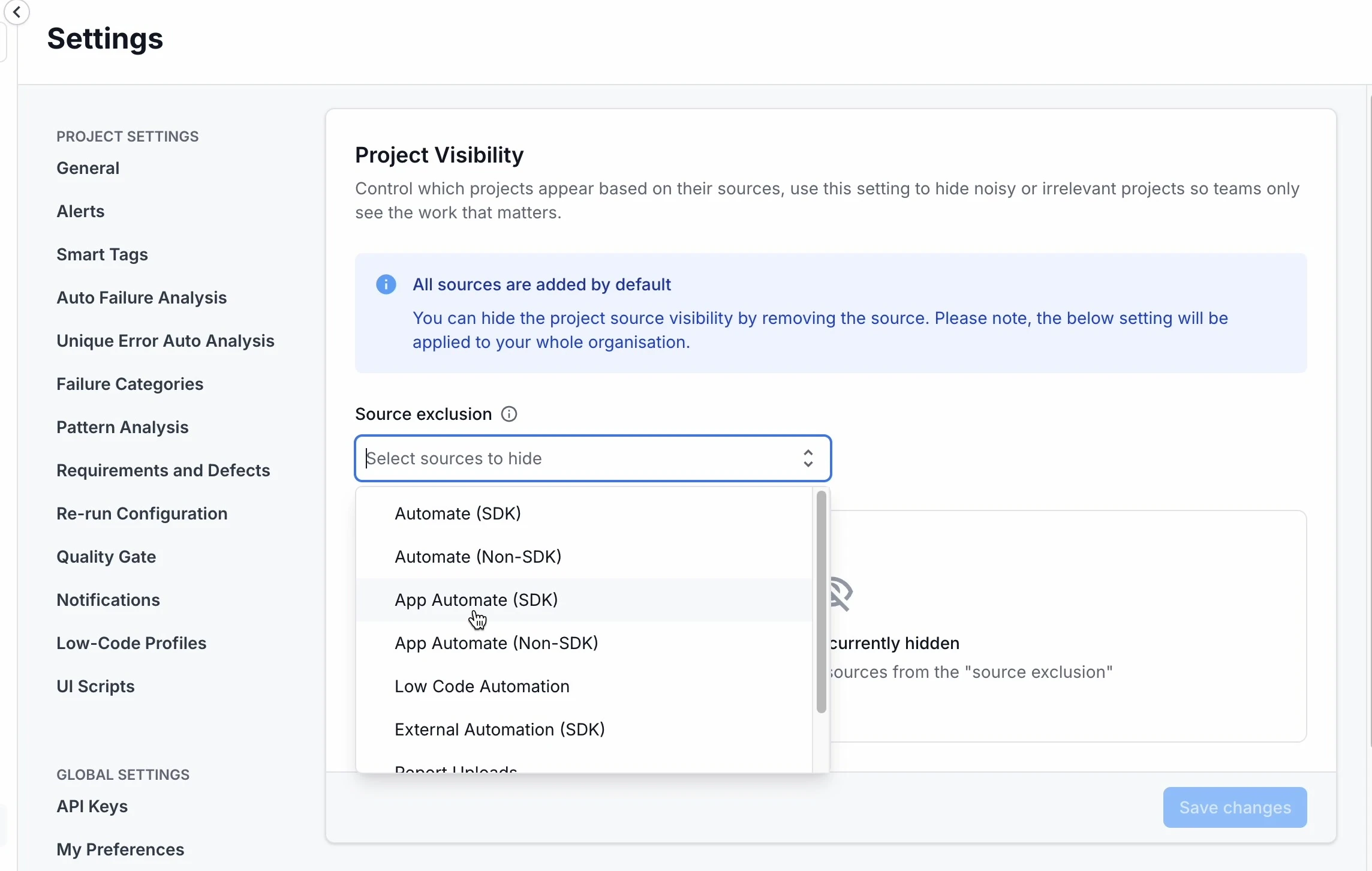
The Source exclusion dropdown lists the sources BrowserStack detects across your projects. Your list can include more sources than the ones below, because the options reflect the run types your organization uses.
| Source | Runs it covers |
|---|---|
| Automate (SDK) | BrowserStack Automate runs reported through the BrowserStack SDK. |
| Automate (Non-SDK) | Automate runs that do not use the SDK. |
| App Automate (SDK) | App Automate runs reported through the SDK. |
| App Automate (Non-SDK) | App Automate runs that do not use the SDK. |
| Low Code Automation | Runs created with BrowserStack Low Code Automation. |
| External Automation (SDK) | Runs from automation outside BrowserStack, reported through the SDK. |
| Report Uploads | Test results uploaded from report files. |
Before you begin
Project Visibility is enabled for each organization separately. If the option does not appear in your Test Management settings, contact your BrowserStack account team to enable it.
Only organization Owners and Admins can change Project Visibility rules. Other members can open the page and read the current rules. They cannot edit them.
Project Visibility rules apply to everyone in your organization. A project you hide disappears from Test Management for all members, not only for you.
Hide projects by source
Follow these steps to hide one or more sources across your organization.
- Log in to Test Management.
- Go to Settings > Project Visibility. The Source exclusion control is where you choose what to hide.
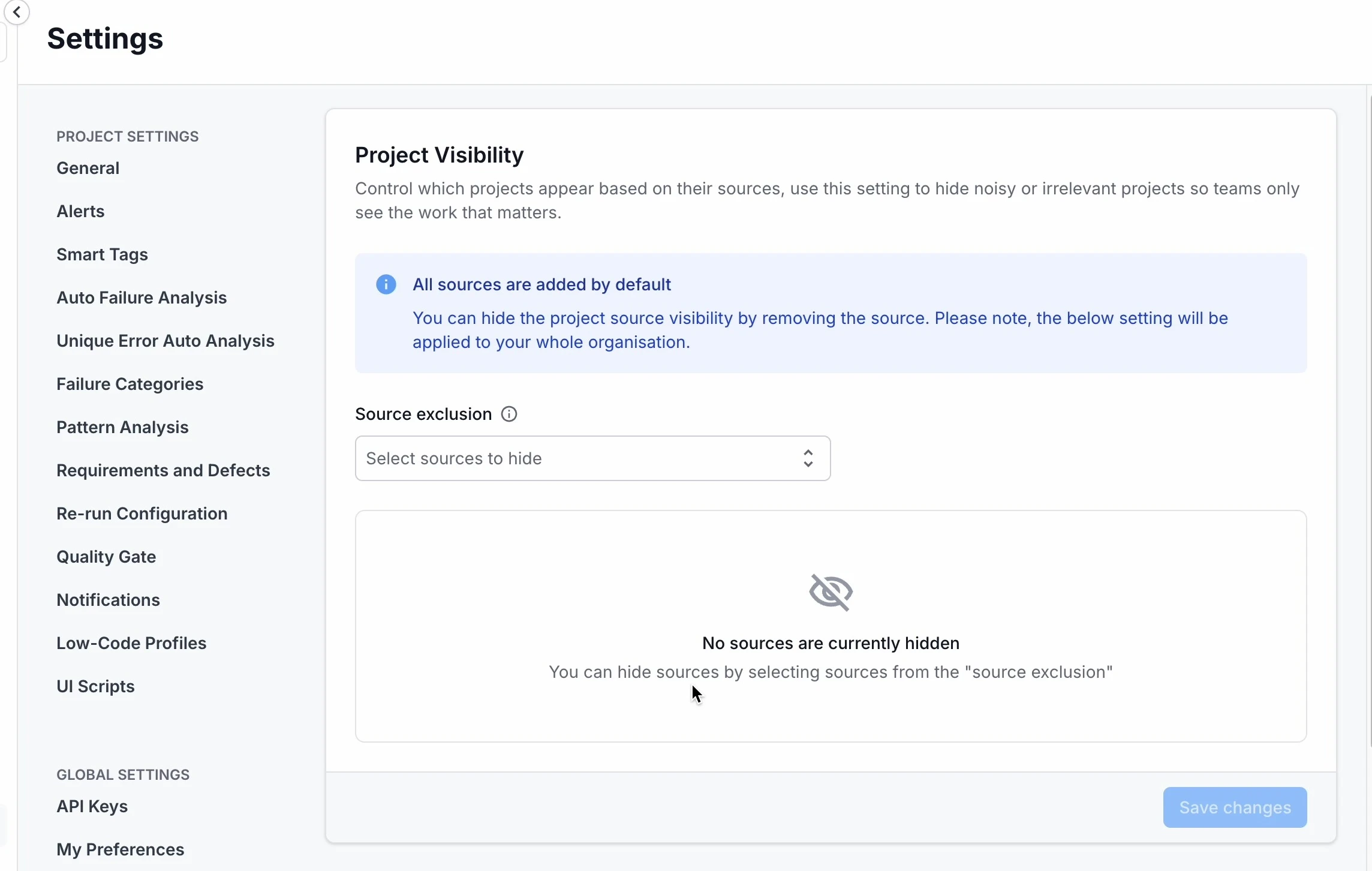
- Open the Source exclusion dropdown. Select each source you want to hide.
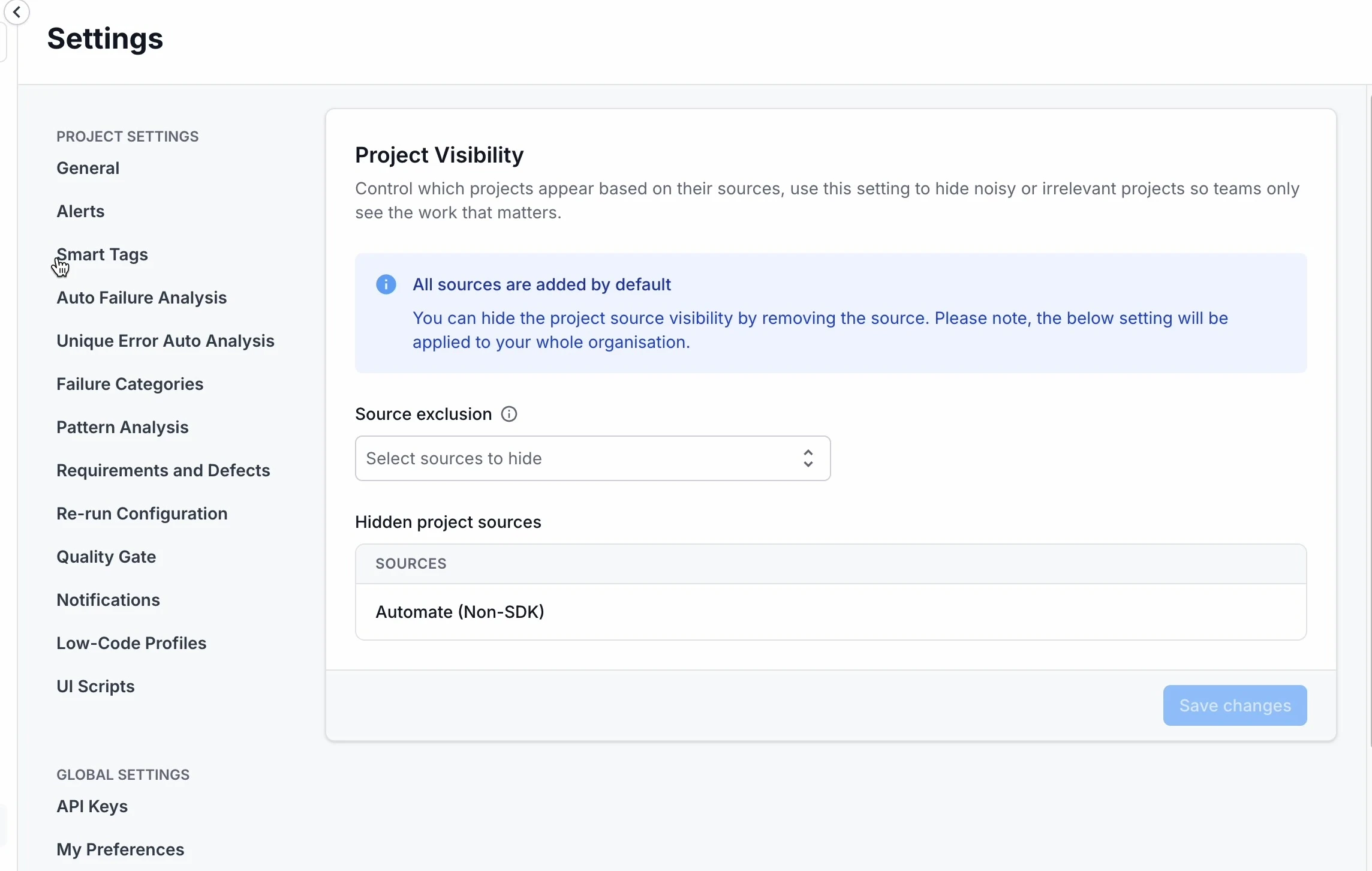
- Check the sources listed under Hidden project sources.
- Click Save changes.
- In the confirmation dialog, click Apply changes. Test Management asks you to confirm because the change affects every member.
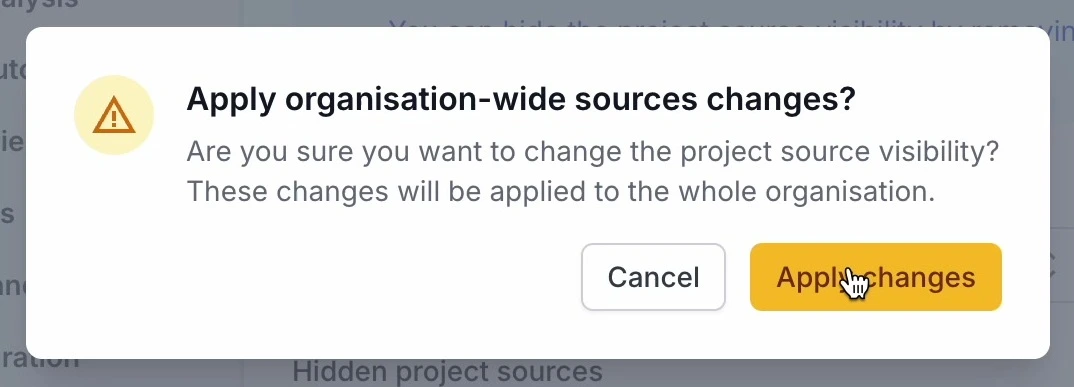
Test Management applies the rules right away. Projects that contain runs from the sources you selected drop out of your project list.
What hiding a source affects
When you hide a source, Test Management leaves the affected projects out of its default views. The change applies everywhere Test Management lists or counts projects.
- Project list: Hidden projects drop out of the default project list.
- Search, filters, and dashboards: Search, filters, cross-project dashboards, reports, and counters exclude hidden projects. Totals reflect only the projects you can see.
- Test Management APIs: List endpoints exclude hidden projects by default.
Hiding controls what Test Management shows, not what it stores. A hidden project is not deleted. You can still open it, as Review which projects are hidden explains.
Test Management does not hide the change silently. While a source is excluded, a banner names the disabled source at the top of the page. Select Configure to open the Project Visibility settings.
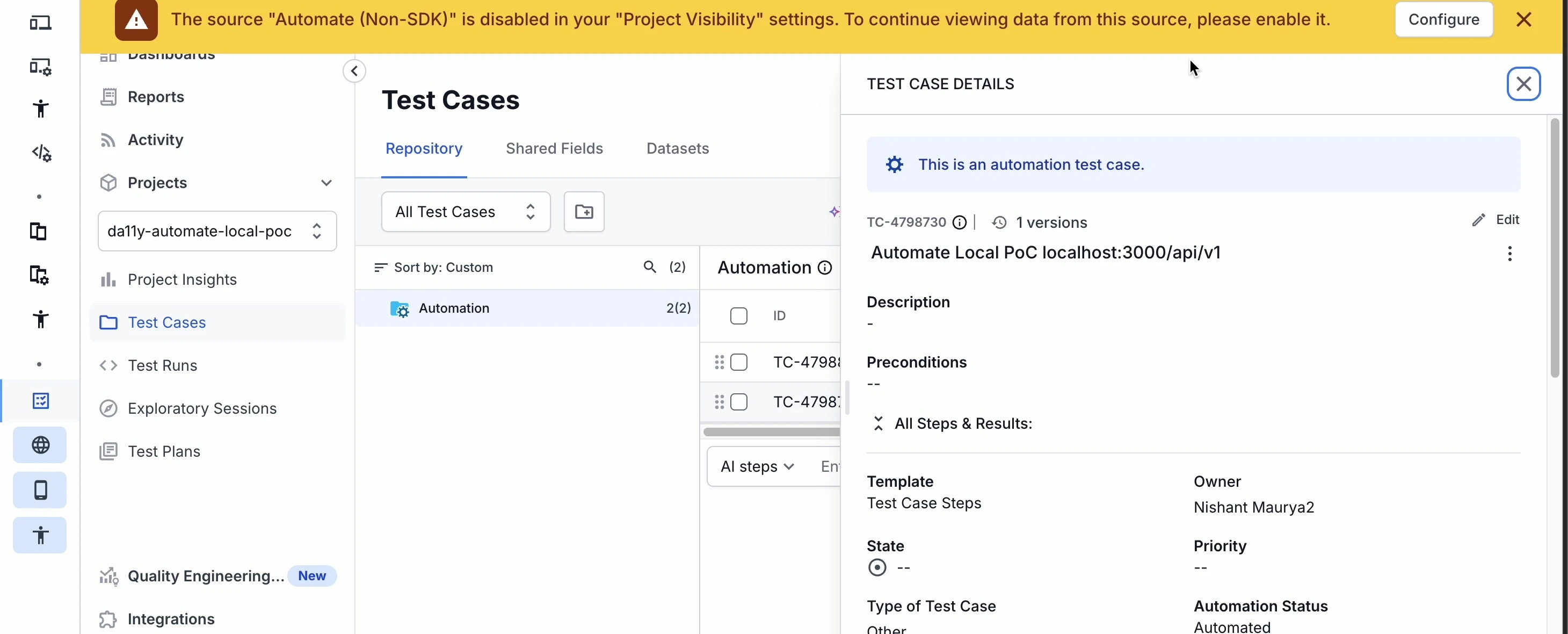
Project Visibility changes what you see in Test Management only. It does not delete any data. It does not change what appears in Test Reporting & Analytics, Automate, App Automate, or other BrowserStack products.
Review which projects are hidden
You can check which projects your rules hide without changing the rules. On your project list, select Show hidden projects to list the hidden projects next to the visible ones. The label changes to Hide hidden projects while they are shown.
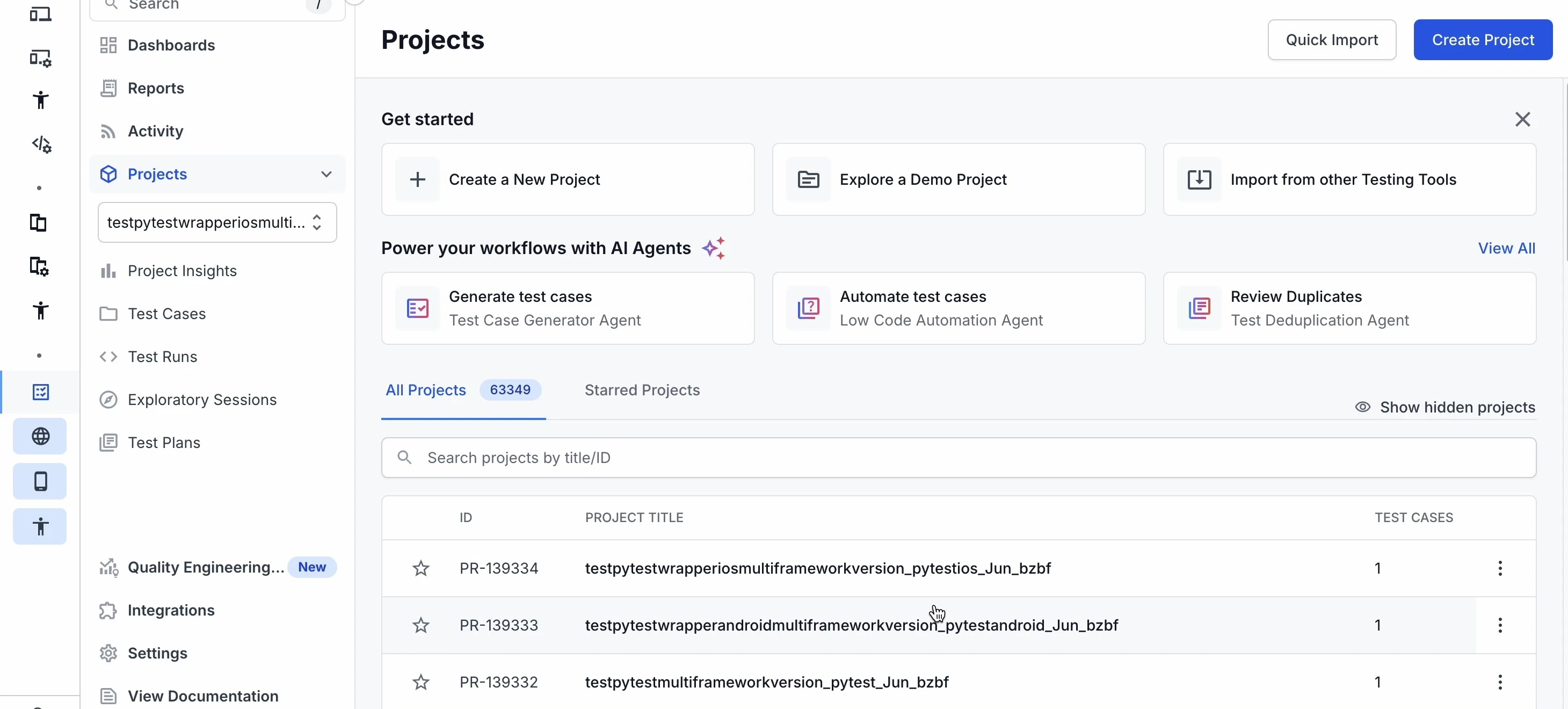
Hidden does not mean blocked. When you open a hidden project from the list or by its direct link, Test Management still shows its data. A warning marks the project as hidden by a visibility rule.
Show a hidden source again
To bring hidden projects back, remove the source from your rules.
- Go to Settings > Project Visibility.
- In the Source exclusion list, remove the source you want to show again.
- Confirm that the source no longer appears under Hidden project sources.
- Click Save changes, then click Apply changes in the confirmation dialog.
Projects that contain runs from that source appear in Test Management again.
Visibility rule behavior
- Rules are organization-wide. Every member sees the same hidden projects.
- The scope is Test Management. Other BrowserStack products keep showing the data.
- Hiding is fully reversible. When you remove the source from the rule, the projects return. No data is deleted.
- By default, nothing is hidden. Projects disappear only after an IAAM Owner or Admin excludes a source.
Next steps
- Set permissions with role-based access control.
- Restrict projects by user with user-based access control.
- Control where data resides with Geo Region Restriction.
- Learn how projects organize your work in Manage projects.
We're sorry to hear that. Please share your feedback so we can do better
Contact our Support team for immediate help while we work on improving our docs.
We're continuously improving our docs. We'd love to know what you liked
We're sorry to hear that. Please share your feedback so we can do better
Contact our Support team for immediate help while we work on improving our docs.
We're continuously improving our docs. We'd love to know what you liked
Thank you for your valuable feedback!