
 Join our Discord
Accessibility scan settings
Choose the device, browser, and accessibility standard for your Accessibility scan, and control which issue types the scan reports.
The Accessibility Scan tab in Advanced scan settings controls the environment the scan runs in and how deep the scan looks for issues. Most options trade a longer scan or a larger report for more coverage.
Open the Accessibility scan settings
To open the settings for a single scan, follow these steps:
- On the Create a new scan page, click the settings icon. The Advanced scan settings panel opens.
- Select the Accessibility Scan tab.
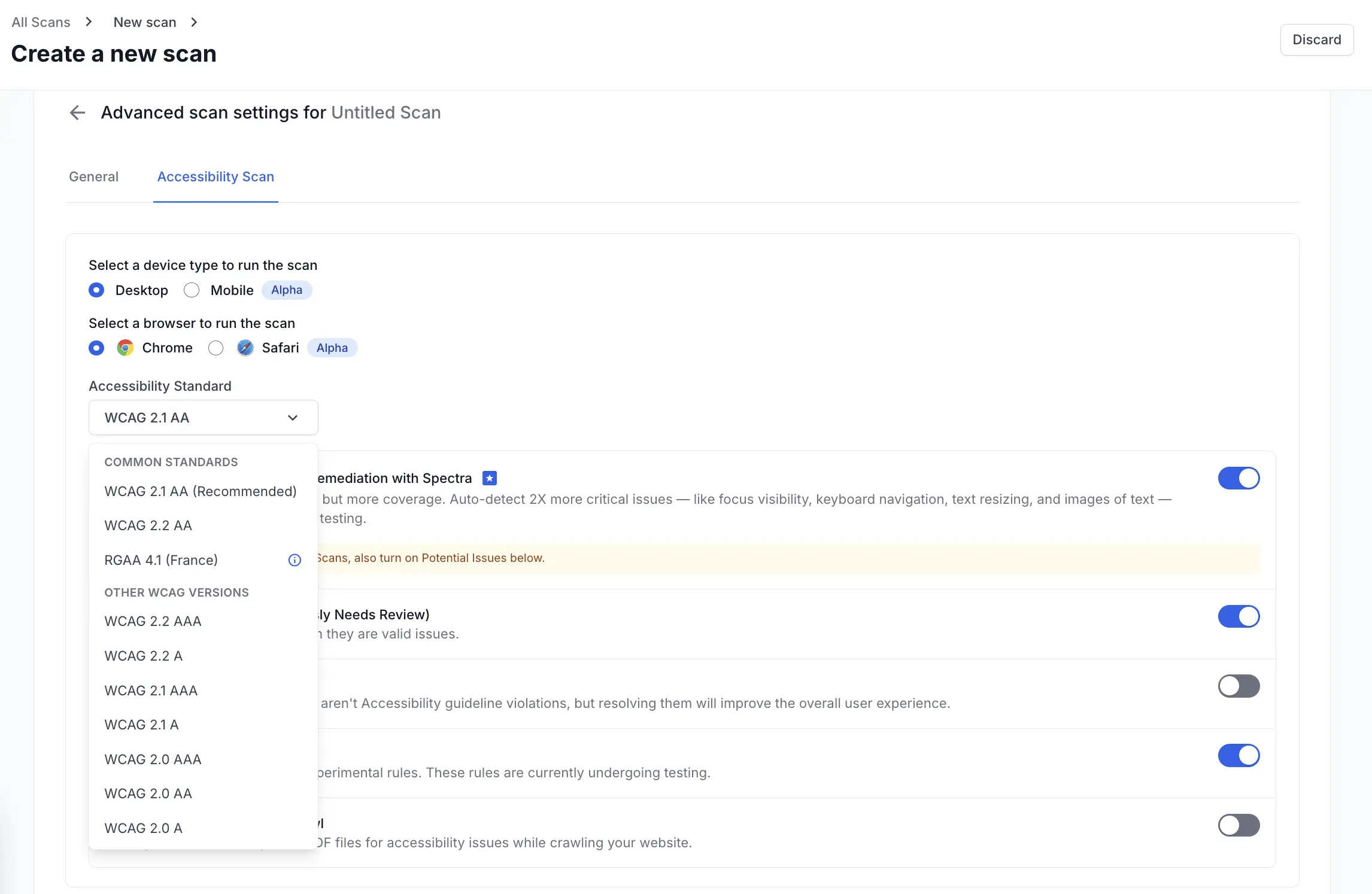
To set the options every new scan starts from, configure the same tab in Default scan settings. A value you change while creating a scan overrides the saved default for that scan only.
Choose the scan environment
Two options set where the scan runs: Select a device type to run the scan and Select a browser to run the scan.
Device type
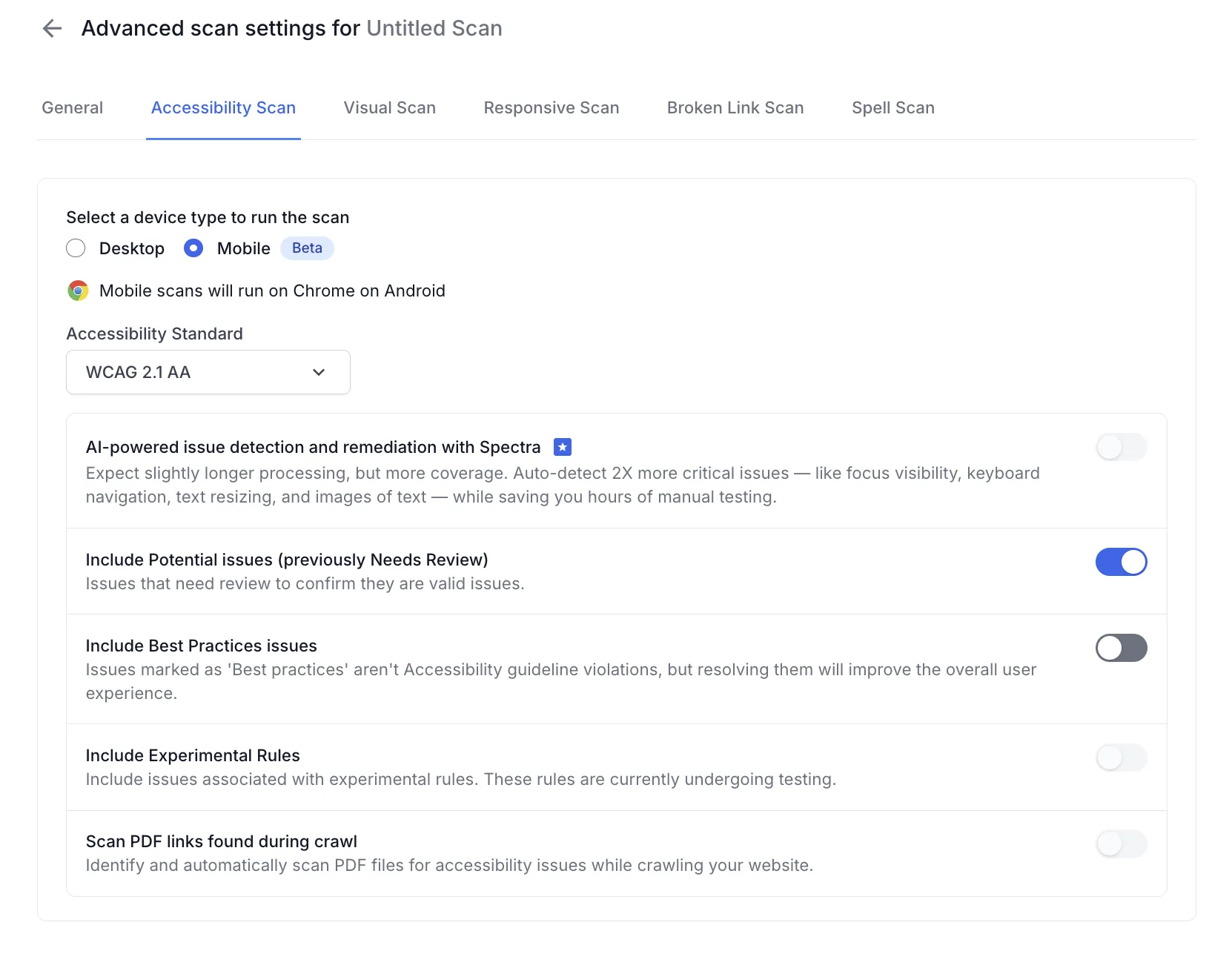
Accessibility scans run on a desktop viewport by default. Select Mobile to run the scan on Chrome on an Android device instead.
Mobile pages often serve different markup, such as a collapsed navigation menu or different tap targets. A desktop scan never reaches that markup. Run a mobile scan when your pages adapt their layout for small screens and you want those layouts checked too.
When you select Mobile, the browser selection disappears because mobile scans run only on Chrome on Android.
Browser
Desktop scans run on Chrome by default. Select Safari or Edge to run the scan in that browser instead.
A page does not always render the same way in every browser, so an issue can appear in one browser and not in another. Run a scan on Safari or Edge when a large share of your visitors uses that browser, or when you need to confirm a fix there.
The Spectra AI checks are available on Chrome and Edge. A Safari scan checks your pages against the standard rule set only.
Settings availability by environment
The environment you choose decides which detection settings you can turn on:
| Setting | Desktop on Chrome | Desktop on Edge | Desktop on Safari | Mobile |
|---|---|---|---|---|
| AI-powered issue detection and remediation with Spectra | Available | Available | Not available | Not available |
| Include Potential issues | Available | Available | Available | Available |
| Include Best Practices issues | Available | Available | Available | Available |
| Include Experimental Rules | Available | Available | Available | Not available |
| Scan PDF links found during crawl | Available | Available | Available | Not available |
Choose the accessibility standard
The Accessibility Standard list sets the guideline version and conformance level the scan tests against. Pick the standard your organization reports against.
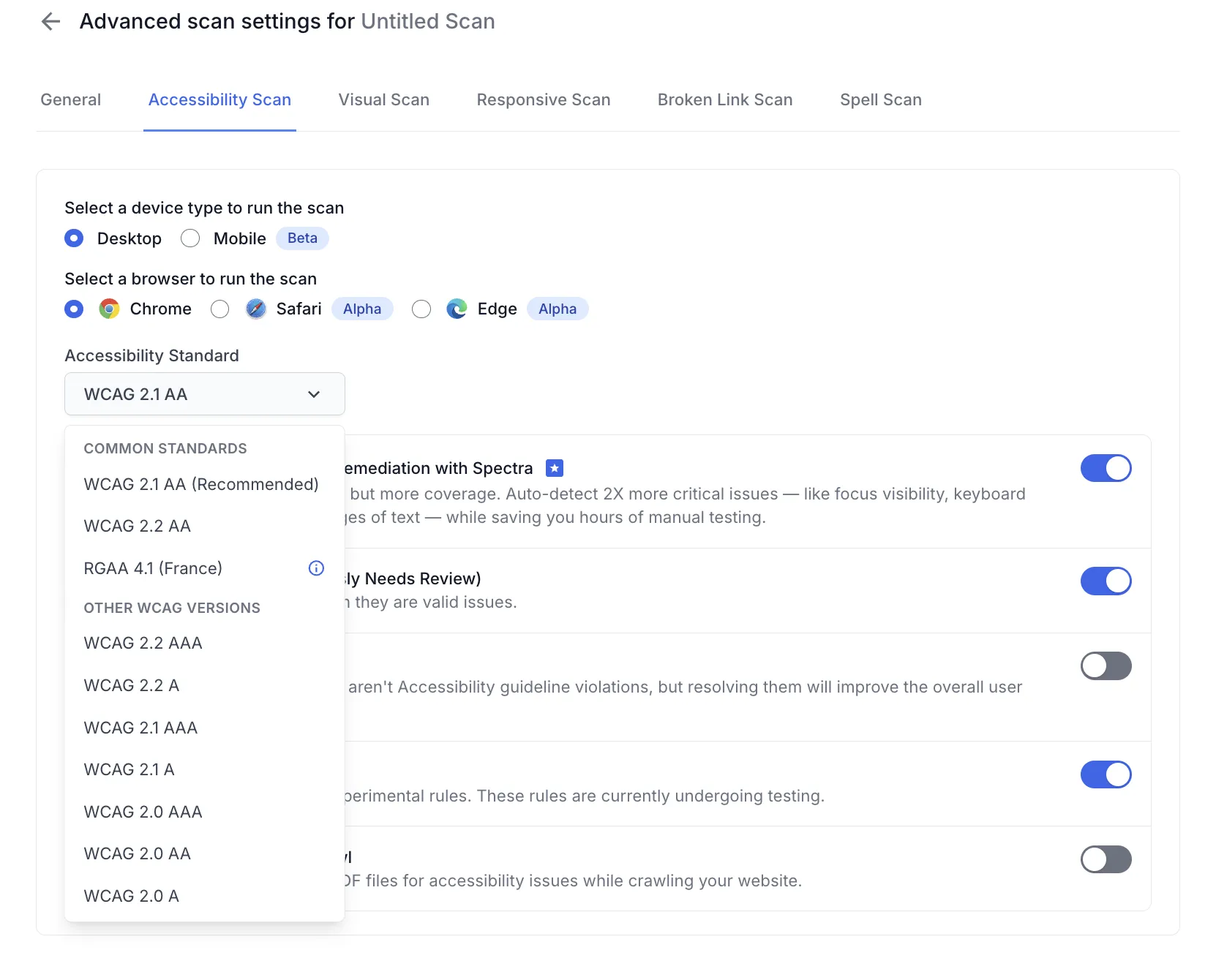
The list groups the standards you can select as follows:
| Standard | When to select it |
|---|---|
| WCAG 2.1 AA (Recommended) | The recommended default. Keep it unless your organization has committed to a different standard. |
| WCAG 2.2 AA | The latest WCAG version. Select it when your organization tracks the newest success criteria. |
| RGAA 4.1 (France) | The French government accessibility standard. Select it when your site must comply with RGAA. |
| Other WCAG versions | Levels A and AAA of WCAG 2.0, 2.1, and 2.2. Select Level A for a minimal baseline, Level AAA for the strictest checks, or a WCAG 2.0 level when an older policy requires it. |
AI-powered issue detection with Spectra
Spectra™ is the rule engine behind BrowserStack Accessibility Testing. The AI-powered issue detection and remediation with Spectra toggle adds its AI checks to your scan.
The AI checks detect 2X more critical issues in areas that normally need manual testing: focus visibility, keyboard navigation, text resizing, and images of text. Expect a Spectra scan to take slightly longer to process.
Spectra reports its findings as potential issues, so turn on Include Potential issues to see them in the report.
The toggle is available on desktop scans that run on Chrome or Edge.
Choose which issues the scan reports
Four toggles control how much the scan reports beyond confirmed violations of your selected standard.
Include Potential issues
A potential issue is a finding the scanner cannot confirm on its own, because the result depends on context only a person can judge.
Turn the toggle on to get the widest coverage. Confirmed issues alone miss the problems that need human judgment.
Each potential issue in the report carries a confidence score. You can review potential issues in bulk. The dashboard can also apply your decisions to future reports automatically. See Bulk review potential issues for the steps.
Include Best Practices issues
Best practice issues do not violate the accessibility standard you selected. Fixing them still improves the overall user experience.
Turn the toggle on when you want to improve usability beyond compliance. Leave it off to keep the report focused on violations.
Include Experimental Rules
Experimental rules are new Spectra rules that BrowserStack is still testing. Their results can change as the rules are refined.
Turn the toggle on to check your pages against the newest rules early. Leave it off when you want only stable rules in your report.
Scan PDF links found during crawl
When the crawler finds a link to a PDF file, this toggle also scans that PDF for accessibility issues. The PDF reports appear in the Linked PDFs tab of the scan report.
Turn the toggle on when your site links to PDF documents, such as forms or manuals. Those documents need to meet the same accessibility standard as your webpages.
Next steps
Continue with the following pages:
- Create a new scan with your accessibility settings applied.
- Set default scan settings so every new scan starts from your preferred options.
- View Accessibility scan results after your scan completes.
- Bulk review potential issues to confirm or dismiss flagged findings.
We're sorry to hear that. Please share your feedback so we can do better
Contact our Support team for immediate help while we work on improving our docs.
We're continuously improving our docs. We'd love to know what you liked
We're sorry to hear that. Please share your feedback so we can do better
Contact our Support team for immediate help while we work on improving our docs.
We're continuously improving our docs. We'd love to know what you liked
Thank you for your valuable feedback!