
 Join our Discord
Visual scan settings
Learn about the configurable settings for Visual scan.
Use the Visual scan settings to customize how your application is scanned. You can add delays, enable layout testing, set ignore thresholds, and enable advanced options to better simulate real-world rendering conditions.
Visual scan supports integration with the Percy Visual Review Agent, which adds AI-driven insights to your visual review.
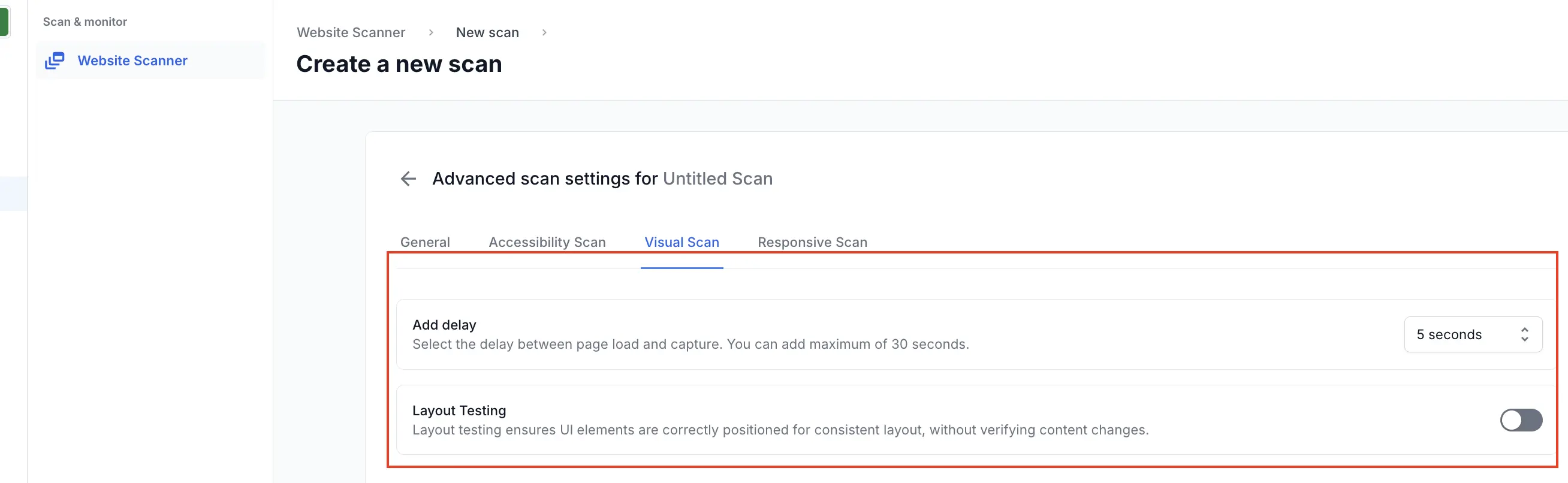
Add delay
Choose a delay between page load and screenshot capture. You can set a delay of up to 30 seconds.
Layout Testing
Turn on the Layout Testing toggle while configuring your visual scan to check if UI elements are correctly positioned. Layout testing does not verify content changes.
Compare with an alternate environment
Compare the pages in your scan against the same pages on another environment, such as staging against production, within a single scan run.
- In Advanced scan settings, select the Visual Scan tab.
- Turn on the Compare with an alternate environment toggle.
- In the Enter alternate environment URL field, enter the domain of your alternate environment.
The URLs added to the scan act as the baseline. The scan compares the matching pages on the alternate environment against that baseline.
If you leave the field empty, Website Scanner asks you to enter a URL or turn the setting off.
Configure settings after scan creation
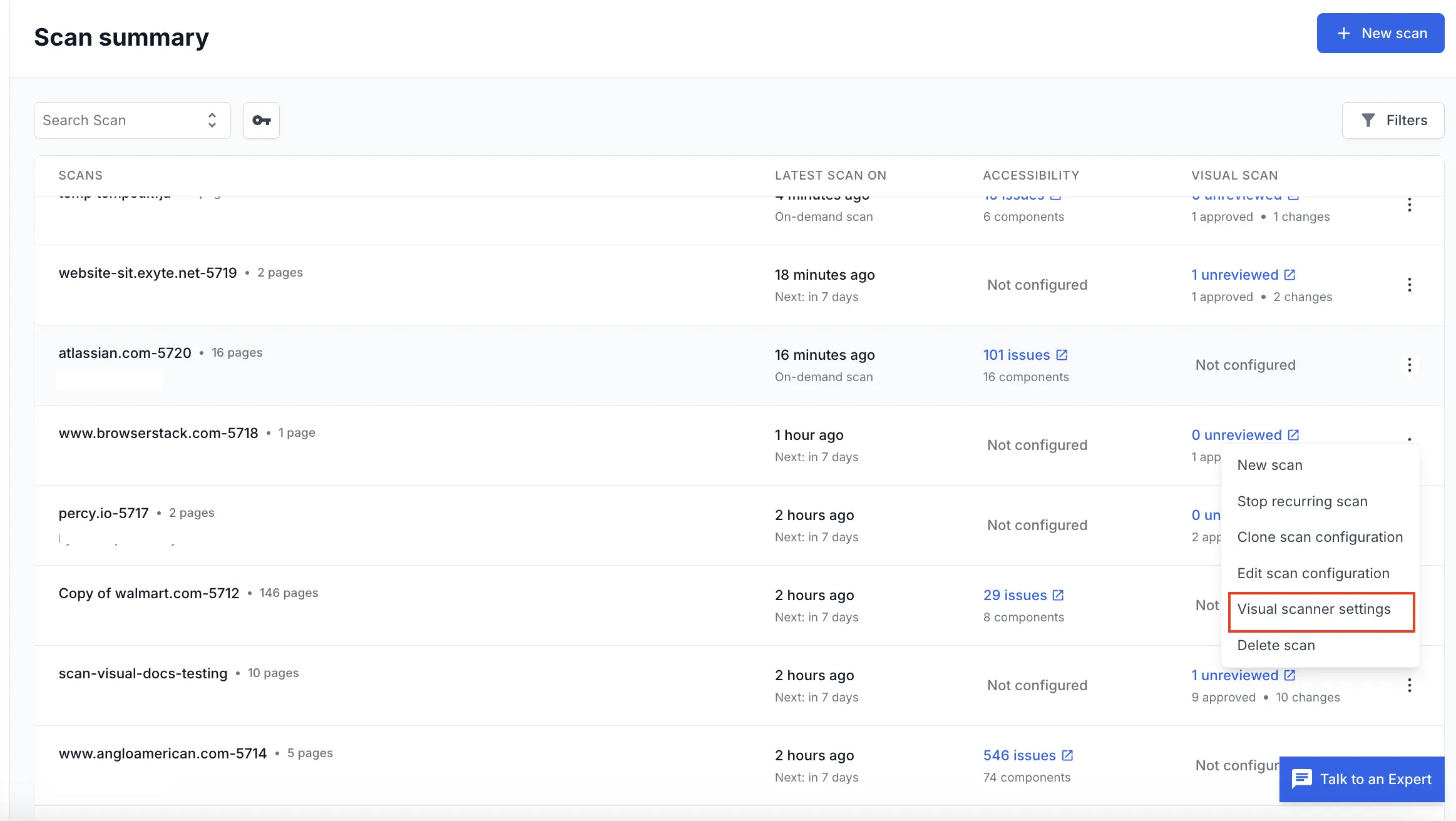
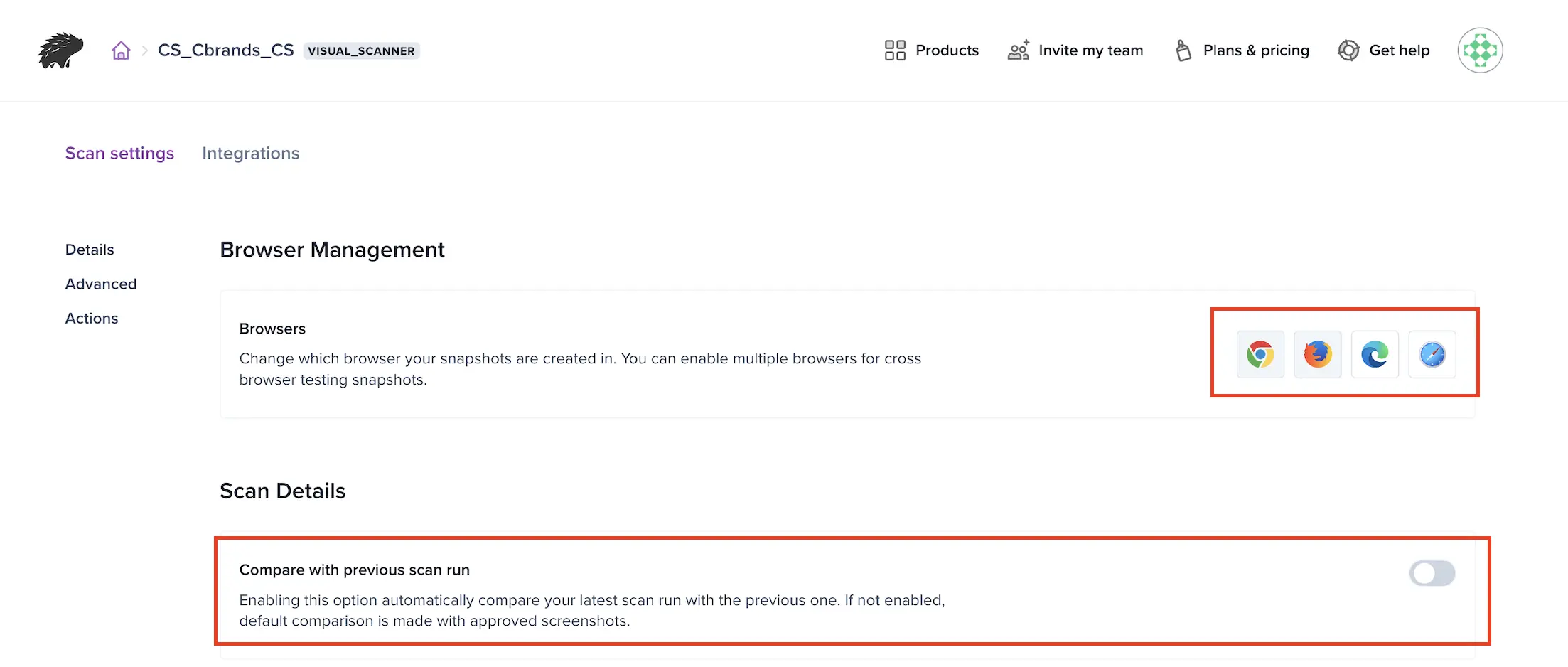
After creating a scan, you can click the Visual scanner settings option to select the browsers, enable the Compare with previous scan run option, and set other Advanced Options.
Advanced options
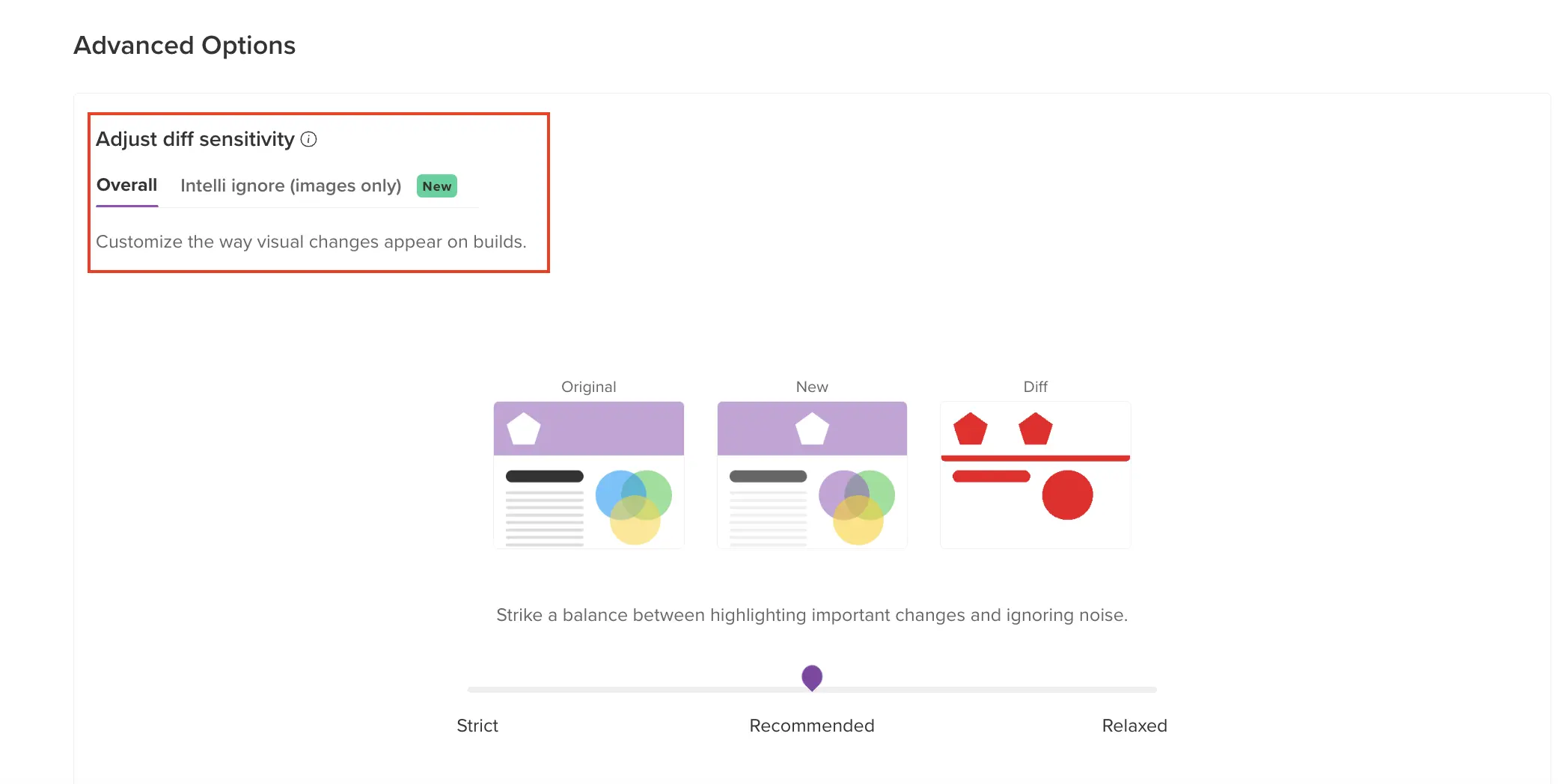
-
Configure the diff sensitivity for your created project to customize the way visual changes appear in builds. For more information, see Diff sensitivity.
-
Use the Intelli Ignore feature to recognize and ignore tiny, unimportant changes on webpage images. For more information, see Intelli ignore.
Currently, Percy’s Visual Scanner ignores dynamic elements such as carousels, banners, cookies, and advertisements by default.
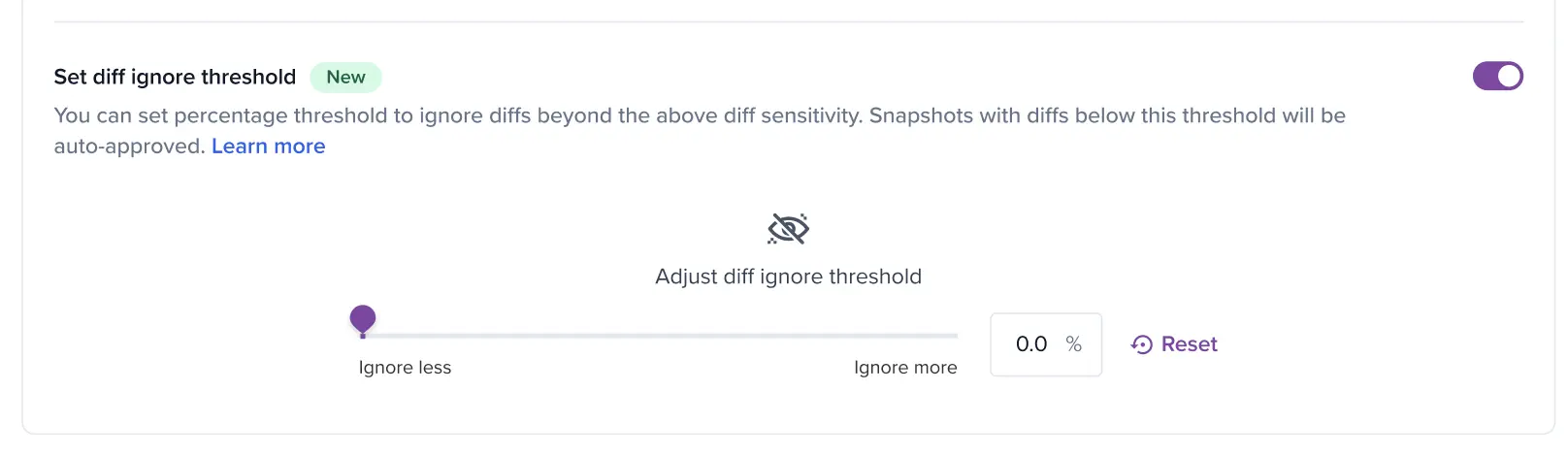
Set Diff Ignore threshold
You can configure a diff ignore percentage threshold at the project level. This threshold represents the percentage of pixels that have changed. Only visual changes above the threshold trigger alerts. Website Scanner marks smaller differences as unchanged, so fewer false positives reach your review queue.
We're sorry to hear that. Please share your feedback so we can do better
Contact our Support team for immediate help while we work on improving our docs.
We're continuously improving our docs. We'd love to know what you liked
We're sorry to hear that. Please share your feedback so we can do better
Contact our Support team for immediate help while we work on improving our docs.
We're continuously improving our docs. We'd love to know what you liked
Thank you for your valuable feedback!