
 Join our Discord
Hide issues in App Accessibility reports
Learn how to hide issues and view hidden issues in App Accessibility reports.
You can hide issues from your App Accessibility reports to focus on the issues that are relevant to your app and accessibility requirements. You can hide issues at different levels, such as a single instance of an issue, issues related to specific components, or all issues related to a specific rule. You can also hide confirmed issues as well as issues that need review.
When you hide or unhide an issue, you can choose to apply this setting persistently to all future builds. This setting does not affect builds that you have already created, even if you run tests for those builds after enabling the setting.
- For automated App Accessibility tests, persistence applies to future builds with the same name for the same app within the same project.
- For manual App Accessibility tests, persistence applies to future reports generated for the same app on the same device by the same user.
Supported levels
You can hide issues at the following levels in your App Accessibility reports:
- A single instance of an issue.
- A specific issue related to a particular component.
- All issues related to a particular rule.
What happens to hidden issues
BrowserStack App Accessibility Testing excludes hidden issues from the total issue count, severity breakdowns, trends, and any accessibility scores. You can view hidden issues later under the Summary tab.
Hide issues from reports
Follow these steps to hide issues from App Accessibility reports:
- On the App Accessibility Testing dashboard, navigate to the Manual Test Reports page or the Automated Tests page depending on your testing method.
- Select a specific test report from the list of reports to view its summary.
- On the Summary page, click the All issues tab to see the list of detected issues.
- Click an issue to view its details.
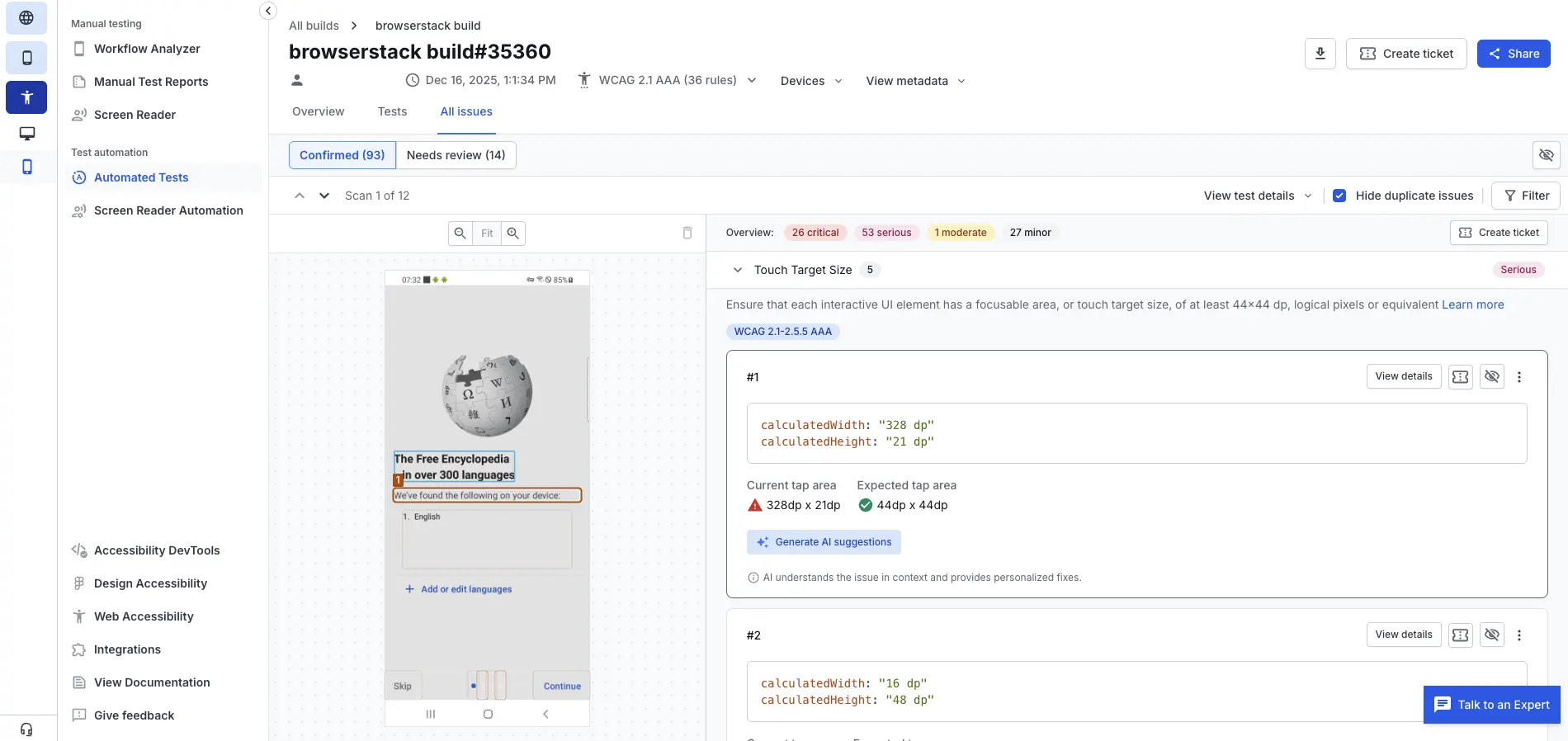
- In the Issue Details panel, click the hide issue icon (eye with a slash). The Hide this issue? dialog box appears.
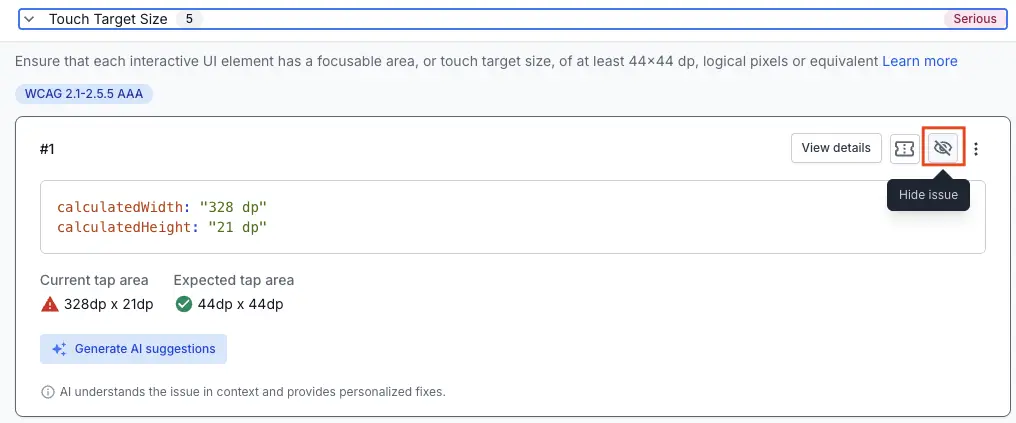
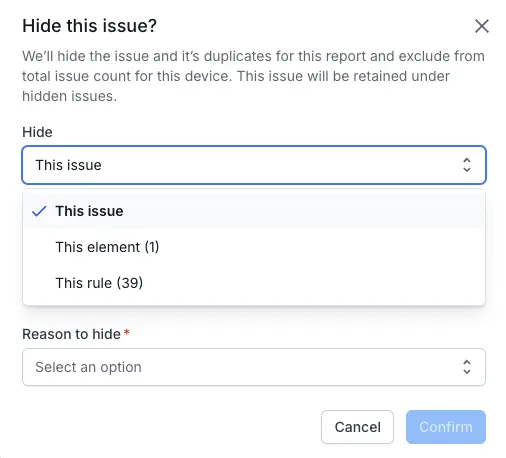
- In the Hide this issue? dialog box, choose what you want to hide from the Hide drop-down.
- This issue: Hides the issue and all other duplicate instances of the same issue.
- This element: Hides all issues related to the specific component across the report.
-
This rule: Hides all issues related to the specific rule across the report.
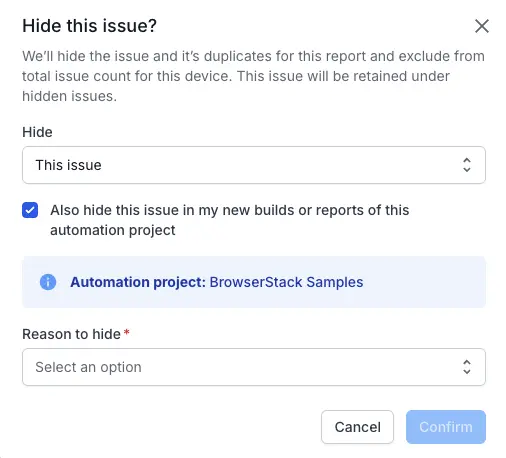
- Optional: To persist your choice for future issues, elements, or rules, select the checkbox below the Hide drop-down.
- In the Reason for hiding drop-down, select a reason for hiding the issue.
- Click Confirm. The issue is hidden and removed from the report view.
View hidden issues and unhide issues
You can view hidden issues and check the reason for hiding those issues under the Summary tab.
Follow these steps to view hidden issues:
- On the Summary page, click the All issues tab to see the list of detected issues.
- Click the Hidden issues icon to view hidden issues.
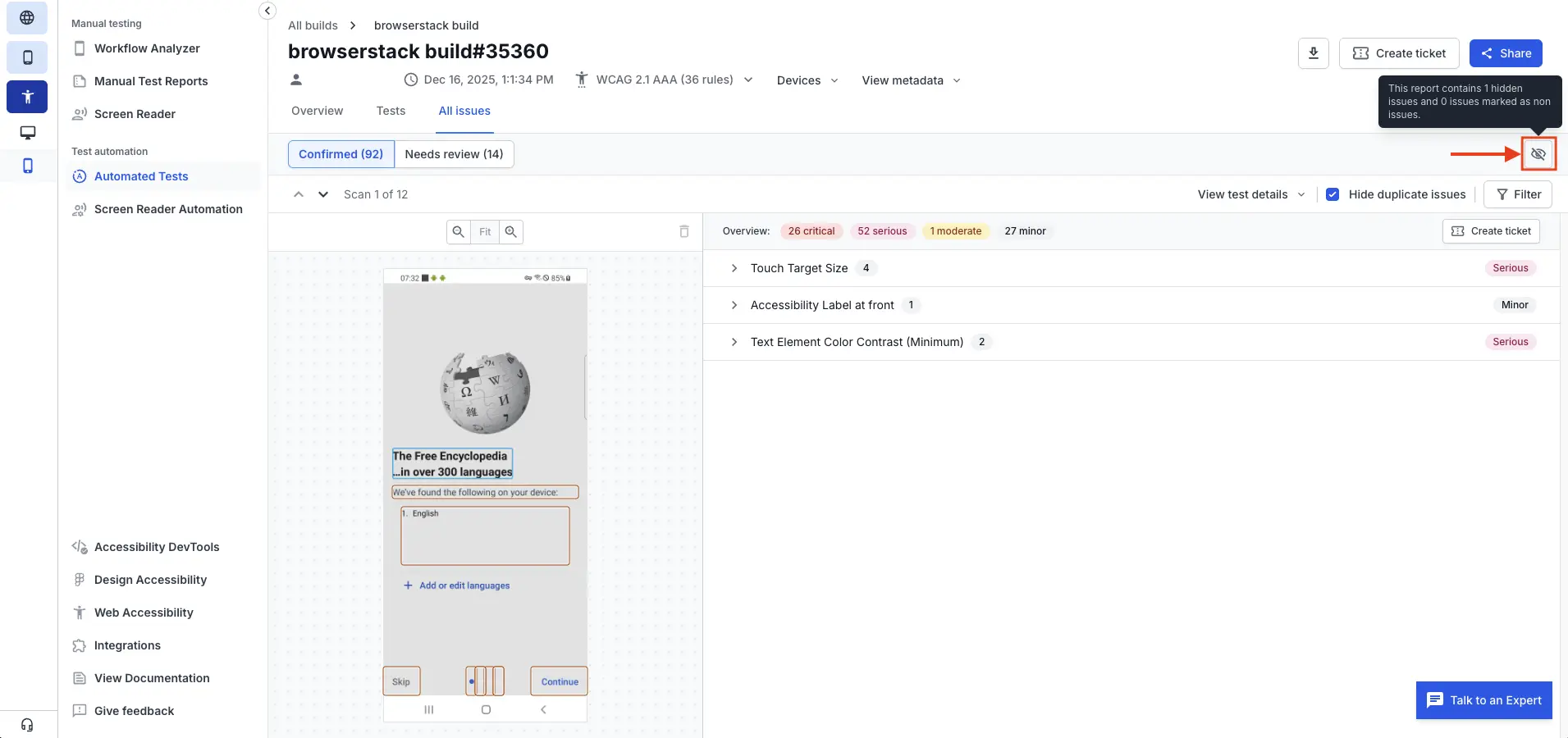
- Click the Hidden tab to see the list of hidden issues.
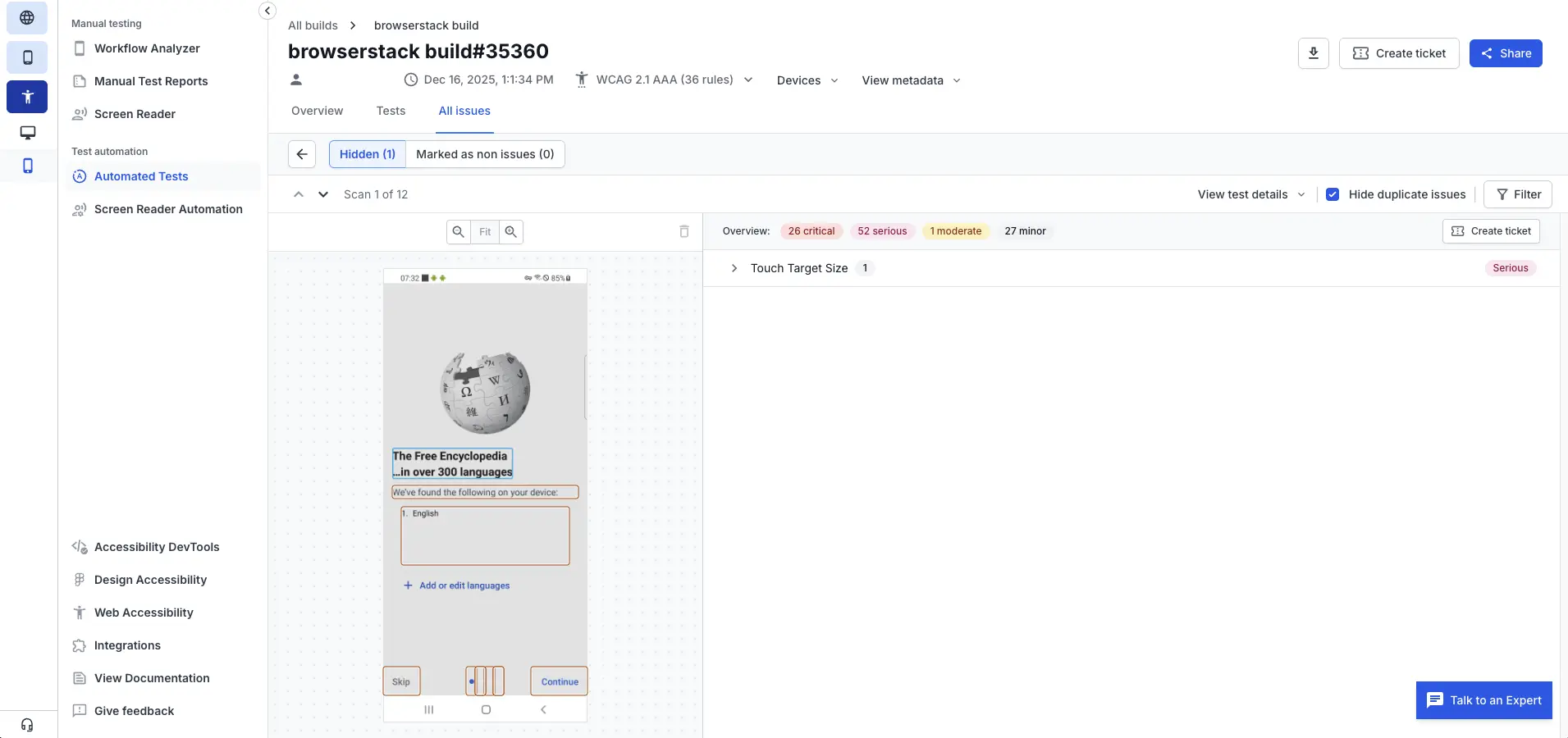
- Click an issue to view its details and the reason for hiding it.
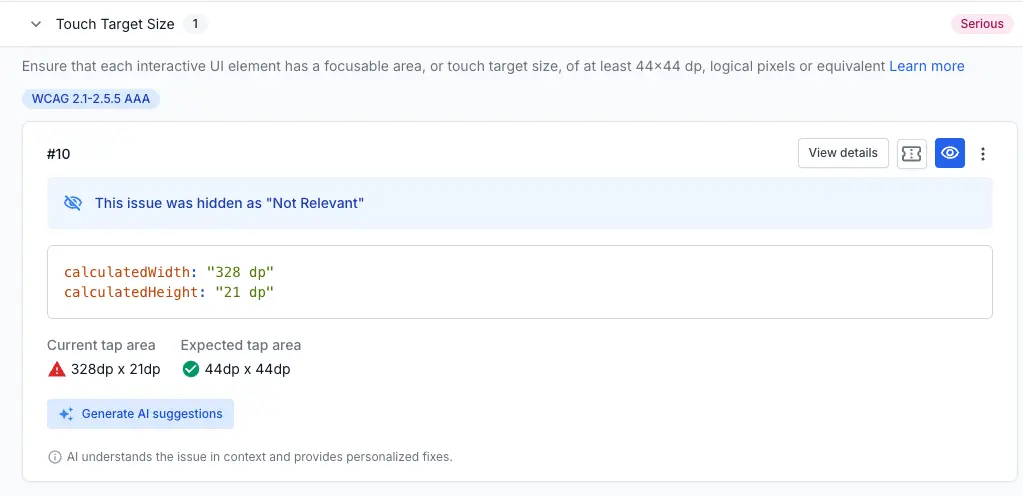
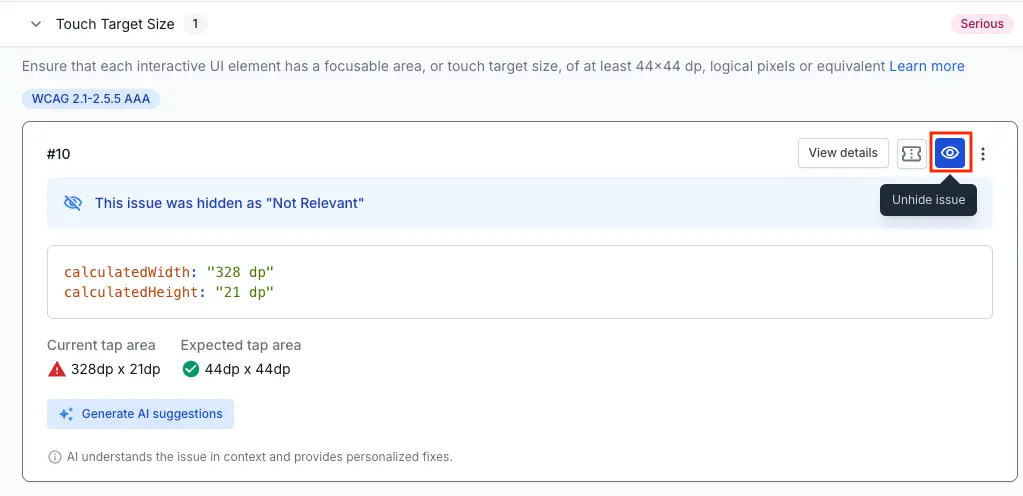
- Click the unhide issue icon (eye). The Un-hide this issue? dialog box appears.
- In the Un-hide this issue? dialog box, select the checkbox to persist your choice for future issues, elements, or rules.
Issues hidden persistently have a persistence icon next to the issue number in the Hidden tab.
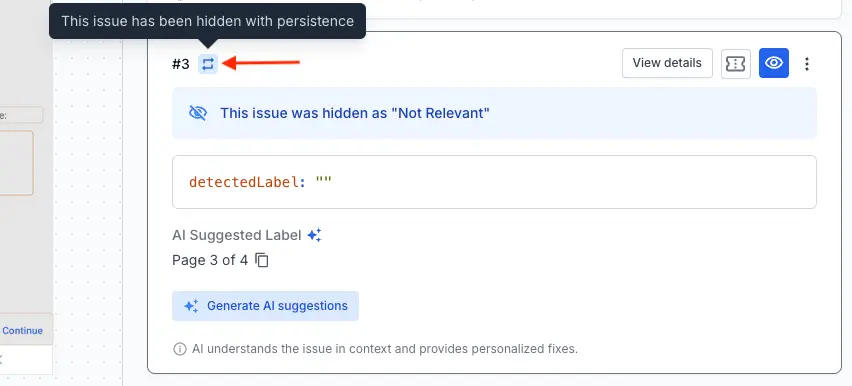
- Click Confirm. The issue is un-hidden and restored to the report view.
We're sorry to hear that. Please share your feedback so we can do better
Contact our Support team for immediate help while we work on improving our docs.
We're continuously improving our docs. We'd love to know what you liked
We're sorry to hear that. Please share your feedback so we can do better
Contact our Support team for immediate help while we work on improving our docs.
We're continuously improving our docs. We'd love to know what you liked
Thank you for your valuable feedback!