
 Join our Discord
Test biometric authentication with Maestro on BrowserStack
Control the result of the biometric prompt in your app during a Maestro test on BrowserStack App Automate.
This feature is available only under Device Cloud Pro, Device Cloud Pro + Visual Cloud, and Enterprise Pro plans. For more details, check out our pricing page.
On BrowserStack App Automate, you can control the result of the biometric prompt in your app during a Maestro test on a remote iOS or Android device. Your app receives the result as though someone used Touch ID, Face ID, or a fingerprint sensor on the device. Use biometric authentication to automate flows such as biometric sign-in, payment confirmation, and access to protected screens.
You control the result from your flow. Open the screen in your app that shows the biometric prompt, and then send a pass, fail, or cancel result.
Prerequisites
Before you start, make sure you have the following:
- Your BrowserStack username and access key, available in the Account & Profile section of your dashboard.
- An Android app as an
.apkfile or an iOS app as an.ipafile. - A Maestro test suite zipped inside a single parent folder, as described in Prepare your Maestro test suite.
Run a Maestro test with biometric authentication
Complete the following steps to control the biometric prompt during a Maestro test:
Upload your app and test suite
Upload your app and your zipped Maestro test suite, then note the app_url and test_suite_url that each response returns. You need both values to start a build. For the upload commands, see Execute Maestro tests.
Add the BrowserStack executor script to your test suite
Maestro doesn’t use the WebDriver protocol, so Maestro flows have no JavaScript executor of the kind that Appium tests use. BrowserStack provides a script that your flow calls with the runScript command instead. If you already added this script for camera image injection, reuse the same file.
At the root of your test suite’s parent folder, create a folder named bstack and save the following script as browserstack_executor.js:
Your test suite now has the following structure:
sample_parent_folder/
├── bstack/
│   └── browserstack_executor.js
├── flow1.yaml
└── flow2.yaml
Don’t edit browserstack_executor.js. The script reads the values that BrowserStack sets on the test session. Everything that varies between calls comes from the env block in your flow.
Keep the bstack folder inside the parent folder that you zip, alongside your flow files. If the bstack folder sits outside the parent folder, the runScript step can’t resolve the path to the script. For the required layout, see Prepare your Maestro test suite.
Send the biometric result from your flow
To control the biometric prompt, your flow runs the following steps in order:
- Your flow opens the screen in your app that shows the biometric prompt.
- The
biometricaction sets the result of the biometric prompt. - Your flow checks that your app responds to the result.
When your app shows the biometric prompt, BrowserStack displays a dialog with the result options. The biometric step selects the option for you:
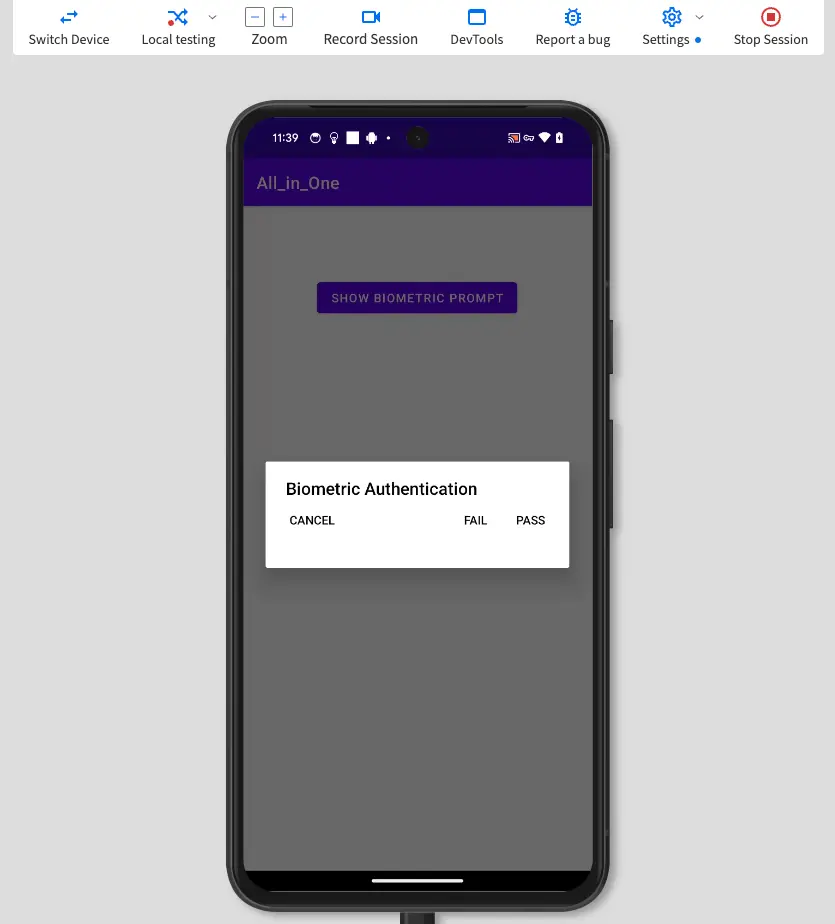
The following flow passes the biometric prompt on a sign-in screen:
The env block of each runScript step sets the following values:
-
BROWSERSTACK_EXECUTOR_ACTIONnames the action to run. For biometric authentication, set it tobiometric. -
RESULTis the result that the biometric prompt returns to your app.
RESULT takes one of the following values:
RESULT value |
Platform | Behavior |
|---|---|---|
pass |
iOS and Android | The biometric authentication succeeds and your app continues as it would after a successful scan. |
fail |
iOS and Android | The biometric authentication fails and your app continues as it would after an unsuccessful scan. |
cancel |
iOS only | The biometric authentication is canceled, as though the user dismissed the prompt. |
The cancel result works on iOS devices only. On Android devices, use pass or fail.
To test a different result later in the same flow, open the biometric prompt again and add another biometric step with a different RESULT.
Run your test with biometric authentication
Set enableBiometric to true when you start the build. BrowserStack instruments your app at the start of the session so that your flow can control the biometric prompt.
The following table describes the biometric authentication parameter:
| Parameter | Type | Description |
|---|---|---|
enableBiometric |
Boolean | Set to true to allow your flow to pass, fail, or cancel biometric prompts during the test session. Required for biometric authentication. |
Biometric authentication on Maestro has the following limitations:
- On Android, biometric authentication works on Android 6.0 and later. Apps that use code obfuscation tools such as ProGuard aren’t supported.
- On iOS, biometric authentication works on iOS 13 and later. Apps signed with an Enterprise certificate aren’t supported, because BrowserStack must re-sign your app. Don’t set
resignApptofalsein a build that enables biometric authentication. - On iOS, apps that use Keychain APIs with biometric access control aren’t supported.
- A session that doesn’t set
enableBiometricrejects every biometric action.
Check the result in your logs
Every call to browserstack_executor.js writes a status line to your Maestro logs. A successful call shows a line such as the following:
[EXECUTOR] action=biometric status=200
A failed call adds a reason to the same line and stops the flow. The following reasons are the most common:
-
executor_unreachable: the flow couldn’t reach the BrowserStack injection service. -
scope_denied: the build didn’t setenableBiometric, so the session doesn’t allow biometric actions.
To read these lines, see Maestro logs.
Test authentication scenarios
Use the RESULT value to test successful and unsuccessful authentication in your app. BrowserStack mimics the biometric authentication behavior of real devices as closely as possible. The following table shows how each result behaves on your platform:
| Scenario | Action | Behavior |
|---|---|---|
| Pass biometric authentication | Set RESULT to pass in the biometric step. |
The biometric authentication succeeds and your app behaves as designed. |
| Fail biometric authentication | On real Android devices, biometric authentication fails after five unsuccessful attempts. To fail it on BrowserStack devices, run the biometric step with RESULT set to fail five times. |
The biometric authentication fails. If your app has no fallback, the app receives the ERROR_LOCKOUT error code. BrowserStack devices don’t add the 30-second wait that real Android devices add.If your app defines a fallback, BrowserStack shows a pop-up that simulates the device passcode. To close the pop-up, run the biometric step with RESULT set to pass.On real devices that run Android versions above 15, the device locks itself after five failures. On BrowserStack devices, the biometric authentication is canceled with the ERROR_LOCKOUT error code instead.On devices that run Android versions earlier than 10, Android has no default fallback, so BrowserStack doesn’t show the device passcode screen. |
| Cancel biometric authentication | Not supported on Android. | Use pass or fail instead. |
On iOS, if the biometric prompt doesn’t appear and the test passes automatically, contact BrowserStack Support.
Frequently asked questions
How does biometric authentication work on BrowserStack devices?
When you set enableBiometric to true, BrowserStack instruments your app at the start of the session. Instrumentation adds a BrowserStack module to your app that overrides the biometric APIs your app calls, so your flow can decide the result of each biometric prompt.
Which biometric APIs does BrowserStack support?
Biometric authentication works only if your app uses one of the following APIs:
- On Android: BiometricPrompt, BiometricManager, KeyguardManager, or FingerprintManager.
- On iOS:
canEvaluatePolicyandevaluatePolicyfrom the LAContext class.
On iOS, apps that use Keychain APIs with biometric access control aren’t supported. For more information, see Apple’s documentation on Keychain access with biometric authentication.
To find out which APIs your app uses, check with your app development team.
Do I need to register a biometric or change my app code?
No. You don’t need to register a biometric on the device or change your app code.
Which types of apps does biometric authentication support?
BrowserStack supports native apps and apps built with cross-platform frameworks such as React Native and Flutter.
Need help?
If you have any questions, contact BrowserStack Support.
Related topics
- Test camera image injection with Maestro
- Prepare your Maestro test suite
- Maestro builds API reference
We're sorry to hear that. Please share your feedback so we can do better
Contact our Support team for immediate help while we work on improving our docs.
We're continuously improving our docs. We'd love to know what you liked
We're sorry to hear that. Please share your feedback so we can do better
Contact our Support team for immediate help while we work on improving our docs.
We're continuously improving our docs. We'd love to know what you liked
Thank you for your valuable feedback!