
 Join our Discord
Test your app for accessibility using App Low Code Automation
Learn how to perform accessibility testing on your mobile app using App Low Code Automation.
App Low Code Automation now supports automated accessibility testing within your test suites. Accessibility tests help ensure that your app is usable and navigable by all users, including those with disabilities. For instance, they verify if images include alternative text for screen reader compatibility. With this feature, you can identify common accessibility issues without writing any code. When you enable accessibility testing on a test suite, every build automatically scans every unique screen your tests visit. This helps you deliver a more inclusive and compliant user experience.
Accessibility results are reported, not asserted. A build never passes or fails because of an accessibility issue.
Accessibility testing in App Low Code Automation is in Beta and is moving to the Ultimate plan. For more details, contact sales about upgrading.
Prerequisites
You must have an account with BrowserStack App Accessibility.
Run accessibility tests in App Low Code Automation
Go to Test suites and create a new test suite or update an existing test suite.
In the Additional configurations section, toggle on the Accessibility testing switch to enable it.
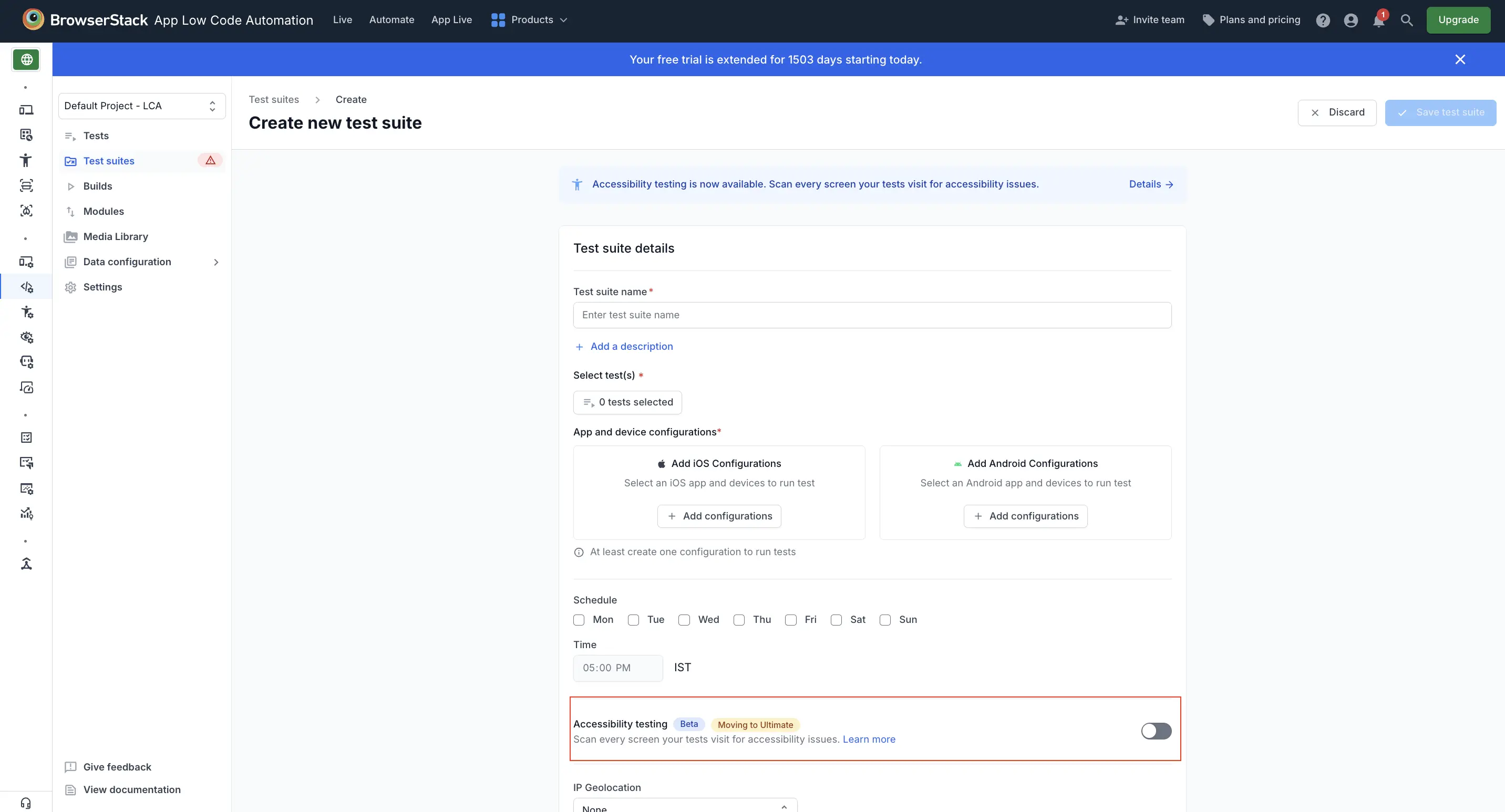
Review the following settings. These are inherited from your organization’s App Accessibility configuration and are read-only here (click Edit in App Accessibility to change them):
- Accessibility standard: The Web Content Accessibility Guidelines (WCAG) version and conformance level that scans are evaluated against. Identifies barriers that stop users from accessing content, like missing alt text for images. We recommend using WCAG 2.2 AA.
- Rules: The number of rules selected for scanning.
- Include needs review issues: Turn this on to flag possible problems that need a manual check. These may not be violations but still need attention.
- Include best practices issues: Turn this on to find non-violation issues that can improve the user experience. These aren’t direct violations of accessibility guidelines. However, resolving them can significantly improve the overall user experience.
- Include experimental rules: Turn this on to include issues found by rules that are currently undergoing testing.
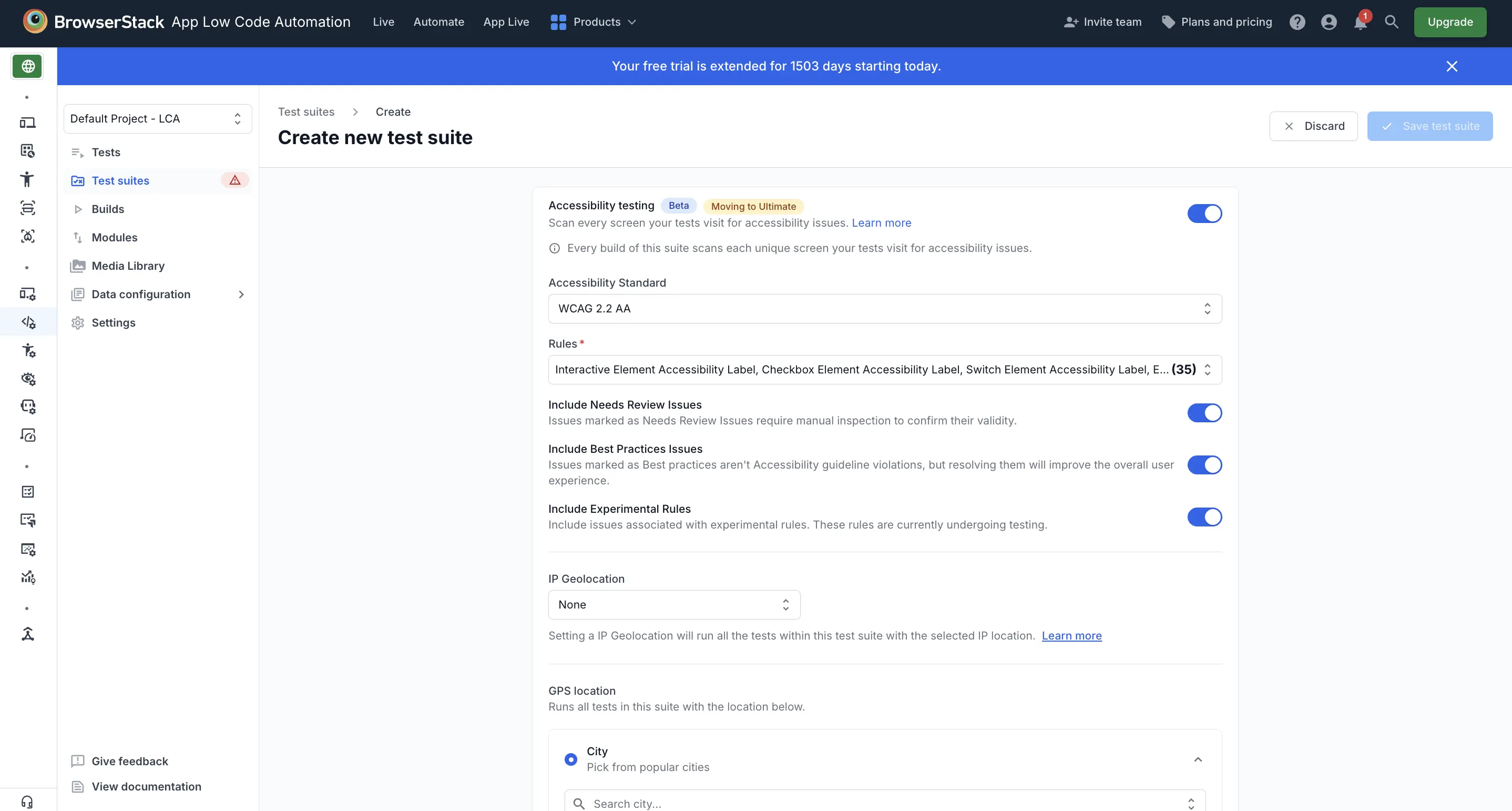
Click Save test suite.
Scanning applies to every run of the suite, whether you trigger it on demand, on a schedule, or through the Test suite execution API.
View accessibility report
After saving your test suite, run your build. The accessibility report is generated automatically, with one report per operating system. A build that runs on both iOS and Android produces two reports that share the build name.
On the build report, the Accessibility section shows the number of critical issues and total issues for each platform, marked by the Android and iOS icons. Click the issues link for the platform you want to review. This opens a comprehensive report on the App Accessibility dashboard.
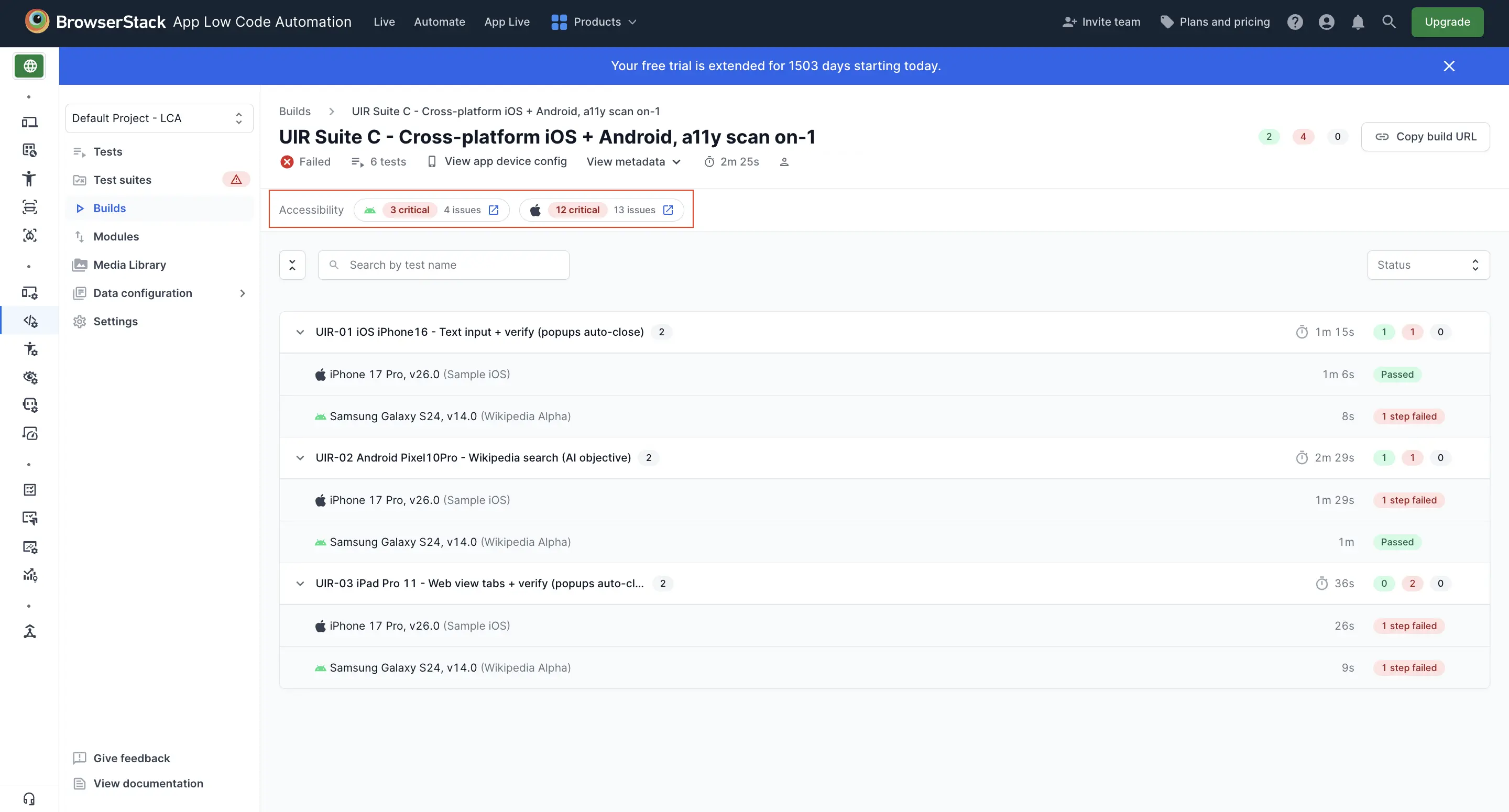
You can also open reports from the Accessibility column in the Builds list, or directly from the App Accessibility dashboard.
Next steps
- View test results in App Low Code Automation
- Understand App Accessibility reports
- Accessibility score calculation
We're sorry to hear that. Please share your feedback so we can do better
Contact our Support team for immediate help while we work on improving our docs.
We're continuously improving our docs. We'd love to know what you liked
We're sorry to hear that. Please share your feedback so we can do better
Contact our Support team for immediate help while we work on improving our docs.
We're continuously improving our docs. We'd love to know what you liked
Thank you for your valuable feedback!