
 Join our Discord
Test your app for localisation
Learn how to record a test once in English and check the captured screens of your mobile app in other languages using App Low Code Automation.
Localisation testing in App Low Code Automation allows you to record a test once in English and run it on cloud devices in other languages, such as Hindi, Spanish, or Japanese. As you record, App Low Code Automation automatically captures a screenshot after each step that changes the screen, such as tap, double tap, long press, swipe, scroll, launch app, or open deeplink. Type, wait, validate, and AI steps don’t capture a screen. You can also add the Capture screen command to capture a screen at any point in your test. When the test runs, it compares each captured screen in the base language with the same screen in every language you select. It then reports issues such as translated text that wraps to the next line and pushes other elements down or text that remains in English.
You can record tests for localisation testing only in English. When you run a test from the test editor, it always runs in English. To run your test in other languages, select the languages in a test suite and run the test suite.
Prerequisites
Your app must support each language that you want to test in. App Low Code Automation changes the device language to run the test, so your app must display its content in that language. If your app doesn’t support or start in a selected language, the run for that language fails with a warning that names the language.
Enable localisation testing while you record a test
To enable localisation testing for a new test:
On the Tests page, select your app and device.
Click the Settings icon next to the device selector, then turn on the Localisation testing toggle.
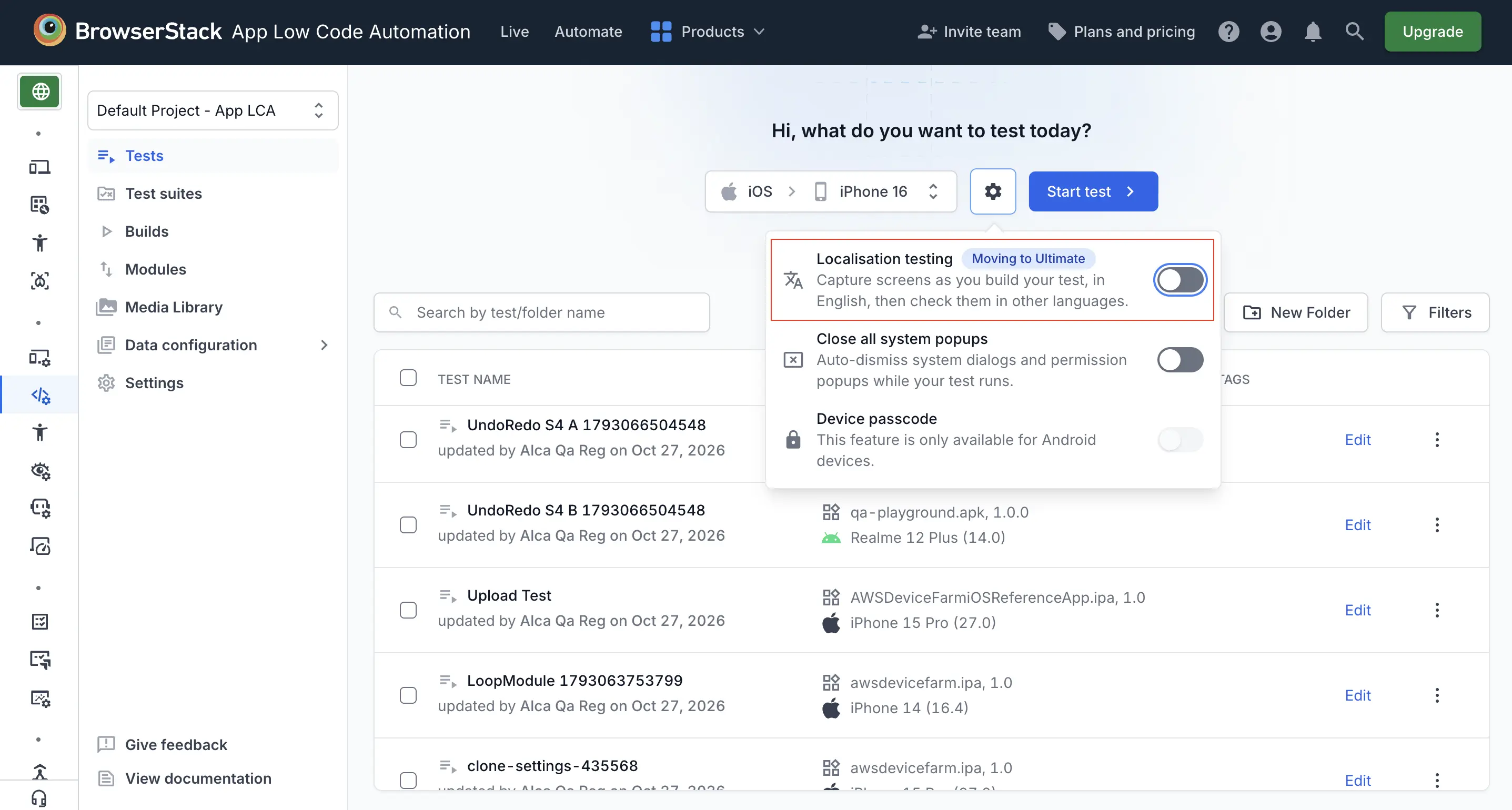
Click Start test and select your app.
Capture screens as you record
After you enable localisation testing, App Low Code Automation captures the screens of your app as you record. To capture and manage these screens:
Record a step in the test editor. App Low Code Automation captures the screen after the step runs, and the step displays the Localisation icon next to it.
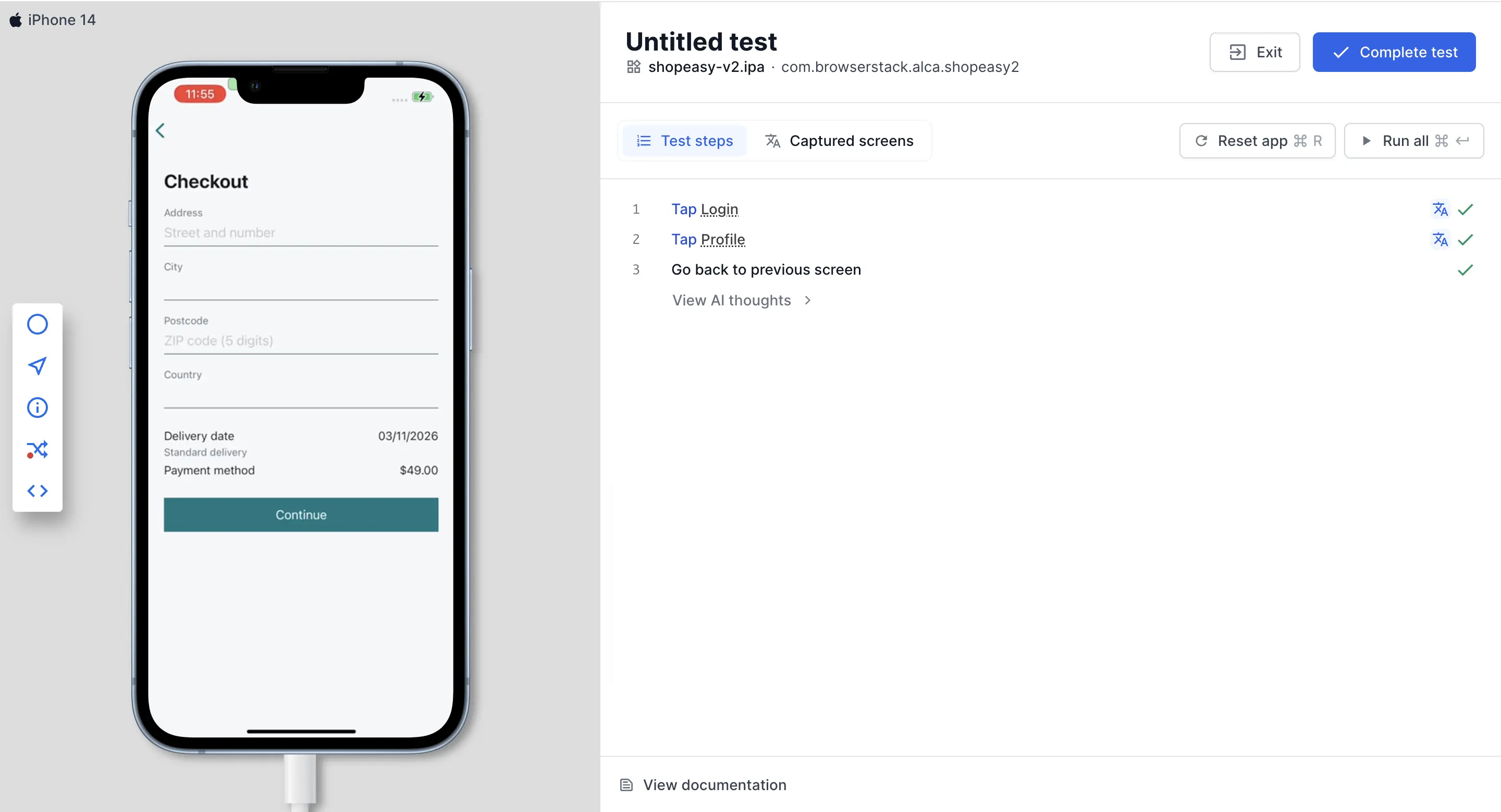
To capture a screen at a specific point in your test, add the Capture screen command as a step. Use it after a step that doesn’t capture a screen on its own. For example, add it after a type step to capture validation text, or after a wait step to capture a toast message. The Capture screen command also works while auto-capture is paused.
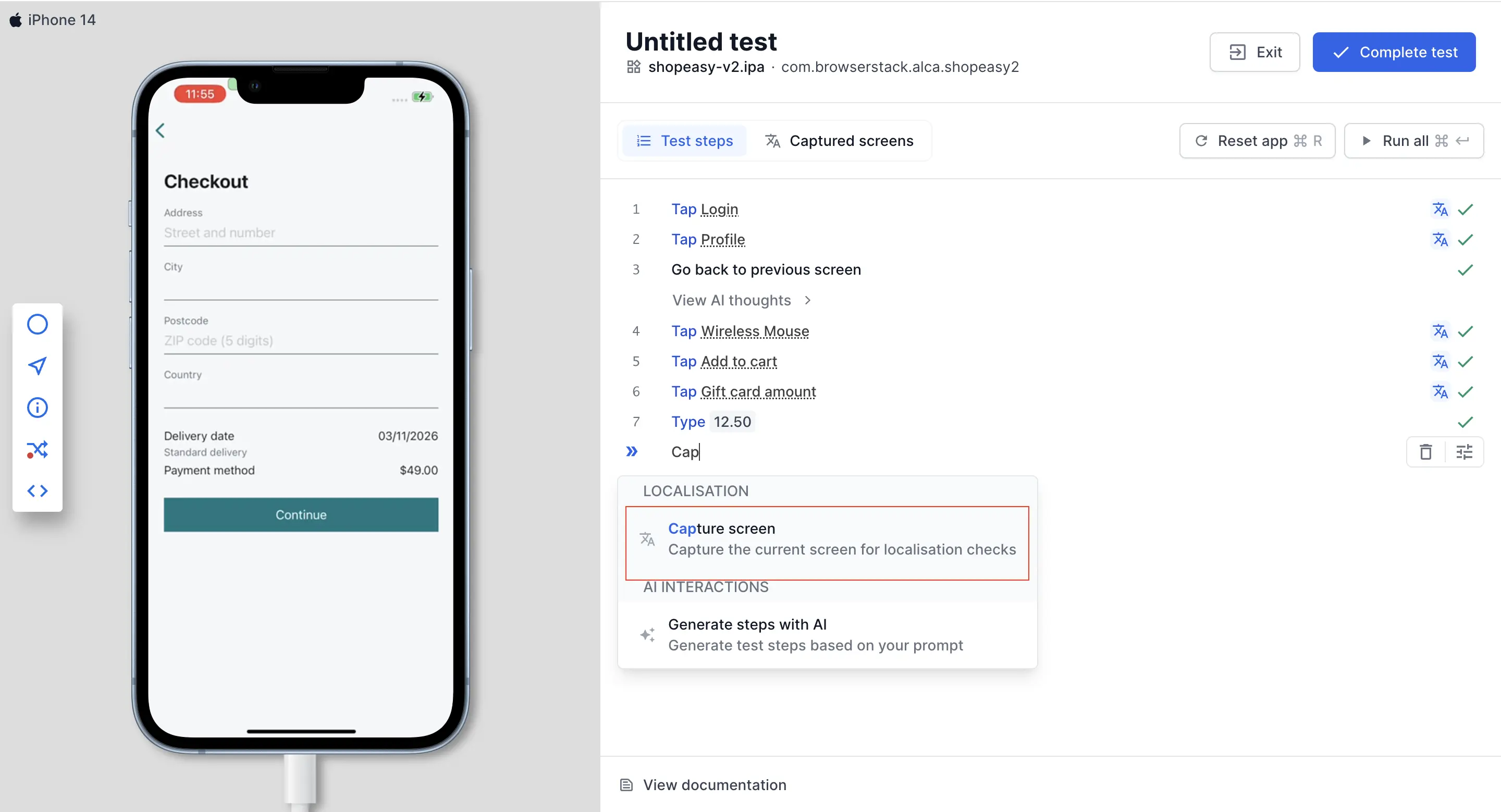
Click Captured screens to manage the screens captured so far. In this tab, you can do the following:
-
Review the captured screens: For each screen, App Low Code Automation lists the text elements on the screen along with their element IDs. For example,
cart_icon. The tab also displays the base language of the recording. - Choose what to check: App Low Code Automation checks every text element by default. Clear the checkbox next to elements that must stay in English, such as brand names, or that change between runs, such as prices and dates. App Low Code Automation doesn’t check cleared elements in other languages, and these elements stay cleared in future runs and builds.
- Pause auto-capture: To stop capturing screens automatically, click the Pause icon next to Auto-capture. App Low Code Automation doesn’t capture the steps that you record after you pause.
- Delete a screen: If you don’t want to check a screen in other languages, go to the screen, then click the delete icon next to the screen number. Each screen displays the step at which App Low Code Automation captured it. For example, Captured at step 1.
Select languages in a test suite
To check the captured screens in other languages, select the languages in a test suite:
Go to Test suites and create a new test suite or update an existing test suite. Make sure that you recorded the tests in the suite with localisation testing enabled.
Turn on the Localisation testing toggle.
Select the languages to check the captured screens in. For example, Hindi and Japanese.
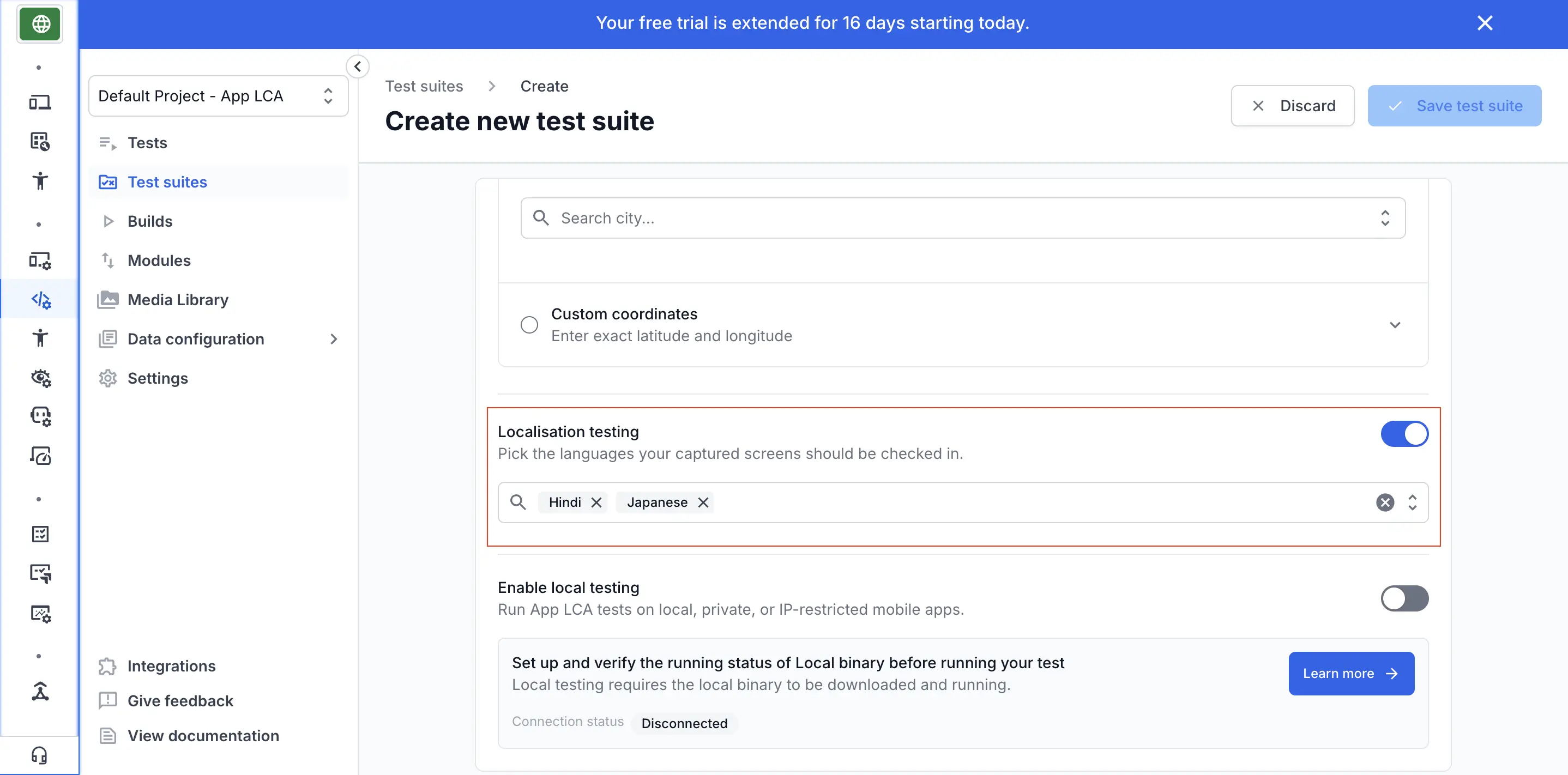
Click Save test suite.
When you run the test suite, the test first runs in English, the base language, and then runs again in each language that you selected.
View localisation issues
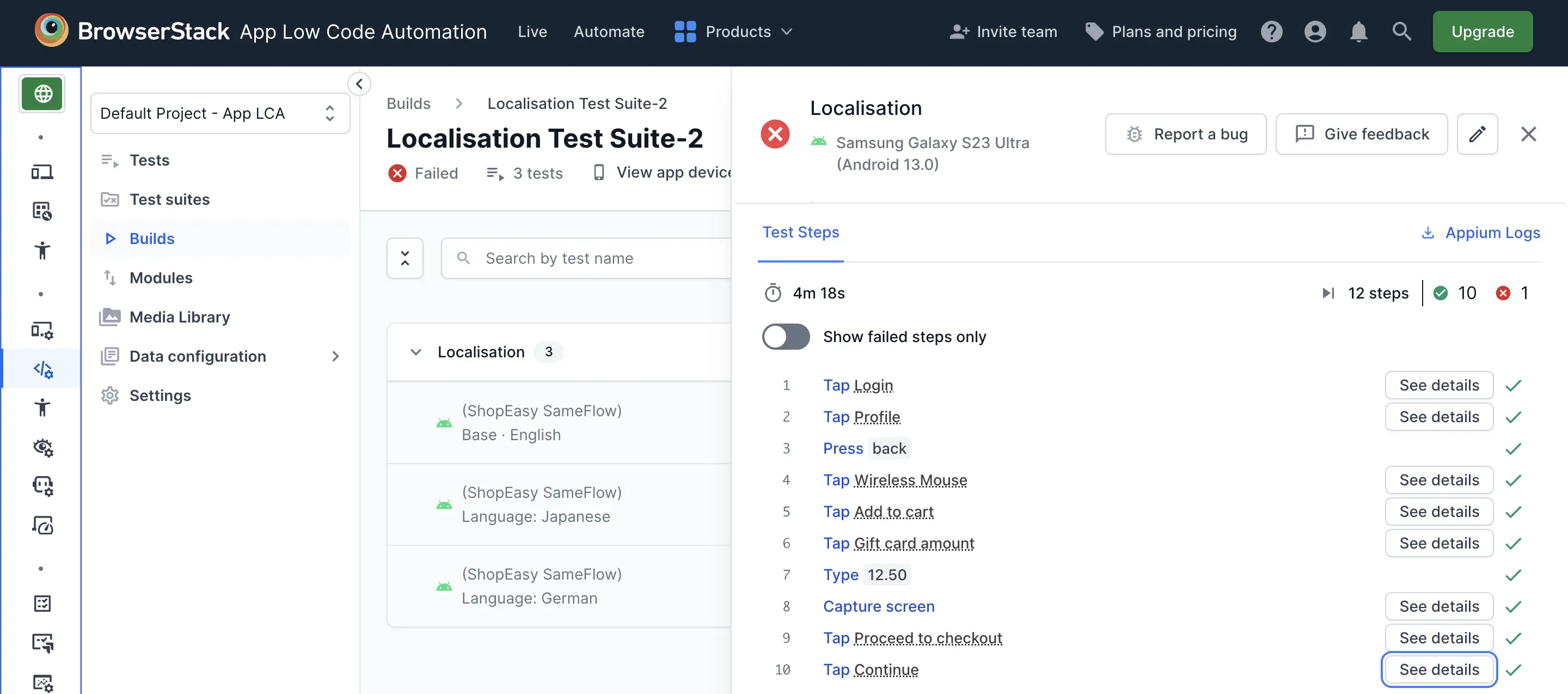
After the build completes, open the build report. Each test lists a run for each device, with the language of the run below the device name. For example, Language: Japanese. The run in the base language is labeled Base · English.
Click a test run to open its details.
In Test steps, find a step with the Localisation icon, then click See details.
The Localisation testing panel displays the captured screen in the base language side by side with the same screen in the translated language. An AI-generated summary at the top describes the issues found on the screen. Use the arrows to move between the captured screens of the test.
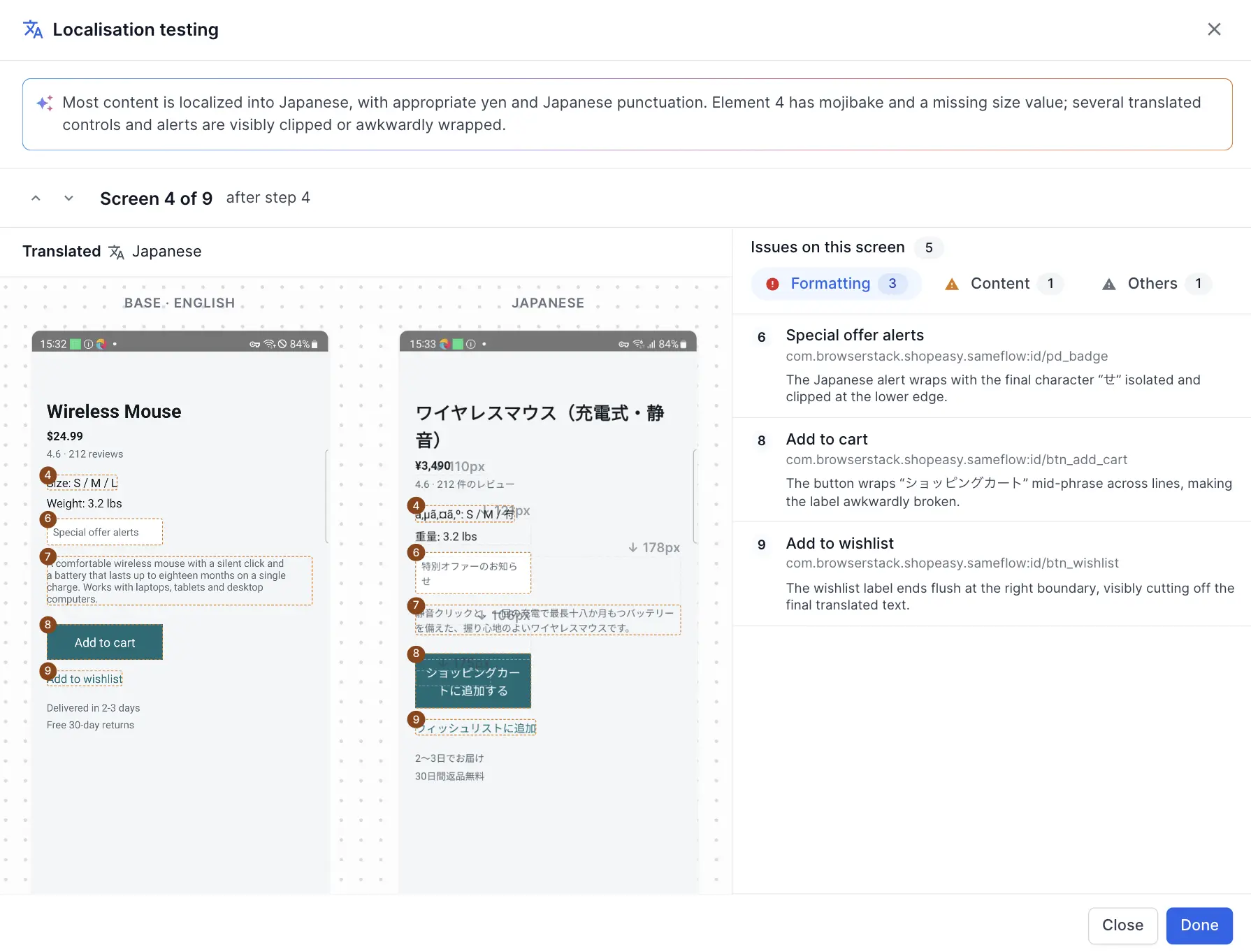
The panel groups issues into the following tabs:
- Formatting: Layout issues that translated text causes. For example, a title that wraps to two lines and pushes the fields below it down or a button label that is wider than in the base language.
- Content: Issues with the translated text itself. For example, a placeholder that is still in English.
- Others: Issues with how the text renders on the device. For example, a label that displays unreadable characters.
Each issue displays the affected element, its element ID, and a description of the issue.
Next steps
We're sorry to hear that. Please share your feedback so we can do better
Contact our Support team for immediate help while we work on improving our docs.
We're continuously improving our docs. We'd love to know what you liked
We're sorry to hear that. Please share your feedback so we can do better
Contact our Support team for immediate help while we work on improving our docs.
We're continuously improving our docs. We'd love to know what you liked
Thank you for your valuable feedback!