
 Join our Discord
Troubleshoot localhost and iOS issues
Fix issues where your app calls localhost, or where your local server rejects requests on iOS devices during an App Live session.
These issues happen when your server runs on your local machine and you can reach it there, but your app can’t reach it in an App Live session with Local Testing on.
This guide assumes that you’ve set up Local Testing and your session shows the green indicator beside Local Testing. See Set up Local Testing to learn how to set up a local session.
The following sections describe the common localhost and iOS issues, their causes, and the steps to resolve them.
Your app calls localhost
This issue applies to both Android and iOS devices.
Cause:
On a BrowserStack device, localhost and 127.0.0.1 point to the device itself, not to your machine. A request to localhost from your app’s native code stays on the device. The request never reaches BrowserStack Local, so Local Testing can’t route it to your machine.
Resolution:
Replace localhost with bs-local.com in your app, and keep the same port. For example, replace http://localhost:3000 with http://bs-local.com:3000. BrowserStack resolves bs-local.com to your machine through the Local tunnel. Then, rebuild your app and upload it to App Live again.
If your app sends requests to bs-local.com over HTTP instead of HTTPS, your app must also allow cleartext traffic to bs-local.com. Select your platform and add the configuration to your app:
In the res/xml/ directory of your project, create or edit the network_security_config.xml file, and allow cleartext traffic to bs-local.com:
In your app’s AndroidManifest.xml file, set the android:networkSecurityConfig attribute of the application element to this file. Keep your existing attributes on the element:
Rebuild your app and upload it to App Live again.
Requests from a WebView in your app to bs-local.com or to your internal hosts go through Local Testing. If these requests fail, see Resolve unreachable internal servers.
Localhost doesn’t change to bs-local.com on iOS
This issue applies to iOS devices only.
Cause:
For security reasons, iOS restricts localhost requests from going outside the device. So, you can’t reach a server on your machine through localhost or 127.0.0.1 in iOS sessions.
App Live automatically changes localhost to bs-local.com, which also resolves to 127.0.0.1 and lets the request resolve on your machine. In a few cases, this change doesn’t happen automatically.
Resolution: Use one of the following options:
- Use bs-local.com: Replace
localhostwithbs-local.comin the URL. Even though App Live changeslocalhostautomatically, check that the URL usesbs-local.com. - Use your private IP address: Replace
localhostwith the private IP address of your machine in the URL.
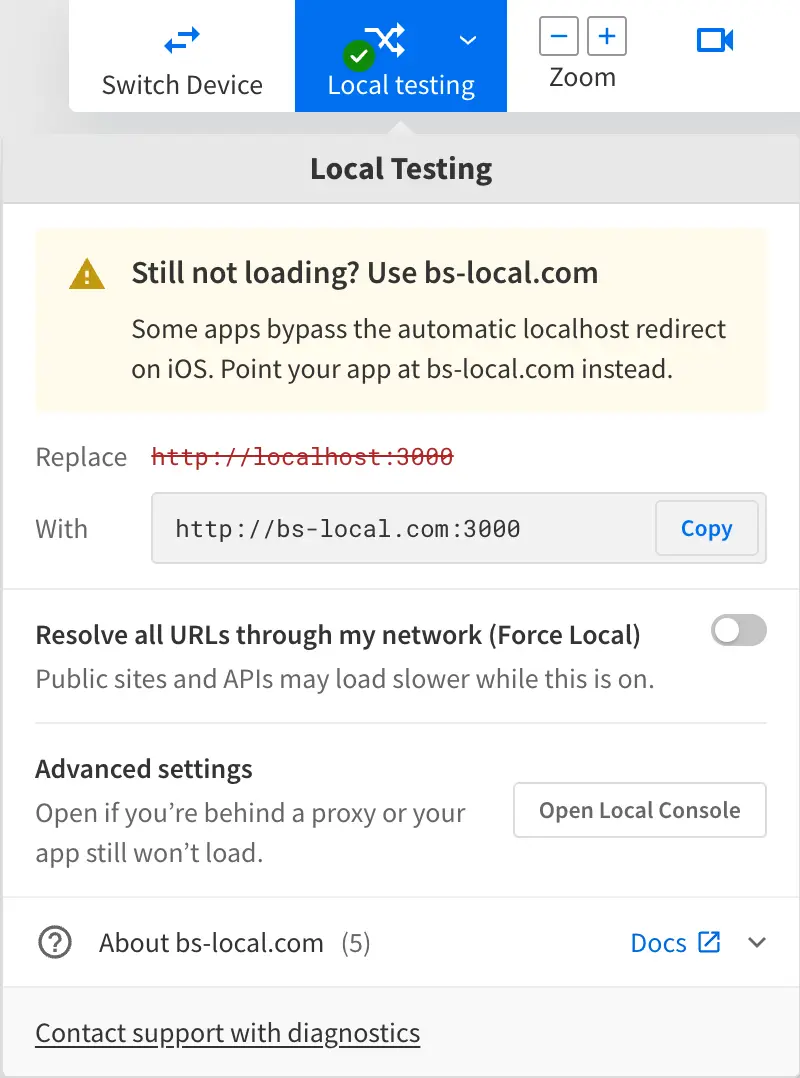
If your app still doesn’t load after you turn on Force Local, the Local Testing menu suggests the bs-local.com URL to use. Click Copy to copy the URL, update your app’s base URL, and then upload the rebuilt app again.
Your local server rejects requests to bs-local.com on iOS
This issue applies to iOS devices only.
Cause:
Your local HTTP server doesn’t allow access through bs-local.com. When your app reaches your server through bs-local.com, the request might include the hostname: bs-local.com header. In their default configuration, some servers block all requests where this header isn’t localhost.
Resolution:
Configure your server to accept requests from bs-local.com. The steps depend on your server. Select your server to view its configuration steps. If your server isn’t listed, see the documentation for your server.
By default, Angular does not allow the dev server to accept requests from custom domain names (such as bs-local.com). It can be configured to do so using the following steps:
Kill the server and restart it by running the following command:
You should now be able to access your localhost server via bs-local.com.
Next steps
- If your app still can’t reach your servers, see Troubleshoot Local Testing traffic issues.
- To return to all checkpoints, see Troubleshoot Local Testing in App Live.
We're sorry to hear that. Please share your feedback so we can do better
Contact our Support team for immediate help while we work on improving our docs.
We're continuously improving our docs. We'd love to know what you liked
We're sorry to hear that. Please share your feedback so we can do better
Contact our Support team for immediate help while we work on improving our docs.
We're continuously improving our docs. We'd love to know what you liked
Thank you for your valuable feedback!