
 Join our Discord
Troubleshoot Local Testing traffic issues
Fix issues where BrowserStack Local is connected, but your app still can’t reach your internal servers during an App Live session.
Traffic issues happen after setup is complete. BrowserStack Local shows the Connected status and the green indicator appears beside Local Testing on the App Live toolbar, but requests from your app don’t reach your internal servers.
If BrowserStack Local isn’t connected yet, see Troubleshoot Local Testing setup issues first.
How requests reach your network
During an App Live session, the device sends all its network requests to a BrowserStack proxy called the repeater. For each request, the repeater checks whether it can resolve the request over the public internet, or whether the request needs your private network. Requests that need your private network go through the Local tunnel to BrowserStack Local, which sends them to your server. For details, see How Local Testing works.
Traffic issues happen at one of the following points:
- Routing: The request goes over the public internet when it needs your network, or the reverse. See Turn Force Local on or off.
- Your network: The request reaches BrowserStack Local, but the machine that runs Local can’t reach your server. See Resolve unreachable internal servers.
- The device: The request never leaves the device because your app calls
localhost. See Troubleshoot localhost and iOS issues.
Check that Local Testing is on for your session
Before you troubleshoot traffic, make sure that your current session uses Local Testing. On the App Live toolbar, check for the green indicator beside Local Testing.
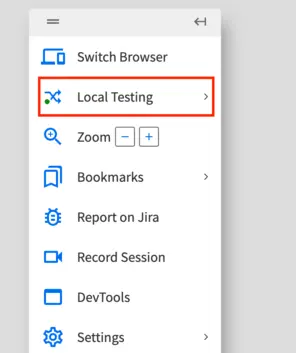
To check the connection details, click Local Testing. When Local Testing is on, the Local Testing menu shows that the Local app is connected.
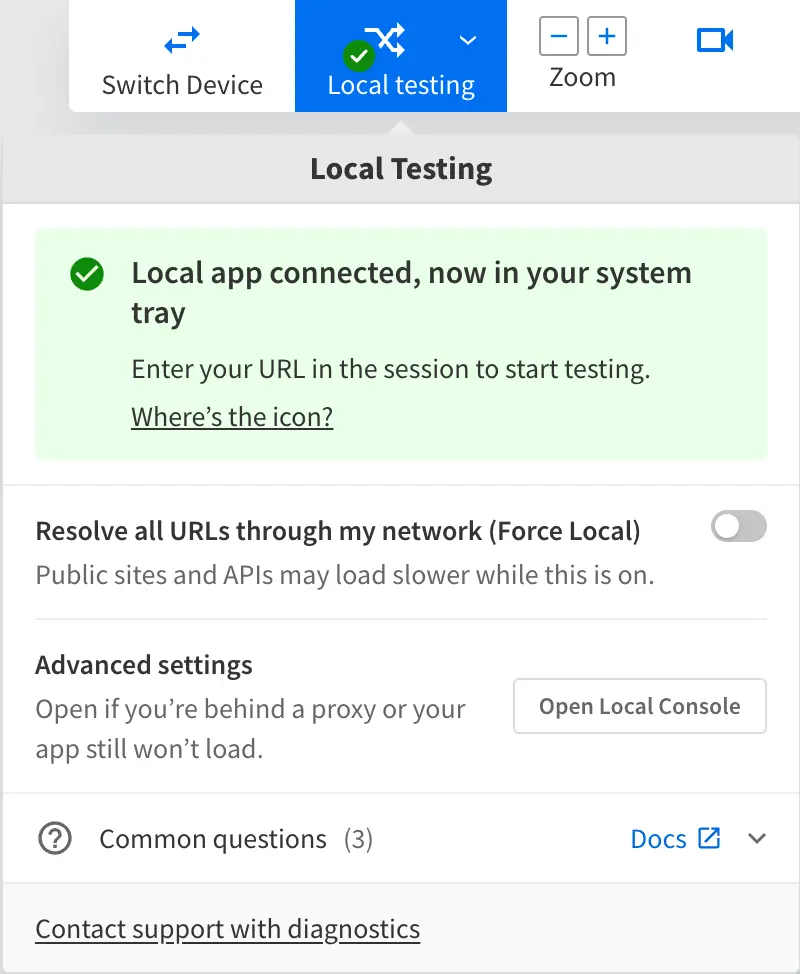
If the indicator isn’t green, BrowserStack Local isn’t attached to the session. Make sure that BrowserStack Local is running and shows Connected, and then restart the session.
Turn Force Local on or off
Force Local controls how the repeater routes requests. Force Local is the most common cause of traffic issues.
- Force Local off: The repeater checks whether each request goes over the public internet or through your network.
- Force Local on: Every request from the device goes through the Local tunnel and is resolved from your network.
Use the following table to decide whether to change the Force Local setting:
| What you see | Force Local is | What to do |
|---|---|---|
| Requests to your internal servers fail or reach the wrong server, because the hostname also resolves on the public internet. | Off | Turn on Force Local. |
| Your organization requires all device traffic to stay inside your network. | Off | Turn on Force Local. |
| Internal servers load, but public resources such as third-party APIs, CDNs, or app stores fail, because your network can’t reach them. | On | Turn off Force Local, or ask your IT team to allow those hosts. |
To turn Force Local on or off during a session, follow these steps:
On the App Live toolbar, click Local Testing.
In the Local Testing menu, turn on or turn off Resolve all URLs through my network (Force Local).
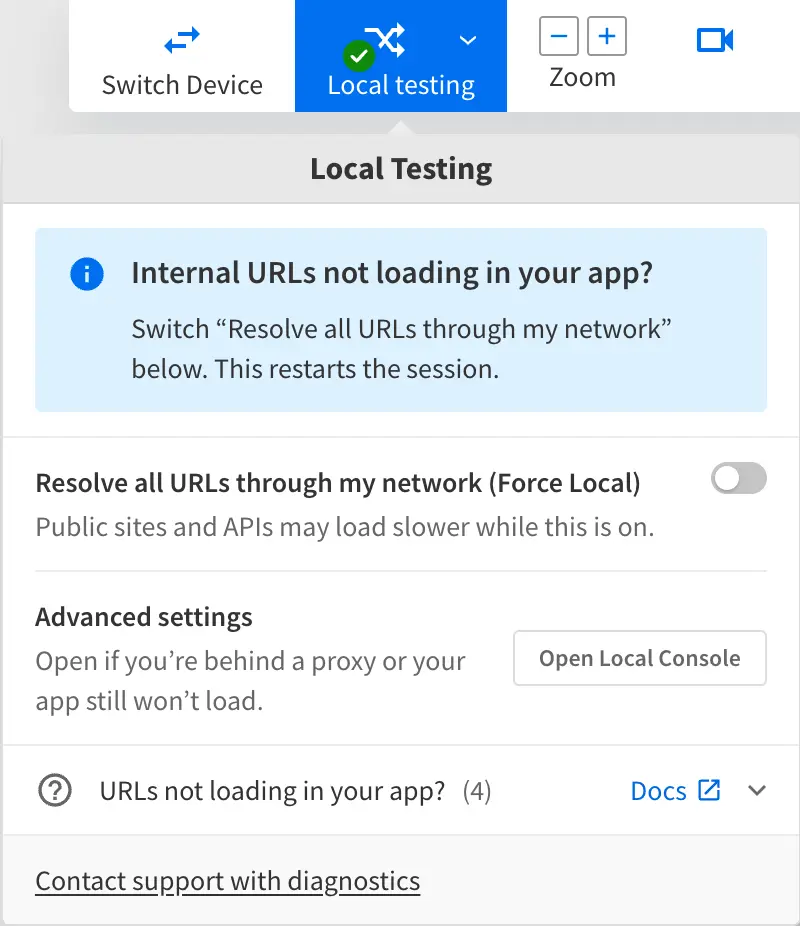
When you turn Force Local on or off, your App Live session restarts with the updated Local settings.
To set Force Local from the BrowserStack Local app or the Local binary, see Enable Force Local and Force Proxy.
Resolve unreachable internal servers
When Local Testing is on, BrowserStack Local sends requests to your servers from the machine where it runs. So, your app can reach only the servers that this machine can reach. If your staging environment, internal API, or login page doesn’t load while Local Testing is on, start with the following checks:
On the machine that runs BrowserStack Local, open the same URL in a browser. If the page doesn’t load there, it can’t load on the BrowserStack device either.
If your servers are behind a VPN, connect the machine that runs BrowserStack Local to that VPN with your organization’s VPN client. Then, repeat the previous check to confirm that the page loads on that machine. If you don’t have VPN access, ask your IT team to give the machine access, or to run BrowserStack Local on a machine inside the network. For more information, see Test behind a firewall or VPN.
Make sure your app uses the same hostname and port that you can open on the machine that runs BrowserStack Local.
To find the exact cause, run the Local binary with the --verbose 3 flag and reproduce the issue in your session. If you use the BrowserStack Local app, first click Quit BrowserStack Local in the app menu, so that only one BrowserStack Local instance runs. The output lists the error for each host that BrowserStack Local can’t reach. The following table describes the common errors:
| Error | What it means | What to do |
|---|---|---|
ENOTFOUND |
The machine that runs BrowserStack Local can’t resolve the hostname. | Connect the machine to your VPN, or check the hostname in your app for typos. |
ECONNREFUSED |
The host was found, but nothing accepted the connection on that port. | Start your server, and check that your app uses the correct port. |
ETIMEDOUT |
The request didn’t get a response in time. A firewall or network rule usually drops the request. | Ask your IT team to allow the machine that runs BrowserStack Local to reach the host. |
The following are other known causes and their resolutions:
The server returns a 401 or access denied response
Cause:
Your server received the request and responded. A 401 or access denied response means that Local Testing works, but your server rejected the request.
Resolution: Check the credentials, tokens, or single sign-on configuration that your app uses for that environment. If your server only allows specific networks or IP addresses, ask your IT team whether requests from the machine that runs BrowserStack Local are allowed.
A firewall or VPN blocks specific internal hosts
Cause: Your firewall or VPN allows the machine that runs BrowserStack Local to connect to BrowserStack, but blocks requests to specific internal hosts.
Resolution: Ask your IT team to allow the machine that runs BrowserStack Local to reach those hosts. For network configuration steps, see Test behind a firewall or VPN.
Internal servers are reachable only through a proxy
Cause: Your internal servers are reachable only through a proxy, but BrowserStack Local tries to connect to them directly.
Resolution: Configure the proxy in BrowserStack Local, and turn on Force Proxy so that all traffic goes through the proxy. For steps, see Test behind a proxy and Enable Force Local and Force Proxy.
Next steps
- If your app calls
localhost, or your app runs on an iOS device, see Troubleshoot localhost and iOS issues. - To return to all checkpoints, see Troubleshoot Local Testing in App Live.
We're sorry to hear that. Please share your feedback so we can do better
Contact our Support team for immediate help while we work on improving our docs.
We're continuously improving our docs. We'd love to know what you liked
We're sorry to hear that. Please share your feedback so we can do better
Contact our Support team for immediate help while we work on improving our docs.
We're continuously improving our docs. We'd love to know what you liked
Thank you for your valuable feedback!