
 Join our Discord
Use Self-Healing Agent for your Cypress tests running on BrowserStack Automate 
Automatically recover your failed Cypress tests using AI on BrowserStack Automate.
Self-Heal automatically detects when a locator no longer works and intelligently finds the right element using historical context and AI signals. Instead of failing immediately, BrowserStack recovers the test and records what changed - reducing false failures and keeping builds green as the UI evolves.
What is BrowserStack Self-Heal?
The following video explains how BrowserStack’s Self-Heal feature works:
Self-Heal is also available for Selenium.
When to use Self-Heal
- Your tests frequently fail due to UI or locator changes.
- UI Refactoring and redesigns happen often across teams.
- Flaky tests due to
NoSuchElementexceptions are common.
Use Self-Heal to reduce build instability and debugging time.
Key features
-
findElementcommand healing: Heals broken locators used infindElementcommands. -
Resilient locators as output: Healed locators you can reuse in future runs.
-
Build-level healing report: Every healed locator and the reason it was applied, per build.
-
Test script maintanence: Apply healed locators to your test script directly through MCP, or create a GitHub PR for SDK users.
Prerequisites
- Your account must have BrowserStack AI enabled to use the AI Self-Heal feature. For more information, see our documentation on how to activate AI preferences.
- Self-Heal Agent is available only on Automate Pro plan.
Supported Cypress versions
Self-Heal supports a specific Cypress version at a time.
Self-Heal is currently enabled only for Cypress v15.8. Newer Cypress versions do not have Self-Heal enabled by default. To enable Self-Heal for a newer Cypress version, contact support.
Enable Self-Heal
To enable the Self-Heal feature, set the browserstack.selfHeal capability to true under run_settings in your browserstack.json file.
How Self-Heal works
Each time your test interacts with an element, Self-Heal Agent securely stores key information about that element — including its locator, nearby attributes and the structure of the DOM.
If a locator no longer resolves during a test run, Self-Heal initiates the following process:
- Detects a broken locator.
- Evaluates the latest success context.
- Generates the alternate healed locator.
- Applies the resilient locator and continues the test run.
Self-Heal requires at least one successful test execution with the same elementIdentifier to capture the correct element context.
For example, if your successful test uses .text='Log in' but the failed test uses .text='log in', healing won’t work because the elementIdentifier differs.
To ensure healing works:
- Use consistent
elementIdentifiervalues across successful and failed builds. - Make sure your success case runs first so that BrowserStack can register the element context before attempting to heal failures.
Fix your script with healed locators
A heal keeps a single run green. To stop the failure from recurring, push the healed locator back into your test using either of the following methods:
-
MCP: Apply a build’s healed locators directly to your test files through the BrowserStack MCP server.
-
GitHub PR: If you use BrowserStack SDK, you can raise a GitHub PR directly from the Self-Healing report.
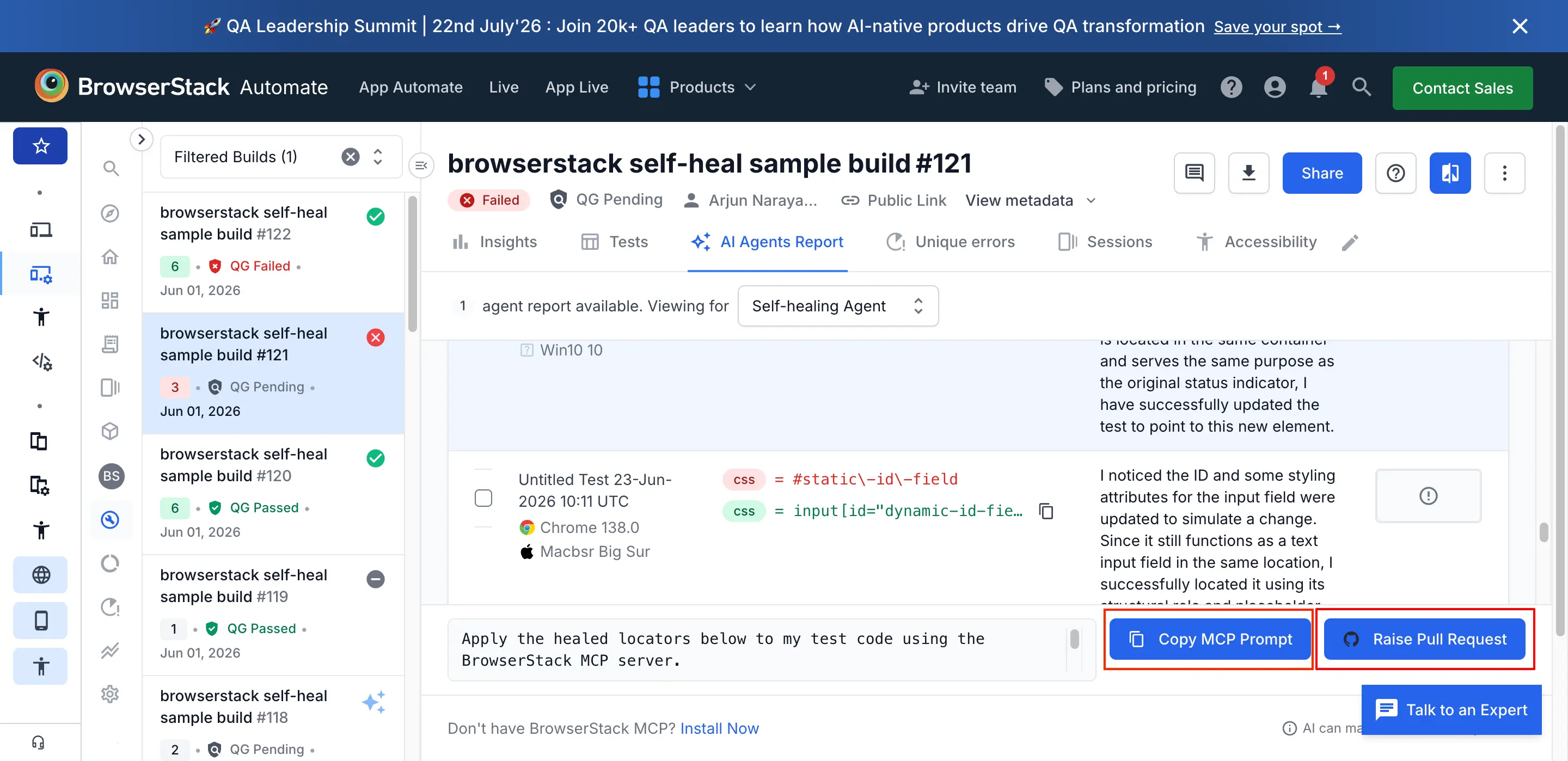
Self-Heal workflow
- Build listing- list of all your builds.
- Build insights- detailed insights of self-healed tests in a build.
- Test listing- list of all tests in a build.
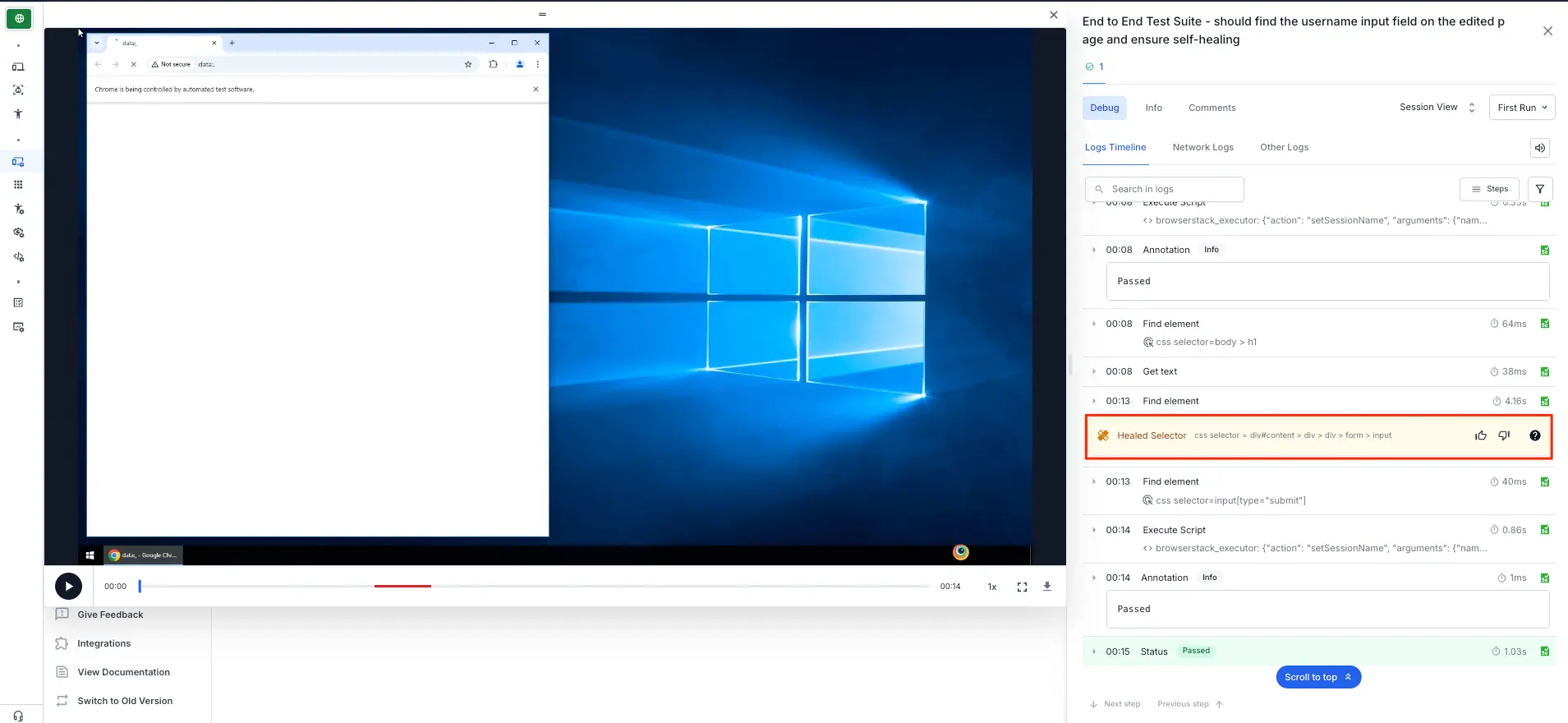
- Text logs- detailed logs of a test including self-healed locators. You can view healed resilient locators in the Text Logs tab, marked with the self-heal icon. BrowserStack recommends replacing locators in your script with the healed versions to improve stability.
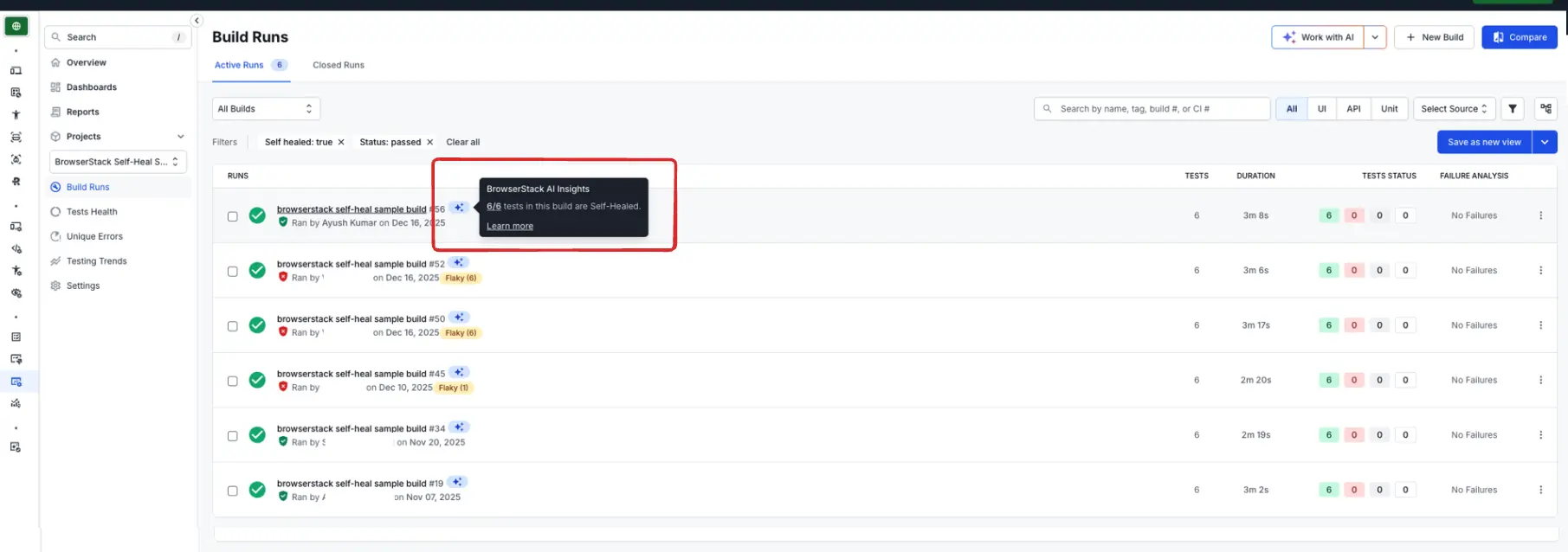
All your Builds which have Healed-Selectors appear with the AI icon next to its name:
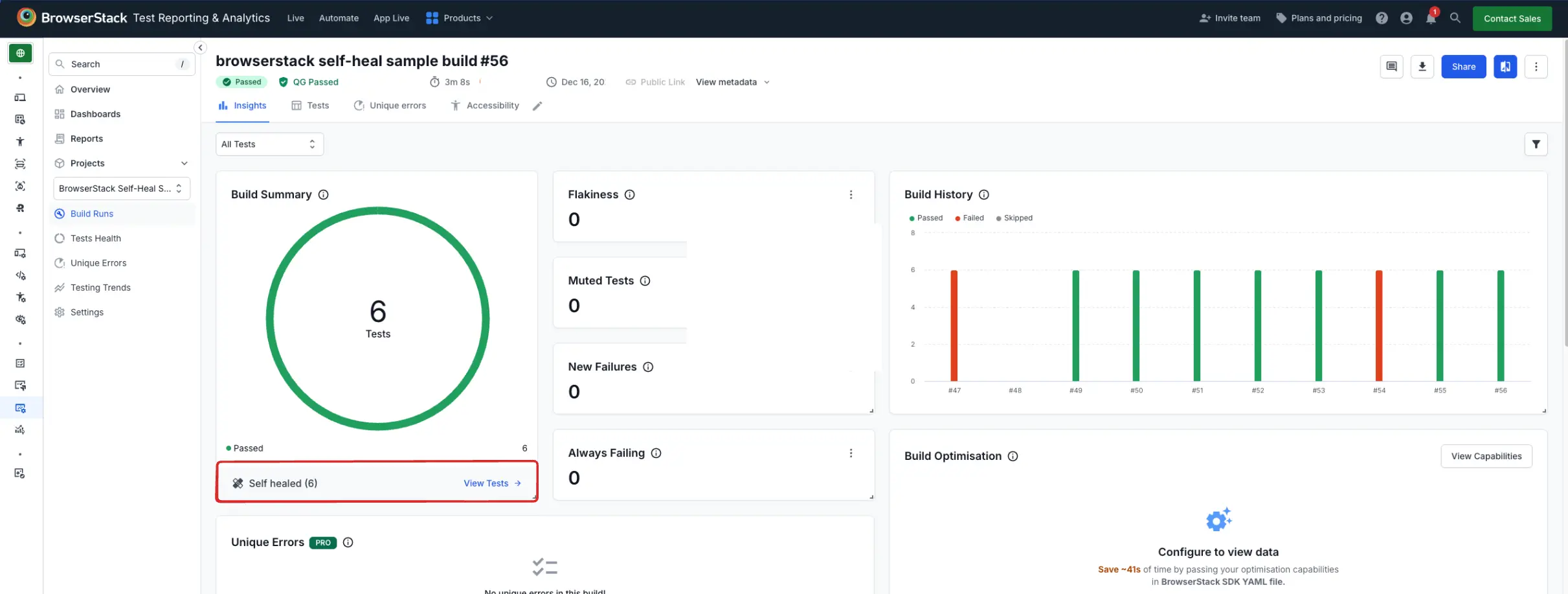
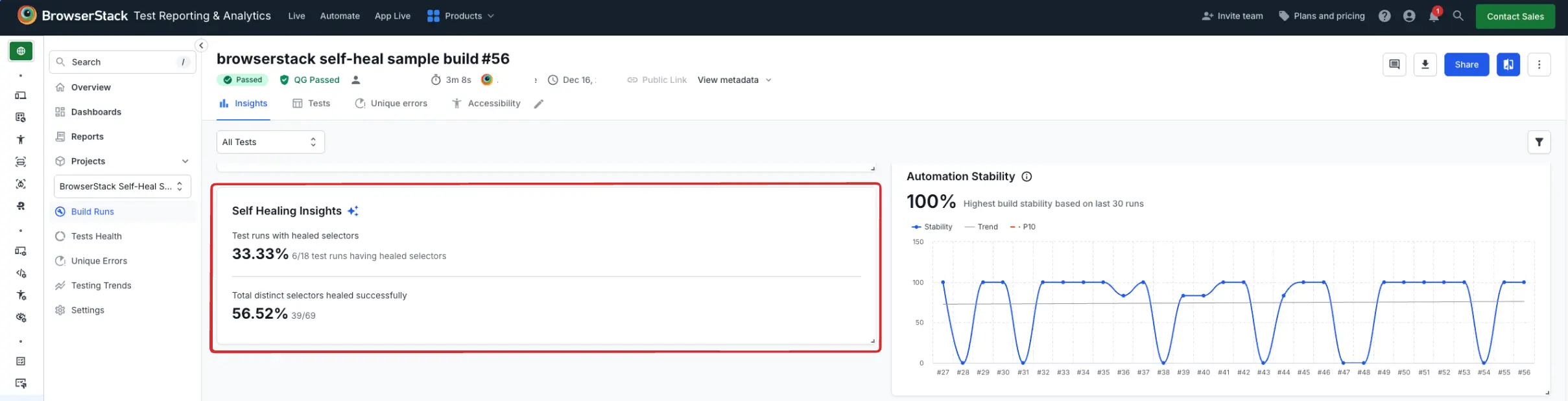
Builds Insights page have 2 elements:
- The Self-Healed Test CTA on Build Summary widget
- Self Healing Insights widget
All your tests that are recovered by self-heal appear on the dashboard marked by the self-heal icon as shown in the following image:
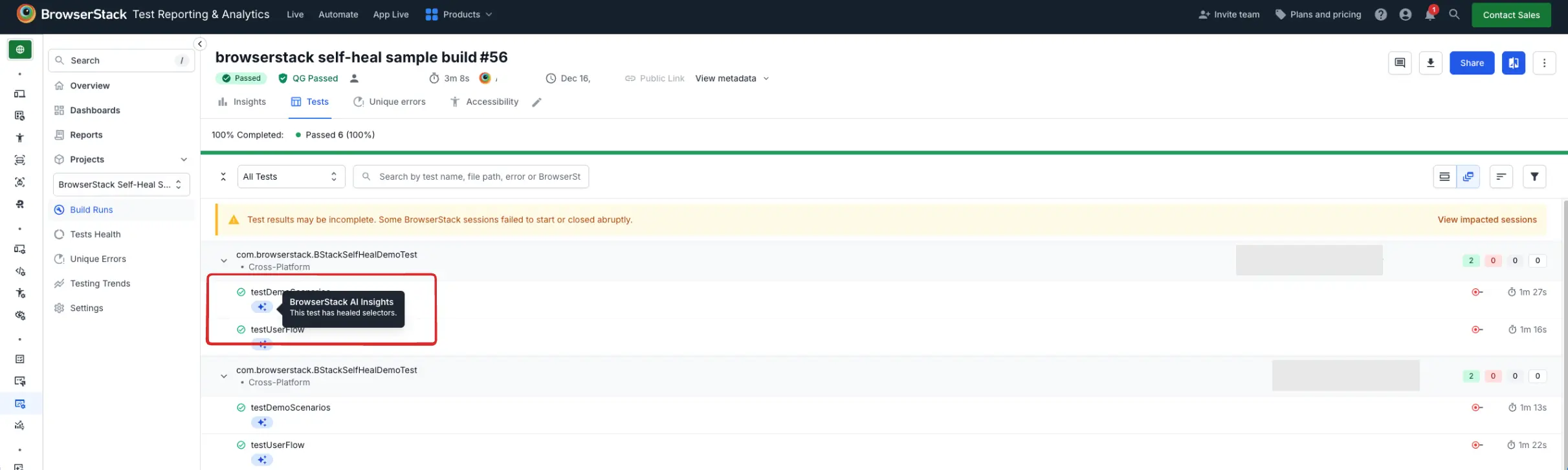
You can view these self-healed resilient locators in the Text Logs tab of your session masked by the self-heal icon
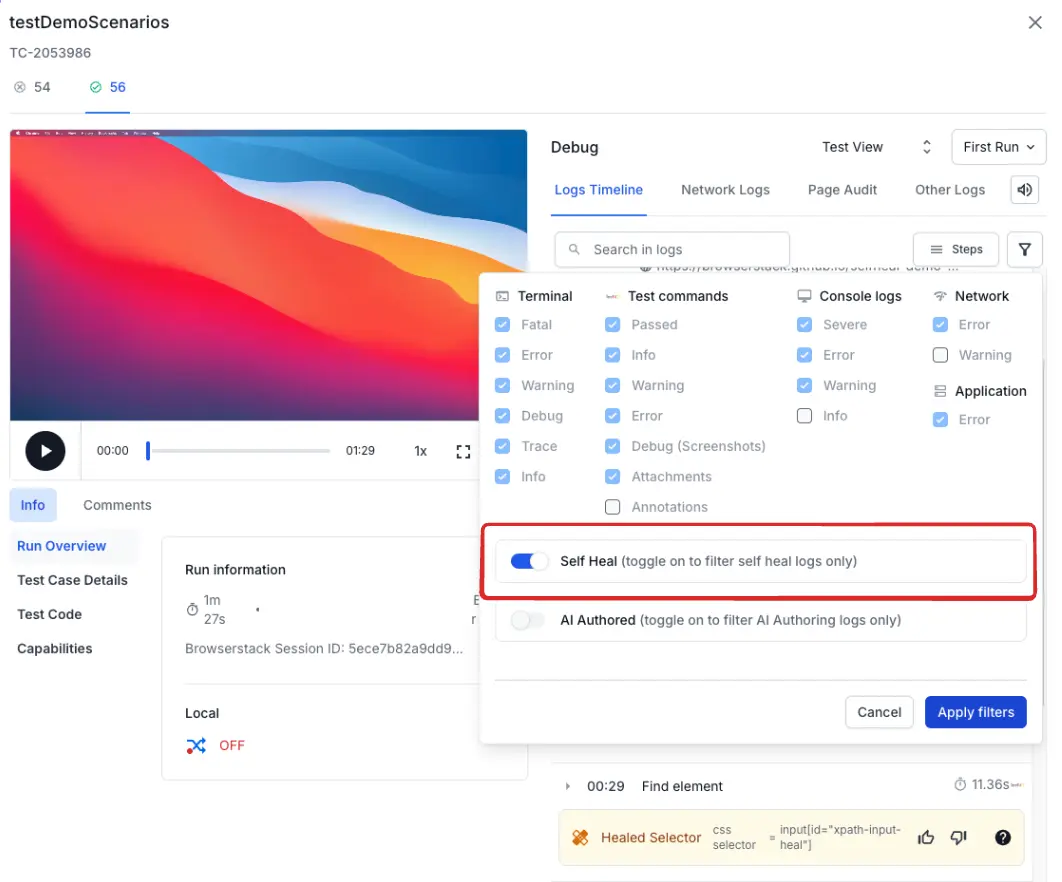
You can filter the Text Logs to only view the self-healed locators as shown in the following image:
The Text Log filter will only be available if selfHeal is enabled for your test session.
The build level self healed reports are available on the product dashboard. You can also use the REST API to fetch the build details.
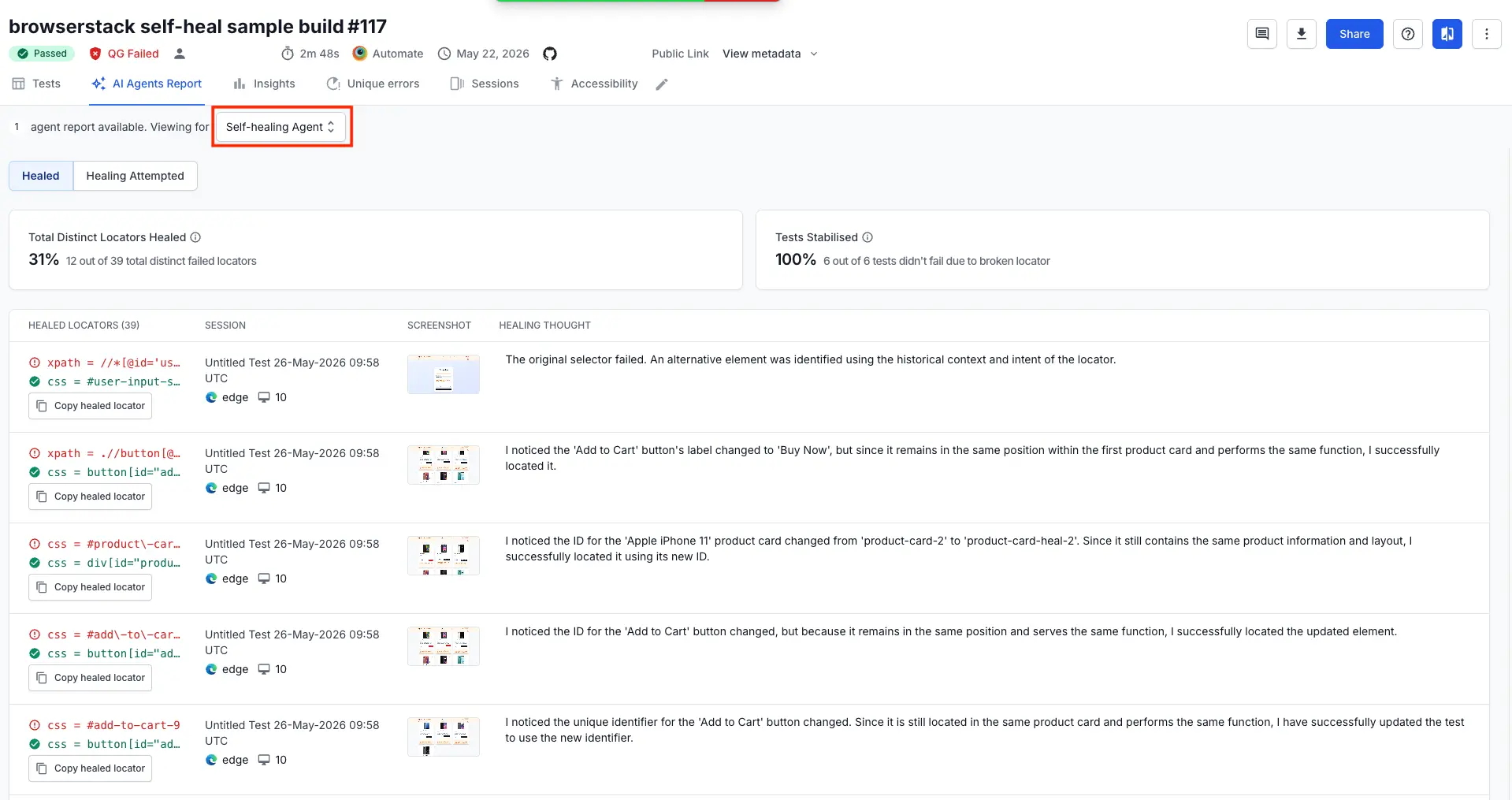
BrowserStack recommends you to replace the locators in your test script with Self-Healed locators to improve the stability of your tests.
Self Heal limitations
Although the self-heal feature is engineered to handle a broad spectrum of issues, it comes with its own set of limitations, such as:
-
Some Performance overhead
Healing adds extra analysis during execution. The impact is usually small, but it should complement, not replace, good test design and error handling. -
Not all failures can be healed
System failures and WebDriver issues cannot be recovered, and these tests fail as expected. -
Can misfire on negative assertions
Self-Heal can’t tell apart a locator that changed from an element that’s intentionally absent, so it might substitute a similar generic element and cause the check to fail.
Reference
Refer to the API reference documentation for a complete list of REST APIs.
We're sorry to hear that. Please share your feedback so we can do better
Contact our Support team for immediate help while we work on improving our docs.
We're continuously improving our docs. We'd love to know what you liked
We're sorry to hear that. Please share your feedback so we can do better
Contact our Support team for immediate help while we work on improving our docs.
We're continuously improving our docs. We'd love to know what you liked
Thank you for your valuable feedback!