
 Ask the Community
What’s new in the new Automate Dashboard view?
We’ve used your feedback to redesign one of Automate’s key components: the new dashboard view. Read on for more about the new view’s key features, its differences from the old view, and information to make your transition to the new view easier.
What’s changed?
The new dashboard view groups key actions and information more logically, making it easier for you to debug your tests. It usually appears as a 2-column layout but is responsive to the size of your window.
Changes in the build view
-
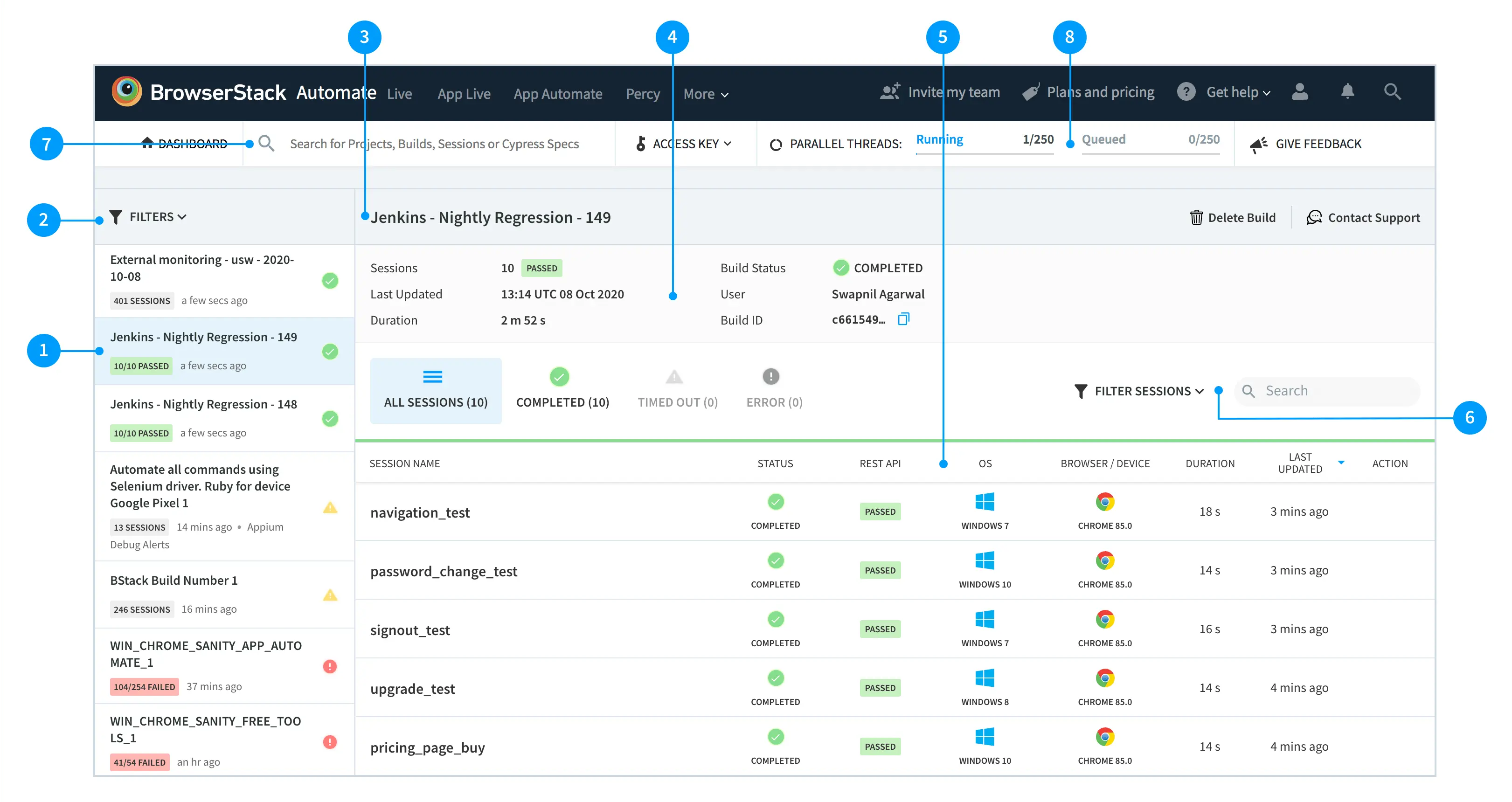
Sidebar for builds and sessions: The sidebar has a refreshed view and enables quick access to all your builds and sessions. The meta-information such as number of sessions, status of sessions, and project name gives useful information at a glance.
-
Filters builds and sessions: You can now filter builds and sessions by user, project, status, team, and framework. As you apply filters, the dashboard URL also changes, enabling you to share filtered views with other team members easily.
-
Build name and actions: This bar shows the build name and makes actions such as delete and contact support easily accessible.
-
Build meta: The build meta is now available in a two-column layout rather than the earlier one-column layout. The new layout gives more vertical space for sessions.
-
REST API Status: You would notice two different statuses for sessions: BrowserStack status and REST API status. The REST API status (passed, failed, or unmarked) denotes the session status you mark using the REST API. The BrowserStack status represents a session state (running, error, timed out, or completed) on the Automate infrastructure. The two different statuses help you quickly identify the reason for test failures.
-
Build level search and filters: You can find sessions in a build using build-level search and filter options. You can search for a session by its name or ID, and you can filter sessions by OS, browser, device, and status.
-
Search across projects, builds, and sessions: This (the top-level) search bar is accessible from all the dashboard pages. You can search for projects, builds, and sessions by their name or IDs.
-
Parallels and Queues: The number of total and used parallels & queued sessions is available at the top.
Changes in the session view
-
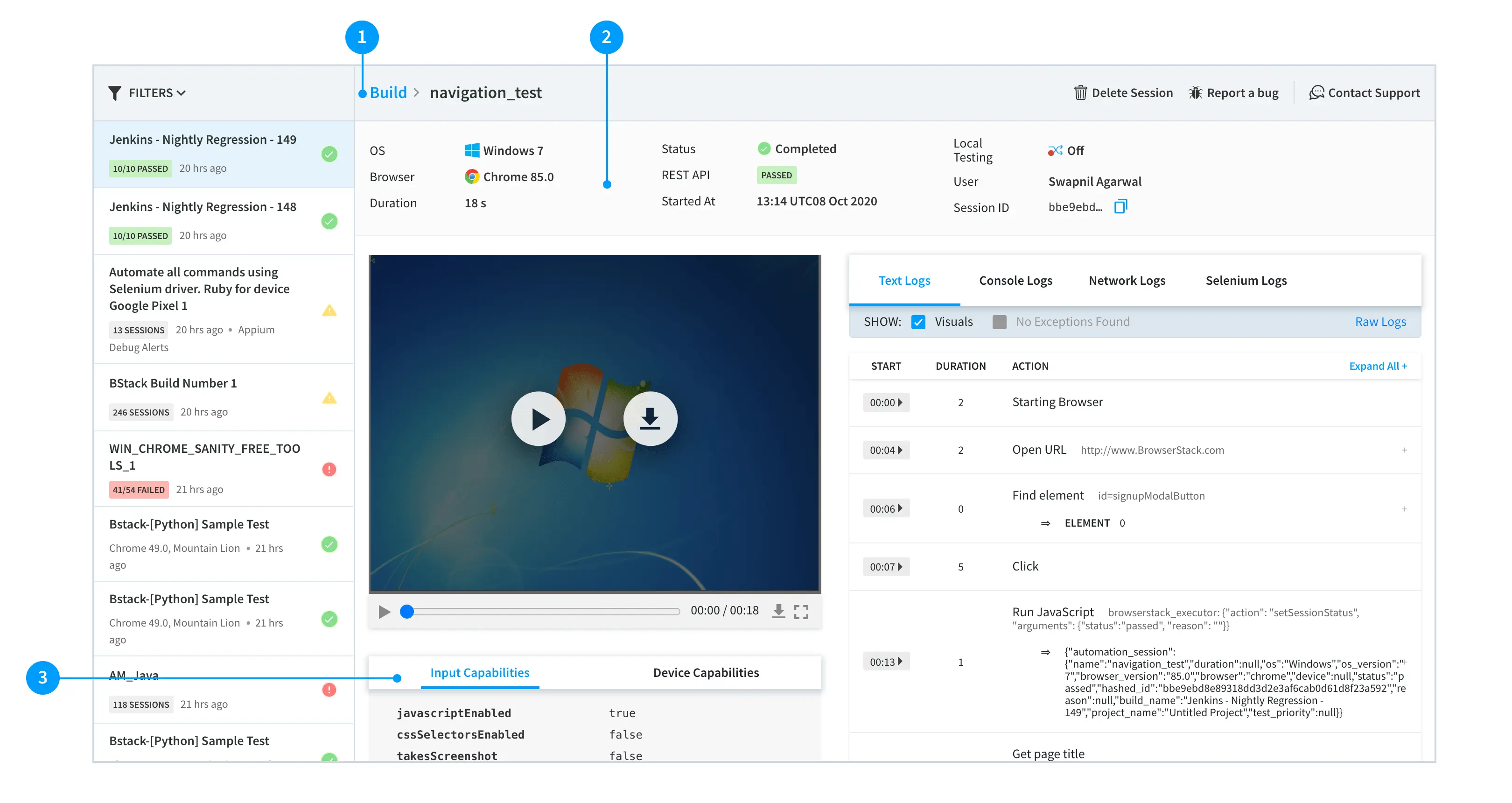
Session name and actions: This bar shows the session name and makes actions such as delete, contact support, and report a bug easily accessible.
-
Session meta: The session meta is now available in a two or three-column layout (based on your screen size) from the earlier one-column layout. The new layout gives more vertical space and enables side-by-side viewing of video and logs.
-
Input Capabilities and Device Capabilities: Input and device capabilities are visible by default and formatted for better viewing. You can use browser find (
CTRL+ForCMD+F) to search in Input Capabilities and Device Capabilities sections.
Upcoming features
We are actively working towards improving your overall experience and have planned some exciting new features. Few of these are:
Customizable sidebar:
We understand that each developer has their own way of developing and debugging applications. Some devs like a more compact view of the dashboard, while others prefer a spaced-out version. You would soon be able to customize your sidebar experience on the dashboard.
Flash deprecation:
Currently, interactive session and real-time video recording are powered with the help of Flash technology in Automate. We would deprecate Flash’s use and move to better technology to give users a more secure and rich experience.
Improved text logs:
Working with large text logs on the dashboard may not be fun at times. A large log file may take time to load and a few of the log lines may have a long Javascript entry that makes reading and scrolling the logs difficult. Additionally, there are some more problems with large logs on the dashboard. Hence, we are working to improve the overall experience of working with text logs on the Automate dashboard.
Frequently asked questions (FAQ)
How can I try out the new view?
You can try out the new dashboard view. Trying out the new view will not revoke your access to the old view.
Where should I go if I have feedback, questions, or concerns?
To give us feedback, open the dashboard, and click on the Give Feedback button on the header. For any question or concern, you can anytime reach out to our Support team. We would make sure to get back to you as soon as possible.
We're sorry to hear that. Please share your feedback so we can do better
Contact our Support team for immediate help while we work on improving our docs.
We're continuously improving our docs. We'd love to know what you liked
We're sorry to hear that. Please share your feedback so we can do better
Contact our Support team for immediate help while we work on improving our docs.
We're continuously improving our docs. We'd love to know what you liked
Thank you for your valuable feedback!