
 Join our Discord
Smart Test Selection Agent 
Learn how to use BrowserStack’s Smart Test Selection to run tests relevant to your code changes, get faster feedback, and increase test efficiency.
What is Smart Test Selection?
Smart Test Selection uses AI to identify and run tests impacted by recent code changes. Instead of executing the entire test suite after every change, you can run a relevant subset of tests to get faster feedback on your builds
Smart Test Selection is currently in beta.
- Supports BrowserStack Automate (Selenium and Playwright) and App Automate (Appium).
- Works for both CI/CD and local runs through the BrowserStack SDK.
How Smart Test Selection Works
The Smart Test Selection agent analyzes the relationship between the metadata of your code changes, such as file names, file paths, commit authors, etc. and historical test execution results to identify which tests are most likely to fail.
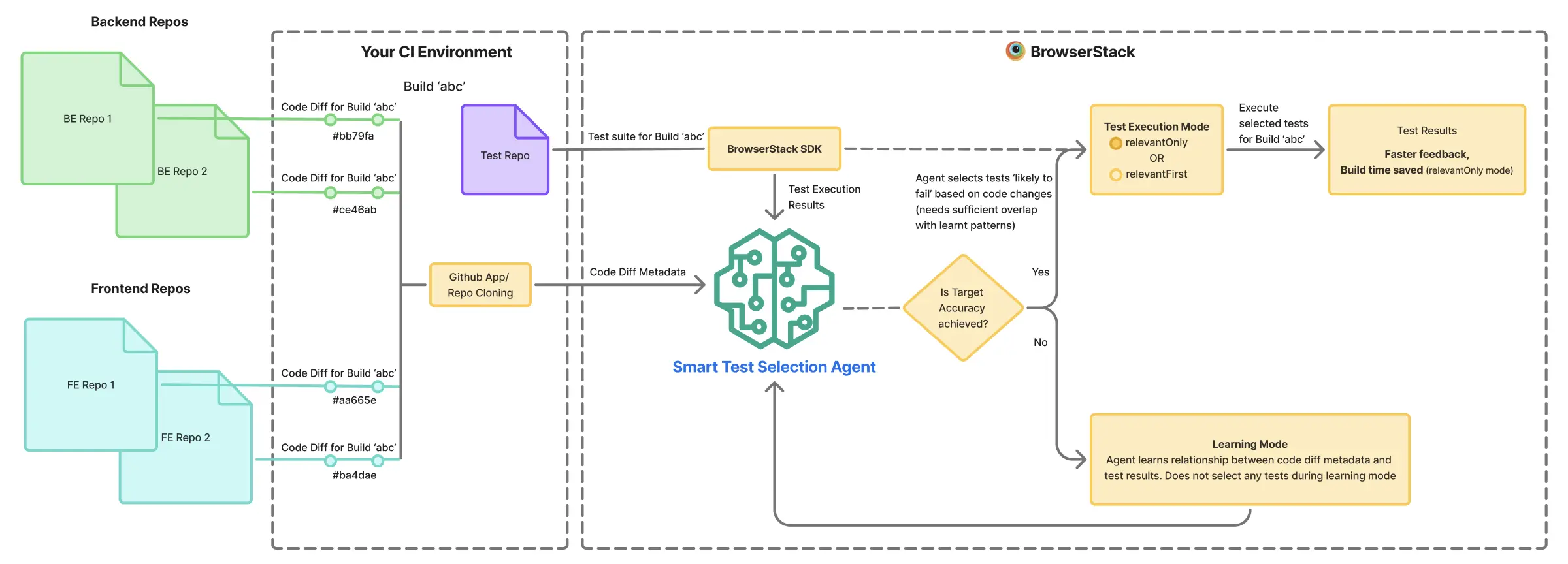
You can run tests selected by the AI agent in one of the following modes:
-
relevantFirst: Runs the selected tests first, followed by the remaining suite.
This mode ensures faster feedback on critical issues with full coverage -
relevantOnly: Runs only the selected tests and skips the rest. This mode maximizes efficiency and reduces execution time, infrastructure costs
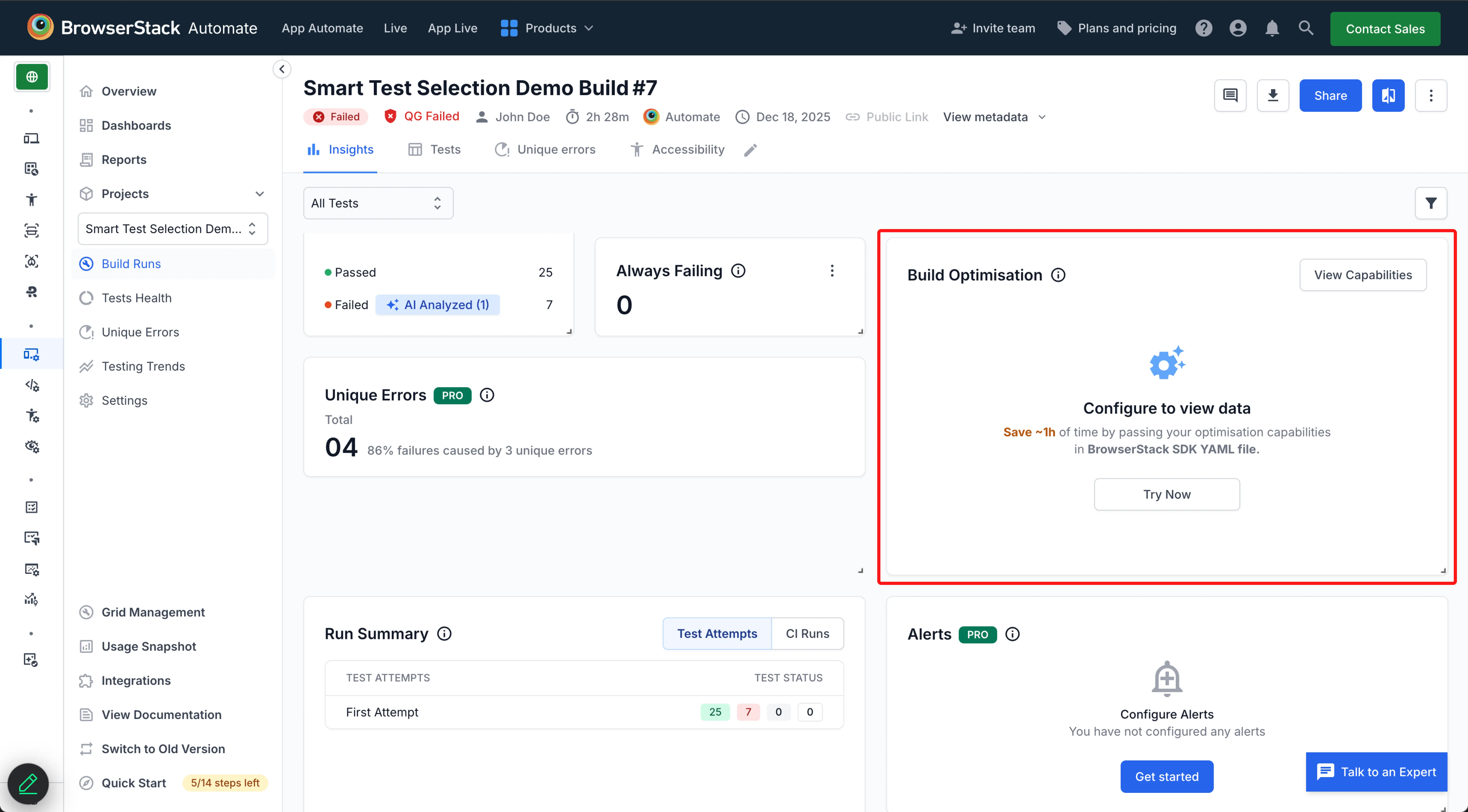
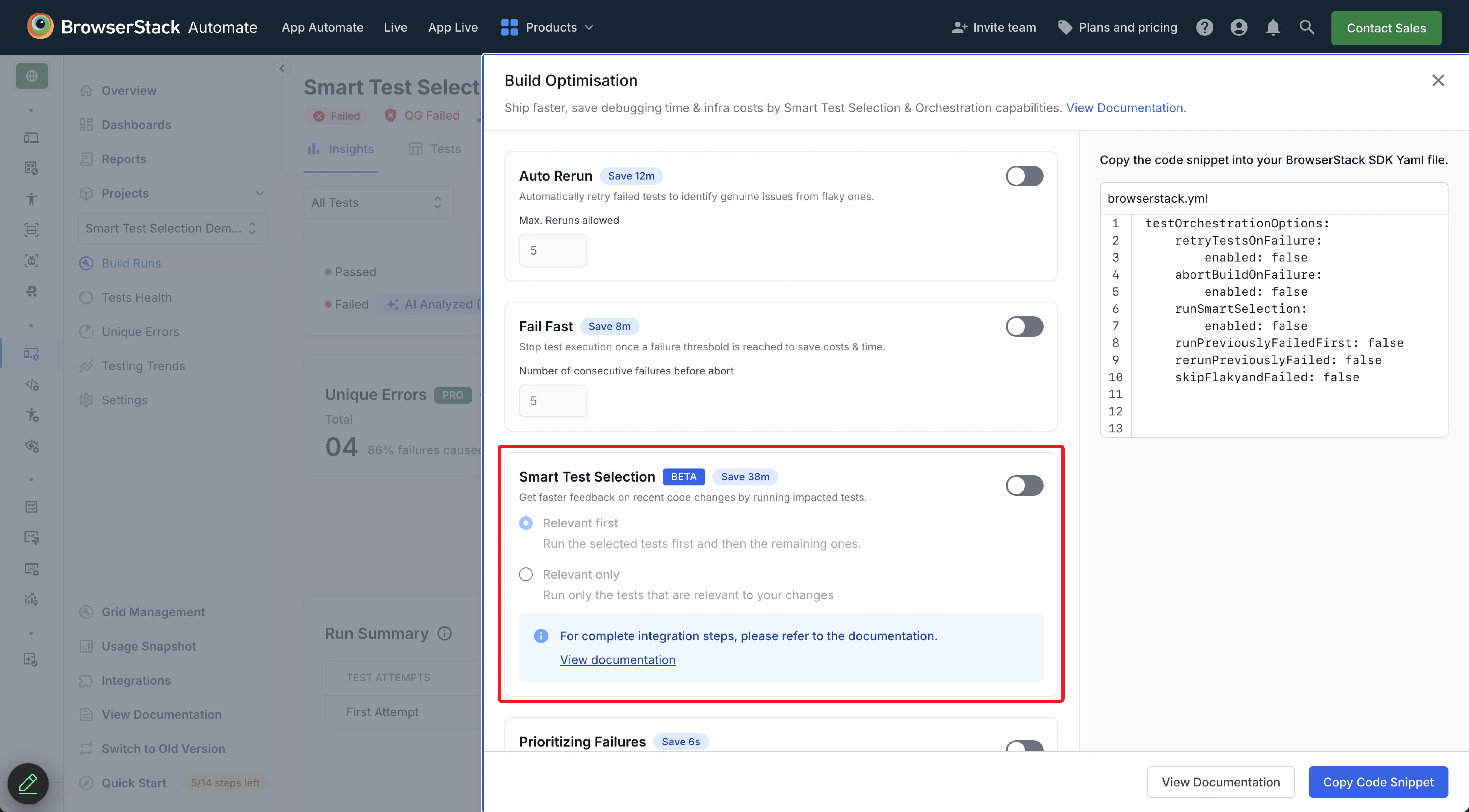
Switch to our new dashboard experience to access the Build Optimisation Widget and the Smart Test Selection feature.
Learning Mode
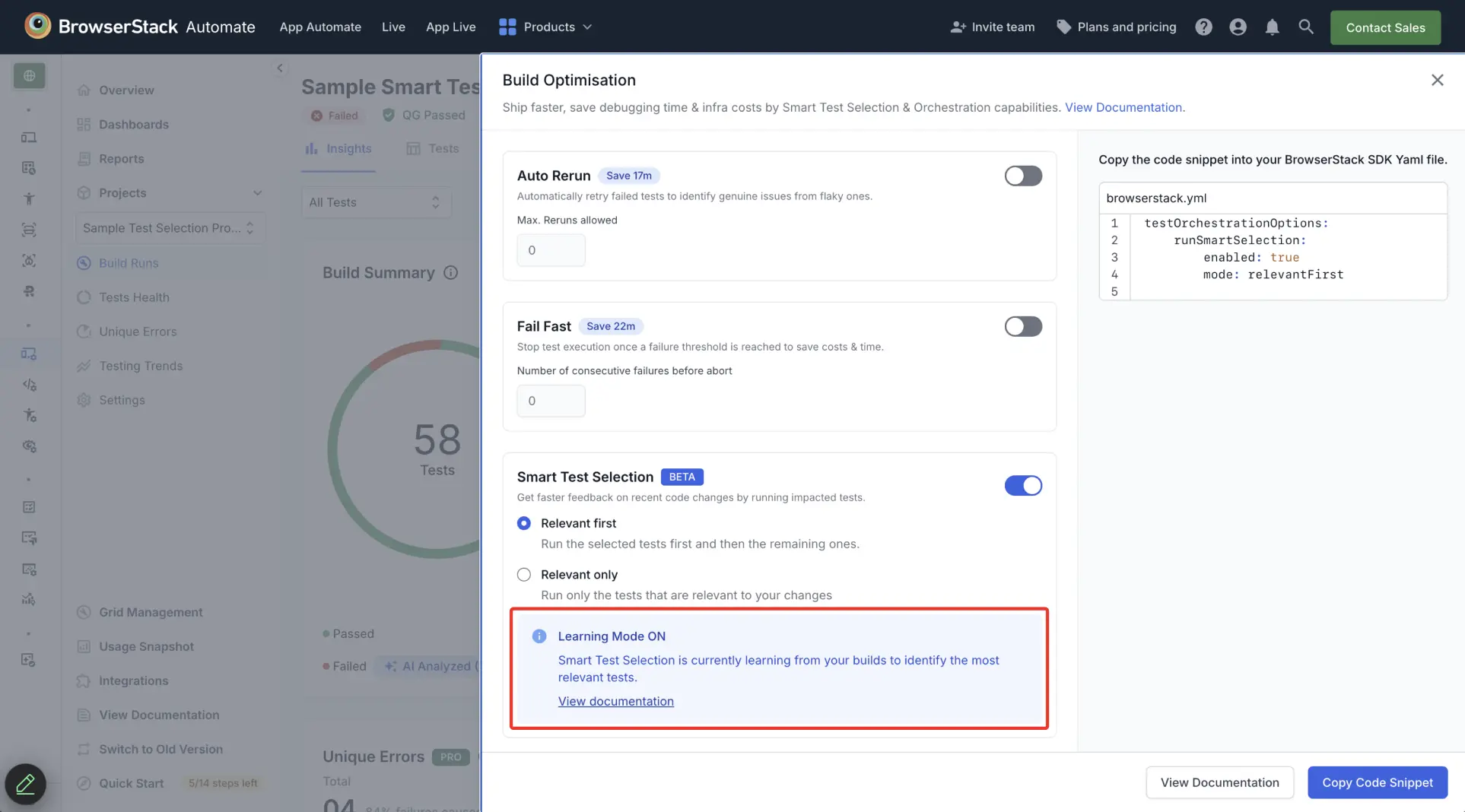
Once enabled, the AI agent enters a learning mode. It learns how your code changes affect your tests by analysing your project’s build and commit history. The agent does not select any tests during this period. To help the AI learn faster, you can ensure the following:
- Frequent builds: Run builds several times a week
- Diverse commits: Provide a rich history of changes across the codebase
- Test failures: A suite with a consistent failure rate (~10%)
Selecting Tests
After achieving target accuracy in the learning mode, the AI agent starts selecting tests for each new build. It only selects tests when it has high confidence in its predictions.
-
Sufficient overlap: The AI agent selects and runs relevant tests based on your chosen mode (
relevantFirstorrelevantOnly) - Insufficient overlap: The AI agent skips selection for the current build and continues learning from the data
Smart Test Selection is tailored to each project build. If you introduce a new build, the AI will need to learn from it before providing accurate test selections.
Enable Smart Test Selection
Prerequisite
Ensure you have activated BrowserStack AI in your organization’s settings. For more details, see activate BrowserStack AI preferences.
Follow these steps to enable Smart Test Selection in your project:
Update your BrowserStack SDK
Use a supported SDK version for Smart Test Selection: v1.42.0 and above for BrowserStack Java SDK, v1.32.0 and above for BrowserStack Python SDK
Using the BrowserStack SDK to integrate with automate offers significant benefits in stability, performance, and ease of management. Learn how to integrate your tests with BrowserStack SDK.
Configure browserstack.yml
Enable the feature by adding the runSmartSelection capability to your browserstack.yml file and set your desired mode.
For relevantFirst mode:
For relevantOnly mode:
For monorepo setups (application code and test suite are in the same repository), no further configuration is required.
For multirepo setups, please perform the following steps to help the AI agent access the metadata of your application code changes.
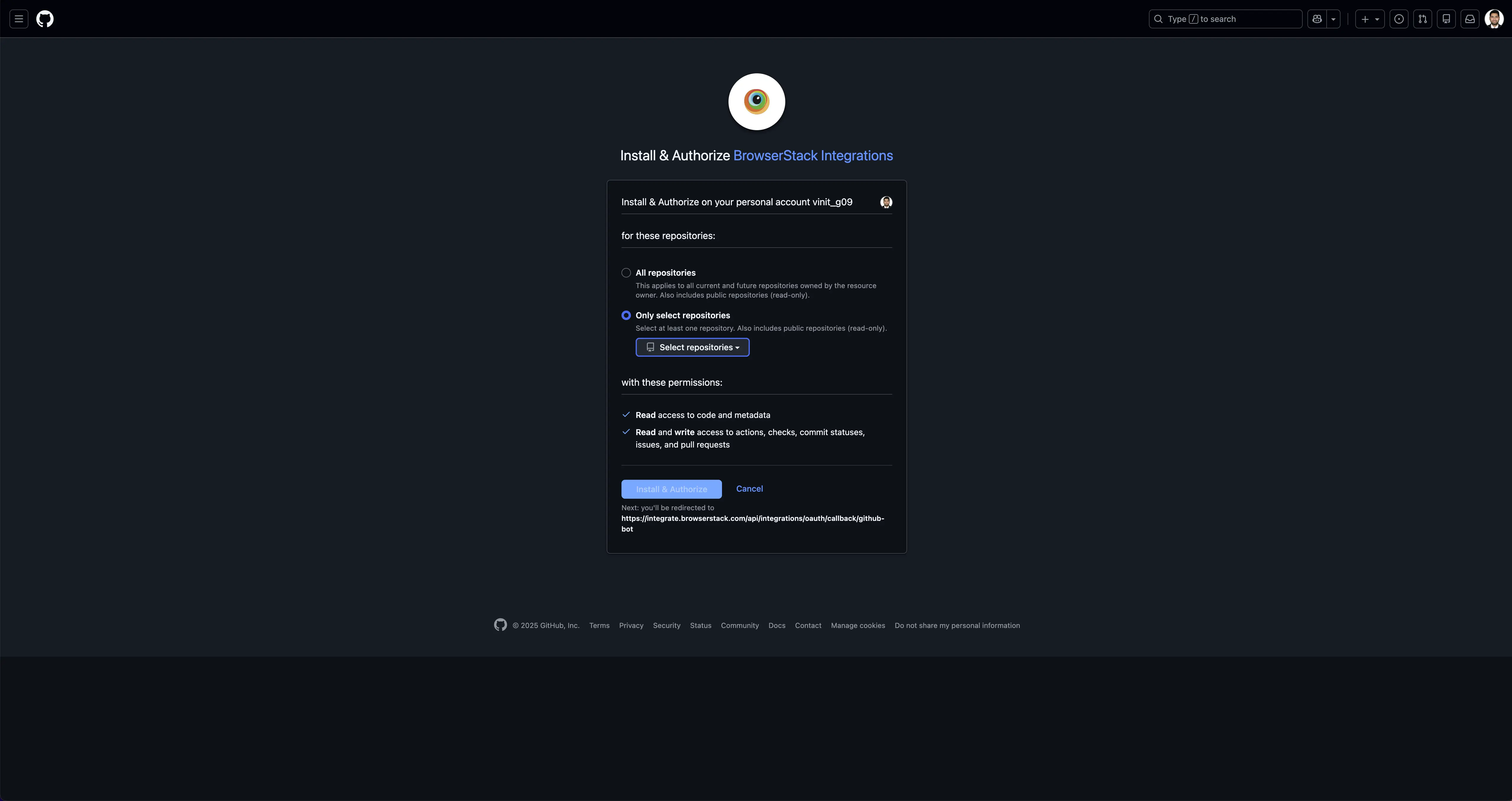
For a multirepo setup, choose one of the following integration methods:
The Smart Test Selection agent uses read-only access to access only the diff metadata and not the actual code changes
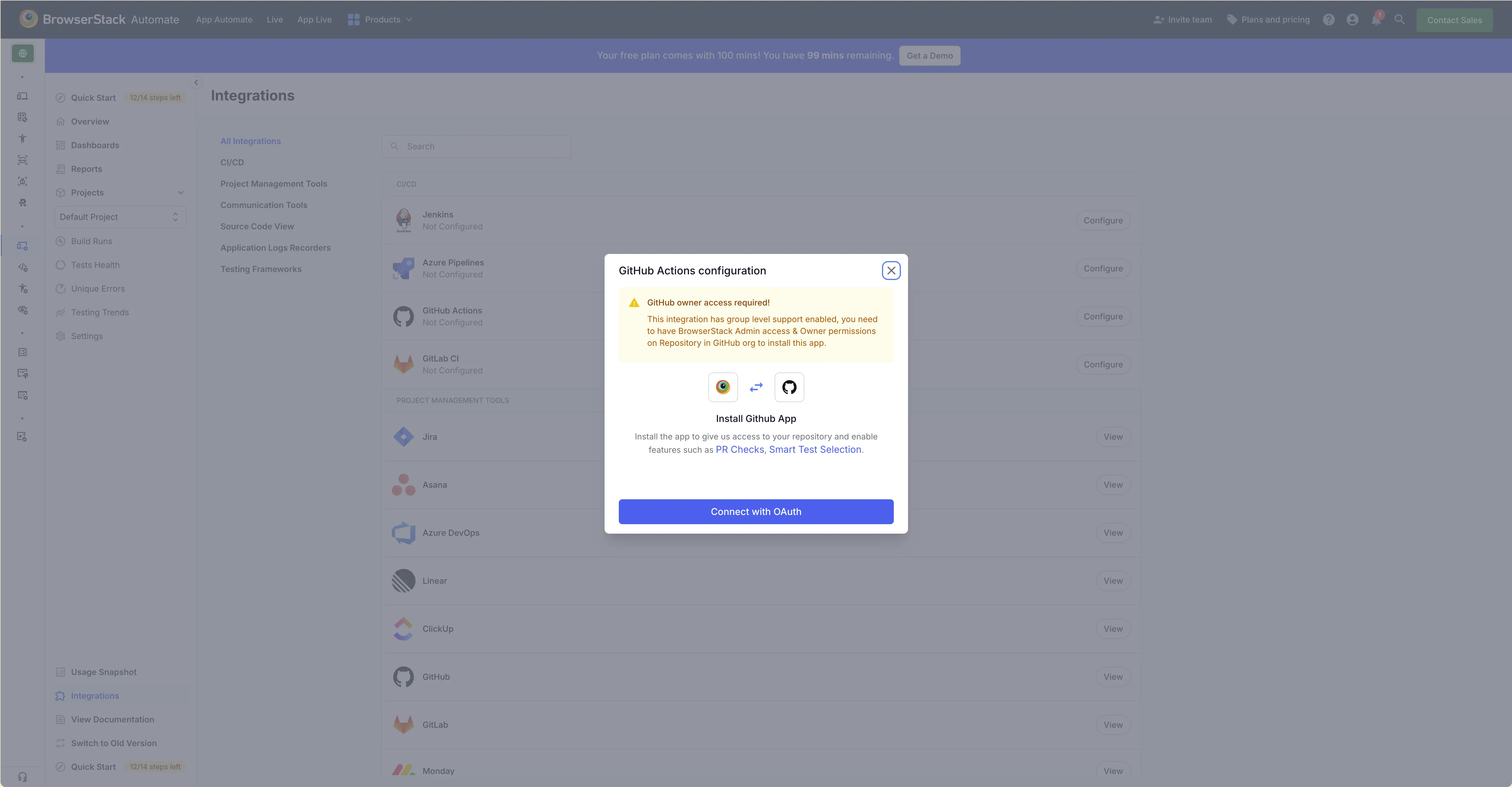
Clone relevant application repositories inside the test job
Install Git CLI globally in the test job environment.
- In your test job, clone all the application repositories whose code changes are being tested.
- For each repo, checkout the feature branch where changes are being tested.
- Prefer cloning only the required branches and not the entire repository (Less bandwidth & storage used)
Configure BrowserStack SDK to point at those cloned paths
Provide the absolute or relative paths of the cloned repo(s) in the browserstack.yml file under the source field
The projectName and buildName config must be static and not change across different runs of the same build. This is a deviation in approach as specified by BrowserStack Automate or App Automate as Smart Test Selection needs to identify different runs of the same build.
| Naming rules for project names and build names | |
|---|---|
projectName |
Alphanumeric characters (A-Z, a-z, 0-9), underscores (_), colons (:), square brackets ([, ]), and hyphens (-) are allowed. Any other character will be replaced with a space. |
buildName |
Alphabhetic characters (A-Z, a-z), underscores (_), colons (:), square brackets ([, ]), and hyphens (-) are allowed. Any other character will be replaced with a space. In buildName, do not include dynamic elements such as dates, days of the week, months or incremental request IDs (e.g., test_1, build_sunday, or unit-test_19122024). If dynamic tokens are detected, BrowserStack will strip them to derive a base name. For example, passing unit-test_19122024 results in the derived name unit-test
|
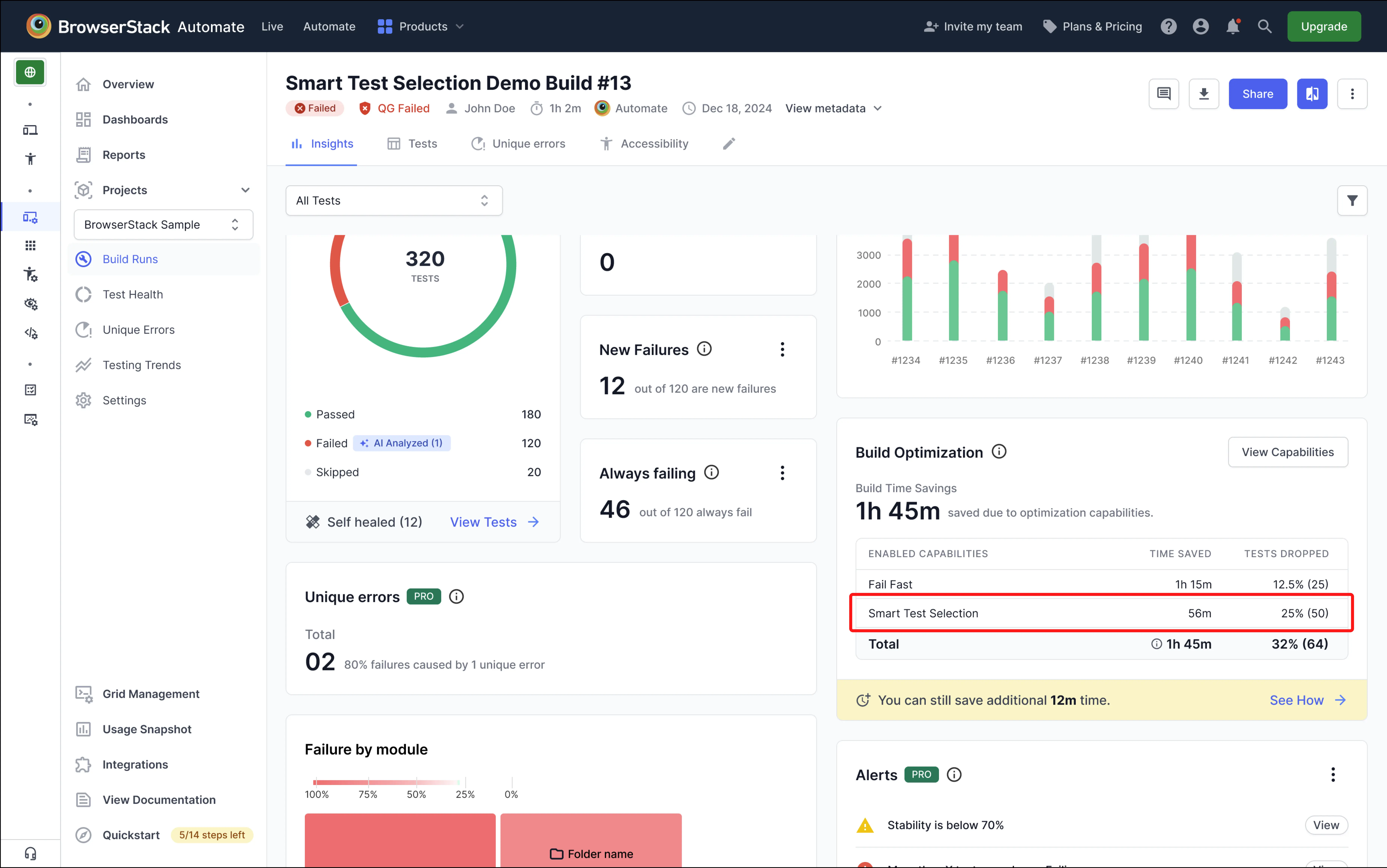
View Results
Once the AI agent starts selecting tests, you can monitor its impact on your dashboard. The Build Optimisation Widget shows the percentage of tests skipped and the total time saved.
Frequently Asked Questions (FAQ)
1. Can I configure a list of “must-run” tests that are never skipped?
Not at this time. If you have a set of critical tests that must always be run, we strongly recommend using the relevantFirst mode. This ensures your critical tests are run as part of the full suite while still benefiting from prioritized feedback. The ability to configure a specific “must-run” list is planned for a future update.
2. How do I know when the “learning mode” is complete?
Currently, the transition from learning to active mode is automatic. Once the AI is active, you will begin to see the data related to time saved and percentage of tests dropped appearing in the Build Optimisation widget on your dashboard.
If you are facing any issues using the feature, contact us.
We're sorry to hear that. Please share your feedback so we can do better
Contact our Support team for immediate help while we work on improving our docs.
We're continuously improving our docs. We'd love to know what you liked
We're sorry to hear that. Please share your feedback so we can do better
Contact our Support team for immediate help while we work on improving our docs.
We're continuously improving our docs. We'd love to know what you liked
Thank you for your valuable feedback!