
 Join our Discord
Core tools with the BrowserStack MCP server
Use the five core tools of the BrowserStack MCP server to let your AI assistant find and run any BrowserStack workflow.
The core tools work with any AI assistant that supports MCP, such as Claude, Cursor, or GitHub Copilot.
Your assistant loads every tool an MCP server exposes at the start of each session. One tool per workflow would fill your context window and slow down the whole session. Instead, your assistant uses the core tools to search a catalog of BrowserStack capabilities in plain language and run the one it needs.
To set up the server, see get started with the BrowserStack MCP server.
To view the workflows each product supports and the tools behind each one, see the product pages, such as BrowserStack Test Management with the MCP server.
Core tools
The BrowserStack MCP server exposes the following five core tools:
| Tool | Description |
|---|---|
listProducts |
Lists the BrowserStack products in the catalog, with a short summary of what each product covers. |
describeEntity |
Explains one entity: its aliases, ID format, parent and related entities, and the capabilities that act on it. |
searchCapability |
Finds the capabilities that match a plain-language request, with everything your assistant needs to run each one. |
describeCapability |
Returns the full details of one capability, such as its parameters, request body, and response format, so your assistant can run it with invokeCapability. |
invokeCapability |
Runs one capability and returns the product’s response unchanged. Changes to data need your approval. |
How your assistant handles a request
When you write a prompt, your assistant decides which core tools to call.
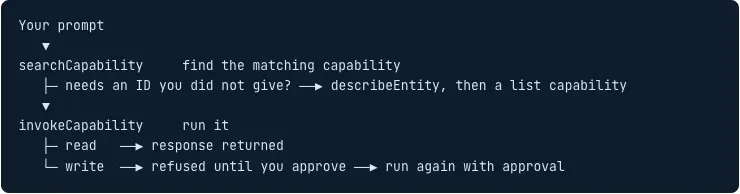
Your assistant finds the capability with searchCapability, calls describeEntity first when an ID is missing, and runs the capability with invokeCapability. A read returns the response, and a write runs only after you approve it.
Tool reference
The following table lists the parameters that each core tool accepts:
| Tool | Parameter | Parameter description | Required |
|---|---|---|---|
listProducts |
None | This tool takes no parameters. | N/A |
describeEntity |
product |
The product the entity belongs to, using the name exactly as listProducts returns it. |
Yes |
describeEntity |
entity |
The entity to describe, for example test_run. |
Yes |
searchCapability |
query |
The task in plain language, for example "close a test run". Describe the outcome you want, not an API name. | Yes |
searchCapability |
product |
Returns only capabilities from this product. Without it, searchCapability searches all products. |
No |
searchCapability |
entity |
Returns only capabilities that act on this entity, for example test_case. |
No |
searchCapability |
mode |
Returns only read capabilities, which fetch data, or only write capabilities, which change data. |
No |
searchCapability |
limit |
The maximum number of capabilities to return. The default is 8. If more capabilities match, the response sets truncated to true. |
No |
searchCapability |
include_responses |
How much of each capability's response format to include. success, the default, includes the success response only. all adds error responses, and none includes no response format. |
No |
describeCapability |
name |
The capability's name, as searchCapability returned it. |
Yes, unless you pass method and path
|
describeCapability |
method |
The HTTP method of the capability. Use it only for capabilities returned without a name. | Yes, if you don't pass name
|
describeCapability |
path |
The path of the capability, with {placeholders} intact. Use it only for capabilities returned without a name. |
Yes, if you don't pass name
|
describeCapability |
product |
The product that owns the capability. Use it only when two products share a name or path. | No |
describeCapability |
include_responses |
How much of the capability's response format to include. success, the default, includes the success response only. all adds error responses, and none includes no response format. |
No |
invokeCapability |
name |
The exact capability name from a searchCapability result, for example list_projects. |
Yes |
invokeCapability |
path_params |
Values placed in the API path, for example project_id and test_run_id. |
If the capability lists them |
invokeCapability |
query |
Query values, such as filters and the page number. | If the capability lists them |
invokeCapability |
body |
The request body for a create or update, in the shape the capability lists. | If the capability lists it |
invokeCapability |
user_permission |
Set to granted only after you approve the change. Without it, the server refuses every write. |
Writes only |
invokeCapability |
change_summary |
One line that describes the change you approved, for example "Close smoke run TR-412 in Payments". The server records it with the call. | Writes only |
If nothing matches your request well, searchCapability suggests terms the product uses. Your assistant then searches again with one of those terms.
Approve changes to data
The server checks the arguments of every write call and refuses it on the first attempt. Your assistant shows you what it’s about to change. After you approve, your assistant runs the call again with user_permission: granted and a change_summary.
Related topics
We're sorry to hear that. Please share your feedback so we can do better
Contact our Support team for immediate help while we work on improving our docs.
We're continuously improving our docs. We'd love to know what you liked
We're sorry to hear that. Please share your feedback so we can do better
Contact our Support team for immediate help while we work on improving our docs.
We're continuously improving our docs. We'd love to know what you liked
Thank you for your valuable feedback!