
 Join our Discord
Device cleanup configuration
Configure automated device cleanup settings to maintain app data persistence and device hygiene.
Inconsistent device states and repetitive setup tasks can slow down testing workflows. BrowserStack’s Custom Device Lab addresses these challenges with customizable device cleanup options, allowing you to retain critical data or configurations between sessions while maintaining device performance and reliability.
Unlike public cloud environments, where device cleanup processes are standardized, Custom Device Lab offers greater flexibility and control. You can configure cleanup settings at the Global, Team, or Device level, or trigger a manual cleanup when a fresh state is required immediately.
How device cleanup works
After each test session, the device undergoes a cleanup process based on your configuration. The following cleanup preferences are available:
-
Reset: Wipes all user data and settings after each session, restoring the device to its original factory state, which is best for strict test isolation requirements.
-
Persistence (Fastest): Retains user data between sessions using Instant Resume, reducing setup time for iterative testing.
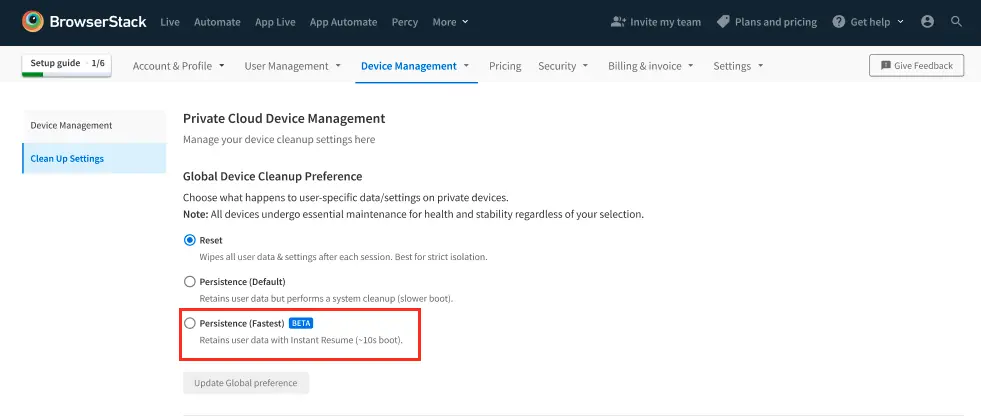
Selecting Persistence (Fastest) retains user data between sessions using Instant Resume. All devices undergo essential maintenance for health and stability regardless of your selection, and Smart TV devices aren’t affected by cleanup preferences.
For more information on data retention, refer to app-persistence.
On-demand device cleanup (wipe device)
Scenarios such as debugging a specific issue or switching test scenarios, need a fresh device state immediately, regardless of configured persistence settings.
You can trigger a Wipe Device action directly from the dashboard. This performs a full cleanup, removing all data and settings to restore the device to a clean state.
To trigger a manual cleanup:
Go to the Device Management Dashboard.
Locate the specific device you wish to clean, or select multiple devices using the checkboxes to apply cleanup to multiple devices at once.
Click the Actions menu (ellipsis icon) for that device.
Select Wipe Device.
Confirm the action when prompted.
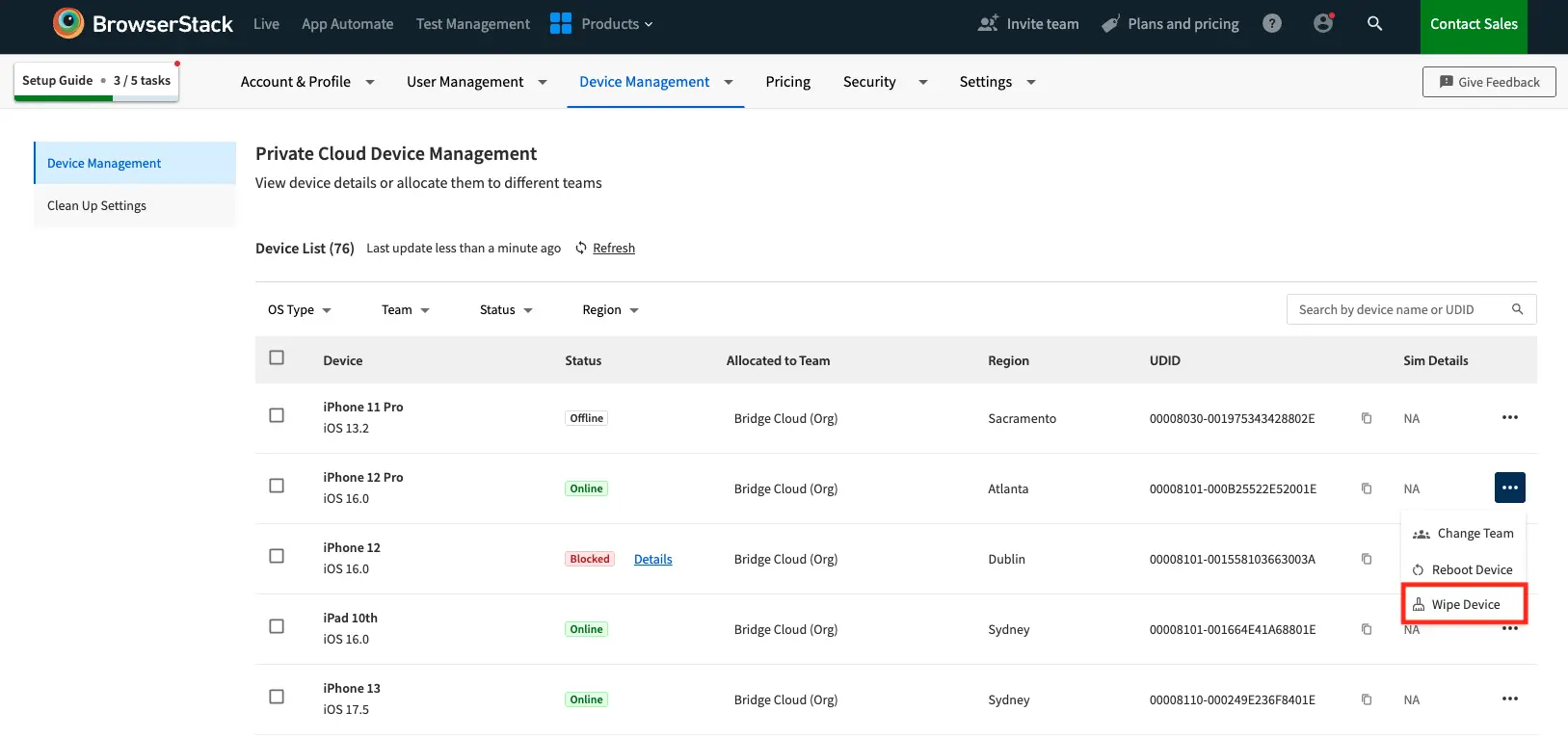
- This action is restricted to Group Owners and Admins.
- You cannot wipe a device if it is currently “In Use,” “Rebooting,” “Offline,” or “Blocked.”
- Rate limits apply to how frequently a single device can be wiped to prevent hardware degradation.
Rate limiting
To prevent misuse and ensure stability, a rate limit applies to the device cleanup functionality.
- Limit: By default, you can wipe a single device a maximum of 5 times per device per day.
- Reset: This limit resets at midnight UTC every day.
- Error: If you exceed the limit, the button will be disabled.
Manage cleanup preferences
BrowserStack allows you to configure cleanup preferences with high granularity. You can set defaults for your entire organization or customize settings for specific teams and individual devices. You can apply the same preference to multiple teams or devices at once by selecting them with checkboxes.
Understanding preference hierarchy
When determining which cleanup logic to apply to a device, the system follows a specific hierarchy. More specific settings always override general settings:
Device Level (Highest Priority): Settings applied to a specific device.
Team Level: Settings applied to a Team.
Global (GID) Level (Lowest Priority): The default setting for the entire organization.
Configure global preferences
This sets the default behavior for all devices in your organization.
On the Device Management Dashboard, navigate to the Cleanup Settings tab.
Select the Global view, or Organization Settings.
Choose your cleanup preference:
- Reset: Wipes all user data and settings after each session, best for strict isolation.
- Persistence (Fastest): Retains user data with Instant Resume.
Click Save preference.
Configure team preferences
This applies settings to all devices belonging to a specific team.
Navigate to the Cleanup Settings tab on the Device Management Dashboard.
Select the Teams tab.
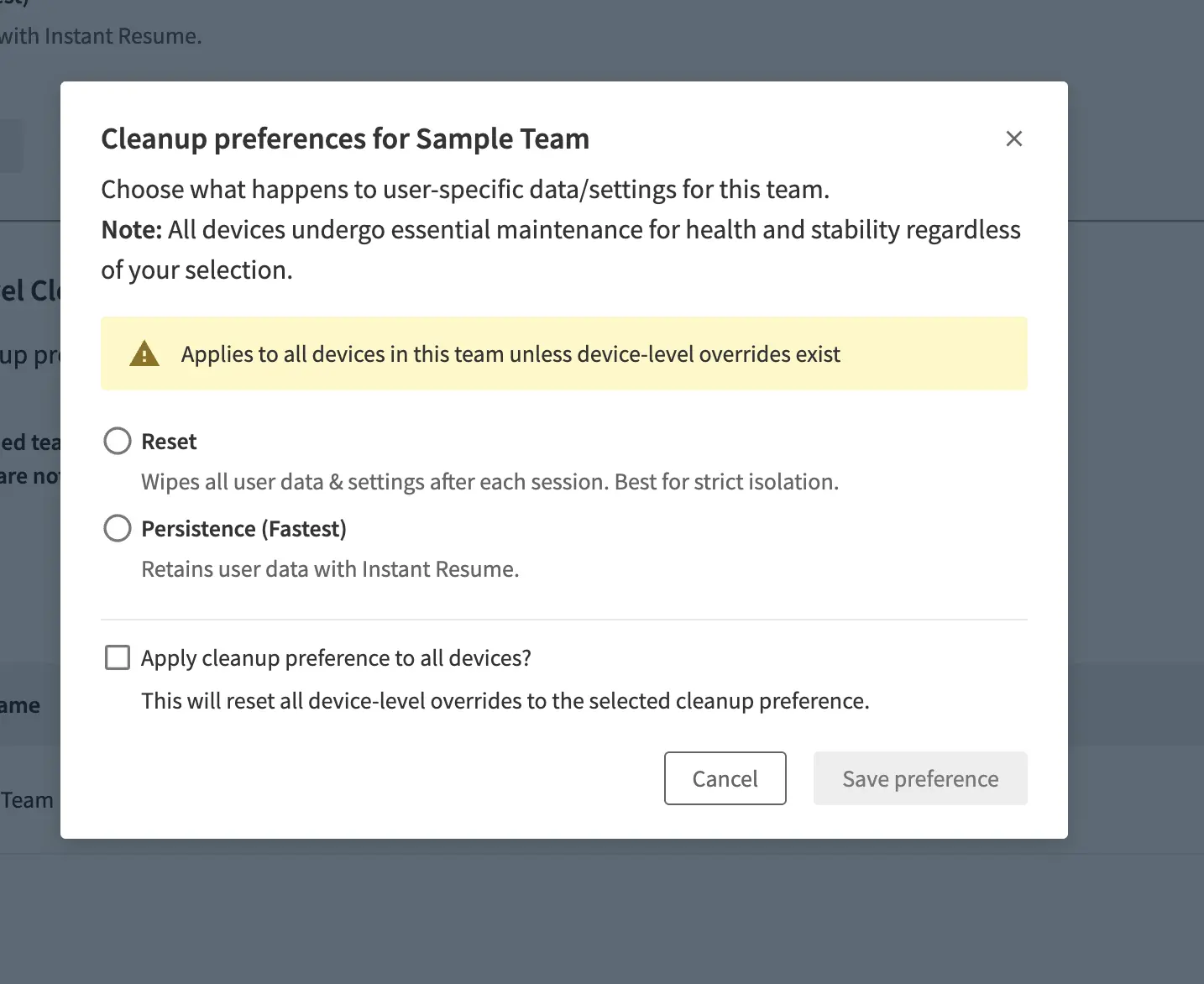
Locate the Team you wish to configure and click Configure.
Choose your cleanup preference:
- Reset: Wipes all user data and settings after each session, best for strict isolation.
- Persistence (Fastest): Retains user data with Instant Resume.
Optionally, check Apply cleanup preference to all devices? to reset any individual device-level overrides within this team.
Click Save preference.
Configure device preferences
This applies settings to a single specific device or multiple devices, overriding Team and Global settings.
Go to the Device Management Dashboard and view the Device list.
Click on a specific device to view its details or use the Actions menu.
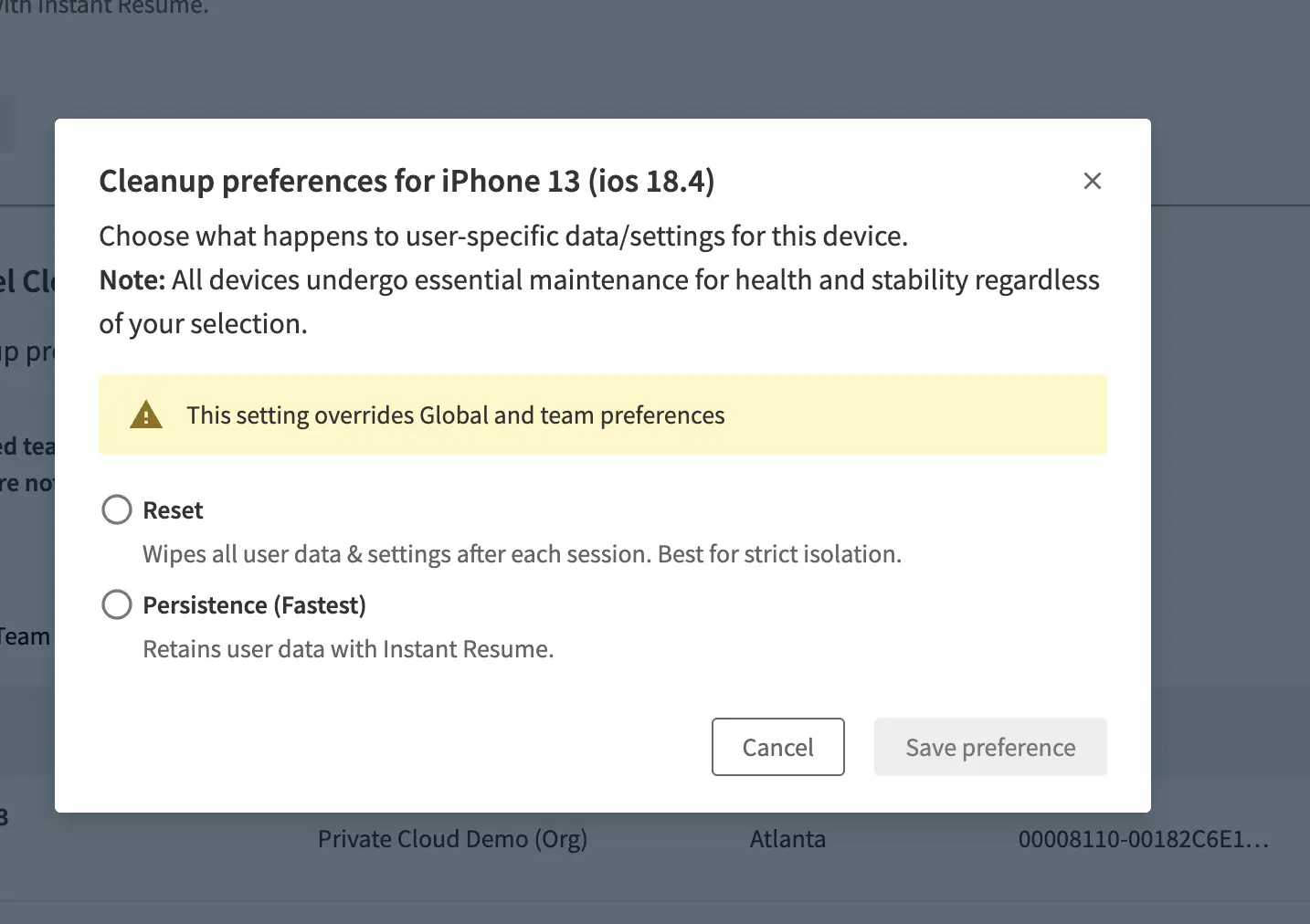
Select Configure Cleanup.
Choose your cleanup preference:
- Reset: Wipes all user data and settings after each session, best for strict isolation.
- Persistence (Fastest): Retains user data with Instant Resume.
Click Save preference.
Related topic
We're sorry to hear that. Please share your feedback so we can do better
Contact our Support team for immediate help while we work on improving our docs.
We're continuously improving our docs. We'd love to know what you liked
We're sorry to hear that. Please share your feedback so we can do better
Contact our Support team for immediate help while we work on improving our docs.
We're continuously improving our docs. We'd love to know what you liked
Thank you for your valuable feedback!