
 Join our Discord
Role-based access control for service accounts
Learn how to configure and manage role-based access control and permissions for service accounts on BrowserStack.
Role-based access control (RBAC) for service accounts allows you to define granular permissions. This ensures that service accounts have the appropriate level of access to perform their designated tasks while maintaining security and control.
RBAC for service accounts is in beta and available to select customers.
For more information about service accounts, see Create and manage service accounts documentation.
Key features
RBAC for service accounts provides the following capabilities:
-
Predefined roles: Assign service accounts one of the following roles:
- SVC_Admin
- SVC_User
- SVC_Ingestor
- SVC_Viewer
- Team-level assignment: Associate service accounts with specific teams for better organization and access management.
- Granular permissions: Each role comes with specific permissions for creating, updating, deleting, and archiving resources.
Available service account roles
BrowserStack offers four predefined roles for service accounts:
- SVC_Admin: Full access to create, read, update, delete, and archive resources.
- SVC_User: All permissions except delete capabilities.
- SVC_Viewer: Read-only access to view resources without any modification permissions.
- SVC_Ingestor: All permissions except view (read) access. Designed for data ingestion workflows.
For details on the specific permissions granted to each role, refer to the Service Account RBAC roles and permissions documentation.
Create a service account with RBAC
To create a service account with RBAC permissions, follow these steps:
- Log in to your BrowserStack account.
- Click the User Profile icon in the top-right corner, then select Settings.
- Under Service Accounts, click Add Accounts.
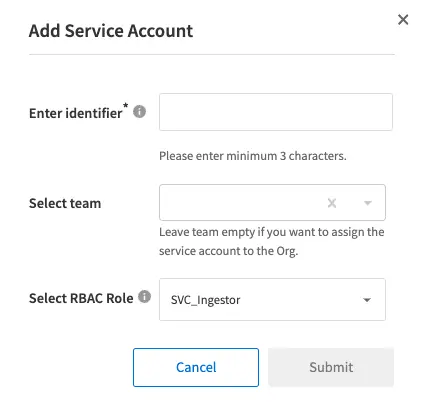
- In the Add Service Account dialog, configure the following:
- Enter identifier: Enter a unique identifier for the service account (minimum 3 characters).
- Select team: (Optional) Select a team to assign this service account to. Leave the team empty to assign the service account to the organization (Org) level.
- Select RBAC Role: Select one of the available roles:
- SVC_Admin
- SVC_User
- SVC_Ingestor
- SVC_Viewer.
- Click Submit to create the service account.
View service account roles
After creating a service account with RBAC, you can view its permissions:
- Navigate to Settings > Product > Service Accounts.
- Click on a service account to view its assigned role and permissions.
Edit service account role
To modify a service account’s role:
- Navigate to Settings > Product > Service Accounts.
- Click the ︙ icon next to the service account you want to modify.
- Select Edit.
- Update the Service Account Role.
- Click Confirm to save the changes.
We're sorry to hear that. Please share your feedback so we can do better
Contact our Support team for immediate help while we work on improving our docs.
We're continuously improving our docs. We'd love to know what you liked
We're sorry to hear that. Please share your feedback so we can do better
Contact our Support team for immediate help while we work on improving our docs.
We're continuously improving our docs. We'd love to know what you liked
Thank you for your valuable feedback!