
 Join our Discord
Get answers about your load test runs with Ask AI
Ask AI answers questions about your load test runs in plain language and starts, re-runs, or stops tests after you approve.
Ask AI is a chat assistant built into the Load Testing dashboard. Ask it about your test runs in plain language. Get a run summary, check response times and errors, compare a run with its baseline, or see how a test has trended. You can also start, re-run, or stop a load test from the chat. Ask AI asks for your approval before it changes anything. It works with browser, API, and hybrid load tests.
Ask AI is in Beta. Features and limits can change. AI can make mistakes, so verify results against your run report.
Prerequisites
BrowserStack AI must be enabled for your account. An Owner or Admin can activate BrowserStack AI.
Open Ask AI
- Open any page of the Load Testing dashboard.
- Click Ask AI. The chat opens as a side panel.
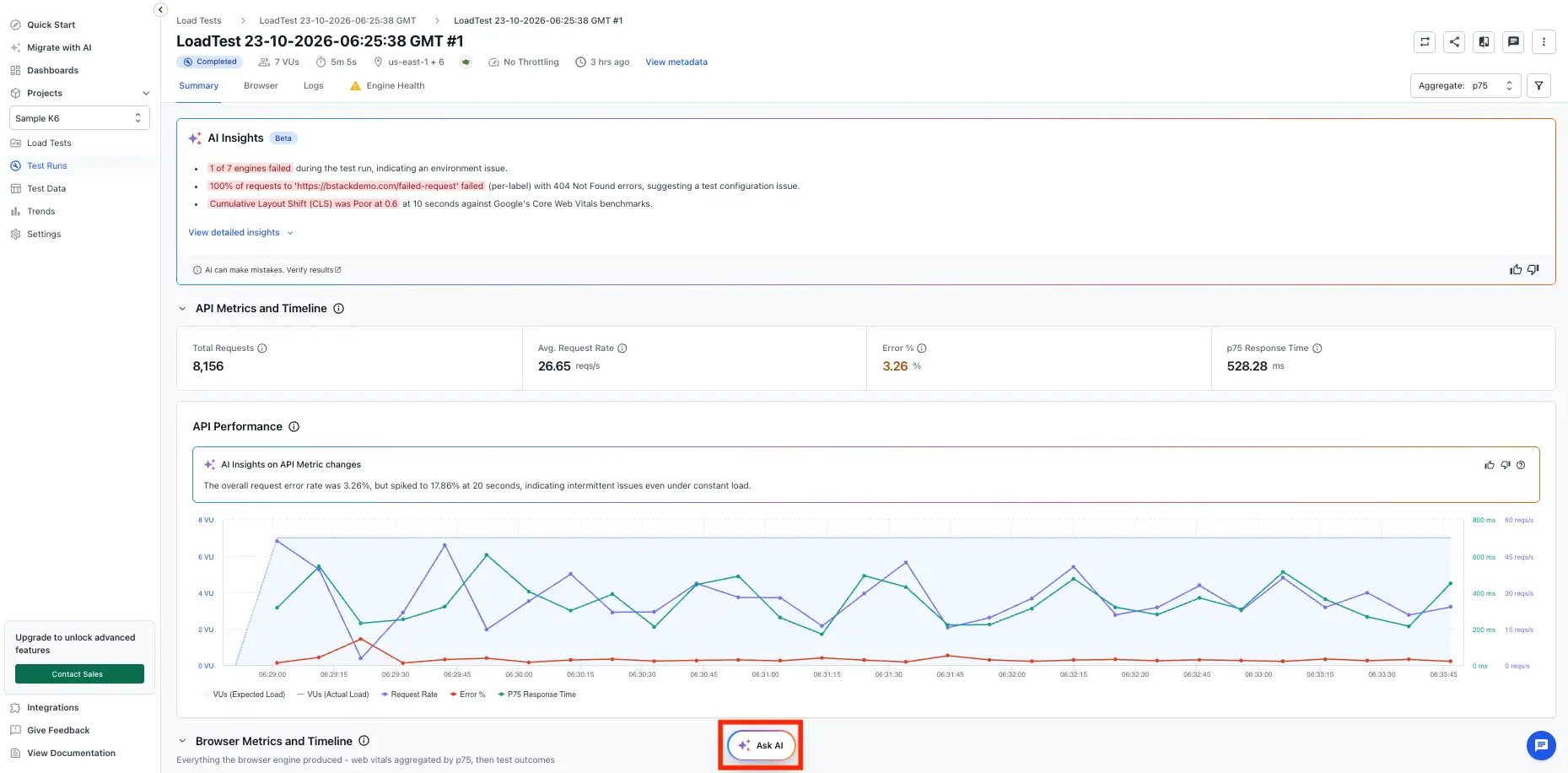
On a run report, the Ask AI button appears at the bottom of the screen. Click it to open the chat as a side panel.
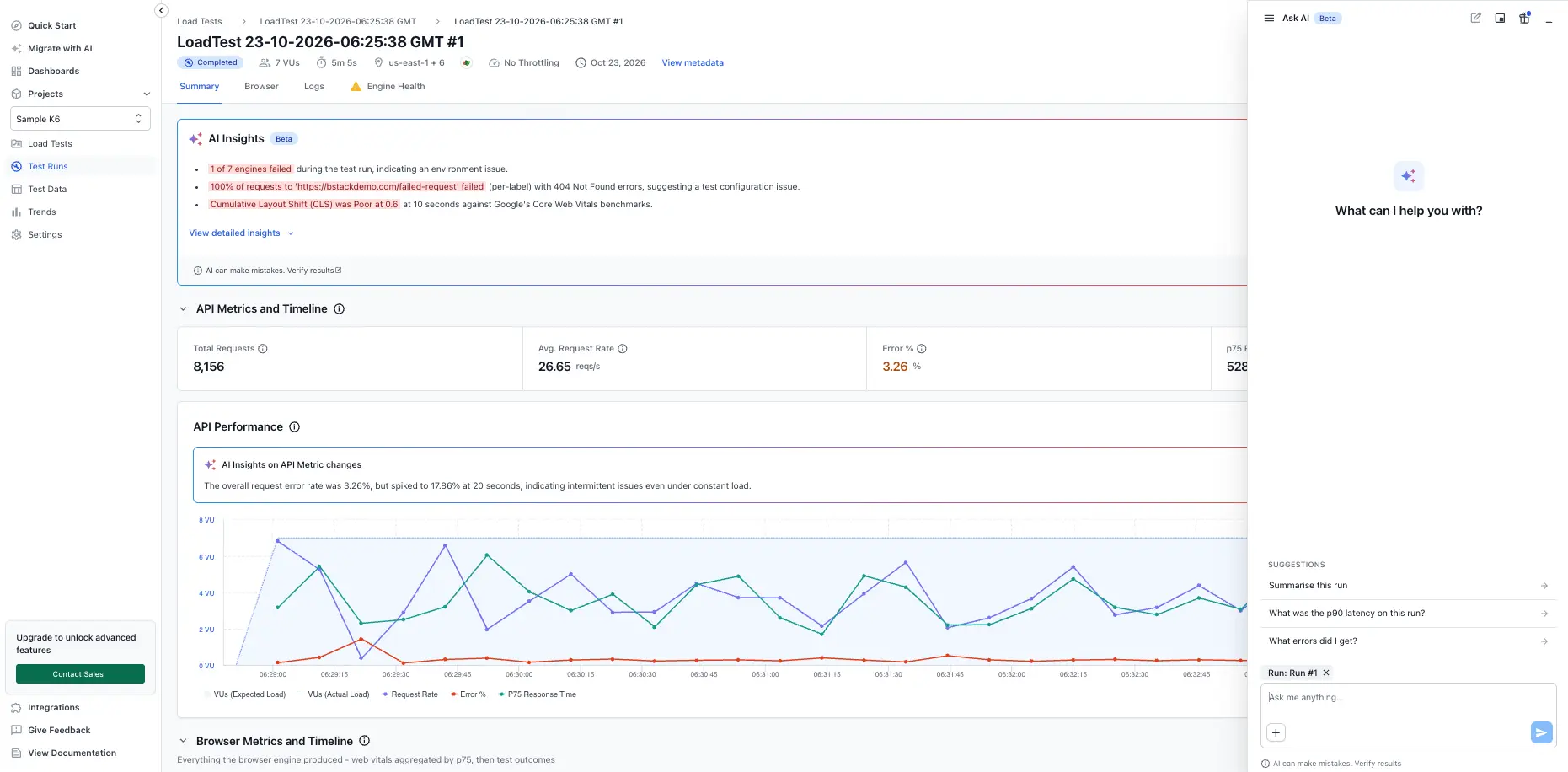
You can change how the chat sits on the page:
- Click Pop out to floating chat to move it into a floating window. Drag the window by its header. Click Open as side panel to dock it again.
- Click Minimize to close the panel. Your chat is kept.
- Drag the Ask AI button, or use the arrow buttons, to move it out of the way.
Ask AI isn’t available on the printable (PDF) view of a report.
Ask about your runs
- Click a suggestion under Suggestions, or type a question in the message box (Ask me anything…).
- Press Enter to send. Press Shift+Enter for a new line.
Ask AI works through your data step by step and shows its progress as Working…. Answers can include tables, charts, and summary figures.
Page context
You don’t need to name the run or project that you’re viewing. Ask AI uses the page that you’re on for context:
| You’re on | Ask AI already knows |
|---|---|
| A run report | The project, the load test, and the run |
| Compare runs | Both runs: the baseline and the current run |
| Load tests or Trends | The project |
On a run report, for example, Summarize this run is enough.
What Ask AI can do
Ask AI answers questions about your data. Requests that change your load tests need your approval first, and the table marks them.
| Request | Try asking |
|---|---|
| How a run went | “Summarize my latest run of checkout-flow-stress” |
| Response times | “What was the p95 response time on run #42?” |
| Errors | “What errors did I get on my last run?” |
| Debug slowest endpoints | “Which network endpoints were slowest in this run?” |
| Load generator health | “Show load generator CPU and memory for run #42” |
| What changed against the baseline | “Compare this run with the baseline” |
| What changed between two runs | “Compare run #41 with run #42” |
| Trends | “How has p90 response time changed across recent runs of checkout-flow-stress?” |
| What’s running | “Which load tests are running right now?” |
| VU Hours | “How many VU Hours has each load test used?” or “How many VU Hours do I have left?” |
| Start a run | “Start a run of checkout-flow-stress.” Needs your approval. |
| Re-run a past run | “Re-run run #42.” Needs your approval. |
| Stop a running test | “Stop the running checkout-flow-stress test.” Needs your approval. |
| Set or clear the baseline | “Make run #42 the baseline for checkout-flow-stress.” Needs your approval. |
Ask AI reports response time as the average, p75, p90, p95, or p99. These match the Response Time charts in your report. Ask AI doesn’t report the median.
Manage runs
Ask AI asks for your approval before it takes any action. Each action shows an Approval required card. Nothing happens until you approve.
To start a run, do the following:
Ask for the run. For example, type “Start a run of checkout-flow-stress.”
Review the Approval required card, and click Approve, or press Enter. Ask AI replies with the estimated VU Hours and how many you have left.
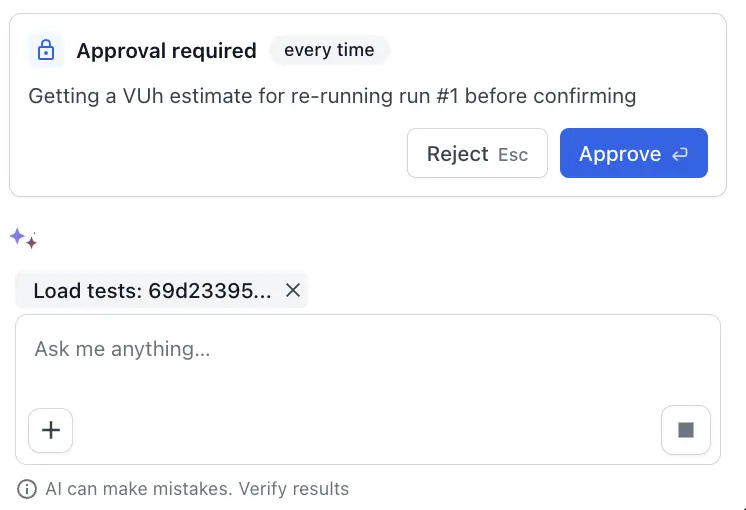
When Ask AI requests permission to start the run, click Approve.
Ask AI confirms that the run has started and tells you its run number.
To cancel at any point, click Reject, or press Esc. Nothing changes, and Ask AI asks how you’d like to continue. If you don’t answer, or you stop the response, the card shows Expired. Ask again to get a new card.
Re-runs use the same settings as the original run, even if you’ve edited the test since. Stopping a run that has already finished changes nothing.
Starting a run uses the load test’s saved settings. To change VUs, duration, or load zones, edit the load test in the dashboard, then start the run from the chat. Editing and deleting load tests isn’t available from the chat.
Ask AI can only do what you can do in the dashboard. If you can’t start or stop tests in a project yourself, Ask AI can’t either.
Manage your chats
Use these controls to manage your conversations:
- Start over. Click New chat. If you’ve typed a message that you haven’t sent, Ask AI asks whether to discard it.
- Find an earlier chat. Click Chats. Search with Search chats, or filter by Unread, Running, Failed, or date. You can pin up to 5 chats.
- Stop an answer. Click Stop while Ask AI is working. Then click Edit prompt to change your question, or Try again.
- Rate an answer. Click Good output or Bad output under it, and add a comment if you like. Click Copy to copy the answer.
Common issues
There's no Ask AI button.
BrowserStack AI is probably turned off for your account. Ask an Owner or Admin to activate BrowserStack AI. Then reload the page.
Ask AI shows "Load test not found".
Ask AI can only see projects and load tests in your own account. If it can’t find a test, check the name, or open the test’s page and ask from there.
Ask AI won't start a test in the Sample Project.
The Sample Project is a read-only demo. Use one of your own projects to start a run.
A run won't start because another test is running.
Your plan limits how many tests can run at the same time. Wait for the running tests to finish, or stop one first.
A run won't start because your VU Hours have run out.
Ask “How many VU Hours do I have left?” to check your balance. To add more, contact your account admin about your plan. See VU Hours.
Ask AI shows an error message.
- “The assistant reached its step limit for one message before finishing.” The question needed too many steps. Send a follow-up to continue, or split it into smaller questions.
- “You’ve reached your daily usage limit.” You can send more messages the next day.
- “You’re sending requests too quickly.” Wait a moment, then send your message again.
- “Message too long.” Shorten your message, and send it again.
- “Couldn’t reach Ask AI.” Check your connection, and send the message again.
- “Your session has expired.” Reload the page, and sign in again.
What’s next
- How a load test runs: Learn what happens when you start a run.
- VU Hours: Learn how VU Hours are calculated.
- Load zones: Choose where your VUs send traffic from.
- Browser test results, API test results, and hybrid test results: Read your run reports in the dashboard.
We're sorry to hear that. Please share your feedback so we can do better
Contact our Support team for immediate help while we work on improving our docs.
We're continuously improving our docs. We'd love to know what you liked
We're sorry to hear that. Please share your feedback so we can do better
Contact our Support team for immediate help while we work on improving our docs.
We're continuously improving our docs. We'd love to know what you liked
Thank you for your valuable feedback!