
 Join our Discord
Set thresholds for specific requests
Apply pass or fail criteria to a single request, a pattern, or a group of requests.
Test-level thresholds tell you whether the overall run passed or failed, but a healthy overall result can hide a single slow endpoint or a degraded group of requests. Set thresholds on specific requests to enforce limits where they matter, such as a payment API or your static assets, and catch localized regressions that test-level thresholds miss.
By default, a threshold applies to All Requests, which aggregates the metric across the entire test run. To target a regression more precisely, narrow the threshold to one of the following:
- Single request: Apply a threshold to one request.
- Request pattern: Apply a threshold to every request that matches a wildcard pattern.
- Request group: Apply a threshold to a named or inline list of requests.
How requests are identified
What you target depends on the test type. Browser tests match on the request URL, k6 matches on the URL or a k6 tag, and JMeter matches on the sampler label.
| Test type | Single request | Request pattern | Request group |
|---|---|---|---|
| Browser | Request URL | Pattern for request URLs | One or more request URLs |
| k6 | Request URL or a k6 tag | Pattern for URLs or tag names | One or more URLs or tag names |
| JMeter | Sampler label | Pattern for sampler labels | One or more sampler labels |
| Hybrid (Browser and k6) | Request URL or a k6 tag | Pattern for URLs or tag names | URLs, tag names, or a mix |
| Hybrid (Browser and JMeter) | Request URL or a sampler label | Pattern for URLs or sampler labels | URLs, sampler labels, or a mix |
In Hybrid tests, when the same URL appears in both the browser and the API test, BrowserStack aggregates the results across both before it evaluates the threshold.
Set request thresholds
You can scope a threshold to a scenario in Browser Load Tests only, because multiple scenarios exist only in browser tests. On API Load Tests, a threshold applies globally or to specific requests, not to a scenario.
The available metrics and conditions are the same as test-level thresholds. For each threshold, you pick a request scope, and for multiple scenarios tests, a scenario scope. Select your preferred interface:
Set request thresholds in the UI
In Step 3/3: Load Configuration, open the Thresholds tab. Each threshold is one row where you choose a metric, a condition, and a value, then set its scope.
Use the for dropdown to choose which requests the threshold applies to:
- All Requests: the aggregated metric across the entire test run. This is the default.
- Single Request: a specific request only.
- Request Pattern: the aggregated metric across requests that match a wildcard pattern.
- Request Group: the aggregated metric across a list of requests.
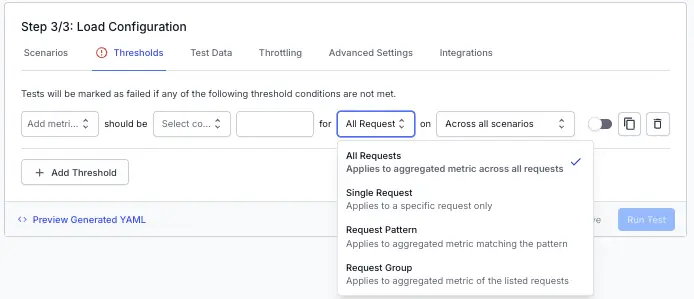
For any scope other than All Requests, enter the request URL, k6 tag, or JMeter sampler label that applies to your test type. The UI guides you with framework-specific helper text and validates your entry.
For multiple scenarios tests, use the on dropdown to choose the scenario scope:
- Across all scenarios: the aggregate of every scenario. This is the default.
- Scenario name: that scenario only.
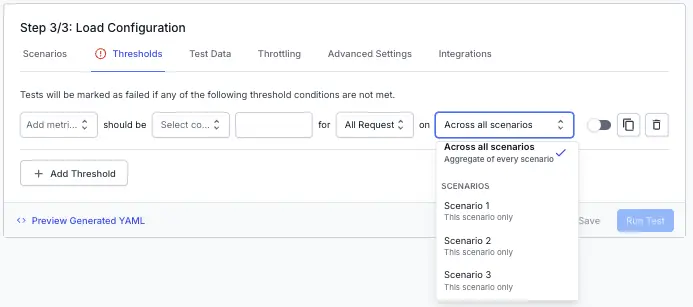
Select Add Threshold to add more thresholds, then save the test.
Named request groups, set with the group: prefix, are available only in the CLI. In the UI, use a request group to apply one threshold across several requests.
When a request isn’t found
If a request, pattern, or group does not match anything in the test results, BrowserStack skips that threshold and marks it with a warning in the report. A skipped threshold does not count as a pass or a fail. For a partially matched group, BrowserStack evaluates the threshold on the requests it found and notes the missing ones.
We're sorry to hear that. Please share your feedback so we can do better
Contact our Support team for immediate help while we work on improving our docs.
We're continuously improving our docs. We'd love to know what you liked
We're sorry to hear that. Please share your feedback so we can do better
Contact our Support team for immediate help while we work on improving our docs.
We're continuously improving our docs. We'd love to know what you liked
Thank you for your valuable feedback!