
 Join our Discord
Use Salesforce Steps
Learn how to use Salesforce Steps in BrowserStack Low Code Automation to perform common operations such as login, changing the app, creating a record on Salesforce.
Salesforce Steps speed up Salesforce testing by turning common Salesforce operations, such as creating or updating a record, into a single action that you add to your test. Each step handles the underlying Salesforce flow, so you do not record every click or write complex commands. Your tests stay short and are less likely to break when the Salesforce UI changes.
Prerequisites
Before you add a Salesforce Step, make sure that you have:
- Connected a Salesforce organization and added the personas you want to test with. For details, see Connect your Salesforce organization.
- Started a recording with the Salesforce application type and launched an organization and persona. For details, see Launch a Salesforce org in a test.
Available Salesforce Steps
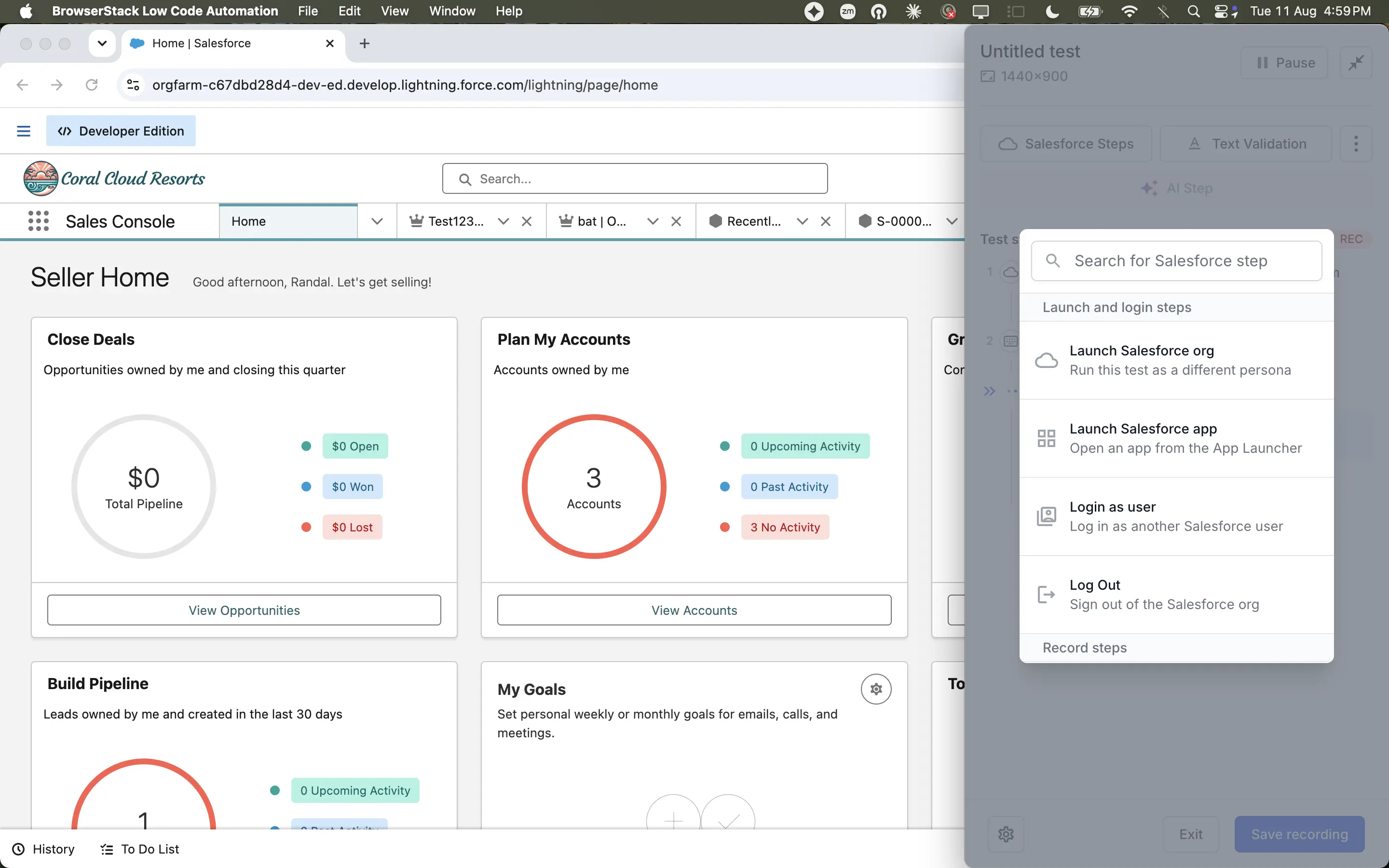
The recorder groups Salesforce Steps into Launch and login steps and Record steps.
Use launch steps to control the Salesforce session and the user it runs as:
| Step | Description |
|---|---|
| Launch Salesforce org | Open a connected Salesforce organization as a selected persona and application. |
| Launch Salesforce app | Switch to a different app in the same session. |
| Login as user | Log in as a member of your organization by mimicking the specified user from the admin account. You must be logged in as a System Admin to use this step. |
| Log Out | Log out of the current account. |
Use object related steps to act on Salesforce records:
| Step | Description | Example |
|---|---|---|
| Create Object Record | Create a new record in your app for any standard or custom object. You can run this step from any page, because it navigates to the list view of the object you select. | To create a Lead, select the Lead object and enter the record details. |
| Edit Object Record | Edit an existing record in your app for a given object. | To edit an Account, open that Account’s detail page before you run this step. |
| Delete object | Delete an existing record in your app for a given object. | To delete a Lead, open that Lead’s detail page before you run this step. |
| Search record | Search for an existing record of a given object in your app. You can run this step from any page. | To find a Lead by company name, select the Lead object and enter the company name as the search value. |
Object related steps assume standard Salesforce UI functionality. If a record operation such as New or Edit uses a custom implementation, such as a screen flow or an Aura component, the Salesforce step might not work. In such cases, record the operation manually or use the API mode.
Add a Salesforce Step
To add a Salesforce Step to your test:
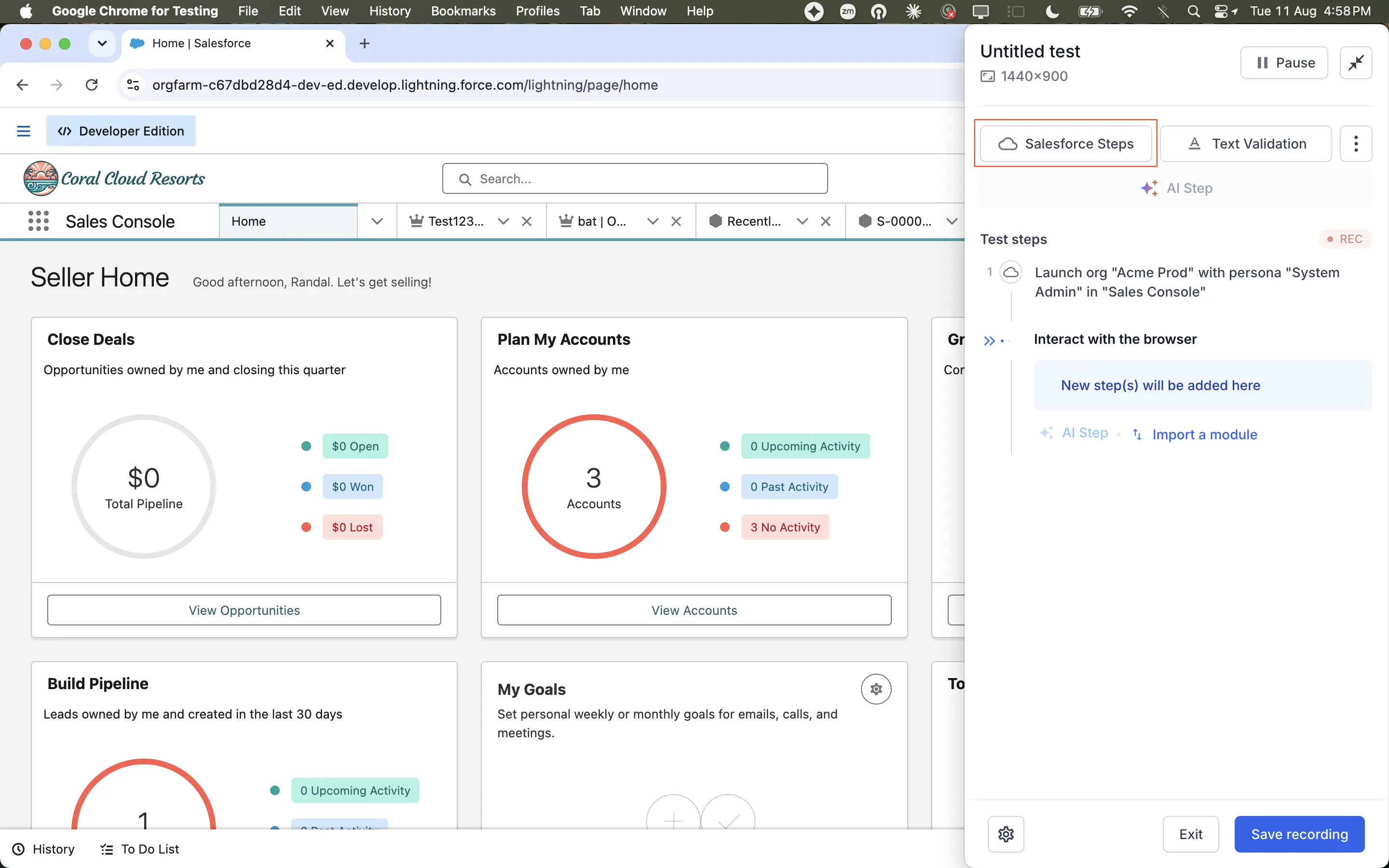
While recording a test, click Salesforce Steps in the recorder panel.
In Search for Salesforce step, select the step you want to add, for example, Create Object Record. You can also type a step name to filter the list.
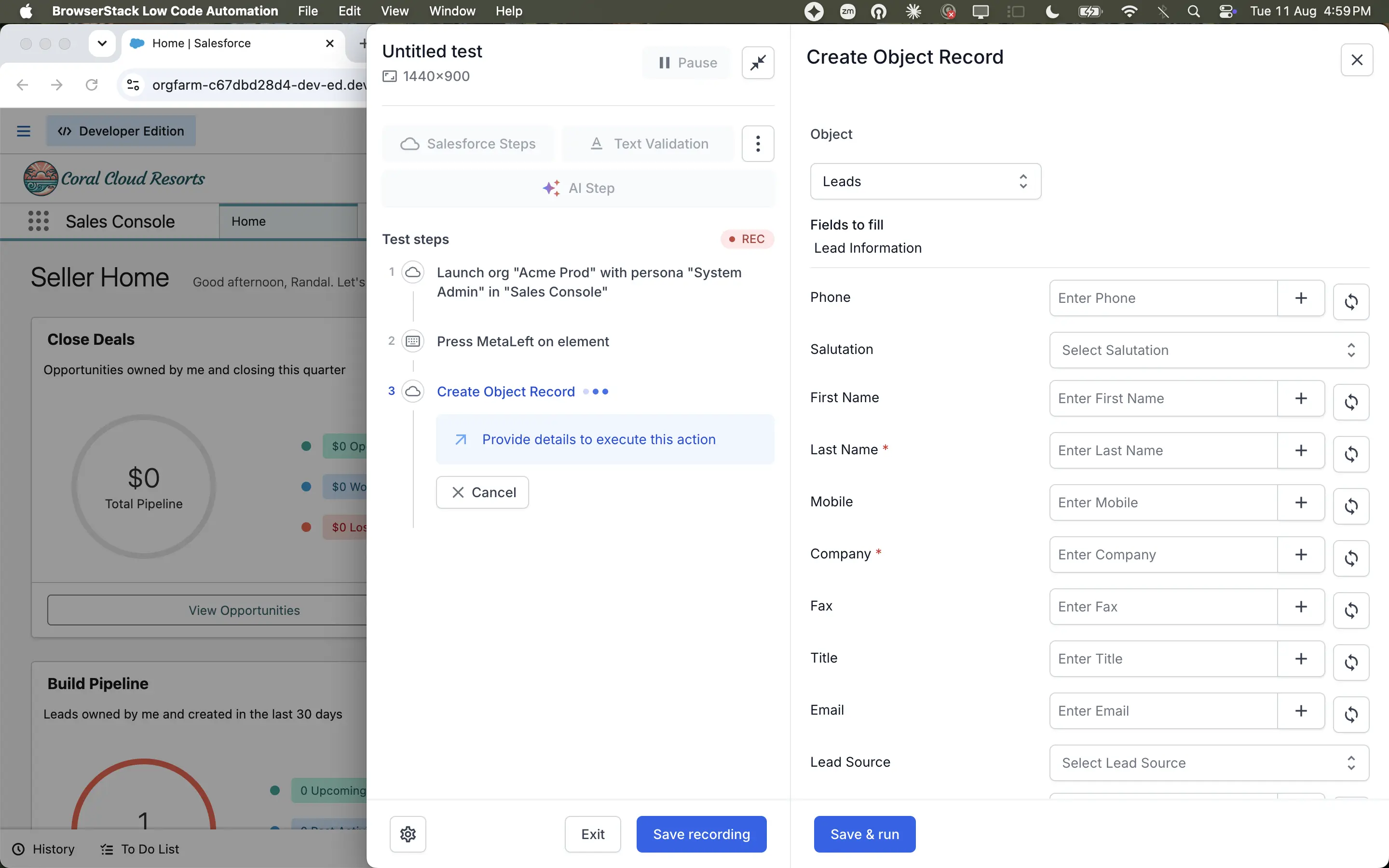
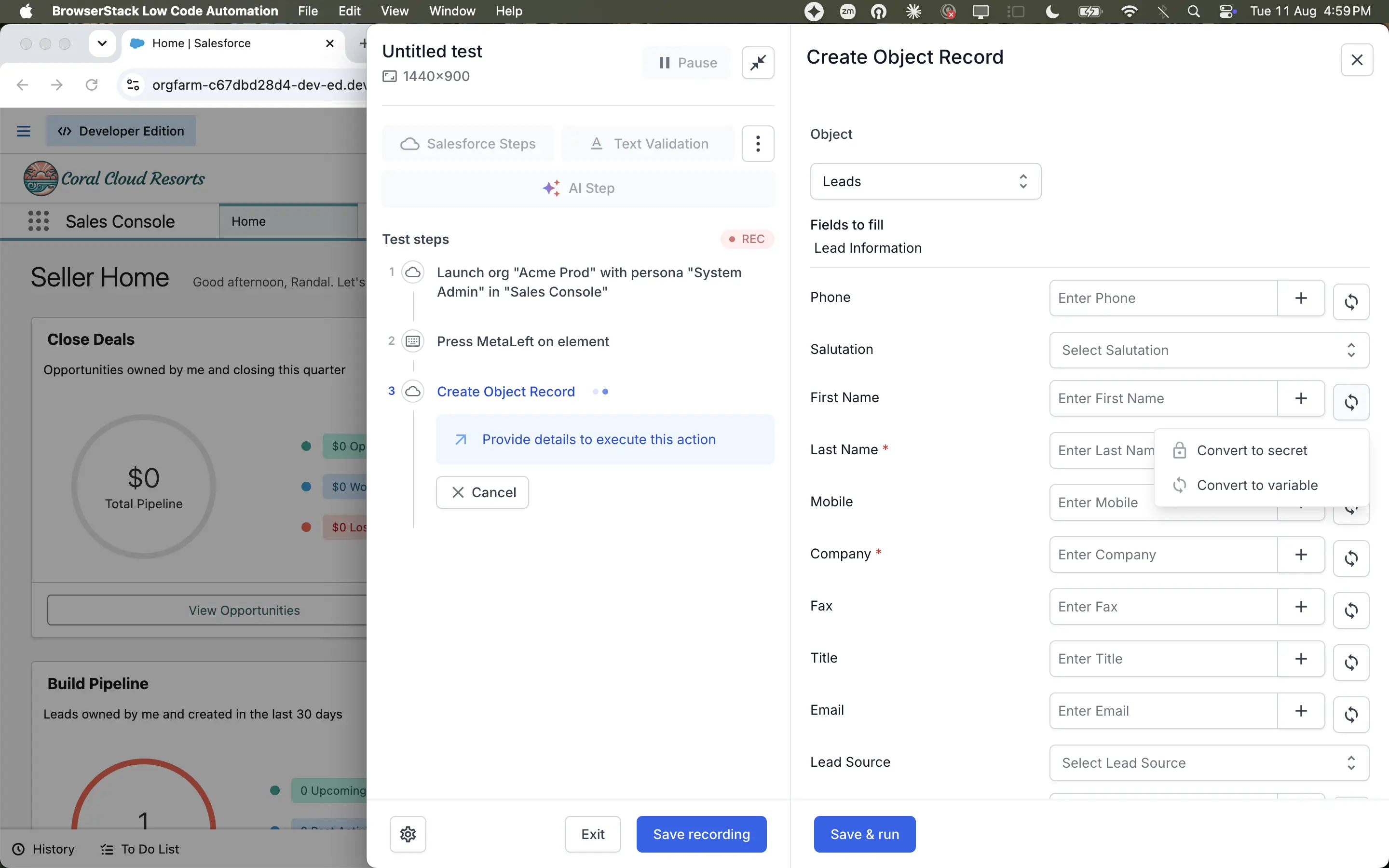
In the step panel, provide the details the step needs to run. The details differ for each step. For example, Create Object Record asks you to select the Object and then complete the sections listed under Fields to fill, such as Lead Information. Fields marked with an asterisk are mandatory.
Click Save & run at the bottom of the step panel. The recorder runs the action against your Salesforce organization and adds it to Test steps.
After you finish recording, click Save recording.
Set value for a field
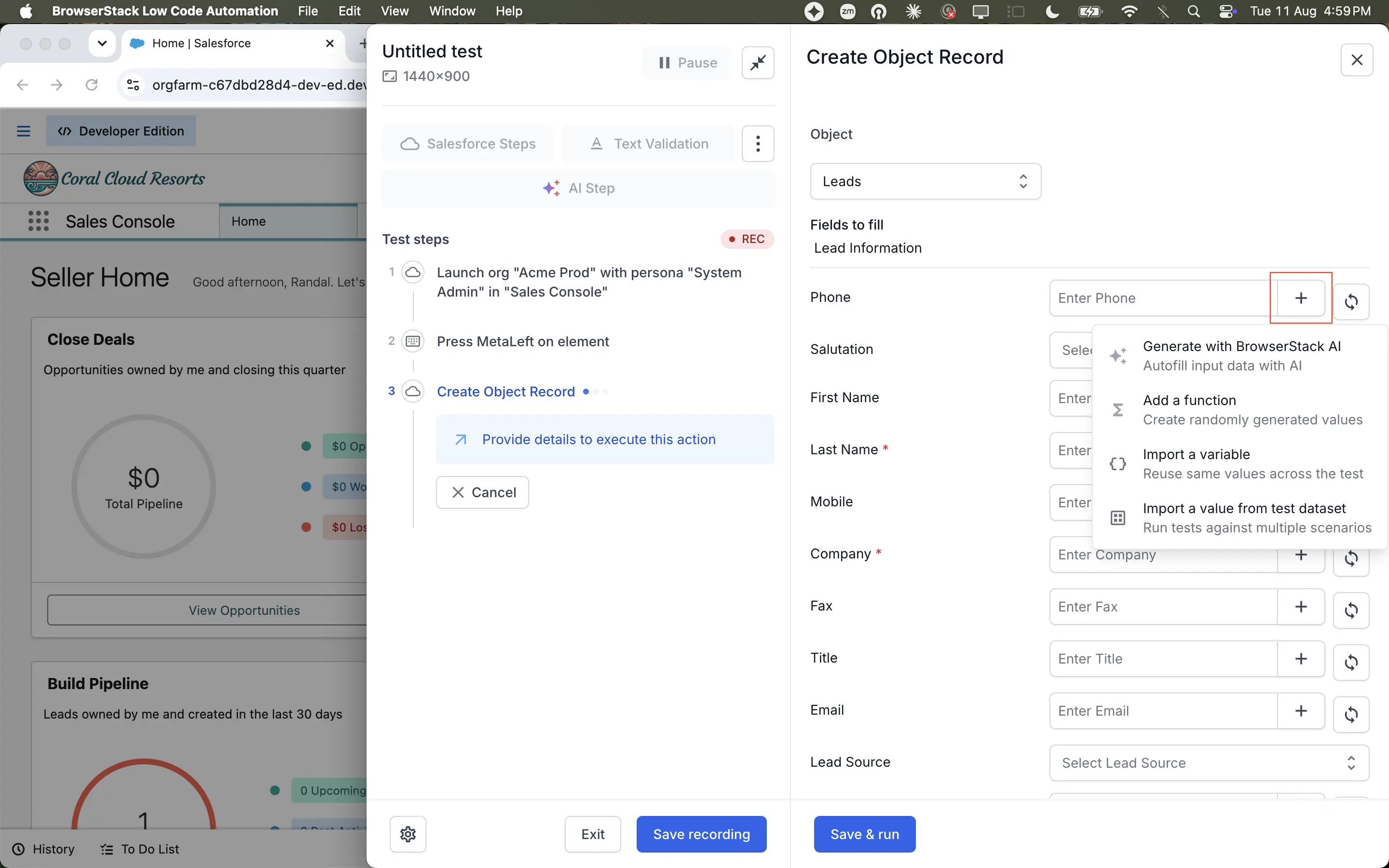
You can type a static value into a field, or click the + icon next to it and choose one of the following options:
| Option | Description |
|---|---|
| Generate with BrowserStack AI | Autofill the field with input data that BrowserStack AI generates from the field type. |
| Add a function | Insert a function that creates a randomly generated value on every run, such as a unique email address. |
| Import a variable | Reuse the same variable value across steps in the test. |
| Import a value from test dataset | Run the test against multiple scenarios using data-driven testing. |
Convert a value to a variable or secret
After you enter a value in a field, you can reuse it in later steps or hide it from your test:
- Convert to variable: Saves the value as a variable that other steps in the test can import.
- Convert to secret: Stores the value as a secret and masks it in the test and in the run logs. Use this for credentials and other sensitive data.
We're sorry to hear that. Please share your feedback so we can do better
Contact our Support team for immediate help while we work on improving our docs.
We're continuously improving our docs. We'd love to know what you liked
We're sorry to hear that. Please share your feedback so we can do better
Contact our Support team for immediate help while we work on improving our docs.
We're continuously improving our docs. We'd love to know what you liked
Thank you for your valuable feedback!