
 Join our Discord
AI-powered automated test generation
Learn how to automate tests from well-written test cases directly, using AI.
In Low Code Automation, while you can manually record test steps with ease by performing actions on the browser, AI-powered test generation simplifies the process even further. Testers can automate well-written test cases directly without manual recording. This makes test creation faster, increases productivity, and helps teams improve their automation no matter their experience level.
- AI-powered automated test generation is available only in the Low Code Automation Pro and above plan. For more details, contact us.
- Currently, AI-powered automated test generation is in the Beta phase.
It provides the following benefits:
- Testers can automate test cases quickly, reducing manual work.
- Teams can automate more tests faster, enabling them to scale quickly.
- Testing can start earlier in development, finding problems sooner and improving quality.
This guide covers two primary ways AI can streamline your testing process:
- Automate test cases using AI in Low Code Automation: Easily create and execute tests with AI in Low Code Automation without the need for manual recording.
- Automate test cases using AI from Test Management: Easily automate manual test cases using AI from BrowserStack Test Management.
Prerequisites
Ensure that BrowserStack AI has been enabled for your account. For more information, refer to Activate BrowserStack AI.
Automate tests using AI in Low Code Automation
-
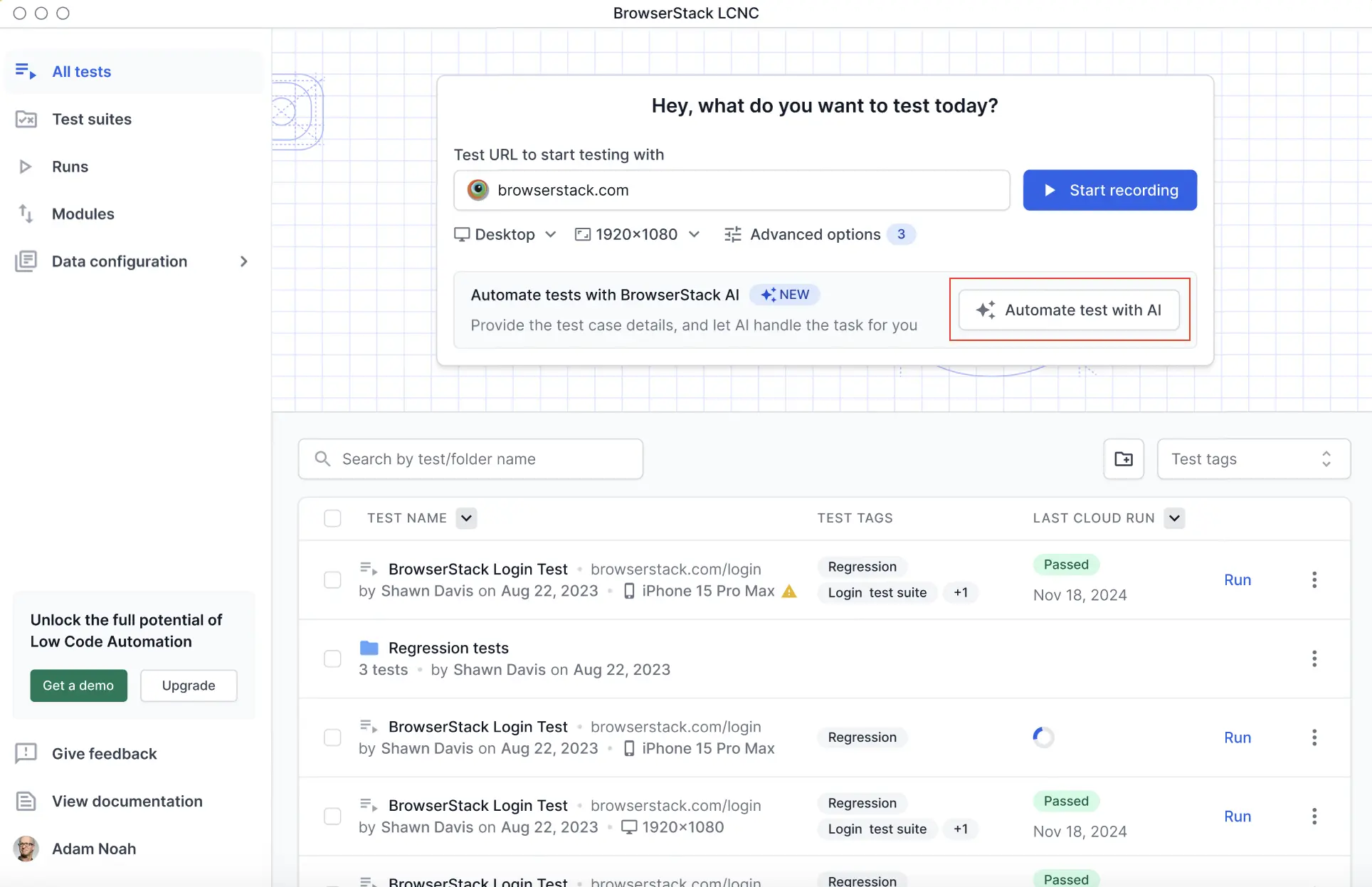
On Low Code Automation, enter the web app URL, select a device profile and resolution, then click Automate Test with AI.
-
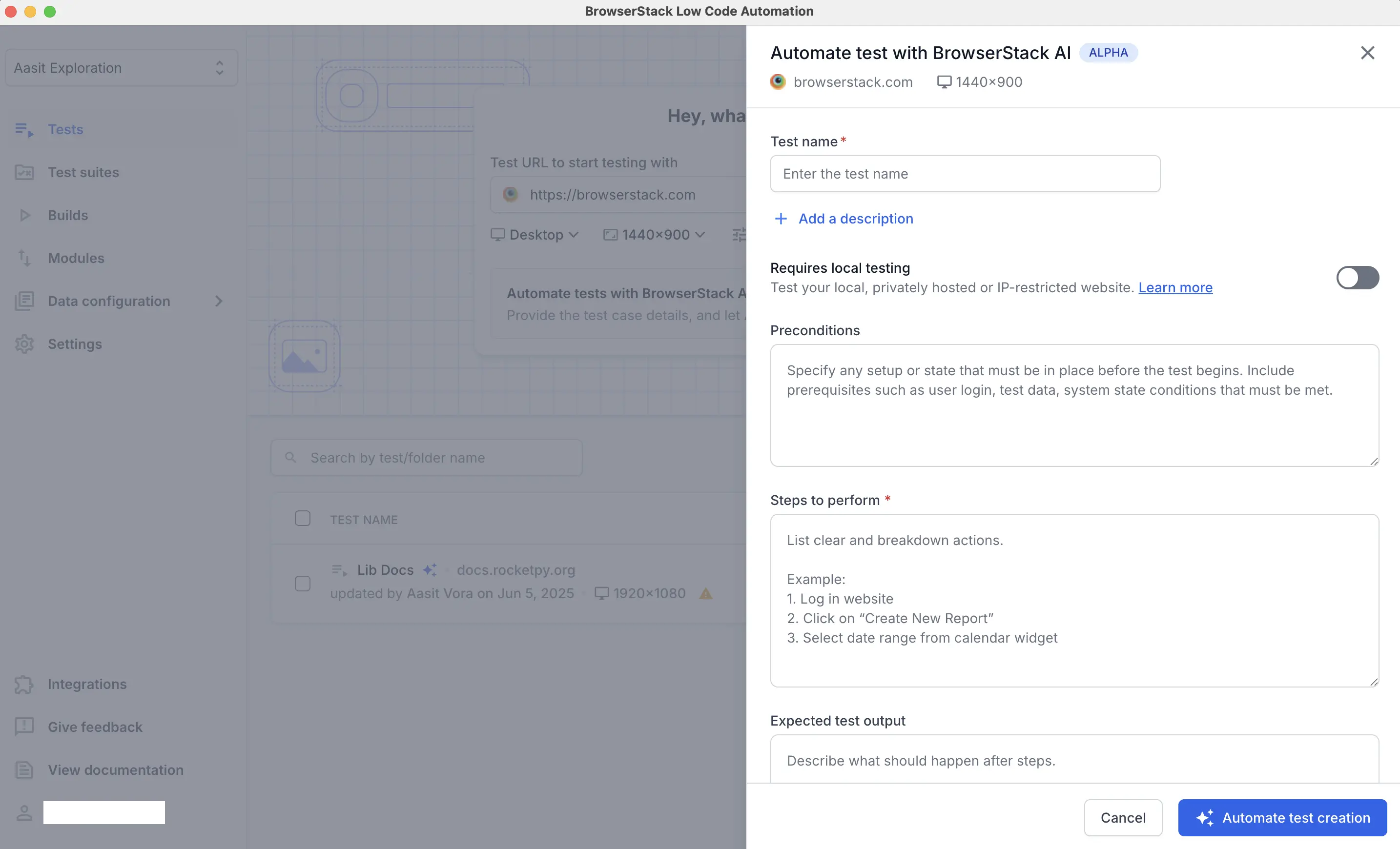
Enter the required details in the BrowserStack AI window:
-
Test name: Give a unique test name. For example,
Validate user is able to successfully login with valid credentials. - Enable local testing: Enable this option to test your locally or privately hosted websites. For more information, refer to the Test on internal network document
- Preconditions: Define setup conditions. For example: The user is logged in, and test data is loaded.
-
Steps to perform: Break the steps into small and clear actions.
Example (Sign in and checkout a product):- Navigate to the application URL.
- Log in to the website using username and password.
- Add iPhone 16 device to cart and proceed to checkout.
- Enter the address and credit card details, then complete the payment.
- Validate product is successfully purchased and a message is shown for the same.
-
Expected output: Describe the goal of what needs to be validated in the test case. For example:
- Validate that the user is successfully logged in and the product logo is displayed on the home page.
- Validate that a successful purchase message is displayed once the payment is complete.
-
Test name: Give a unique test name. For example,
-
Click Automate test creation.
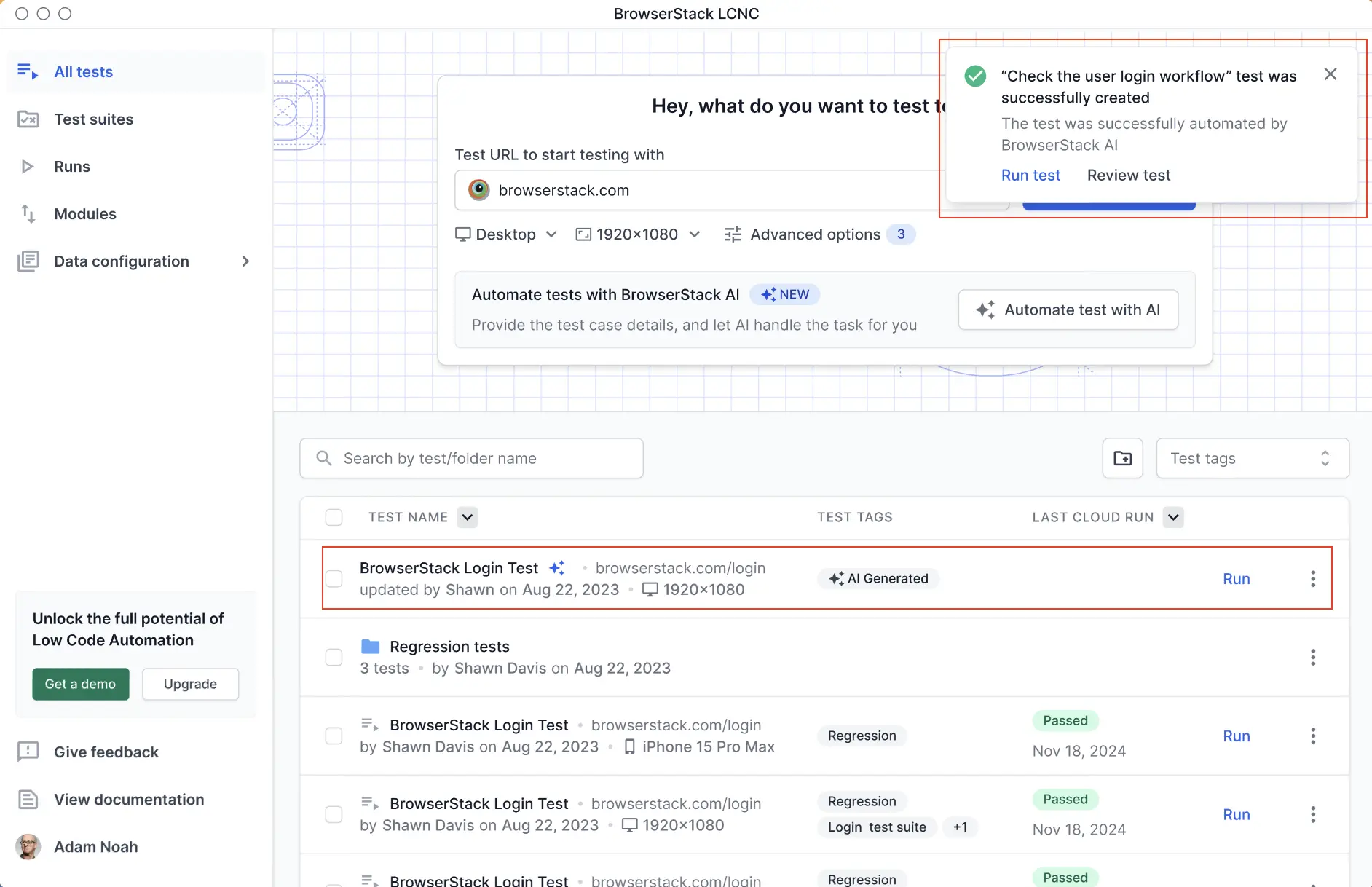
The automated test is created and a success message appears at the top.
Supported actions for AI-powered automated tests
AI-powered automated test generation supports the following types of user actions:
- Visual validation
- Text validation
- Element presence validation
- Type input
- Click
- Hover
Automate test cases using AI in Test Management
The Low Code Authoring Agent in Test Management sends test cases to Low Code Automation for AI-powered generation. You can trigger it for one test case or for up to 20 test cases at a time. Each generated test appears in the Low Code Automation test list.
To automate one test case, open its details and click Automate using BrowserStack AI. The same dialog opens. Then continue from step 3.
To automate test cases from Test Management:
-
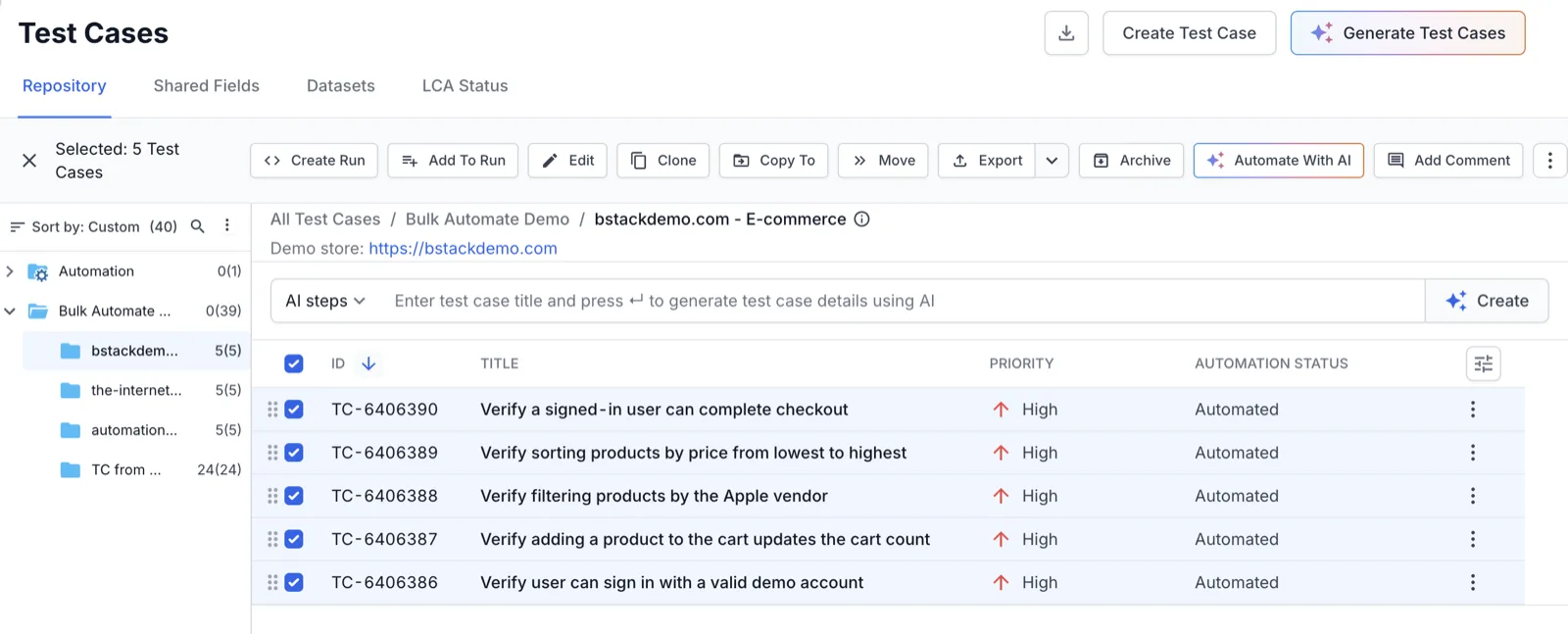
In your Test Management project, go to Test Cases and open the folder that contains the test cases.
-
Select the checkbox next to each test case, then click Automate With AI in the action bar.
-
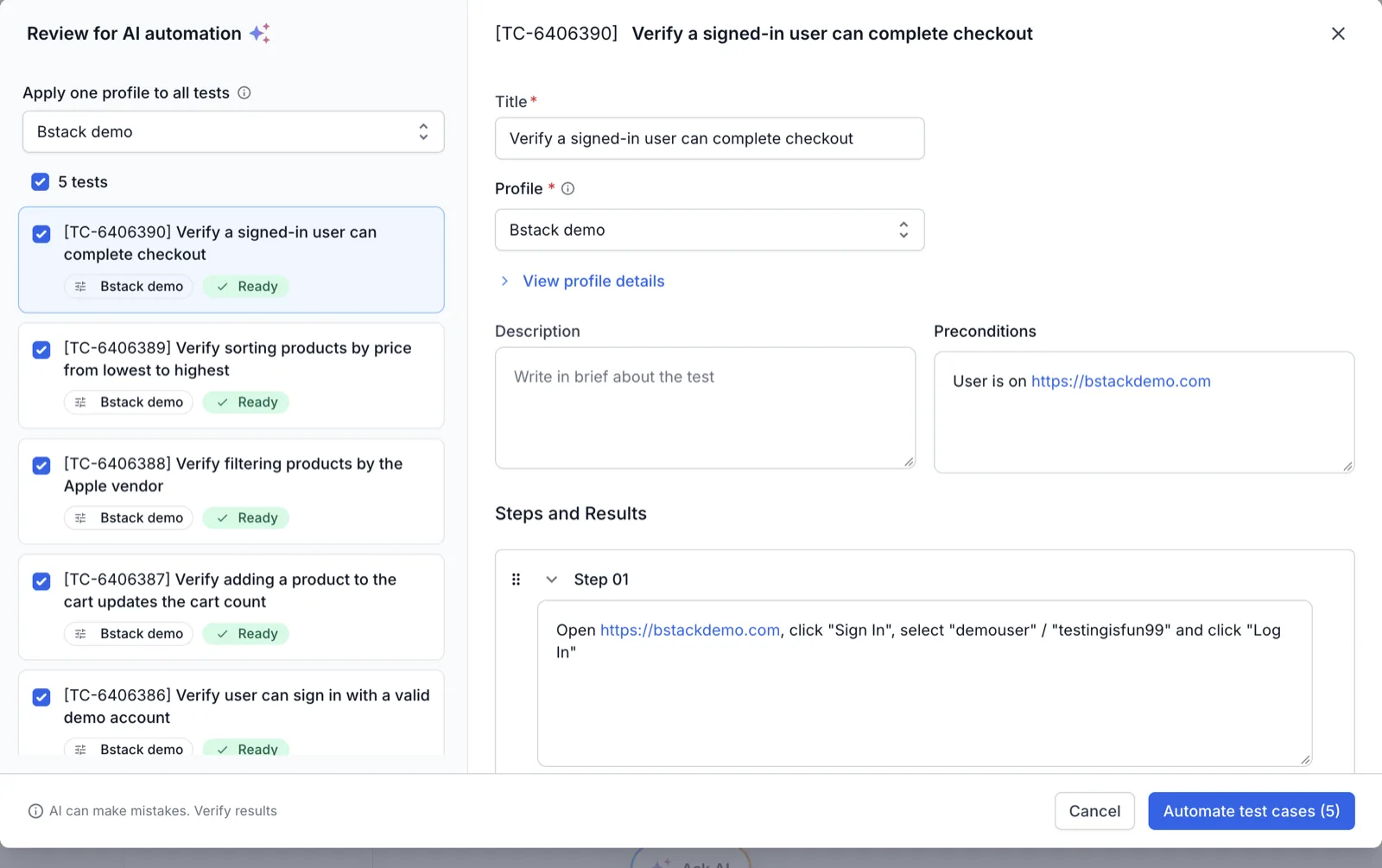
In the Review for AI automation dialog, open Apply one profile to all tests. Select a profile or click Create new profile. A profile stores the website URL, login details, and advanced options such as headers and cookies.
-
Check the label on each test case. Ready means the agent can automate it. For Fixes required, expand the AI thoughts section and update the test case fields.
-
Click Automate test cases. An Automation queued message shows the run ID.
Track the run in the LCA Status tab of Test Management. When a test case completes, its row links to the generated test. The test also appears in the Low Code Automation test list, where you can add steps or validations.
For the full procedure, see Low Code Authoring Agent. For the LCA Status tab, see Track low-code automation status in Test Management.
Need more help?
If you need any additional help, feel free to contact us.
We're sorry to hear that. Please share your feedback so we can do better
Contact our Support team for immediate help while we work on improving our docs.
We're continuously improving our docs. We'd love to know what you liked
We're sorry to hear that. Please share your feedback so we can do better
Contact our Support team for immediate help while we work on improving our docs.
We're continuously improving our docs. We'd love to know what you liked
Thank you for your valuable feedback!