
 Join our Discord
Get started with Salesforce Test Automation
Learn how to write your first test, create and execute a test suite, and review test results using Salesforce Test Automation.
Start automating your Salesforce tests with BrowserStack Salesforce Test Automation in just a few steps. You do not need advanced coding skills. Salesforce Test Automation is designed for everyone.
Prerequisites
Before you begin, ensure you have the following:
- Access to a BrowserStack Salesforce Test Automation account
- A Salesforce organization. (Sandbox environment is recommended)
- Admin credentials for your Salesforce organization
Create your first test
To create your first test in Salesforce Test Automation:
-
Sign in to BrowserStack Salesforce Test Automation with your credentials.
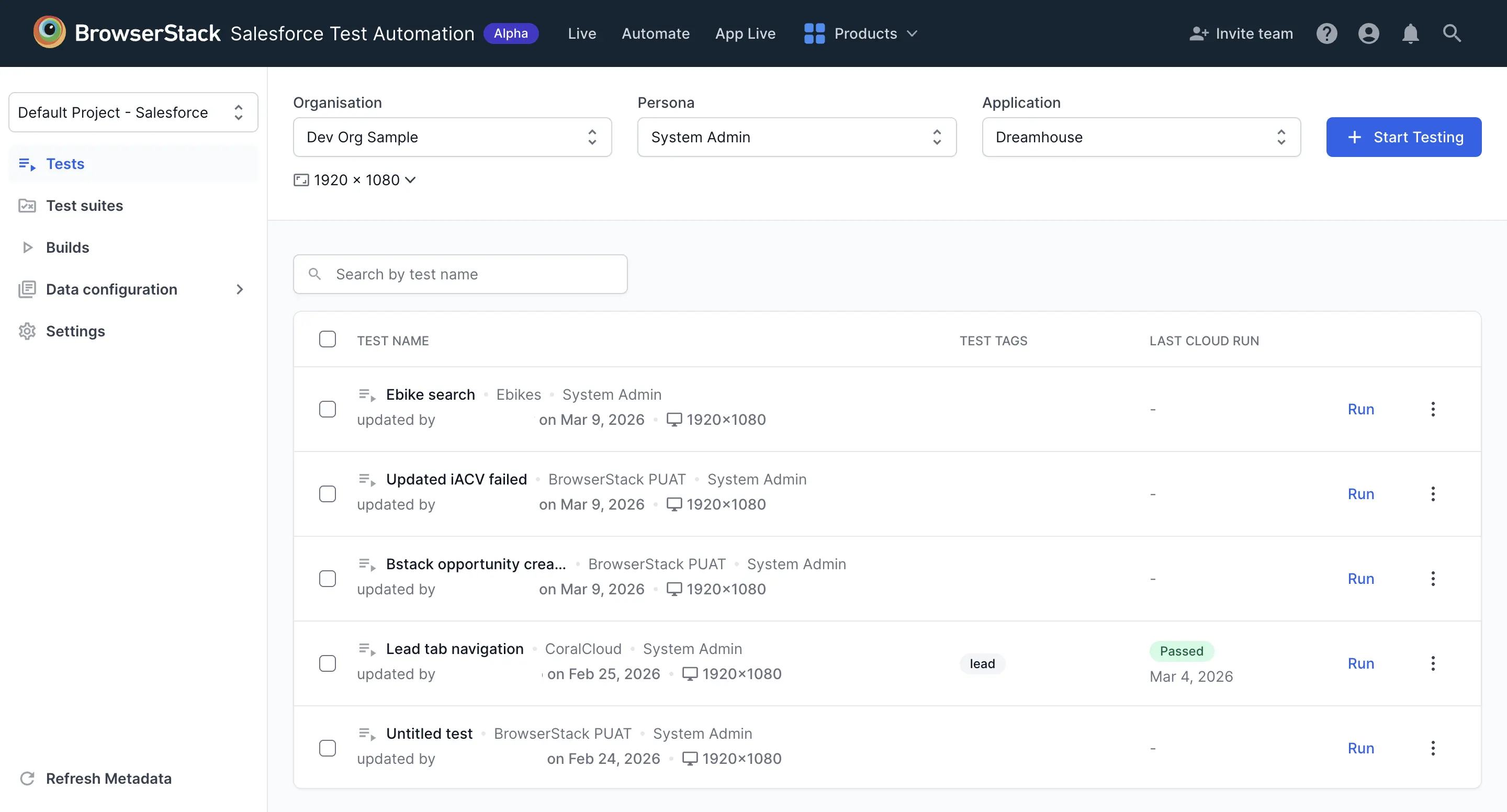
- Go to Settings and Connect to Salesforce org.
Connect your Salesforce environment to enable seamless login and test execution. This is a one-time setup. Ensure you use an Admin account to add your organization.- Select the environment type (Sandbox or Production, Sandbox is recommended)
- Enter your organization name
- Log in securely via the Salesforce OAuth page.
After you authenticate successfully, you are redirected to the Salesforce Test Automation.
-
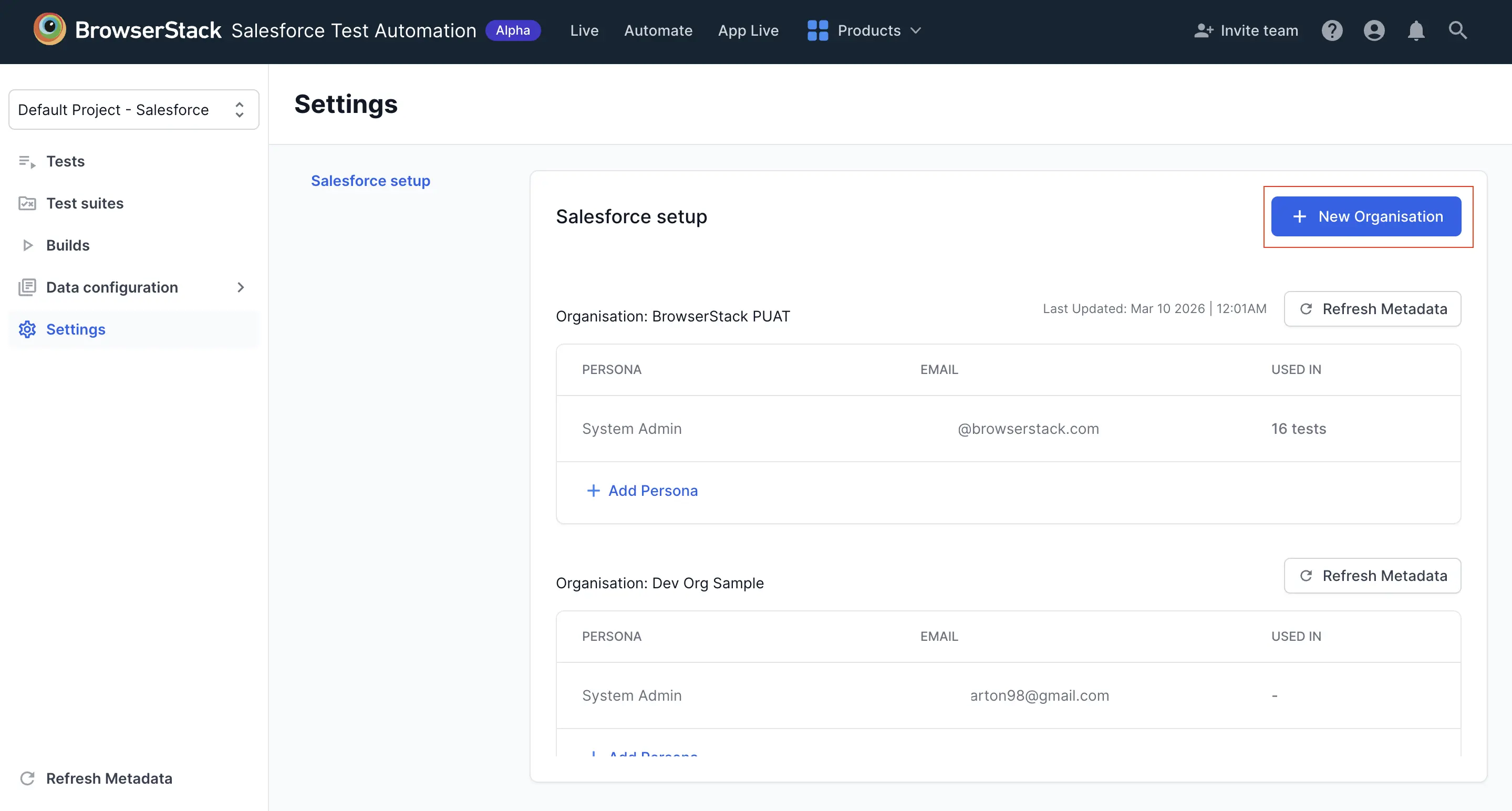
Add personas
Add personas to simulate different users in your tests. You can create them from the Settings section. You can also add non-admin personas.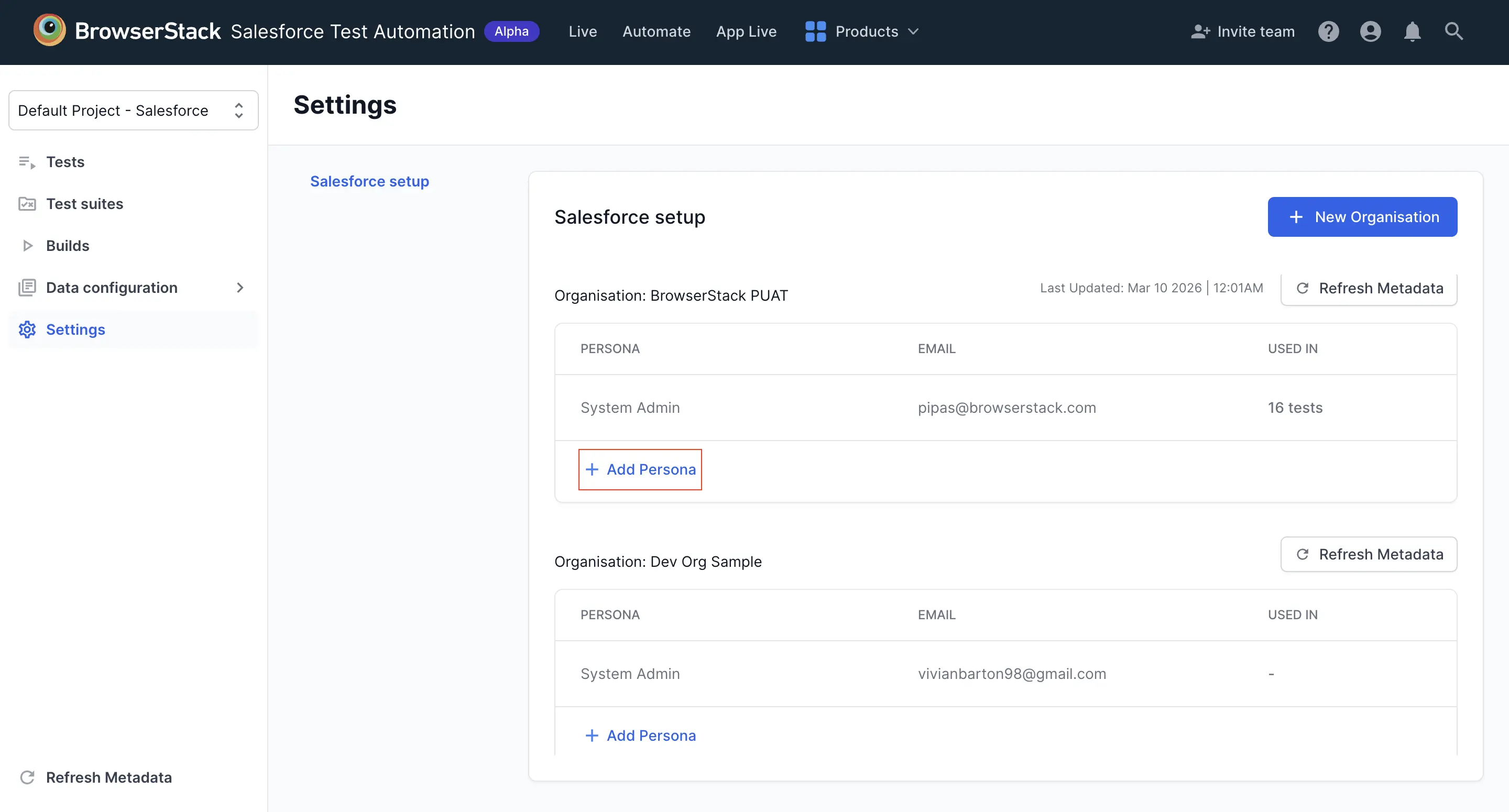
-
Configure and start your test session
Choose the organization, persona, and application you want to test, then click Start Testing. You can change the application at any time during the test session.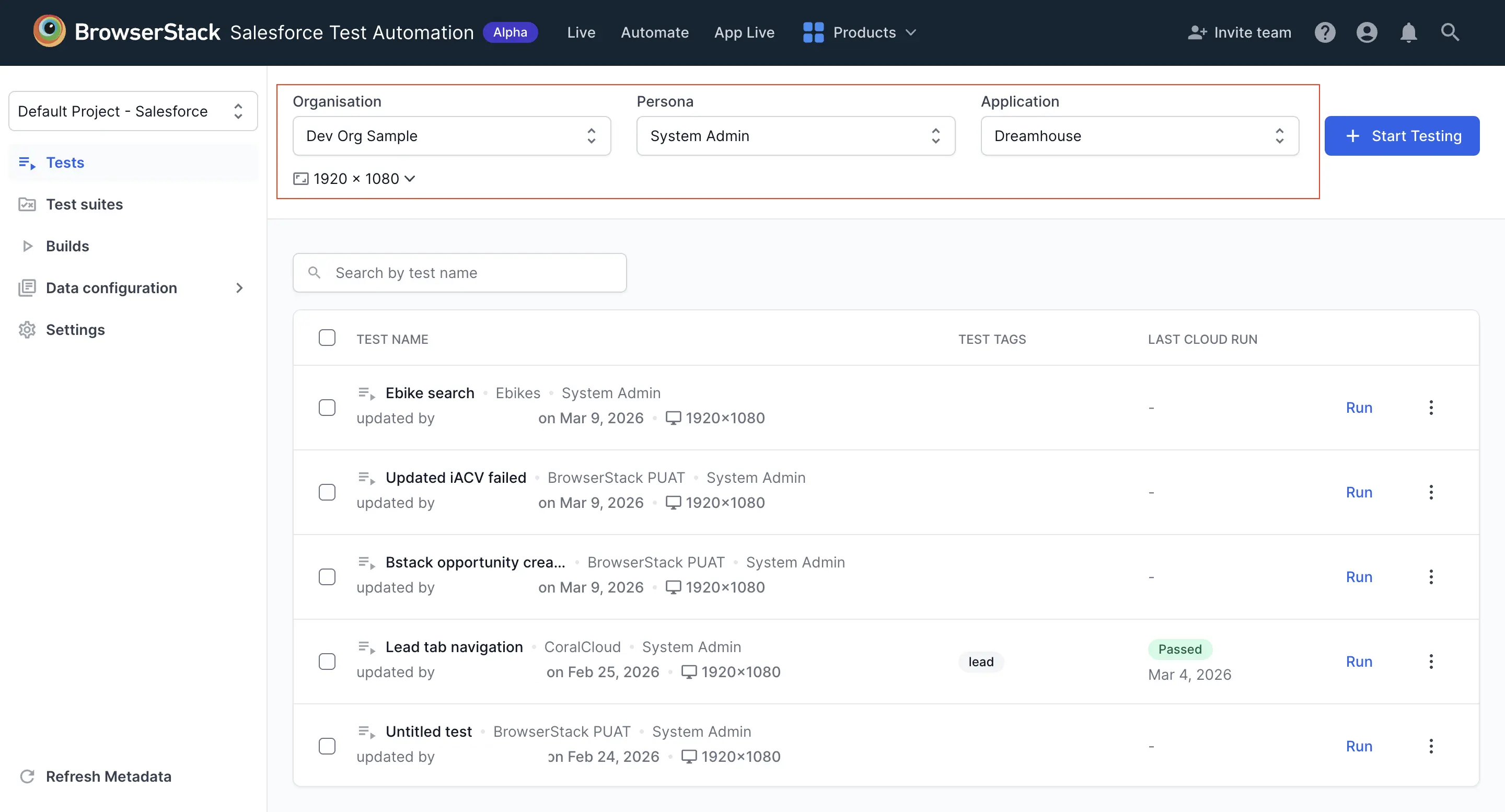
-
Author tests
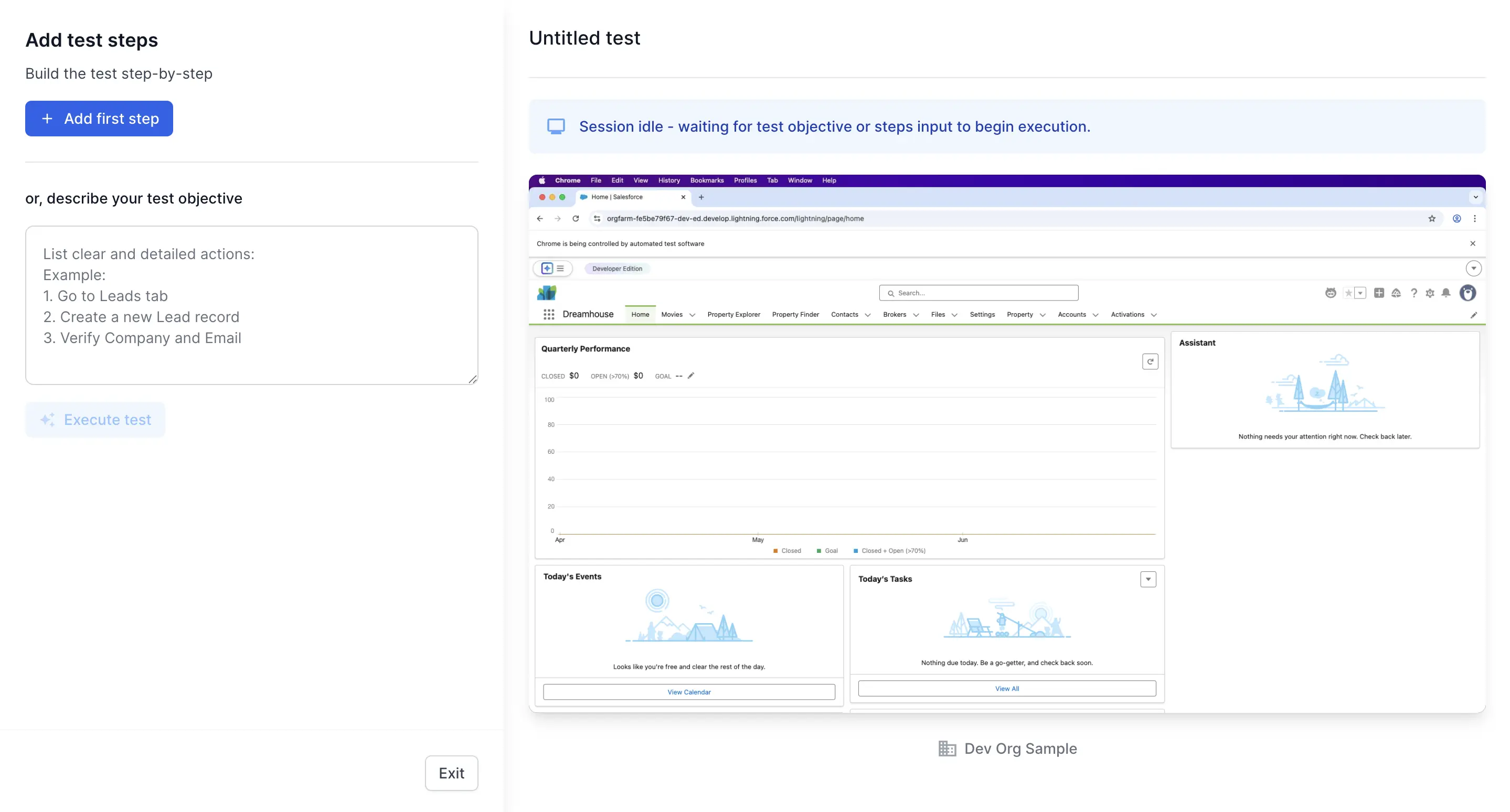
Salesforce Test Automation supports two methods for test steps authoring:-
Execute commands: Create tests by specifying one action at a time using either available commands or natural language input. Start typing to view suggested commands and select the appropriate one. Click Know your commands to see the complete list of supported commands.
-
AI authoring: Enter a high-level test steps in natural language, and the AI agent generates the executable steps for you. Clearly describe each step of the workflow and specify values where needed to ensure accuracy.
-
-
Use variables and functions
Reuse data with variables and functions to make tests more dynamic:- Local variables: are used only in single test.
- Global variables: can be used across multiple tests.
-
Functions: Generate random data dynamically for testing purposes
-
Use predefined steps
To accelerate Salesforce testing, use predefined steps to automate common tasks like object record creation. Click Know your commands to view the list of available predefined steps and select the required step.Best practice: Always navigate to the relevant page before executing a predefined step.
-
Validate and edit your test flow
During test execution, you can perform the following actions:- Stop, pause and resume the test
- Edit an existing step
- Insert a new step
- Rerun a test at any time
- View before and after execution screenshots by hovering over the executed action and clicking … icon.
- Once you have validated, save your test.
For more information, refer to the Create tests section.
Execute a test suite
After creating your tests, you can create a test suite to organize and manage them efficiently. Salesforce Test Automation provides the infrastructure and cloud environments needed to build, run, and schedule tests across multiple configurations. Grouping related tests into a suite simplifies complex scenarios and centralizes result monitoring.
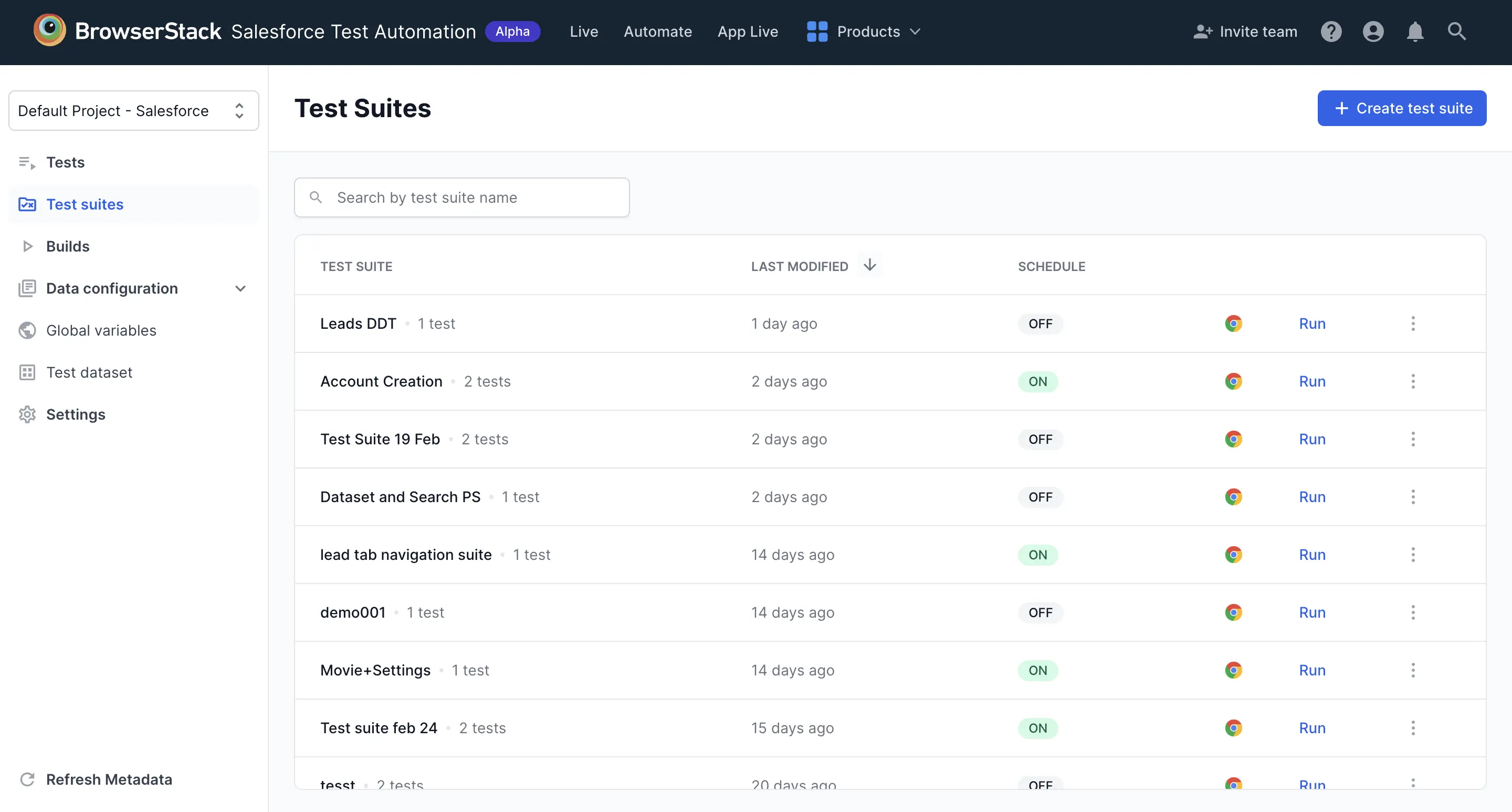
To create and run a test suite in Salesforce Test Automation, select your tests, configure settings, set a schedule, and execute the suite.
View build reports
After the test run, click Builds in the navigation to view all build reports. The Builds section displays:
- A list of recent builds with their status (passed, failed, running)
- Test suite names, execution time, and configuration information
- Pass/fail counts for each test
- Quick access to video recordings, console logs, and network logs for debugging
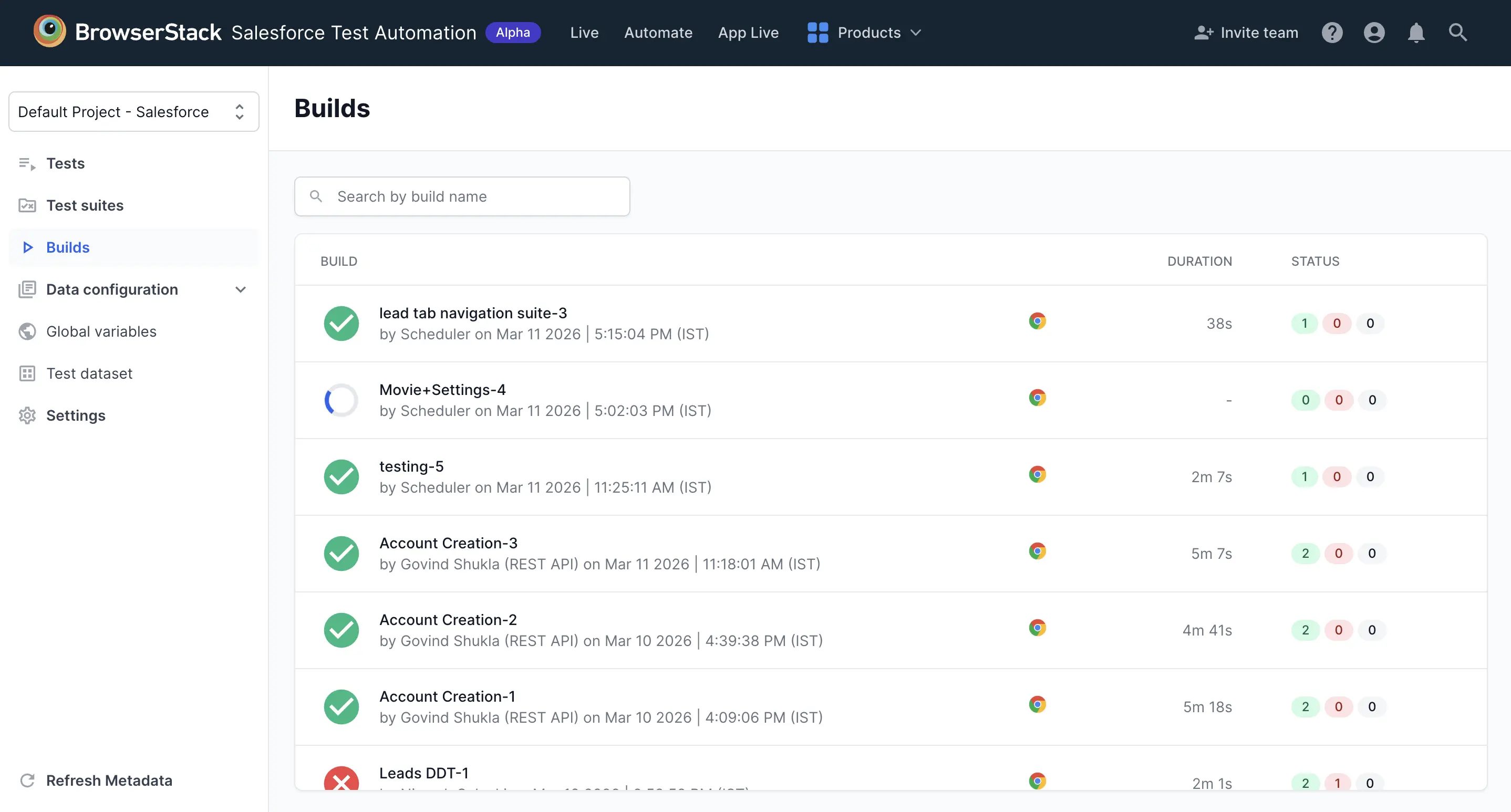
Reviewing build reports helps you track outcomes, debug failures, and monitor test quality across your test suites.
Points to remember
- Session timeout: The browser session expires after 5 minutes of inactivity. Click Restart Session to continue.
- Caution on removing connections: Removing a connection is permanent. Any saved tests linked to it will become unexecutable and cannot be re-linked (re-linking feature is coming soon).
We're sorry to hear that. Please share your feedback so we can do better
Contact our Support team for immediate help while we work on improving our docs.
We're continuously improving our docs. We'd love to know what you liked
We're sorry to hear that. Please share your feedback so we can do better
Contact our Support team for immediate help while we work on improving our docs.
We're continuously improving our docs. We'd love to know what you liked
Thank you for your valuable feedback!