
 Join our Discord
Fix failed app tests
Analyze failed app tests and apply suggested code fixes for one test, a selection, or a whole build, without leaving the IDE.
Test Companion connects to BrowserStack Test Reporting and Analytics and pulls failure data into your IDE. The tool reads the root cause of each failure and suggests a code fix. You can fix one failing test, a selection of them, or every failure in a build.
The Failure Analysis panel is the main entry point. You can also import an Allure or JUnit report from a local run or a CI job. When the failure is not in Test Reporting, paste the details into the chat instead.
Fix tests from the Failure Analysis panel
The Failure Analysis panel lists every test in a build run. Set up the view once, then fix one test, a selection, or all the failures in the build.
To get started, follow these steps:
-
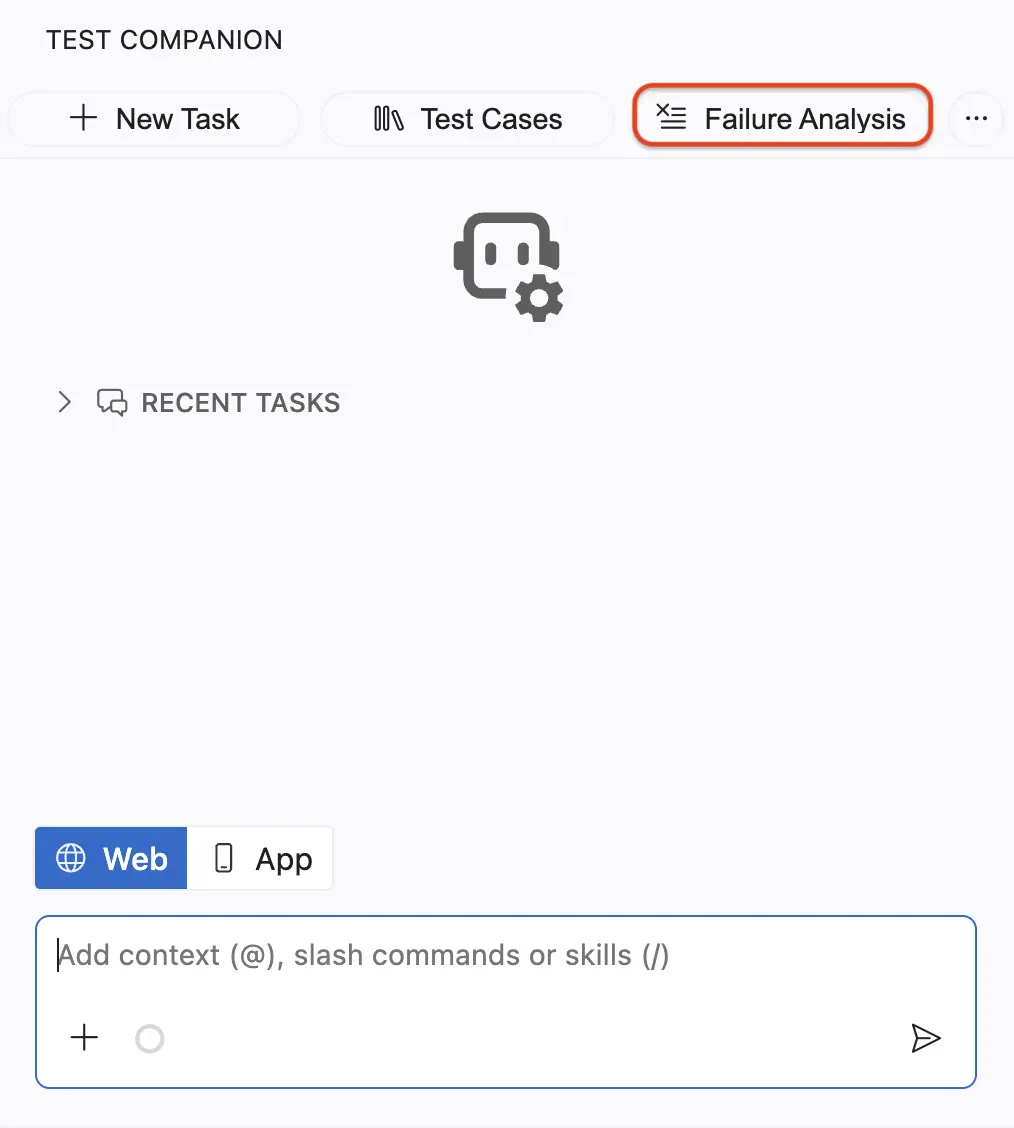
Click the Failure Analysis icon in the Test Companion panel.
-
From the project dropdown, select the project that contains your build.
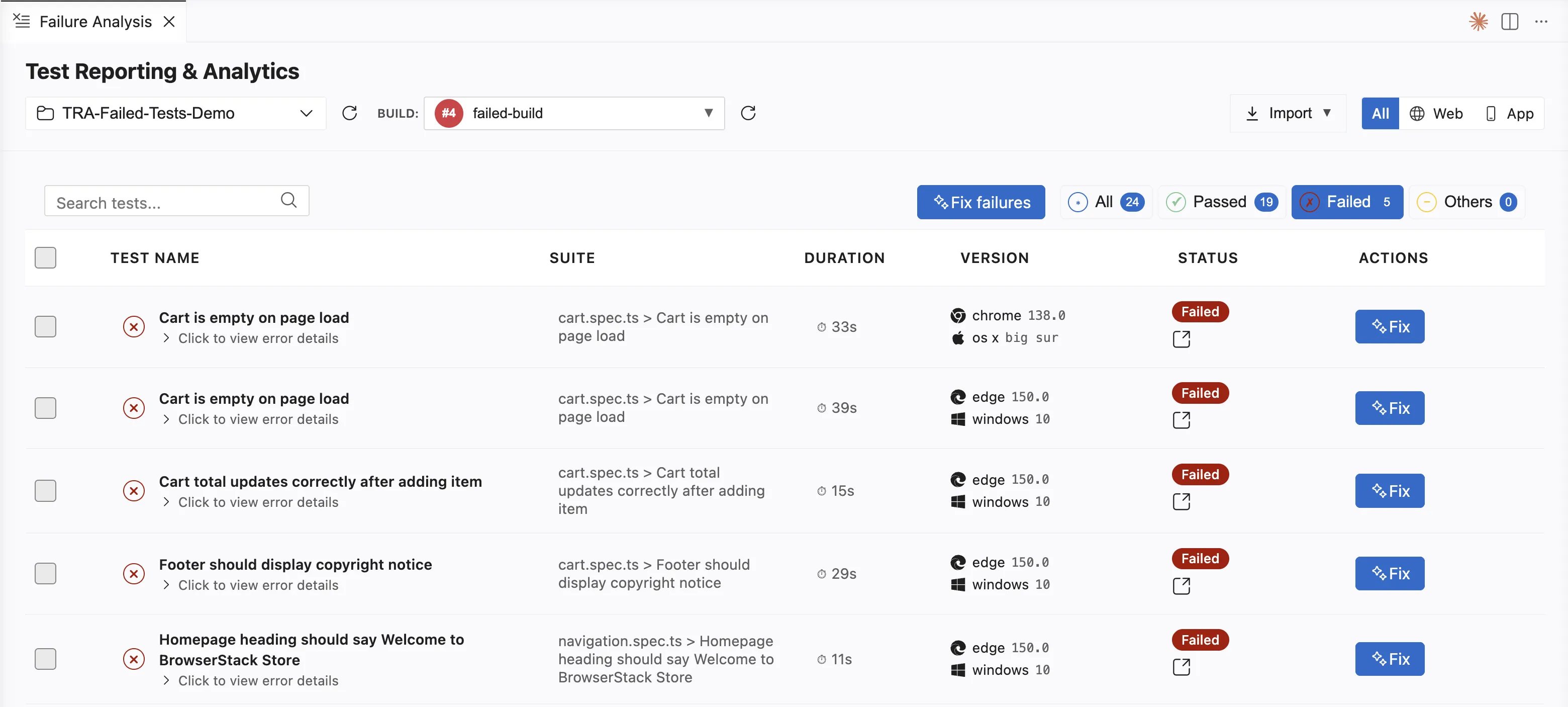
- From the Build dropdown, select the build run that contains your failures.
- Click All, Web, or App to filter the list by platform.
- Click Failed to show only the failed tests.
After the failed tests are listed, choose the scope of your fix:
| Task | What to click | Result |
|---|---|---|
| Fix one test | The Fix action in that test’s row | A prompt for that single test |
| Fix selected tests | The checkboxes, then the Fix button that shows your count | One prompt covering the tests you picked |
| Fix all failed tests | Fix failures, with no test selected | One prompt that groups the failures by shared root cause |
Fix one test
In the row of the test you want to fix, under Actions, click Fix.
A Fetching RCA indicator appears while Test Companion retrieves the root cause analysis. Test Companion then switches to the chat and pre-fills a prompt. The prompt includes the test name, suite path, error logs, failure type, root cause, evidence, and a suggested fix. Review the generated details, then press Enter.
Fix selected tests
-
Select the checkbox next to each test you want to fix. To select all of the listed tests, select the checkbox in the header row of the list table.
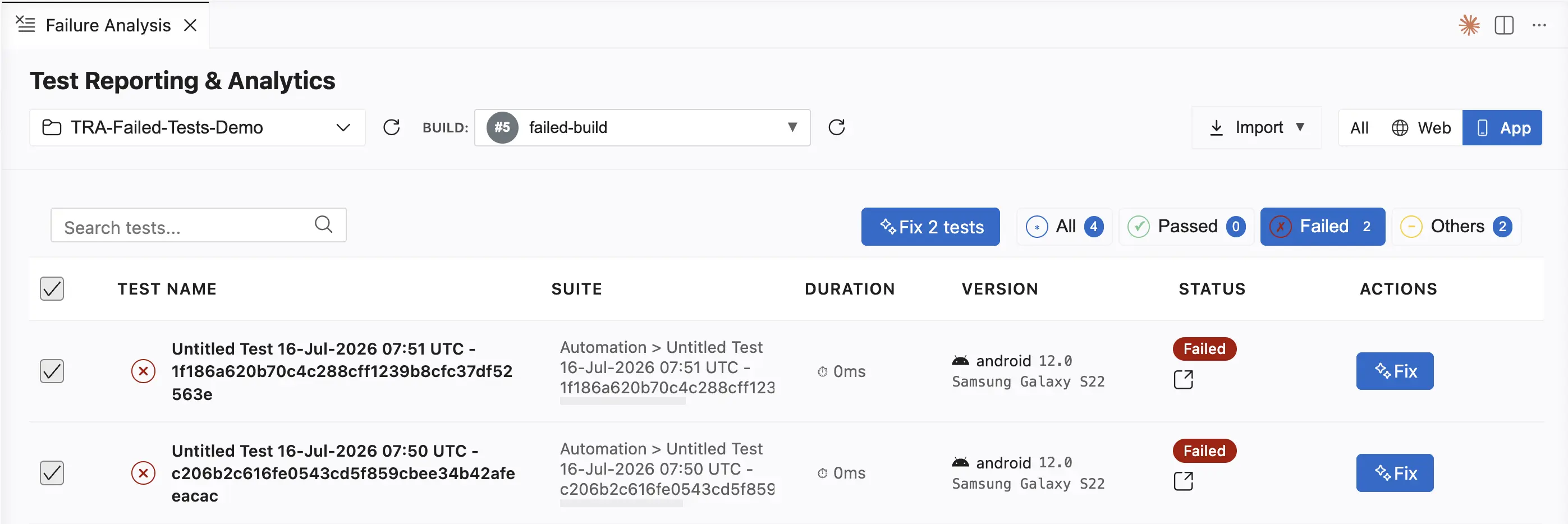
- Click the Fix button that shows your count, for example, Fix 2 Failures. The selected tests appear as chips in the chat. The prompt box pre-fills with each test’s failure details.
- To drop a test from the batch, click the X on the chip for that test. You can also leave the batch unchanged.
- Press Enter.
Fix all failed tests in the build
This method differs from selecting every test with the header-row checkbox. Test Companion groups the failures before it fixes them.
-
Without selecting any test, click Fix failures. Test Companion pre-fills a prompt that lists every failing test.
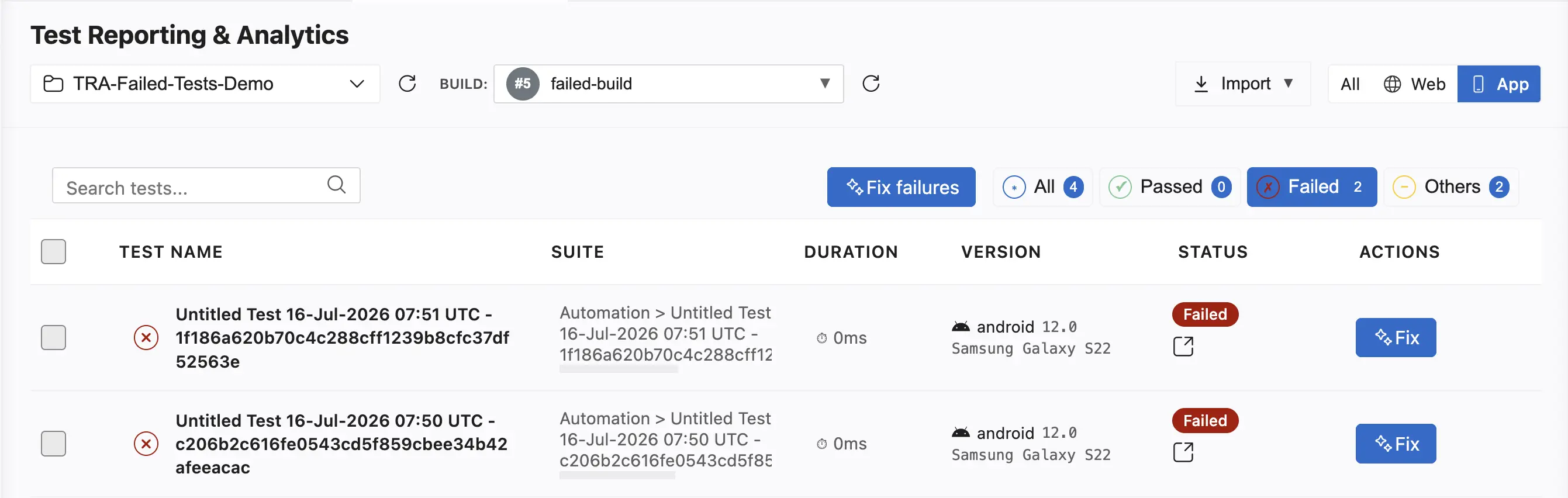
- Review the prompt, then press Enter.
- Review and approve the consolidated fix plan. Test Companion re-runs each group’s tests, then ends with one full test run.
How Test Companion fixes the tests
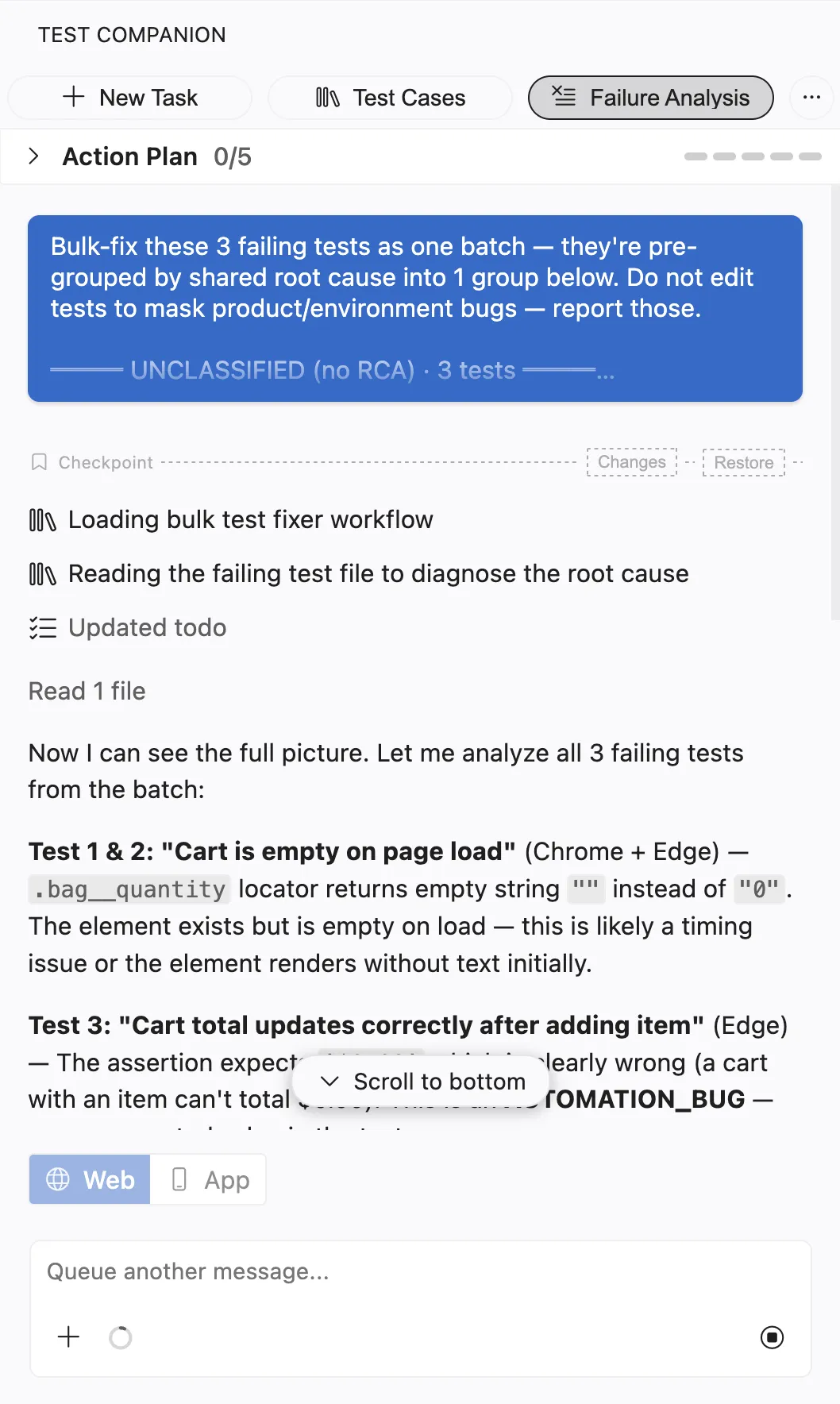
Test Companion turns your request into a single action plan. For an individual test, it analyzes the root cause and generates a fix. For a batch, the tool groups the tests by a shared root cause so that one fix covers every test that failed for the same reason. The tool flags product and environment bugs rather than patching them. Test Companion does not edit a test to mask a real defect.
As the plan runs, the panel shows each stage: loading the workflow, reading the failing test files, and diagnosing each root cause. Before modifying any files, Test Companion creates a checkpoint of your workspace. You can use Changes to review the edits or Restore to revert them.
Review and apply fixes
After the action plan completes, Test Companion posts a summary in the chat. The summary states the root cause for each test, for example, an automation bug, and the fix that was applied. The chat lists each changed file with a count of added and removed lines.
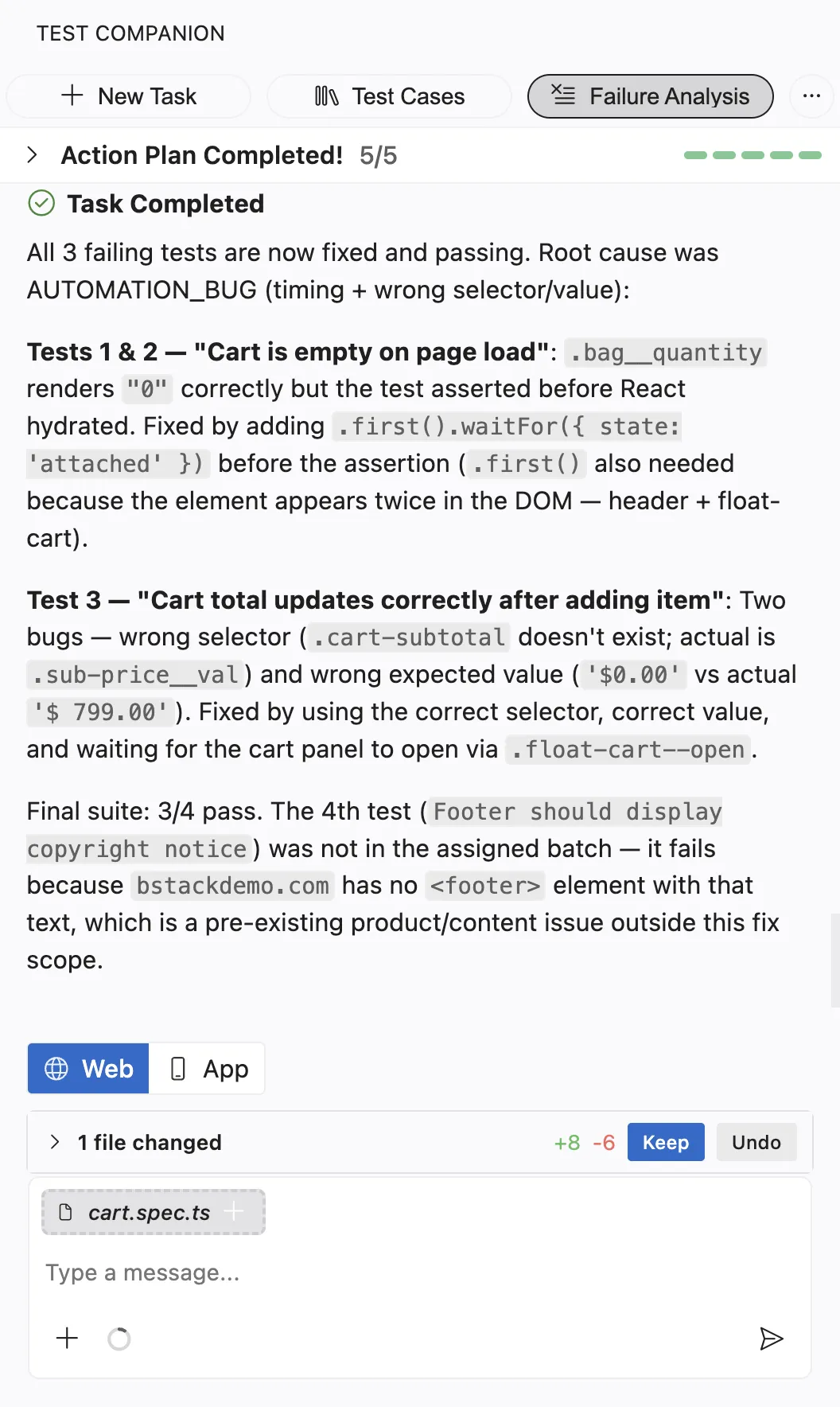
Review the changes, then choose one of the following actions:
- Click Keep to accept the changes.
- Click Undo to revert them.
Run the build again to confirm that the fixed tests pass.
Fix from an imported Allure or JUnit report
Use this method when a local run or a CI job has already produced Allure or JUnit results. Test Companion imports the report into a Test Reporting project. The imported tests then appear in the Failure Analysis panel, where you fix them with the same flow as any other build. You do not have to rerun the suite.
Test Companion reads two kinds of report output:
- An
allure-resultsdirectory that holds*-result.jsonfiles. - JUnit XML written to a directory such as
target/surefire-reports,target/failsafe-reports, orjunit-results.
To import a report:
-
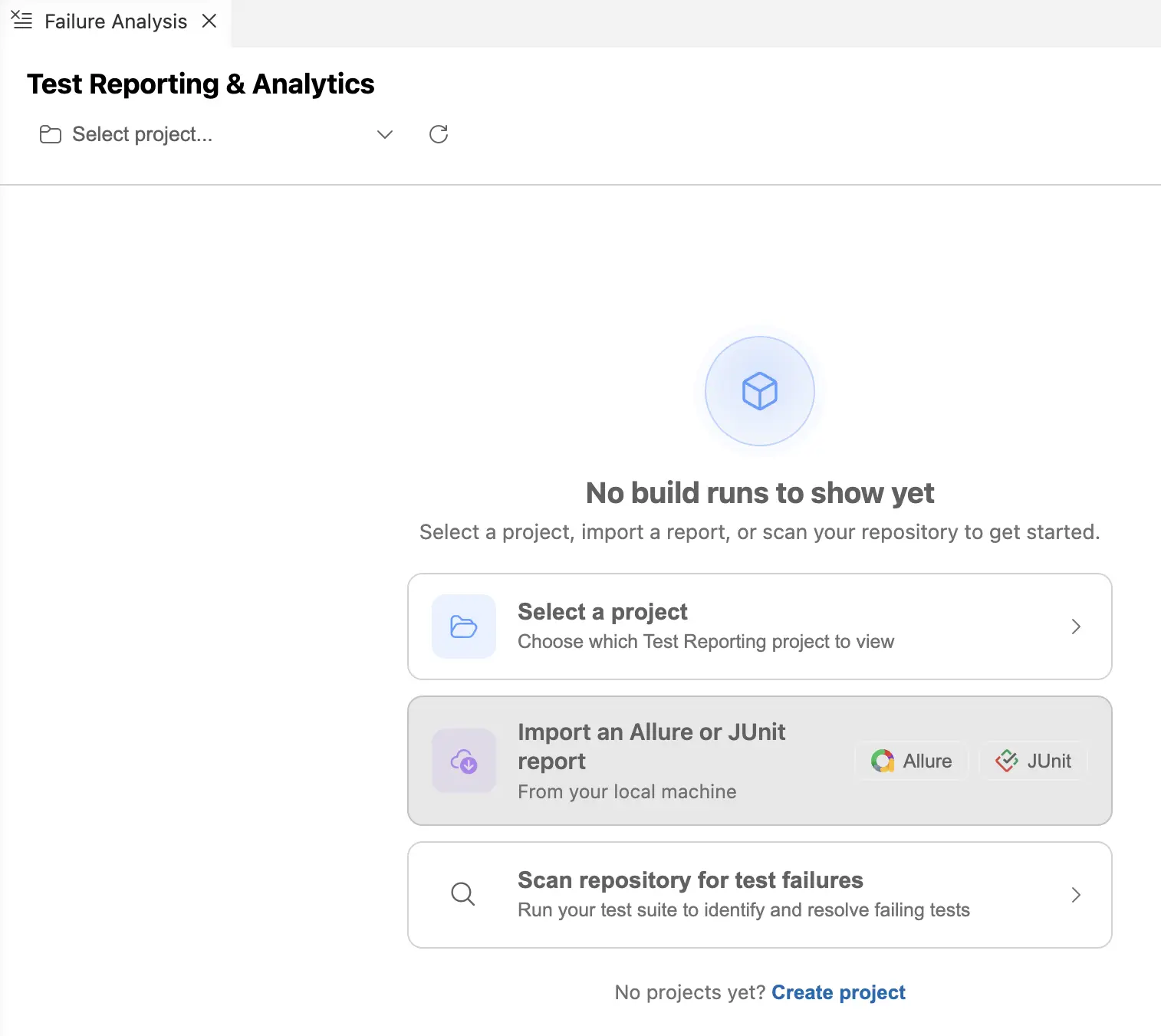
In the Failure Analysis panel, open the import options:
- When the panel shows no build runs, click Allure or JUnit on the Import an Allure or JUnit report card.
- When a build is already open, click Import in the panel toolbar, then choose From Allure or From JUnit.
-
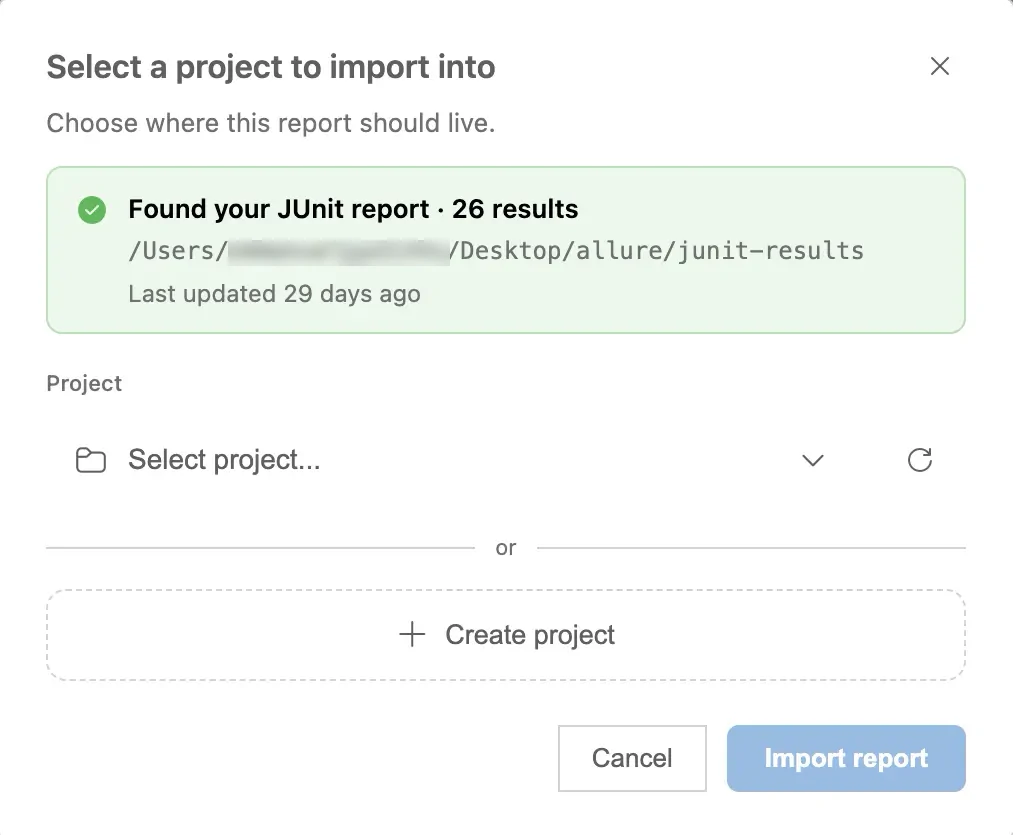
In the Select a project to import into dialog, check the detected report. The banner names the report type, the result count, the folder path, and the last update time.
-
Choose one of the following options:
- From the Project dropdown, select an existing Test Reporting project.
- Click Create project to add a new project.
- Click Import report. Test Companion uploads the results. The imported build then appears in the panel.
- Fix the failures with the panel flow in Fix tests from the Failure Analysis panel. You can fix one test, a selection, or every failure in the build.
If Test Companion cannot find or read the report, it explains what to check. For example, the folder might not be a valid, unmodified allure-results directory. You can then click Browse to select a different folder, or paste the failure logs into the chat.
Fix from the chat
Use this method to start failure analysis from the Test Companion chat box. The chat accepts several input types, alone or in combination. This method works for failures captured in Test Reporting and for failures you hit locally.
- Open the Test Companion panel in the IDE.
- Switch to App mode and connect the app under test, if Test Companion needs to inspect it.
-
In the chat box, paste any of the following:
- A Test Reporting session URL or ID, which pulls the test name, error, stack trace, and metadata.
- An error message or stack trace from your test output.
- A description of the failure in plain language.
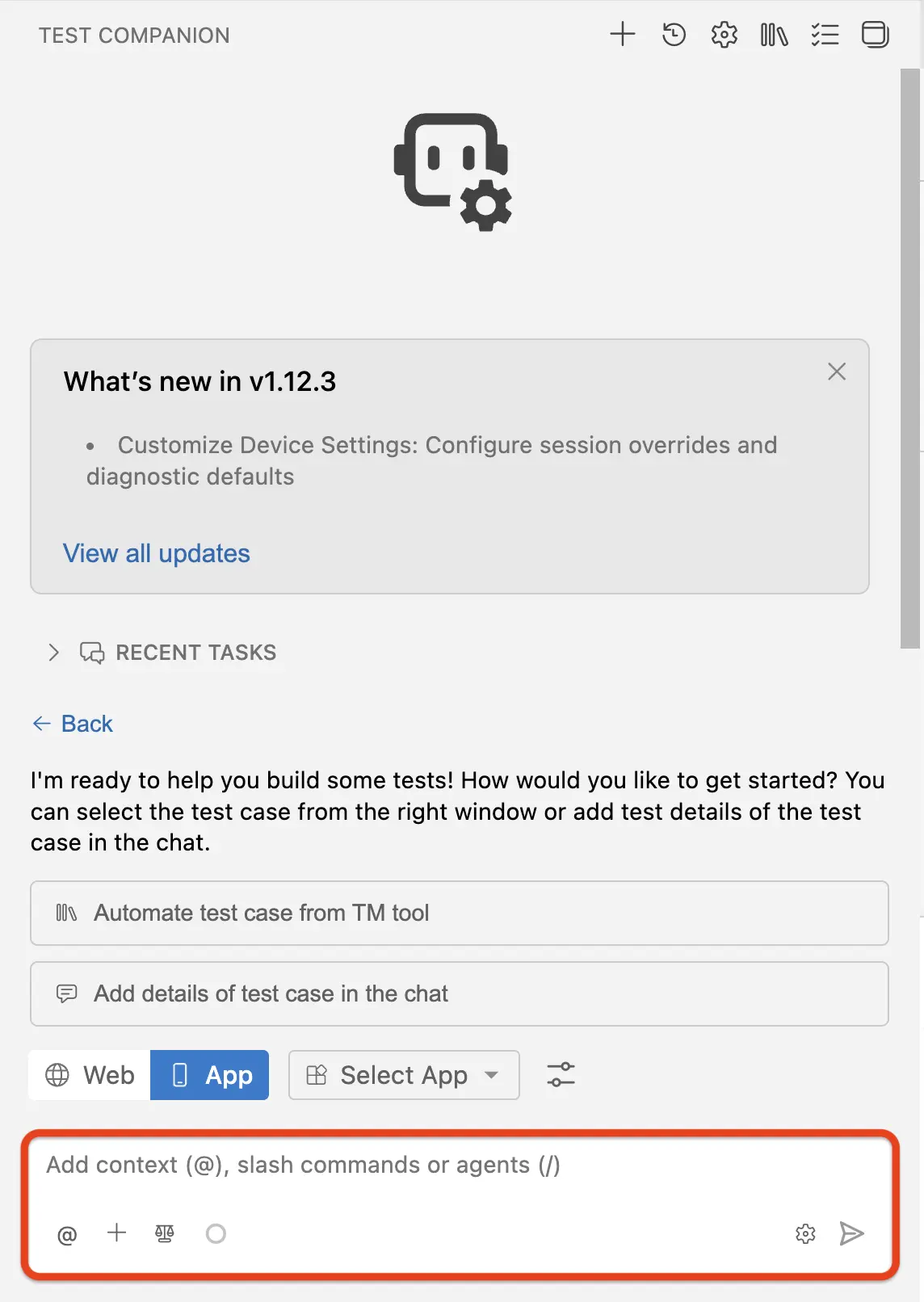
- For more accuracy, type
@and attach the relevant test file, source file, or terminal output. - Press Enter.
Test Companion analyzes the failure context, identifies the likely cause, and suggests a code fix in the chat. When you provide a Test Reporting session URL or ID, Test Companion fetches the same structured failure data the panel flow uses.
Example prompts
The chat accepts several kinds of input. The following examples show common ways to start a fix.
- From a Test Reporting session URL or ID:
https://automation.browserstack.com/builds/<BUILD_ID>/sessions/<SESSION_ID>
Or paste the ID alone on its own line:
<SESSION_ID>
- With pasted error context:
Fix this test failure:
NoSuchElementException: Unable to locate element with accessibility id "login_button"
The test file is @tests/app/login_test.py
Device: Pixel 8, Android 14
- Describing the failure:
My iOS checkout test is failing on Apple Pay. The test taps the Apple Pay button,
but the system prompt for biometric auth never appears in the test session.
Update the test to handle the system prompt.
Common failure types
Test Companion helps fix the following common failure types:
- Locator drift: An accessibility ID, resource ID, or test identifier changed after a rebuild. Test Companion compares the failing locator to the current UI hierarchy and updates it.
- Permission and system prompts: A native dialog for the camera, location, notifications, biometric auth, or App Tracking Transparency on iOS blocks the test. Test Companion adds the missing handler or capability.
- Timing and animation issues: A test acts before an element is visible, before an animation completes, or before async data loads. Test Companion replaces fragile waits with explicit conditions.
- Platform divergence: A test passes on iOS but fails on Android, or the reverse. Test Companion identifies the platform-specific behavior and suggests a conditional path or two separate test methods.
- Flaky behavior: A test passes intermittently because of a race condition or a device-state issue. Test Companion identifies the race and adds stabilization logic.
- Genuine app bugs: The app behavior is wrong. Test Companion confirms the bug and explains what is broken, rather than patching around it.
Example scenarios
These scenarios show how Test Companion handles real-world app failure patterns.
App rebuild regenerates accessibility IDs
A rebuild assigned new accessibility IDs to widgets. Now 18 Appium tests fail with element-not-found errors. Paste the error output and reference the test files with @. Test Companion maps each broken locator to the current widget in the UI hierarchy and generates a patch with the updated IDs.
Permission prompt breaks the test in CI
Your camera-scan test passes when you grant the iOS permission manually before the run. In CI, the permission prompt appears for the first time, so the test fails. Test Companion detects the missing handler and adds either an autoAcceptAlerts capability or an explicit prompt-acceptance step.
Animation timing flakiness
A test passes 70% of the time on the slide-in tutorial. The other 30%, it fails because the tap fires before the animation finishes. Test Companion identifies the race condition, replaces the implicit wait with an explicit wait for the element’s animation state, and adds a fallback retry on the assertion.
Test passes on iOS, fails on Android
A signup test works on iPhone. On Pixel, it fails because the soft keyboard covers the Submit button. Test Companion adds a scroll-to-element step before the tap, applied only on the Android branch of the test.
Test fails only in CI, passes locally
Your purchase-flow test passes on your local emulator. In CI, it times out. Test Companion finds that the test relies on a local environment variable for the API base URL that is not set in CI. It suggests adding the variable to the CI configuration and updating the test to fail fast when the variable is missing.
Best practices
Use these practices to get the most accurate fixes from Test Companion:
- Provide full error output: The more context you give, including the stack trace, error message, and logs, the more accurate the diagnosis.
- Prefer a Test Reporting session URL or ID over typed error text: A session link or ID gives Test Companion the full structured failure context in one paste. Typed or summarized errors often drop detail that affects the diagnosis.
-
Reference the test file with
@: The error message describes the failure. The failing test file gives Test Companion the code that produced it. - Let bulk fix group related failures: When many tests fail together, fix them as a batch. Test Companion clusters failures by shared root cause and fixes each cluster once.
Next steps
- Automate tests: If the failed test needs a rewrite, generate the automation script again.
- AI settings: Configure auto-approve to let Test Companion apply fixes automatically.
We're sorry to hear that. Please share your feedback so we can do better
Contact our Support team for immediate help while we work on improving our docs.
We're continuously improving our docs. We'd love to know what you liked
We're sorry to hear that. Please share your feedback so we can do better
Contact our Support team for immediate help while we work on improving our docs.
We're continuously improving our docs. We'd love to know what you liked
Thank you for your valuable feedback!