
 Join our Discord
Automate tests
Convert your app test cases or natural language descriptions into framework-specific automation scripts that run on real devices.
Test Companion generates executable Appium, XCUITest, Maestro, or any other framework’s scripts. The AI uses real device UI hierarchy data and screenshots to pick reliable locators, so the generated code runs on the first try instead of stubbing out elements.
How automation generation works
When you ask Test Companion to write automation code:
- A real-device session starts. Test Companion launches your app on a BrowserStack iOS or Android device.
- The AI captures UI data. It reads the UI hierarchy (an XML tree of elements with accessibility IDs, resource IDs, class names, text, and bounds) and takes screenshots for visual context.
- The AI writes the code. Using both signals, it generates scripts with accurate locators, explicit waits, and meaningful assertions. The output follows the conventions defined in your System Instructions and Rules.
- Files appear in your IDE. The generated scripts are placed in your workspace per your project’s structure. Review, edit, and run them right away.
Supported frameworks
Test Companion writes code for any framework you specify. To set the target, define the framework in your System Instructions, state it in the prompt, or open the workspace in a project where the framework is already initialized.
Automate from a prompt
Use this method to start automation from the Test Companion chat box. You can describe a new test in plain language, paste one or more Test Management test case links to automate existing test cases, or do both at once. Combine a link with a prompt to refine or modify the linked test case before generation.
- Open the Test Companion panel in the IDE.
-
In the chat box, enter any combination of the following:
- A description of the test you want to automate. Include the app, the user flow, target platform (iOS or Android), and any credentials or test data needed.
- One or more Test Management test case links, to automate existing test cases.
- Additional instructions after the link or links, to refine or modify the linked test cases. For example, change the framework, switch language, adjust assertions, or add steps.
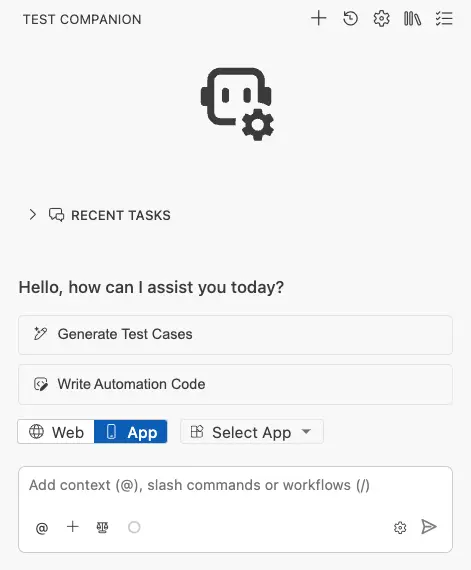
- Press Enter to send.
Test Companion starts a real-device session, captures the UI hierarchy and screenshots, and generates one or more test script files in your workspace. When Test Management test cases are involved, each one’s Automation Status updates to Automated once the corresponding script is saved.
Example prompts
Describe a test from scratch:
Write automation tests for the user registration flow in my Android app.
Use Java with Appium and TestNG. The flow includes:

- Entering name, email, and password.
- Accepting the terms and conditions.
- Tapping Register.
- Verifying that the home screen appears.

Include negative tests for invalid email formats and short passwords.
Convert multiple test cases by reference:
Write Appium automation scripts in Python for the following test cases:

1. Verify a successful login with valid credentials.
2. Verify the error message displayed for an incorrect password.
3. Verify the Forgot Password link navigates to the password reset screen.

Use Pytest as the test runner. Place the files in tests/app/.
Automate a single existing test case:
https://test-management.browserstack.com/projects/<PROJECT_ID>/test-cases/<TEST_CASE_ID>
Automate multiple existing test cases at once:
https://test-management.browserstack.com/projects/<PROJECT_ID>/test-cases/<TEST_CASE_ID_1>
https://test-management.browserstack.com/projects/<PROJECT_ID>/test-cases/<TEST_CASE_ID_2>
https://test-management.browserstack.com/projects/<PROJECT_ID>/test-cases/<TEST_CASE_ID_3>
Automate a multi-device flow
Use this method when one device triggers an action and other devices verify its effect. Connect an app for each device from the Multi App tab of the Connect the App to test dialog. Then describe every part of the flow in a single prompt. For the steps, see Connect apps for a multi-device flow.
Test Companion starts a real-device session for each connected app. It then writes one script that coordinates the turns between the devices. The script verifies the state of each device at each step.
Test Companion generates multi-device scripts for the following frameworks:
- JavaScript frameworks through the BrowserStack Node SDK: Mocha, Cucumber.js, Jest, Jasmine, and plain Node.js.
- Python through the BrowserStack Python SDK: pytest.
- WebdriverIO, set up as a separate multiremote configuration.
Espresso, XCUITest, and Maestro do not support multi-device scripts.
Example prompt:
Write an automation script using the BrowserStack Node SDK for a
ride-hailing app that spans two devices:

- On the customer app, request a ride.
- On the driver app, accept the ride and start it using the OTP shown
  on the customer app.
- Verify the ride status updates on the customer app once it starts.
Automate a single test case
Use this method to convert one manual test case into an automation script. This is the fastest path when you want to automate the test case you are currently viewing.
- Open the Test Case Management panel and find the test case you want to automate.
-
In the Automate column for that row, click the blue Automate button.
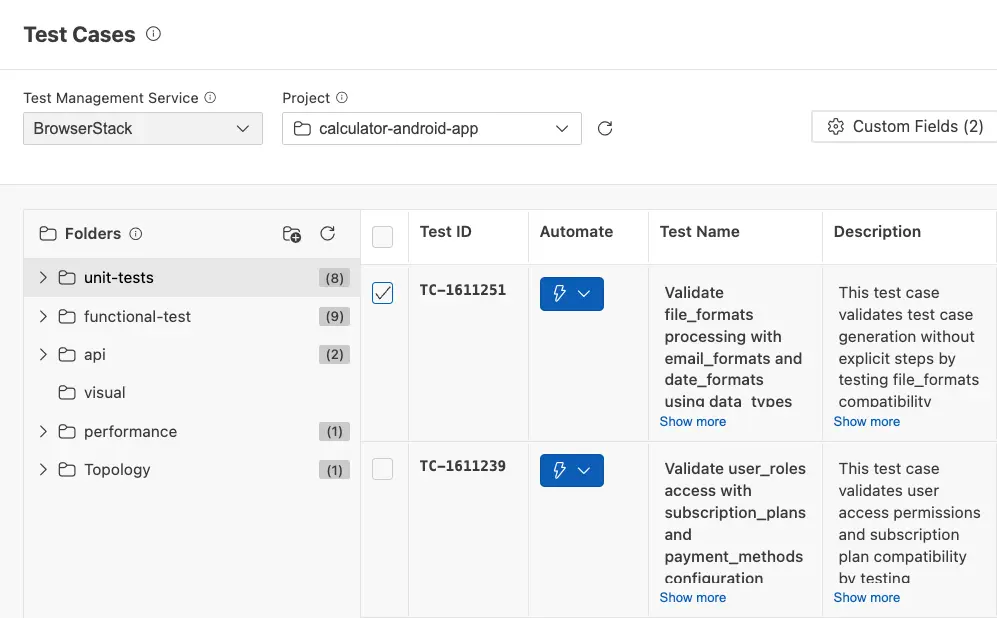
The Test Companion panel opens with a pre-filled prompt and the test case ID attached as context. - In the chat box, add any instructions beyond what is in the test case.
- Press Enter.
Test Companion reads the test case details, starts a real-device session to explore the flow, and generates the automation code. When it finishes, a new test script file appears in your project and the test case’s Automation Status updates to Automated.
Automate test cases in bulk
Use this method to convert several manual test cases into automation scripts in one action. Test Companion processes the selected test cases together and saves the generated scripts to your workspace.
Selections do not persist across pages. If the test case list spans multiple pages, select and automate the test cases on each page separately. Support for cross-page selection will be added in a future release.
As an alternative, paste multiple Test Management test case links in the chat box to bulk-automate test cases that span multiple panel pages. See Automate from a prompt.
- Open the Test Case Management panel.
- Select the test cases you want to automate. Click the checkbox at the start of each row. The Automate button in the toolbar updates to show the selected count.
-
Click the Automate (N) button.
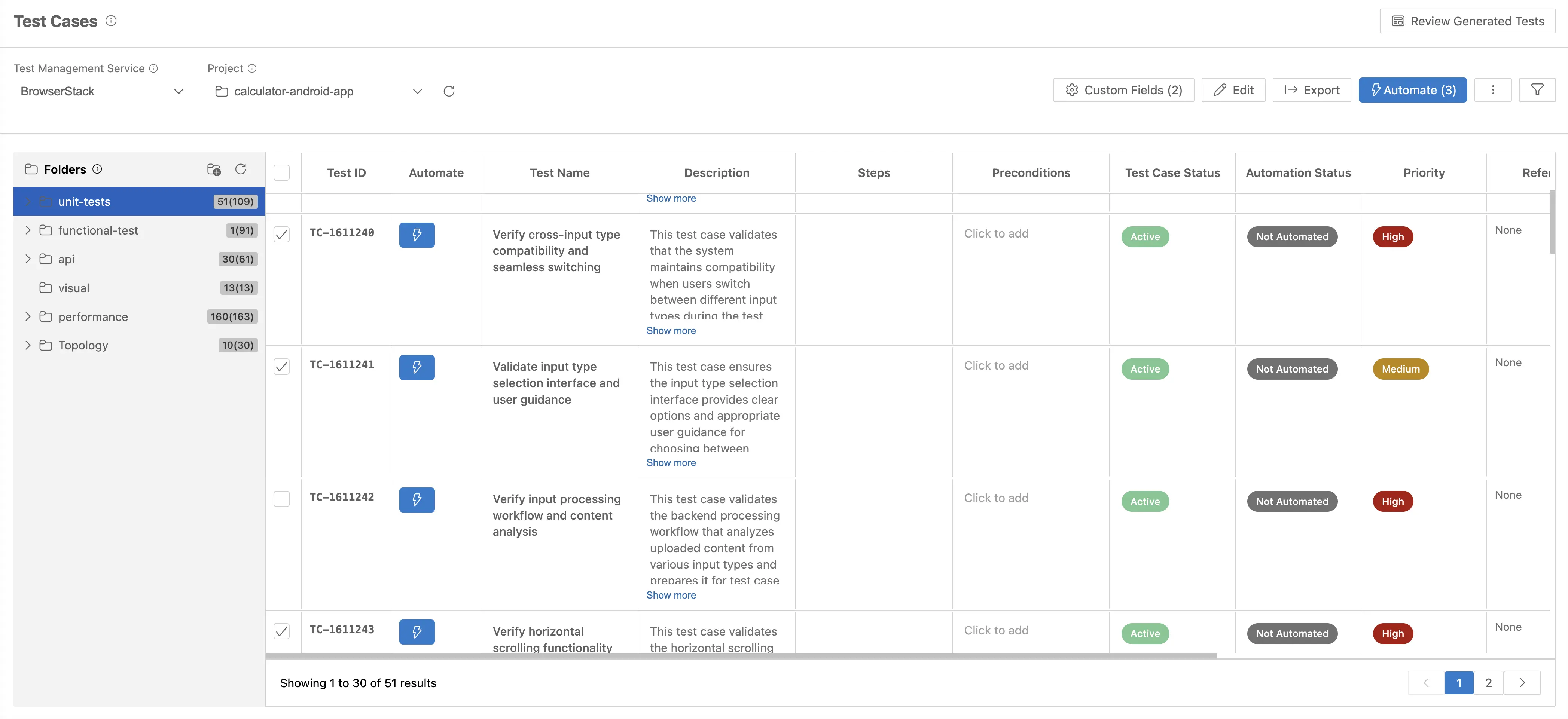
The Test Companion panel opens. Each selected test case appears as a removable chip above the chat box. - Review the pre-filled prompt. Remove any test case chip you do not want to include. Add or modify instructions if the test cases share context that is not in the test case details.
- Press Enter.
Test Companion analyzes each test case, generates one or more script files that match your project’s framework, and updates each test case’s Automation Status to Automated when the corresponding script is saved.
What the generated code includes
The output is production-shaped, not skeletal. A typical generated test file includes:
- Page Object classes: Created when your System Instructions or Rules specify the Page Object pattern, or when your existing project already uses it. Each screen gets its own class with locator constants and action methods.
- Test methods: One method per test case, with setup, action steps, assertions, and teardown.
- Wait strategies: Explicit waits for visibility, clickability, or presence. Hard-coded sleeps appear only when the AI cannot avoid them, with a comment explaining why.
- Assertions: Meaningful checks with descriptive failure messages.
- Capability configuration: Desired capabilities for connecting to BrowserStack or a local Appium server, pre-configured for your device targets.
- Test data: Constants or data providers, kept separate from test logic.
Run the generated tests
Run the scripts from your framework’s runner (for example, pytest, mvn test, gradle test) or from your CI pipeline. Test Companion places the files in your workspace, so they integrate with whatever execution setup you already have.
Best practices
- Configure System Instructions: The more the AI knows about your project (framework, language, folder structure, naming conventions), the closer the output aligns with your codebase. See Chat Settings.
- Define Rules for coding standards: Capture team patterns (“always use Page Objects”, “never use Thread.sleep()”, “locators must use accessibility IDs”) as Rules. The AI applies them automatically.
- Be explicit about device targets: If you need iOS only, say so. If you need both platforms, ask the AI to handle differences (gesture mapping, permission prompts, system dialogs).
Next steps
- Fix failed tests: Diagnose and patch failing scripts.
- AI settings: Configure auto-approve and other AI controls.
We're sorry to hear that. Please share your feedback so we can do better
Contact our Support team for immediate help while we work on improving our docs.
We're continuously improving our docs. We'd love to know what you liked
We're sorry to hear that. Please share your feedback so we can do better
Contact our Support team for immediate help while we work on improving our docs.
We're continuously improving our docs. We'd love to know what you liked
Thank you for your valuable feedback!