
 Join our Discord
Run tasks in parallel in Test Companion
Run up to five Test Companion tasks at the same time in one workspace, and switch between them without stopping any of them.
In Test Companion, a task is a prompt together with the chat that follows it. You can start a new task while another task still runs. The first task keeps working in the background. You do not have to pause it or resume it later.
Parallel tasks require one of the following versions of the Test Companion extension:
- Visual Studio Code: Test Companion 1.35.0 or later
- JetBrains IDEs: Test Companion 1.11.5 or later
Each workspace can run up to five tasks at the same time.
Each workspace runs its own tasks. Progress in one workspace never blocks a task in another.
Separate pieces of work that do not depend on each other can run side by side. The following examples show work that suits parallel tasks:
- Generate test cases for one feature while another task automates tests for a different feature.
- Fix a failed test while a long exploratory task runs on a mobile device.
- Ask a quick question about your code without interrupting a task that is halfway done.
A new task also starts with an empty context. So Test Companion answers the new request without details from your other chats. To learn why an empty context matters in long chats, see Context usage in long chats.
Start a new task while another runs
You do not need to wait for the current task to finish. To start a new task, follow these steps:
- At the top of the Test Companion panel, click New Task. In a narrow panel, the button label shortens to New, or the button shows only a + icon.
-
Type your prompt, then send it.
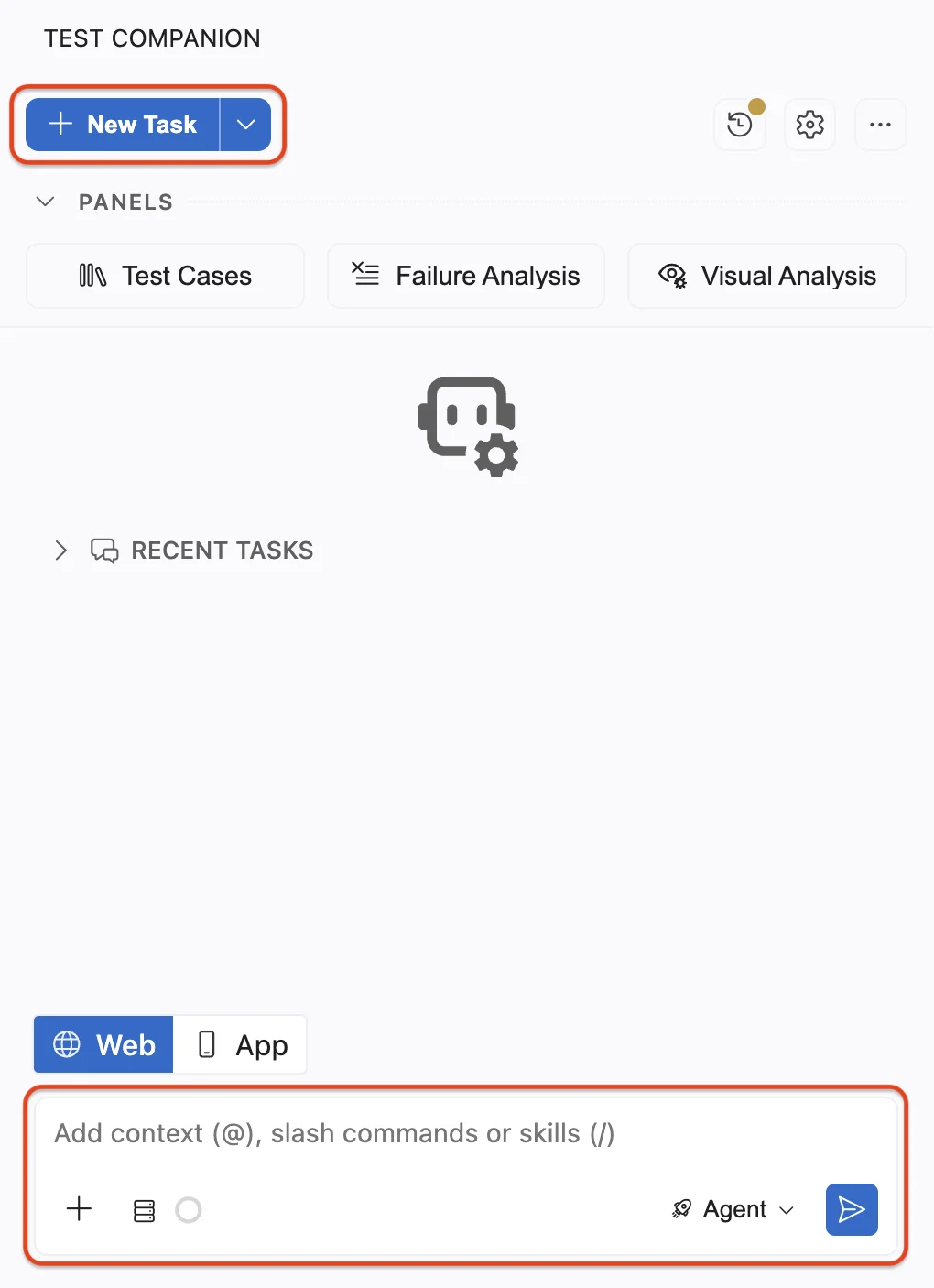
The new task opens in its own chat, with its own browser. The previous task keeps running in the background.
If you start a sixth task while five tasks are running, Test Companion asks you to confirm. It then closes your oldest task, and any unfinished work in that task is lost.
Switch between tasks
To open another task, follow these steps:
-
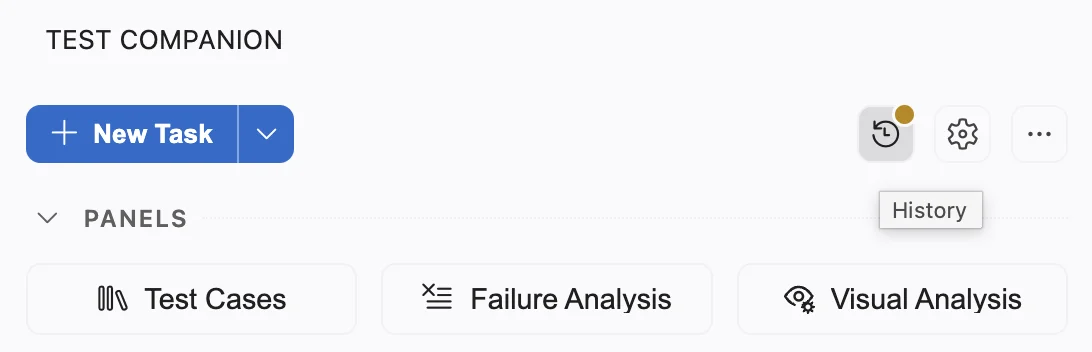
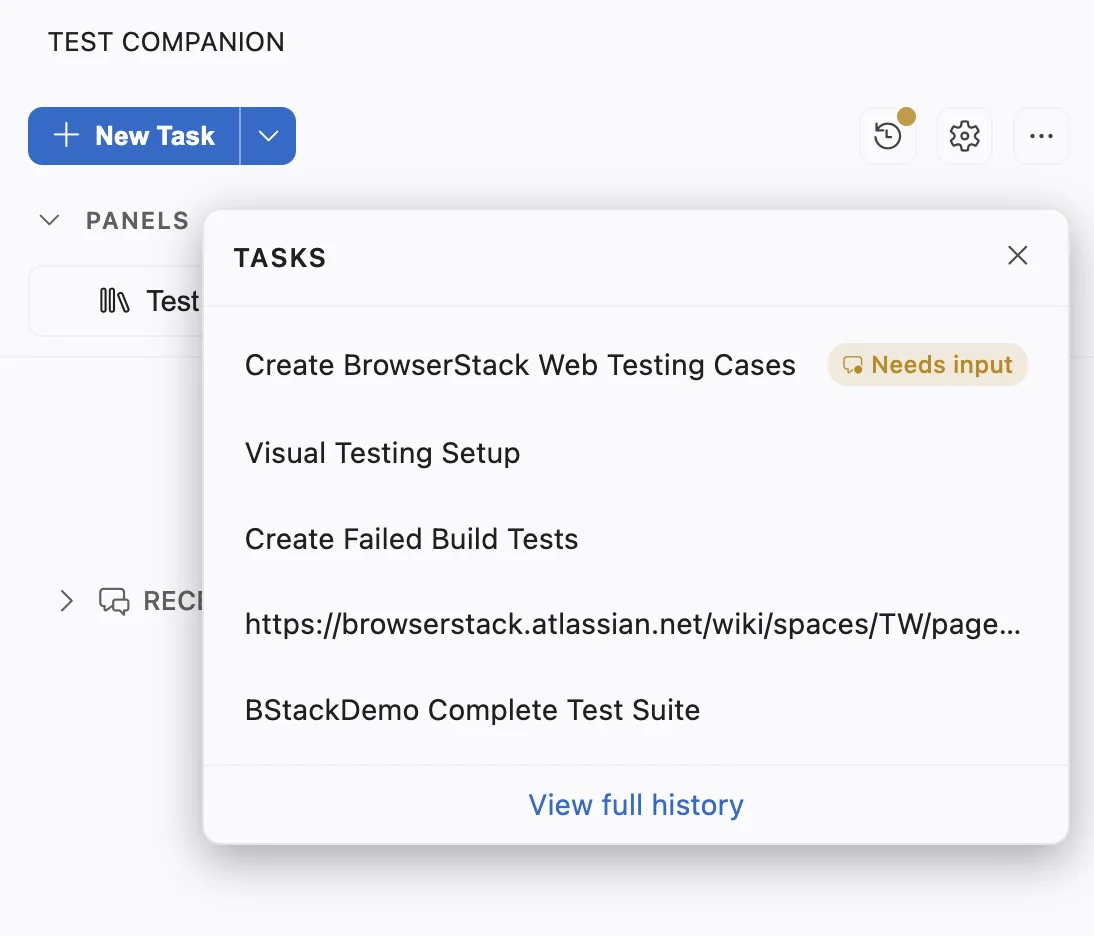
In the Test Companion toolbar, click the History icon, which looks like a clock. The Tasks panel opens over the chat.
-
Select the task you want to open.
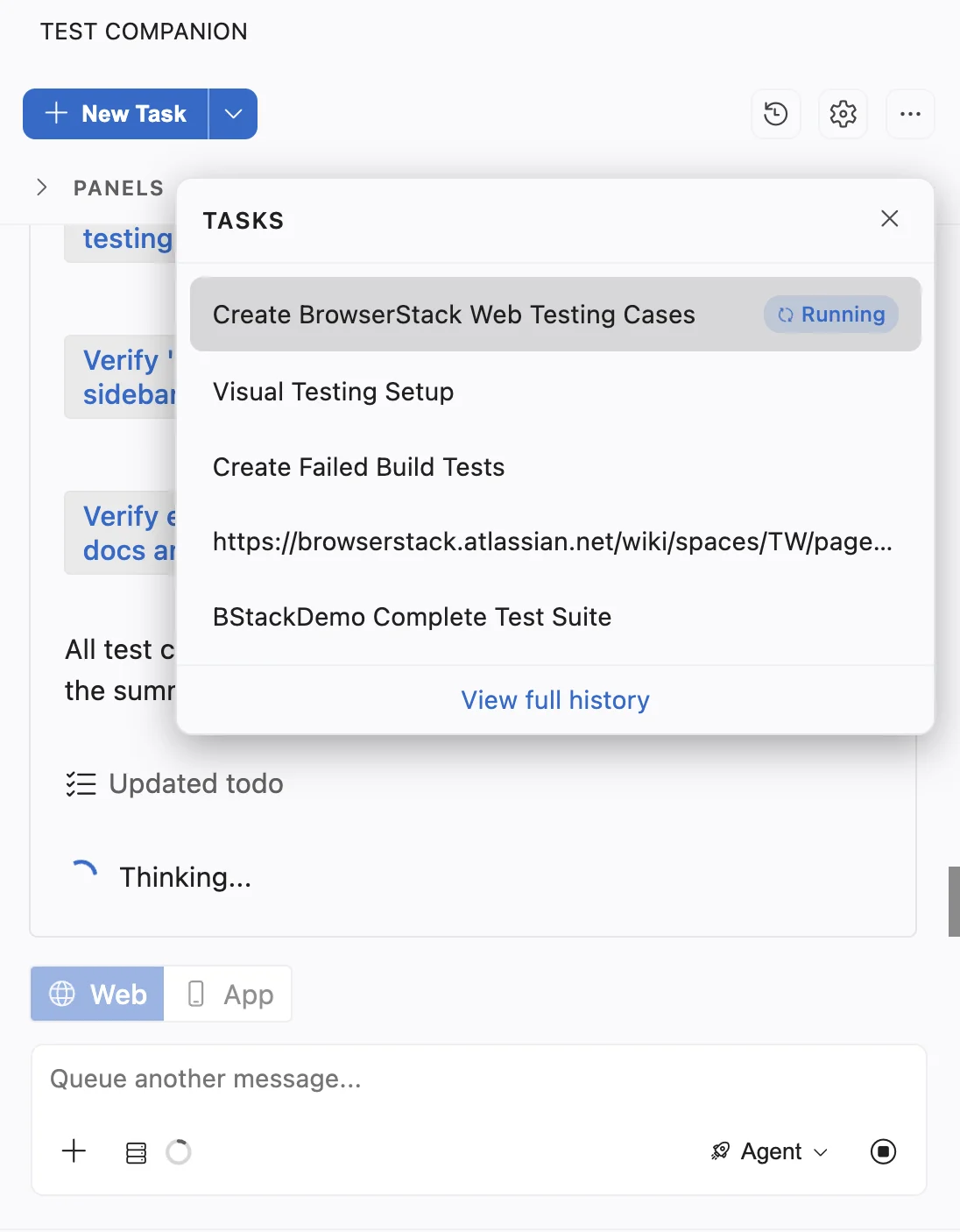
The Tasks panel lists tasks that need your input at the top. Running tasks come next, then your five most recent tasks. To see every past task, click View full history at the bottom of the panel. To close the panel without switching, press Esc.
The task opens exactly where it is. A task that kept running shows the progress it made while you were away. A task that stopped for your input still waits for that input. Switching between tasks never stops or restarts a task.
Track task status
While you work in one task, a background task can finish. It can also stop and wait for your input. The Tasks panel and the History icon show the following indicators, so you know which task to open next:
| Indicator | Details |
|---|---|
| Running badge | The task is in progress. |
| Needs input badge, in amber | The task is waiting for your answer or approval. It does not continue until you respond. |
| Green dot next to a task | The task finished, and you have not opened it since. |
| Dot on the History icon | An amber dot means a background task needs your input. A green dot means a background task finished. |
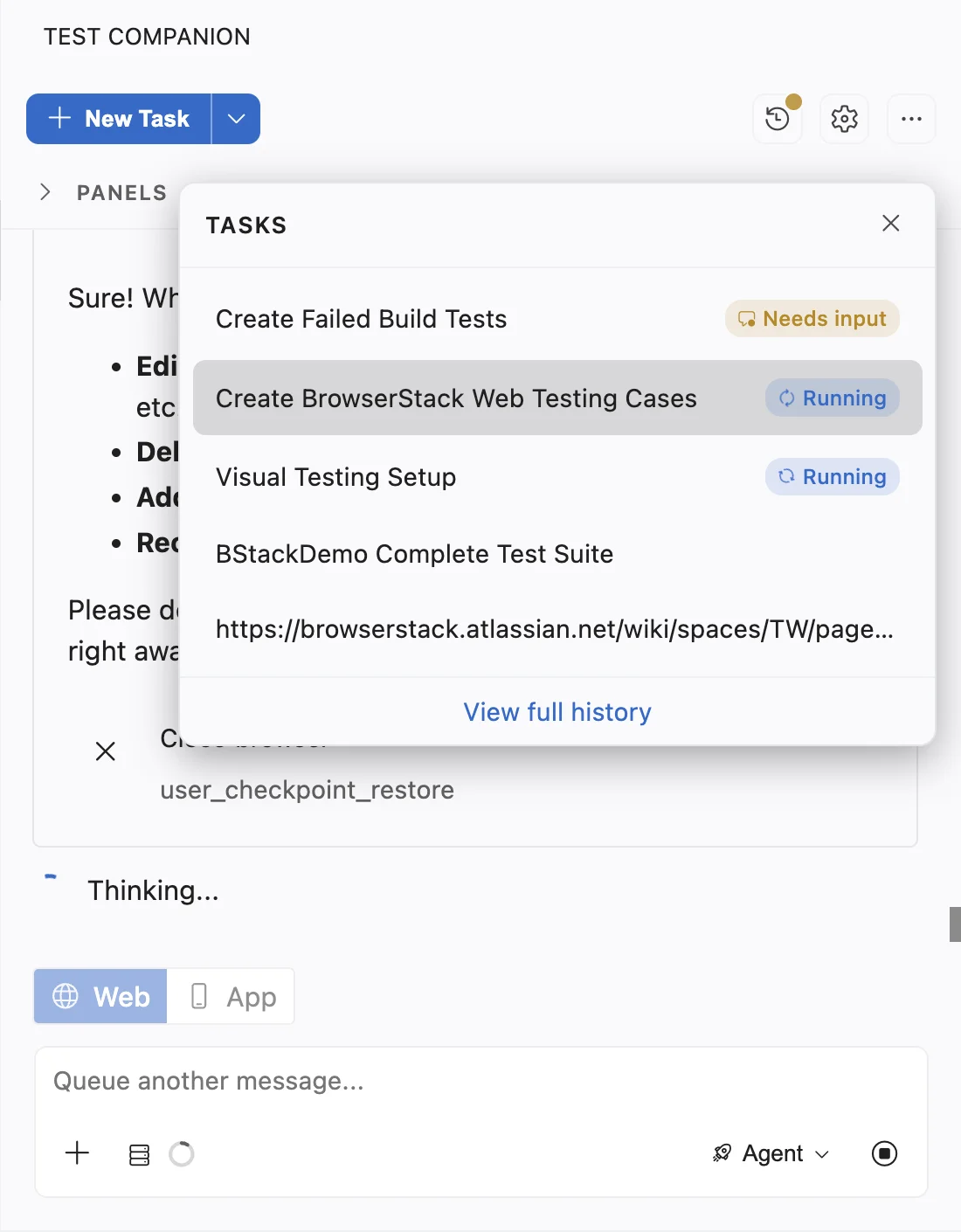
The green dot clears when you open the finished task.
You can also hear an alert when a background task needs input or finishes. In Feature settings, turn on Sound notifications for background activity. This setting is off by default.
Task limit
Only running tasks count toward the limit of five. A task that finished or that waits for your input does not count.
When five tasks are running and you start another task, the Start a new session? dialog opens. In this dialog, a session means a task. The dialog names the task that Test Companion will close.
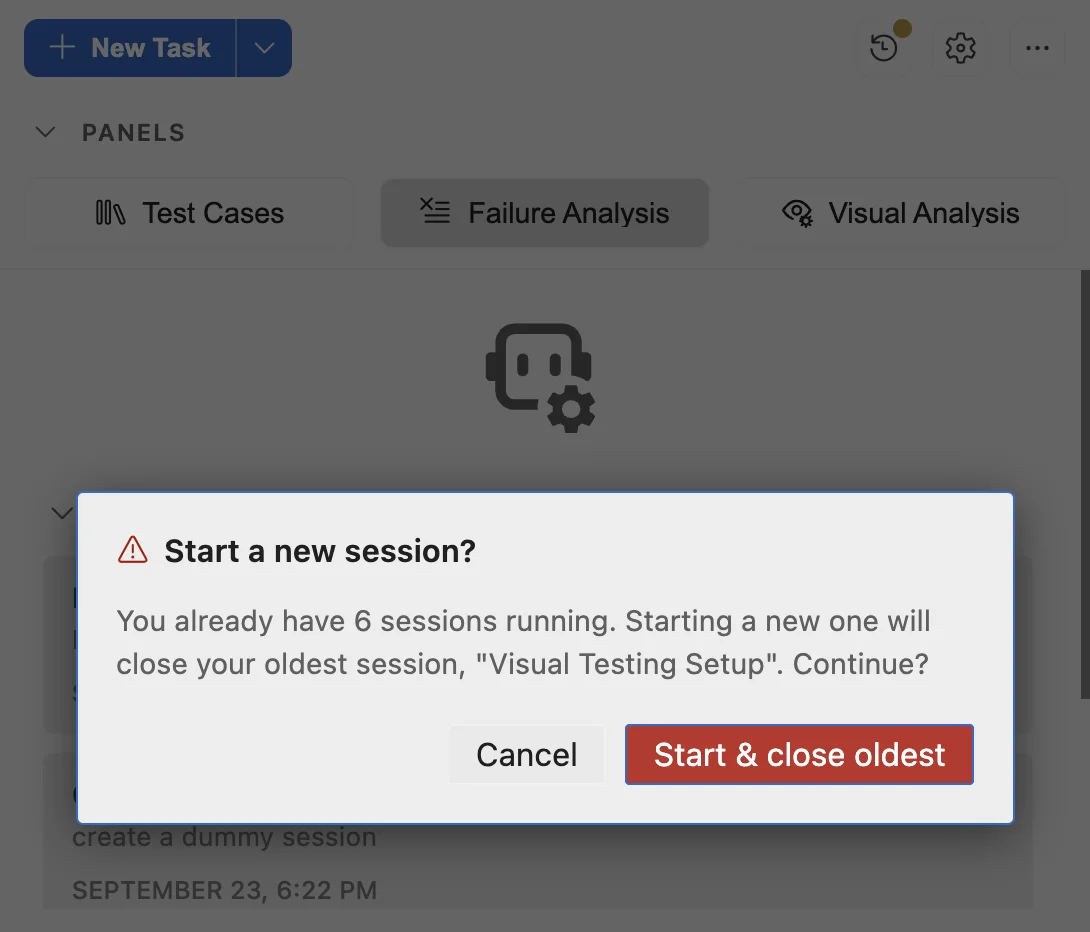
Choose one of these options:
- Click Start & close oldest to close the named task and start the new one.
- Click Cancel to keep all five tasks. Your prompt stays in the chat box.
You can still open the chat of a closed task from View full history.
Work with shared resources
Tasks in the same workspace share the following resources:
- All tasks in a workspace edit the same project files. To avoid conflicting edits, assign each task changes in different files.
- Only one task generates test cases at a time. When a second task starts to generate test cases, it shows a waiting message. It starts on its own after the first task finishes generating test cases.
Next steps
- Feature settings: Turn on sound alerts for background tasks and manage checkpoints.
- Plan and usage: Track how much of your usage allowance your tasks consume.
We're sorry to hear that. Please share your feedback so we can do better
Contact our Support team for immediate help while we work on improving our docs.
We're continuously improving our docs. We'd love to know what you liked
We're sorry to hear that. Please share your feedback so we can do better
Contact our Support team for immediate help while we work on improving our docs.
We're continuously improving our docs. We'd love to know what you liked
Thank you for your valuable feedback!