
 Join our Discord
Test local and private apps from Test Companion Cloud
Let Test Companion Cloud reach an app that runs on your computer, such as localhost, or on a private network that only your computer can reach.
- Availability: Test Companion Cloud is in beta and is not available to every account yet. It is available on request. To have it enabled for your account, contact BrowserStack support.
- IDE: Test Companion Cloud works in Visual Studio Code only.
Test Companion Cloud runs on a machine in the BrowserStack cloud. That machine can open any public website. It cannot open http://localhost:3000 on your computer, or a staging server that only your office network can reach.
Local testing solves this. When it is on, Test Companion starts BrowserStack Local on your computer. BrowserStack Local creates a secure connection between your computer and BrowserStack. During a task in Cloud mode, the cloud machine reaches your local and private apps through this connection.
Local testing works only while your computer is on and Visual Studio Code is open. If your computer sleeps or disconnects during a task, the steps that need your local app fail, and the task continues without them. For a long task that you want to leave running, test against a public staging or preview URL instead.
How it works
The following steps show what happens during a task with local testing on:
- When you send the task, Test Companion starts BrowserStack Local on your computer, if it is not already running.
- The task starts on the cloud machine. When Test Companion opens a local or private URL, the request travels through BrowserStack Local to your computer.
- Your computer opens the URL and sends the response back to the cloud machine.
Public URLs do not use this connection. Test Companion Cloud opens them directly.
Turn on local testing for a workspace
Local testing is on by default in every new workspace. To check or change it, follow these steps:
- Above the message box, click the workspace picker, then click Manage workspaces.
- Click the workspace, then open the Network section. The same section appears when you create a workspace.
-
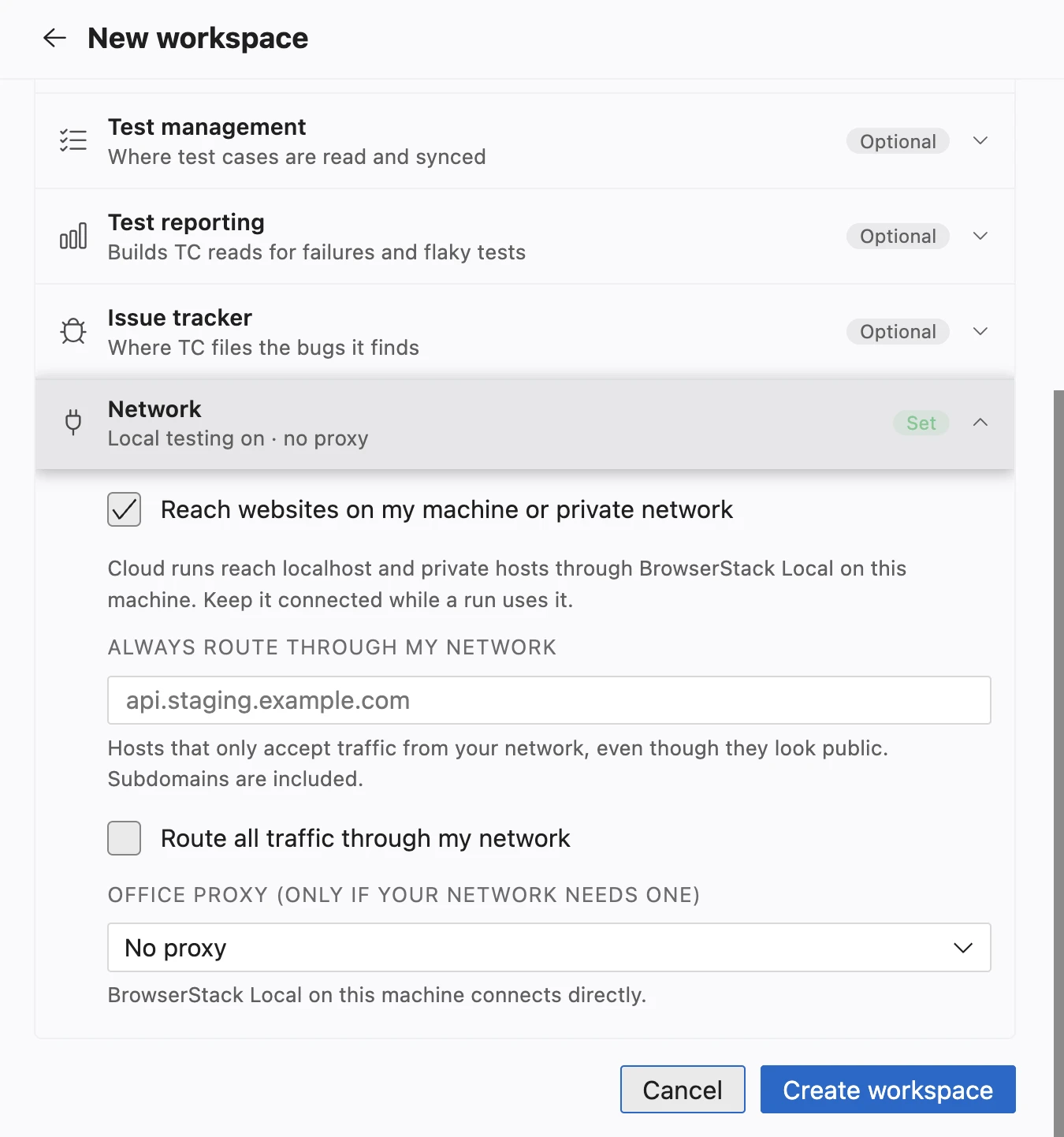
Select Reach websites on my machine or private network. In an App workspace, the option reads Reach apps on my machine or private network.
- Click Save changes.
Then add the URLs of your app to the workspace:
- Add the URL of your app in Website URL, such as
http://localhost:3000. Test Companion checks the URL and shows Through your machine when the cloud machine reaches it through your computer. - Add the other services your app calls, such as an API on
http://localhost:5010, in Other services your website calls.
Test Companion Cloud makes the ports of these localhost URLs available to the tests it runs. So a Playwright, Cypress, or other test that calls http://localhost:3000 reaches the app on your computer.
Route private hosts through your network
Some hosts look public but accept traffic only from your office network or VPN, such as api.staging.example.com. Test Companion detects this for the URLs you add when it checks them. For other hosts, add them to Always route through my network.
In the Network section of a Web workspace, use the following options:
| Option | Details |
|---|---|
| Always route through my network | Lists hosts that Test Companion Cloud always reaches through your computer. Enter a host name, such as api.staging.example.com, and press Enter. Subdomains are included. You can add up to 10 hosts. |
| Route all traffic through my network | Sends every request of the task through your computer, including requests to public websites. Use this option when your network must see all traffic, for example to apply an allowlist. |
Use an office proxy
If your computer reaches the internet through a proxy, set the proxy in the Network section. The field is Office proxy (only if your network needs one). BrowserStack Local on your computer then connects to BrowserStack through this proxy. The following proxy types are available:
| Proxy type | Use case |
|---|---|
| No proxy | Your computer reaches the internet directly. This is the default. |
| Corporate proxy | Your network requires a proxy server. Enter its host and port, and a username, password, and CA certificate path if the proxy needs them. Select Also use this proxy to reach my apps if your apps are behind the same proxy. |
| PAC file | Your network uses a proxy auto-configuration (PAC) file. Enter the path of the file, such as /path/to/proxy.pac. |
| Local MITM proxy | App workspaces only. The traffic of your app goes through a proxy that runs on your computer, such as Charles or mitmproxy. |
A new workspace copies your Test Companion extension’s proxy settings. For more information about these settings, see Proxy and local settings.
The proxy password stays on your computer. Test Companion never sends it to the cloud.
Turn on local testing without a workspace
If you send a task without a workspace, a Test Companion setting controls local testing instead:
- Open the Test Companion Settings.
- Go to Proxy and Local Setup > Cloud local testing.
- Turn on Local testing.
All Test Companion Cloud tasks share one connection, under the name in Tunnel identifier. You cannot edit this name.
Messages you might see
The following messages appear in Visual Studio Code when local testing affects a task in Cloud mode:
| Message | Meaning | Action |
|---|---|---|
| Local testing is on for cloud runs — keep this machine connected. | BrowserStack Local started on your computer. | Keep your computer awake and Visual Studio Code open until the task ends. |
| Couldn’t start local testing for cloud runs — they will continue without access to your localhost. | BrowserStack Local could not start. The task runs, but it cannot reach your local or private apps. | Check your proxy settings in the Network section of the workspace, then send the task again. |
| … is private or uses http, so this run needs local testing. | The URL you picked for the task can be reached only through your computer, and local testing is off. | Turn on local testing, or pick a public URL in Environment for this task. |
| Test Companion is having trouble starting the session: the target URL is private or uses http. Turn on local testing, or use a public https URL. | Test Companion Cloud could not start the task, because it cannot reach the URL without local testing. | Turn on local testing, or use a public https:// URL. |
Next steps
- Set up workspaces in Test Companion Cloud: Add the URLs of your app to a workspace.
- Supported features and limits in Test Companion Cloud: Check what Test Companion Cloud supports.
We're sorry to hear that. Please share your feedback so we can do better
Contact our Support team for immediate help while we work on improving our docs.
We're continuously improving our docs. We'd love to know what you liked
We're sorry to hear that. Please share your feedback so we can do better
Contact our Support team for immediate help while we work on improving our docs.
We're continuously improving our docs. We'd love to know what you liked
Thank you for your valuable feedback!