
 Join our Discord
Agents
Reuse the agents you already defined for Claude Code or GitHub Copilot as Test Companion skills, without copying files between tools.
An agent is a task-specific instruction file that another AI tool stores in your project or home folder. Claude Code keeps them in a .claude/agents folder. GitHub Copilot keeps them in a .github/agents folder. The Agents tab lists every agent file Test Companion finds. You turn each one on and reuse it as a skill.
You do not write agents in Test Companion. You write them in the other tool, or your team commits them to the repository. Test Companion detects them and runs the ones you enable.
How agents work
The extension looks in three locations:
-
.claude/agentsin the workspace. -
.claude/agentsin your home folder. -
.github/agentsin the workspace.
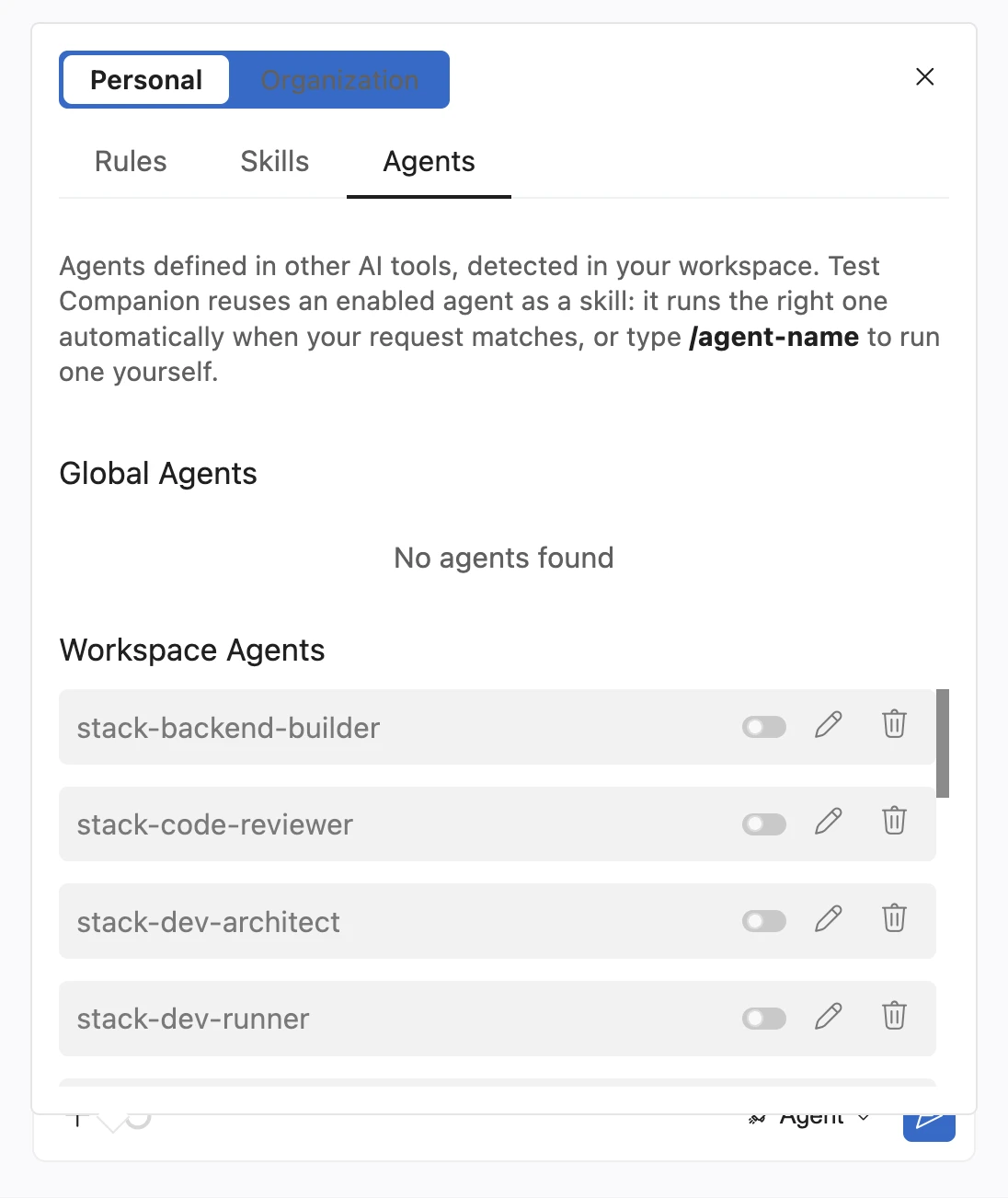
Agents from the workspace appear under Workspace Agents. Agents from your home folder appear under Global Agents. Every detected agent starts off. Nothing runs until you enable it.
An enabled agent behaves like a skill. Test Companion runs it when your request matches, or you type /agent-name in the chat to run it yourself. The agent file itself is not changed.
Enable an agent
Follow these steps:
-
Click + at the bottom of the chat field.
-
Select Rules & Skills. The panel opens on the Personal view.
-
Open the Agents tab. The tab appears only when Test Companion finds at least one agent file.
-
Click the toggle next to the agent you want to use. The change applies to the next task you start.
Run an agent
Type / followed by the agent name in the chat, for example /stack-code-reviewer, then send your message. An enabled agent can also start on its own. When your request matches what the agent does, Test Companion runs it, the same way it suggests a skill.
Manage agents
The toggle next to each agent turns it off and on. A disabled agent stays in the list, but Test Companion does not run it or suggest it.
The pencil icon opens the agent file in your editor. Edit it there and save. Your edits apply the next time you start a task.
The trash icon deletes the agent file after you confirm. You cannot recover it from the panel. If the file was committed to version control, restore it from there.
Limits
- The Agents tab has no New agent button. Create agents in Claude Code or GitHub Copilot, or add the file to one of the three folders above.
- Agents appear under Personal only. The Organization view has no Agents tab, so an admin cannot publish an agent to members. To share an agent, commit it to the repository.
- Only the three folders above are read. Agent files stored elsewhere are not detected.
Agents vs. skills
Both run on demand with a slash command or when your request matches. Test Companion reuses both from other AI tools. Skills it detects from tools such as Claude Code, Cursor, and GitHub Copilot appear on the Skills tab. Agents appear on the Agents tab.
The difference is creation. You can create a skill in Test Companion with New skill. You cannot create an agent in Test Companion. Create the agent in Claude Code or GitHub Copilot, then enable it on the Agents tab.
Next steps
-
Skills: Author reusable prompts of your own and invoke them with
/skill-name. - Rules: Give Test Companion standing instructions that apply to every task.
We're sorry to hear that. Please share your feedback so we can do better
Contact our Support team for immediate help while we work on improving our docs.
We're continuously improving our docs. We'd love to know what you liked
We're sorry to hear that. Please share your feedback so we can do better
Contact our Support team for immediate help while we work on improving our docs.
We're continuously improving our docs. We'd love to know what you liked
Thank you for your valuable feedback!