
 Join our Discord
Fix accessibility violations
Scan your application for WCAG violations and apply code fixes directly from your IDE.
Test Companion finds accessibility violations in the rendered DOM. It writes the fixes straight into your source files, adding missing attributes, correcting contrast ratios, and resolving structural problems. You choose the rule set before each run.
Prerequisites
- A supported IDE with the Test Companion extension installed.
- Access to the source code for the project you want to fix.
- For an Advanced + AI scan, a BrowserStack accessibility plan that includes advanced and AI rules. The scan runs on your own account and against your own quota.
Choose a scan mode
Test Companion asks which rule set to use before it scans anything. Your answer applies to every page in that run.
| Aspect | Base rules | Advanced + AI |
|---|---|---|
| Rules applied | The standard WCAG rules. | The standard rules, plus BrowserStack’s advanced rules and AI-detected issues. |
| Scan location | A browser on your machine. | A browser in the BrowserStack cloud, on your own account. |
| Pages per run | The page loaded in the browser. Each page gives you its own result. | As many pages as you name. They all roll up into one report. |
| Local and private sites | Supported. | Supported. Test Companion sets up the connection for you. |
| Plan requirement | None. | A BrowserStack accessibility plan that includes advanced and AI rules. |
| Duration | Seconds. | A minute or two, and longer across several pages. |
| Output | Violations listed in the chat. | One report card in the chat, plus a link to your BrowserStack Accessibility dashboard. |
| Code fixes | Yes. | Yes. |
| Best for | Fast feedback while you iterate on a local build. | The widest coverage, a dashboard report, or one view across several pages. |
Plan coverage
An Advanced + AI scan draws on your own BrowserStack accessibility plan and quota. What happens next depends on what your plan covers:
- Your plan has no accessibility testing. Test Companion shows the message BrowserStack Accessibility returns, with a link to read more, then offers to run the base scan instead.
- Your plan covers only some rule classes. The scan still runs. The results name the rule classes that did not run.
A partial scan is not a clean pass, so read that notice before you treat a low issue count as good news. It reads like this:
Advanced rules and AI rules did not run. Your BrowserStack accessibility
plan does not include them. Base accessibility rules completed normally.
Start a scan
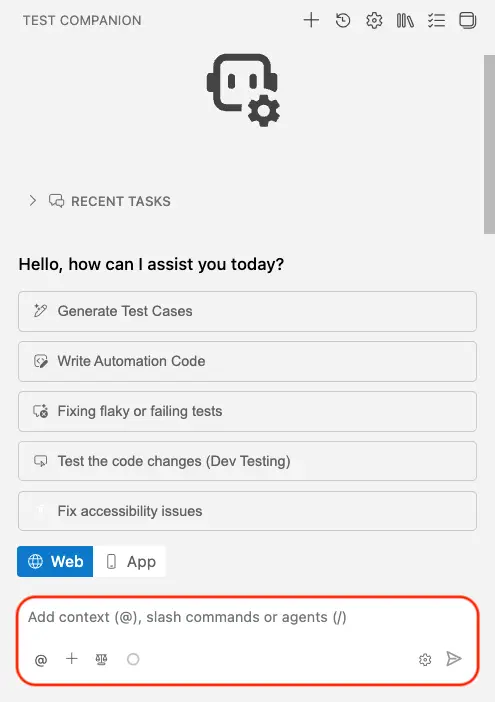
- Open the Test Companion panel in your IDE.
- In the chat box, give Test Companion context in one or more of these ways:
- Prompt: Describe what you want to scan, or paste the URL into the chat.
- Attach a file: Click the + (Add Files & Images) icon to attach a PRD, spec, or screenshot.
-
Add workspace context: Type
@to reference specific files, folders, git commits, or terminal output.
- Press Enter.
- Answer the scan-mode question, then confirm which pages or flows to cover and which WCAG level to target.
Test Companion targets WCAG 2.1 Level AA unless you ask for a different level.
A base scan opens a browser on your machine and scans the page loaded in it. If your local development server is not running, Test Companion starts it for you, for example by running npm run dev.
Advanced + AI scans
An Advanced + AI run sends each URL to a Chrome browser in the BrowserStack cloud, which loads the page itself. No browser opens on your machine.
Scan several pages in one run
- Name the pages or the flow you want covered. Test Companion scans each URL in turn.
- After each page, Test Companion reports its progress and lists the links it found to other pages on the same site. If you asked it to explore the site, it picks the next page from those links.
- When every page is scanned, Test Companion renders one consolidated Accessibility Report card.
Most runs take a minute or two. A run across several pages takes longer, because Test Companion scans each page in turn. While a page is being scanned, the card shows a live preview of the cloud browser, so you can watch the work in progress. A long run is not a stalled run.
Scan a local or private site
An Advanced + AI scan can target a site that is not open to the internet. That includes localhost:3000, an internal host name such as staging.internal, and a private network address such as 192.168.1.20.
Test Companion recognizes these addresses and sets up a BrowserStack Local connection on your account, so the cloud browser can reach the site. It closes the connection when the run ends. You do not set anything up yourself.
Scanning a local or private site requires Test Companion version 1.27.1 or later on Visual Studio Code, or version 1.6.4 or later on a JetBrains IDE.
If the connection cannot start, Test Companion stops the scan and tells you, rather than scanning an unreachable page and reporting a false clean result. The same applies when a page fails to load partway through a run. That page is reported as failed, not counted as having no issues.
Review the results
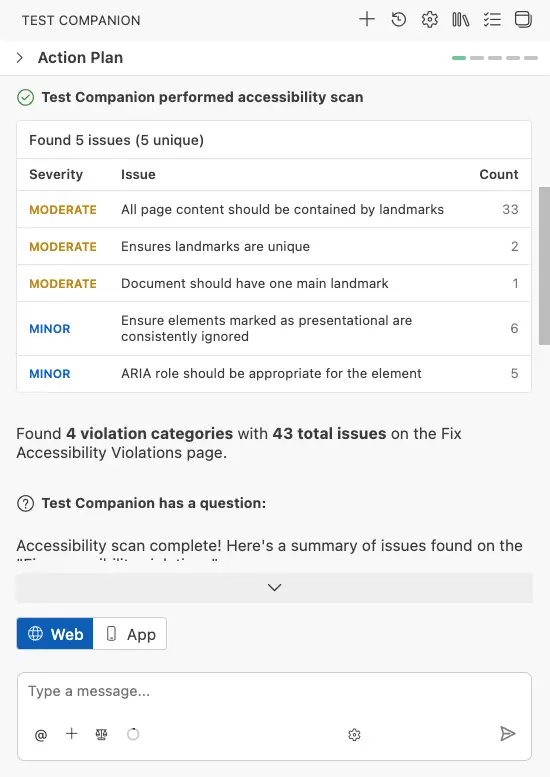
Test Companion sorts every violation by severity: Critical, Serious, Moderate, and Minor. Where the results appear depends on the scan mode you chose.
The most common violations fall into four categories:
-
HTML structure: A missing
langattribute on the<html>tag. -
Media: An image with no
alttext. - Forms: An input field with no associated label.
- Visuals: An element below the minimum color contrast ratio.
Base scan results
A base scan lists every violation in the chat. Expand a violation to see the file path and the code line behind it.
Advanced + AI report card
An Advanced + AI run renders one Accessibility Report card in the chat. The card has two tabs:
- Insights, shown first, with a severity donut: the total issue count and the split across Critical, Serious, Moderate, and Minor.
- Summary, with a short plain-language summary of the fixes to make first.
From the card you can also:
- Select View all issues, or select a segment of the donut, to open the full issues table in its own editor tab. Selecting a segment filters the table to that severity. Each rule row expands to show the affected components and how often each one occurs.
- Select View full report on BrowserStack to open the run on your Accessibility dashboard. There you inspect the element behind each issue and see the WCAG rule that failed. The report sits on your own account, so it opens directly for you. To share it with someone outside your account, turn on the report’s public link from the dashboard.
Every page in a run rolls up into one report, so the counts on the card are totals across all pages scanned, not per-page counts.
Apply fixes
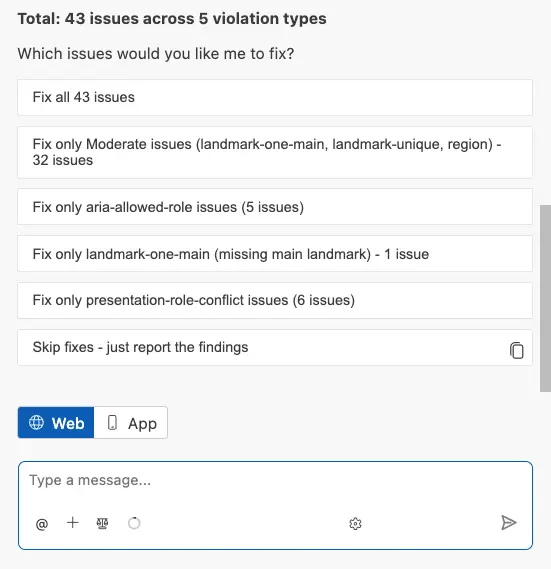
Fix every issue at once, or pick the categories you want to address. Test Companion fixes advanced and AI-detected issues the same way it fixes base violations, as long as the affected code is in your workspace.
- In the chat, Test Companion presents remediation options:
- Fix all issues: Apply patches for every violation found.
- Fix only Critical issues: Apply patches for missing alt text on images and missing labels on form inputs.
-
Fix only Serious issues: Apply patches for color contrast violations and missing
langattributes. - Fix Critical + Serious issues: Apply patches for both Critical and Serious categories.
- Choose specific issues: Select individual violations to fix.
- Test Companion analyzes your codebase and generates the necessary code changes.
Test Companion adds the accessibility attributes without changing your existing logic. Two common examples:
Missing alt text (React/JSX):
Before:
<img src={product.image} />
After:
<img src={product.image} alt={product.name} />
Color contrast (CSS):
Before:
.price-tag {
  color: #999; /* Contrast ratio 2.1:1 (Fail) */
}
After:
.price-tag {
  color: #767676; /* Contrast ratio 4.5:1 (Pass) */
}
Review the proposed code changes in the editor diff view before you accept them.
Verify fixes
After applying changes, verify that the violations are resolved.
- Test Companion automatically triggers a re-scan of the updated application.
- Review the Verification Results summary.
- Confirm that the status for targeted issues is marked as Resolved.
You can also inspect visual changes, such as contrast updates, in the browser instance Test Companion launched.
Example prompts
Scan a page and fix the serious problems:
Scan localhost:3000 for all accessibility violations. Fix everything that is Critical or Serious.
Scan one form with a narrow focus:
Check the signup form at localhost:3000/register for accessibility issues.
Focus on form labels, error messages, and keyboard navigation.
Confirm that earlier fixes worked:
Re-scan localhost:3000/checkout. I applied your previous fixes and want to confirm
all issues are resolved.
Run an Advanced + AI scan on a single page:
Run an Advanced + AI accessibility scan on https://example.com/pricing
against WCAG 2.1 AA. Just report the findings, do not fix anything yet.
Run an Advanced + AI scan across a flow:
Run an Advanced + AI accessibility scan across the checkout flow on
https://example.com: the cart, shipping, and payment pages.
Next steps
- Prompt guide: Write prompts that produce better results for accessibility scans.
- Configure AI settings: Set up auto-approve so Test Companion applies fixes without asking.
- Fix failed tests: Diagnose and fix test failures from your CI/CD builds.
- Scan an app for accessibility issues: Run the equivalent scan against an iOS or Android app on a real device.
We're sorry to hear that. Please share your feedback so we can do better
Contact our Support team for immediate help while we work on improving our docs.
We're continuously improving our docs. We'd love to know what you liked
We're sorry to hear that. Please share your feedback so we can do better
Contact our Support team for immediate help while we work on improving our docs.
We're continuously improving our docs. We'd love to know what you liked
Thank you for your valuable feedback!