
 Join our Discord
Make self-healed locators permanent
Write the locators that BrowserStack self-healing repaired during a run back into your test code with Test Companion, and verify each fix on BrowserStack.
When a locator in your test breaks, BrowserStack self-healing finds the element another way, and the test passes. Your code still holds the broken locator, so the same locator heals again on every run. Test Companion reads the self-healing report of a build. It replaces each broken locator in your source code with the value that worked. It then re-runs the affected tests on BrowserStack to prove each fix.
You can start from the Failure Analysis panel, from the Test Reporting & Analytics dashboard, or from the chat. In every case, Test Companion posts a plan and waits for your approval before it changes a file.
Prerequisites
You need the following before you start:
- A build that ran on BrowserStack with self-healing turned on, in which at least one locator healed. To turn on self-healing, see the self-healing page for Selenium, Playwright, or Appium.
- A BrowserStack Test Reporting & Analytics project that receives the build.
- The source code of the tests, open in your IDE workspace.
- Your BrowserStack credentials, configured in Test Companion.
- One of the following versions of the Test Companion extension:
- Visual Studio Code: Test Companion 1.37.0 or later
- JetBrains IDEs: Test Companion 1.12.0 or later
- Eclipse: Test Companion 1.4.0 or later
BrowserStack writes the self-healing report after the build finishes. If the build finished in the last few minutes, the heal actions might not appear yet. Wait a few minutes, then select the build again.
Find self-healed tests in the Failure Analysis panel
To list the self-healed tests in a build, follow these steps:
-
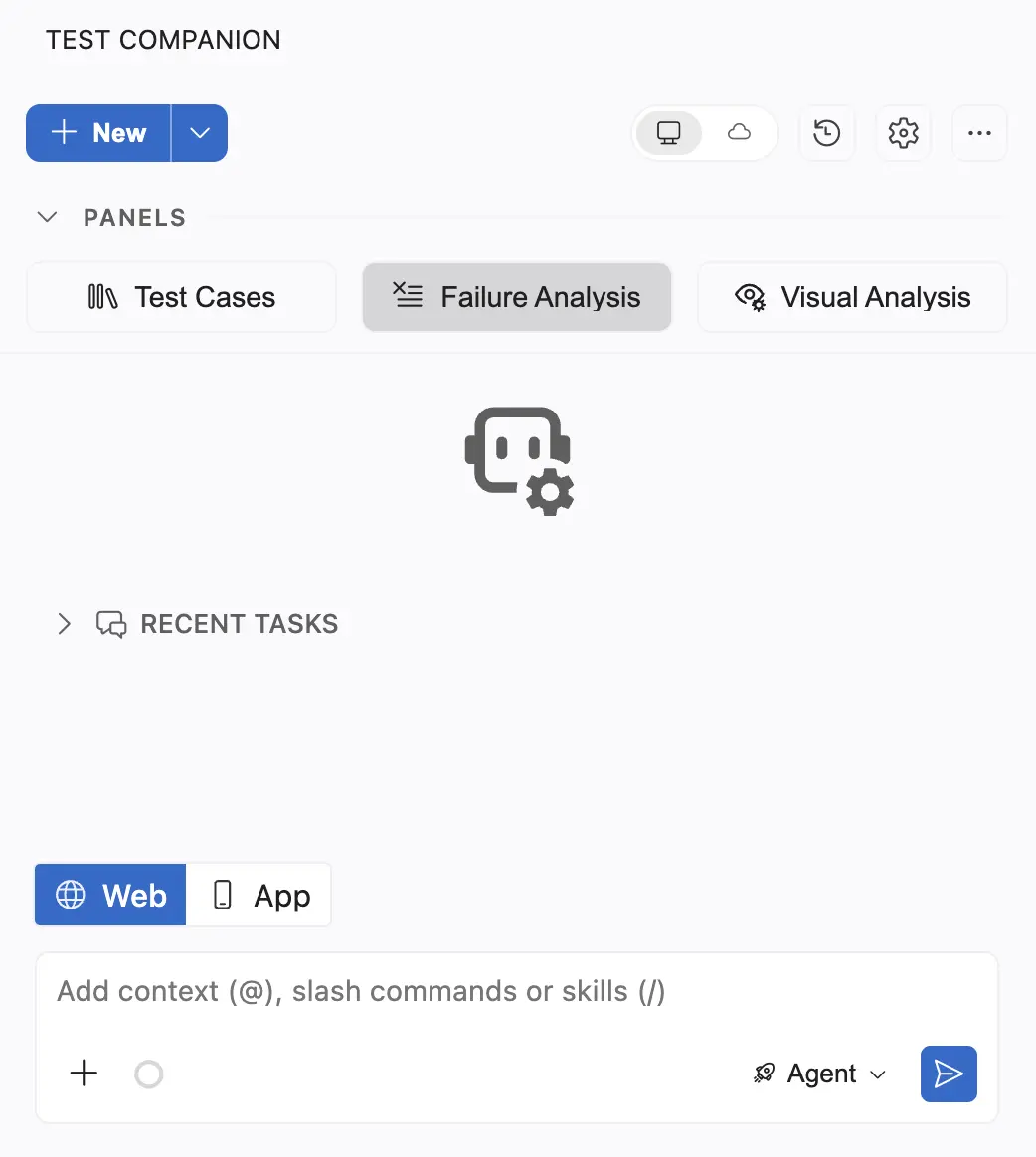
In the Test Companion panel, under Panels, click Failure Analysis.
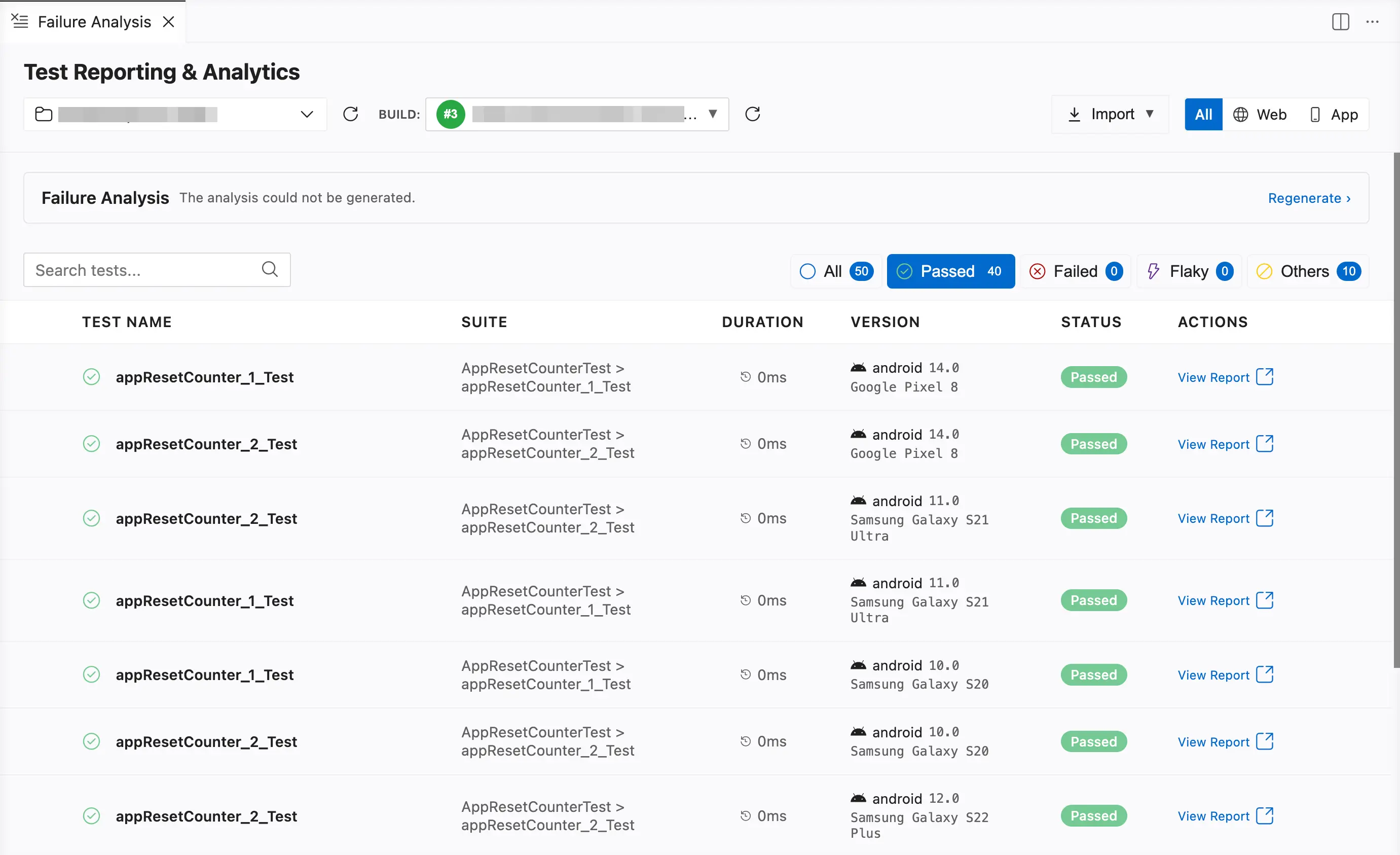
- From the project dropdown, select the project that contains your build.
- From the Build dropdown, select the build.
-
Click the Passed tab.
A self-healed test shows a blue bandage icon next to its Passed status. Hover over the icon to read self healed.
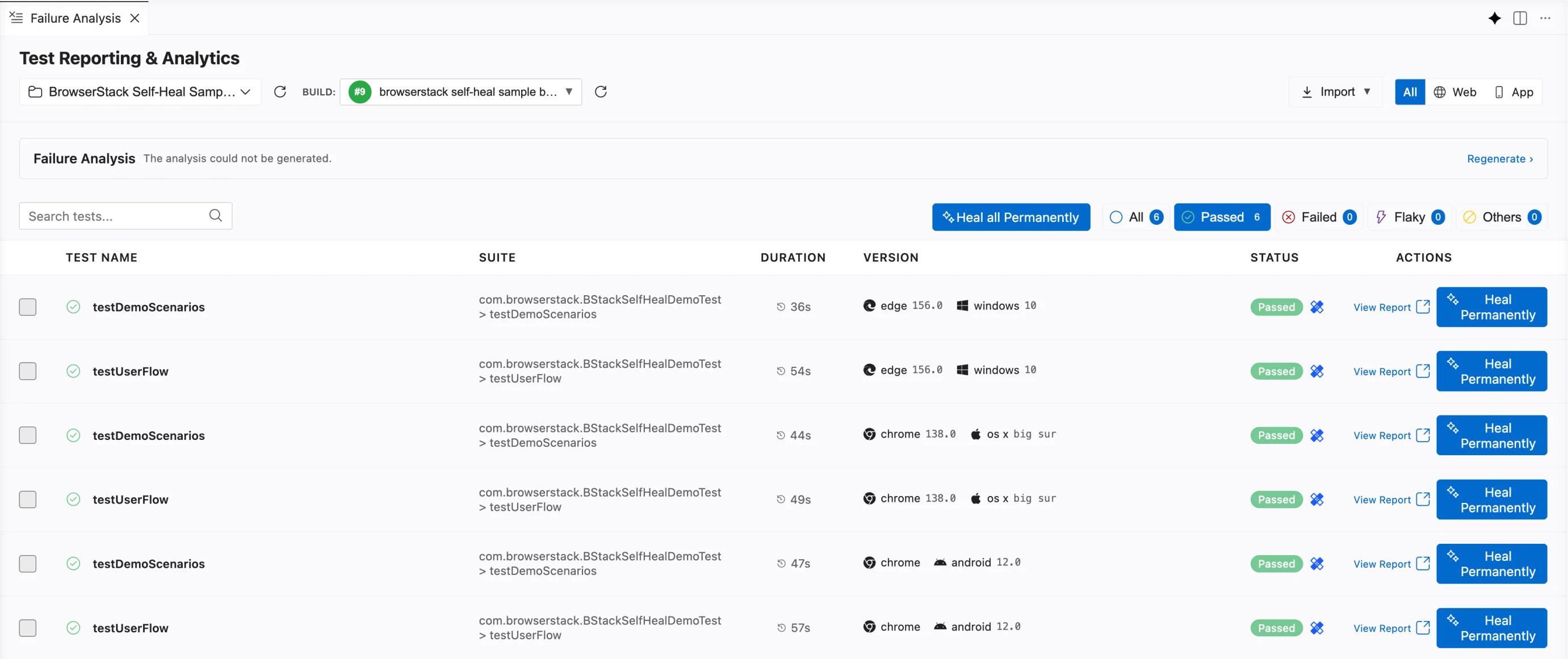
A test counts as self-healed only when it passed and is not marked as flaky. A locator must also have healed during the run of that test. A failed or flaky test does not show the icon. To fix those tests, see Fix failed tests and Fix flaky tests.
Choose what to heal
On the Passed tab, you can heal one test, the tests you select, or every self-healed test in the build.
Heal one test
In the row of the self-healed test, under Actions, click Heal Permanently. The tooltip reads Your test will be updated with the locator that worked during this run.
After you click Heal Permanently, Test Companion opens a new task. It fills the chat box with a prompt for the heals of that test. The prompt lists each healed locator once, with the following details:
- The original locator and the healed locator that worked during the run.
- The locator strategy, and the new strategy when the heal changed it.
- The test in which the locator healed.
- The file where the locator is defined, when the report knows that file.
Review the prompt, then press Enter. Test Companion waits for you to send the prompt.
Heal selected tests
To heal the tests you select, follow these steps:
- On the Passed tab, select the checkboxes of the self-healed tests you want to heal.
- Click the button that shows your count, for example, Heal 2 Permanently.
- Review the prompt, then press Enter.
A checkbox selection applies to one tab only. Switching tabs, changing a filter or the search, or selecting another build clears the selection. You cannot select self-healed tests and failed tests at the same time.
Heal every self-healed test in the build
With no test selected, click Heal all Permanently. The prompt covers every self-healed test in the build. When two tests healed the same locator the same way, the prompt lists that heal once and names both tests.
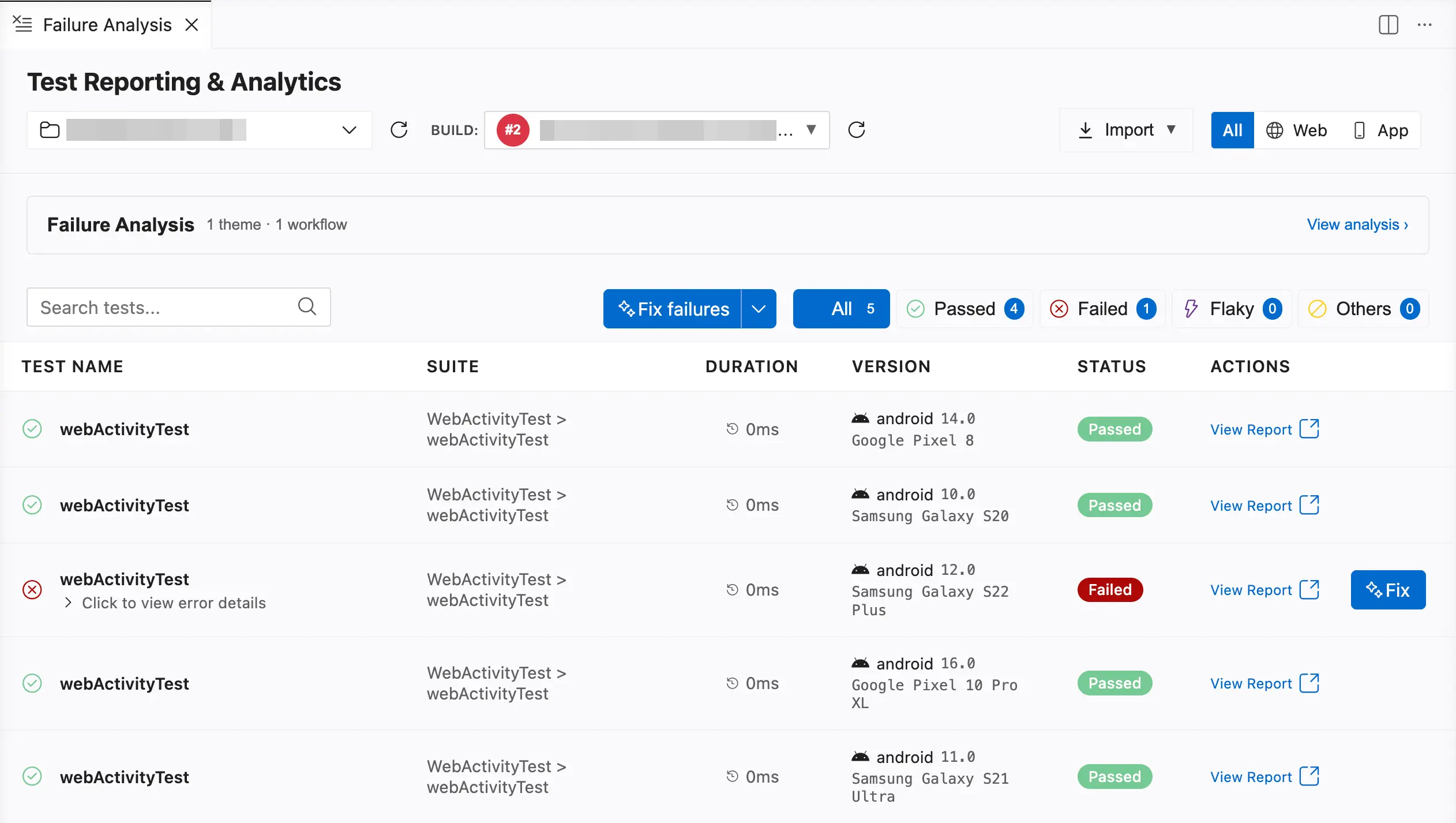
When the build also has failed tests, the build actions share one button. Fix failures is the main action, and Heal all Permanently moves into the menu. Click the arrow next to the button to open the menu.
Start from the Test Reporting & Analytics dashboard
The dashboard opens Test Companion in Visual Studio Code, Cursor, or a JetBrains IDE. Cursor uses the Test Companion extension for Visual Studio Code, so the same version applies. The dashboard does not open Eclipse.
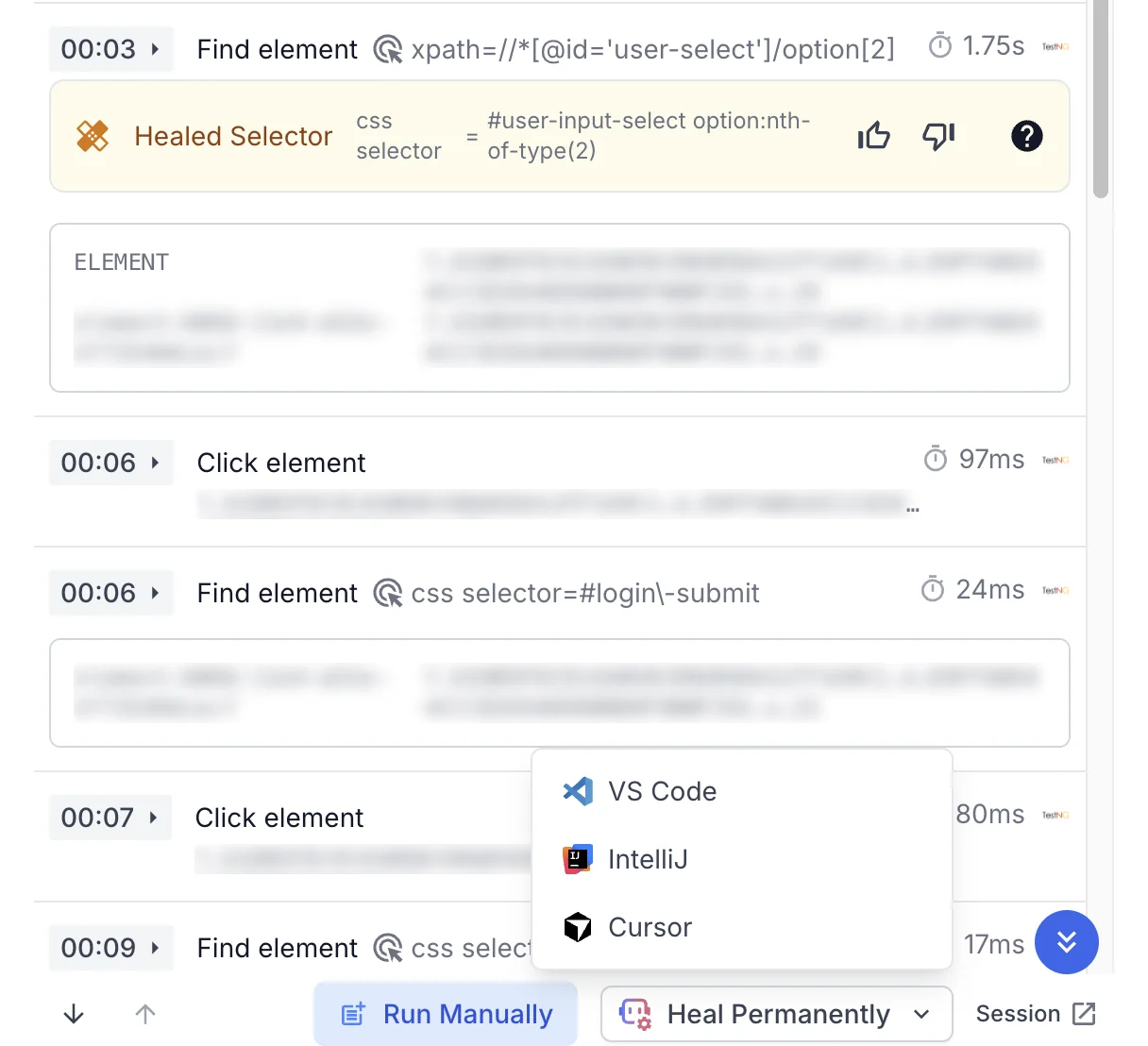
The Heal Permanently button opens the IDE that you chose last. To choose another IDE, click the arrow next to the button.
Heal one test from the Debug panel
To heal one test from the Debug panel, follow these steps:
-
Open the latest attempt of a test run that passed, is not marked as flaky, and has a healed locator.
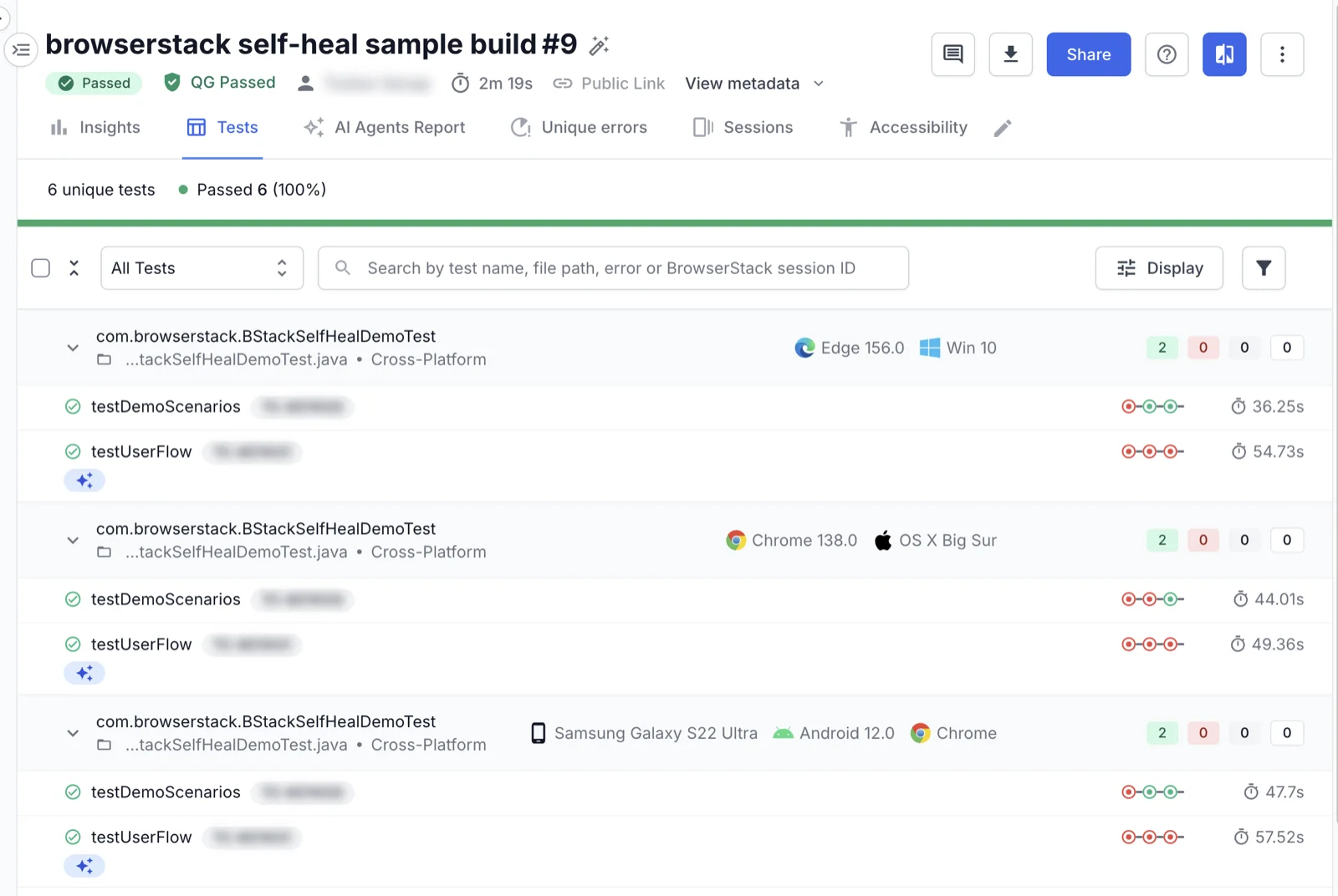
The test details open with the Debug panel on the right.
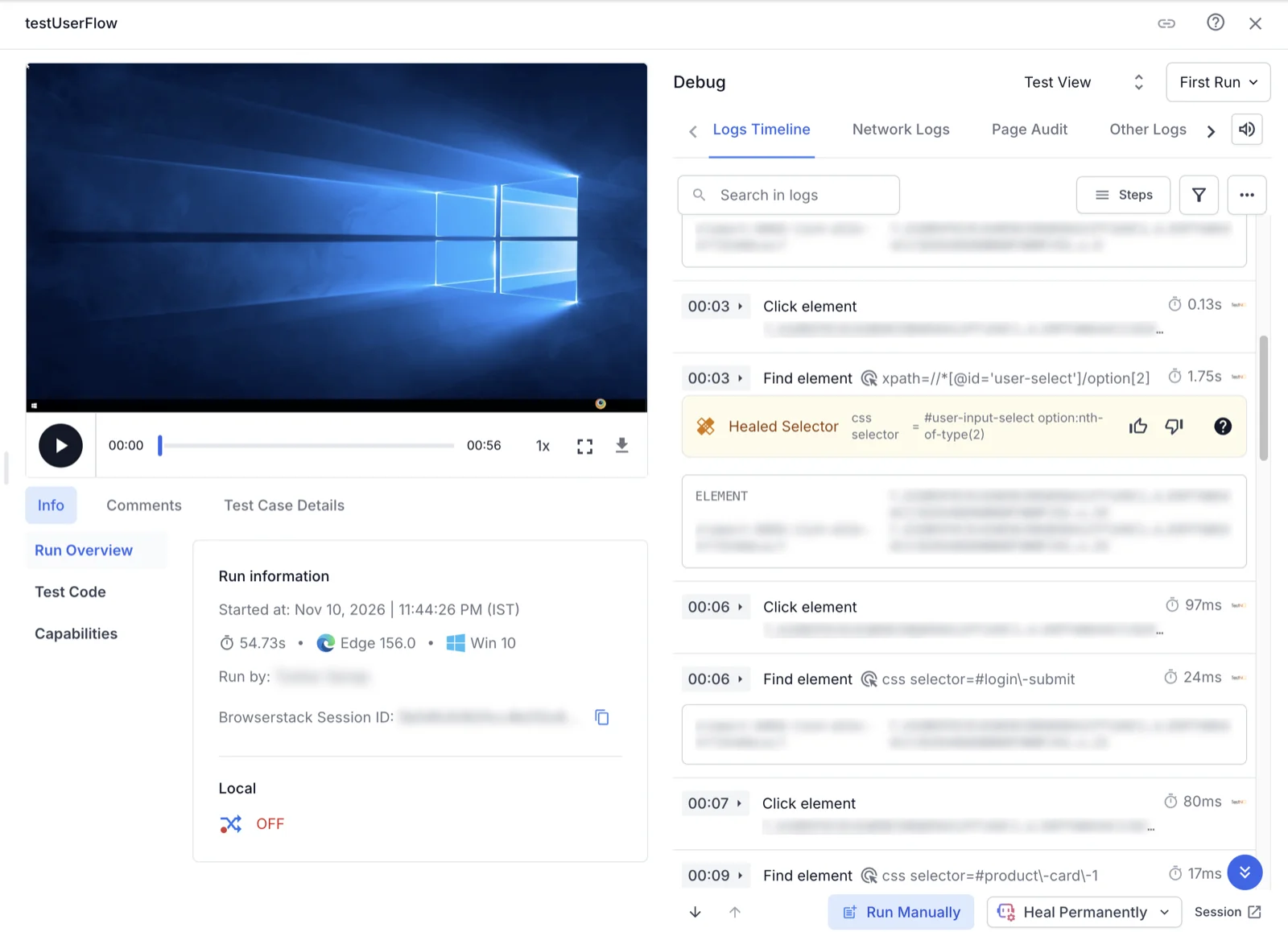
-
Below the logs in the Debug panel, click Heal Permanently, and choose your IDE.
Heal selected locators from the AI Agents Report
To heal the locators you select in the AI Agents Report, follow these steps:
-
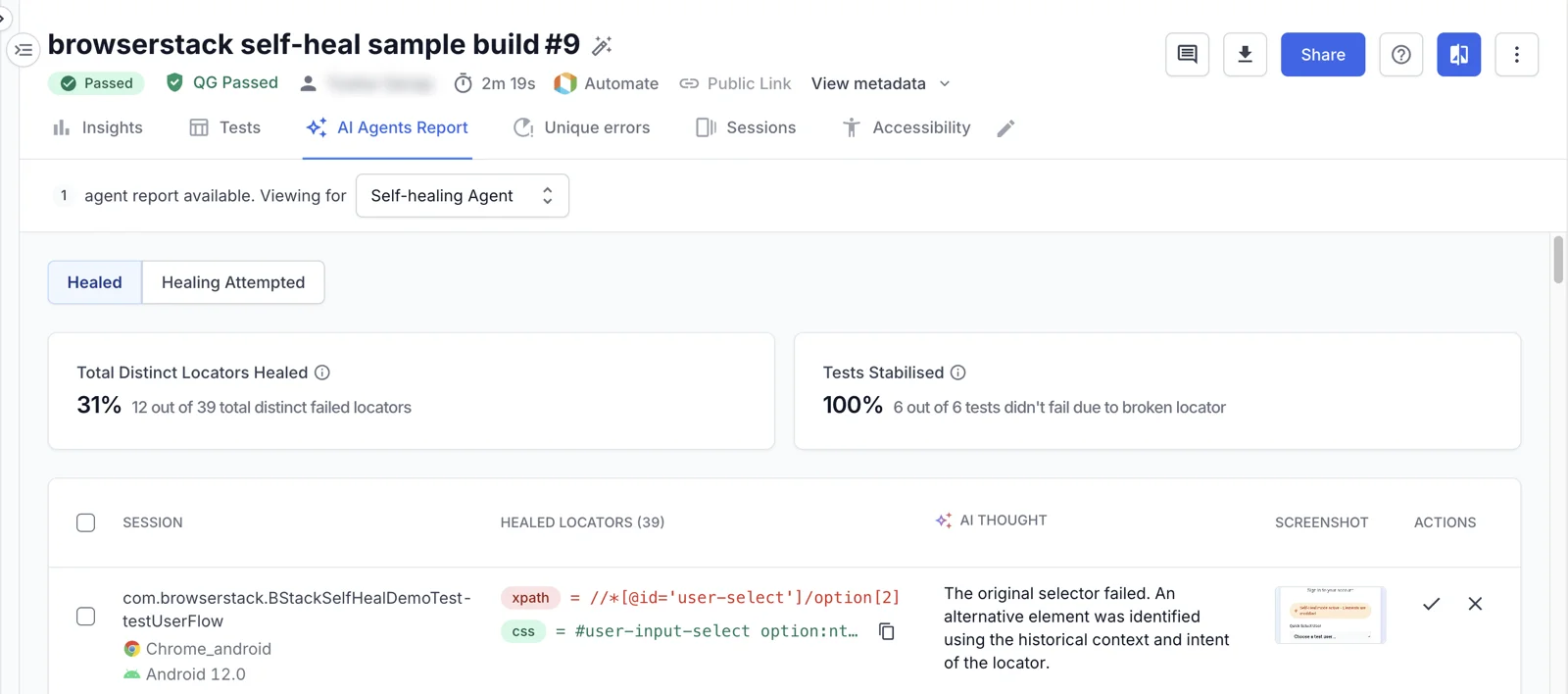
Open the build, and click the AI Agents Report tab.
-
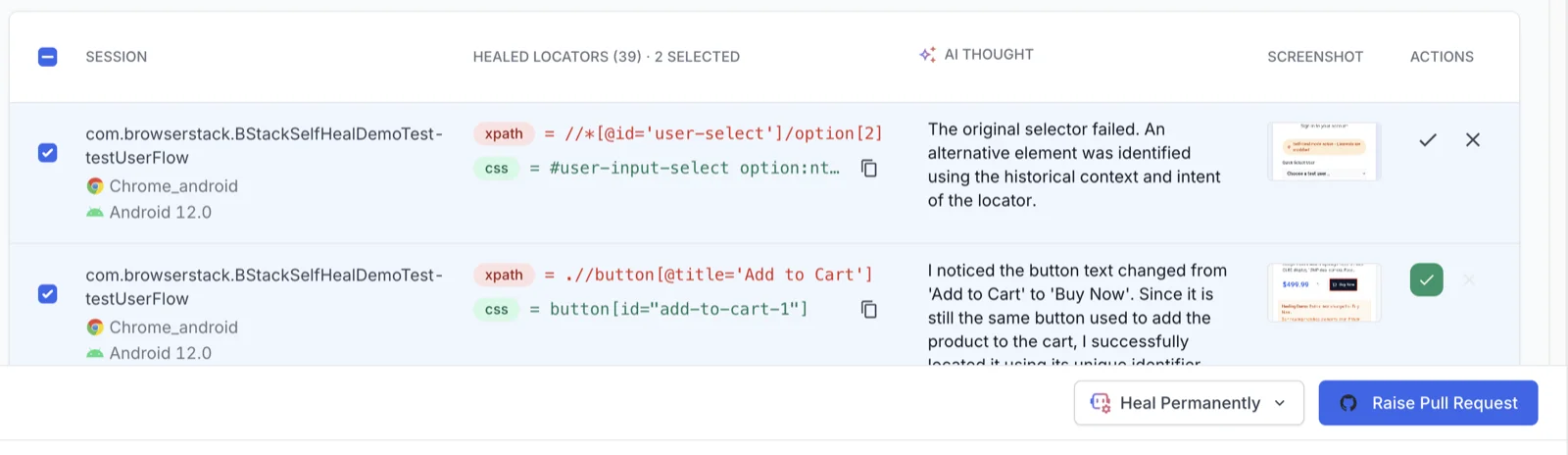
In the self-healing report, select the healed locators that you want to make permanent.
-
Click Heal Permanently, and choose your IDE.
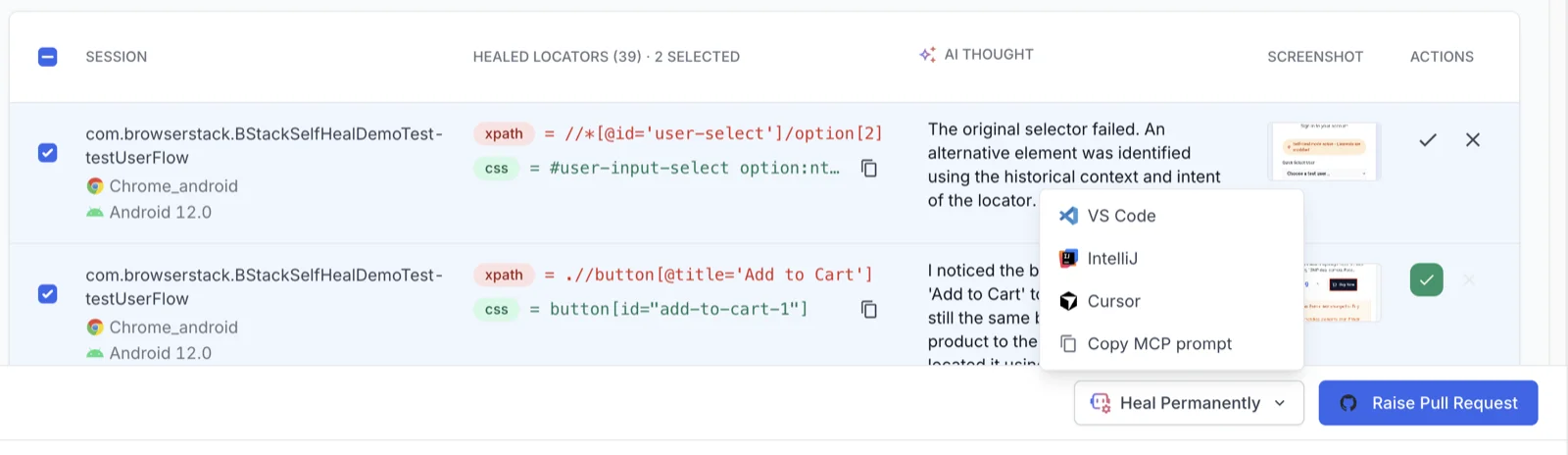
You can select up to 50 locators at a time. If you select more, the dashboard shows Copy MCP prompt instead. Select fewer locators, or copy the prompt and paste it into the chat. Copy MCP prompt is also available in the menu of the Heal Permanently button.
What happens in your IDE
Test Companion opens a new task and fills the chat box with the prompt. While Test Companion reads the report, the status bar shows Fetching healed locators from BrowserStack. Review the prompt, then press Enter. Test Companion then follows the steps in Review and approve the changes.
If you are signed out, Test Companion asks you to sign in to BrowserStack and click Heal Permanently again. If the build has no self-healing report yet, it reports that the report is written after the build finishes.
To open a JetBrains IDE from the dashboard, the IDE must already be running with a project open. Test Companion must be installed in it. If your browser asks to allow the page to open an app on your device, allow it. If the IDE does not open, the dashboard shows Couldn’t open with links to install Test Companion or the IDE. Install what is missing, then click Try again.
Make locators permanent from the chat
Ask Test Companion in plain language, and identify the build. For example:
Make the self-heals in this build permanent: <Test Reporting & Analytics build link>
You can identify the build in any of the following ways:
- Paste a Test Reporting & Analytics link to the build, to a test run, or to a session.
- Give the build ID.
- Give only a project name. Test Companion uses the latest build of that project.
If you do not identify a build, Test Companion uses the project from the current context. If there is none, it asks you to choose one. It then uses the latest build of that project.
A build name and a build number are not enough, because they can match more than one build. In that case, Test Companion asks you for the build ID or the build link.
You can narrow the request to a test, a file, a locator, or a platform. For example:
Make the self-heals permanent for <Test Reporting & Analytics build link>, only for the login tests.
To see what healed without changing any code, ask for a list. For example:
What healed in build <Test Reporting & Analytics build link>?
Test Companion lists the heals and makes no edits.
In a large build, Test Companion works through the heals in batches of 20. After it finishes a batch, it offers the next one.
Review and approve the changes
From the panel, the dashboard, and the chat, Test Companion follows the same steps:
- Maps each healed locator to the place where it is defined in your code. That place is the test file or a page object that the test imports. Test Companion matches the locator by meaning, not by exact text.
- Posts a plan that lists each locator it will update, and waits for your approval.
- After you approve, writes the healed value exactly as it appears in the report, in the style of your code.
- Re-runs the affected tests together, in one run on BrowserStack. Test Companion asks you to approve the run command first. A local run does not count as proof, because self-healing works only on BrowserStack.
- Checks the self-healing report of the re-run. With self-healing turned on, a wrong fix heals again and still passes. So a passing test alone does not prove the fix.
- Posts one changelist with a status for each locator.
| Status | Meaning | Kept in your code |
|---|---|---|
| Verified | The test passed in the re-run, and the locator did not heal again. When Test Companion cannot run the re-heal check at all, a passing re-run counts as verified, and Test Companion says so. | Yes |
| Re-healed | The locator healed again in the re-run, so the fix is not correct. | No |
| Pending | The test passed, but the re-heal check could not finish, for example because the report of the re-run is still being written. | Held. Test Companion offers to check it again later. |
| Skipped or held | Test Companion could not map the locator with certainty, or could not verify the test that the locator belongs to. The reason is listed. | No |
Test Companion keeps only the verified changes. When more than one heal belongs to the same test, Test Companion verifies those heals together. One passing test proves them as a group. If one heal in a test cannot be verified, Test Companion holds every heal in that test.
A re-run that fails and then passes on a retry is treated as flaky, not as proof. Test Companion retries a re-run once, and only for an infrastructure error or a timeout.
Test Companion can offer to turn off self-healing for the re-run. A wrong fix then fails instead of healing again. Test Companion does not change your configuration itself.
Heals that Test Companion skips
Test Companion changes a locator only when the locator maps to exactly one place in your code. Otherwise, it skips the heal and records the reason. That happens in the following cases:
- The locator is built dynamically or from a variable.
- The same locator appears in more than one place.
- The locator is in a shared page object, and Test Companion cannot tell which use to change.
- The source code changed after the build ran.
Test Companion never guesses a near match.
In app tests, the healed value can be an absolute XPath from the view hierarchy of the app. If your code already holds a stable locator for that element, Test Companion can write that locator instead. Otherwise it writes the XPath as reported.
Troubleshooting
Use the following fixes for common issues:
- The heal actions do not appear in the panel. The build has no self-healing report. Self-healing was off for the run, no locator healed, or the build finished only a few minutes ago. Wait a few minutes, then select the build again.
- Test Companion reports that the build has no self-healing report. The report might not exist yet. A missing report does not prove that nothing healed. Wait a few minutes after the build finishes, then ask again.
- Test Companion asks for a build ID. You identified the build by name and number. Paste the build link or give the build ID.
- Test Companion reports that a test is not eligible. The test failed, is marked as flaky, or the run is not the latest attempt of that test. Test Companion makes only the heals of passed, non-flaky, latest runs permanent.
Next steps
- Fix failed tests: Fix tests that fail outright, from the panel, a CI run, or the chat.
- Fix flaky tests: Find tests that pass and fail across runs, and stabilize them.
- Self-healing for Selenium tests on Automate: Turn on self-healing for your test runs.
We're sorry to hear that. Please share your feedback so we can do better
Contact our Support team for immediate help while we work on improving our docs.
We're continuously improving our docs. We'd love to know what you liked
We're sorry to hear that. Please share your feedback so we can do better
Contact our Support team for immediate help while we work on improving our docs.
We're continuously improving our docs. We'd love to know what you liked
Thank you for your valuable feedback!