
 Join our Discord
Custom fields
Add metadata like build version, sprint number, or environment configuration to your test cases.
Custom fields are name/value pairs attached to your test cases. They carry through to every downstream action. They appear as additional columns when you export and transfer to your test management system when you sync.
You can add or update custom fields in two ways:
- From the Custom Fields dialog: Open the dialog and add or edit fields manually.
- From the chat: Ask Test Companion in plain English to add or update a field on your test cases.
Both paths write to the same custom fields and run through the same validation. Use whichever fits the moment.
Add custom fields
Use the dialog when you want to review every custom field on your test cases in one place, or when you want to set values for several fields before a sync.
-
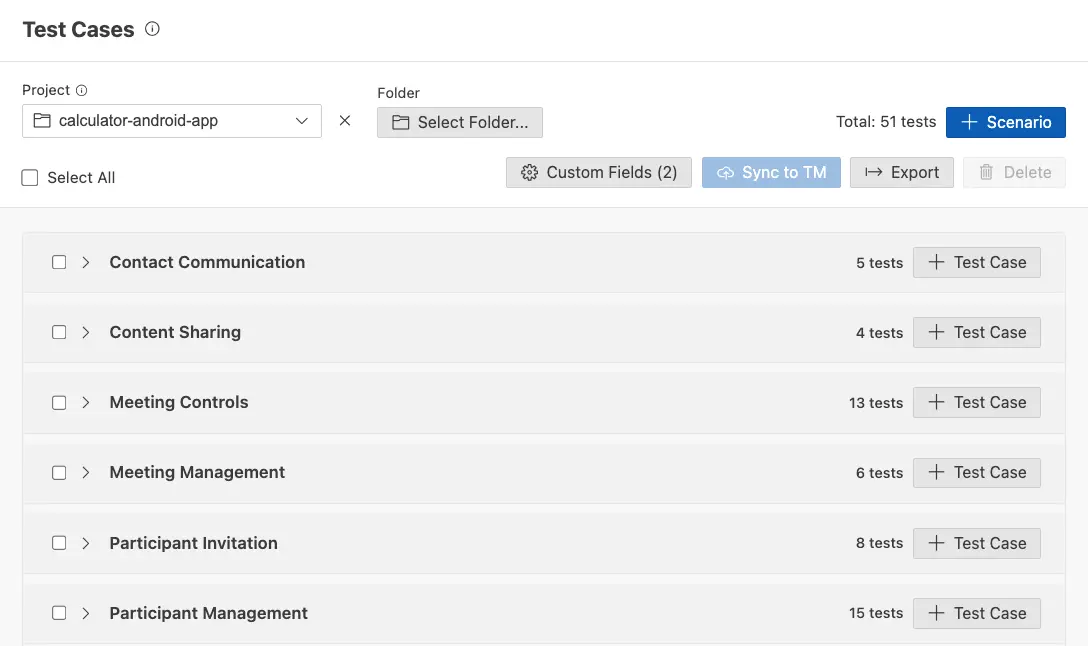
In the Test Cases panel, click the Custom Fields button in the top action bar, next to Sync to TM.
-
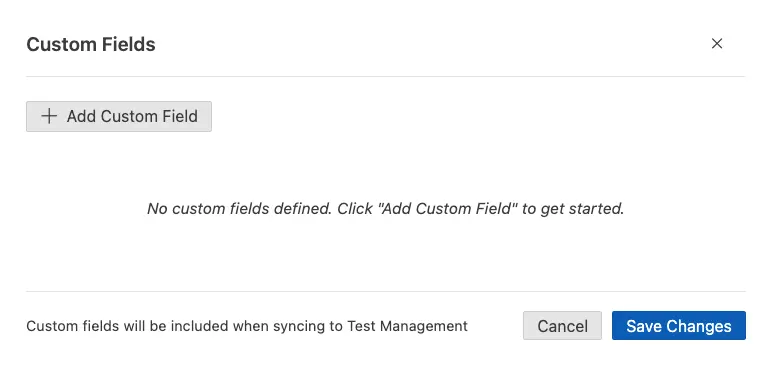
In the Custom Fields dialog, click + Add Custom Field.
-
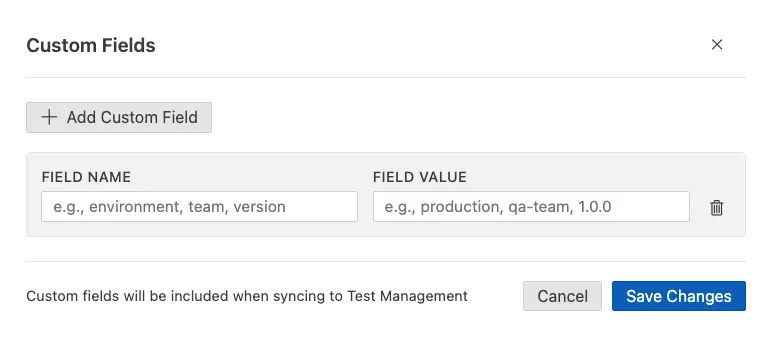
Enter values in the Field Name, Field Value fields, choose a field Type, and set a Field Value. Supported types include Boolean, Text, Date, Dropdown, and Multi Select.
- To update an existing field, change its value inline. For each field, the dropdown lets you choose how Test Companion treats the value during the next sync:
- Keep values as is: The existing value on each test case is preserved.
- Replace with a new value: The value you enter is applied to the test cases included in the sync.
- To add more fields, click + Add Custom Field again.
- Click Save Changes.
The next time you click Sync to TM, all custom fields are sent to Test Management along with your test case data.
Add or update custom fields from the chat
You can add or change custom fields without opening the dialog. Describe the change in plain English in the Test Companion chat, name the field, and tell Test Companion which test cases it applies to. For example:
Add a Sprint field set to Sprint 24 for the selected test cases.Update the Build Version to 2.4.1 on every test case in the Login scenario.Mark the Regression field as true for test cases TC-12 and TC-13.
Test Companion parses the request, applies it to the matching custom field, validates the value against the field’s type, and confirms the change in the chat. If the value fails validation, Test Companion does not apply it and explains why. Fix the value and ask again.
Use the chat when you want to make a quick change without leaving the conversation, or when you want the assistant to update fields as part of a larger workflow.
Validation
Test Companion validates every custom field value before it allows a sync, no matter whether the value came from the dialog or the chat. If a value does not match the field’s type or its allowed options, the change is rejected and the sync is blocked until you fix it.
Examples of values that fail validation:
| Field type | Invalid value | Why it fails |
|---|---|---|
| Boolean | XYZ |
Only true or false are accepted. |
| Dropdown |
set to TM (entered through chat) |
The value does not match any of the dropdown’s configured options. |
| Multi Select | An option that does not exist in the field definition | All selected options must come from the configured list. |
When validation fails from the chat, Test Companion explains the failure in its reply. When validation fails from the dialog, the invalid field is flagged so you can correct it before saving.
Where custom fields appear
Custom fields carry over to every downstream action:
- Test Cases panel: Appear as additional metadata on each test case.
- Sync to test management: Field values transfer to your TM system (BrowserStack, Zephyr Scale, or Xray) and can be used for filtering and reporting.
- Export: Fields appear as additional columns in the exported CSV.
Best practices
- Use consistent naming across your team. Agree on field names (for example, always “Sprint” rather than “sprint_number”) so filtering and reporting works reliably.
- Add fields before syncing. Custom fields are included at sync time. Add them while test cases are still in the panel, before pushing to your TM system.
- Use fields for traceability. Fields like build version, feature flag, or Jira ticket ID make it easy to trace test cases back to specific releases or requirements.
Next steps
- Sync to test management: Push your test cases (with custom fields) to your TM system.
- Automate tests: Convert your test cases into executable automation scripts.
We're sorry to hear that. Please share your feedback so we can do better
Contact our Support team for immediate help while we work on improving our docs.
We're continuously improving our docs. We'd love to know what you liked
We're sorry to hear that. Please share your feedback so we can do better
Contact our Support team for immediate help while we work on improving our docs.
We're continuously improving our docs. We'd love to know what you liked
Thank you for your valuable feedback!