
 Join our Discord
Automate tests
Convert one manual test case or many at once into executable automation scripts. Test Companion works with any testing framework in your project, including Playwright, Cypress, Selenium, Robot, Cucumber, Appium, and others.
Test Companion generates complete automation scripts with proper selectors, wait strategies, assertions, and page object patterns. It matches the output to your project’s existing framework and conventions.
How it works
When you ask Test Companion to automate a test, it:
- Analyzes your project repository to understand the codebase, existing test patterns, and framework conventions.
- Reads each test case’s details (name, steps, expected results, preconditions).
- Opens a browser to explore the target URL, if needed, to capture UI elements and their selectors.
- Generates a complete test script that matches your project’s framework and conventions.
- Creates the file in your workspace, following your project’s folder structure and naming conventions.
- Updates each test case’s Automation Status from
Not AutomatedtoAutomatedwhen the script is saved.
Automate from a prompt
Use this method to start automation from the Test Companion chat box. You can describe a new test in plain language, paste one or more Test Management test case links to automate existing test cases, or do both at once. Combine a link with a prompt to refine or modify the linked test case before generation. To pre-fill the chat with a starter prompt, click the Write Automation Code quick action on the Test Companion home screen.
- Open the Test Companion panel in the IDE.
-
In the chat box, enter any combination of the following:
- A description of the test you want to automate. Include the URL, the user flow, and any credentials or test data needed.
- One or more Test Management test case links, to automate existing test cases.
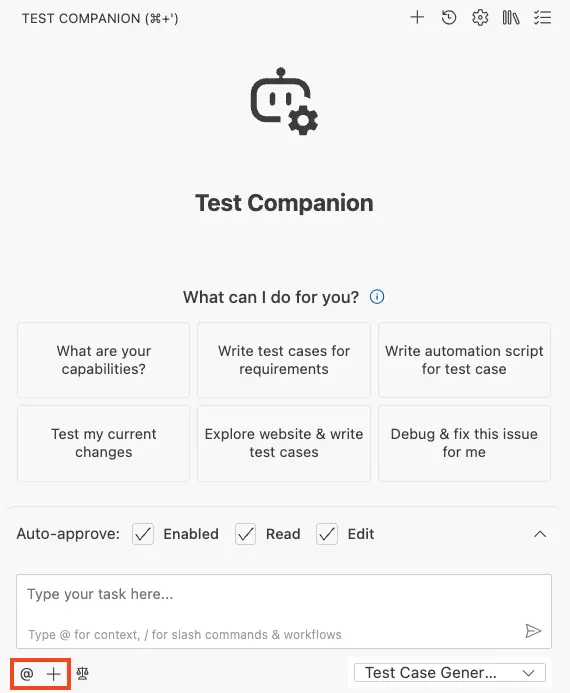
- Press Enter to send.
Test Companion inspects your project to detect the installed testing framework, opens a browser to explore the flows if needed, and generates one or more test script files in your workspace. When Test Management test cases are involved, each one’s Automation Status updates to Automated once the corresponding script is saved.
Example prompt
- Describe a test from scratch:
Create a Playwright test that verifies a user can log in with valid credentials at https://example.com/login.
Use username `testuser` and password `password123`.
After login, assert that the URL contains `/dashboard` and a heading with the text `Dashboard` is visible.
- Automate a single existing test case:
https://test-management.browserstack.com/projects/<PROJECT_ID>/test-cases/<TEST_CASE_ID>
- Automate multiple existing test cases at once:
https://test-management.browserstack.com/projects/<PROJECT_ID>/test-cases/<TEST_CASE_ID_1>
https://test-management.browserstack.com/projects/<PROJECT_ID>/test-cases/<TEST_CASE_ID_2>
https://test-management.browserstack.com/projects/<PROJECT_ID>/test-cases/<TEST_CASE_ID_3>
Automate a single test case
Use this method to convert one manual test case into an automation script. This is the fastest path when you want to automate the test case you are currently viewing.
- Open the Test Case Management panel and find the test case you want to automate.
-
In the Automate column for that row, click the blue Automate button.
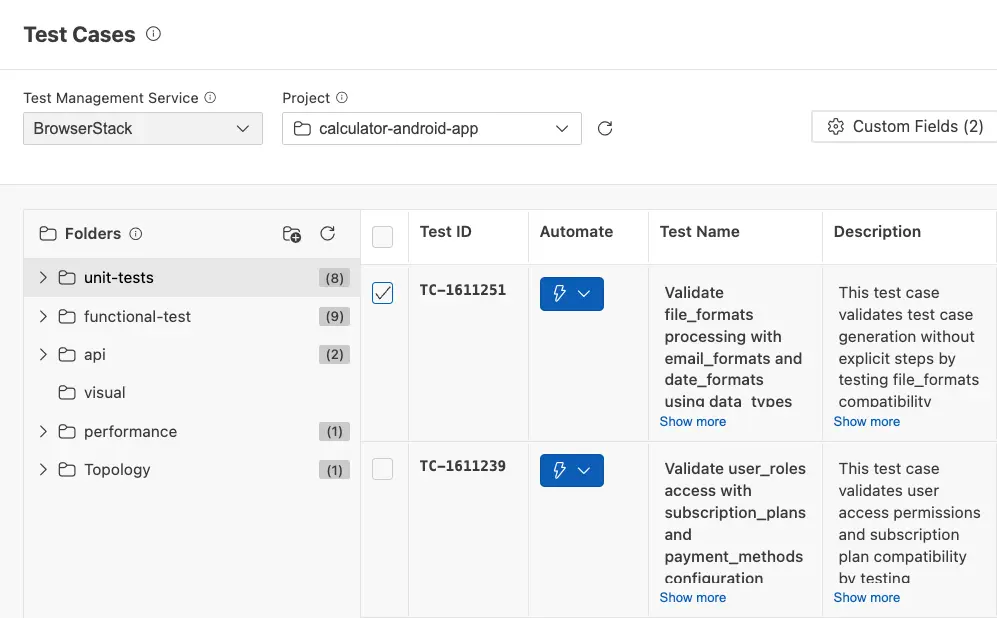
Test Companion opens chat panel with a pre-filled prompt and the test case ID attached as context. - In the chat box, add any instructions beyond what is in the test case.
- Press Enter to send.
Test Companion reads the test case details, opens a browser to explore the flow, and generates the automation code. When it finishes, a new test script file appears in your project and the test case’s Automation Status updates to Automated.
Automate test cases in bulk
Use this method to convert several manual test cases into automation scripts in one action. Test Companion processes the selected test cases together and saves the generated scripts to your workspace.
Selections do not persist across pages. If the test case list spans multiple pages, select and automate the test cases on each page separately. Support for cross-page selection will be added in a future release.
-
Open the Test Case Management panel.
- Select the test cases you want to automate. Click the checkbox at the start of each row. The Automate button in the toolbar updates to show the selected count.
-
Click the Automate (N) button to generate the scripts:
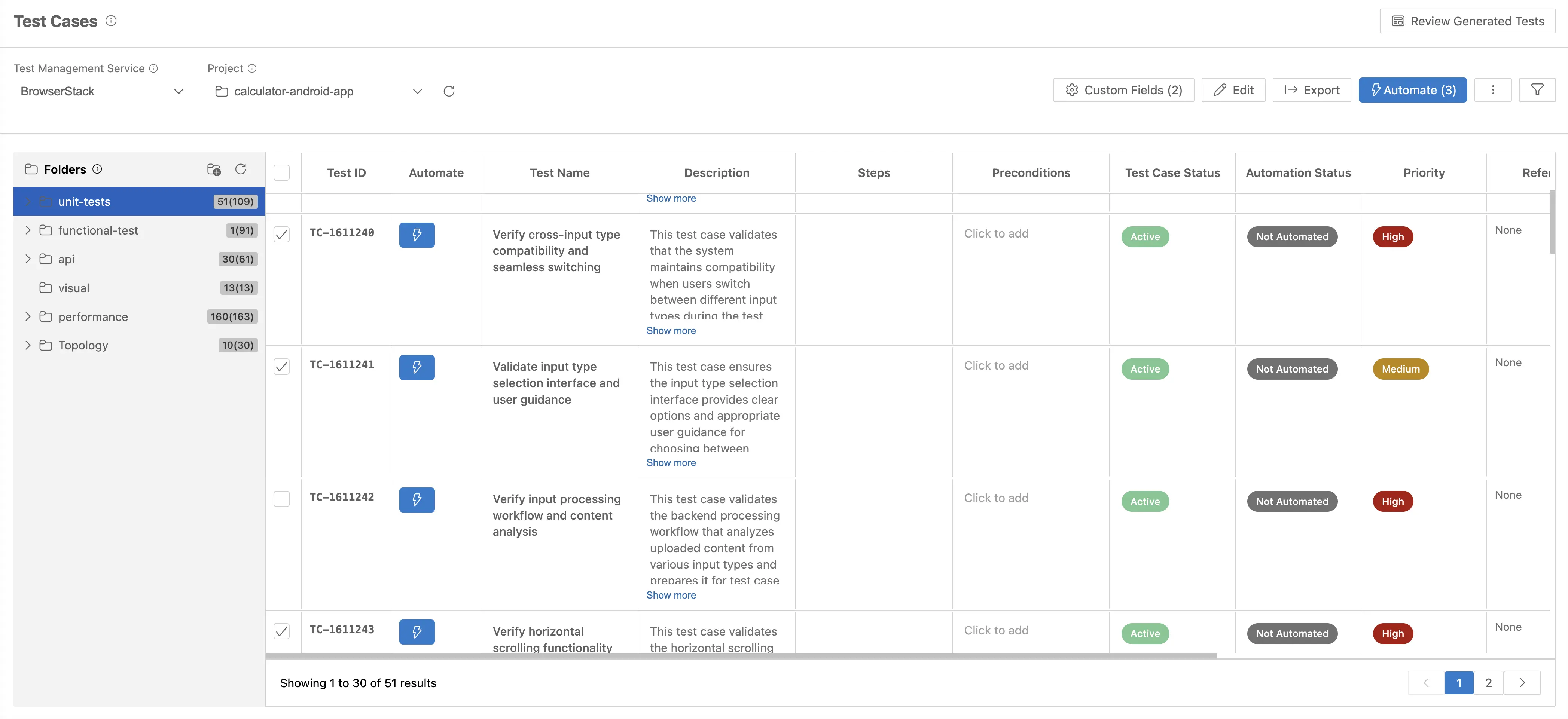
Test Companion opens the chat panel. Each selected test case appears as a removable chip above the chat box. The chat box is pre-filled with the promptConvert the following test cases into test scripts. -
Review the pre-filled prompt. Remove any test case chip you do not want to include. Add/modify instructions if the test cases share context that is not in the test case details.
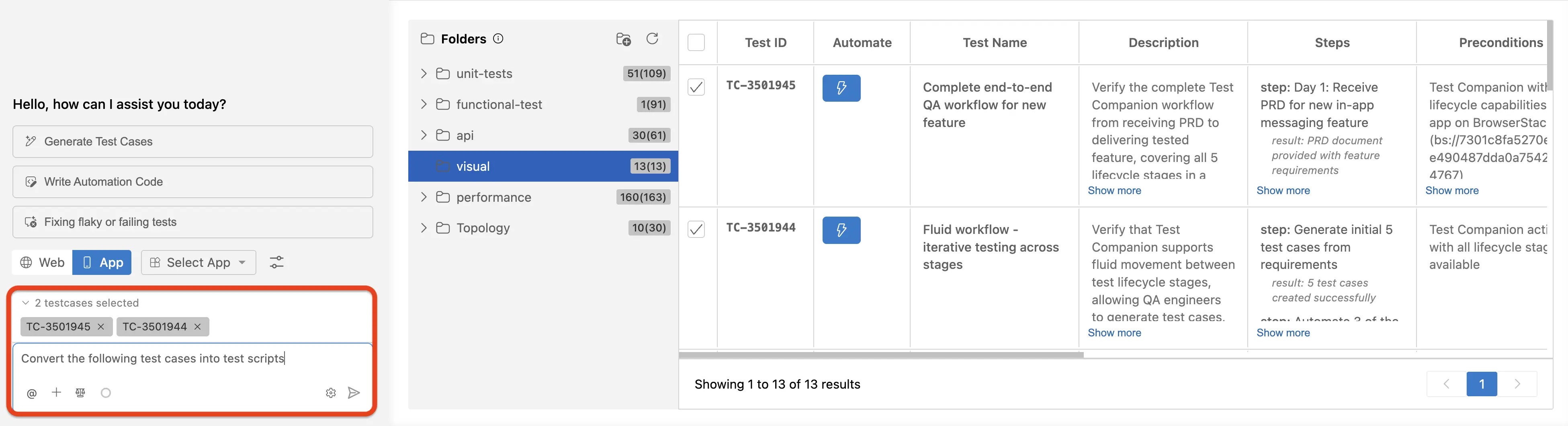
- Press Enter to send.
Test Companion analyzes each test case, generates one or more script files that match your project’s framework, and updates each test case’s Automation Status to Automated when the corresponding script is saved.
Generate API tests
Use this method to create automated tests for a specific API endpoint, URL, or API specification.
- Open the Test Companion panel in your IDE.
-
In the chat box, describe the API you want to test. Include the endpoint URL and any relevant details such as authentication method and expected response format.
- Press Enter.
Test Companion then:
-
Analyzes your project (if available): Reads files like
package.jsonand existing test configs to understand your framework and project structure. - Calls the API: Makes a live request to the target endpoint to get a real response.
- Generates a test plan: Creates a discovery summary covering response status, headers, data schema, error codes, and edge cases.
- Writes the test file: Generates a new test script in the correct format for your project and adds it to your workspace.
Best practices
The more detail you provide in your test case or prompt, the more accurate the result.
- Provide credentials and test data if the test involves authentication or specific input values.
-
Write clear, discrete steps in your manual test case. Vague steps like “complete the form” produce vague automation. Specific steps like “enter
john@example.comin the Email field, click Sign In” produce precise, reliable scripts. - Mention expected outcomes explicitly. If the test should assert a specific URL, visible element, toast message, or status code, say so.
- Prefer a Test Management link over a typed description when you have one. Pasting the link gives Test Companion the full, structured test case content in one paste, including any custom fields and shared steps.
- Group related test cases when automating in bulk. Test cases that share a feature area, page, or user flow produce more consistent scripts when sent together than test cases spread across unrelated areas.
- Review generated scripts before running. Confirm the generated code matches your project’s patterns and environment.
- Start with a few tests. Automate a small set of critical tests first, review the code quality, then scale up.
Example prompts
-
UI automation from scratch:
Write a Cypress test that adds an item to the shopping cart on
localhost:3000/shop, then verifies the cart count updates to 1. -
Convert a single existing test case:
Automate the selected test case as a Playwright test. Use the Page Object Model pattern and store page objects in a /pages directory.
Convert several existing test cases in bulk:
Convert the following test cases into Playwright test scripts. Group them in a single spec file under /tests/checkout/. Use the Page Object Model pattern and store page objects in /pages.
-
API tests:
Generate API tests for the GET /api/v1/products endpoint at example.com. Test the response status, pagination headers, and data schema validation.
Next steps
- Manage test cases: Track automation status and organize your test cases.
- Fix flaky or failing tests: When your automation scripts fail in CI/CD, use Test Companion to diagnose and fix them.
We're sorry to hear that. Please share your feedback so we can do better
Contact our Support team for immediate help while we work on improving our docs.
We're continuously improving our docs. We'd love to know what you liked
We're sorry to hear that. Please share your feedback so we can do better
Contact our Support team for immediate help while we work on improving our docs.
We're continuously improving our docs. We'd love to know what you liked
Thank you for your valuable feedback!