
 Join our Discord
Troubleshoot app visibility and updates in Test Management for Jira
Fix a Jira project where BrowserStack Test Management for Jira does not appear, and install an app update that is waiting for approval.
Both fixes on this page need a Jira administrator. Each section starts with what you see in Jira, then gives the cause and the fix.
BrowserStack does not appear in a Jira project
Test Management for Jira is available only in projects that a Jira administrator enabled from the app’s Get Started page. Until a project is enabled, the project’s issues show no BrowserStack option under the Apps icon. The project top bar shows no BrowserStack tab either. The app can be installed and linked to a BrowserStack account and still not appear in that project.
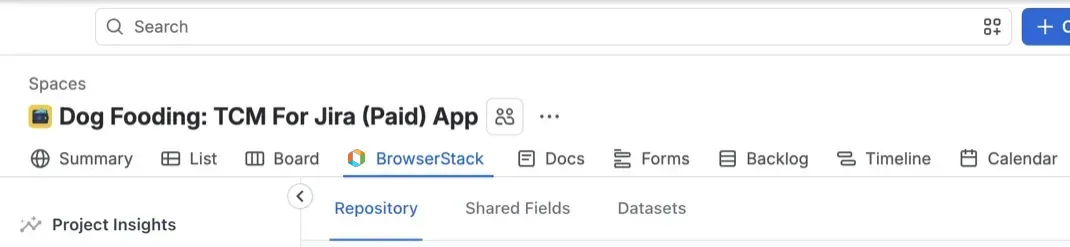
Solution: A Jira administrator enables the project:
- In Jira, navigate to Apps > Manage your apps.
-
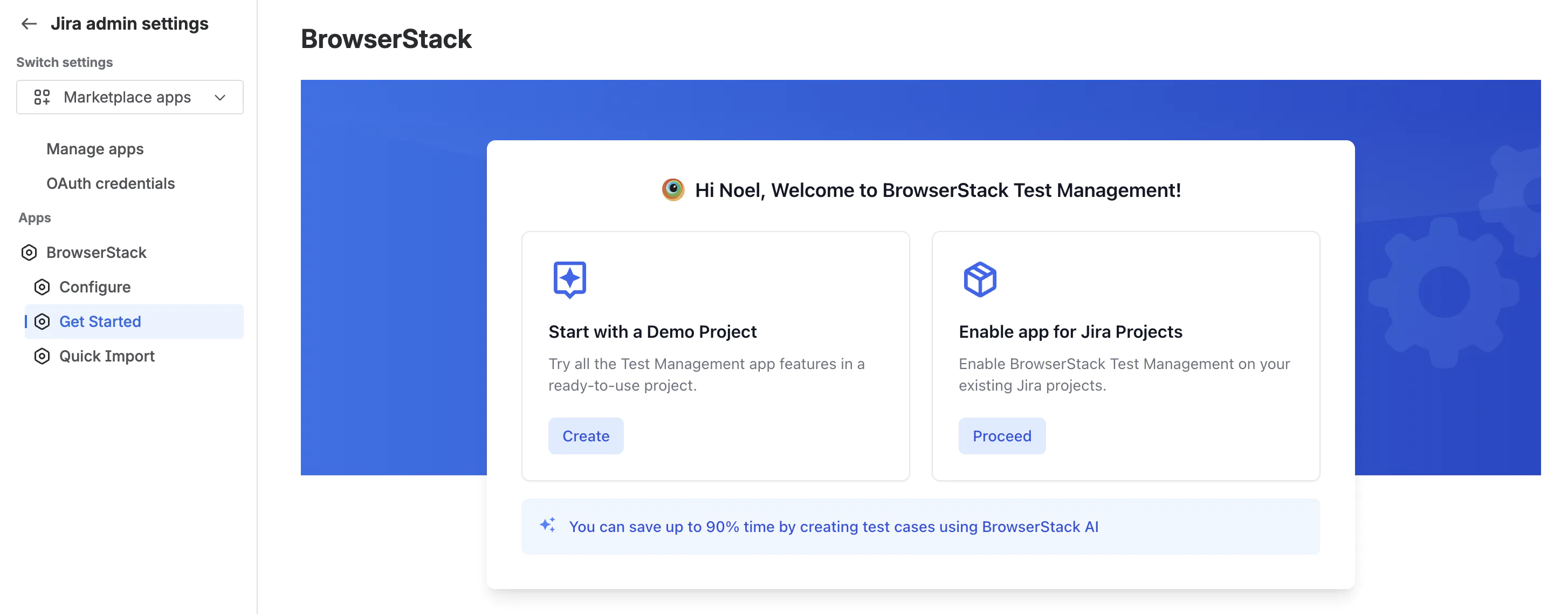
In the left sidebar, under BrowserStack, click Get Started.
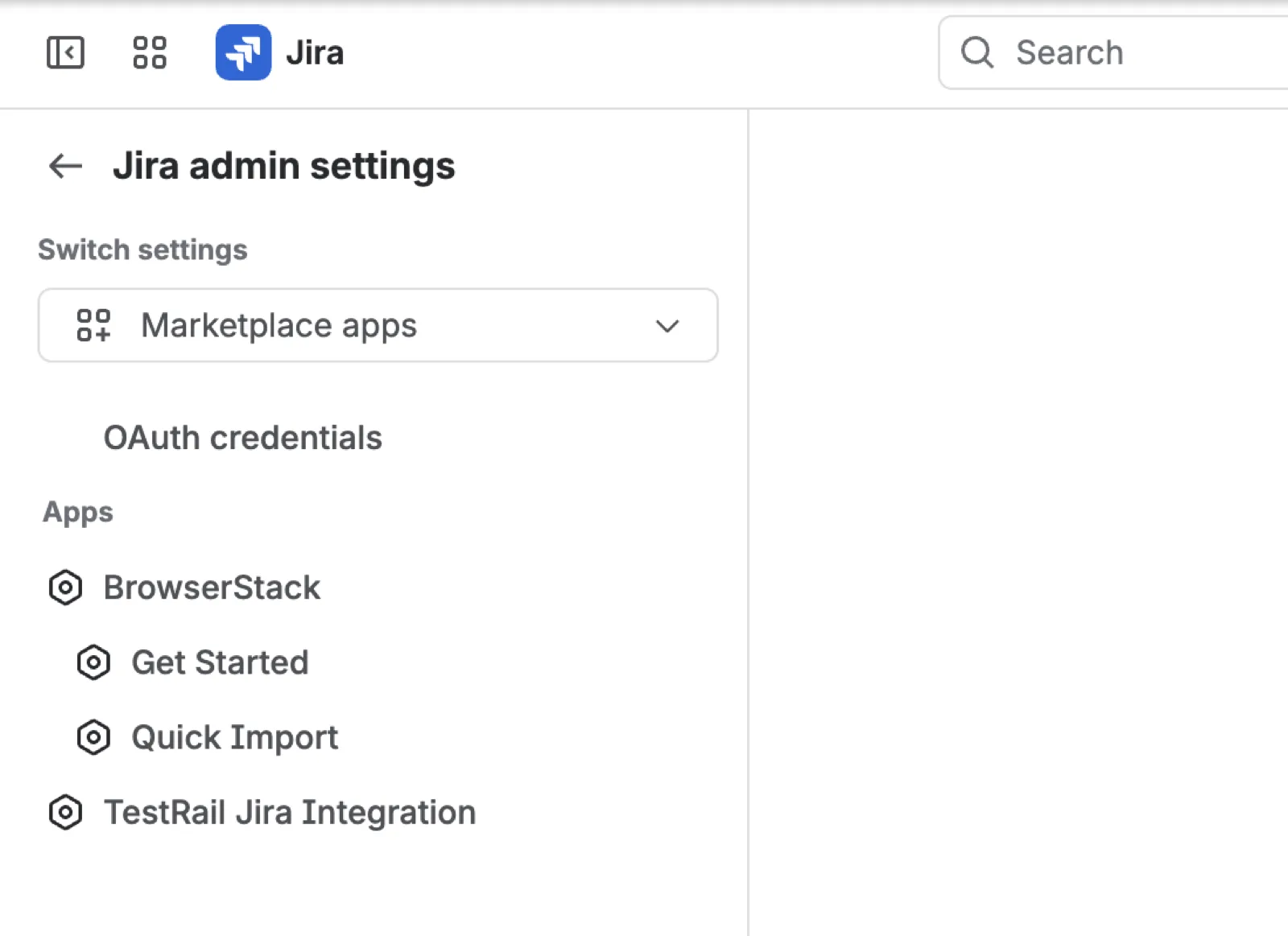
- If the app prompts you with Connect with your BrowserStack Account, link the account first. See Get started with Test Management for Jira.
-
In the Enable app for Jira Projects card, click Proceed.
-
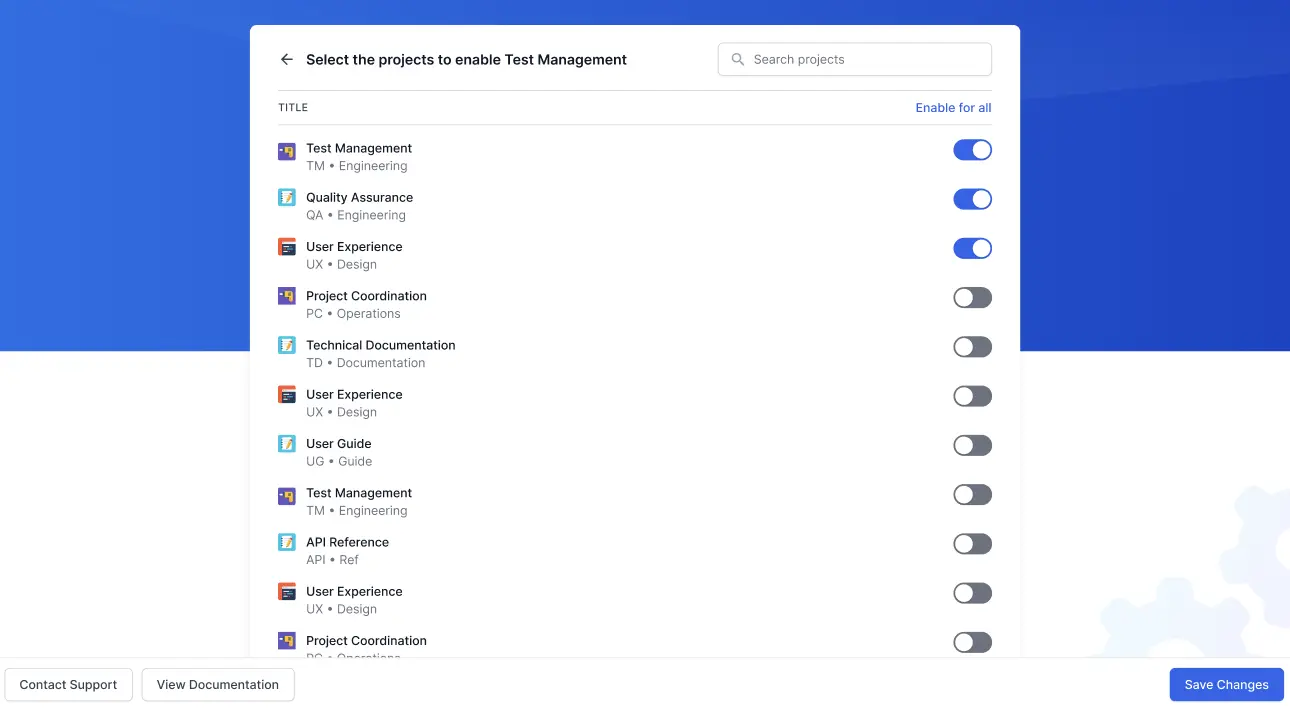
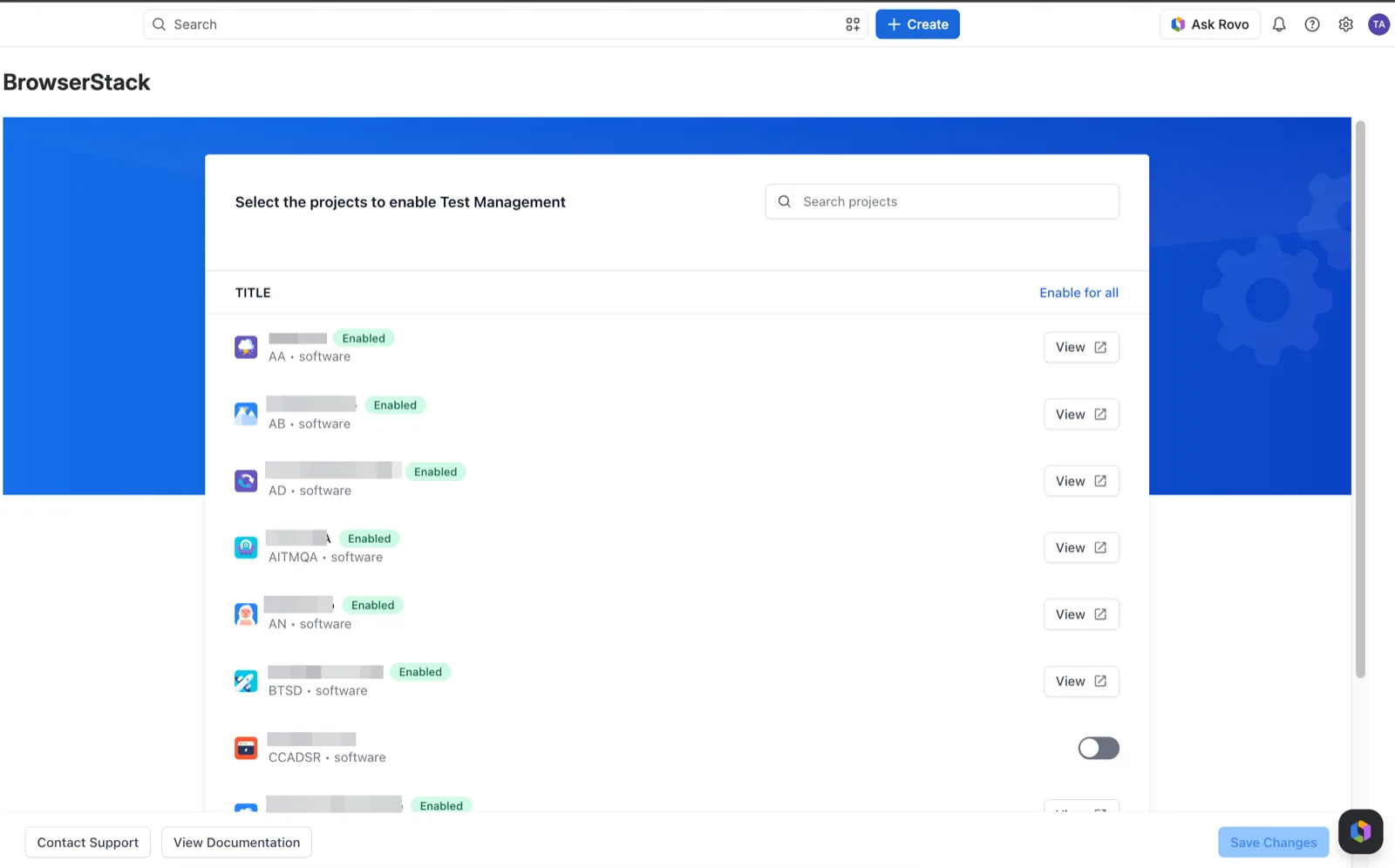
Turn on the toggle for each project that needs the app, or click Enable for all.
-
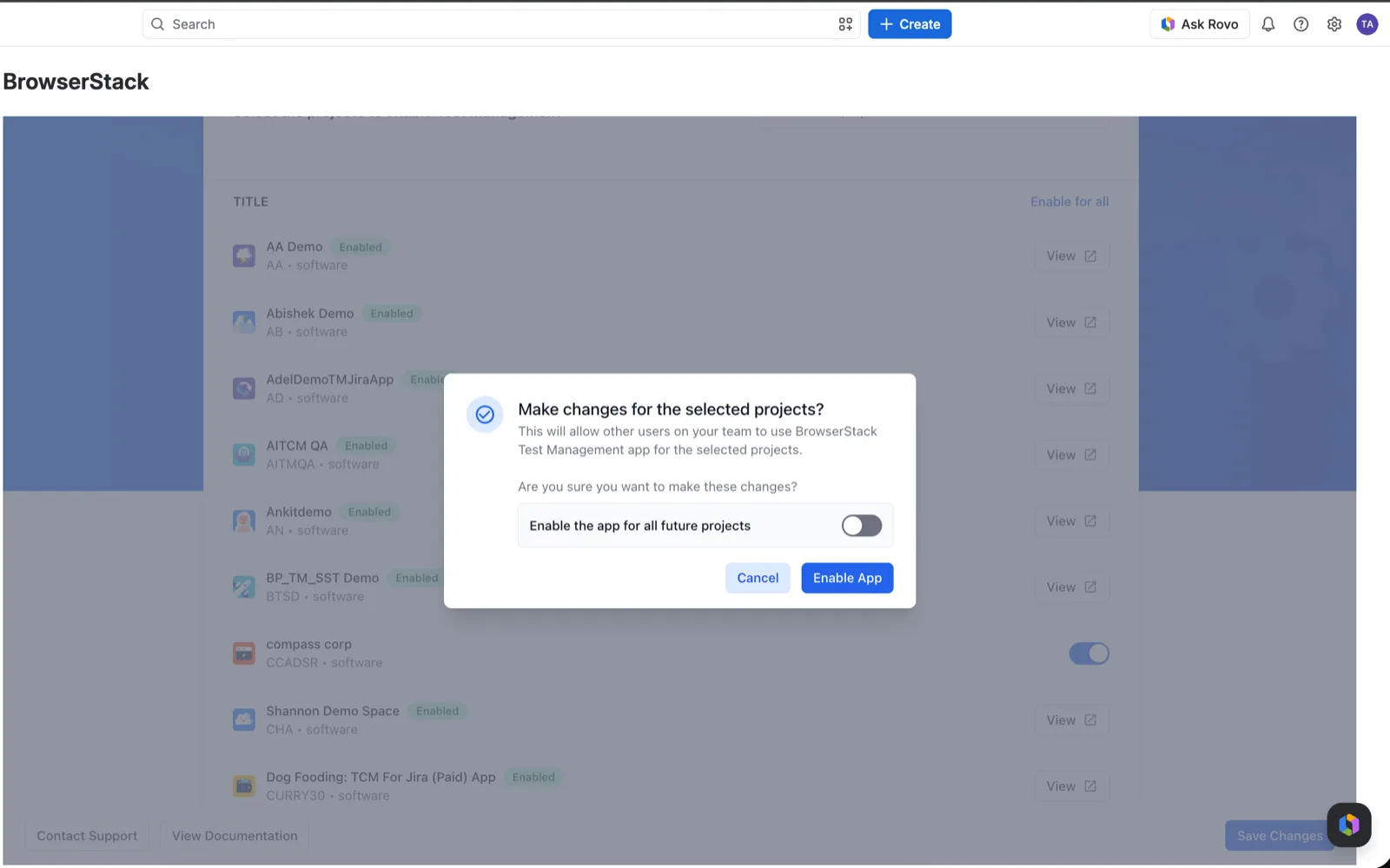
Click Save Changes, then click Enable App in the confirmation. To include projects created later, select Enable the app for all future projects before you confirm.
-
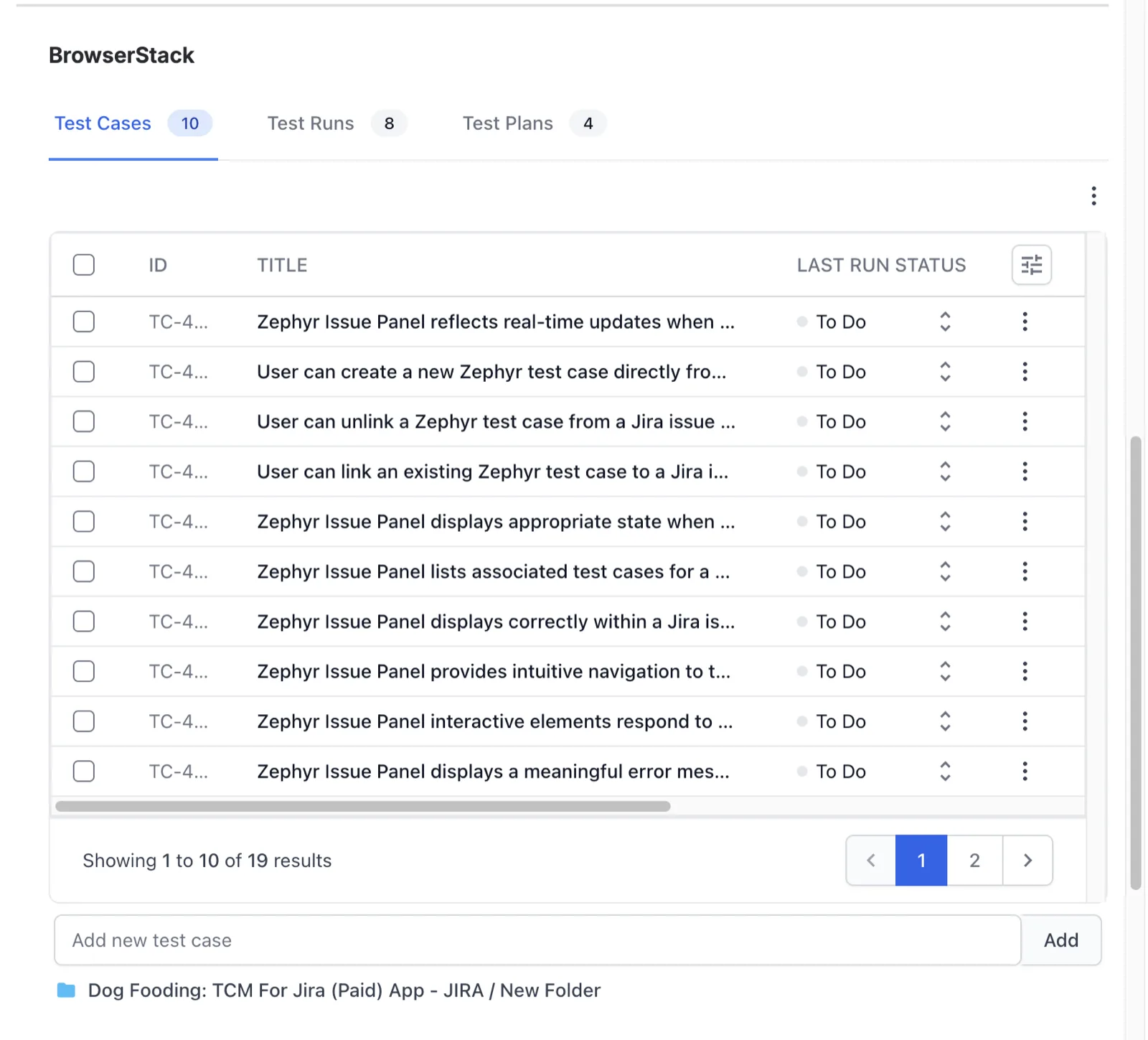
Open a Jira issue in the project. The BrowserStack panel on the issue shows the Test Cases, Test Runs, and Test Plans tabs. The project top bar also shows the BrowserStack tab.
Enabled projects show an Enabled badge and a View button on the Get Started page.
An announced feature or fix is missing
Small updates to the app install on their own. Updates that change the app’s permissions wait until a Jira administrator approves them. Until then, your site runs the older version. The feature or fix is missing, and Jira shows an update waiting for the BrowserStack app.
Solution: A Jira administrator installs the update:
-
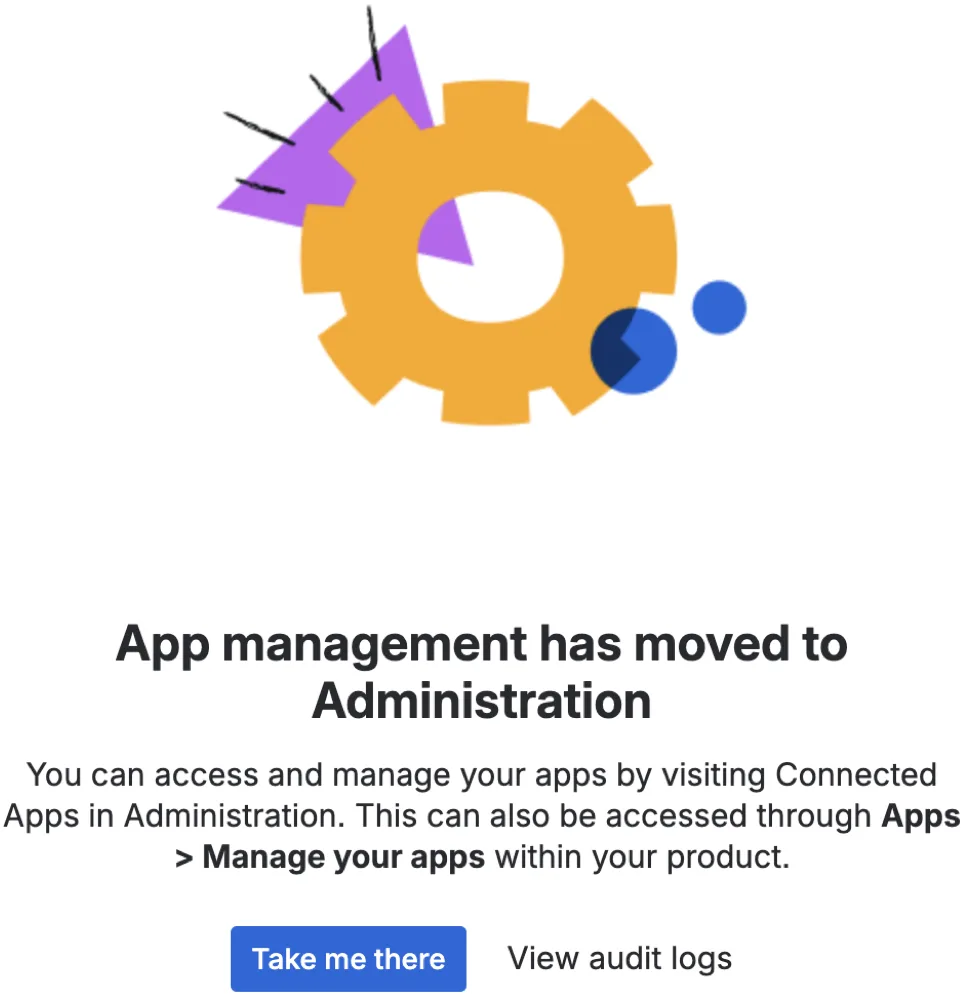
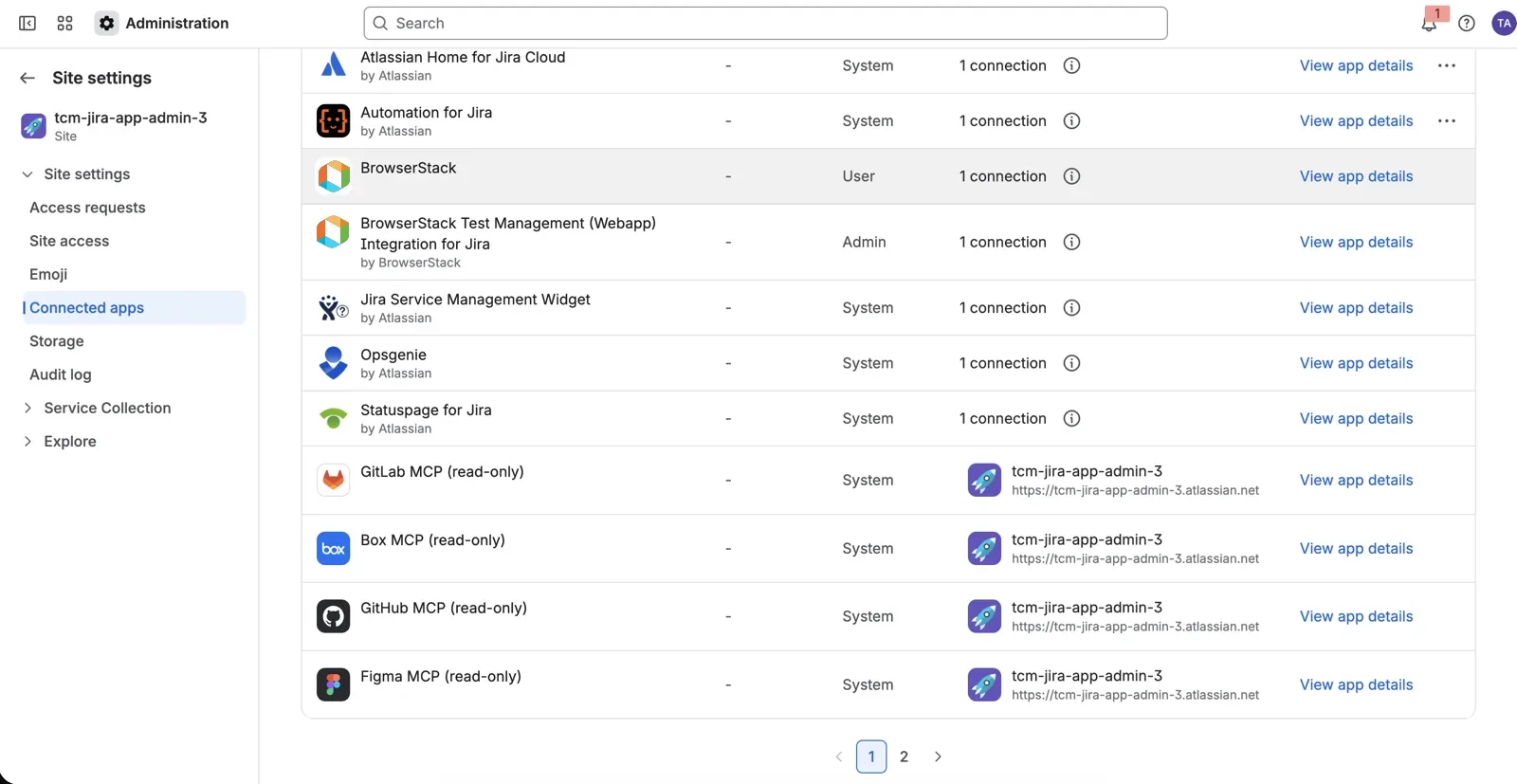
In Jira, navigate to Apps > Manage your apps. If Jira shows that app management has moved to Administration, click Take me there to open Connected apps.
-
Find BrowserStack Test Management for Jira in the list of installed apps.
-
If an update is available, click Update, review the new permissions, and approve them.
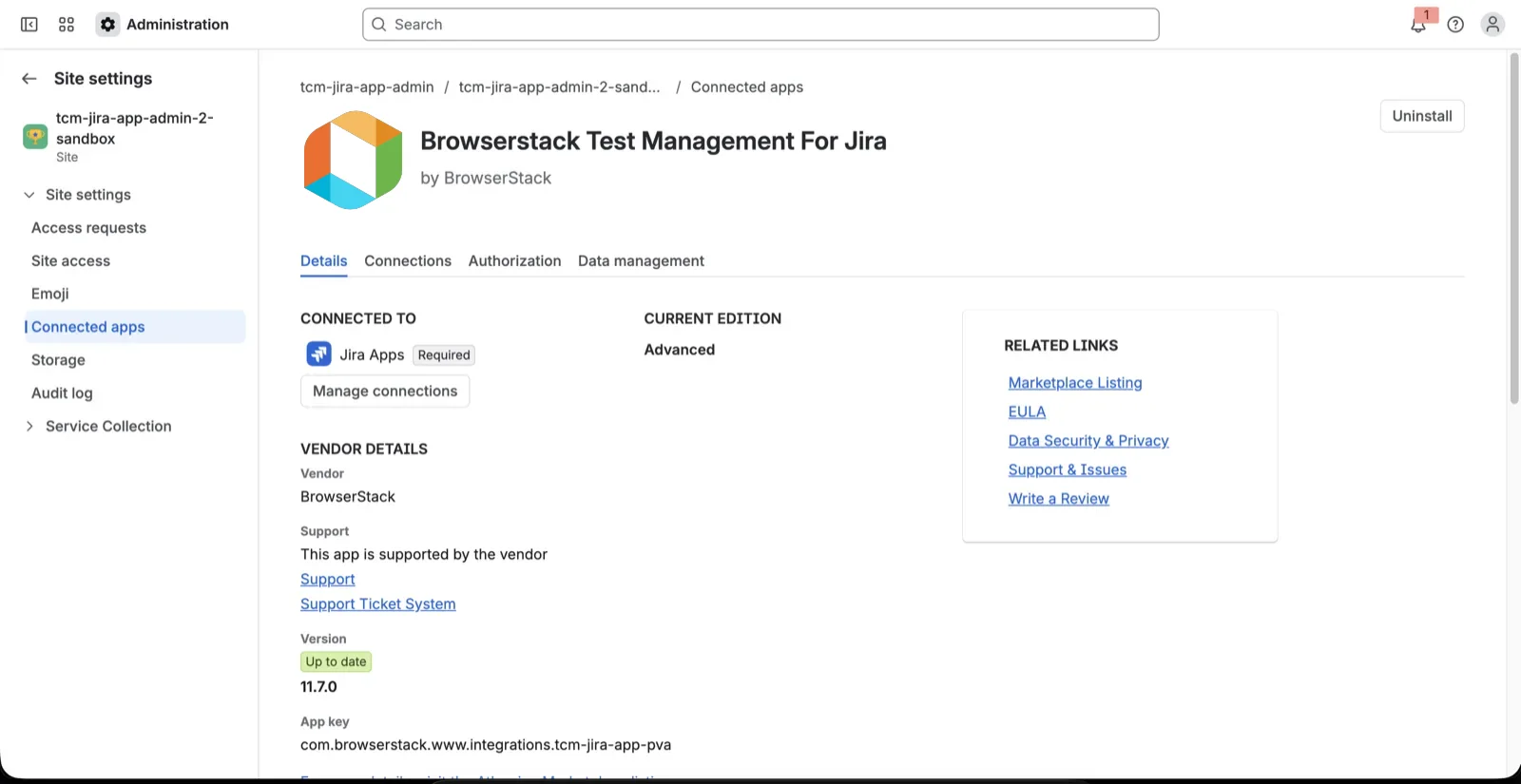
When the app is current, the Version section reads Up to date and no Update button appears.
-
Reload the Jira issue or project page.
Updating keeps the app’s configuration and data. You do not need to uninstall and reinstall the app.
Next steps
- Get started with Test Management for Jira for the full install and setup steps.
- Resolve access issues for a specific user when the app works for some users and not others.
We're sorry to hear that. Please share your feedback so we can do better
Contact our Support team for immediate help while we work on improving our docs.
We're continuously improving our docs. We'd love to know what you liked
We're sorry to hear that. Please share your feedback so we can do better
Contact our Support team for immediate help while we work on improving our docs.
We're continuously improving our docs. We'd love to know what you liked
Thank you for your valuable feedback!