
 Join our Discord
UI Scripts
Customize how Test Management forms and dialogs behave by adding JavaScript rules that run safely in every project member’s browser.
A UI Script is JavaScript that an admin attaches to one place in Test Management. That place is called a surface, such as the Create Test Case form or the result dialog. Every project member who opens that surface runs the script in their own browser, so one rule reaches everyone in the organization. You write against a small toolkit named TM. You never touch React or Test Management internals.
Take a rule many teams want: every Failed result needs a note that explains the failure. A required Notes field cannot express that rule, because it would demand a note on every Passed result too. A UI Script can, because it reads the form at save time and blocks only the save that breaks the rule.
Only an admin can configure UI Scripts. You need the IAM Owner or Admin role, or the Product Admin role in Test Management. Every other role works under the rules an enabled script enforces, but cannot open the UI Scripts page or edit a script. For the full role breakdown, see Role-Based Access Control.
Organization scope
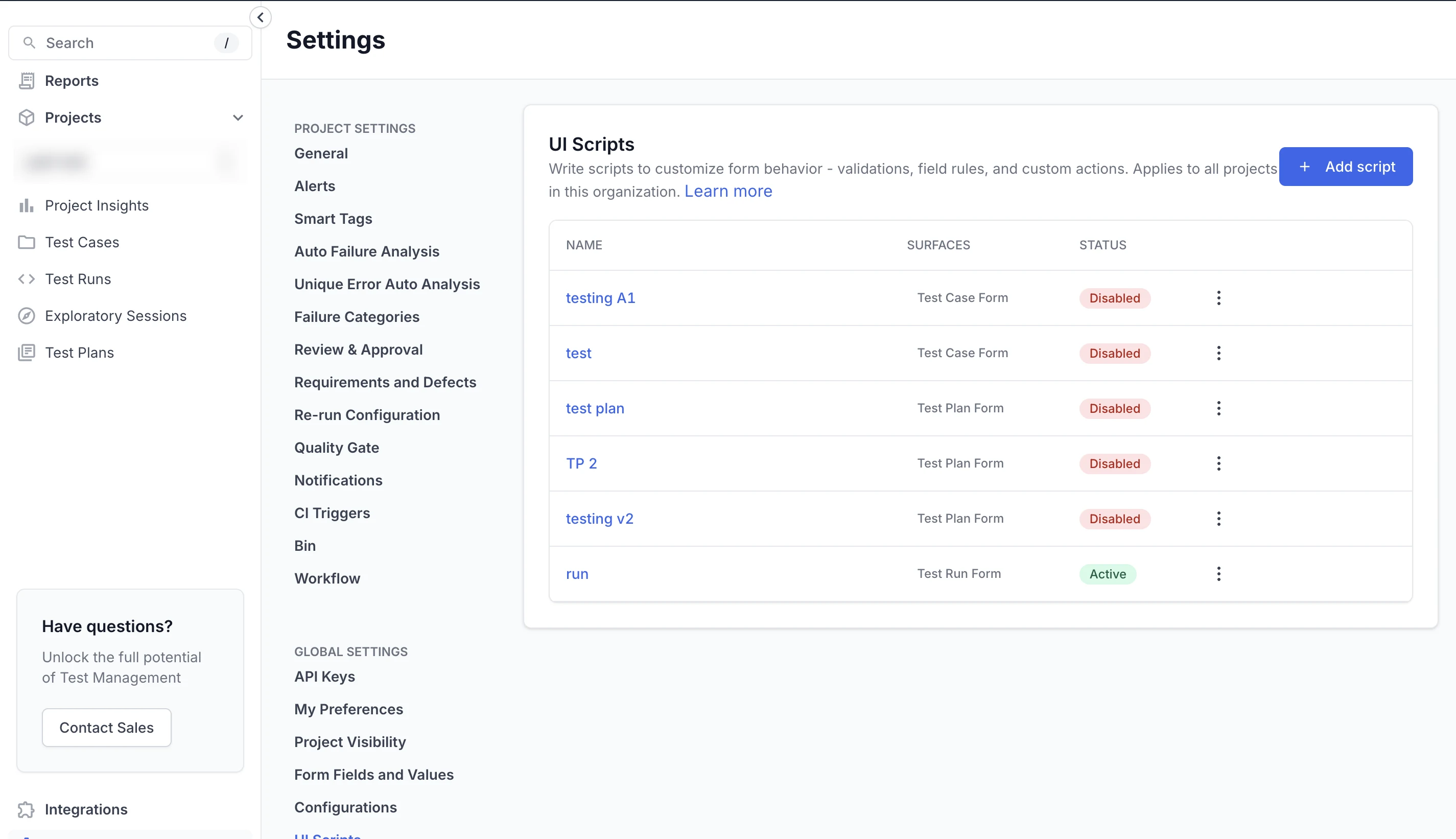
You create and edit UI Scripts from Global Settings, and a script applies to every project in the organization. It does not belong to the project you happen to have open. To hold a rule to certain projects, test context.projectId inside the script before the rule does anything.
Open Settings, then select UI Scripts under GLOBAL SETTINGS. The entry sits below Configurations, in the second group rather than the project group above it:
What a UI Script can do
Test Management settings cover the static part of a process. Custom form fields and custom result fields add a field and can mark it required. A UI Script covers what those settings cannot: the part of the rule that depends on what a tester enters. Three patterns cover almost every rule:
- Validate before save. Block a save until the form meets the rules you set. For example, require Notes when a tester marks a result as Failed, or enforce a naming convention on every test run.
- Shape the form. Hide, lock, pre-fill, require, or restrict fields so the form matches your process. A field can also change behavior while a tester edits another field.
- Add a button of your own. Put a button on a toolbar or a form. A click can open a dialog, or send the tester to another system with details already filled in.
A UI Script also spares you the wait for a product change. You write the rule, save it, and it applies across the organization. Nobody has to remember the convention, because the form enforces it at save time.
For scripts you can copy into a project and adapt, see UI Script examples.
How scripts run in the browser
A UI Script runs in an isolated sandbox in each project member’s browser. The sandbox sets two hard boundaries:
- The sandbox blocks every outbound request, including
fetch,XMLHttpRequest, and WebSockets. A script cannot call an API in the background. To send data somewhere else, the script opens that system in a new tab withTM.openUrl, with details already filled in. - A script sees only the open form or the test case on screen. It reads nothing else.
Save checks are fail-closed
Test Management gives a save rule a budget of 2 seconds. If the script throws an error, exceeds that budget, or has not finished loading, the save does not go through. Test Management shows a message explaining why. Nothing saves silently.
A rule that blocks a save with TM.blockSave shows the message you wrote instead. For the full behavior of inline and message-strip errors, see the TM.blockSave reference.
Surfaces a script can target
A surface is a place in Test Management where your script runs. You pick one surface when you create the script:
| Surface | Location | Script capabilities |
|---|---|---|
| Add Result and Update Result | The dialog where a tester logs a Pass, Fail, or Skip result | Validates the result before it saves, such as requiring Notes on a Failed result |
| Test Case Results Section | The results section of a test case | Adds custom action buttons, such as a button that files a bug in your issue tracker |
| Test Case Form | The Create Test Case form and the Edit Test Case form | Validates the form, changes field behavior, and adds custom buttons |
| Test Run Form | The Create Test Run page and the Edit Test Run page | Validates the form and changes field behavior |
| Test Plan Form | The Create Test Plan form and the Edit Test Plan form | Validates the form and changes field behavior |
| Exploratory Session Form | The Create Exploratory Session form and the Edit Exploratory Session form | Validates the form and changes field behavior |
Each surface hands your callback a formState object for a form, or a context object for a button. Both describe the open form or the test case on screen. The TM toolkit reference lists the keys each surface provides.
Not every surface accepts every function. Buttons and dialogs work on the Test Case Results Section and the Test Case Form. The Test Run Form, Test Plan Form, and Exploratory Session Form accept validation and field behavior.
Known limitations
Some behavior stays out of reach of a script. Check this list before you plan a rule:
- A script runs only on work done in the Test Management UI. A test case or test run created through the API or a CSV import runs no script. A rule you enforce on a form does not reach those records.
- Owner, State, Priority, Type of Test Case, and Automation Status cannot be hidden or made read-only, because the product requires them. Any field your script marks required also becomes impossible to hide or lock.
- Preconditions, Description, custom Text Area fields, and the Steps section can be hidden but not made read-only.
- Scripts do not run during bulk edit.
- Every enabled script on a surface runs together, in priority order, and stops at the first script that blocks a save. Write rules that do not conflict.
Next steps
We're sorry to hear that. Please share your feedback so we can do better
Contact our Support team for immediate help while we work on improving our docs.
We're continuously improving our docs. We'd love to know what you liked
We're sorry to hear that. Please share your feedback so we can do better
Contact our Support team for immediate help while we work on improving our docs.
We're continuously improving our docs. We'd love to know what you liked
Thank you for your valuable feedback!