
 Join our Discord
Project insights dashboard
Read project-level testing data in Test Management, start from a dashboard template, add widgets, and save your layout as a view you can reopen and share.
Project Insights collects your project’s testing data on one page, from automation coverage and test case counts to run outcomes and defect trends. You never start from a blank page. Test Management gives you two templates. Open one, change it until it answers your team’s questions, then save the result as a view. The next time you open Project Insights, Test Management reopens the view you used last.
This page covers the Overview tab of Project Insights. For the Automation Health and Unique Errors tabs, read the Project dashboard overview
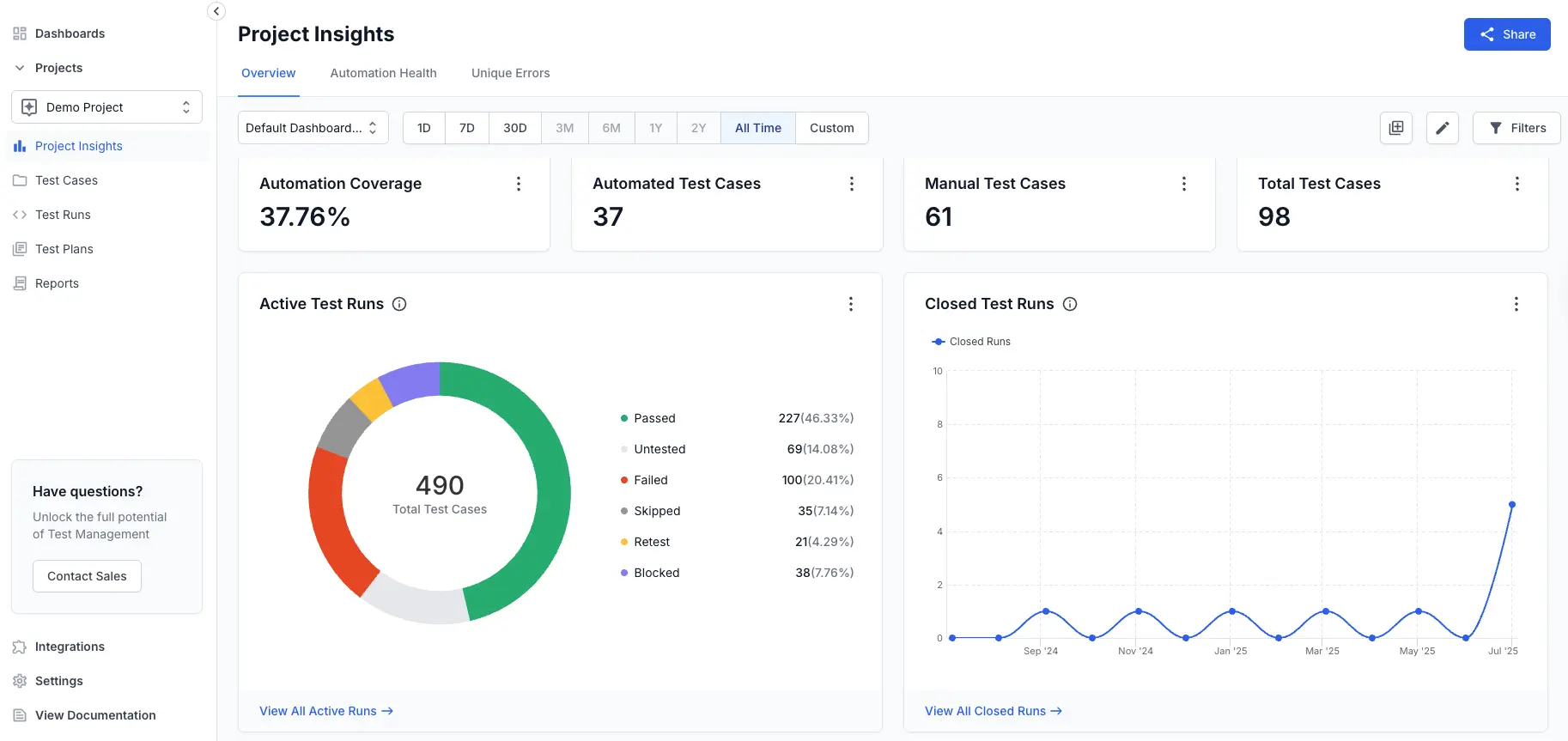
Start from a template
Every dashboard in Project Insights starts from a template. A template is a starter, a working dashboard that answers the most common questions about a project, so you can read your data before you change anything. The template itself never changes. You build your own dashboard on top of it.
You cannot save changes onto a template. When you change Dashboard Template or Automation Trends and save, Test Management creates a new view. The template stays unchanged for your team.
Dashboard template
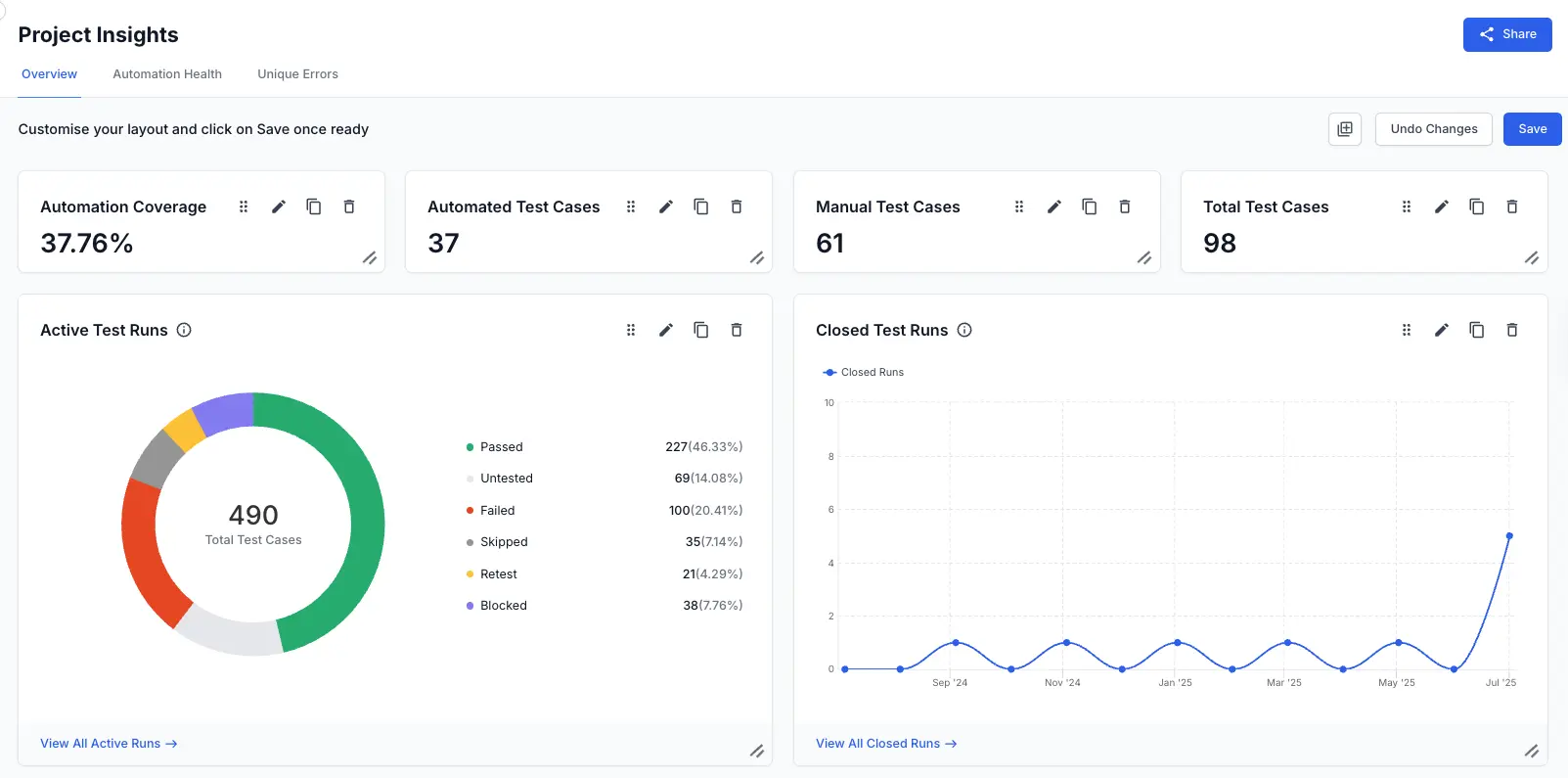
Dashboard Template covers manual and automated testing together, so it fits most teams as the first template to open. It starts with four statistics cards:
- Automation Coverage shows the share of your test cases that are automated, as a percentage.
- Automated Test Cases shows the number of automated test cases.
- Manual Test Cases shows the number of manual test cases.
- Total Test Cases shows the combined count of manual and automated test cases.
Each card is a separate widget. You can edit, move, or remove any of them the same way as any other widget.
The template also includes six chart widgets:
-
Active Test Runs shows the status of test cases in active test runs, such as
Passed,Failed, andBlocked. See the Active test runs widget. - Closed Test Runs tracks how many test runs closed over a time period. See the Closed test runs widget.
- Results from closed test runs shows the outcomes of previously closed test runs. See the Results from closed test runs widget.
- Type of Test Cases splits your test cases across a property you choose, such as priority or owner. See the Test cases breakdown widget.
- Trend of Test Cases shows how your test case types change over time. See the Trend of test cases widget.
- Defects Logged shows the defects linked to test runs over time. See the Defects logged widget.
A template titles its widgets for the dashboard it builds, so a title here can differ from the name in the Add Widget dialog. The dialog lists Active Runs. The template titles the same widget Active Test Runs.
Automation trends
Automation Trends reads your automated runs only. In a project that has only manual test cases, its widgets stay empty. It opens with eight widgets: Automation Flakiness, New Automation Failures, Automation Stability, Automation Run Performance, Automation Failure Categories Trend, Tests Executions, Always Failing Automation Cases, and Platforms Coverage. You build on it the same way as on Dashboard Template.
Dashboard controls
The dashboard toolbar holds every control you use to read and shape the dashboard:
| Control | What you use it for |
|---|---|
| Search View | Switch between templates, your saved views, and the dashboards you opened recently. |
| Time range presets | Limit every widget to a preset period, or to dates you pick. |
| Edit View | Rename the view you are on, or change who can see it. The arrow beside it duplicates or deletes the view. |
| Save as new view | Save your changes to a template as a new view. The arrow beside it discards those changes. |
| Add Widgets icon | Add a widget to the dashboard. |
| Edit Layout (pencil) icon | Move and resize widgets. |
| Filters | Narrow every widget by user, test plan, or run name. |
| Share | Copy a link to the view, or publish it as a public link. |
Edit View and Save as new view share the same place on the toolbar. On a saved view you see Edit View. On a template you see Save as new view, and only after you change something.
Set the time range
Every widget on the dashboard reads the same time range, so set it before you interpret any number. Choose a preset period: 1D, 7D, 30D, 3M, 1Y, or 2Y. To pick your own start and end dates, click Custom, then set the dates in Date range.
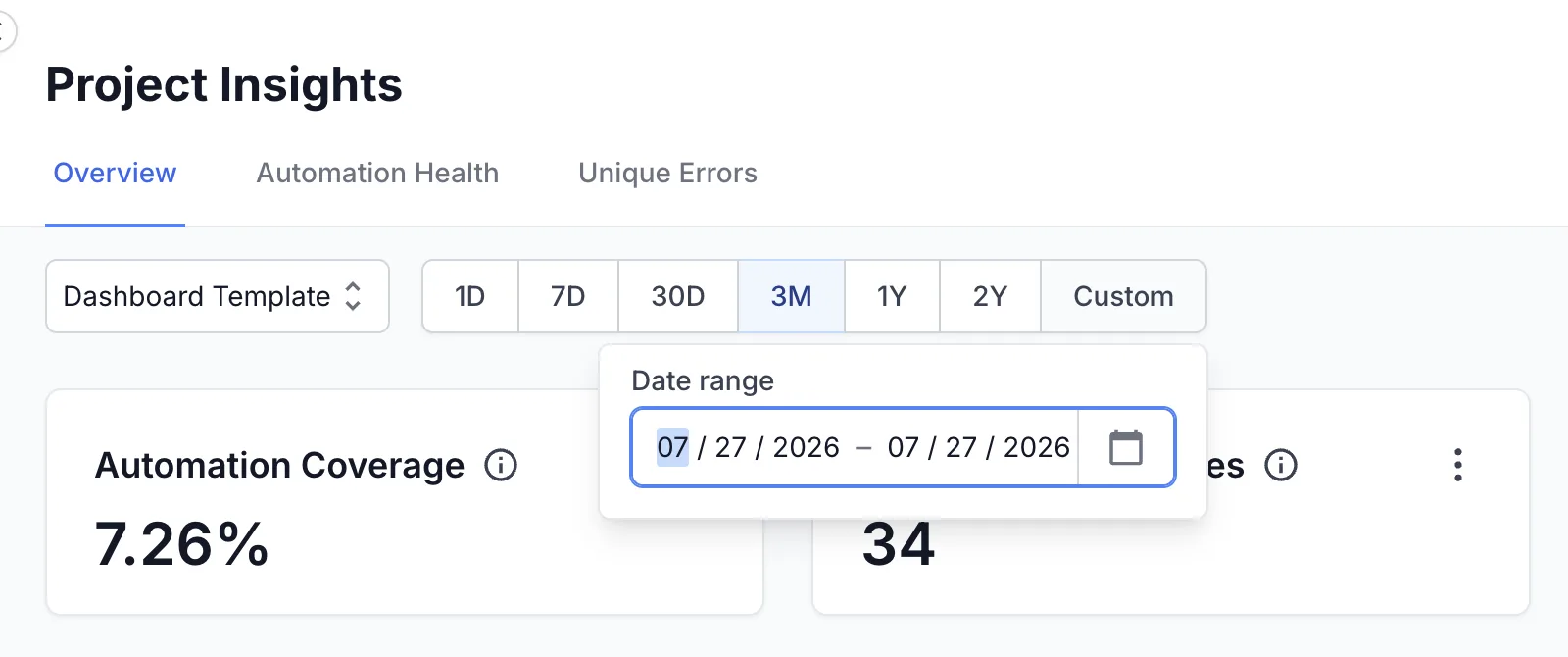
A short range can leave a widget empty when no runs closed in that period. If a chart shows no data, widen the range before you treat the gap as a real result.
Filter the dashboard
Filters narrow every widget at once, so you can read the dashboard for one team or one release.
To apply filters:
-
Click Filters. The Filters sidebar opens.
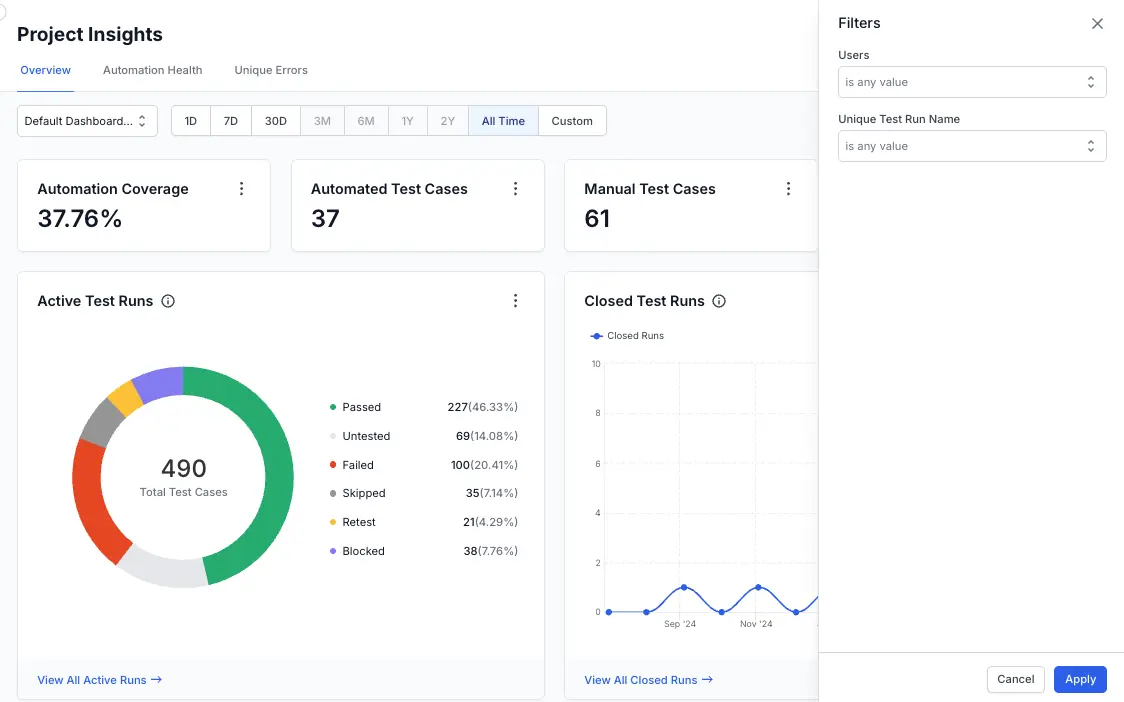
- In the Users field, select one or more users.
- In the Test Plan field, select one or more test plans.
- In the Unique Run Name field, select one or more run names.
- Click Apply.
Each field has two parts. The smaller control sets the match type. The wider control holds the values themselves.
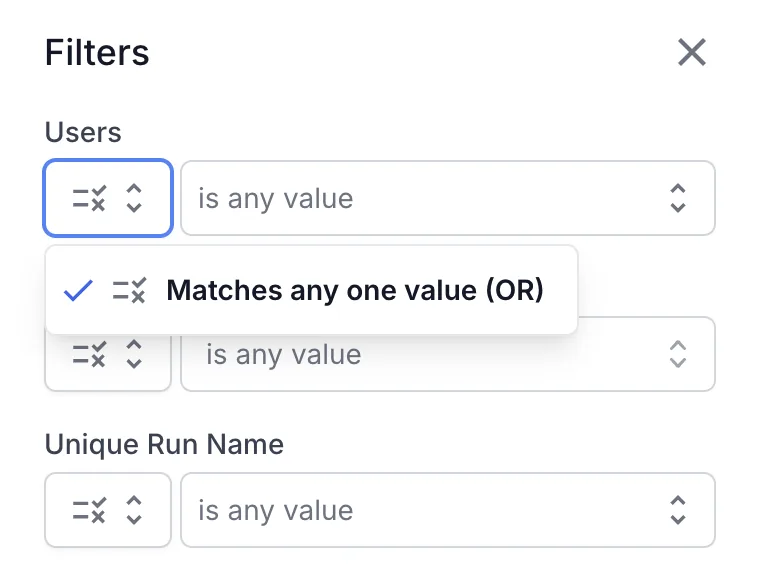
Each field accepts more than one value. The default match type, Matches any one value (OR), counts a record as a match when it has any one of the values you selected. To clear a filter, remove its values, then click Apply again.
Add and manage widgets
A template is a starting point, so add widgets when your team tracks something the starter set does not show. Then arrange the dashboard to match how you read it.
Add a widget
To add a widget to the view you are on:
-
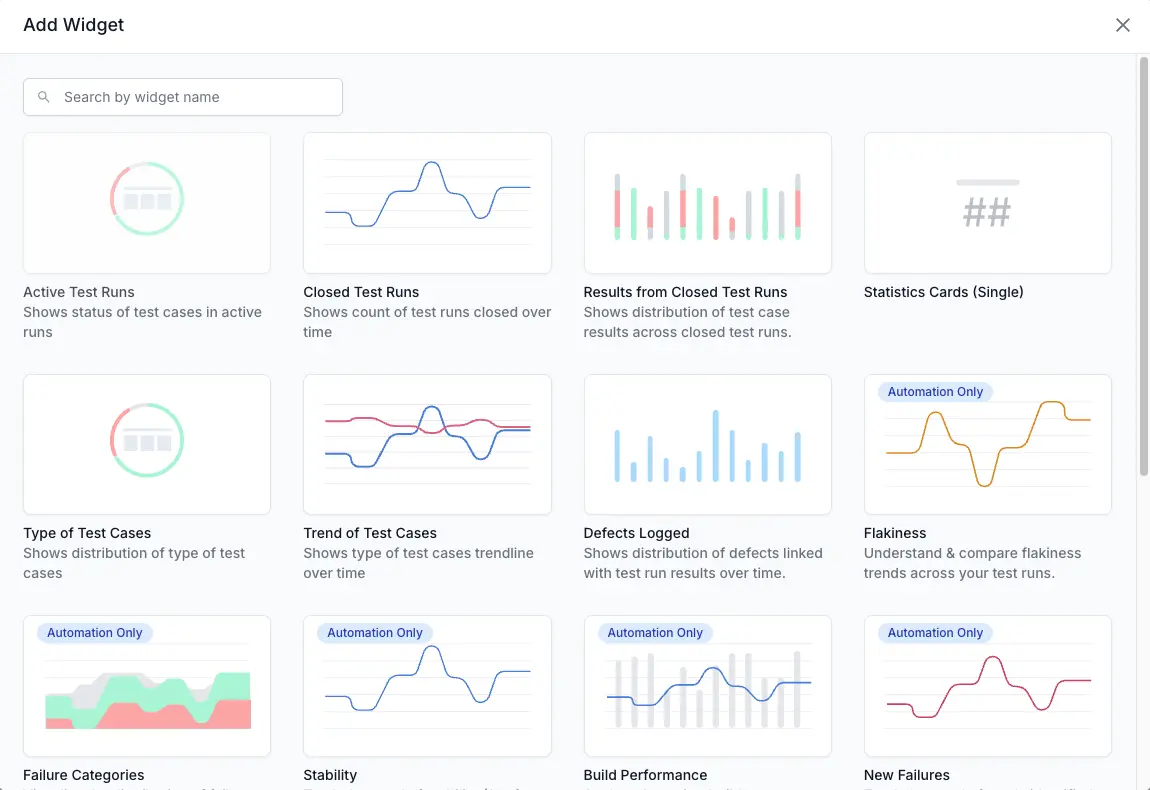
Click the Add Widgets icon. The Add Widget dialog opens.

-
Find the widget you want. Typing part of its name in the search box narrows the list.
-
Click the widget. Test Management adds it to the end of the dashboard.
Available widgets
The Add Widget dialog lists 18 widgets. These 8 work with manual and automated test data:
| Widget | What it shows |
|---|---|
| Active Runs | Status of the test cases in your active test runs. |
| Closed Runs | Count of test runs closed over time. |
| Results from Closed Runs | Distribution of test case results across closed runs. |
| Statistics Cards (Single) | One headline number, as a count or a percentage. |
| Test Cases Breakdown | All-time breakdown of test cases by a property you pick. |
| Trend of Test Cases | Cumulative total of test cases by type over time. |
| Defects Logged | Defects linked with run results over time. |
| Tests Executions | Trend of the total tests executed over time. |
The other 10 carry an Automation Only badge in the Add Widget dialog. They read your automated runs, so they stay empty in a project that has only manual test cases:
| Widget | What it shows |
|---|---|
| Flakiness | Flakiness trends across your runs. |
| Failure Categories | Distribution of failure categories over time. |
| Stability | Trend of stability, the share of tests that passed. |
| Build Performance | Build performance trends and the time each build took. |
| New Failures | Trend of newly identified test failures. |
| Always Failing | Trend of the tests that fail every time. |
| Unique Test Cases | Trend of unique test cases executed. |
| Platforms Coverage | Test distribution by device, OS, and browser. |
| Run Frequency | How often your runs happen, across projects. |
| Latest Unique Runs | The latest runs from all projects. |
Edit, clone, export, or delete a widget
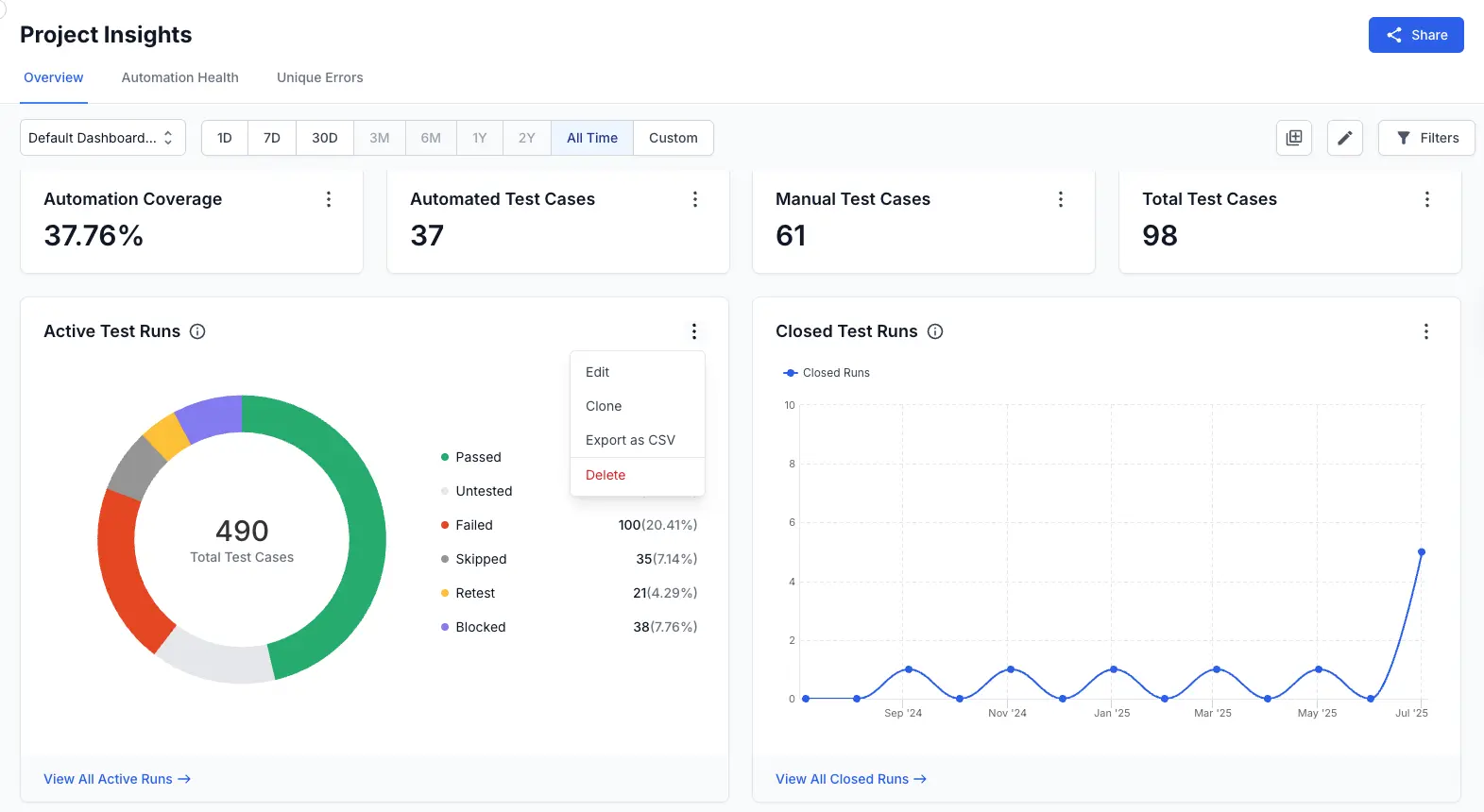
Every widget header has a menu, shown as a three-dot icon. Open the menu and select an action:
- Edit opens the widget builder.
-
Clone opens the same builder with the name pre-filled as
Copy ofthe original widget. - Export as CSV downloads the widget’s data.
- Delete removes the widget from the view.
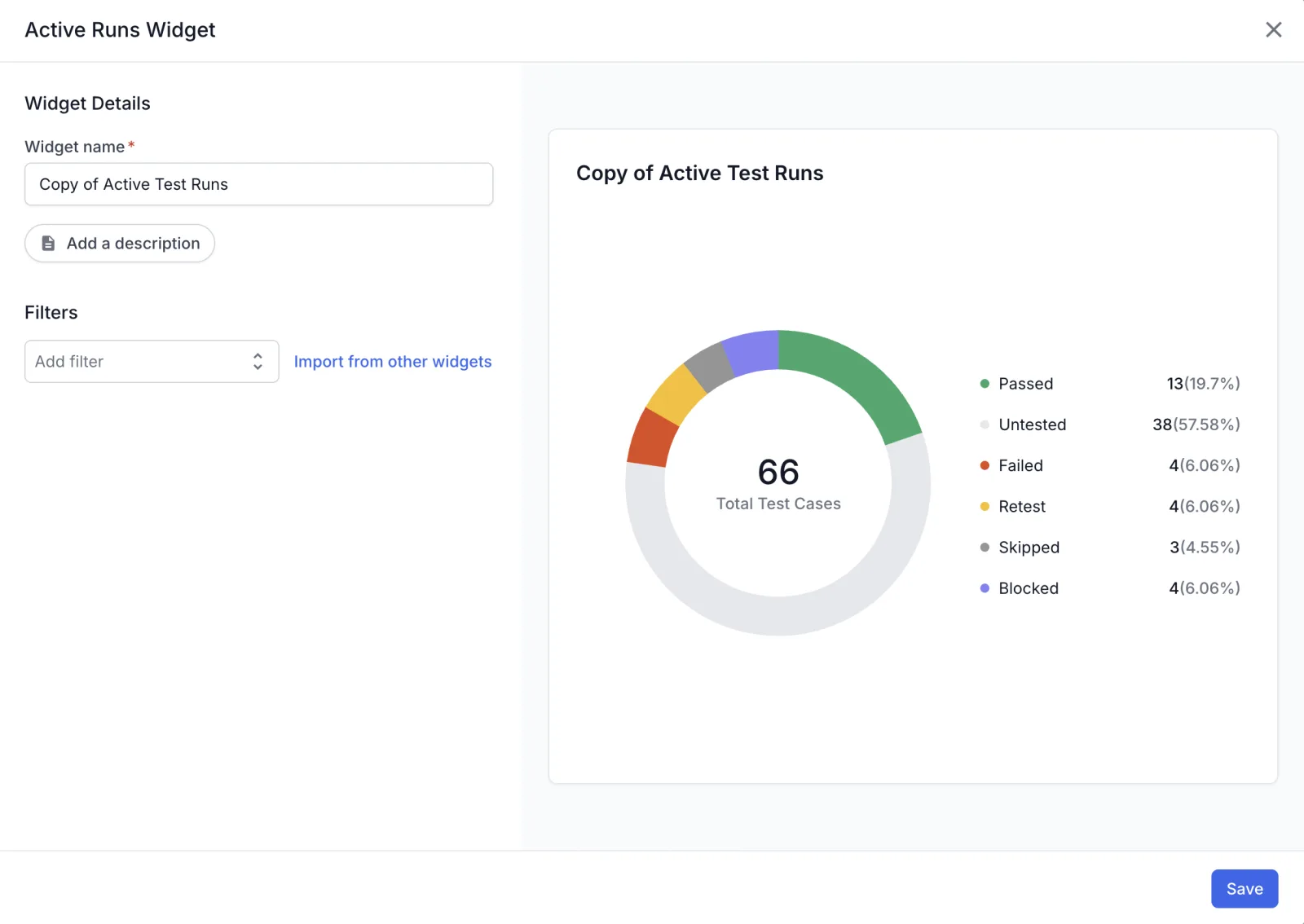
In the builder you set the widget name, add an optional description, and apply filters that affect this widget alone. What else you see depends on the widget you opened. Chart widgets add controls for the visualization and for the segments that split each trend line. A preview updates as you work. Click Save to apply.
The filter list also depends on the widget and its settings. The Tests Executions widget, for example, has a Test run type setting that switches between Automated and Manual. Each type brings its own filter list.
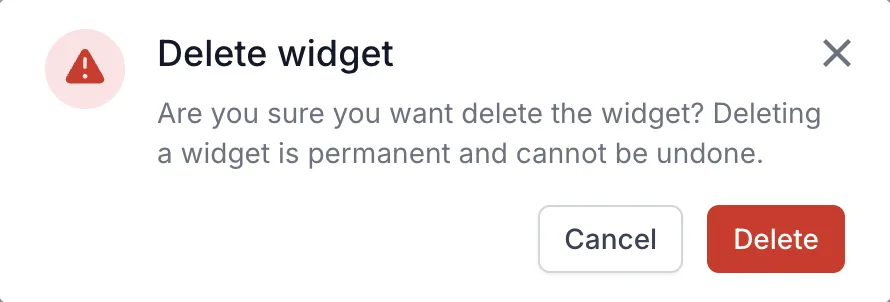
Deleting a widget is permanent, so Test Management asks you to confirm first.
Move and resize widgets
To change where a widget sits and how much space it takes:
- Click the Edit Layout (pencil) icon. Each widget gains a move handle and a resize handle.
- Drag a widget by its move handle to reposition it.
- Drag the resize handle to change the widget’s size.
- Click Save to keep the layout, or Undo Changes to discard it.

Dashboard views
A view is a saved dashboard, with its own widgets, layout, filters, and time range. You build views from a template. Save as many as your team needs.
You create a view inside one project. The view then appears in every project you can open. Name each view so your team can tell what it covers from any project.
Public and private views
Every view is public or private. The Public dashboard toggle in the save dialog sets a view’s visibility. You can change the visibility later from Edit View. The toggle is on by default.
A public view opens for everyone in Test Management at your organization. A globe icon marks it in the Search View dropdown. A private view opens for you alone.
Keep a view private while you shape it, then make it public when it is ready.
Save your changes as a view
You cannot write over a template, so saving a changed template always produces a new view. Two paths reach the same dialog.
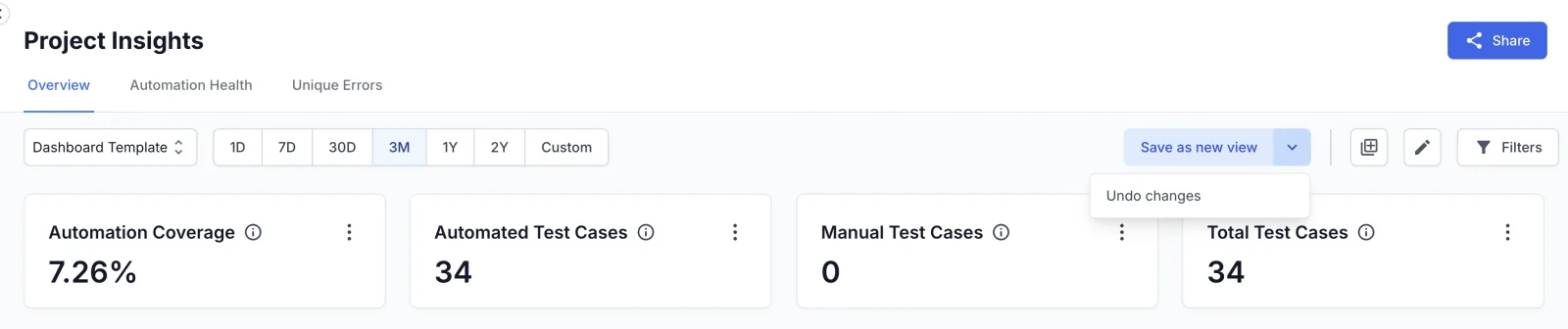
Use the toolbar when you changed the time range or the filters:
-
Click Save as new view, which appears after you change something.
-
In Dashboard View Name, enter a name.
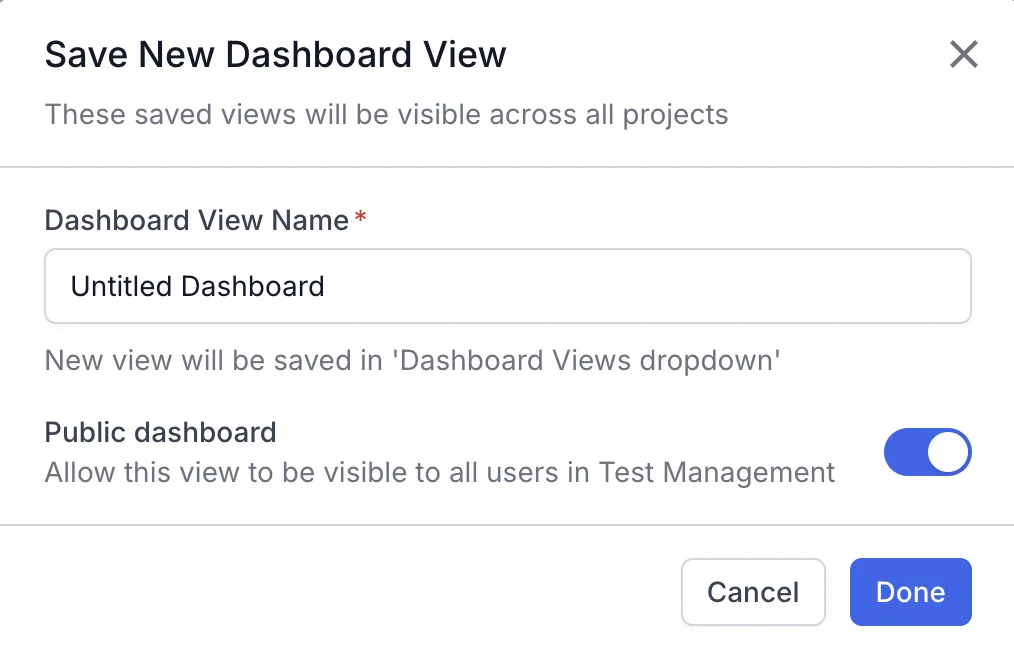
- Leave Public dashboard on to share the view with your organization, or turn it off to keep the view private.
- Click Done.
Use edit layout mode when you added, moved, or resized widgets:
- Click the Edit Layout (pencil) icon.
- Add, move, resize, or remove widgets.
- Click Save.
- Name the view in the Save New Dashboard View dialog, then click Done.
To discard the changes instead, click the arrow beside Save as new view, then select Undo changes. In edit layout mode, click Undo Changes.
If you leave a changed template without saving, Test Management asks whether to exit without saving. Click Cancel to stay and save your work, or Exit to drop the changes.
Create a view
You have two ways to create a view:
- Click the Search View dropdown, then select Create View. Name the view in the Create Dashboard View dialog, then click Done.
- Open a template, change its widgets or layout, then save those changes as a new view.
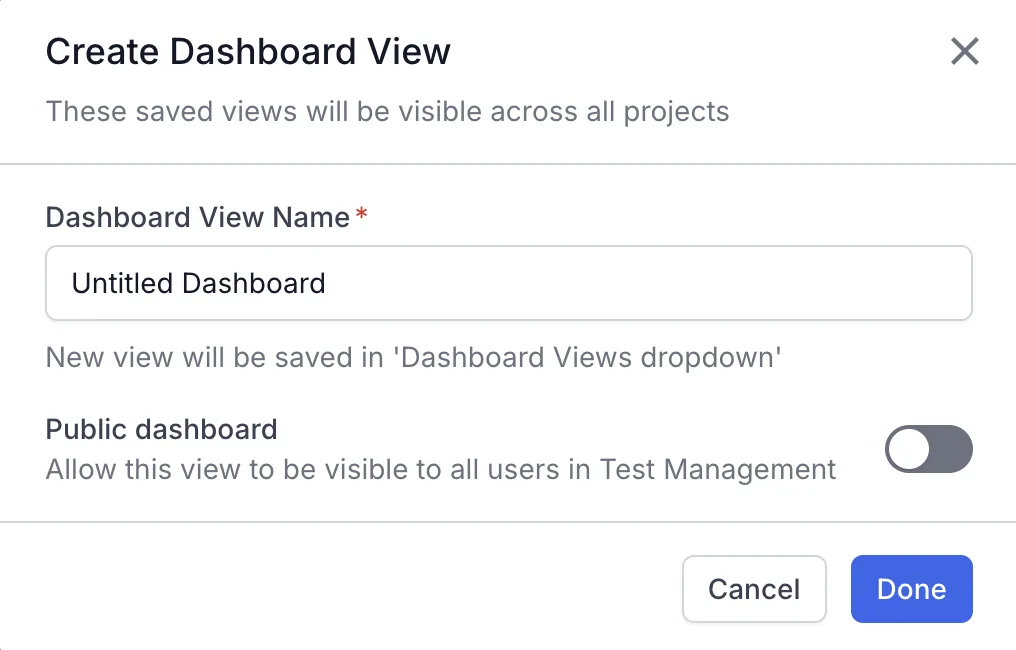
Either way, Test Management opens your new view and lists it under Recently visited.
Switch between views
To open a different view:
-
Click the Search View dropdown.
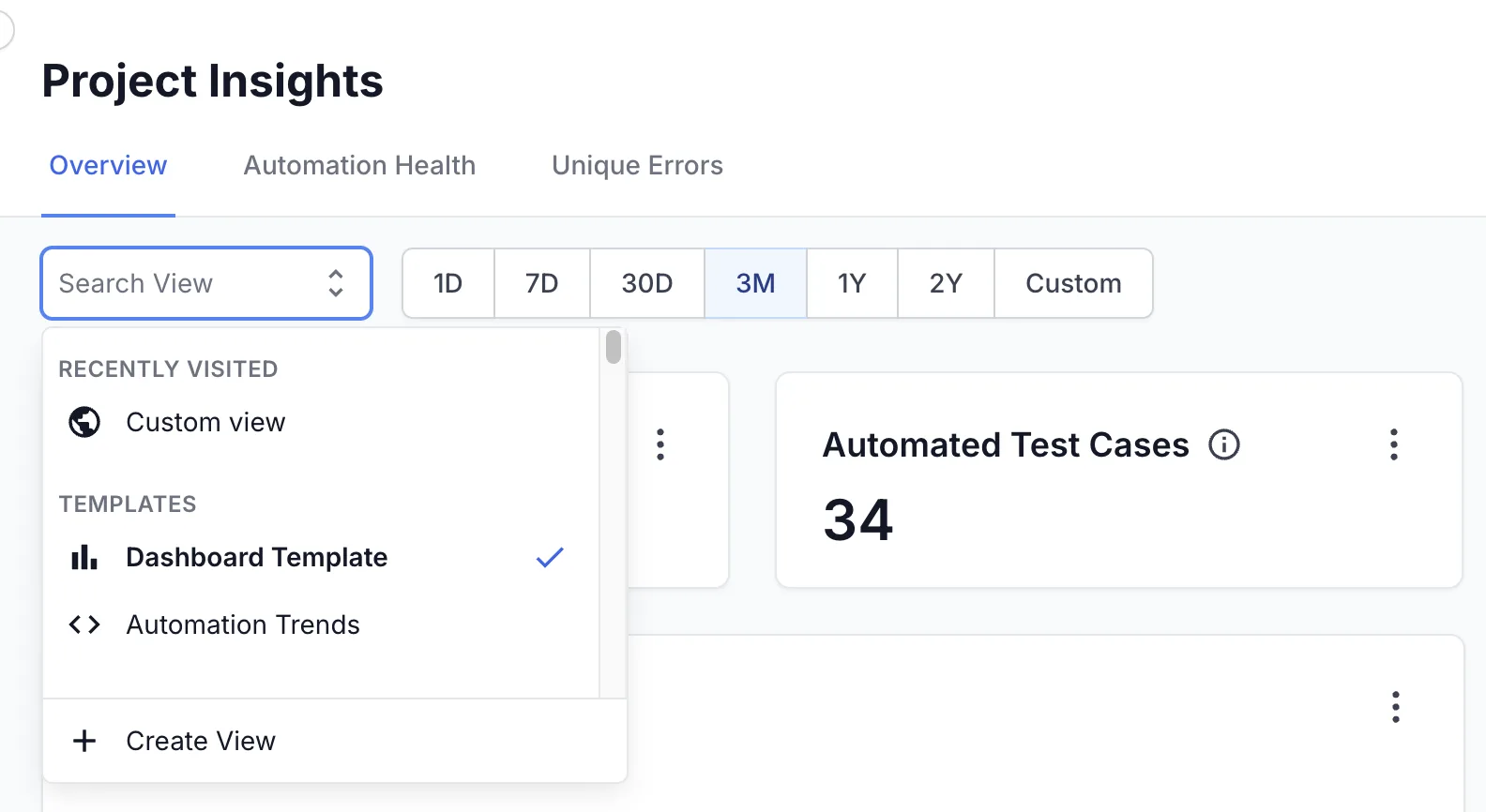
- To find a view faster, type part of its name in the search box.
- Select the view you want to open.
The dashboard updates to show that view. A checkmark marks the view you are on.
The dropdown groups your views so you can find one quickly:
- Recently visited lists the dashboards you opened most recently.
- Templates holds Dashboard Template and Automation Trends.
- All views lists your remaining saved views.
Return to your last view
Test Management remembers the last view you opened in each project. When you come back to the dashboard, it opens that view instead of a template, with your widgets, layout, filters, and time range as you left them. Nothing resets. This memory also covers the public dashboards your team shares.
Rename a view or change who can see it
To change a view’s name or its visibility:
-
From the Search View dropdown, select the view you want to change.
-
Click Edit View. The Update Dashboard View dialog opens.
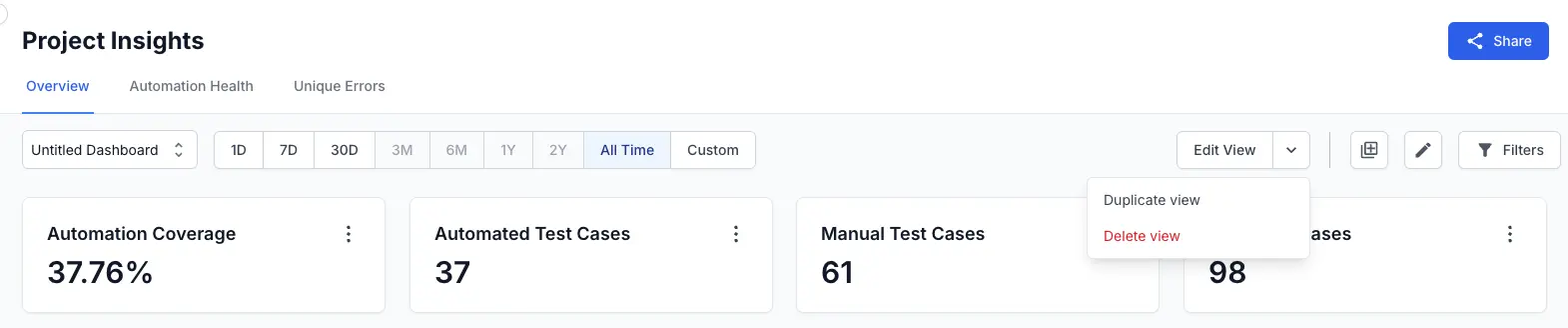
- Edit the name in Dashboard View Name.
- Turn Public dashboard on or off to change who can open the view.
- Click Done.
Duplicate a view
Duplicate a view to reuse it as the starting point for a new one. The copy is fully editable. The original does not change.
Duplicate view appears only on a saved view. To branch from a template, change it and save the result as a new view.
To duplicate a view:
-
From the Search View dropdown, select the view you want to duplicate.
-
Click the arrow beside Edit View, then select Duplicate view.
-
In the Clone Dashboard View dialog, enter a name in Dashboard View Name.
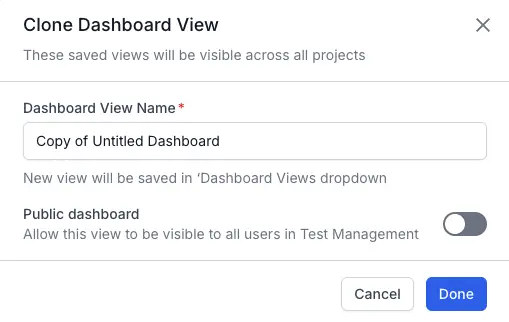
- Turn Public dashboard on or off to set who can open the copy.
- Click Done.
Delete a view
Deleting a view is permanent. You cannot undo it. Dashboard views are shared across BrowserStack products, so the view disappears from every project and product that uses it.
To delete a view:
- From the Search View dropdown, select the view you want to delete.
-
Click the arrow beside Edit View, then select Delete view.
- In the Delete Dashboard View dialog, click Delete to remove the view, or Cancel to keep it.
Share the dashboard
The Share button gives you two ways to share the view you are on.
Share with your team
To copy a link for your colleagues:
- Click Share, then open the Share dashboard tab.
- Click Copy link.
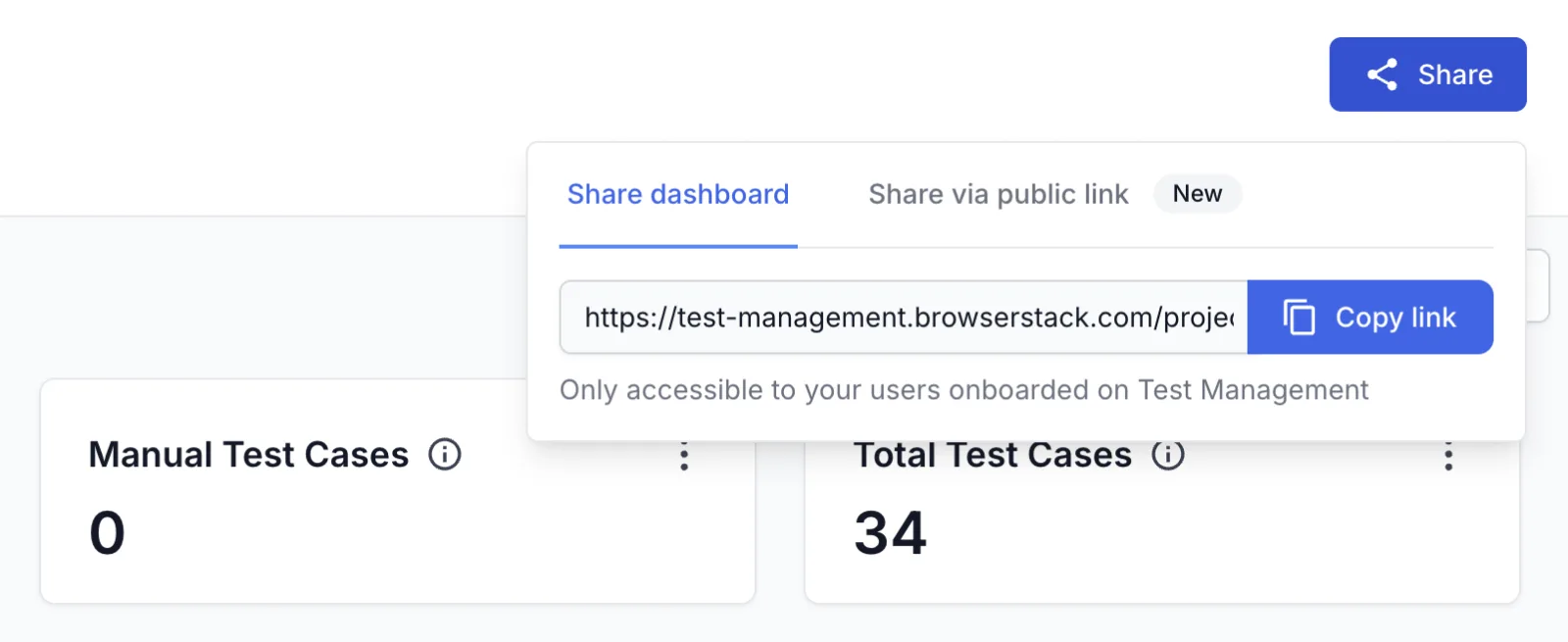
Anyone you send this link to needs a Test Management account in your organization. Without one, the link does not open.
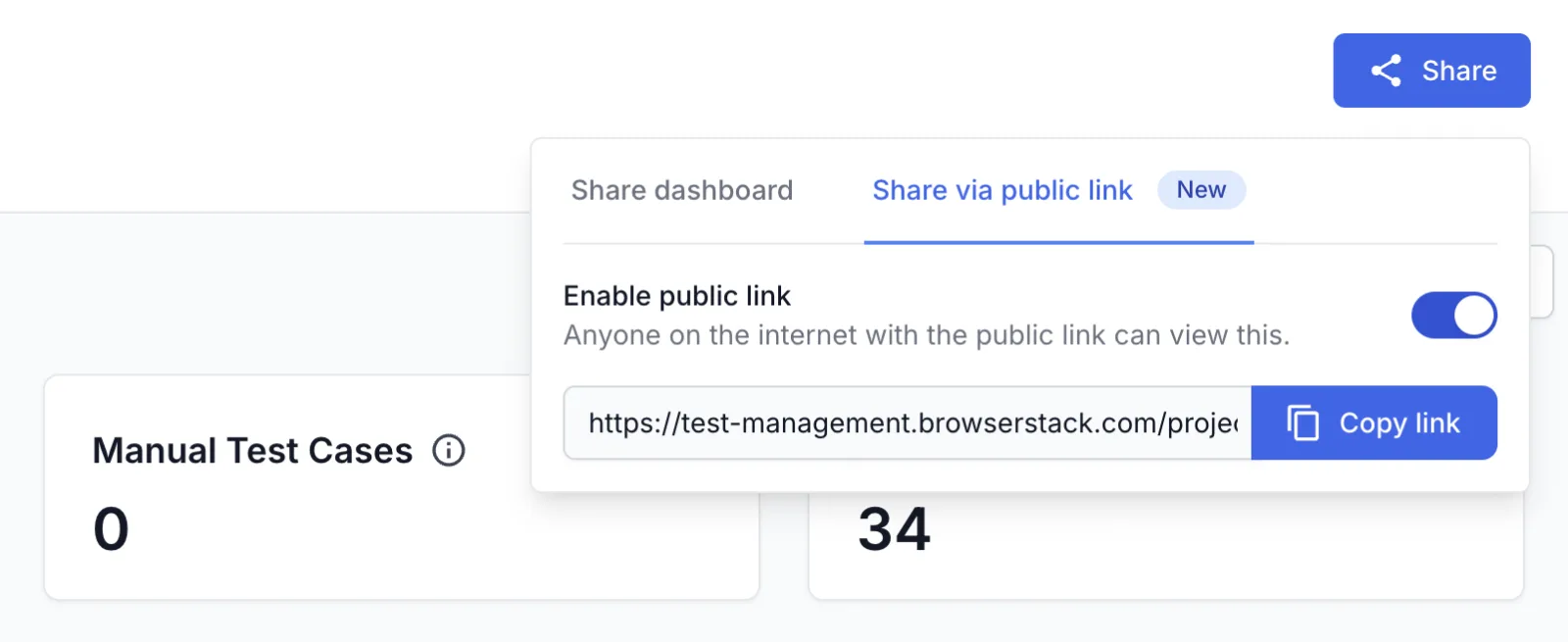
Share with a public link
A public link opens for anyone on the internet who has the address, with no BrowserStack account and no sign-in. Use it for stakeholders outside your organization. Check what the dashboard exposes before you turn it on.
To publish a public link:
- Click Share, then open the Share via public link tab.
- Turn on Enable public link. The link appears.
- Click Copy link.
Next steps
- Reports and dashboards overview: See the full set of Test Management dashboards and reports.
- Statistics cards widget: Add a headline metric to your dashboard.
- Active test runs widget: Track the status of your active test runs.
We're sorry to hear that. Please share your feedback so we can do better
Contact our Support team for immediate help while we work on improving our docs.
We're continuously improving our docs. We'd love to know what you liked
We're sorry to hear that. Please share your feedback so we can do better
Contact our Support team for immediate help while we work on improving our docs.
We're continuously improving our docs. We'd love to know what you liked
Thank you for your valuable feedback!