
 Join our Discord
Edit, close, and delete an Exploratory Session
Learn how to edit, close, and delete an exploratory session in BrowserStack Test Management.
Modify session metadata while testing is active, finalize a session into a permanent read-only record, or permanently remove a session and all its data.
These three actions represent the lifecycle management of an exploratory session after it has been created and (optionally) executed. Each has different consequences, and understanding those consequences prevents accidental data loss.
Edit a session
Editing lets you update a session’s metadata at any point while the session is still active. You might need to extend the timebox mid-session, reassign the session to a different tester, refine the mission based on early findings, or correct a tag or title.
Editable fields
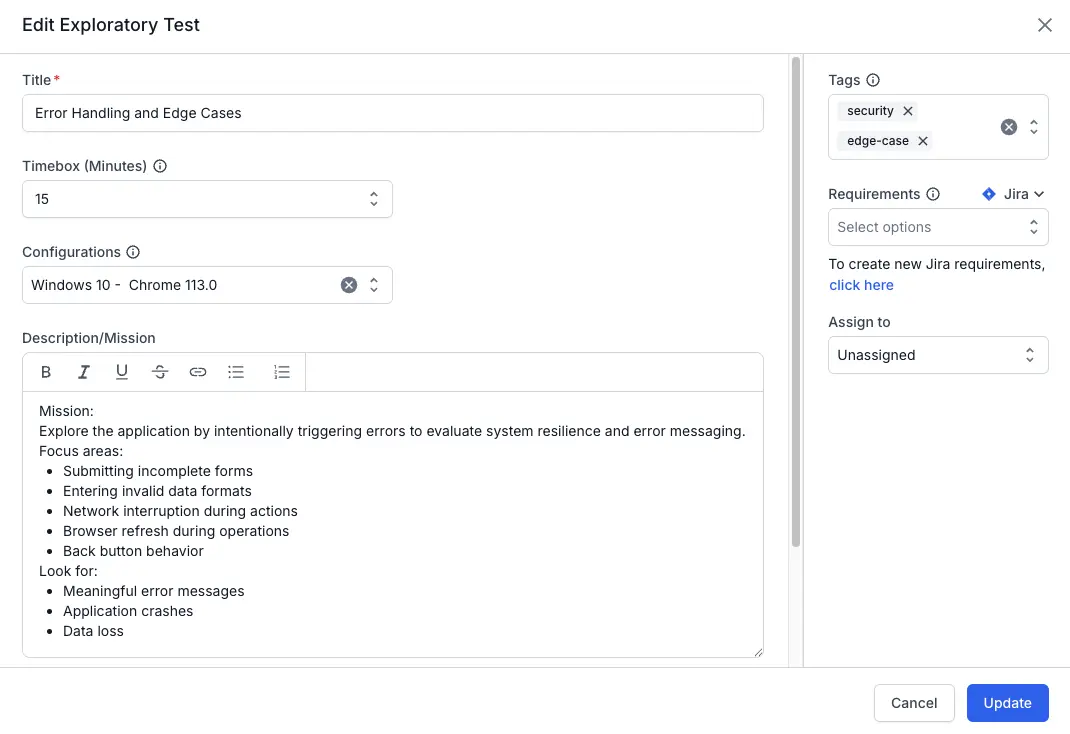
You can modify the following fields on an active session:
| Field | Typical reason to edit |
|---|---|
| Title | Clarifies scope after testing reveals a more specific focus area |
| Timebox (Minutes) | Extends duration when initial estimate was too short |
| Configuration | Corrects the OS/browser/device if the original selection was wrong |
| Description/Mission | Refines the charter based on early observations or stakeholder input |
| Tags | Adds or removes categorization labels as the session’s context evolves |
| Assign to | Hands off the session to another tester mid-stream |
Editing does not affect existing log entries. If you change the timebox from 15 minutes to 30 minutes, the elapsed-time counter adjusts to reflect the new total, but all previously logged entries remain unchanged.
Edit from the list view
- Click Exploratory Sessions in the left navigation panel.
-
Find the session in the Active Sessions tab.
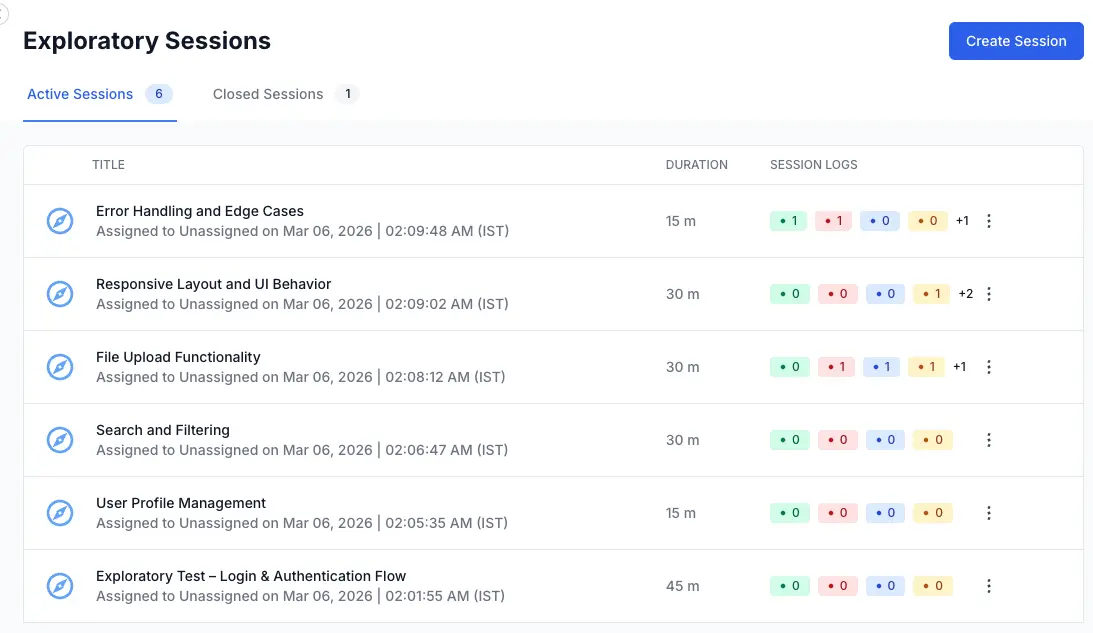
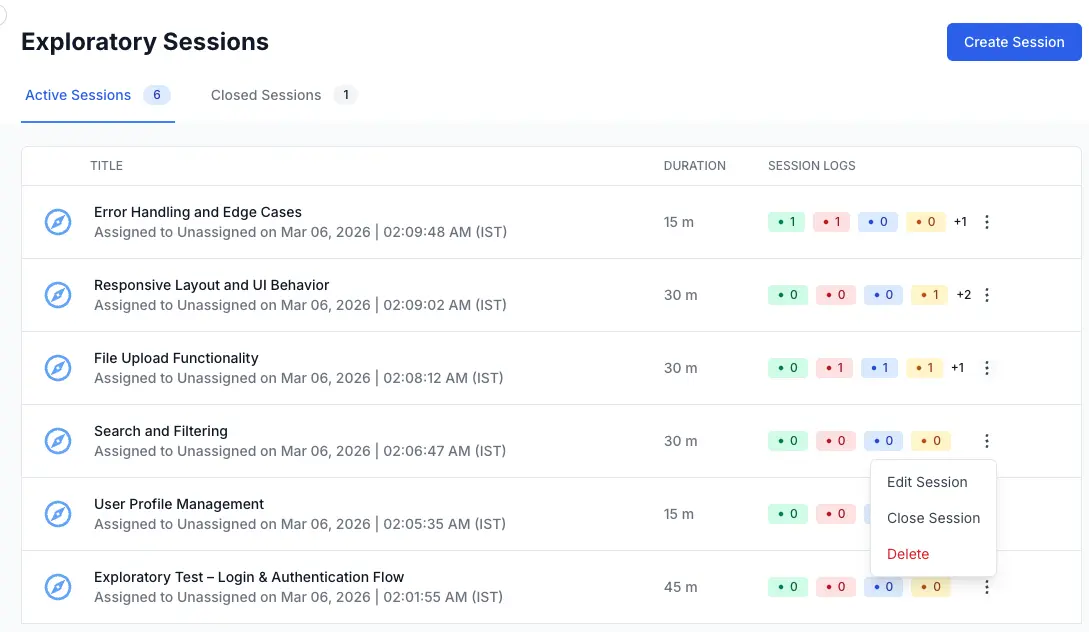
- Click the three-dot menu (⋮) on the right side of the session row.
-
Select Edit Session.
- Modify the fields you need to change.
- Click Update to save your changes.
Edit from inside the session
- Open the session by clicking its title in the list view.
-
Click the three-dot menu (⋮) on the right side of the session row.

- Select Edit Session.
- Update the fields you need to change.
- Click Update to save your changes.
This approach is useful when you realize mid-session that the timebox needs adjusting or the mission needs refining. You do not have to leave the execution UI.
Editing restrictions
You cannot edit a session that has been closed. Closing is a one-way action that locks all session data, including metadata. If a closed session contains incorrect metadata, your only option is to delete the closed session and create a new one. For this reason, review your session details before closing.
If you are unsure whether you need to adjust session metadata after testing, leave the session open until your post-session review is complete. Close it only after all metadata and log entries are finalized.
Close a session
Closing a session marks it as complete and converts it into a permanent, read-only record. The session moves from the Active Sessions tab to the Closed Sessions tab, and all editing capabilities are disabled. This is the intended end state for every session that has served its purpose.
The effect of closing
Once you close a session, the following changes take effect immediately:
-
The session becomes read-only: You cannot add, edit, or delete log entries. You cannot modify any metadata fields (title, timebox, mission, tags, configuration, or assignee). You cannot add or remove linked issues (requirements or defects).
-
The session moves tabs: It disappears from the Active Sessions list and appears in the Closed Sessions list. Anyone looking at the Active Sessions tab will no longer see it.
-
The session remains fully viewable: All log entries, linked issues, metadata, and the status bar summary are preserved exactly as they were at the time of closing. You can open a closed session at any time to review its contents.
-
The session’s data is excluded from Test Run and Test Plan reports: This is true for all exploratory sessions regardless of state, but it is worth noting that closing a session does not change its reporting visibility.
Close from the list view
- Click Exploratory Sessions in the left navigation panel.
-
In the Active Sessions tab, find the session you want to close.
-
Click the three-dot menu (⋮) on the session row.
- Select Close Session.
A confirmation dialog appears. -
Click Close Session to confirm.
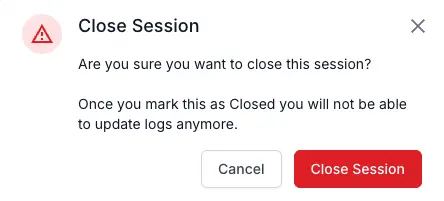
To cancel, click Cancel or the X icon on the dialog. The session remains active.
Close from inside the session
You can also close a session from within the Session Execution UI using the session action controls on the page. The same confirmation dialog appears.
Reopening a closed session
You cannot reopen a closed session. This is by design. A closed session is an immutable audit record. If you closed a session prematurely and still have testing to do, create a new session for the remaining work. Reference the original session’s title or ID in the new session’s mission for traceability.
Readiness checklist for closing
Close a session when all of the following are true:
-
You have finished testing: You have covered the scope defined in your mission, or your timebox has expired and you have captured everything relevant.
-
All defects are linked: Every bug you found during the session has been logged as a Bug entry and linked to your issue tracker. After you close the session, you cannot add new links.
-
Metadata is accurate: The title, mission, tags, and configuration reflect the actual work you did. These fields are locked after closing.
-
Your team has reviewed the session (if applicable): If your workflow includes a post-session review with a QA manager or lead, complete that review before closing. The reviewer can add their own log entries (such as Notes with feedback) while the session is still open.
If you are running a bug bash and plan to discuss findings in a team debrief, leave the session open until the debrief is done. Close it only when the discussion is complete and all action items have been captured in the log.
Delete a session
Deleting a session permanently removes it and all associated data from Test Management. This includes every log entry, every linked issue reference, all attachments, and all metadata. The session disappears from both the Active Sessions and Closed Sessions tabs. There is no recovery.
The confirmation safeguard
Because deletion is irreversible, Test Management requires a two-step confirmation:
-
Click the three-dot menu (⋮) on the session row in the list view.
- Select Delete.
A confirmation dialog appears. -
Type the word delete in the confirmation text field. The Delete button remains disabled until you type the exact word.
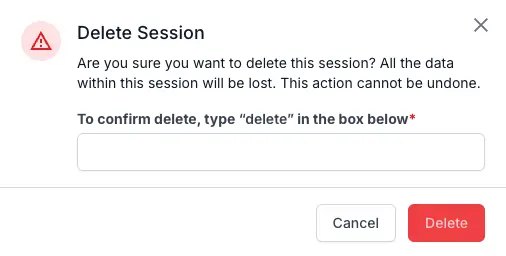
- Click Delete.
To cancel, click Cancel or the X icon. The session remains untouched.
Delete active vs closed sessions
You can delete a session in any state. Both active sessions (Yet to start, In Progress) and closed sessions can be deleted. The confirmation dialog and safeguard are the same regardless of state.
For active sessions, deletion removes all in-progress work. If a tester is currently working in the session, their unsaved log entry (anything typed but not yet submitted via Add Log) is lost along with all saved entries.
For closed sessions, deletion removes the archived record. If the session log was the only record of testing activity for a particular area, that audit trail is permanently gone.
Closing vs deleting a session
Closing and deleting serve fundamentally different purposes. The table below clarifies when to use each.
| Close | Delete | |
|---|---|---|
| Purpose | Finalizes the session as a permanent record | Remove the session entirely |
| Data preserved | Yes. All log entries, links, and metadata remain viewable. | No. Everything is permanently erased. |
| Reversible | No. You cannot reopen a closed session. | No. You cannot recover a deleted session. |
| Appears in Closed Sessions tab | Yes | No |
| Use when | Testing is done and you want to preserve the audit trail | The session was created by mistake, is a duplicate, or contains no useful data |
If you need to preserve a record of the testing work, close the session instead of deleting it. Reserve deletion for sessions that have no lasting value, such as sessions created accidentally, duplicates, or sessions with no log entries.
Effect on linked issues
Deleting a session removes the link references stored in Test Management, but it does not delete or modify the actual issues in your external tracker. If you created a Jira ticket from a Bug entry and later delete the session, the Jira ticket still exists in Jira. Only the link between the session and the ticket is removed. If you want to preserve the link for traceability, consider closing the session instead of deleting it.
Quick reference
The following table summarizes when to use each action:
| Action | Available on Active sessions | Available on Closed sessions | Reversible | Data preserved |
|---|---|---|---|---|
| Edit metadata | Yes | No | Yes (edit again) | N/A |
| Close | Yes | N/A | No | Yes (read-only) |
| Delete | Yes | Yes | No | No (permanent removal) |
Next steps
To understand the list view, session states, and status counts in more detail, see Manage Exploratory Sessions.
We're sorry to hear that. Please share your feedback so we can do better
Contact our Support team for immediate help while we work on improving our docs.
We're continuously improving our docs. We'd love to know what you liked
We're sorry to hear that. Please share your feedback so we can do better
Contact our Support team for immediate help while we work on improving our docs.
We're continuously improving our docs. We'd love to know what you liked
Thank you for your valuable feedback!