
 Join our Discord
Integrate with Trello
Connect Trello with Test Management to create and link Trello cards directly from your test cases and test runs.
Trello organizes work as cards on boards. After you connect Trello, you can create a card from a test case or test run, or link a card that already exists. Your tests and your Trello board stay in sync.
Prerequisites
Before you begin, ensure you have:
- An active Trello account. Trello uses your Atlassian account to sign in.
- An active Test Management account.
Connect Trello to Test Management
Connect Trello from the Integrations page before you link any cards.
- In the left navigation menu, select Integrations.
-
On the All apps tab, click Connect on the Trello tile.
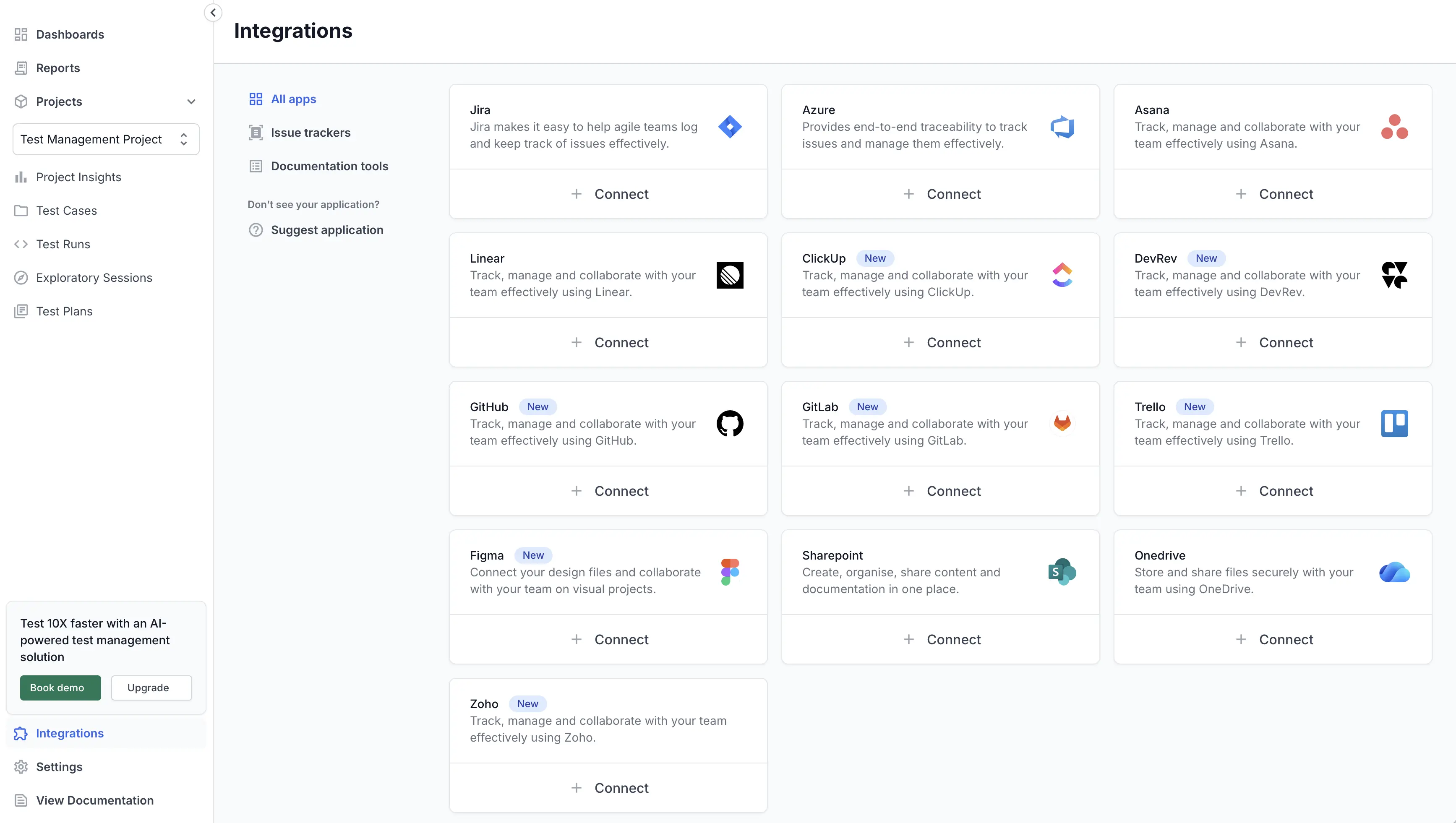
The Integrate with your Trello account dialog opens. -
Click Connect with OAuth.
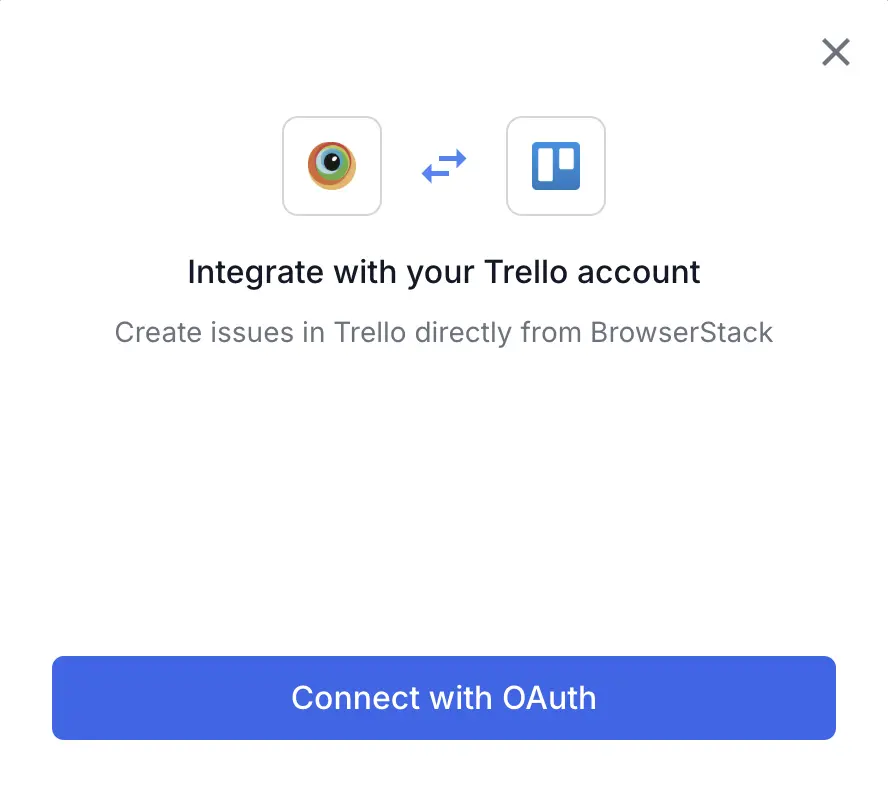
BrowserStack sends you to Trello to authorize the connection. - On the Trello authorization page, review the access that BrowserStack requests. If you are not signed in, sign in with your Atlassian account first.
- Click Allow. Trello returns you to the Integrations page.
After Trello returns you to the Integrations page, the Trello tile shows as connected. The setup is complete. You can now create and link Trello cards from your test cases and test runs.
BrowserStack cannot see your Trello password. Before you approve, the Trello authorization page lists the exact access BrowserStack requests. The connection stays active until you disconnect it. If you provide the access, BrowserStack can read your Trello boards and lists, and create new cards and update existing ones on your behalf.
Next steps
We're sorry to hear that. Please share your feedback so we can do better
Contact our Support team for immediate help while we work on improving our docs.
We're continuously improving our docs. We'd love to know what you liked
We're sorry to hear that. Please share your feedback so we can do better
Contact our Support team for immediate help while we work on improving our docs.
We're continuously improving our docs. We'd love to know what you liked
Thank you for your valuable feedback!