
 Join our Discord
Link Zoho issues from a test run
Link your test runs and test results to Zoho BugTracker issues to report and track defects without leaving Test Management.
After you integrate Zoho BugTracker, you can link issues straight from a test run. Report a bug found during execution, or tie the run to a feature you track in Zoho.
Prerequisites
Before you start, integrate with Zoho BugTracker.
Link a Zoho issue from a test run
You can create a new Zoho issue, or link an existing one while you create or edit a test run.
- Open the create or edit test run window in your project.
-
Select Zoho from the Requirements field dropdown menu.
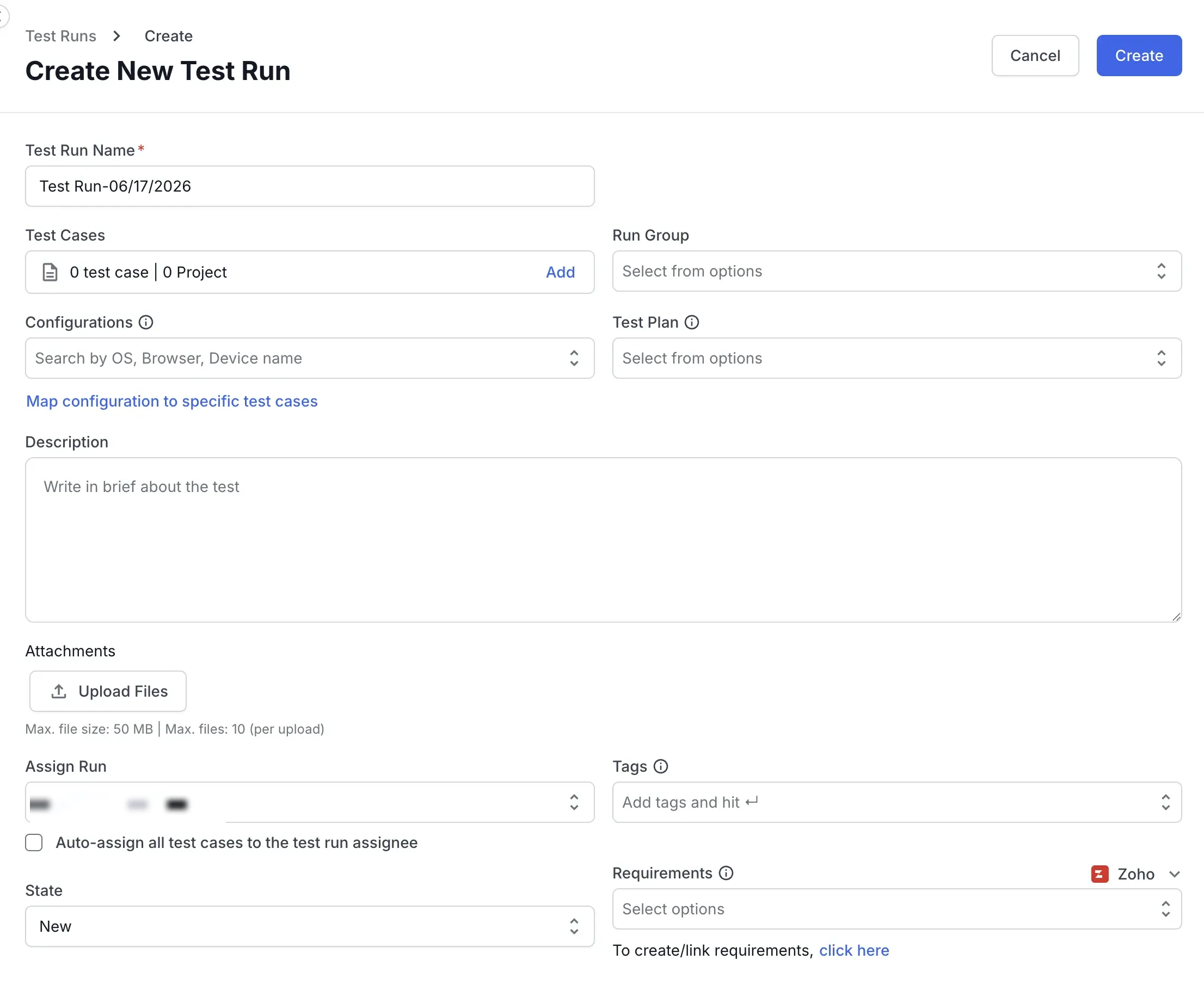
- To open the Zoho BugTracker dialog, select the click here link below the Requirements field.
-
In the dialog, select your Portal, then your Project.
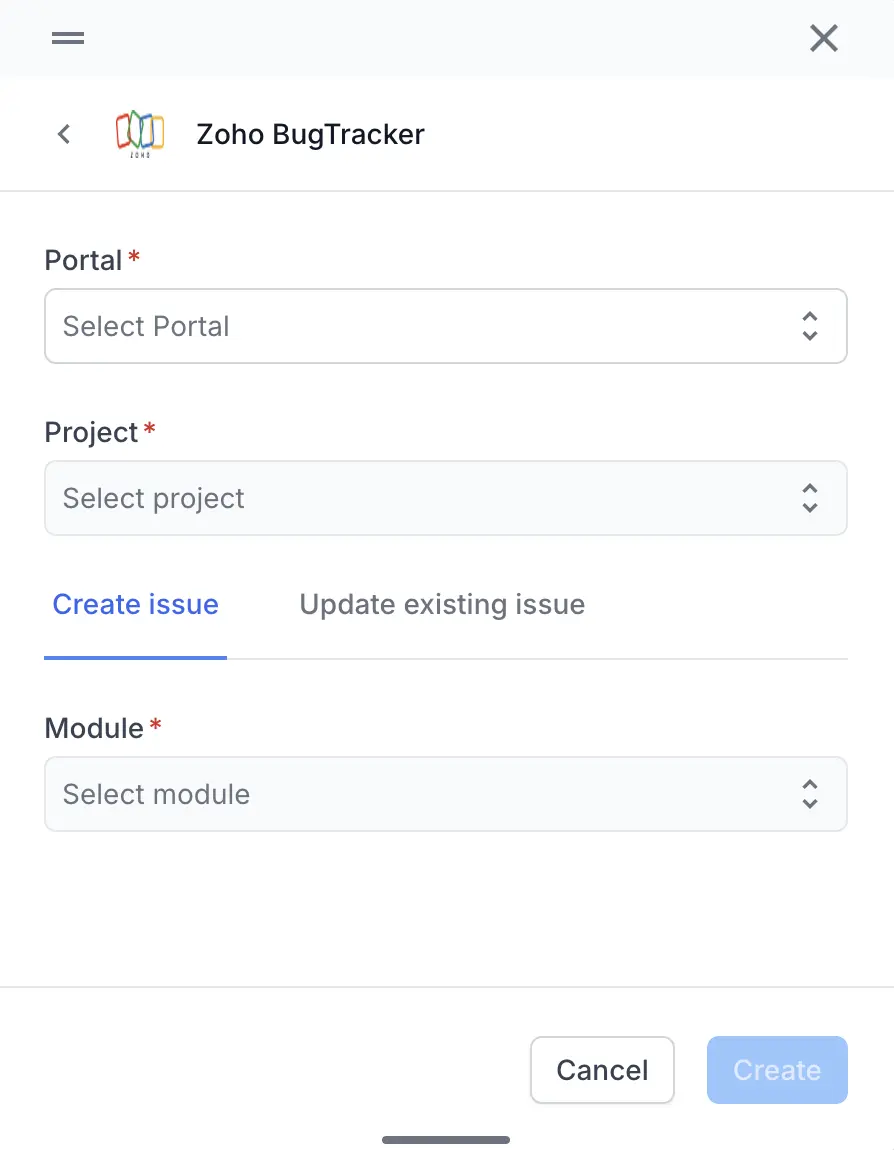
- Choose a tab based on what you want to do:
- Create issue: select a Module, then fill the remaining required fields.
- Update existing issue: select the Issue you want to link.
- Click Create or Update.
Test Management links the new or updated issue to your test run. The Requirements field then shows the linked issue.
Link test results with Zoho issues
When a test fails, you can log the defect in Zoho from the test result. Test Management links the new or updated issue to that result.
- Open the test run that holds the test cases you ran.
- Select the checkbox next to each test case you want to add a result to.
-
Click Add Result.
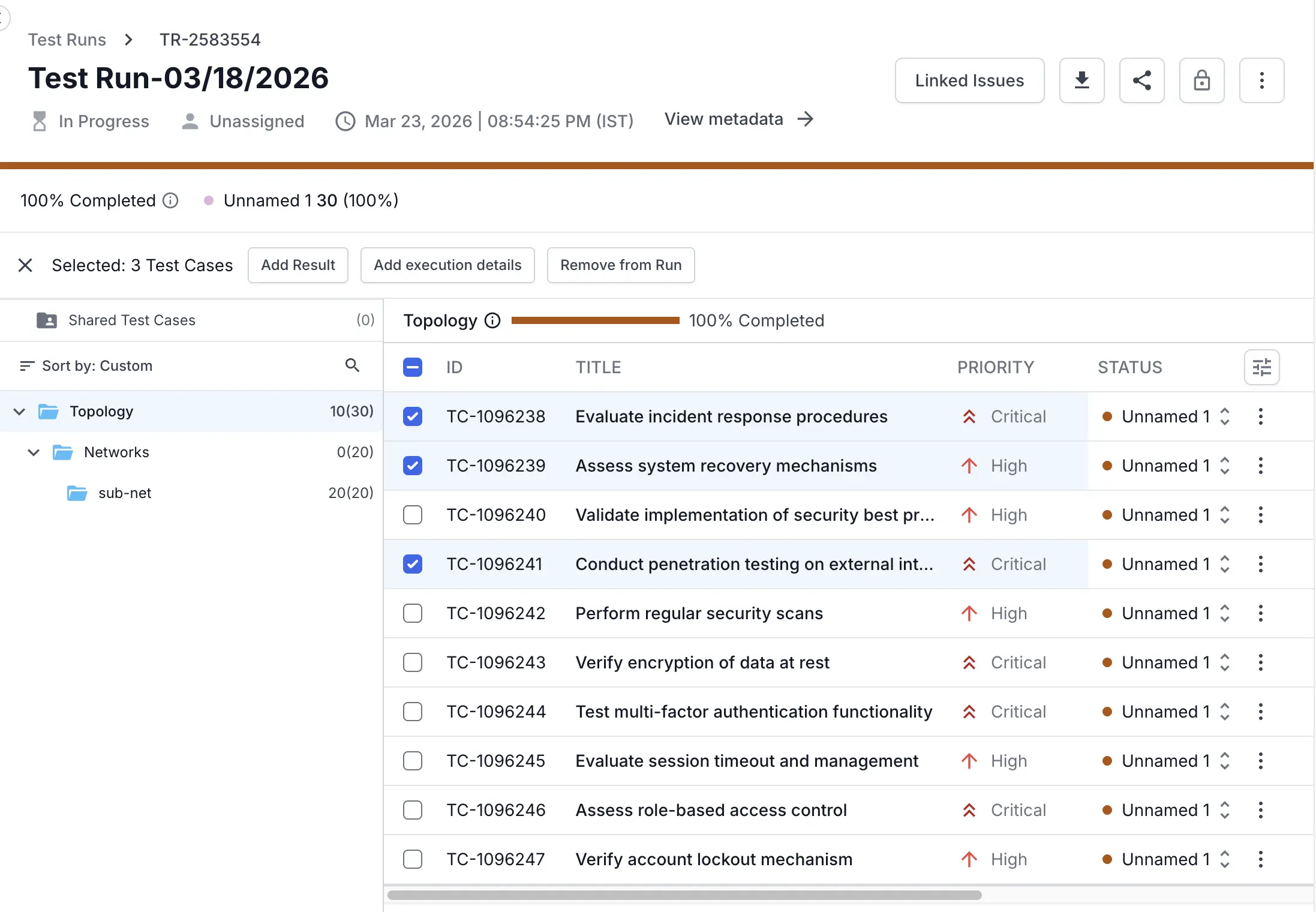
-
In the Defects field, select Zoho from the dropdown.
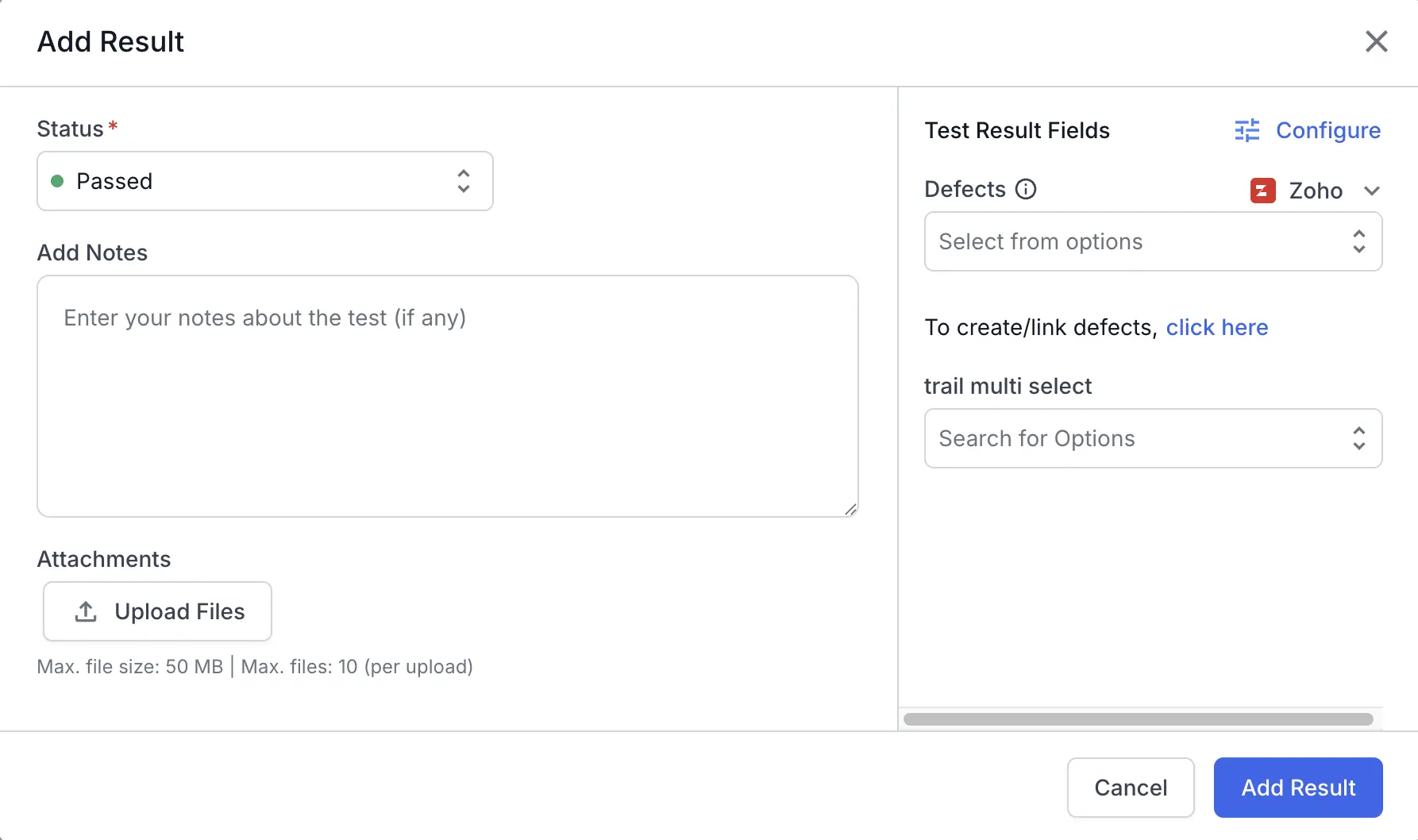
- Below the Defects field, select the click here link. The Zoho BugTracker dialog opens.
- In the dialog, select your Portal, then your Project.
- Choose a tab based on what you want to do:
- Create issue: select a Module, then fill the remaining required fields.
- Update existing issue: select the Issue you want to link.
- Click Create or Update.
- Click Add Result to save the result with the linked defect.
Test Management links the Zoho issue to your test result. The defect now traces back to the exact step that failed.
Next steps
We're sorry to hear that. Please share your feedback so we can do better
Contact our Support team for immediate help while we work on improving our docs.
We're continuously improving our docs. We'd love to know what you liked
We're sorry to hear that. Please share your feedback so we can do better
Contact our Support team for immediate help while we work on improving our docs.
We're continuously improving our docs. We'd love to know what you liked
Thank you for your valuable feedback!