
 Join our Discord
Shared fields in test cases
Use shared fields to author a piece of test content once and reuse it across many test cases. When you update the source, every linked test case updates automatically.
Shared fields allow you to create reusable steps for repetitive test actions. You can share these fields with multiple test cases that utilize a step template. This feature helps save time and ensures consistency across your test cases.
By using shared fields (steps, preconditions, and backgrounds), you can efficiently manage your testing process. When you update a shared entity, the changes automatically apply to all test cases that use it, significantly reducing maintenance effort.
BrowserStack Test Management supports three types of shared fields:
| Type | Best used for | Format |
|---|---|---|
| Shared steps | Standard test cases where a sequence of actions (for example, Login to dashboard) repeats across many cases. |
Step rows (Action, Additional Data, Expected Result) |
| Shared backgrounds | BDD test cases that share a common setup block before every scenario. | Gherkin syntax (Given / When / Then) |
| Shared preconditions | Standard test cases that share the same expected state before the test runs (for example, User must be logged in with admin role). |
Rich text |
All three types live in the Shared Fields tab inside the Test Cases repository, and you manage them (edit, clone, and delete) the same way. See Manage shared fields for those shared operations.
How shared fields work
A shared field is a single source of truth. When you link a shared field to a test case, the test case stores a reference, not a copy. If you later edit the source, every linked test case picks up the change on the next view. This gives you three things:
- Lower duplication: Author a common sequence once.
- Centralized updates: Fix a step in one place.
- Consistency: Every test case that links the same shared field reads the same content.
You can mix shared and inline content inside the same test case. For example, a test case can include two shared steps, one inline step, a shared precondition, and free-text precondition notes.
Shared steps
A shared step is a reusable sequence of step rows, where each row has a step description, optional additional data, and an expected result. Use shared steps for repeated action sequences like sign-in, search, or checkout.
If you update a Shared Field, changes made to the shared field automatically appear in all linked test cases.
Create a shared step
Follow these steps to create a shared step:
- Open your project and navigate to the Shared Fields tab in the test cases repository.
-
Click Create Shared Step.
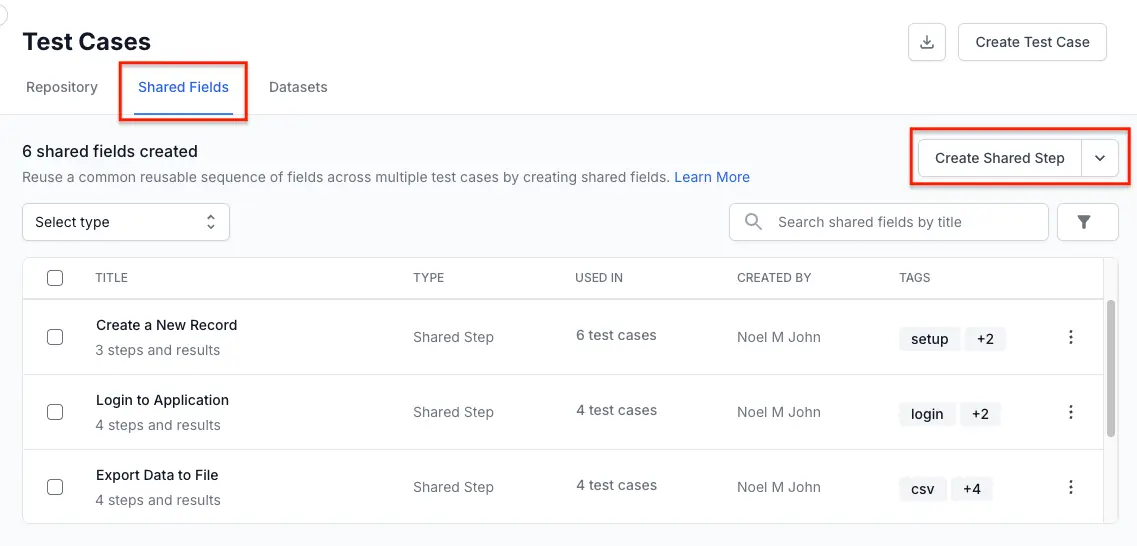
If the create button currently shows a different label (for example, Create Precondition), click the dropdown arrow next to it and select Shared Step.
- In the Create Shared Step dialog, enter the following:
- Title(required): Enter a short, descriptive name, for example, Login to application.
- Tags: Add one or more tags to help you find the step later.
- Steps and Results: Enter the step description, additional data, and expected result for each row.
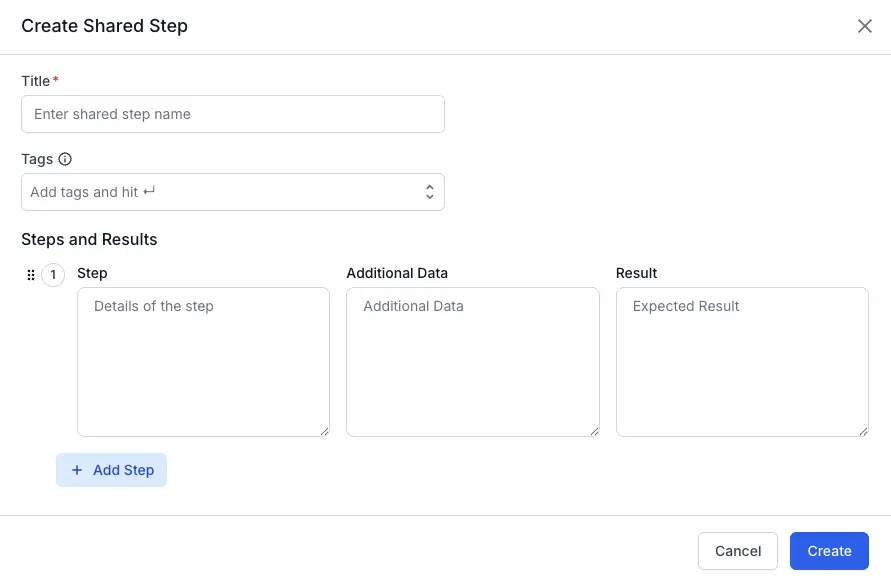
- Click Add Step to add more rows to the sequence if necessary.
- Click Create.
The new shared step appears in the Shared Fields list with the type Shared Step.
Add a shared step to a test case
- Open the test case in create or edit mode.
-
In the test case form, under Steps and Results, click Add Shared Step.
- Select the shared step you want to insert. Use the search bar or the Filter by tags dropdown to narrow the list.
The shared step appears as a single linked row inside the test case. You can add more rows above or below it, or insert another shared step.
Shared backgrounds
A shared background is a reusable Gherkin block that runs before every scenario in a BDD test case. Use shared backgrounds when several BDD test cases start from the same setup, for example Given the user is signed in and on the dashboard.
Create a shared background
- Open your project and navigate to the Shared Fields tab in the test cases repository.
-
Click the dropdown arrow next to the Create Shared Step button and select Background (BDD).
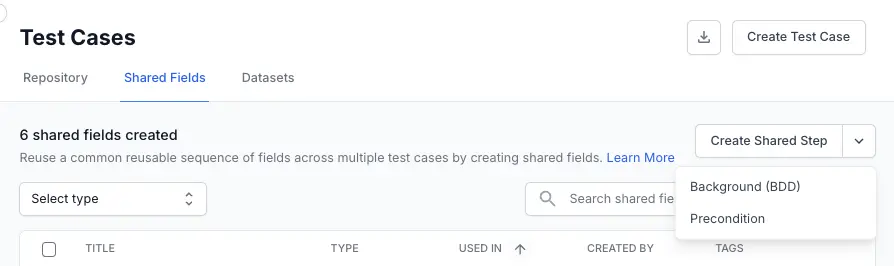
- In the Create Shared Background dialog, enter the following:
- Title(required): Enter a short, descriptive name.
- Tags: Add one or more tags for filtering.
- Background(required): Enter the setup block in standard Gherkin syntax.
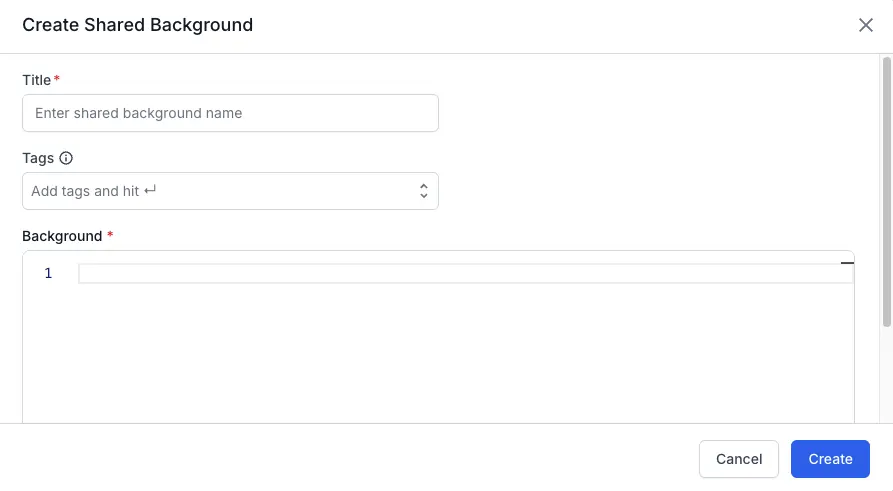
- Click Create.
The new shared background appears in the Shared Fields list with the type Background BDD.
Add a shared background to a BDD test case
A BDD test case can link one shared background. The linked background runs before every scenario in the test case.
- Create or open a test case that uses the BDD template.
-
In the Background section of the test case form, click Add Shared Background.
- Select the shared background you want to link.
The selected background appears in the test case’s Background section. To replace it, unlink it first and then add a different one. See Unlink a shared field from a test case.
Shared preconditions
A shared precondition is a reusable rich-text block that describes the state a test case expects before it runs. Use shared preconditions for setup notes that several test cases share.
A shared precondition is different from the free-text Preconditions field on the test case form. The free-text field stores notes that apply only to that one test case. A shared precondition is a saved, reusable block that you can link from many test cases. You can use both in the same test case. Type test-case-specific notes inline, then link a shared precondition for the common setup.
Create a shared precondition
- Open your project and navigate to the Shared Fields tab in the test cases repository.
-
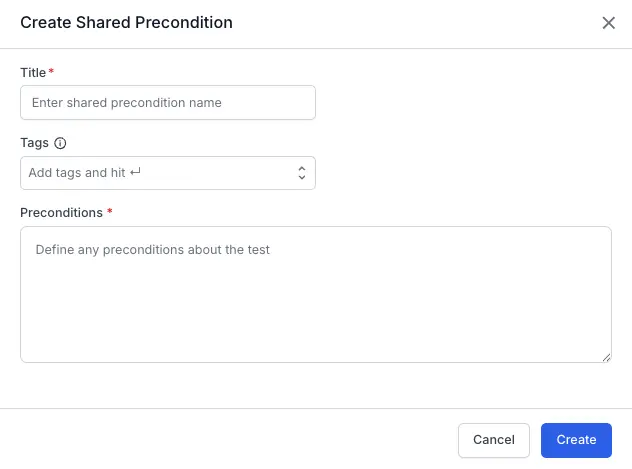
Click the dropdown arrow next to the Create Shared Step button and select Precondition.
- In the Create Shared Precondition dialog, enter the following:
- Title(required): Enter a short, descriptive name, for example, Admin user with seed data.
- Tags: Add one or more tags for filtering.
- Preconditions(required): Enter the precondition content in the rich text editor. You can apply bold, italic, underline, lists, code, links, and tables.
- Click Create.
The new shared precondition appears in the Shared Fields list with the type Precondition.
Add a shared precondition to a test case
- Create or open a test case.
-
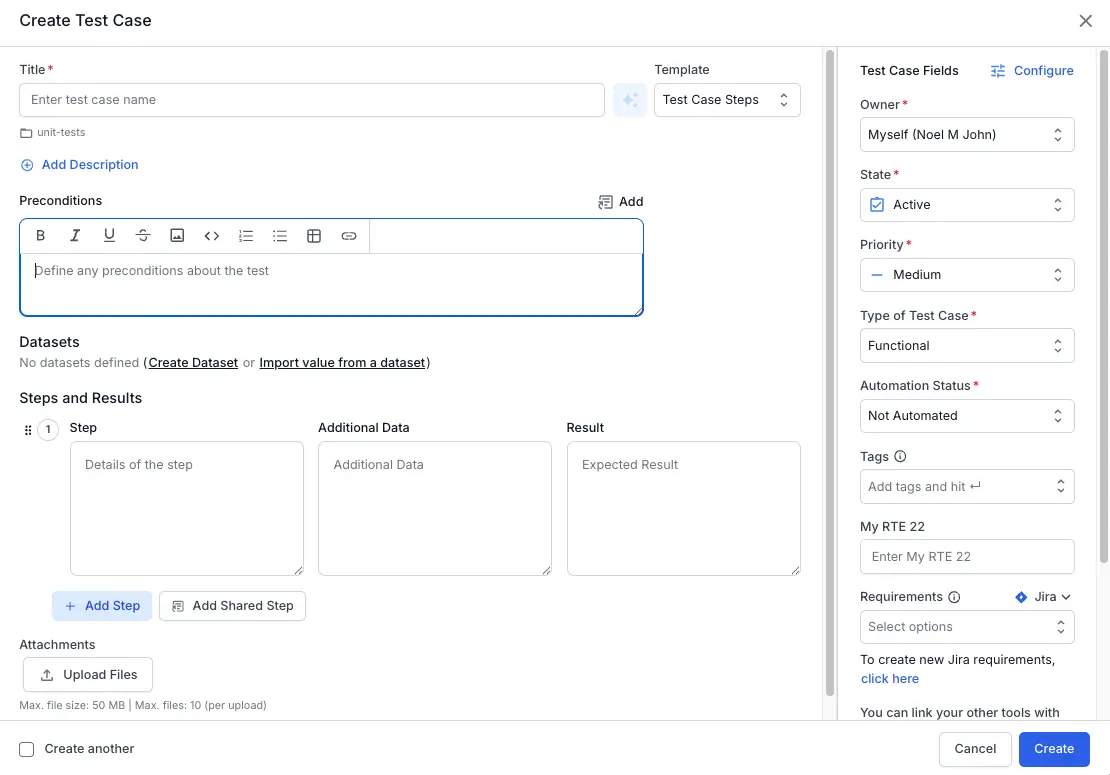
In the Preconditions section of the test case form, click the Add icon.
-
Select the shared precondition you want to link.
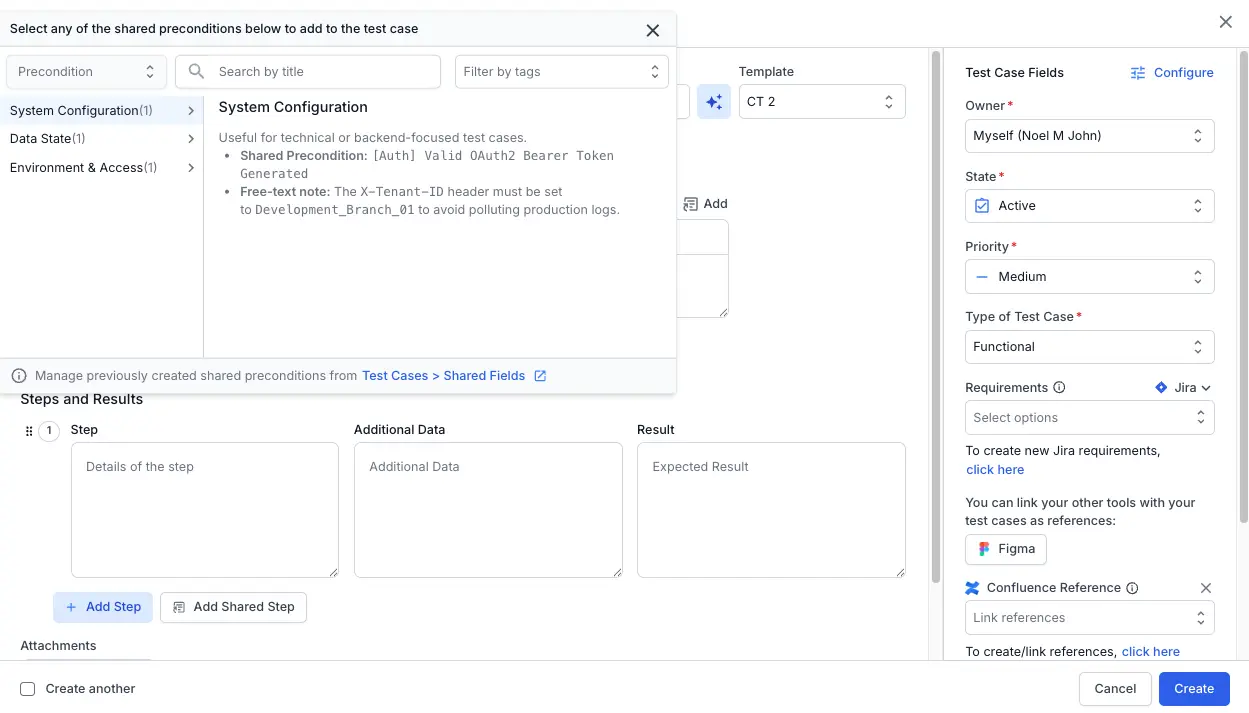
The selected precondition appears in the Preconditions section as a linked block. You can keep typing free-text precondition notes above or below it.
Manage shared fields
The operations in this section apply to all three types of shared fields. The steps are the same for shared steps, shared backgrounds, and shared preconditions unless noted.
Edit a shared field
When you edit a shared field, the change applies to every test case linked to it.
-
Navigate to the Shared Fields tab on the test cases dashboard.
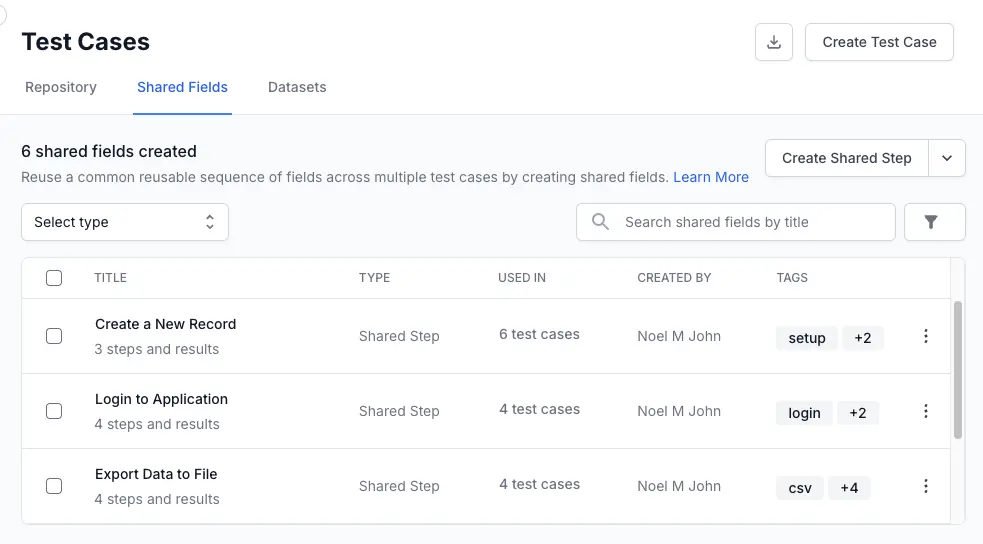
- Locate the shared field you want to copy from the list.
- Click the (⋮) icon on the right side of the shared field row to open the menu.
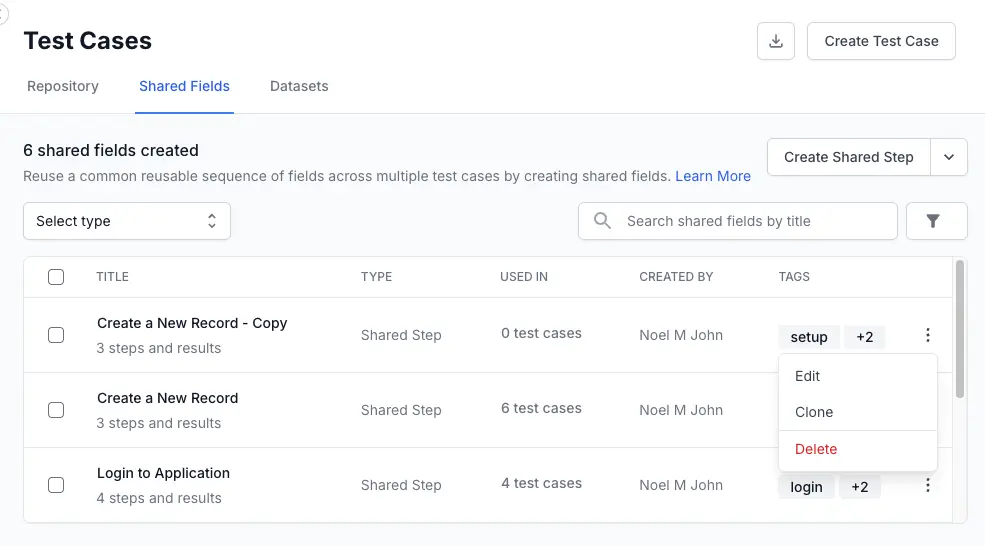
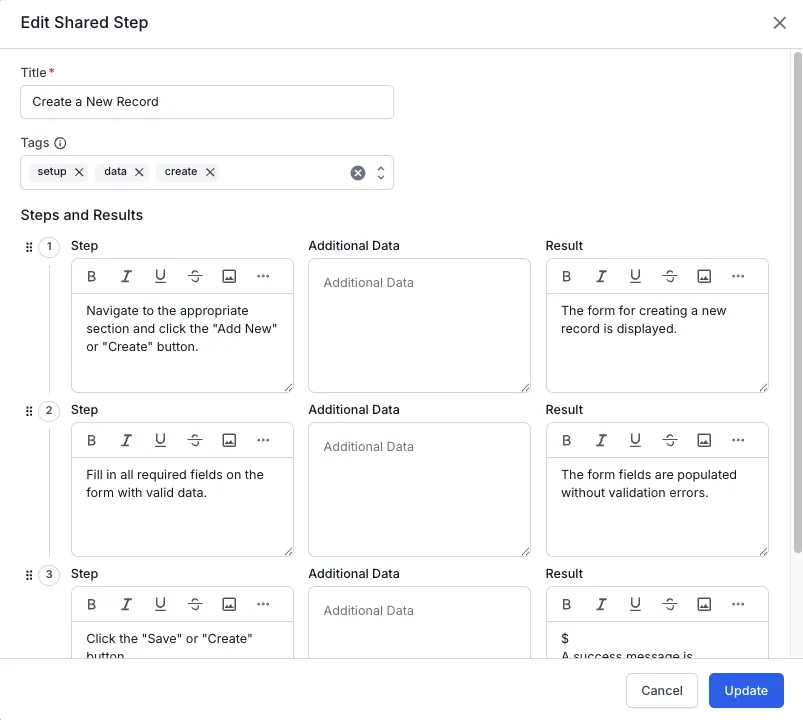
- Make your changes in the dialog. The dialog matches the editor used to create the field (step rows for shared steps, Gherkin for backgrounds, rich text for preconditions).
-
Select the confirmation checkbox and click Update.
Clone a shared field
Clone a shared field when you want to create a variation without losing the original. The clone is independent. Editing the clone does not affect the source.
-
Navigate to the Shared Fields tab on the test cases dashboard.
- Locate the shared field you want to copy from the list.
- Click the (⋮) icon on the right side of the shared field row to open the menu.
- Select Clone from the dropdown options.
- The Clone Shared Step window will open. It comes pre-filled with all the original details. You can now update the title or tags, or modify the individual steps and expected results.
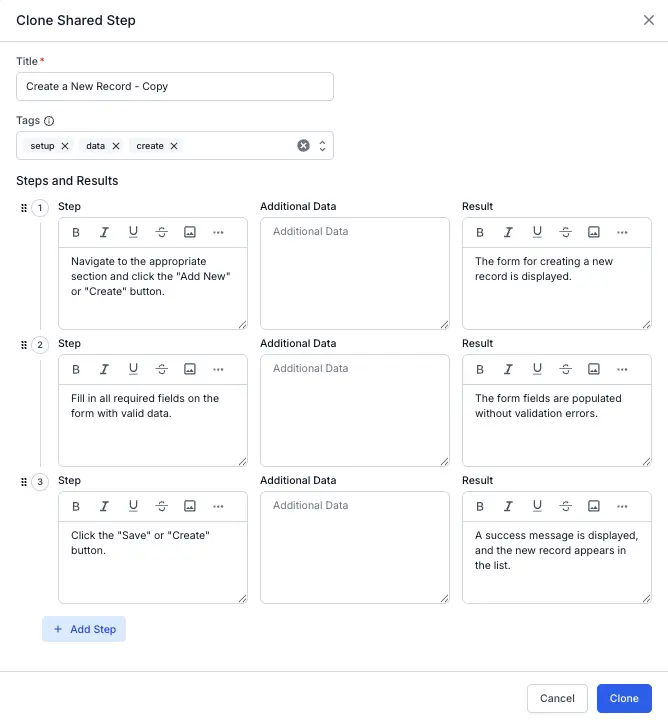
- Click the Clone button to confirm.
You have successfully cloned the shared step. A success notification will appear, and the new copy will be added to your shared fields list view. By default, the title will be the original name with - Copy appended. You can modify the title before you clone the shared step.
Delete a shared field
Deleting a shared field removes it from the list and from every test case it was linked to. Test cases keep working, but the linked block disappears. Delete with care.
- On the Shared Fields tab, locate the field you want to delete.
-
Click the menu (⋮) on the right of the shared field row.
- Click Delete.
-
Select the confirmation checkbox and click Delete.
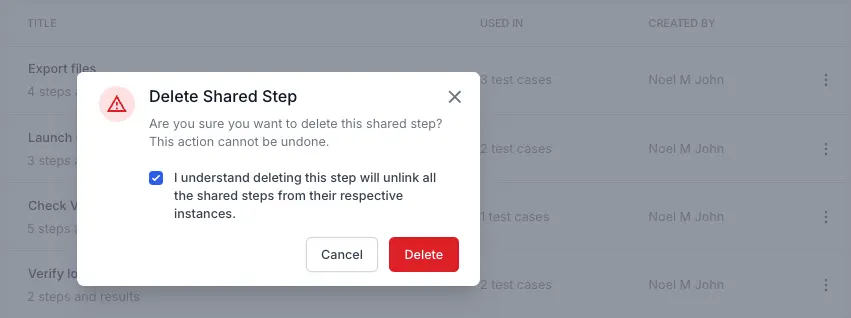
The shared step is removed from the list view and from all linked test cases.
Unlink a shared field from a test case
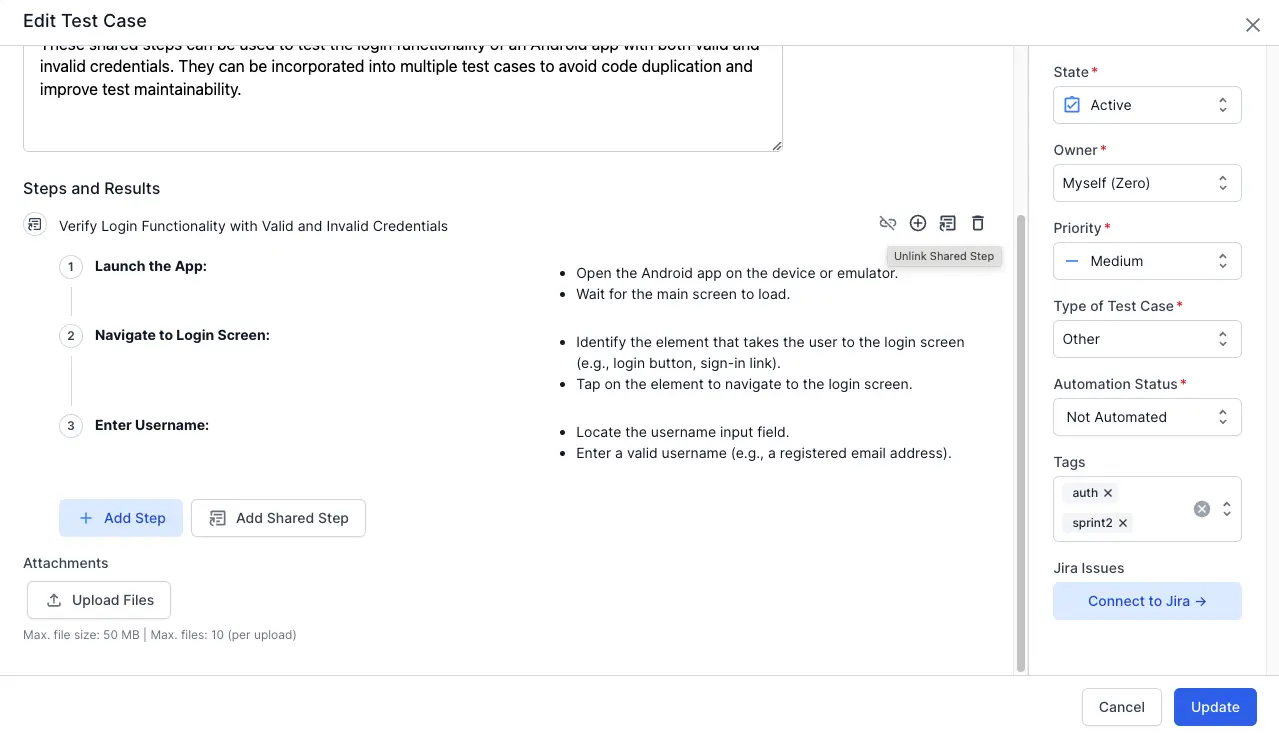
If you have linked a shared field to a test case, you can unlink the shared field. Unlinking removes the link between one test case and one shared field. The shared field itself stays in the repository, and other test cases keep their link.
- Open the test case in edit mode.
- Find the linked shared field inside the test case form.
-
Click the Unlink icon on the linked block.
Reorder shared fields and steps inside a test case
The drag-and-drop feature allows you to easily reorder test steps and shared fields when you create or edit a test case using a steps template. This helps maintain an organized, logical sequence of test execution steps. Each row has a drag handle next to its number.
Follow these steps to reorder test steps or shared fields using drag-and-drop:
-
Navigate to the test case you want to edit, and click it.
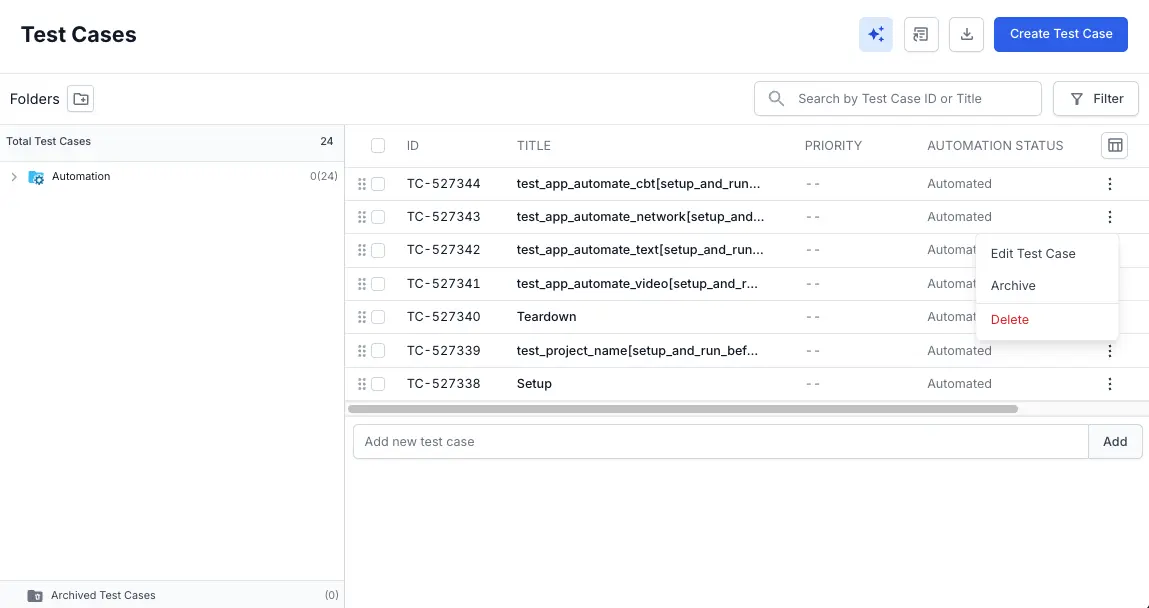
- Each test step and shared step has a drag handle located next to the step number. To drag a step:
- Click and hold the drag handle next to the step number.
- Drag the step to the desired position. A visual indicator will guide you.
- Release the mouse button to finalize the new position of the step.
By following these steps, you can effectively reorder your test steps and shared steps in any test case using a steps template, improving the flow and organization of your test scenarios.
Filter shared fields
Use filters to narrow the Shared Fields list when your repository grows large. You can filter by type, by tag, or by both, and you can combine filters with the search bar.
Filter by type
- On the Shared Fields tab, click the Select type dropdown above the list.
- Choose Shared Step, Precondition, or Background BDD.
The list shows only fields of the selected type. The Create button label updates to match the selected type, so you can create a new field of the same type with one click.
Filter while adding a shared field to a test case
Follow these steps to filter the main list of all shared fields.
- Navigate to the Shared Fields tab on the test cases dashboard.
- Click the Filter button.
-
In the Tags field, select one or more tags you want to filter by.
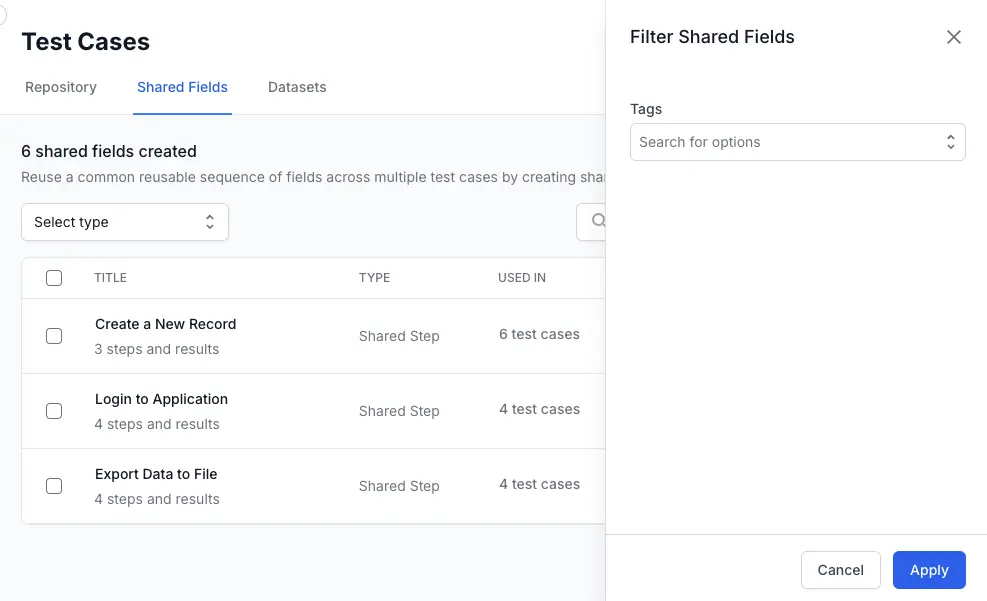
- Click Apply
The list will update to show only the shared fields that match your selected tags.
Filter by tag
- Prerequisite: You should have created the shared step you want to add. Learn how to create your shared step.
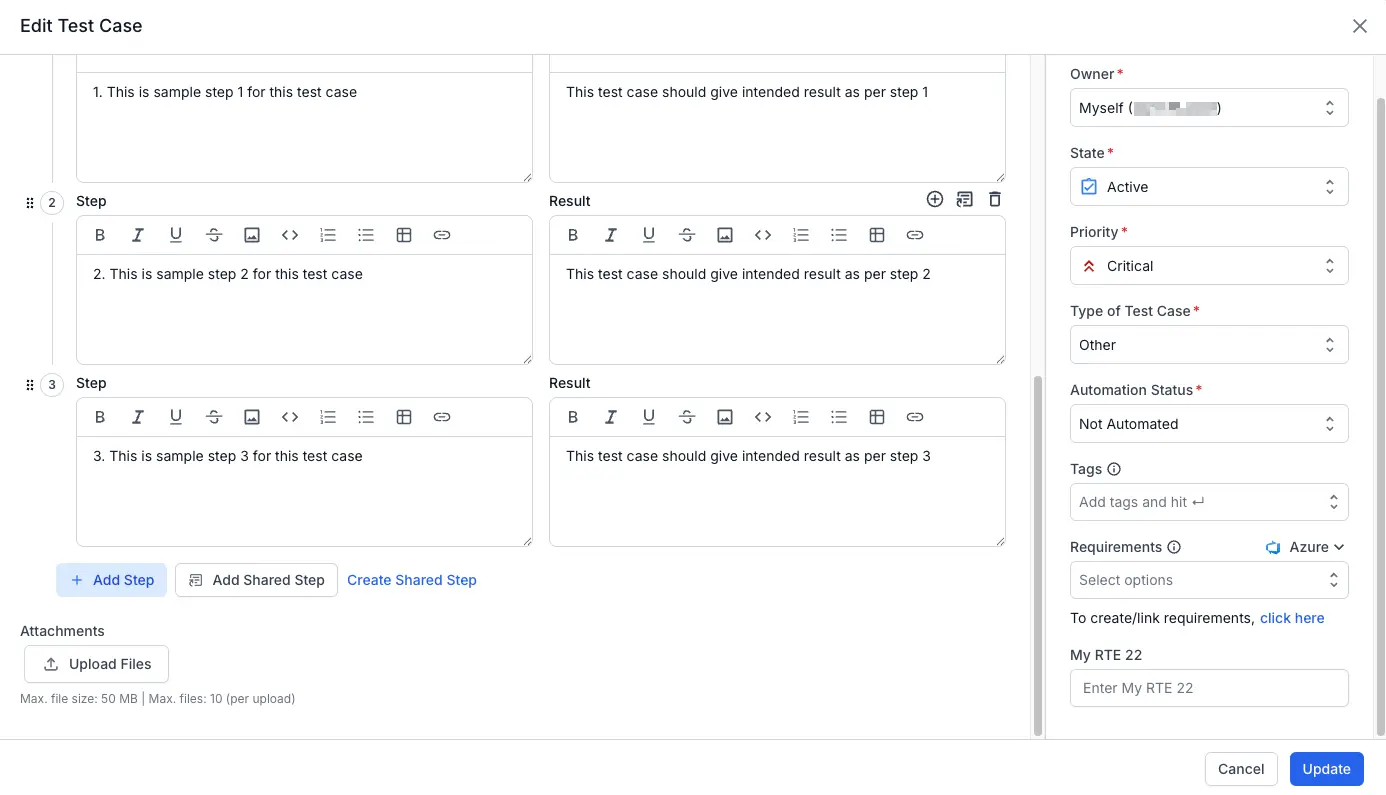
Follow these steps to find a shared step while creating or editing a test case.
-
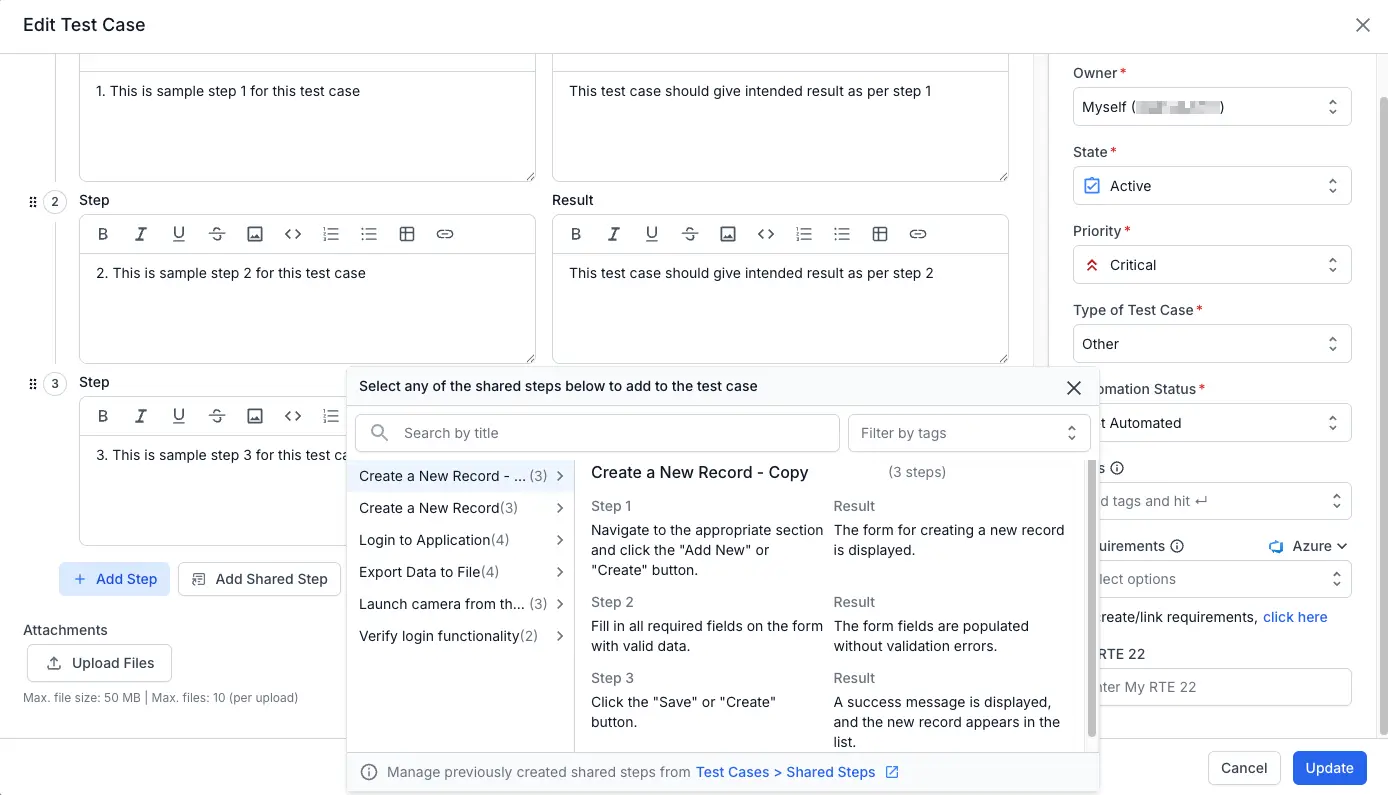
In the test case form, click Add Shared Step.
-
Click the Filter by tags dropdown.
-
Select the tag you want to use as a filter.
The list of shared steps will update automatically to show only the steps matching that tag.
Copy shared fields to another project
Copy shared fields when you want to seed a new project with content from an existing one, or to share content across projects in the same workspace.
-
On the Shared Fields tab, select the checkbox next to each field you want to copy.
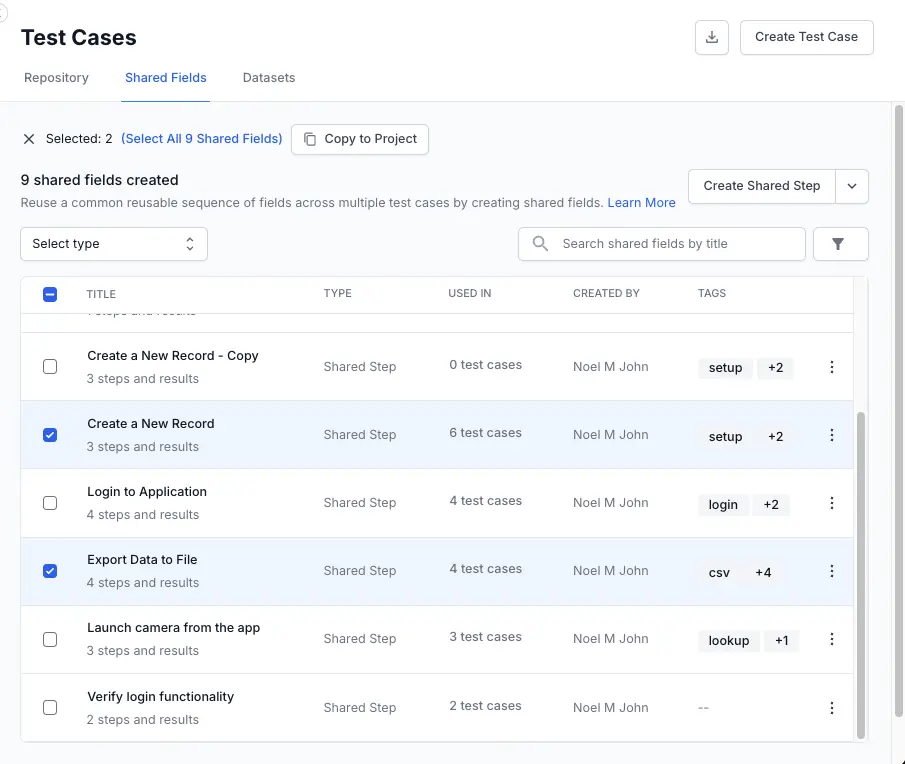
- Click Copy to Project in the toolbar.
-
In the Copy Shared Fields dialog, select the destination project from the Target Project dropdown.
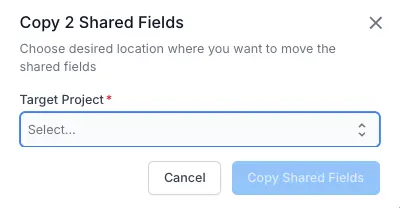
- Click Copy Shared Fields.
The copy job runs in the background. You receive a notification when it finishes. If a field with the same title already exists in the destination project, the copied field is renamed with a numeric suffix, for example, Login (1).
Next steps
We're sorry to hear that. Please share your feedback so we can do better
Contact our Support team for immediate help while we work on improving our docs.
We're continuously improving our docs. We'd love to know what you liked
We're sorry to hear that. Please share your feedback so we can do better
Contact our Support team for immediate help while we work on improving our docs.
We're continuously improving our docs. We'd love to know what you liked
Thank you for your valuable feedback!