
 Join our Discord
Auto-close test runs
Set Test Management to close test runs automatically when they reach a fixed age, and learn how that differs from closing a test run yourself.
Test Management can close test runs automatically after a fixed period of time. Auto-close keeps your active list limited to current work, so that finished test runs don’t pile up.
Auto-close is off by default. You can turn it on for each project.
How auto-close works
If you set this option for a project, each test run in the project gets a close date when it is created. That date is the creation date plus the threshold you set in Close runs after.
The close date is fixed at creation and never changes. So a test run you are still working on closes when it reaches the threshold.
Auto-closed runs are permanently closed and cannot be reopened. Confirm your threshold before you turn the setting on.
Grace period for existing runs
When you turn on auto-close, it includes the test runs you already have. A test run that is already past the threshold does not close immediately. It gets a 7-day grace period first, which leaves your team a week to finish or export anything that still matters. Every other test run closes on its close date.
How auto-close differs from a manual close
Two things that happen when you close a test run yourself do not happen when auto-close does it.
| Behavior | Manual close | Auto-close |
|---|---|---|
| Quality gate | You are asked whether to recalculate the gate. | The gate result stays exactly as it is. Auto-close never recalculates it. |
| Webhooks | Webhook rules that fire on a closed test run are triggered. | Webhook rules that fire on a closed test run are not triggered, so notifications and downstream automation built on them do not run. |
If your team depends on either behavior, review your webhook rules and quality gate profiles before you turn auto-close on.
Prerequisites
Before you set up auto-close, make sure you have the following:
-
The admin or owner role on the project you want to configure.
-
Familiarity with test run states. For more information, see Manage test run state.
Turn on auto-close
To close aging test runs automatically:
- Click Settings > General.
-
Go to the Auto-close runs section.
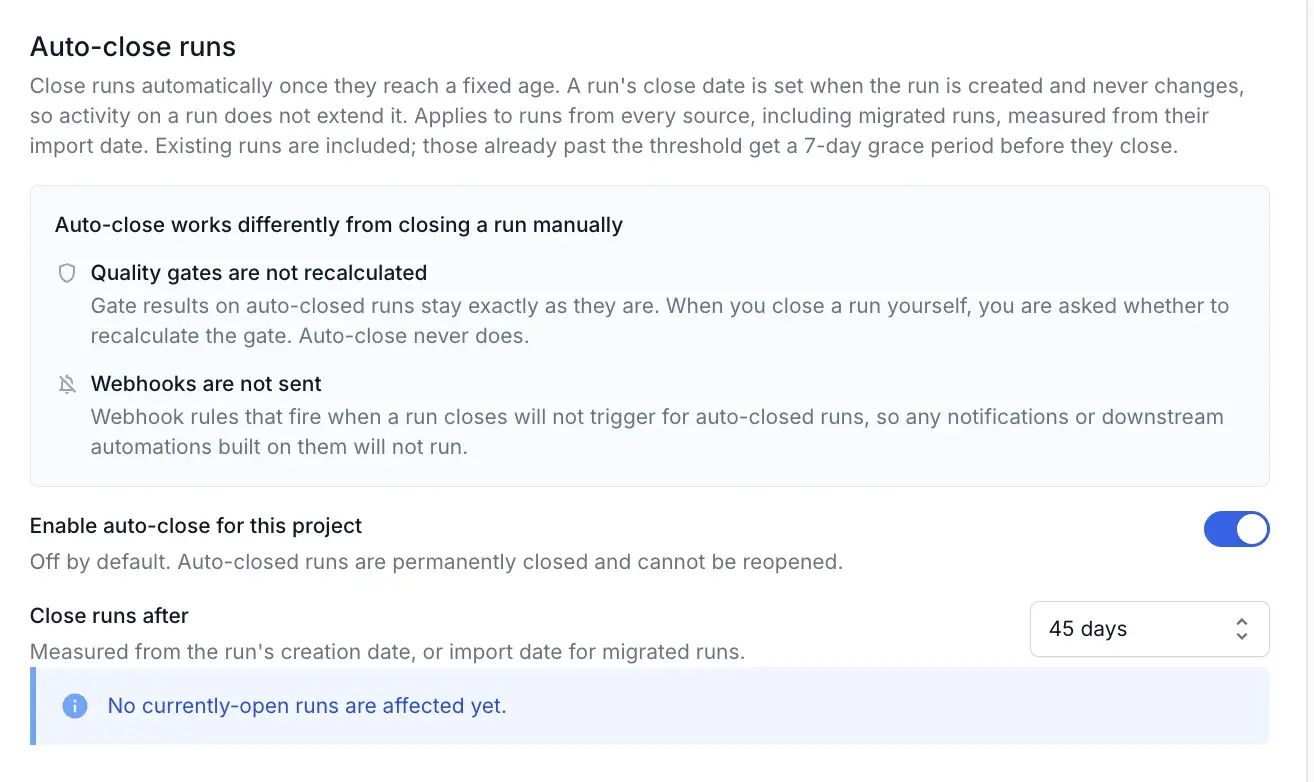
- Turn on Enable auto-close for this project.
-
In Close runs after, enter the number of days a test run can exist before it closes.
The section reports how many of your currently open test runs the threshold affects, so you can check the impact before you settle on a value.
Turn off auto-close
To stop closing test runs automatically:
- Click Settings > General.
- Go to the Auto-close runs section.
- Turn off Enable auto-close for this project.
Test runs that auto-close has already closed stay closed. Turning the setting off stops future automatic closes. It does not reopen anything.
Things to keep in mind
Before you turn auto-close on, weigh the following:
Enable auto-close for this project applies to one project. Turning it on has no effect on your other projects, so set it in every project where you want aging test runs closed automatically.
- An auto-close is permanent. Choose the threshold on the assumption that you will never get the test run back in an editable state.
- Activity does not buy more time. Auto-close measures age from creation, not from last use, so a busy test run closes on the same schedule as an idle one.
- Long-lived test runs need a threshold that fits them. If your team keeps a test run open across a whole release cycle, set the threshold above that cycle’s length.
- Quality gate results freeze on an auto-closed test run. If you need the result to reflect late changes, recalculate the gate before the test run reaches its close date.
- Webhook-driven notifications and downstream automation do not fire on an auto-close.
- Nothing is deleted. Auto-close changes the state of a test run, not its data. Results, notes, and attachments stay available, and your reports still include them.
Related topics
We're sorry to hear that. Please share your feedback so we can do better
Contact our Support team for immediate help while we work on improving our docs.
We're continuously improving our docs. We'd love to know what you liked
We're sorry to hear that. Please share your feedback so we can do better
Contact our Support team for immediate help while we work on improving our docs.
We're continuously improving our docs. We'd love to know what you liked
Thank you for your valuable feedback!