
 Join our Discord
Manage test run groups
Close, assign, edit, and delete test run groups. Learn how to close runs in bulk and manage runs outside a group.
Each test run group header in the grouped list view includes a more options (⋮) menu. Select it to access the following actions:
- Edit Group
- Add Runs to Test Plan
- Assign Runs to
- Ungroup Runs
- Close Run Group
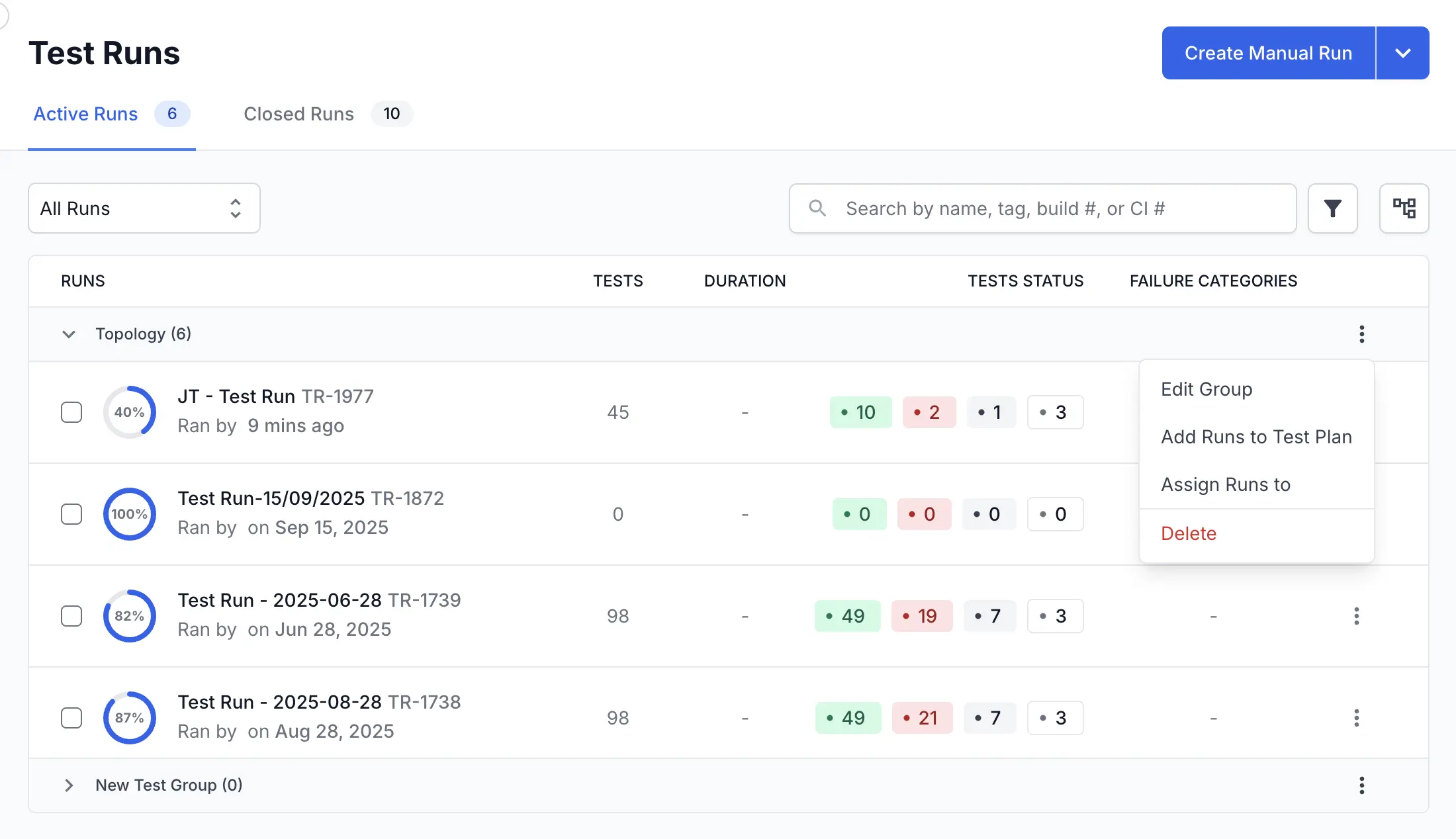
All actions in this section require the grouped view. To enable it, see View grouped test runs.
Edit a run group
You can change the name or description of a run group at any time.
- From the grouped test runs list view, find the group you want to modify.
-
Click the more options (⋮) menu on the group header and select Edit Group.
-
In the Edit Run Group dialog, update the Name or Description.
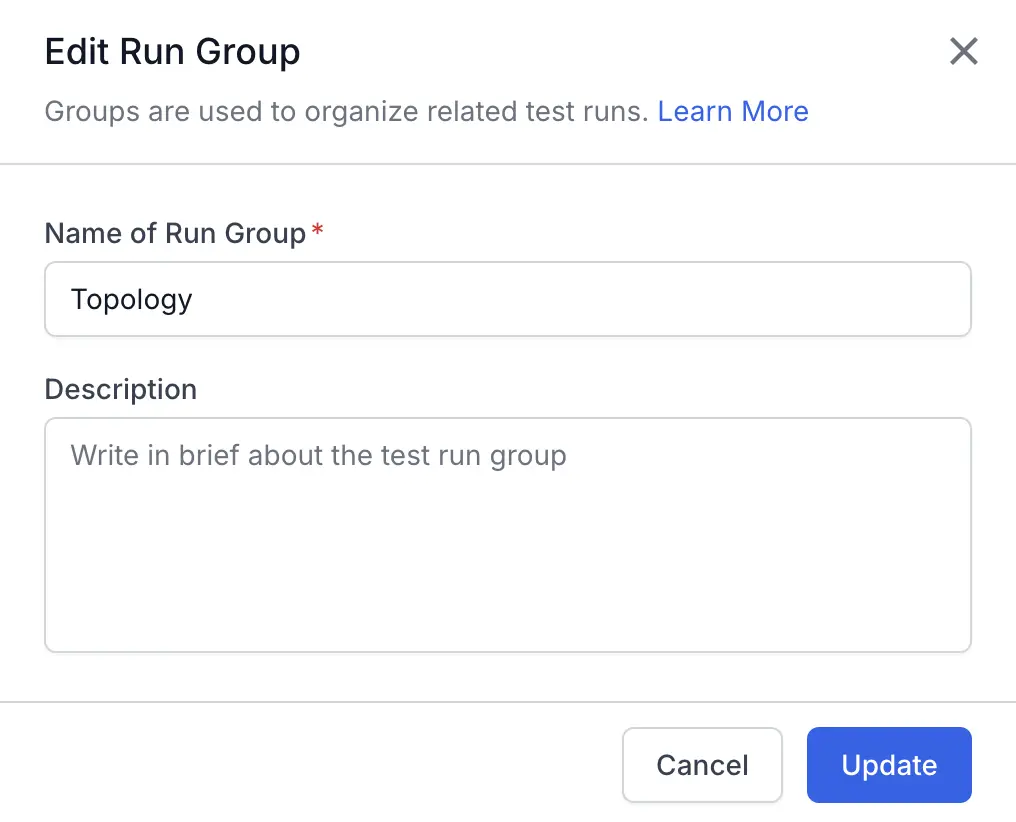
- Click Update.
The run group’s details are now updated.
Add all test runs in a group to a test plan
Link every test run in a group to a specific test plan to consolidate reporting and tracking.
- Make sure the test runs list view is in grouped view based on run groups.
-
Click the more options (⋮) menu next to the run group header.
- Select Add Runs to Test Plan.
-
In the Add to Test Plan dialog, select the desired Test Plan from the dropdown.
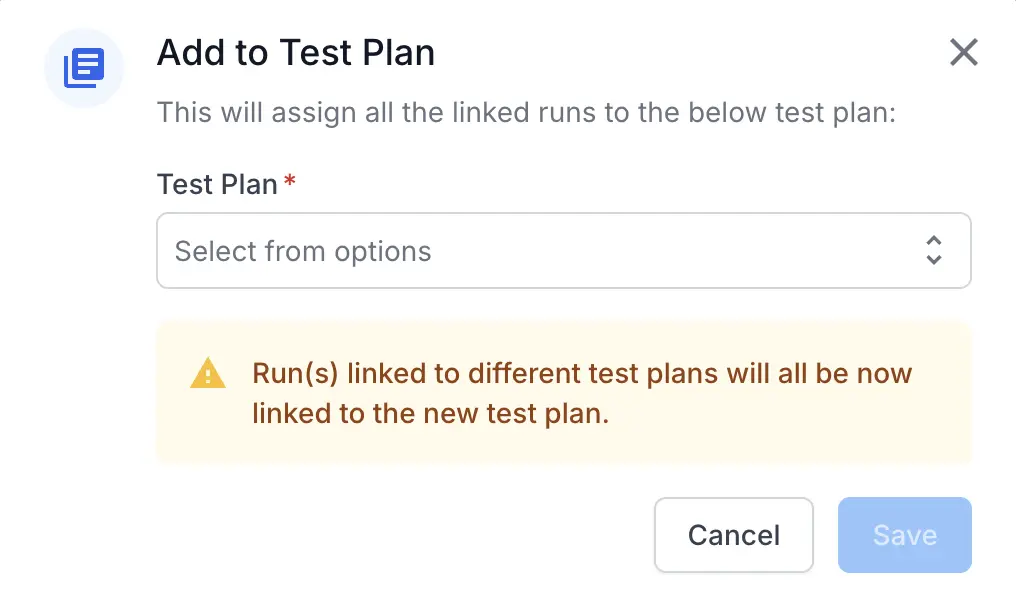
- Click Save.
If any test runs in the group are already linked to a different test plan, this action re-links them to the newly selected test plan.
Assign all runs in a group
You can only assign manual test runs to users in your team.
Assign every run in a group to a specific tester at once.
- From the grouped test runs list view, find the group you want to modify.
-
Click the more options (⋮) menu on the group header.
-
Select Assign Runs to.
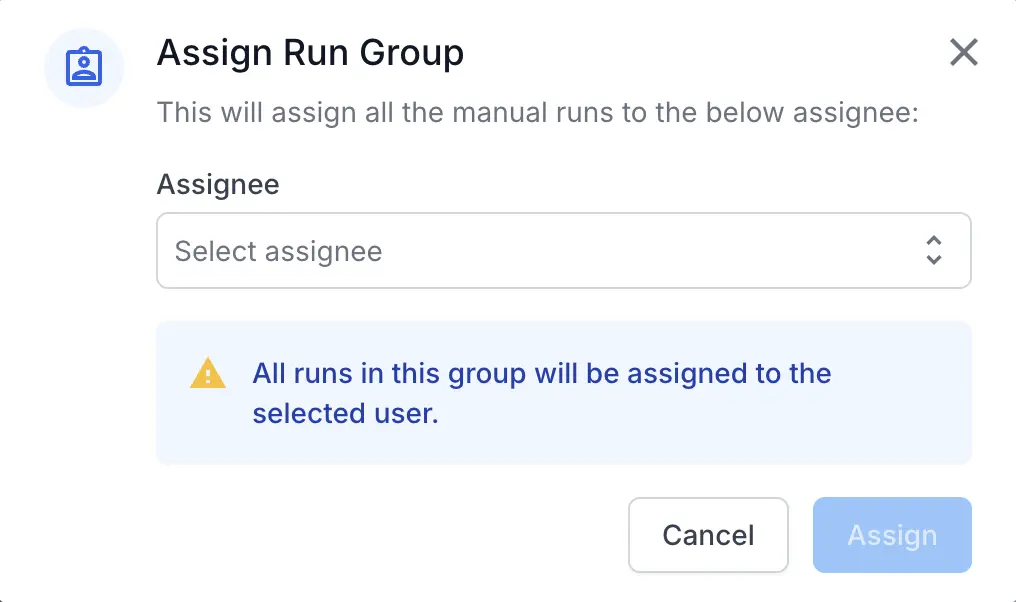
- Select the team member from the dropdown.
- Click Assign.
All runs in the group are now assigned to the selected team member.
Ungroup runs
Remove all runs from a group and return them to the Ungrouped section.
- From the grouped test runs list view, find the group you want to modify.
-
Click the more options (⋮) menu on the group header.
- Select Ungroup Runs.
-
Click Ungroup.
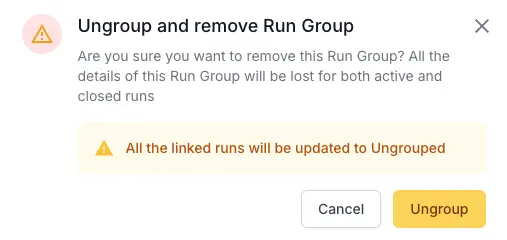
The runs move back to the Ungrouped section. The empty group is removed from the list.
Close a run group
Closing a run group closes every active run inside it at once. Closed runs move from the Active Runs tab to the Closed Runs tab and become read-only. You cannot update results after closing it.
This action is permanent. You cannot reopen a closed run group or its runs.
- From the grouped test runs list view, locate the group you want to close.
-
Click the more options (⋮) menu on the group header.
- Select Close Run Group.
- Review the confirmation dialog. It shows a breakdown of active runs (which will be closed) and runs already in a closed state.
-
Click Close Run Group to confirm.
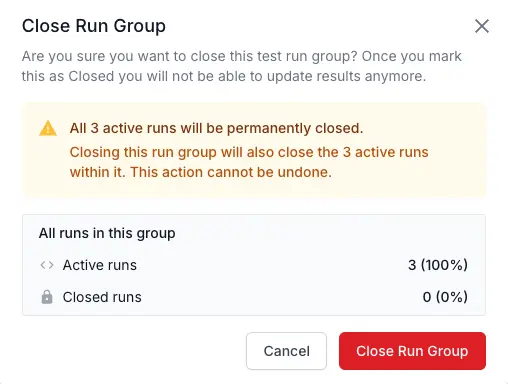
All active runs in the group are closed. The group and its runs move to the Closed Runs tab.
Close runs outside a group
You can close runs that are not part of any group in two ways:
- one at a time.
- in bulk, by selecting multiple runs in the list view.
Close a single test run
Close an individual test run from the list view without creating a group.
- Navigate to the Test Runs list view.
-
Click the more options (⋮) menu on the test run row.
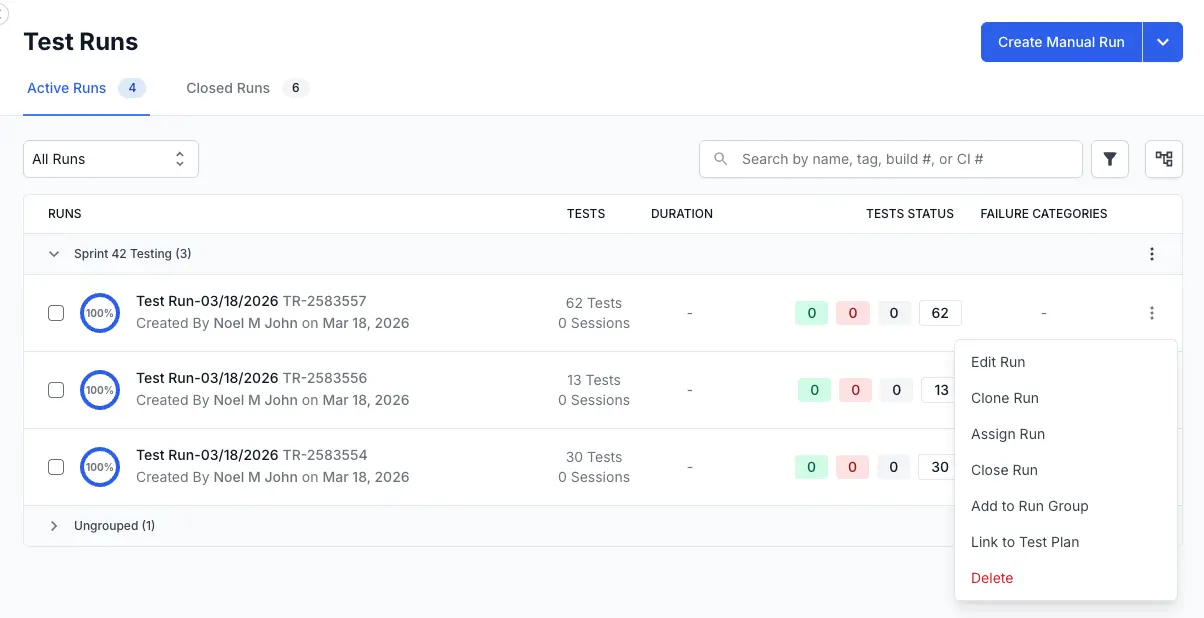
- Select Close Run.
- Review the confirmation dialog. Once you mark a run as closed, you cannot update its results.
-
Click Close Run.
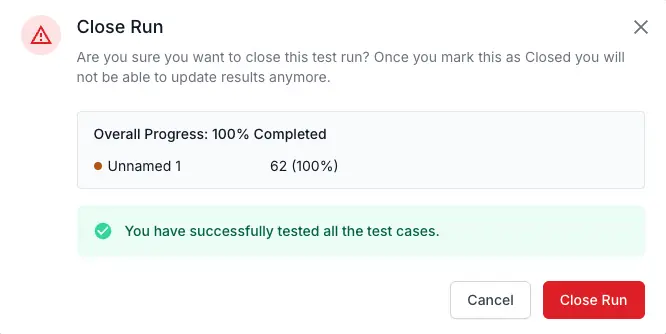
The test run moves to the Closed Runs tab.
Close multiple test runs at once
Close any number of active runs in one action. You do not need to move the runs into a group first.
- Navigate to the Test Runs list view and open the Active Runs tab.
- Select the test runs you want to close. To pick runs one by one or select all of them, see Select runs and apply bulk actions.
- Click the more options (⋮) menu in the bulk action bar at the top of the list.
- Select Close Runs.
-
Review the confirmation dialog. After you close a run, you cannot update its results.
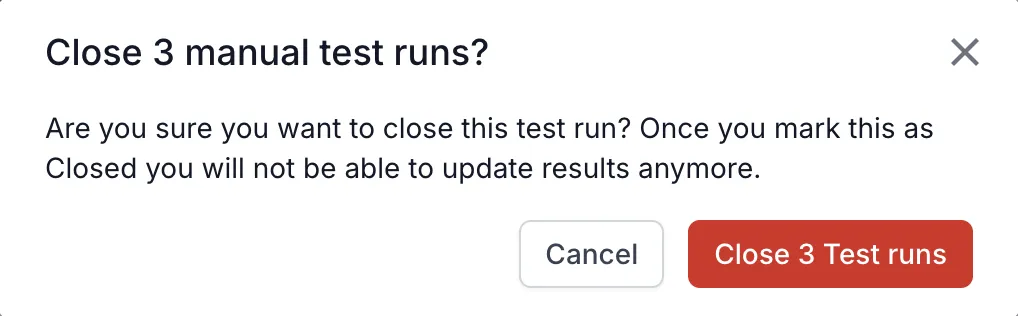
-
If the dialog shows a Re-calculate Quality Gate for selected automation runs checkbox, select it to update Quality Gate results. Recalculation adds processing time.
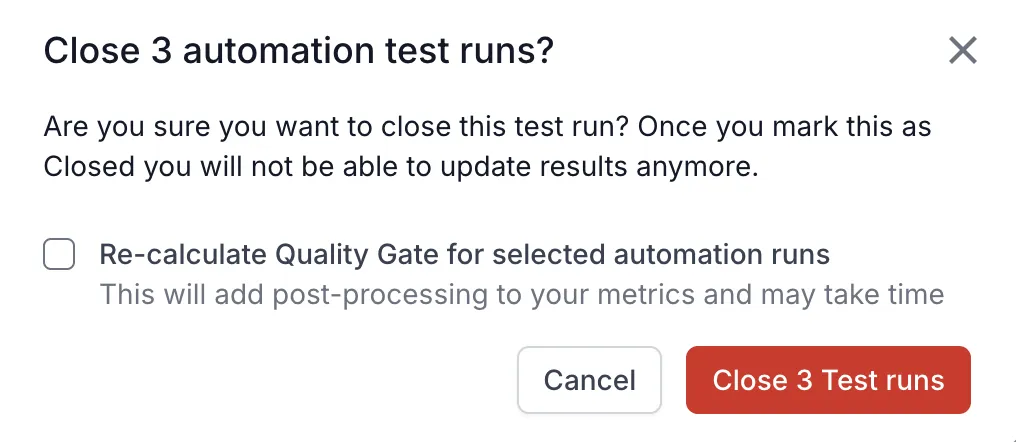
- Click Close Test runs. The button shows the number of runs you selected.
The selected runs move to the Closed Runs tab immediately. For large selections, the update continues in the background. Dashboards can show earlier data until the update finishes.
- The Re-calculate Quality Gate checkbox appears only when an automation run in the list view has a manually updated result, whether or not you selected that run.
- A project runs one bulk close at a time. Wait for the ongoing bulk close to finish before you start another one in the same project.
- While the Status of Test Case filter is applied, the checkbox that selects every run is disabled. Select each run individually, or remove the filter to select all runs.
Delete a single test run
Delete an individual test run from the list view without creating a group.
- Navigate to the Test Runs list view.
-
Click the more options (⋮) menu on the test run row.
- Select Delete.
- Review the confirmation dialog. Once you delete a run, you cannot recover its results.
-
Click Delete.
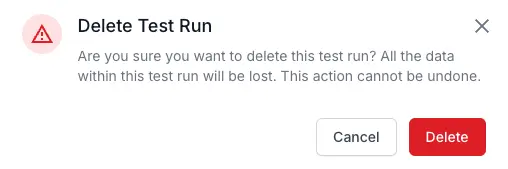
The test run is permanently deleted.
Archive automation test runs
The Archive Automation Runs option in the bulk action bar applies only to automated test runs. You cannot archive manual test runs with this action. You can select runs individually or use the checkbox at the top of the list to select all runs that match the current filters.
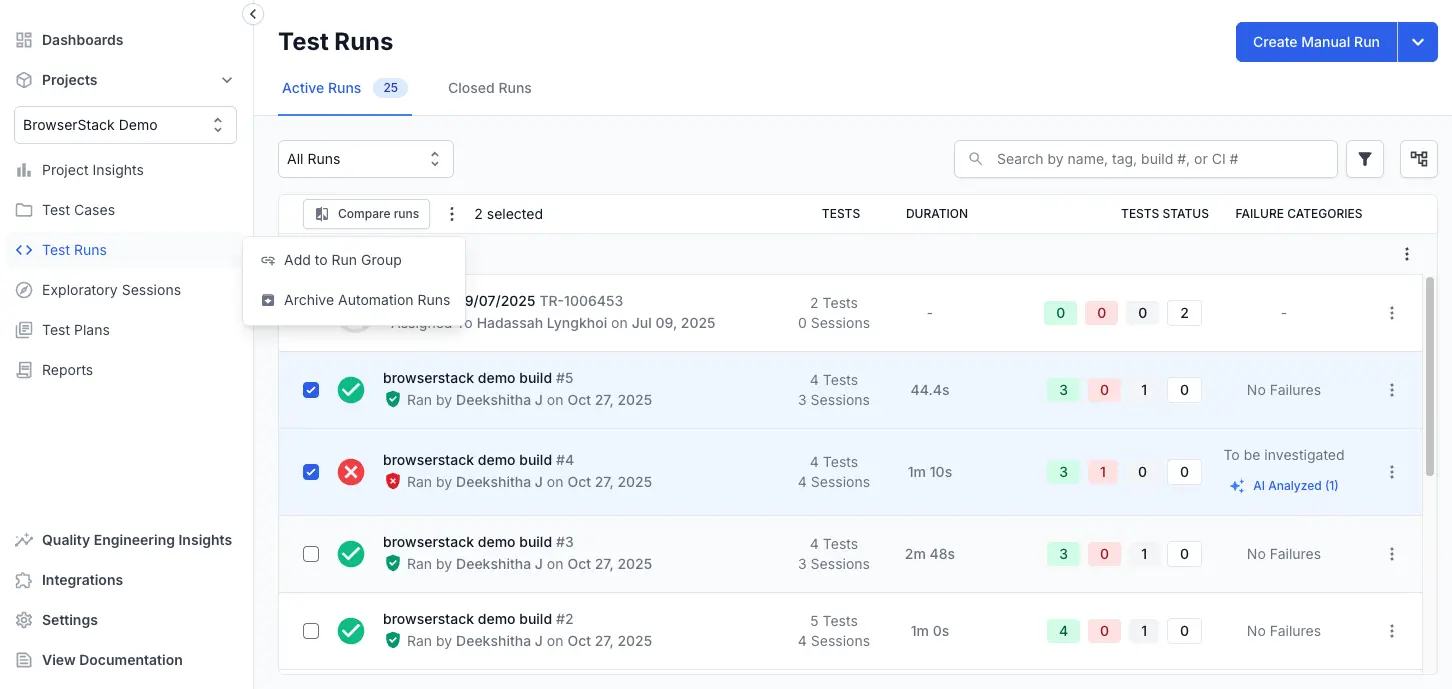
Archived runs stay in the project but are left out of metrics and other calculations. To see them, open the filters and turn on Show archived runs only.
To remove completed manual test runs from the active list, close them one at a time, close them in bulk, or close them through a test run group. Closed runs move to the Closed Runs tab and remain available for reporting.
Close, archive, and delete compared
Close a run to preserve its history, archive an automation run to leave it out of your metrics, and delete a run only when you no longer need its data.
| Action | Effect | Visibility |
|---|---|---|
| Close | The test run becomes read-only. Its results, notes, and attachments are preserved. You cannot reopen a closed run. | Closed Runs tab. |
| Archive | The test run is left out of metrics and other calculations. Only automation runs can be archived. | Test runs list view, when you turn on Show archived runs only in the filters. |
| Delete | The test run and all of its results, notes, attachments, and configuration are removed permanently. You cannot recover a deleted run. | None. |
Next steps
We're sorry to hear that. Please share your feedback so we can do better
Contact our Support team for immediate help while we work on improving our docs.
We're continuously improving our docs. We'd love to know what you liked
We're sorry to hear that. Please share your feedback so we can do better
Contact our Support team for immediate help while we work on improving our docs.
We're continuously improving our docs. We'd love to know what you liked
Thank you for your valuable feedback!