
 Join our Discord
Cookie configuration
Add cookies to a Website Scanner scan and verify them before you save, so scanned pages skip consent banners and load personalized content.
Set cookies before running a scan to test pages that require authentication or personalized content. Website Scanner sets the cookies on every page in the domain you enter before it scans.
Configure cookies for your scan
To add cookies to a scan, follow these steps:
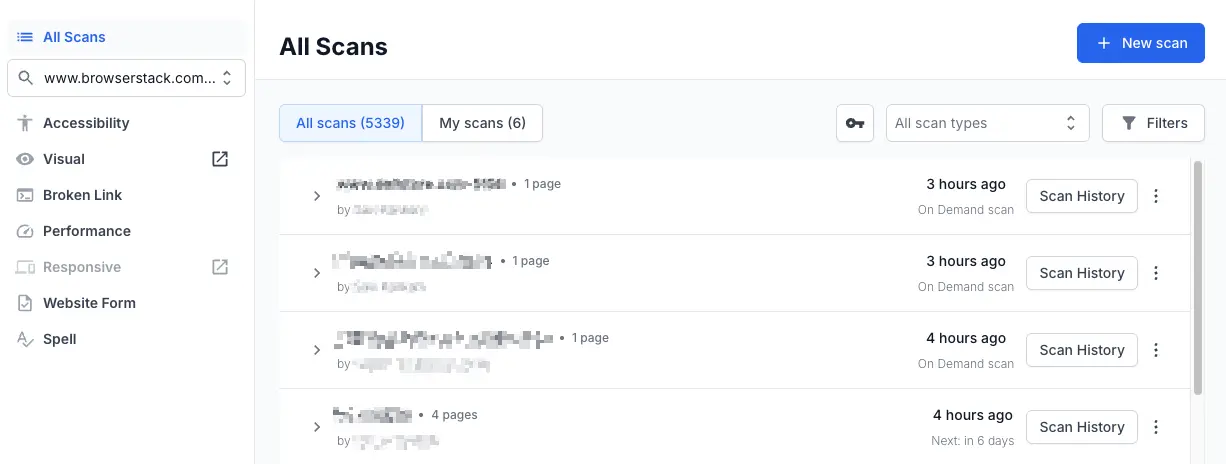
Navigate to the Website Scanner dashboard and click New scan.
Add the pages to scan based on the scan mode you select:
- Manual mode: Enter a URL in the Enter page URL field and click Add page. Repeat for each URL, or use the dropdown to upload a CSV.
- Sitemap: Enter a domain URL or sitemap.xml URL in the Enter domain URL or sitemap.xml URL field and click Add sitemap.
- Crawler: Enter a starting URL in the Enter page URL field and click Start Crawl. The crawler discovers linked pages automatically.
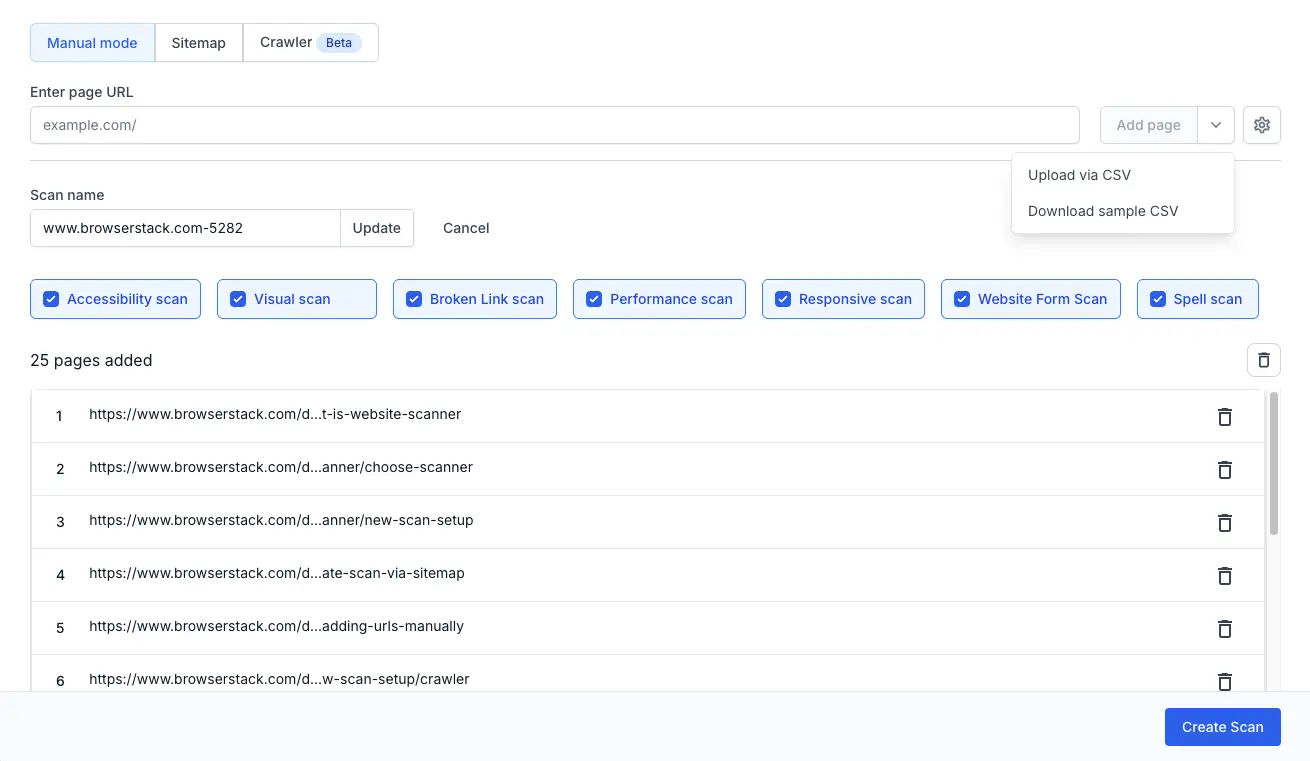
Click the settings gear icon to open Advanced scan settings.
In the General settings tab, click Add next to Cookie configuration.

Enter the Domain name without the www. prefix, for example example.com. The cookies apply to every page in this domain.
In Add cookie(s), enter each cookie in the key=value format. Separate cookies with a semicolon, for example cookie_consent=accepted; session_id=abc123.
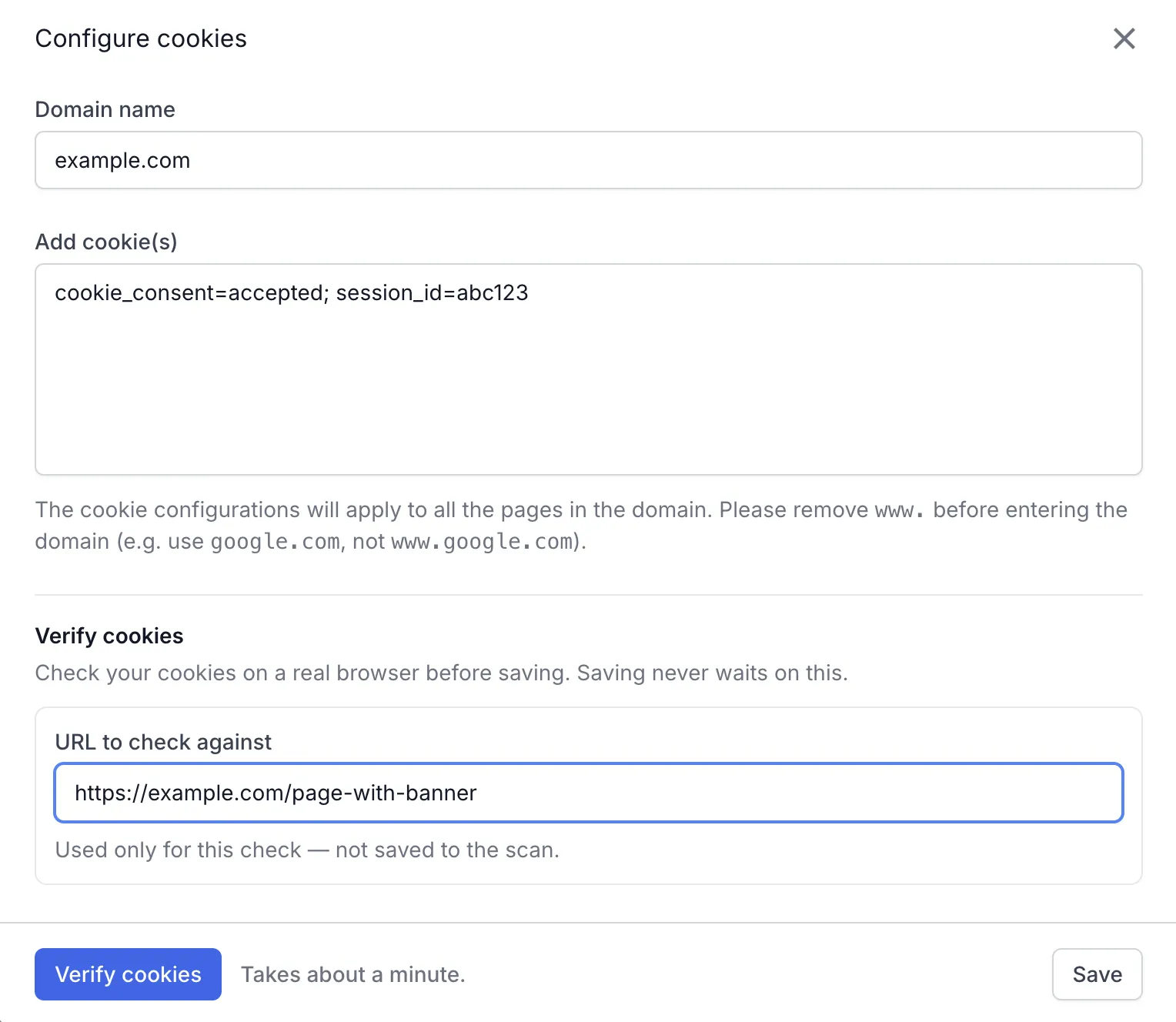
To check the cookies before you save, follow Verify cookies before you save. The check is optional.
Click Save. The domain appears under Cookie configuration in the scan settings.
Click Create scan to begin scanning with the configured cookies.
Verify cookies before you save
A wrong cookie does not fail a scan. It leaves a consent banner or a signed-out page in the scan results. The scan then reports issues for that banner or that page, not for the page your visitors see. Verify the cookies before you save to avoid this. The Configure cookies dialog has a Verify cookies section for this check. Website Scanner opens a URL you choose in a browser with your cookies set. It then captures a snapshot of the page for you to check.
To run the check, follow these steps:
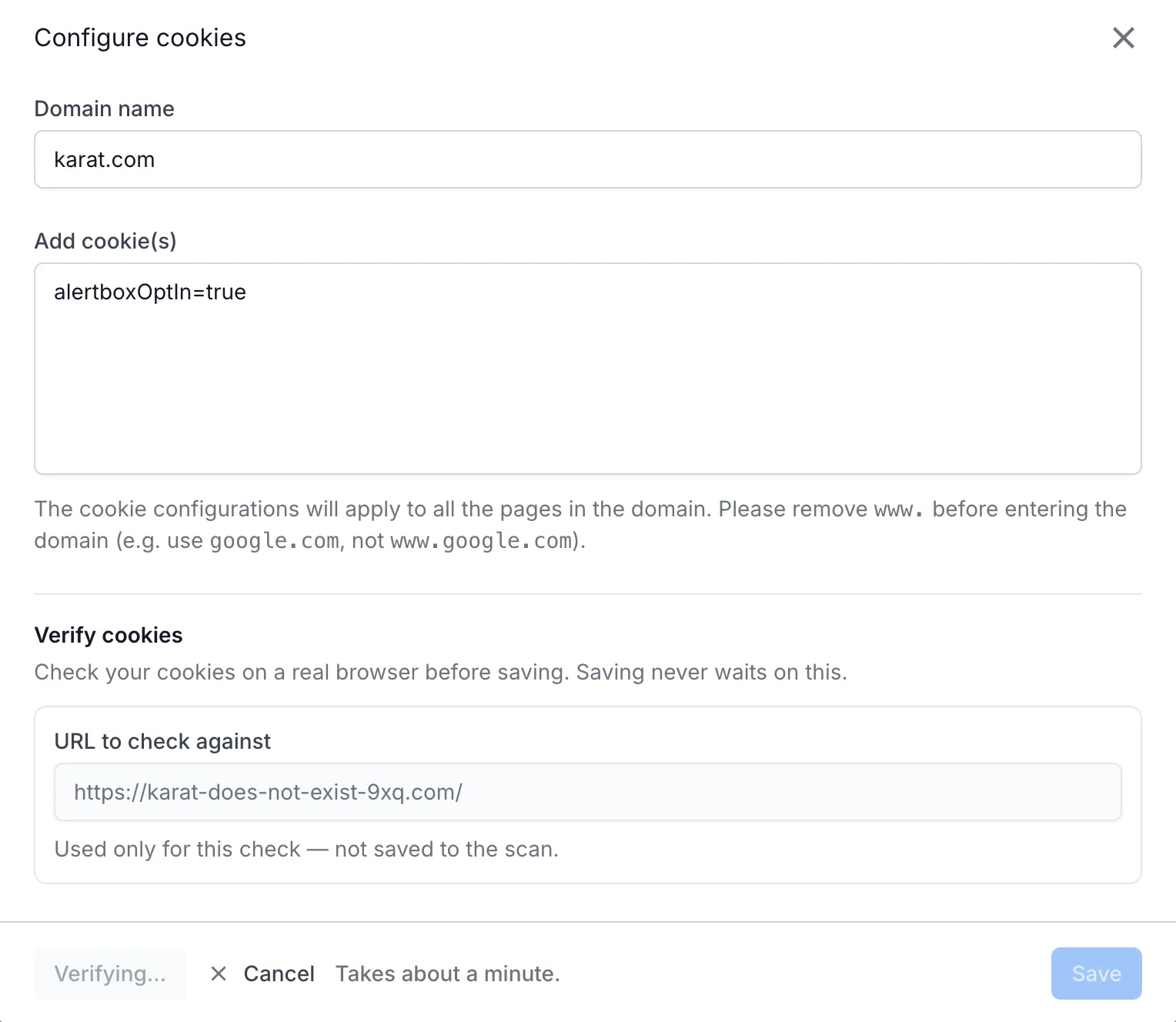
Enter the Domain name and at least one cookie. Until then, Verify cookies stays disabled and shows Add a domain and at least one cookie first.
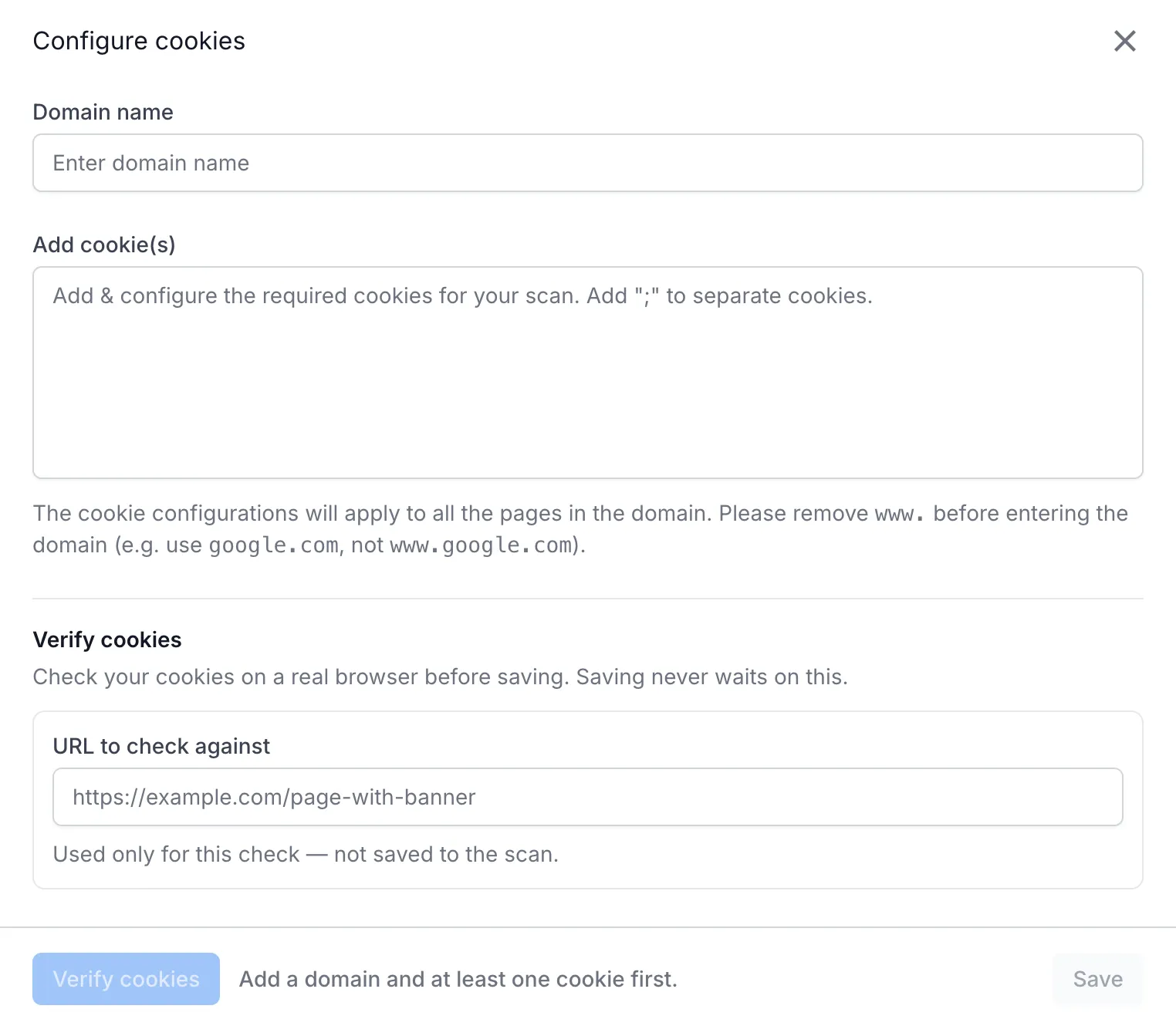
In URL to check against, enter a page where the cookies have a visible effect, such as a cookie banner. Website Scanner uses this URL for the check only. It is not saved to the scan.
Click Verify cookies. The button changes to Verifying… and a Cancel link appears. The check takes about a minute.
Compare the Snapshot with cookies applied with the page you expect. Website Scanner does not judge whether the cookies worked. If the cookie banner is gone, or the page shows the signed-in content, the cookies work. Click Expand to view the snapshot at full size.
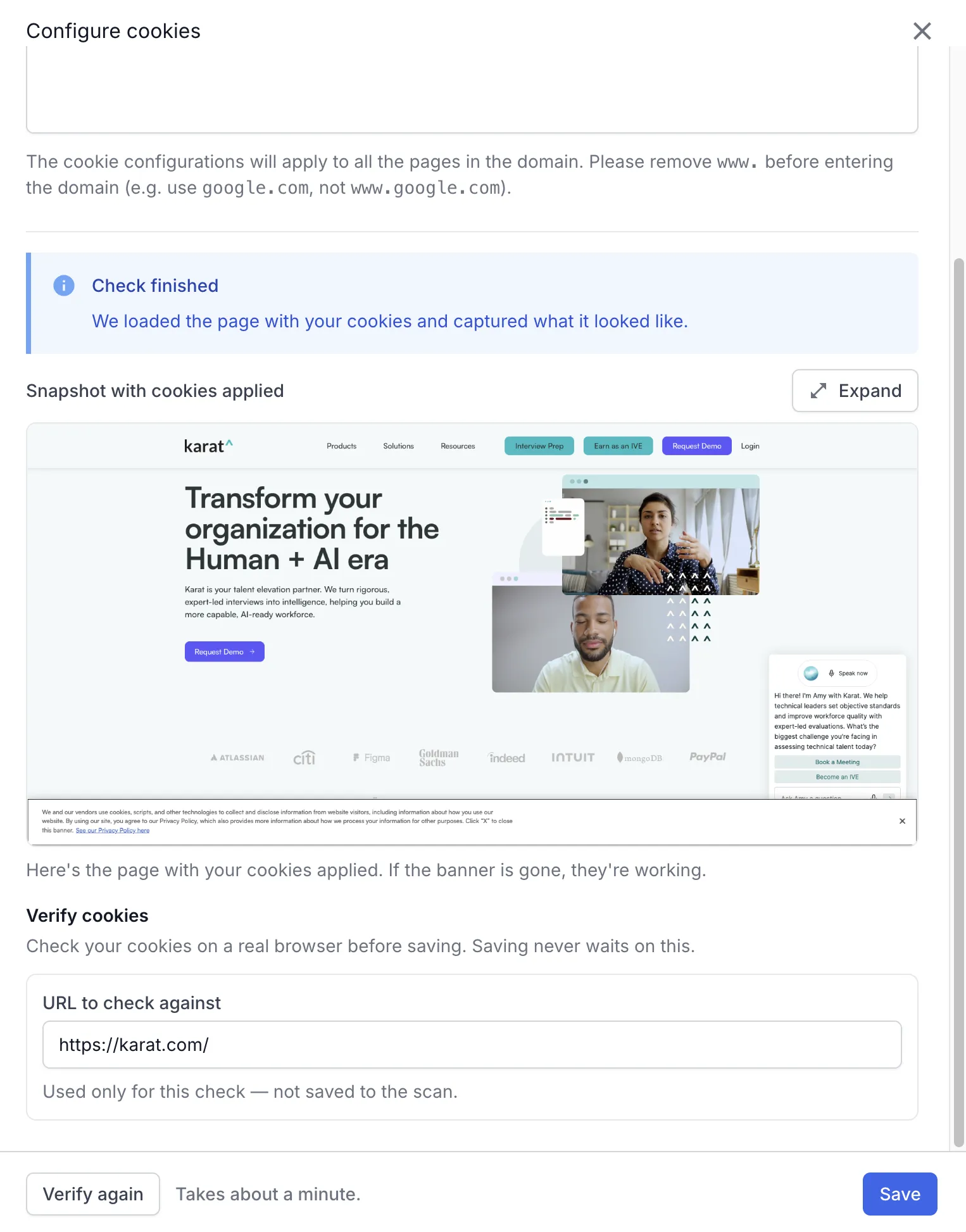
The result appears in the dialog:
| Result | Meaning |
|---|---|
| Check finished | The browser loaded the URL with your cookies set. The Snapshot with cookies applied shows what it saw. Confirm from the snapshot that the cookie banner or the personalized content is what you expect. |
| The check could not be completed | The browser did not finish loading the URL, so Website Scanner could not capture the page. The snapshot shows the browser error page. Check the URL to check against and run the check again. |
After you change a value, click Verify again. Save stays available while the check runs and after it finishes. Each result has a fix in Troubleshoot cookie configuration errors.
Verification limit
You can run the check 10 times in 30 minutes. The limit applies to your account, across every cookie configuration and login configuration you verify in that window.
Related topics
- Troubleshoot cookie configuration errors when a check fails or a scanned page still shows a cookie banner.
- Test pages behind login to sign in with credentials instead of a session cookie.
We're sorry to hear that. Please share your feedback so we can do better
Contact our Support team for immediate help while we work on improving our docs.
We're continuously improving our docs. We'd love to know what you liked
We're sorry to hear that. Please share your feedback so we can do better
Contact our Support team for immediate help while we work on improving our docs.
We're continuously improving our docs. We'd love to know what you liked
Thank you for your valuable feedback!